Add template itineraries to Showcase
After having enabled the Showcase functionality in your settings, you can select which template itineraries you would like to add to your main Showcase page.
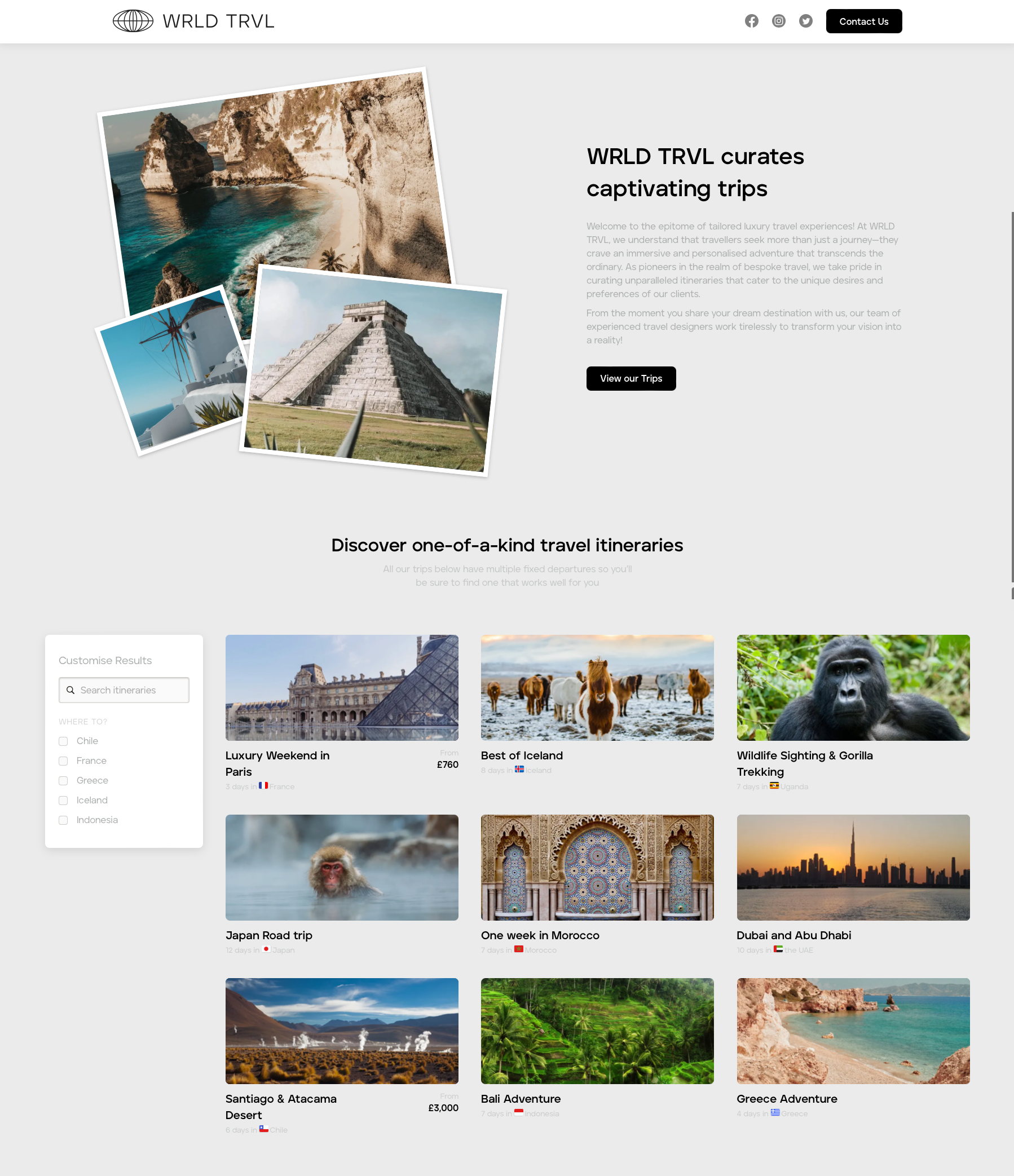
Example main Showcase page:
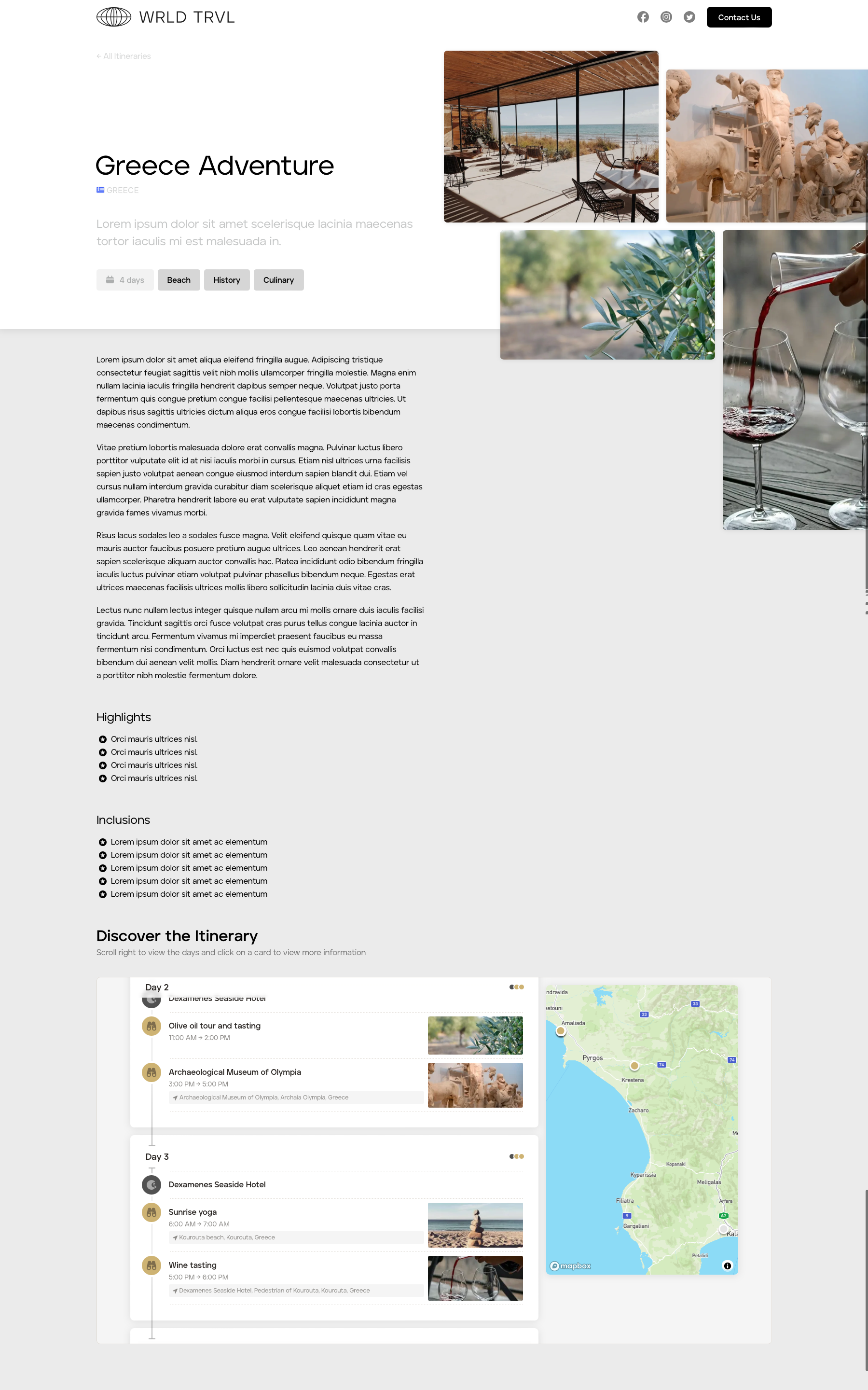
Example itinerary Showcase page 'Greece Adventure':
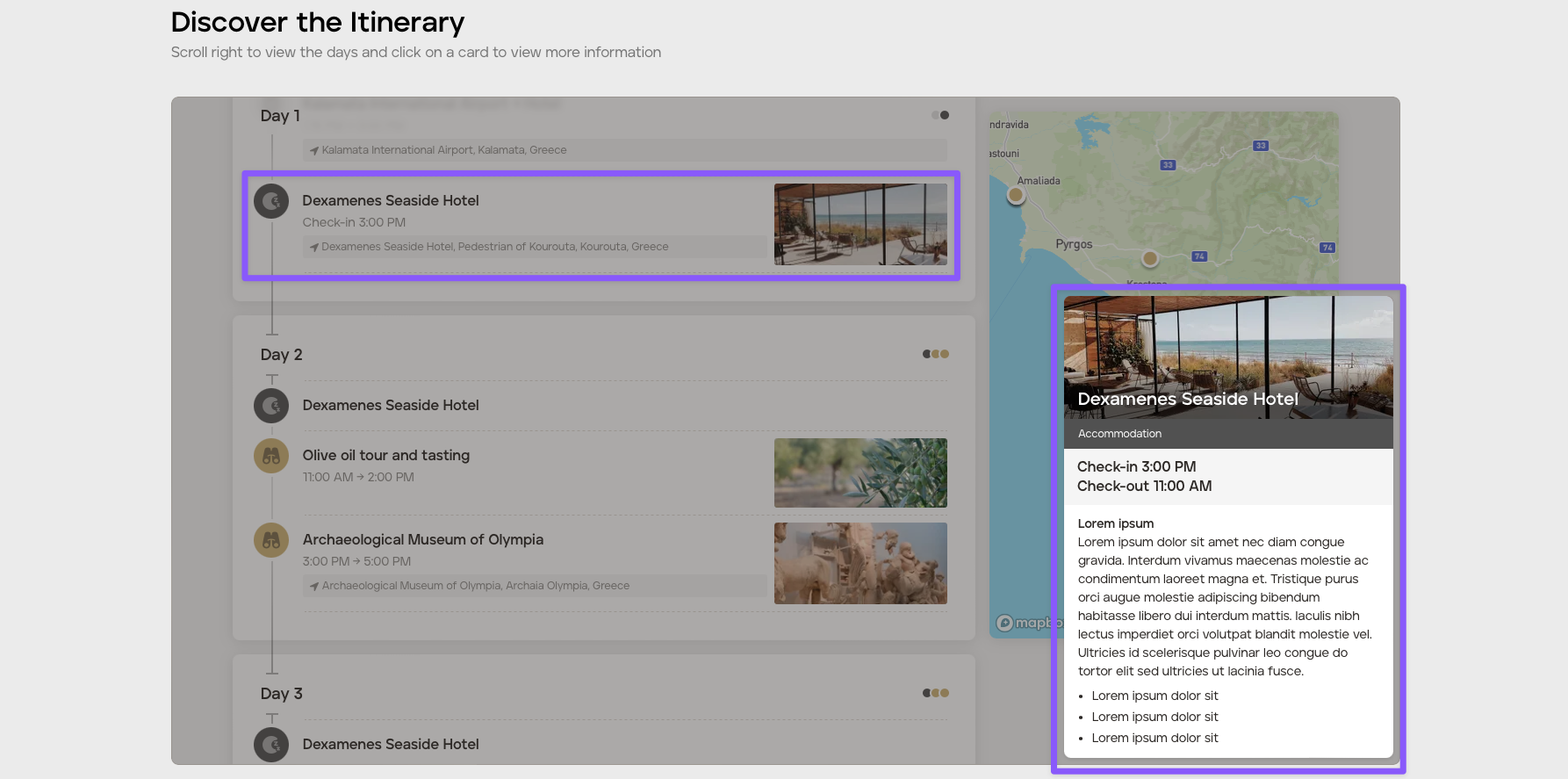
The cards within the embedded itinerary are clickable and show information you added to the template itinerary cards:
Follow the steps below to select the template itineraries you'd like to be public-facing on your Showcase page.
Go to the 'Templates' section of your account.
Click on the 'Itineraries' tab.
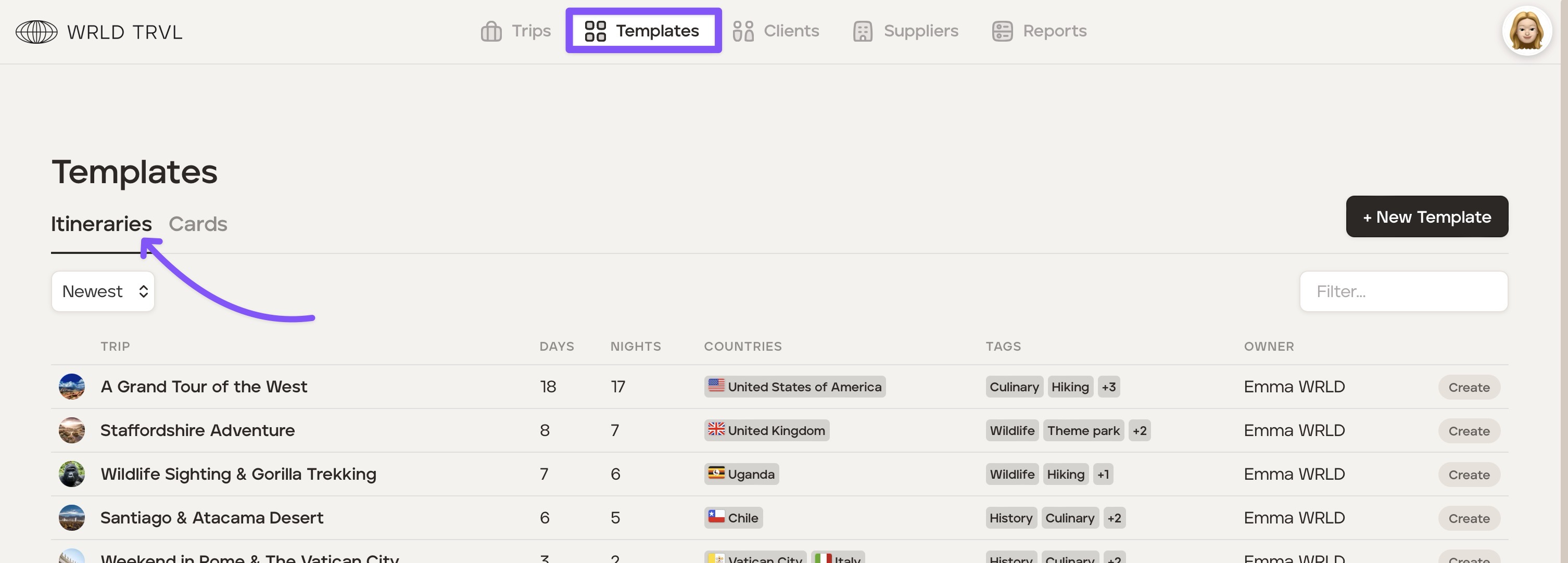
Either create a new template itinerary or select a pre-existing template itinerary from your template library you wish to display on your Showcase page.
When you're in a position to share your chosen template itinerary on your Showcase page, click 'Edit Template.'
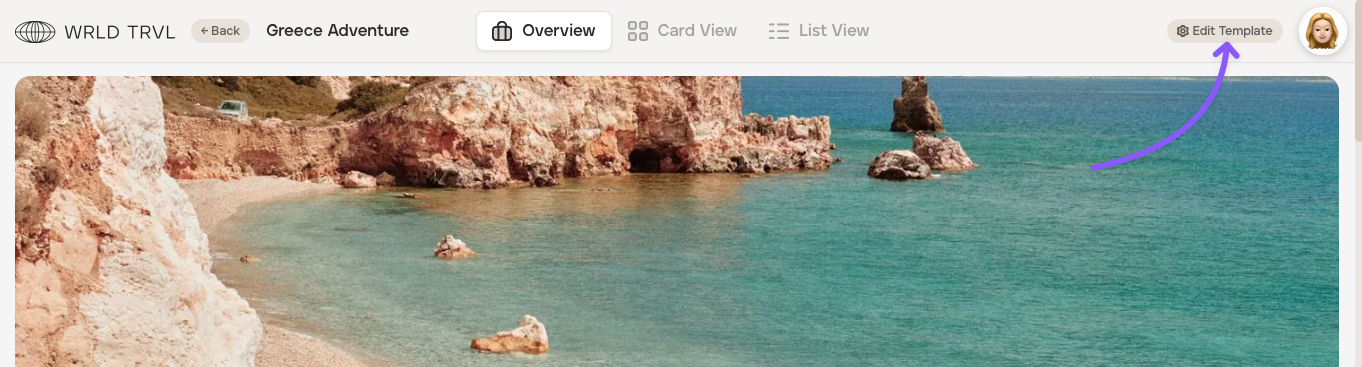
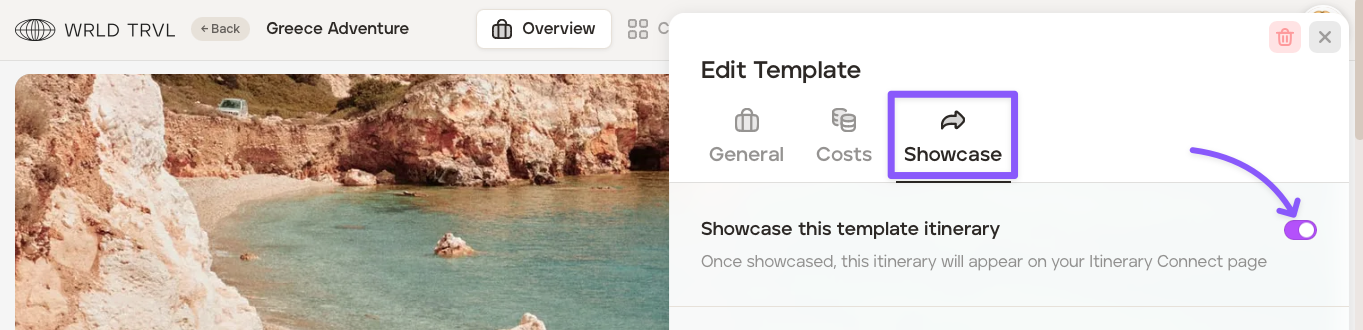
Click the 'Showcase' tab and enable the switch to 'Showcase' the template itinerary.
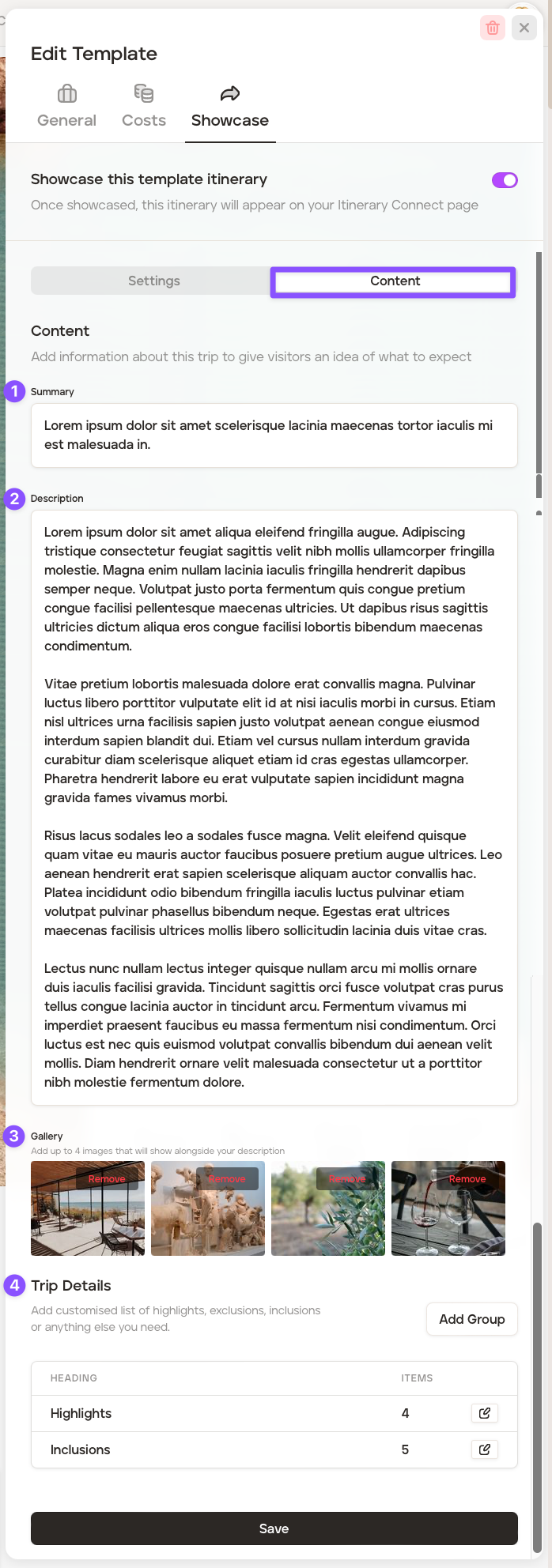
Click the 'Content' tab. This is where you can add information about the itinerary to give visitors an idea of what to expect.
Add the following information:
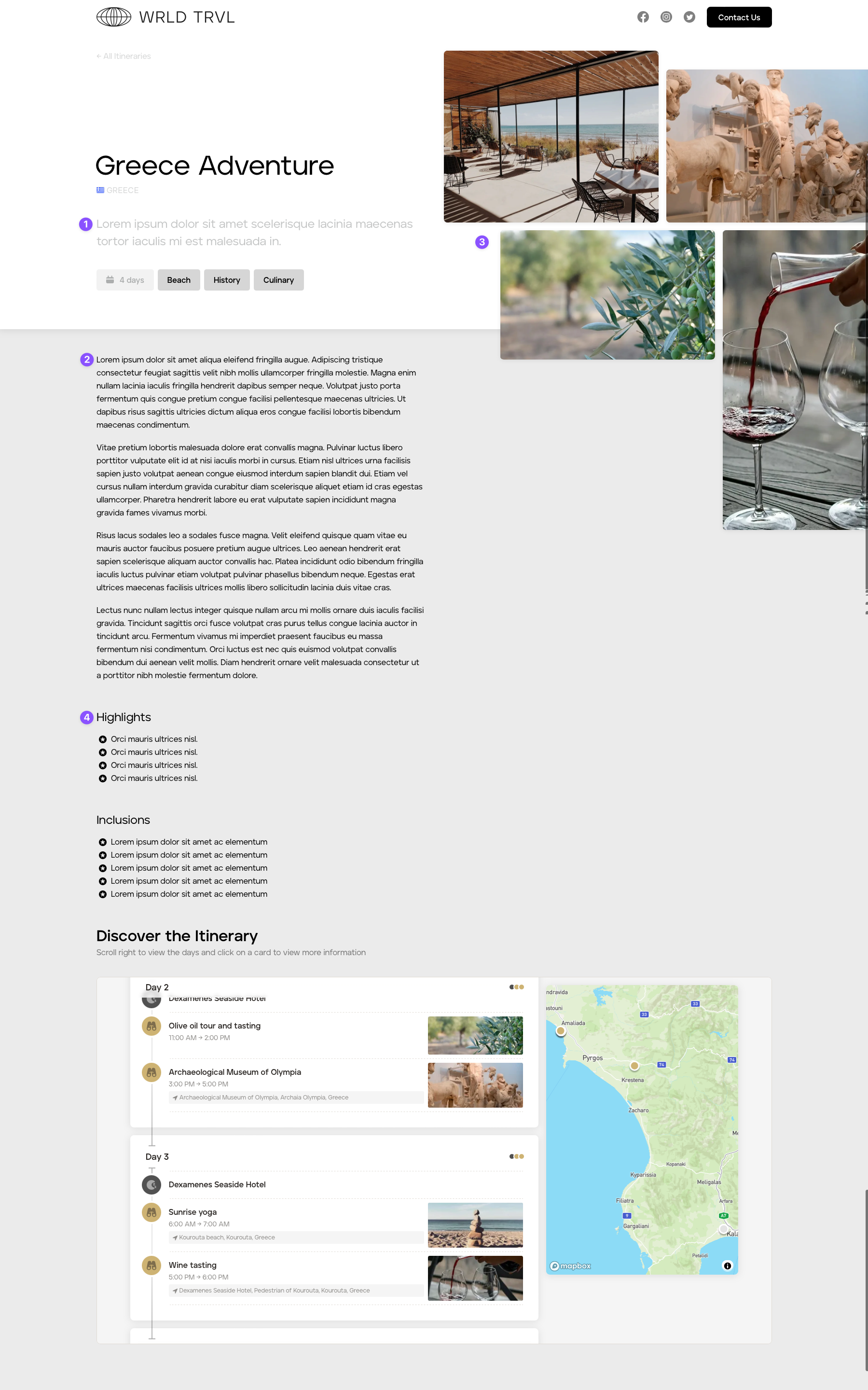
In the 'Summary' field (no. '1' in the image below), add a short one-line description of the itinerary.
In the 'Description' field (no. '2' in the image below), add a description of the itinerary.
In the 'Gallery' section (no. '3' in the image below), add 4 beautiful images that will be shown alongside your description.
In the 'Trip Details' field (no. '4' in the image below), add a customised list of highlights, exclusions or inclusions.
Click the 'Save' button.
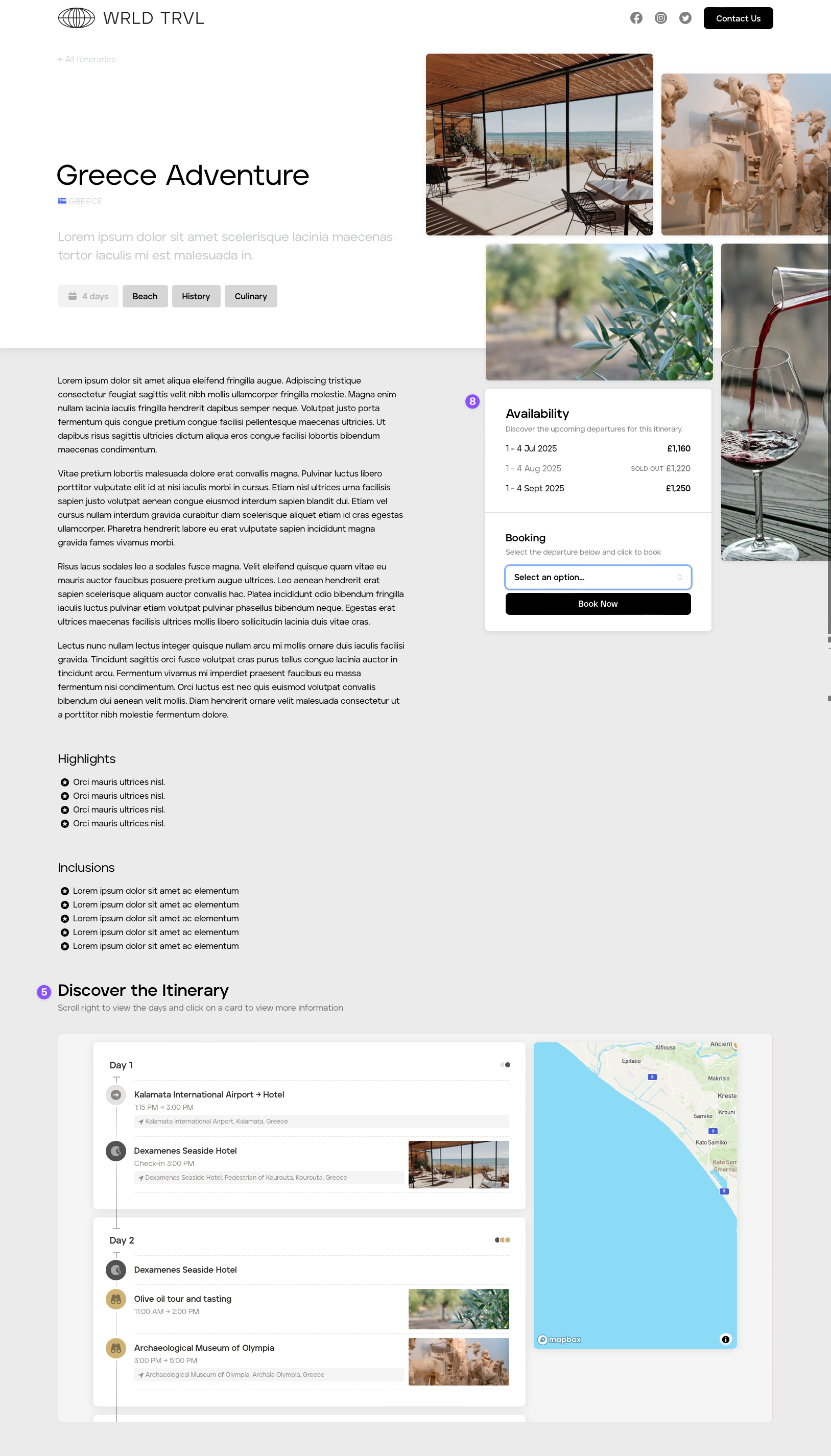
The image below shows where the 'Summary', 'Description', 'Gallery' and 'Trip Details' fields are located on the public-facing itinerary Showcase page:
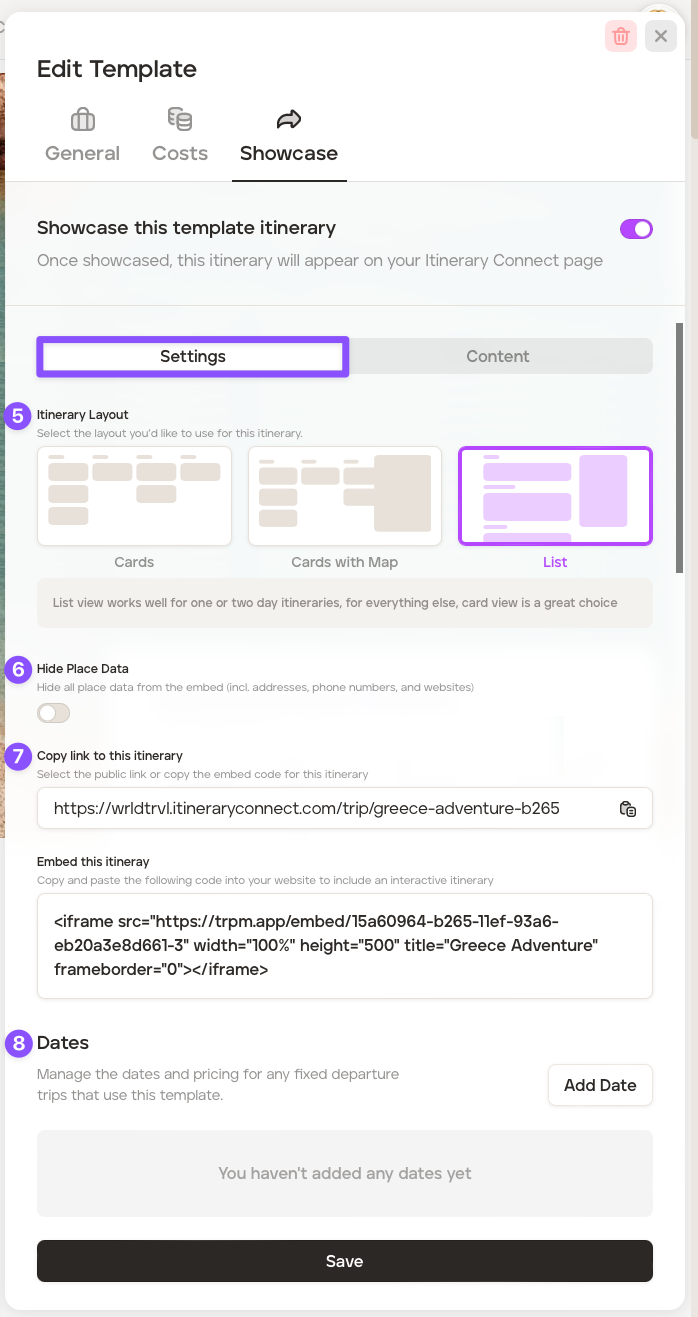
Click the 'Settings' tab. This is where you can choose your preferred itinerary layout - card view, card view with map or list view with map (no. '5' in the images below).
If you added a location to your itinerary cards and want to hide place data from the embed (including address, phone numbers and website) enable the 'Hide Place Data' switch (no. '6' in the image directly below).
Copy the public link generated or copy and paste the embed code into your website to include the itinerary (no. '7' in the image directly below).
If you'd like to include fixed departure dates on the Showcase itinerary page, these can be added by clicking 'Add Date' in the Dates section (no. '8' in the images below).
The image below shows where the itinerary embed is located on the public-facing itinerary Showcase page: