

Create a template card group
If you wish to create a day consisting of multiple template cards, you can create a template card group. The template card group can be copied and added to itineraries.
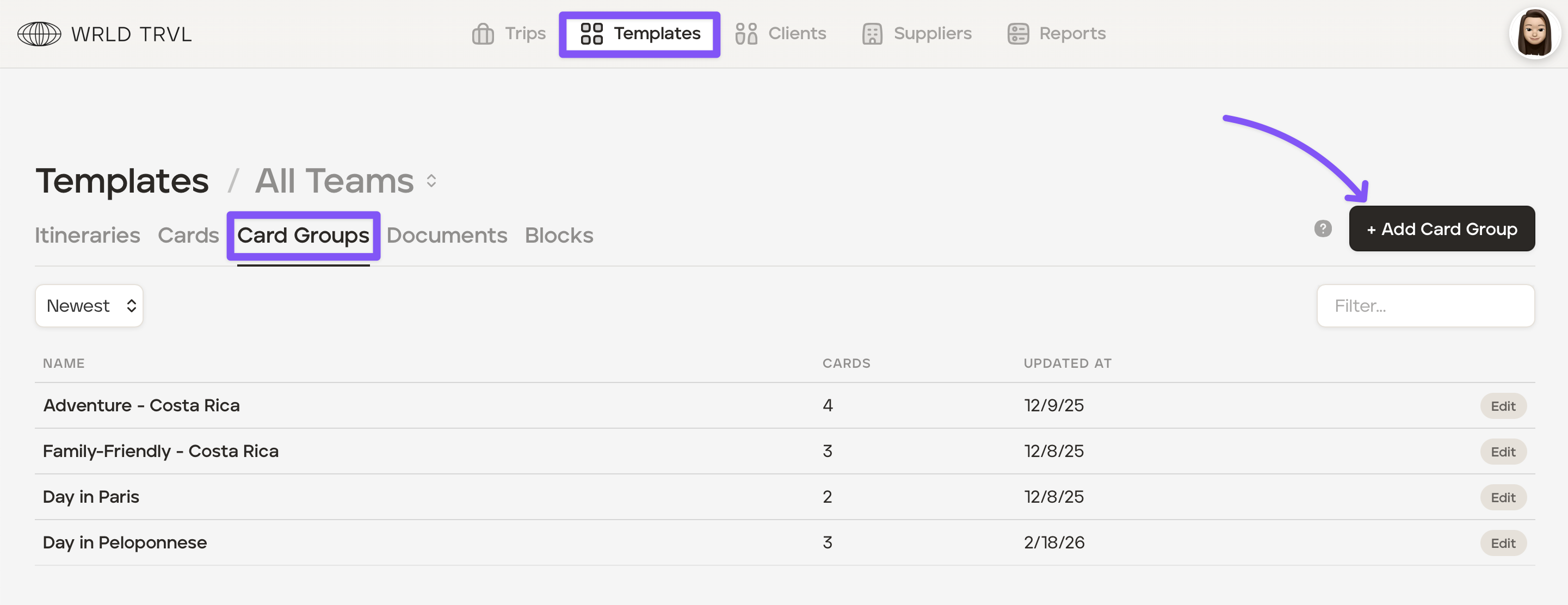
Head to the 'Templates' section and then click the 'Card Groups' tab.
Click the '+Add Card Group' button, which will bring up the launcher.
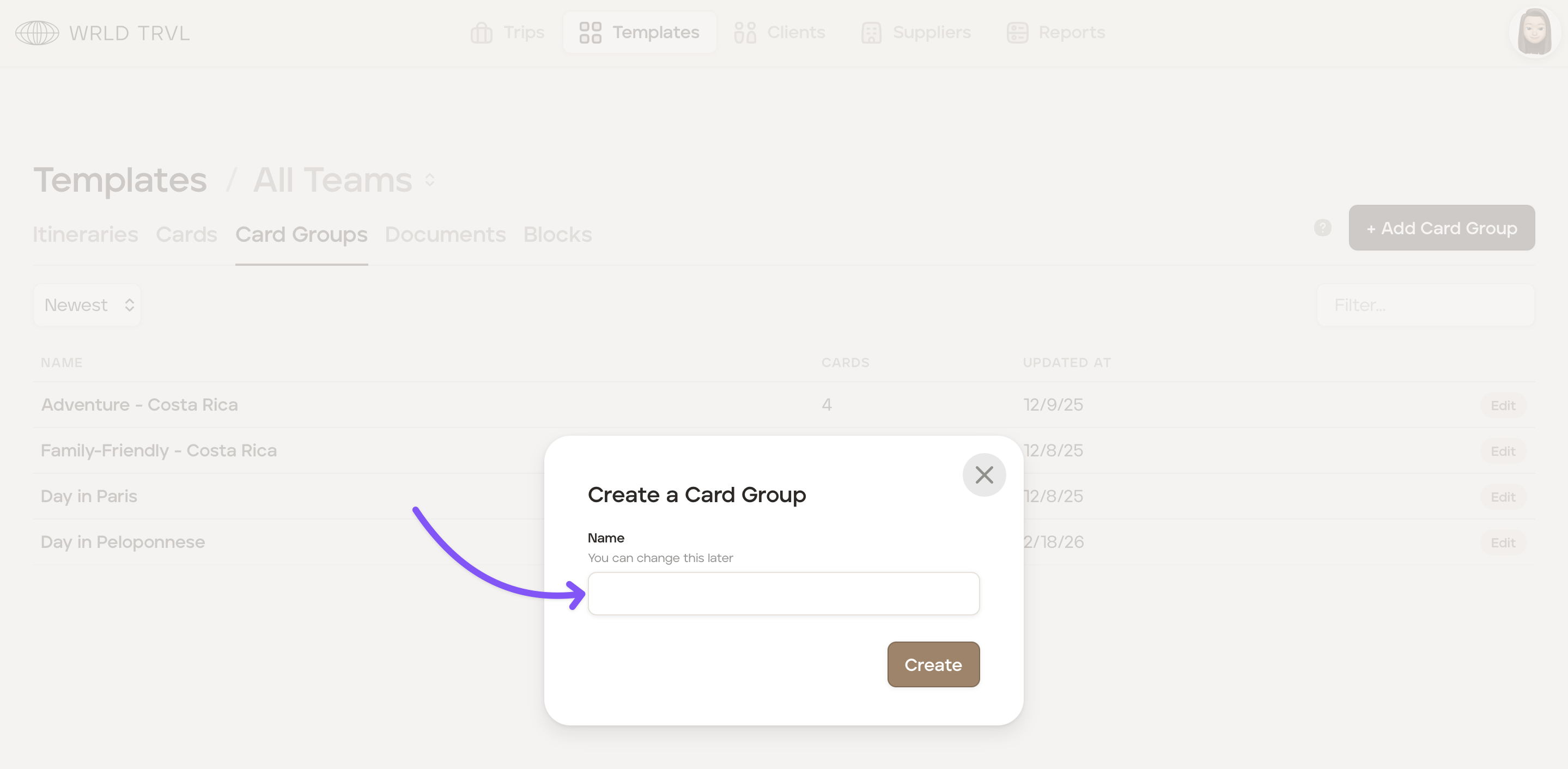
Give your new card group a name and click the 'Create' button.
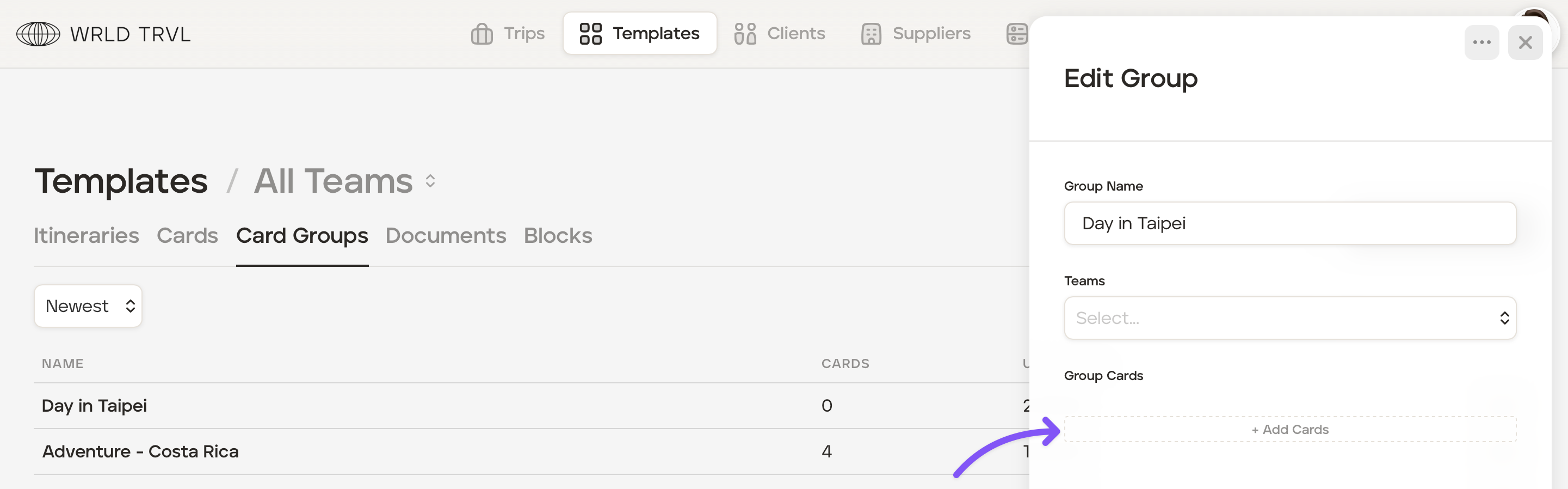
Click '+Add Cards' to start adding any template cards from your template card database to the card group. (Optional: Allocate a team to the card group.)
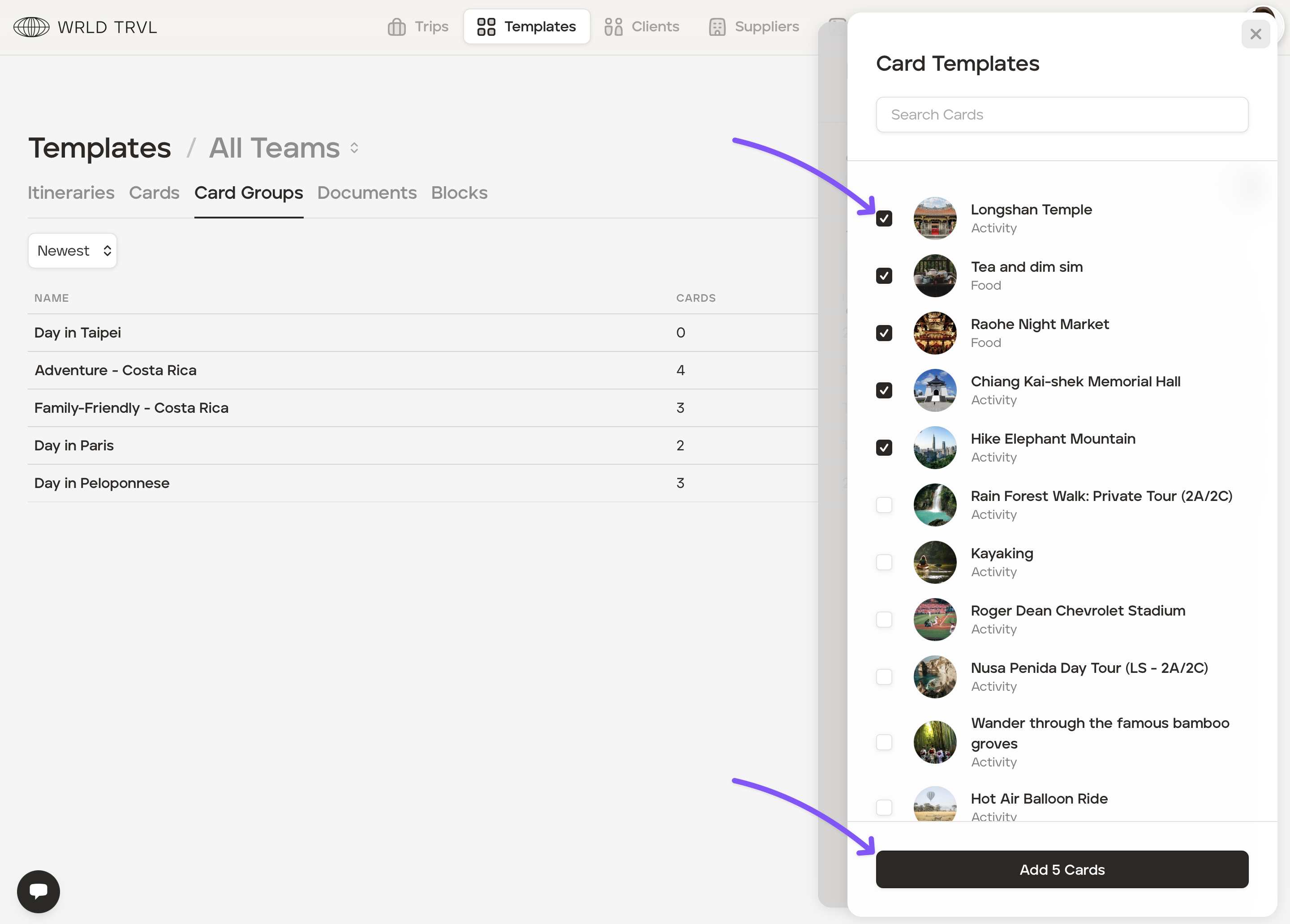
In the search bar, search for a template card or pick a template card(s) from the list shown.
Click the 'Add [x] Cards' button to add the cards to the card group.
Add further template cards by repeating steps 4-6 above.
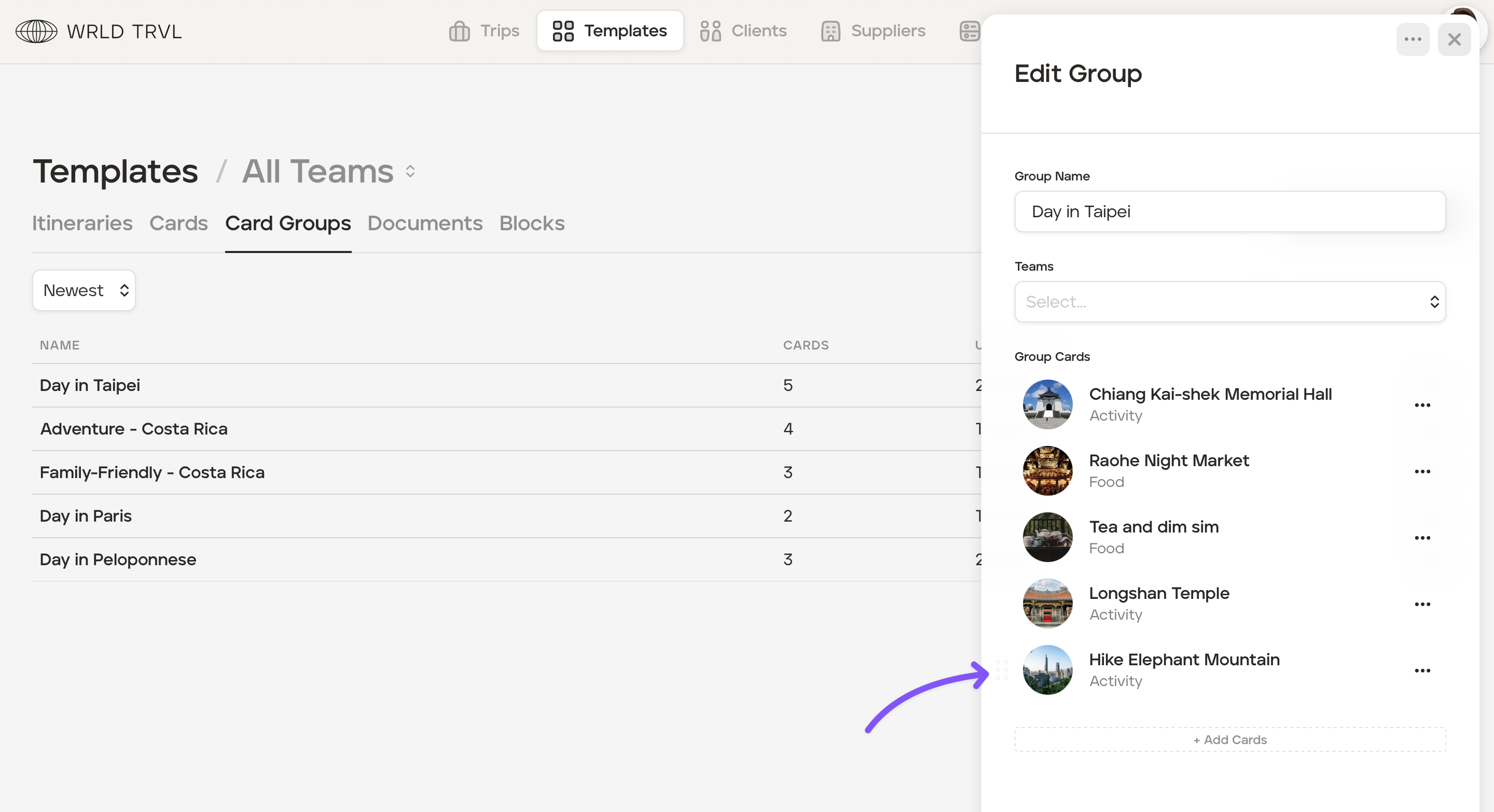
To order the cards in the card group, hover to the left of a card and then drag and drop the cards vertically using the drag-and-drop icon as shown in the screenshot below.
Add a template card group to a template itinerary or trip itinerary
To add a template card group (from your template card group database) to a template itinerary or trip itinerary, follow the steps below.
Go to the relevant template itinerary or trip itinerary.
Click '+ New Card' on the chosen day on either Card View or List View. The launcher will open.
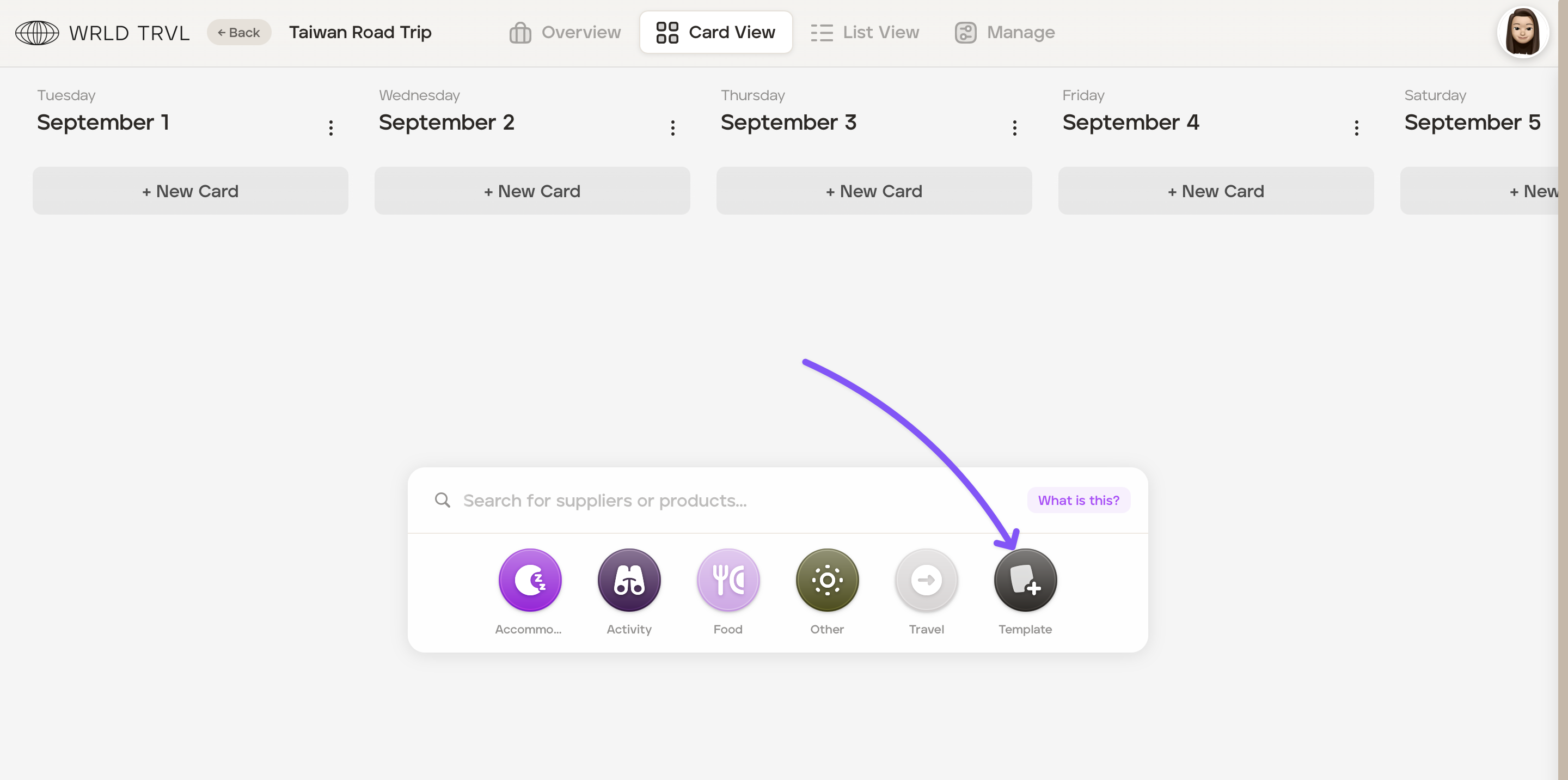
Click the 'Template' icon on the launcher.
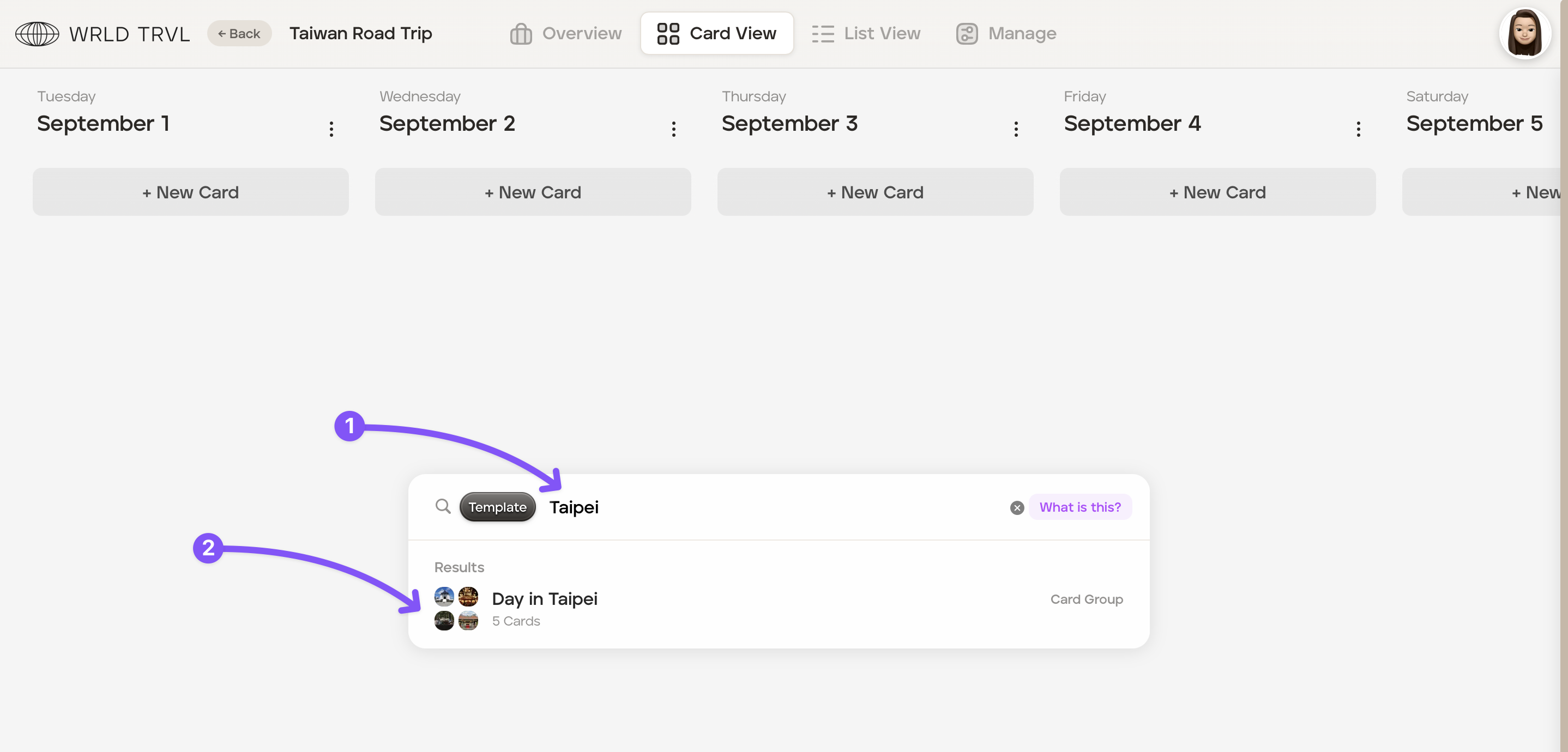
Enter the title of the template card group in the launcher search bar and click the result, which will be shown below.
Once clicked, the card group will be added to the day selected in step 2. You can drag and drop cards and edit cards within the itinerary as required.