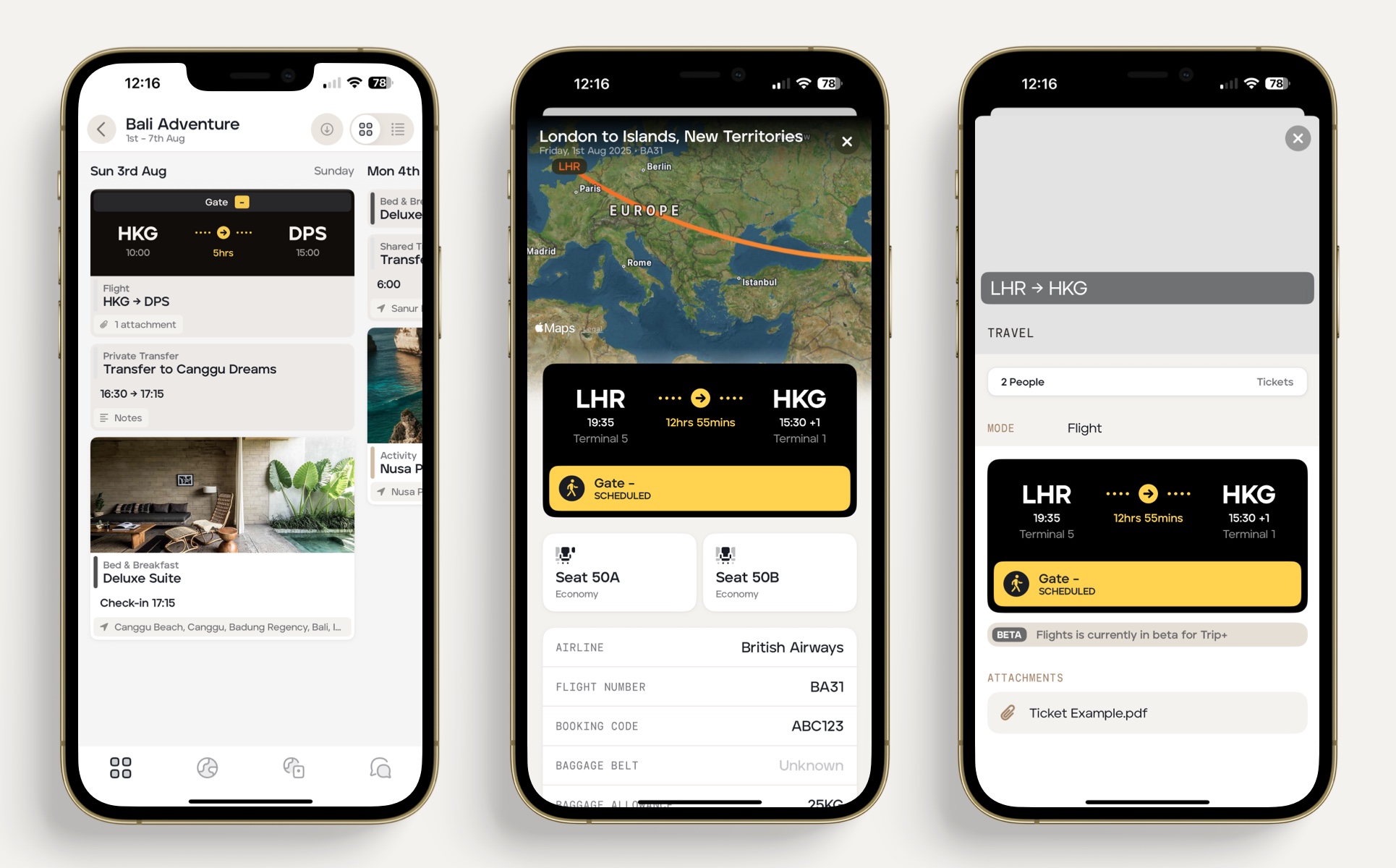
Add a flight card to an upcoming itinerary
Flight cards containing real-time data can only be added to trip itineraries with dates specified and if they are departing within the next 6 months. If the flight departs greater than 6 months in the future you can manually add the flight.
To add a flight to an upcoming itinerary, follow the steps below:
Click the applicable trip itinerary.
Click '+ New Card', which will bring up the launcher.
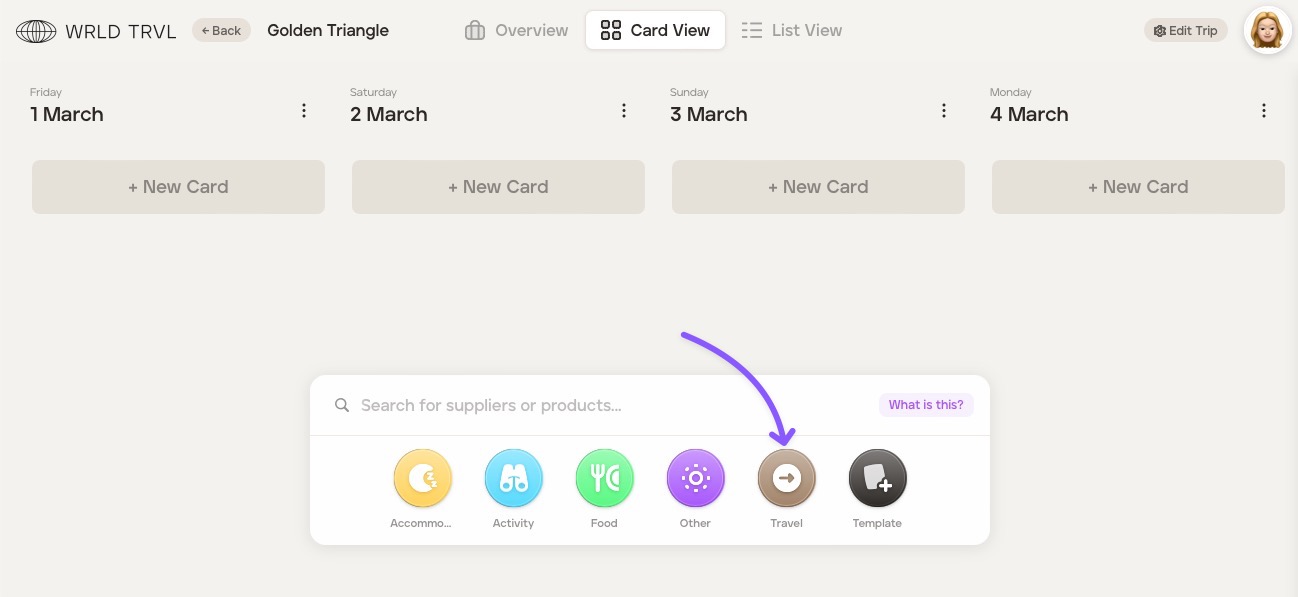
In the launcher search bar click the 'Travel' icon.
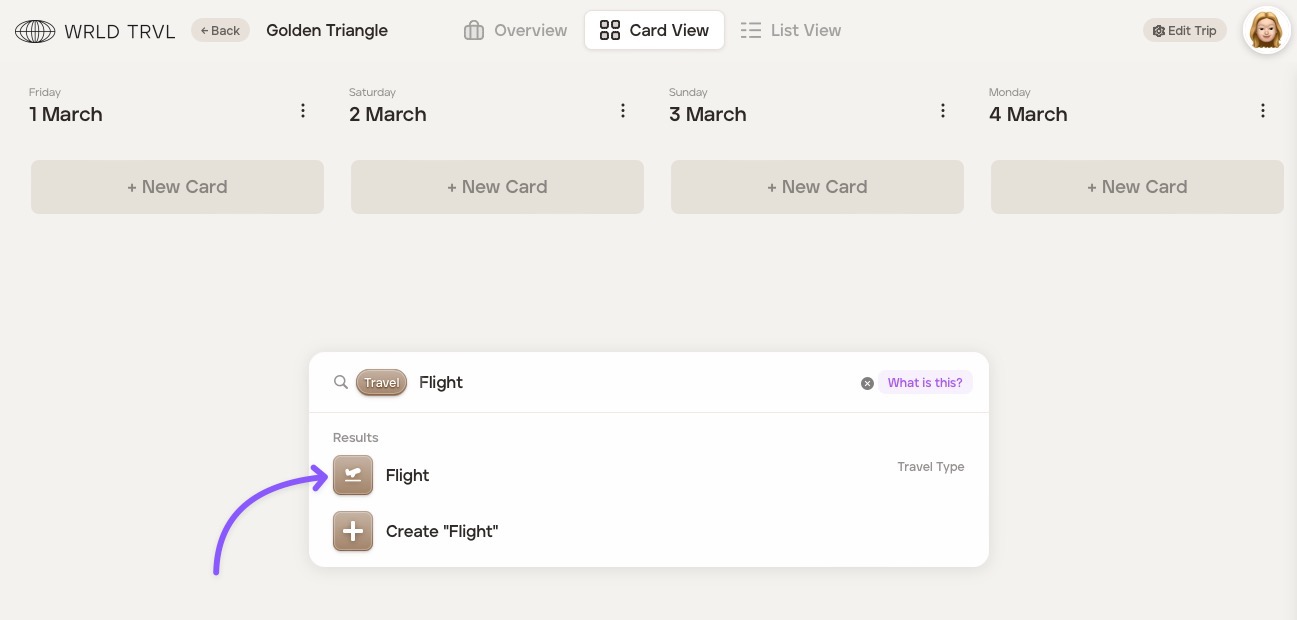
Type 'Flight' in the launcher search bar.
In the results section, click 'Flight'.
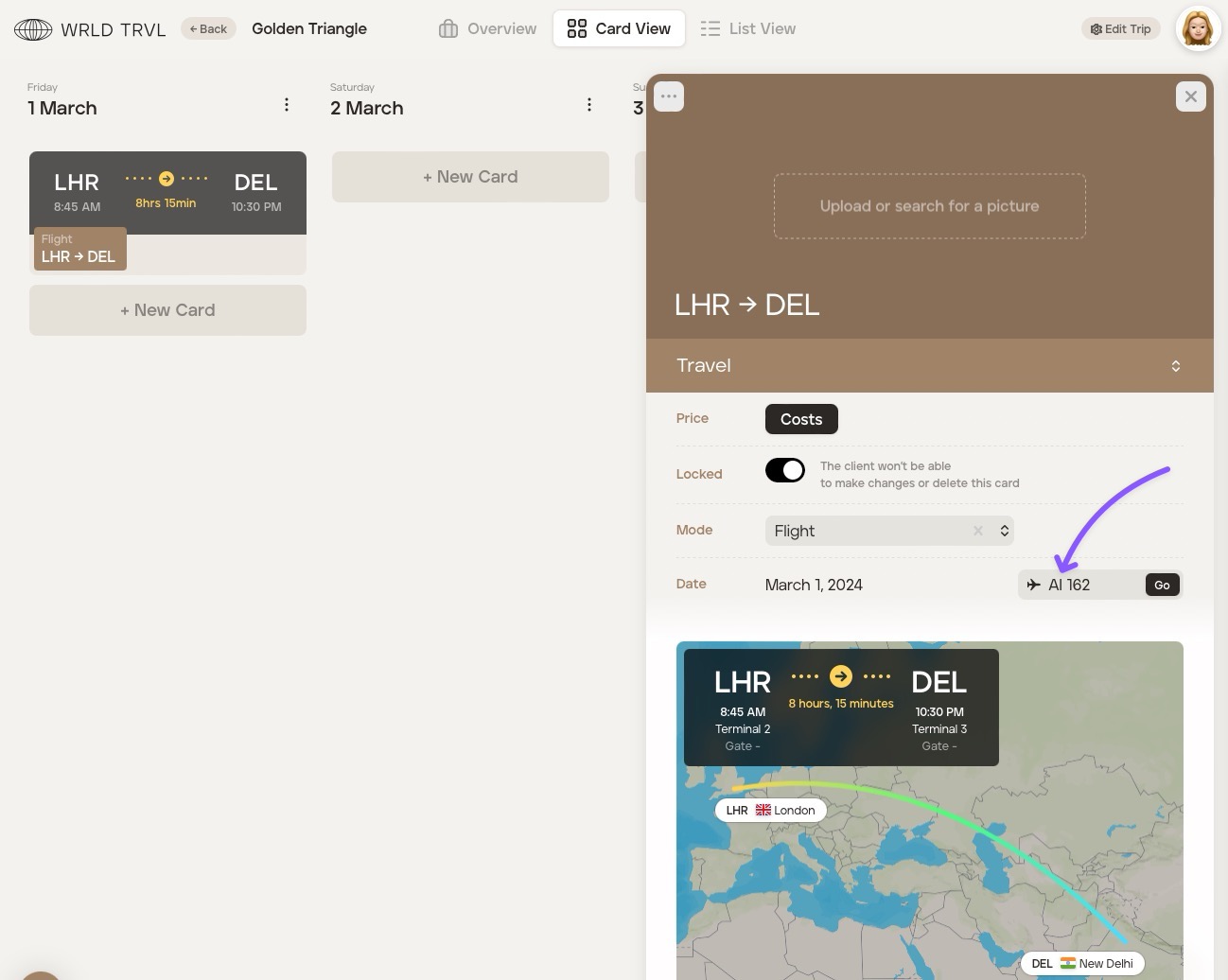
Give the flight card a title, for example, 'LHR → DEL'.
Insert the flight number in the 'Flight No.' field. If your flight is found the flight details will show.
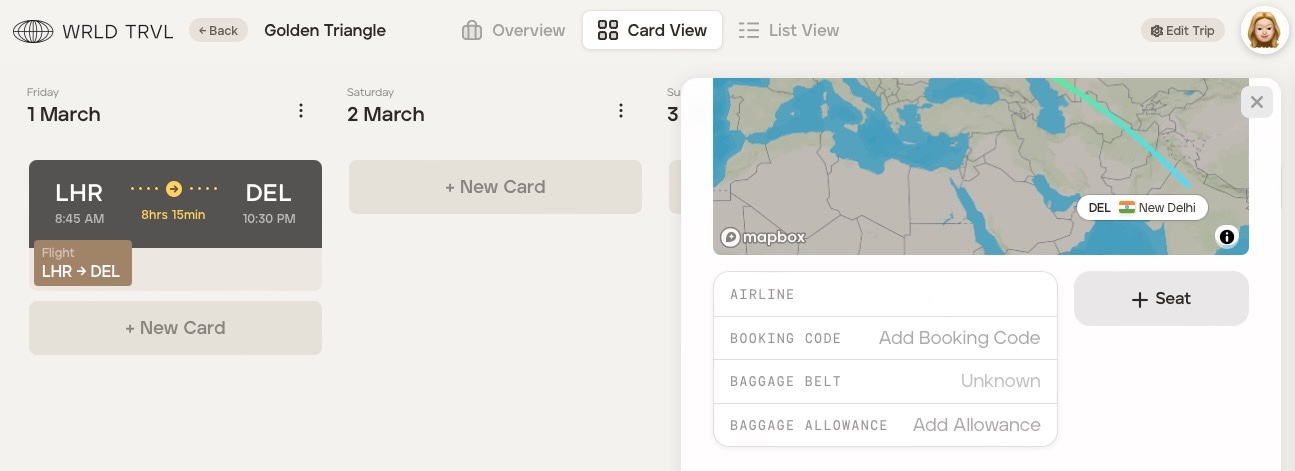
Add seats by clicking the '+ Seat' button.
Add a booking code and baggage allowance if you wish.
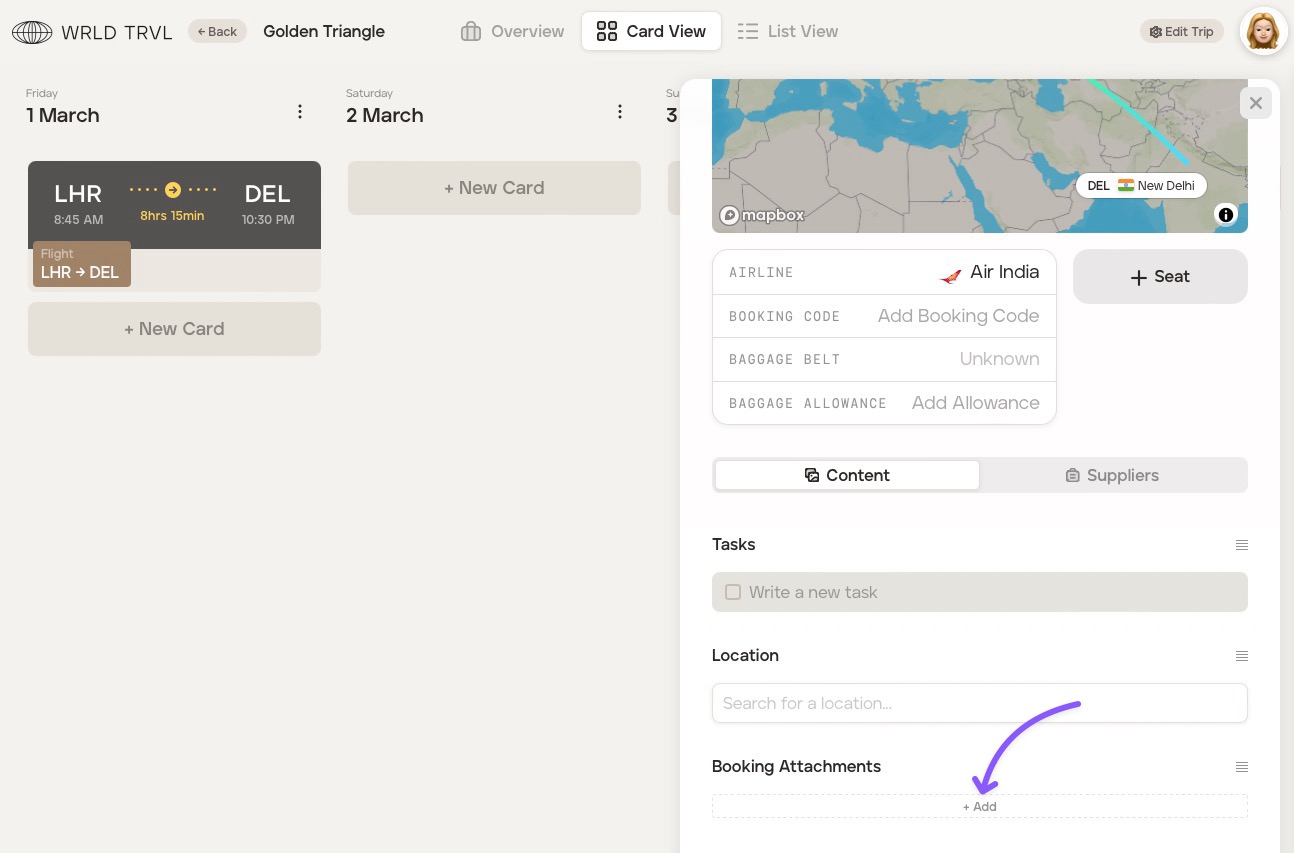
Click '+Add' to the booking attachments section to add the flight tickets.
Example of what your client sees on the mobile app if you have added flights: