

Allocate a team to an itinerary, template or supplier
Allocate a team to an itinerary
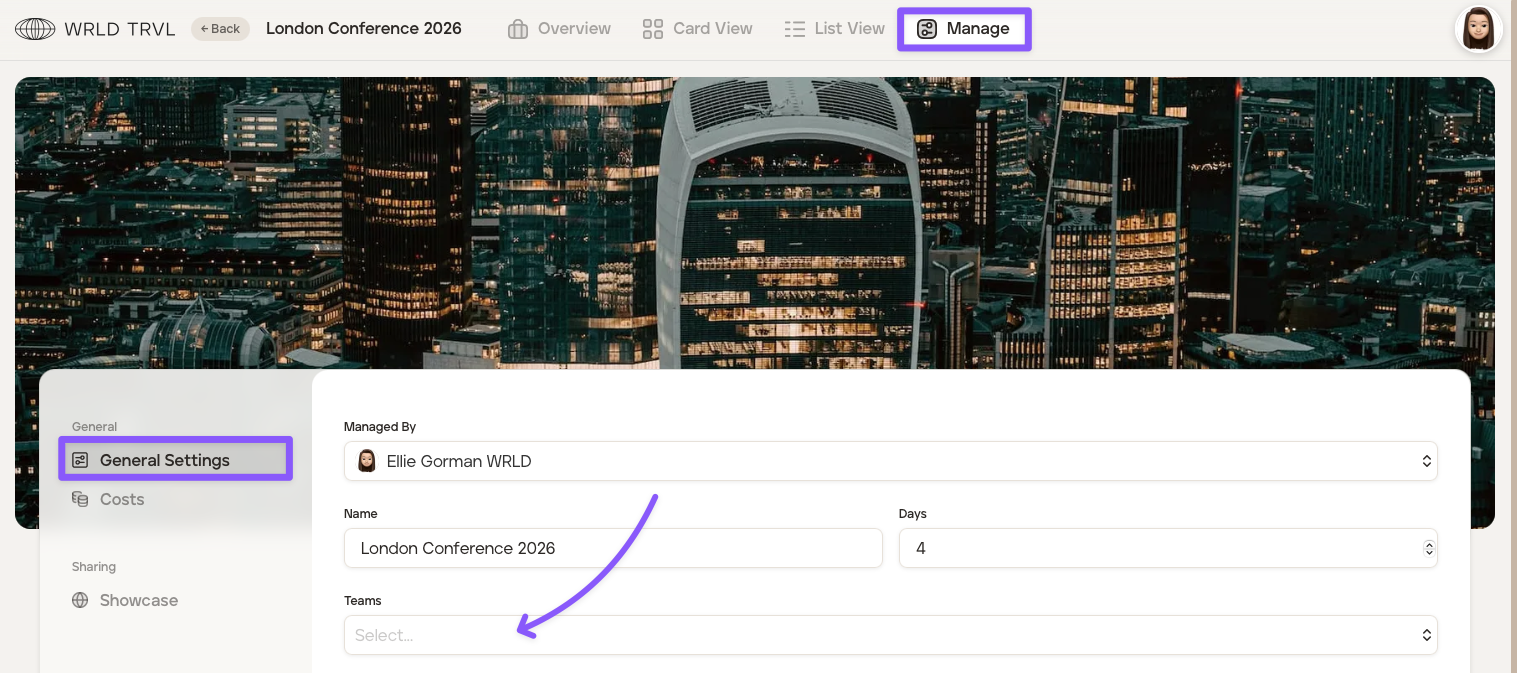
To allocate a team to an itinerary ('Template', 'Proposal' and/or 'Upcoming'), follow the steps below:
Select the applicable itinerary ('Template', 'Proposal' and/or 'Upcoming').
Click 'Manage'
In the 'General Settings', under 'Teams', select the team in the dropdown.
Scroll down and click the 'Save' button.
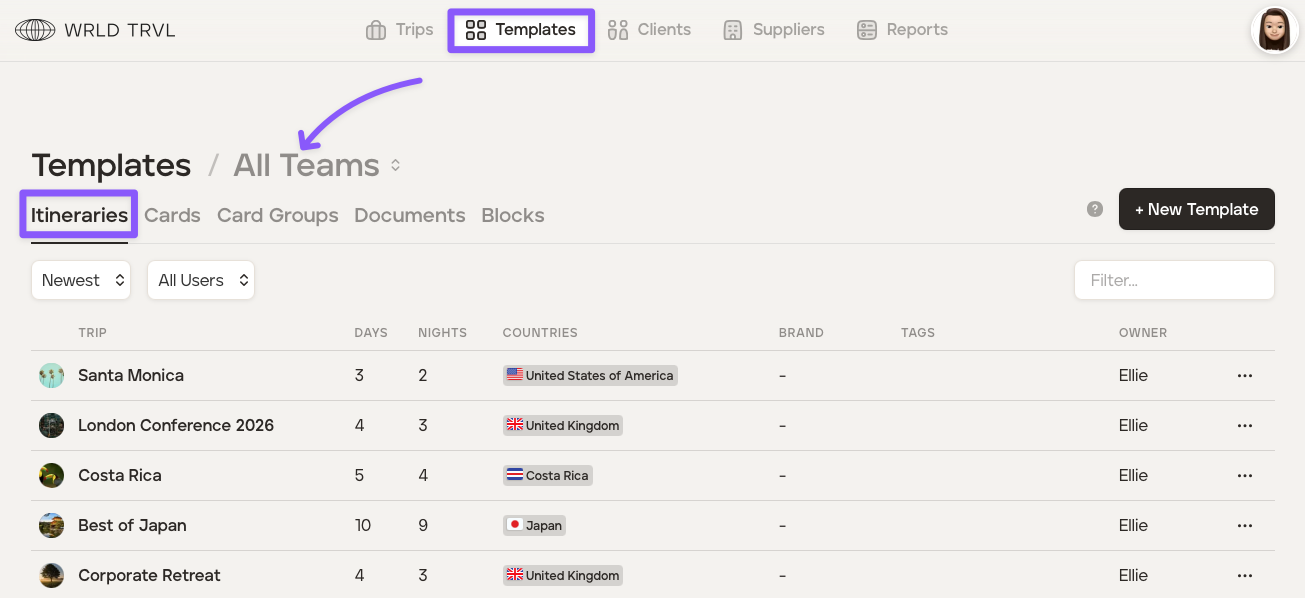
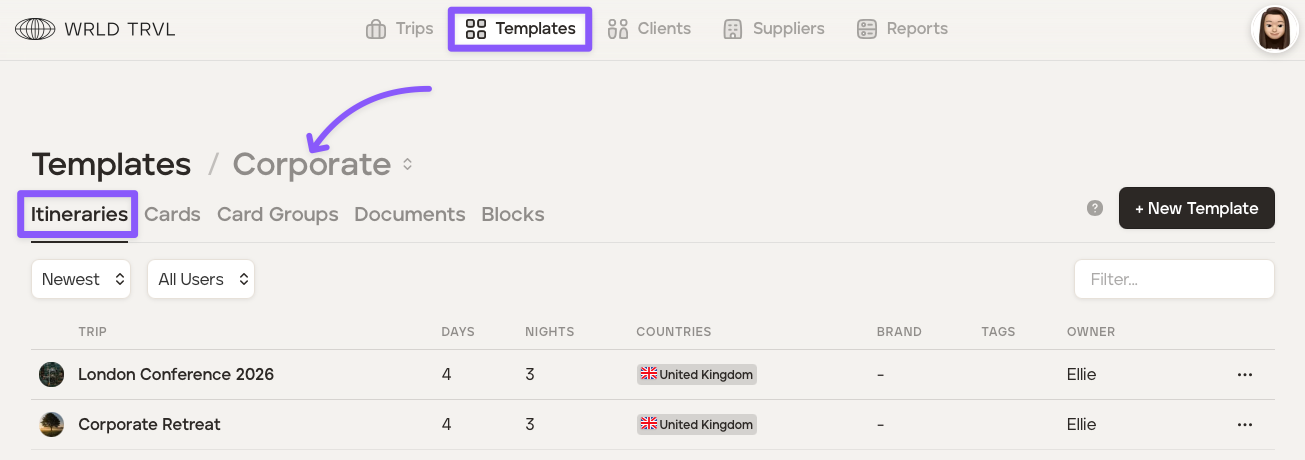
To view all template itineraries associated with a particular team:
Click 'Templates'.
Click 'Itineraries'.
Click 'All Teams' then select the applicable team. The itineraries linked to that team will then be listed.
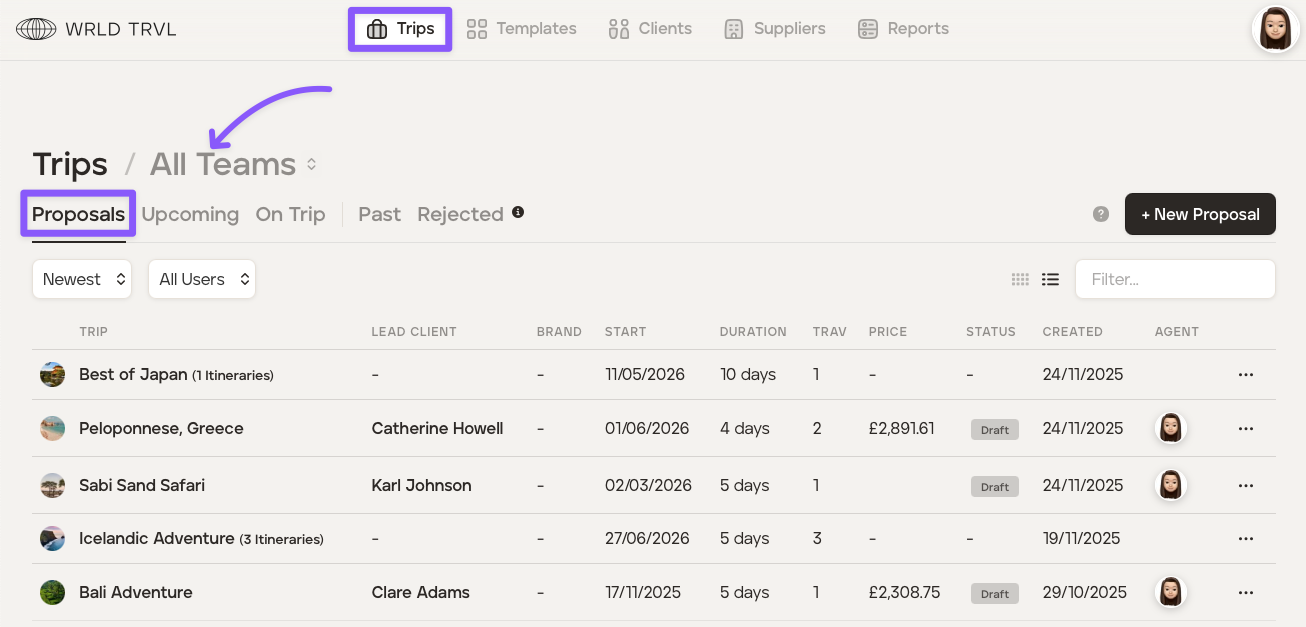
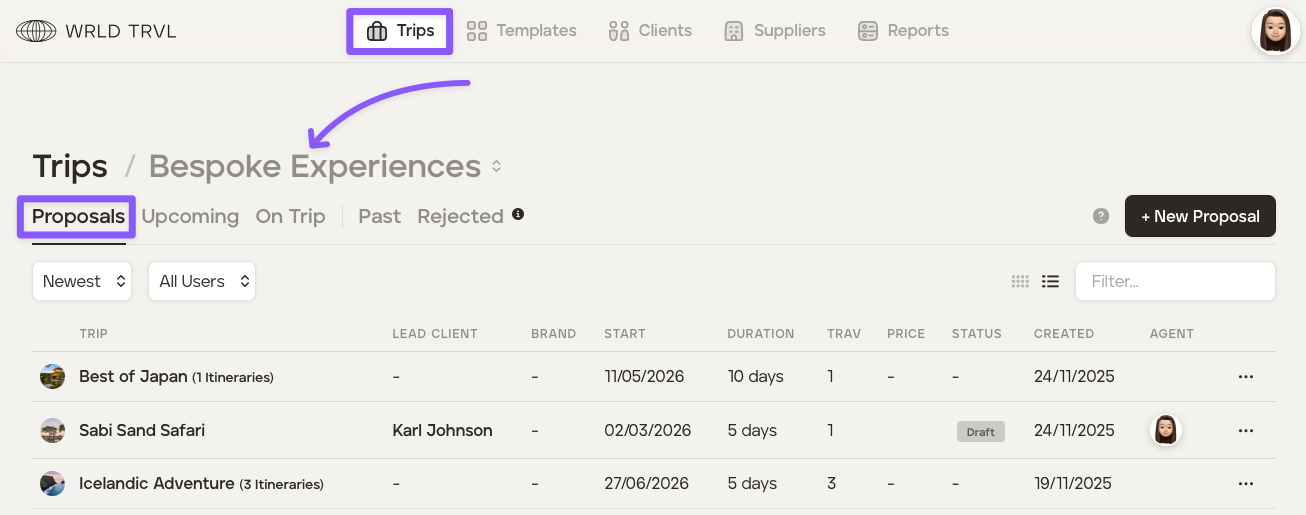
To view all proposals and upcoming itineraries associated with a particular team:
Click 'Trips'.
Click 'Proposals' or 'Upcoming' (as applicable).
Click 'All Teams' then select the applicable team. The itineraries linked to that team will then be listed.
Allocate a team to a template itinerary card or card group
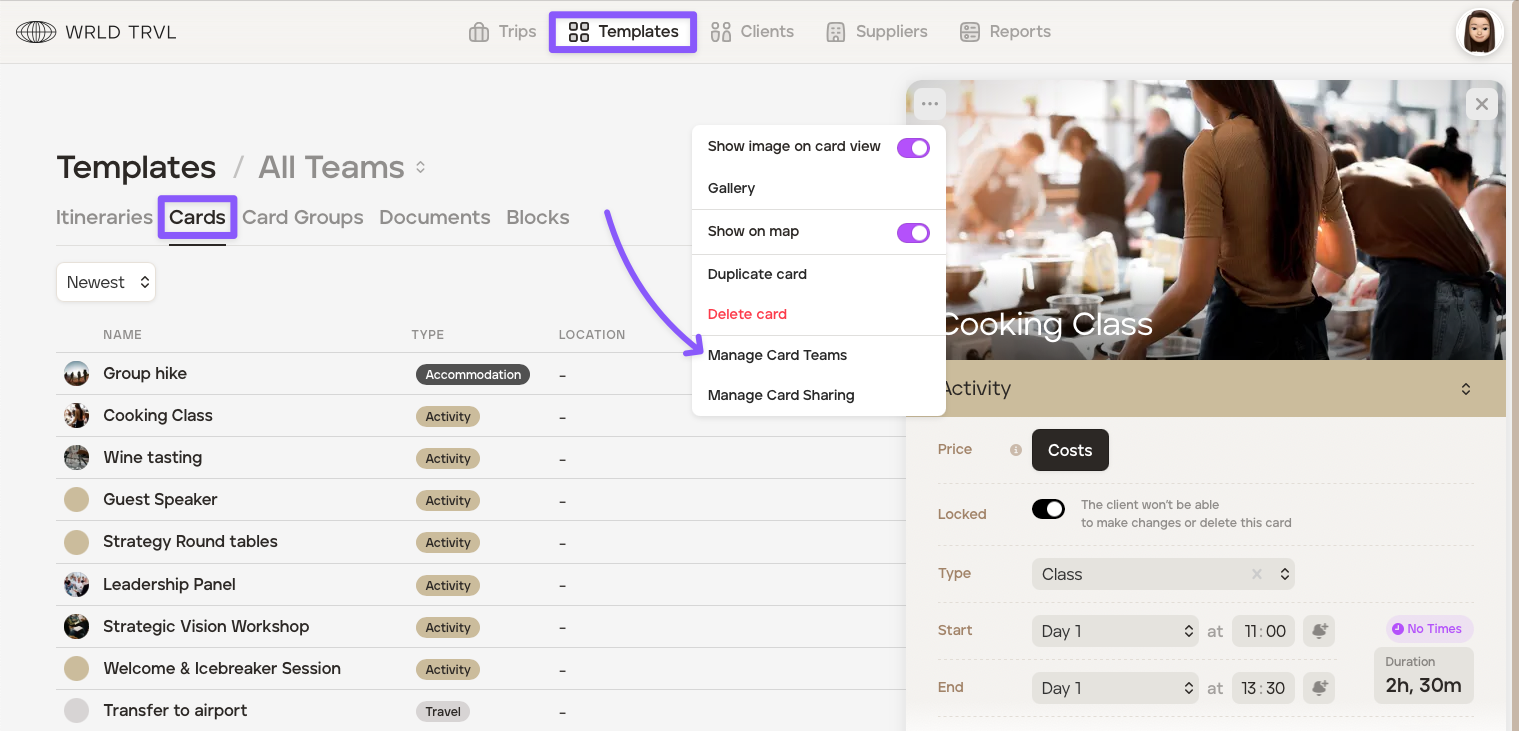
To allocate a team to a template card or card group, follow the steps below:
Select the applicable card.
Click the '...' in the top left corner of the card.
Click 'Manage Card Teams'.
Select the team in the dropdown menu.
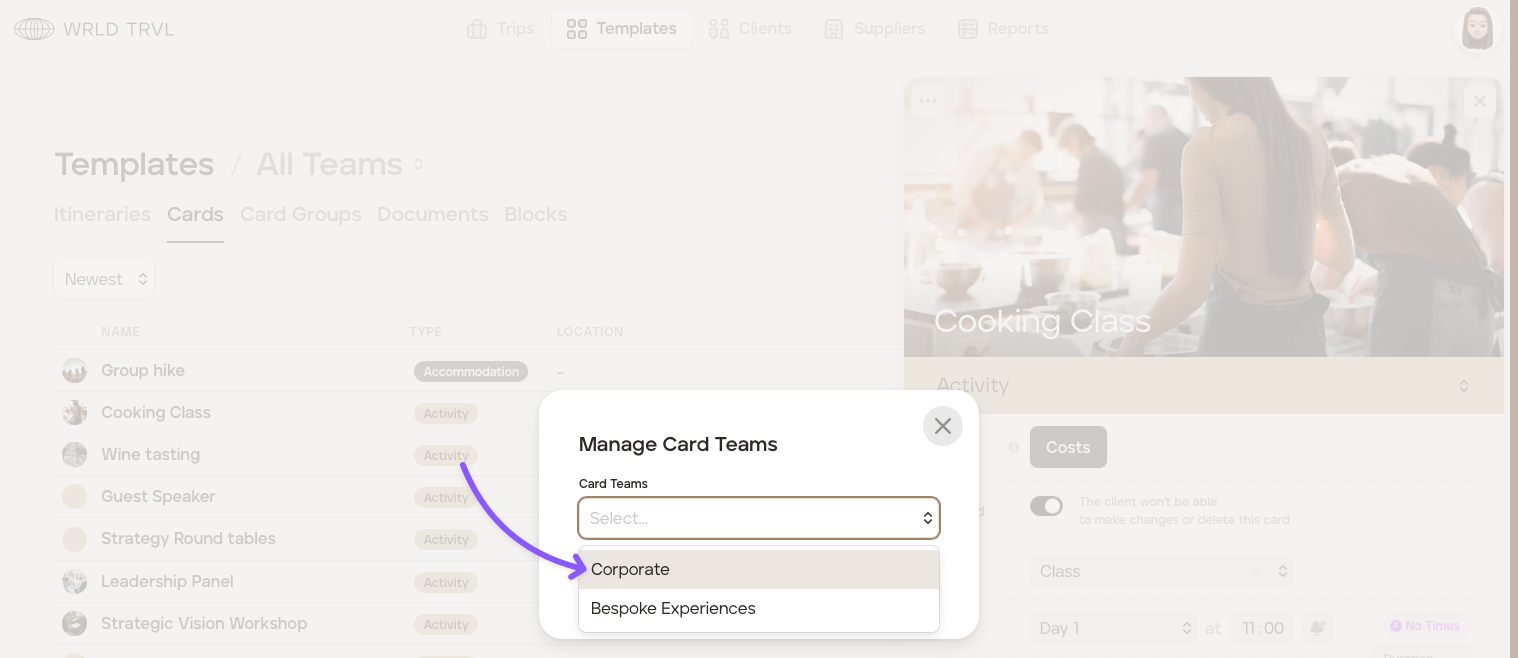
Click 'Save'.
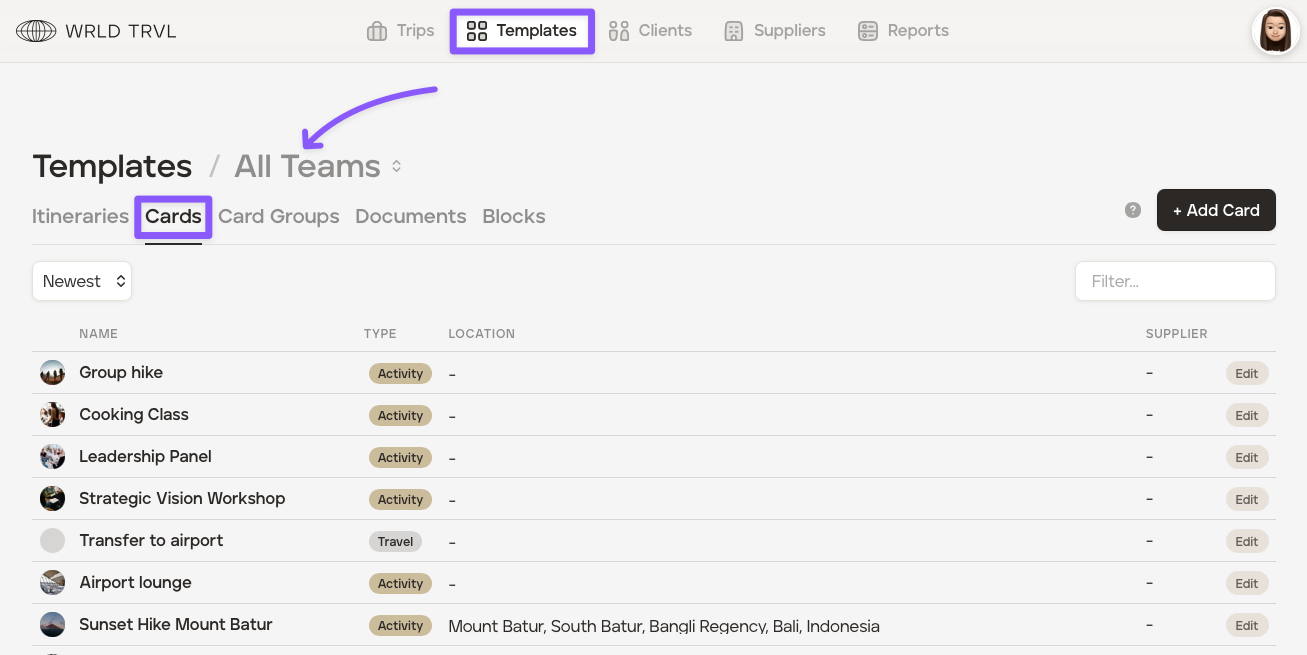
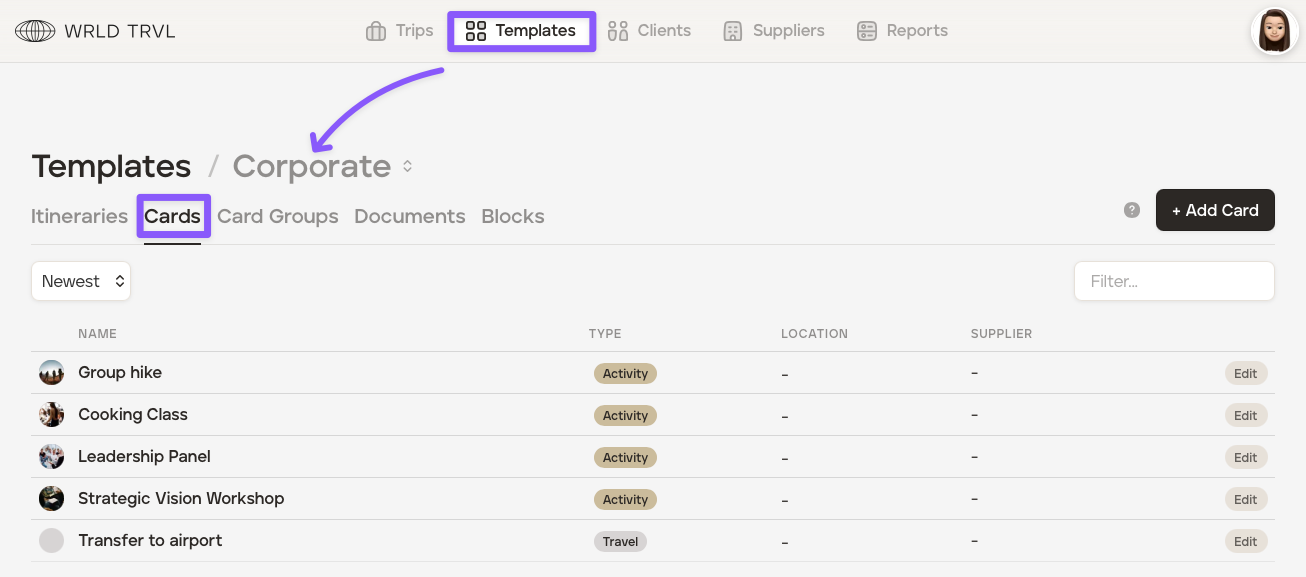
To view all cards associated with a particular team:
Click 'Templates'.
Click 'Cards'.
Click 'All Teams' then select the applicable team. The cards linked to that team will then be listed.
Allocate a team to a document
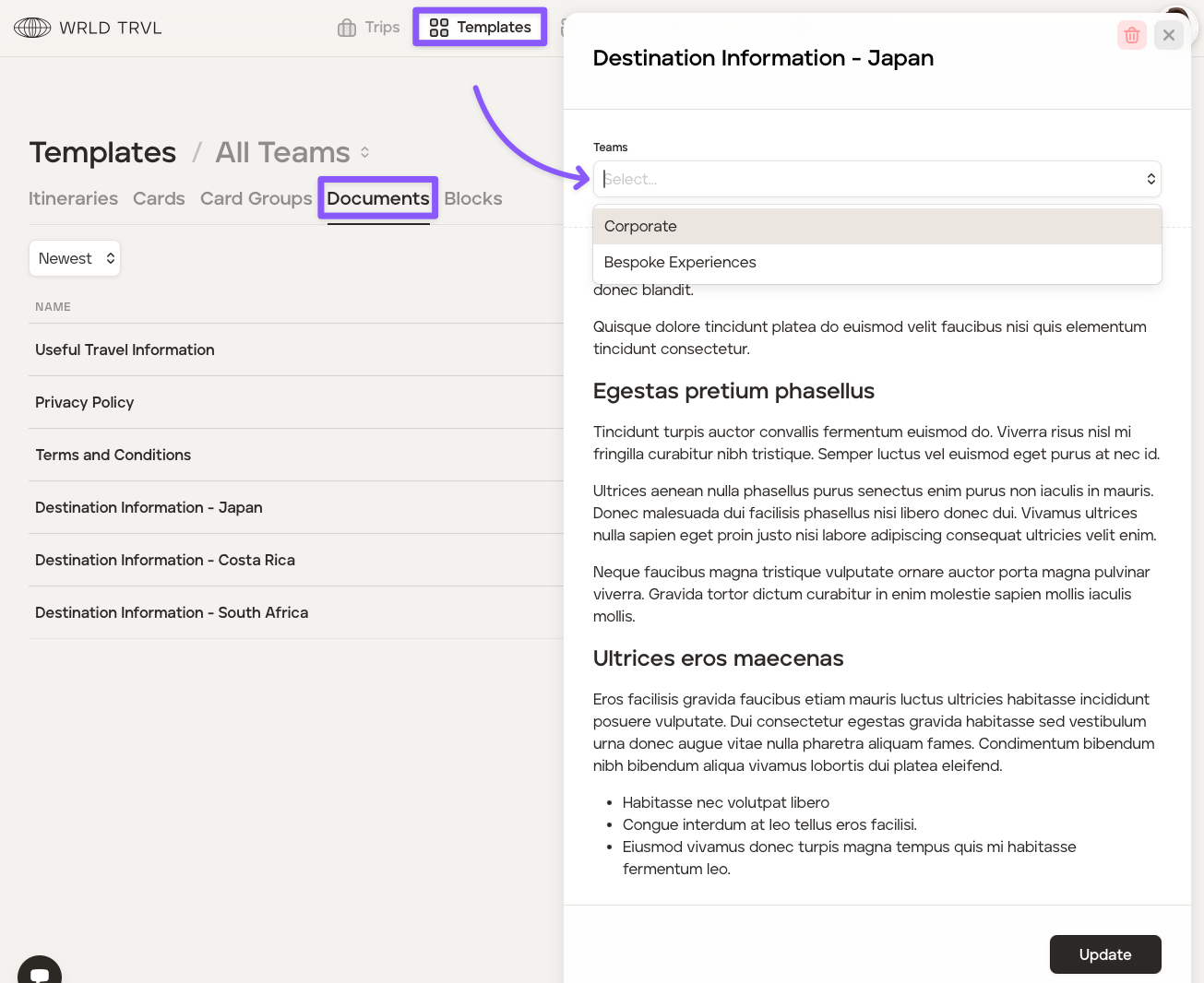
To allocate a team to a document, follow the steps below:
Select the applicable document.
Under 'Teams' select the applicable team.
Click 'Update'.
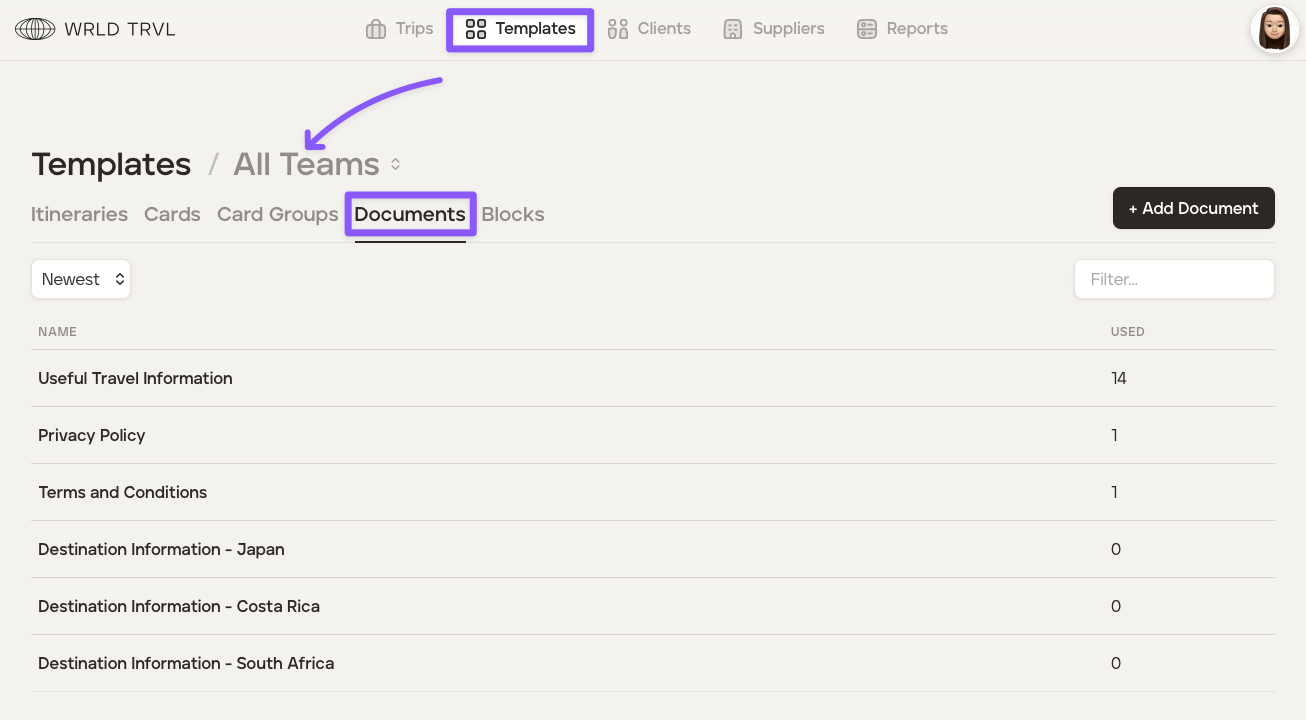
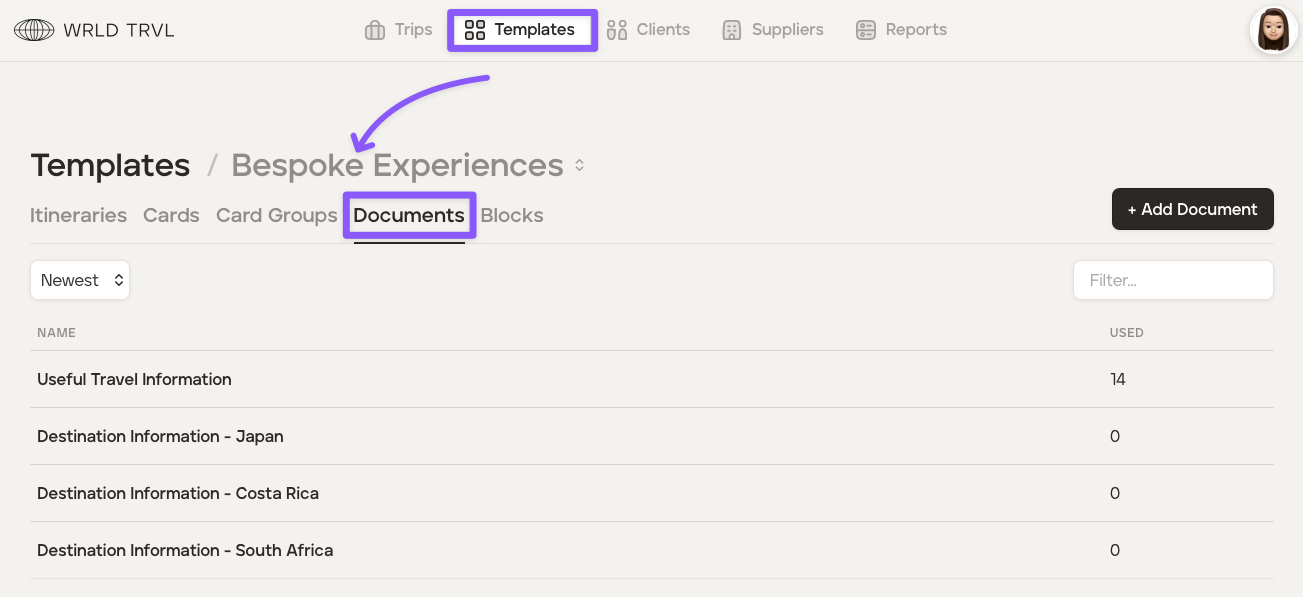
To view all documents associated with a particular team:
Click 'Templates'.
Click 'Documents'.
Click 'All Teams' then select the applicable team. The cards linked to that team will then be listed.
Allocate a team to an overview block
To allocate a team to an overview block, follow the steps below:
Select the applicable block.
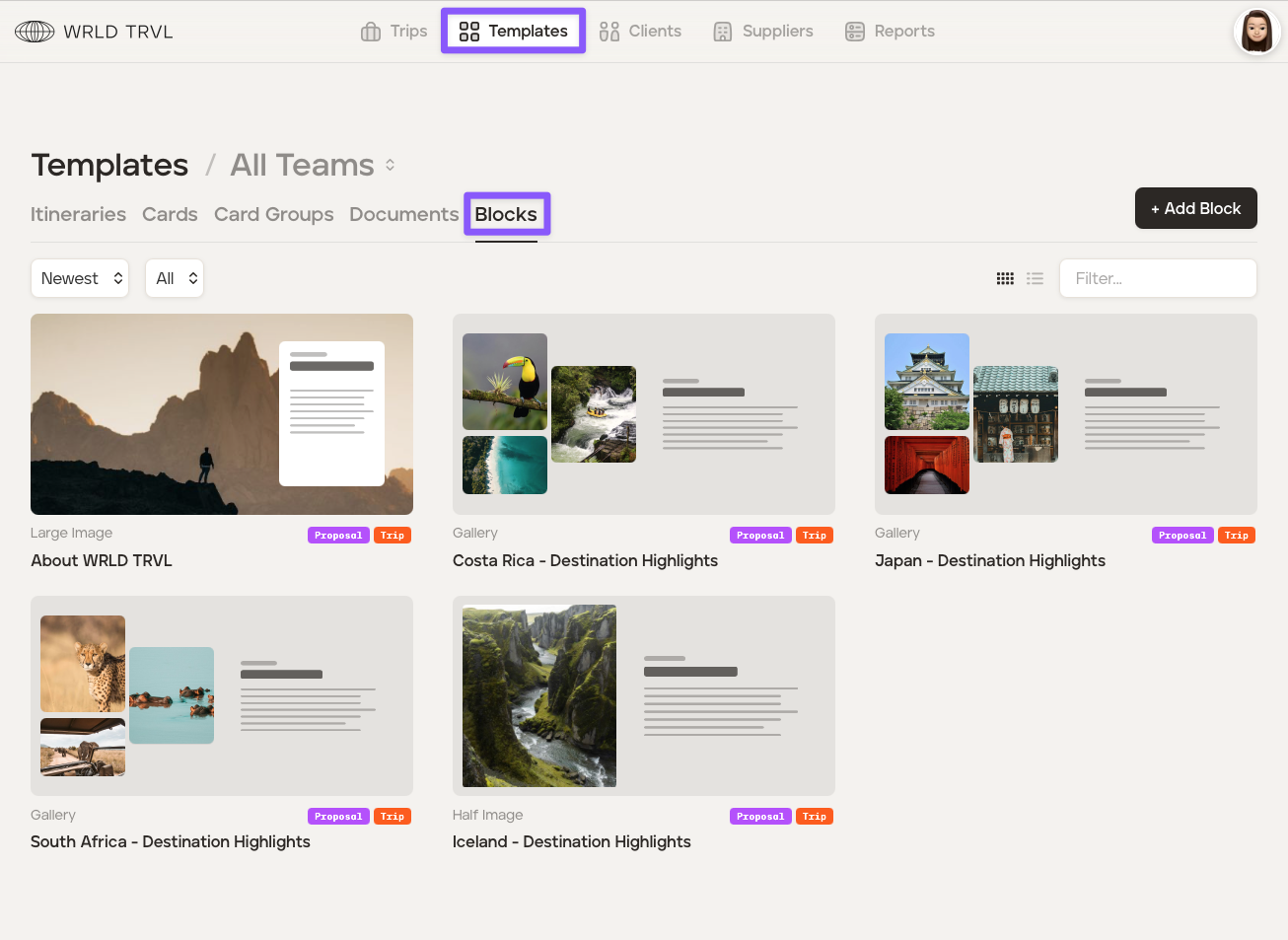
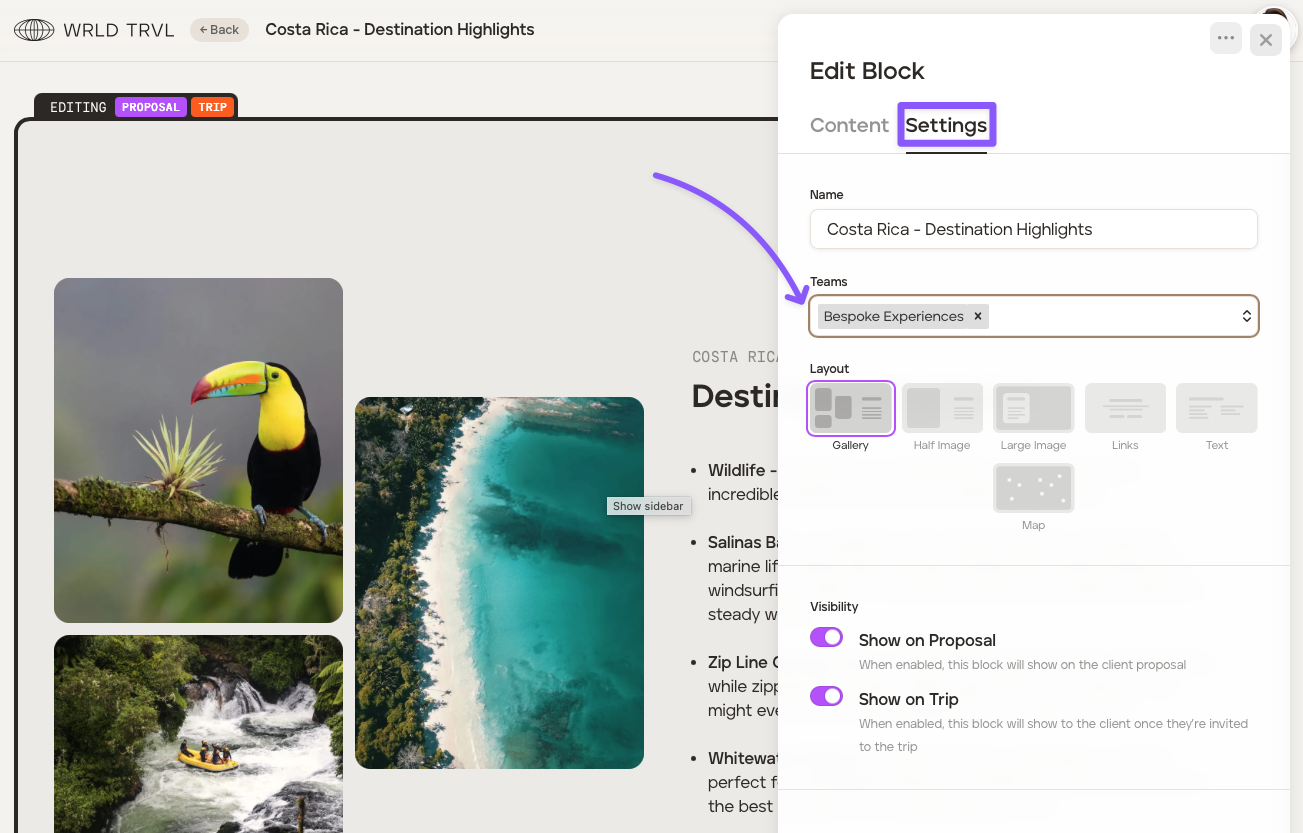
Click the 'Settings' tab.
Under 'Teams' select the applicable team.
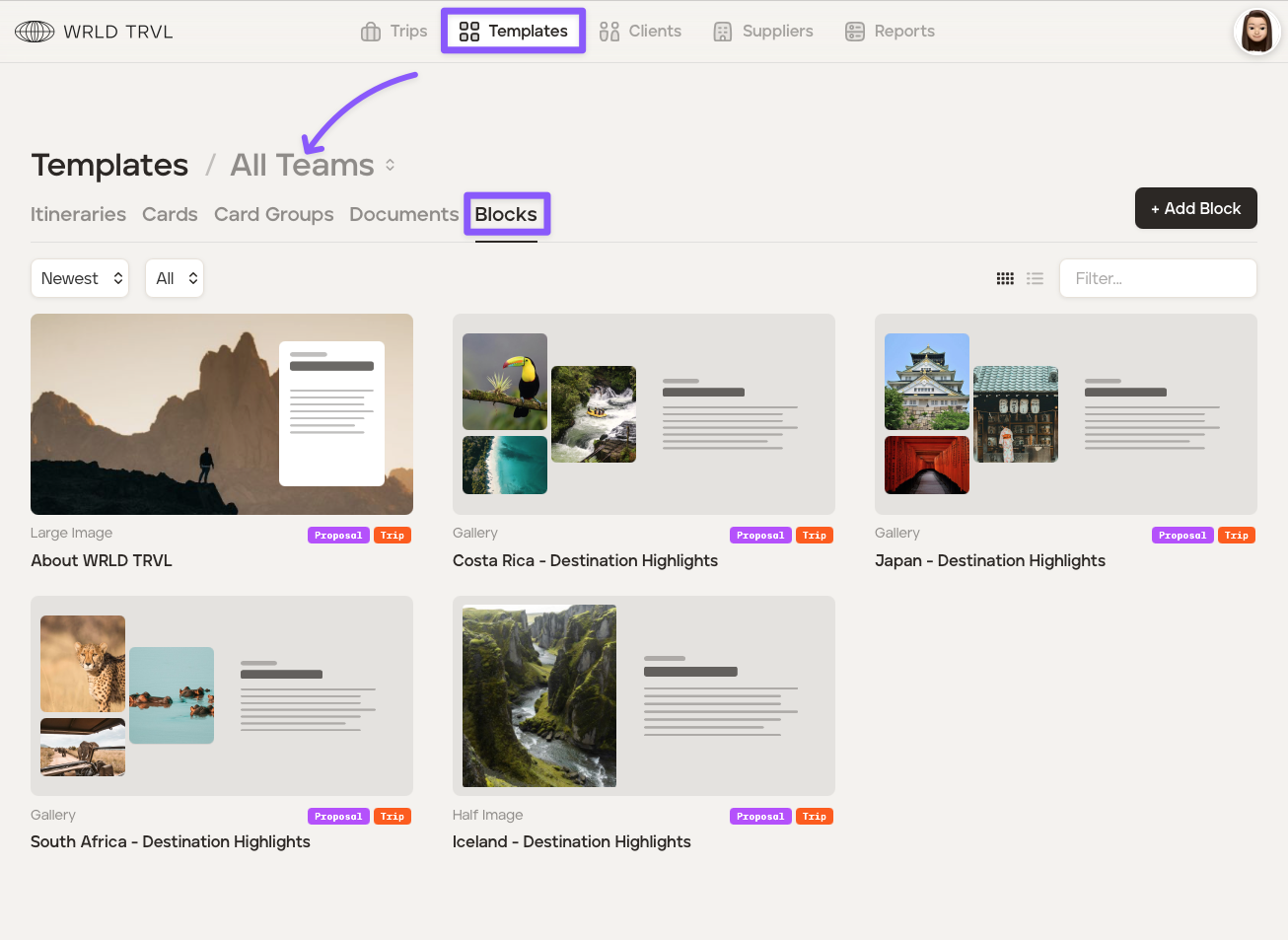
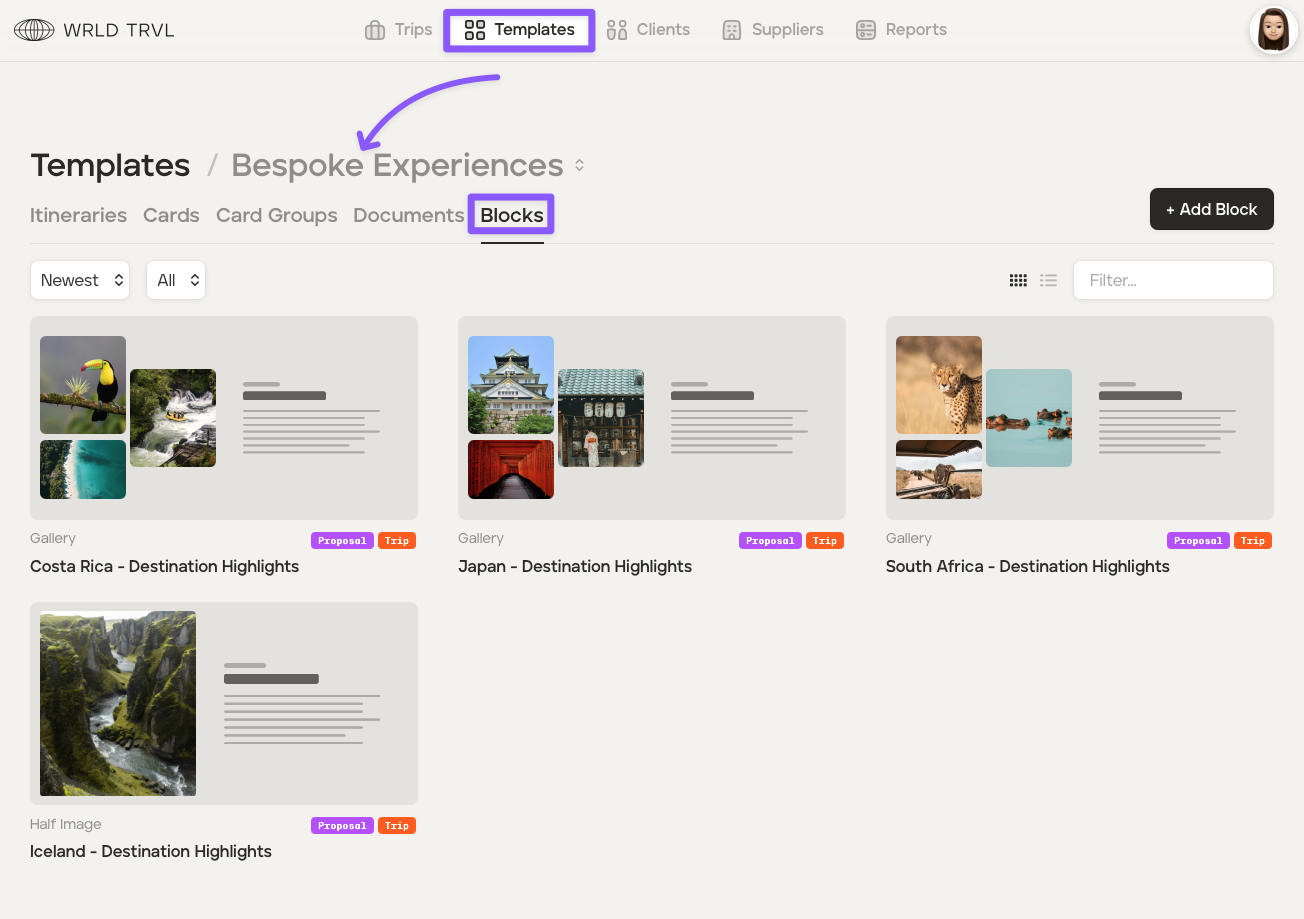
To view all blocks associated with a particular team:
Click 'Templates'.
Click 'Blocks'.
Click 'All Teams' then select the applicable team. The cards linked to that team will then be listed.
Allocate a team to a supplier
To allocate a team to a supplier:
Go to the 'Suppliers' section and click the relevant supplier to open it.
Click the edit icon to enter edit mode.
Click the 'Teams' tab.
In the 'Teams' field, select the team(s) you wish to assign to the supplier.
Click 'Save'.
The teams assigned to a supplier are visible as tags in the supplier drawer. If no teams are shown, the supplier is visible to all users in your account.
Note: If a user doesn't have access to a supplier but does have access to an itinerary it's used in, they will still see all the relevant supplier information within that itinerary. They will not, however, be able to add products or prices from that supplier to other cards.