

Add a supplier product to a supplier
To add a supplier product to a supplier:
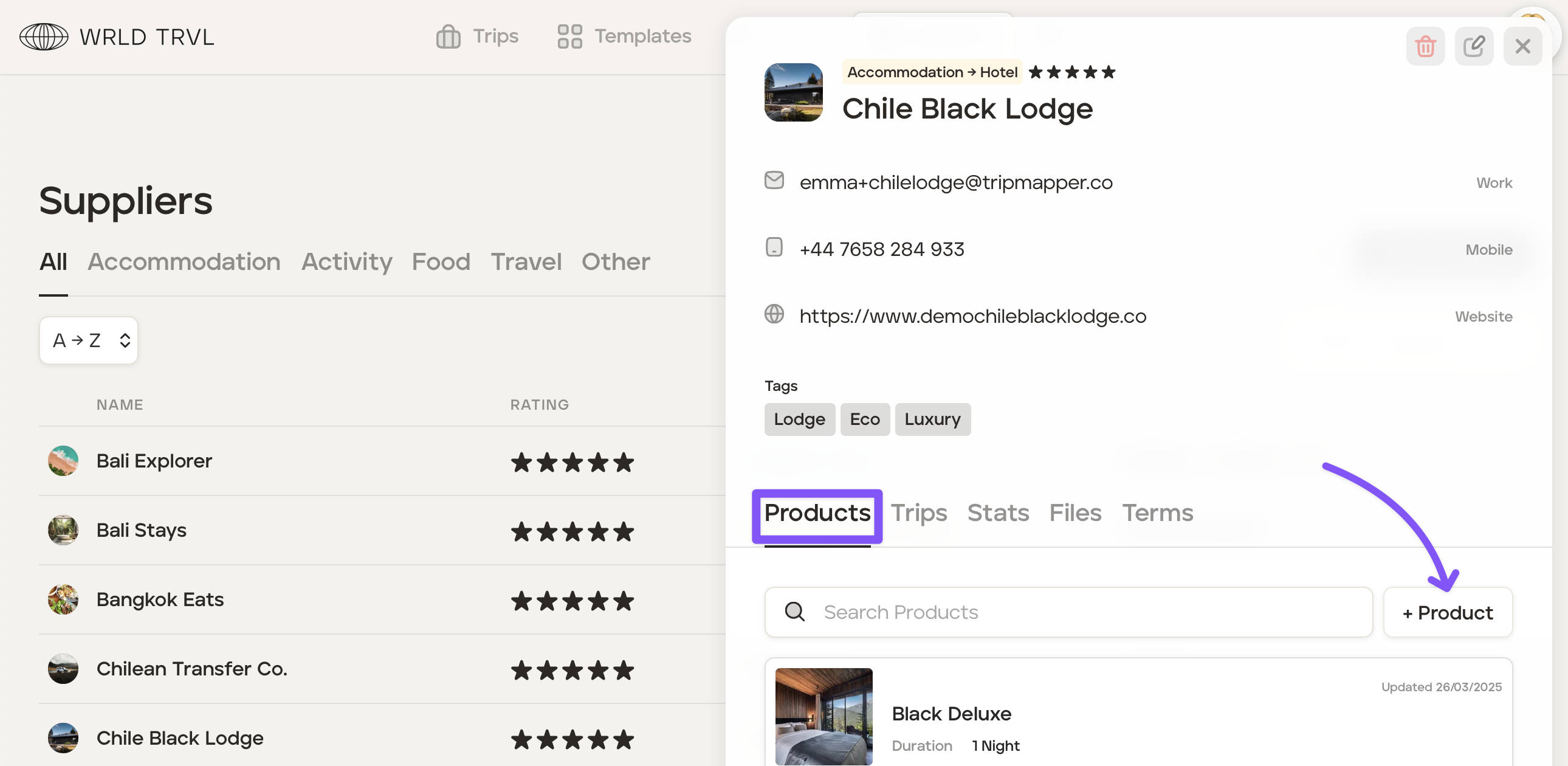
Click on the relevant supplier from within the supplier database.
Click ‘+ Product’ button located in the 'Products' tab to add a supplier product.
Add the supplier product's details, including descriptions and images
In the 'Details' tab, enter the supplier product information, including images. You can add multiple images, and order images according to your preference by dragging and dropping the images.
You may want your client to be able to view a description of a supplier product, for example, where the supplier is a hotel, and the supplier product is the hotel room. In order to add a supplier product description scroll down to the 'Proposal Description' and 'Upcoming Trip Description' tabs.
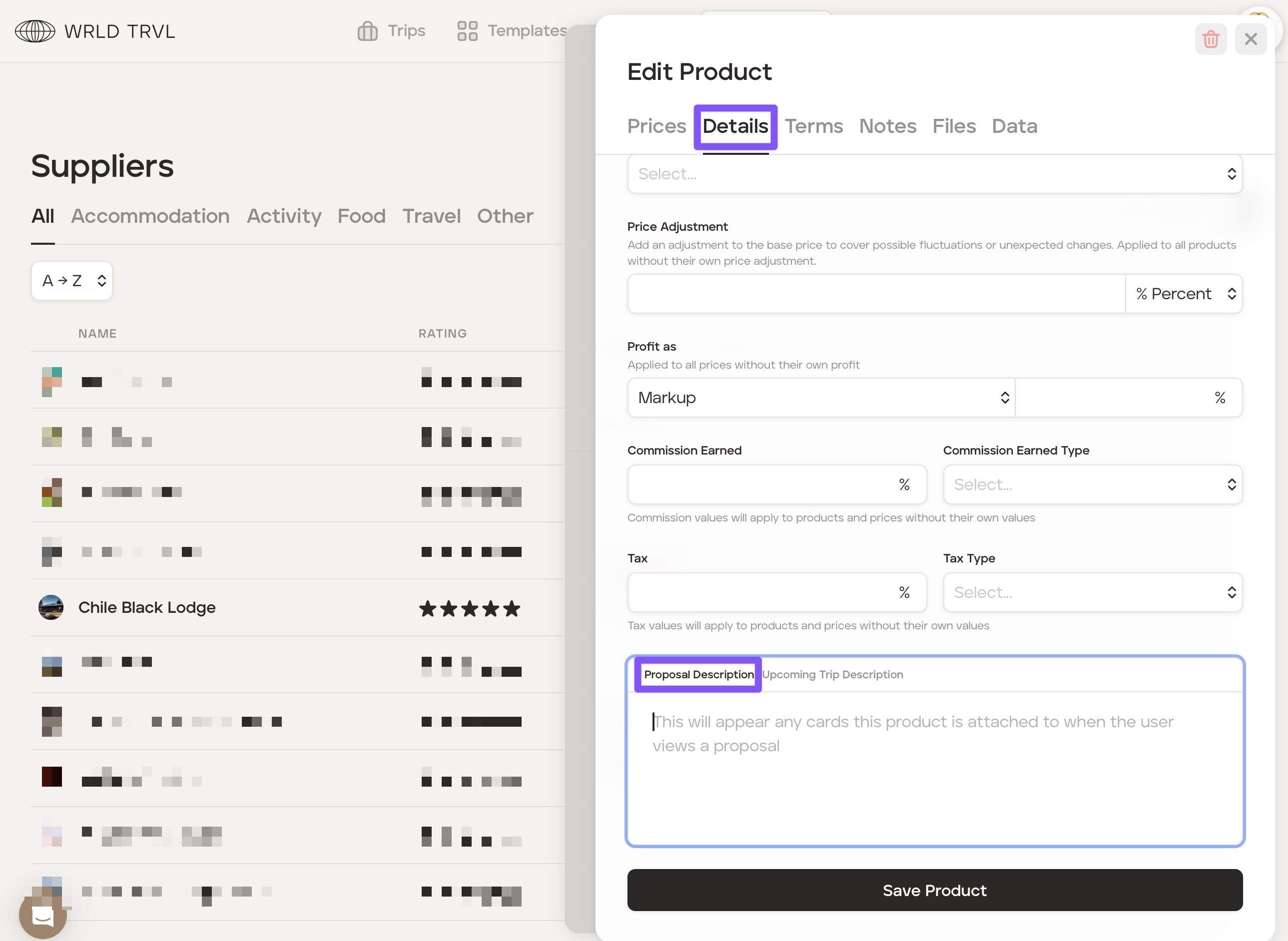
Click the 'Proposal Description' tab to add a description to be viewed on a proposal itinerary and/or the click the 'Upcoming Trip Description' tab to add a description to be viewed on an upcoming trip itinerary.
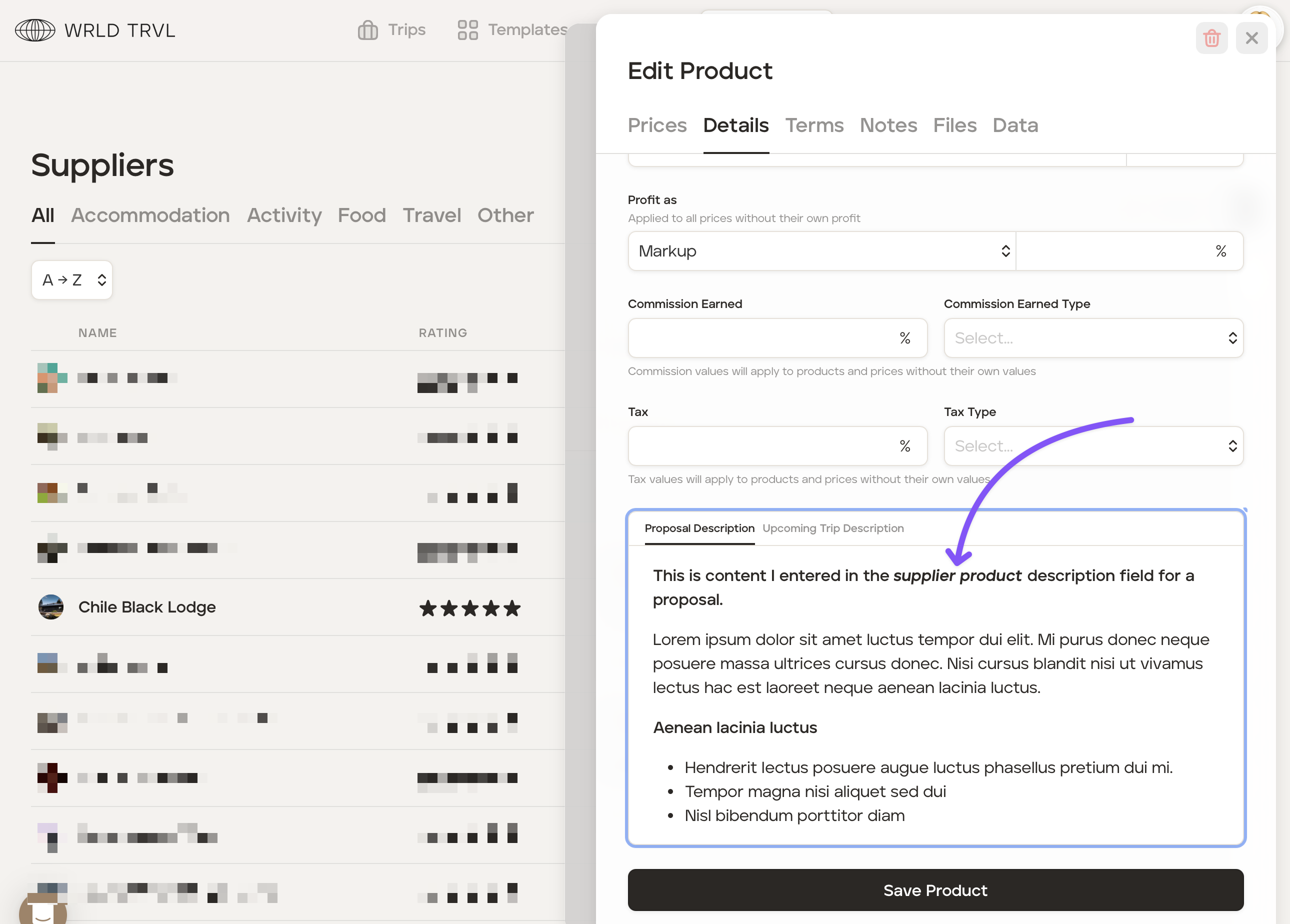
Once the content has been entered, click the 'Save Product' button to save the updates.
Example showing the above supplier product description on a specific proposal:
Click the applicable card and scroll down to the 'Details' tab and click the '+' to view the supplier product description:
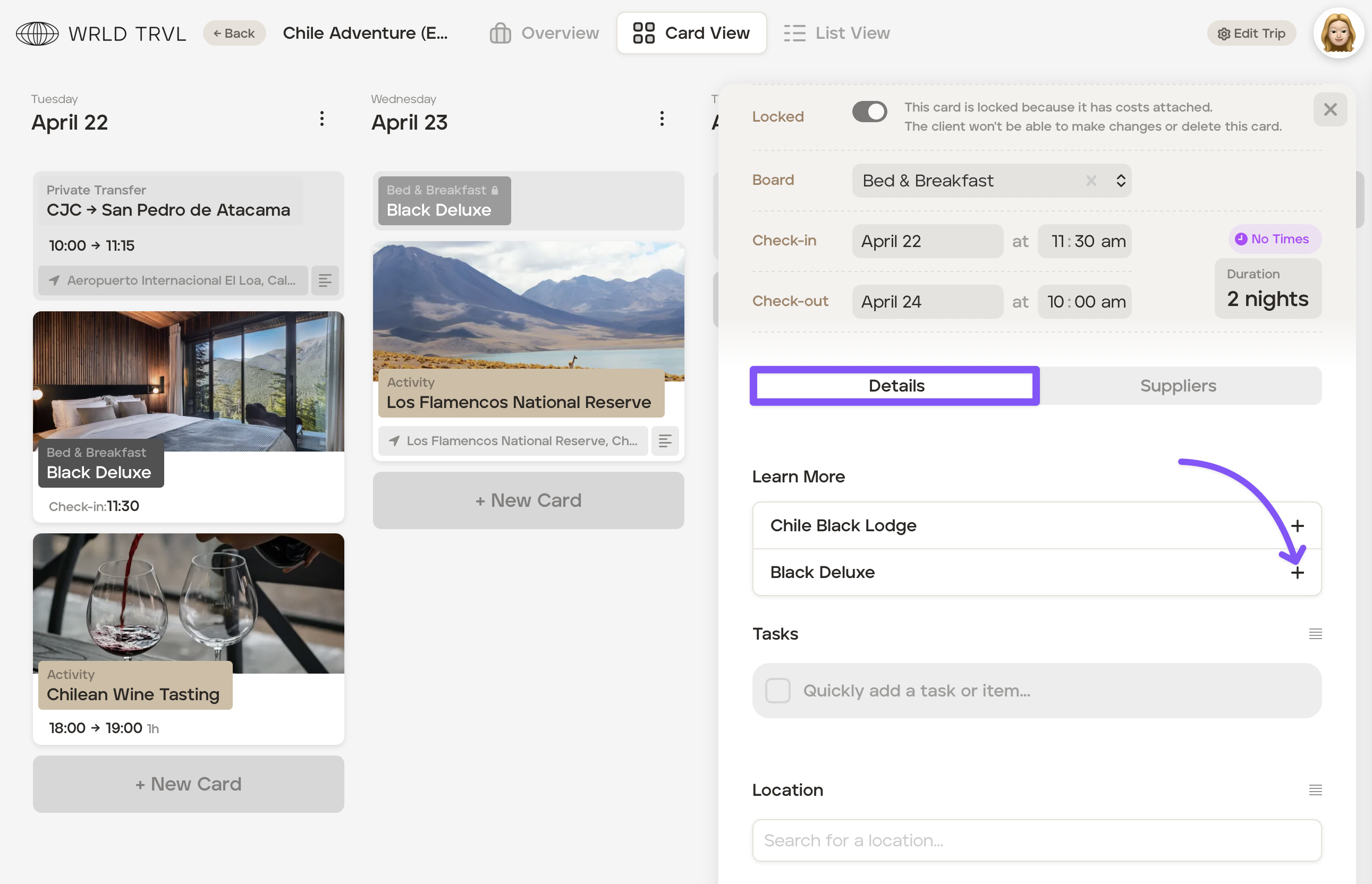
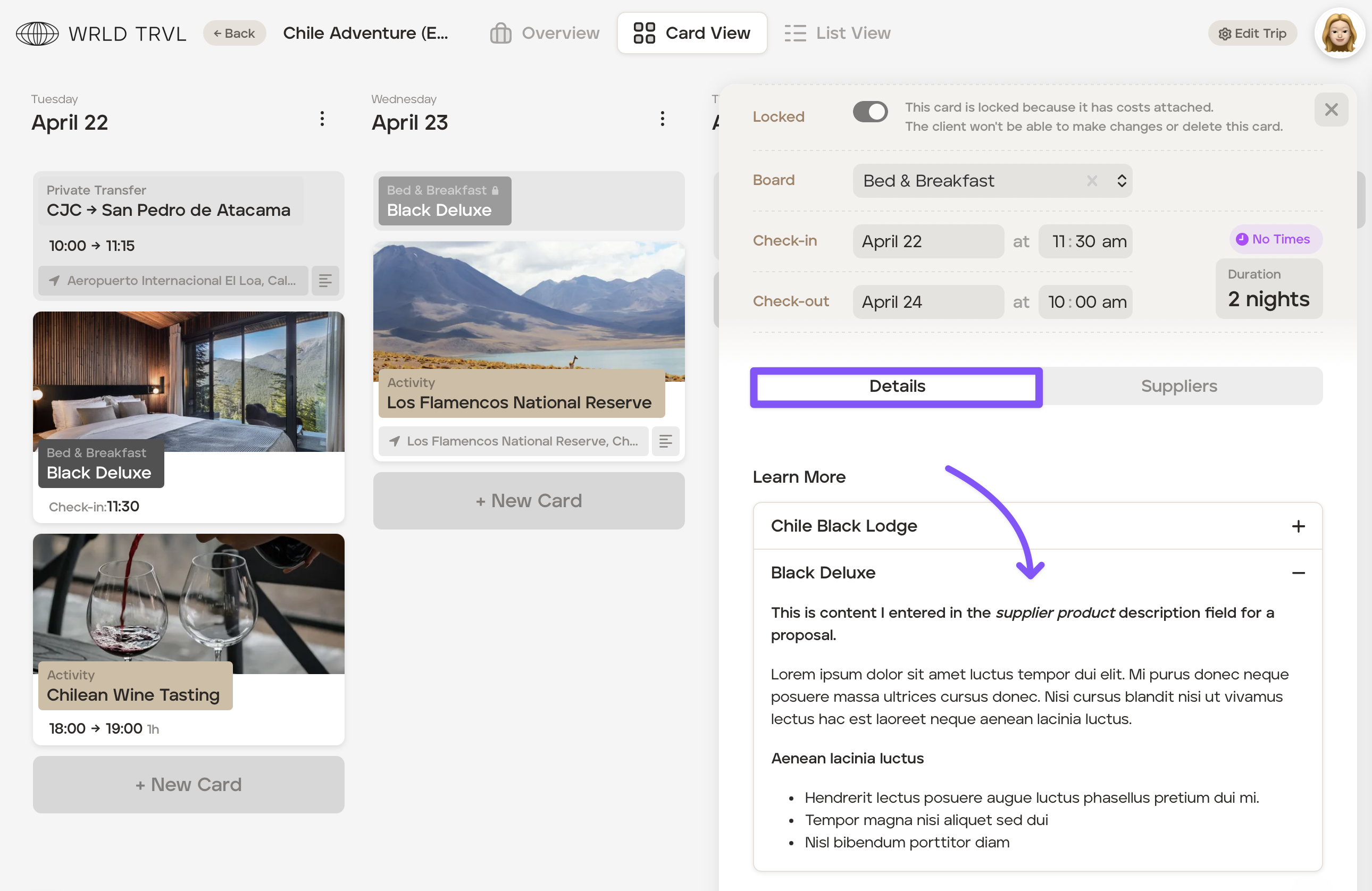
You still have the ability to choose whether or not you want the supplier product description you've added to be shown to your client. By default the description entered will be shown to your client, unless you switch it off on the specific proposal itinerary and/or upcoming trip itinerary:
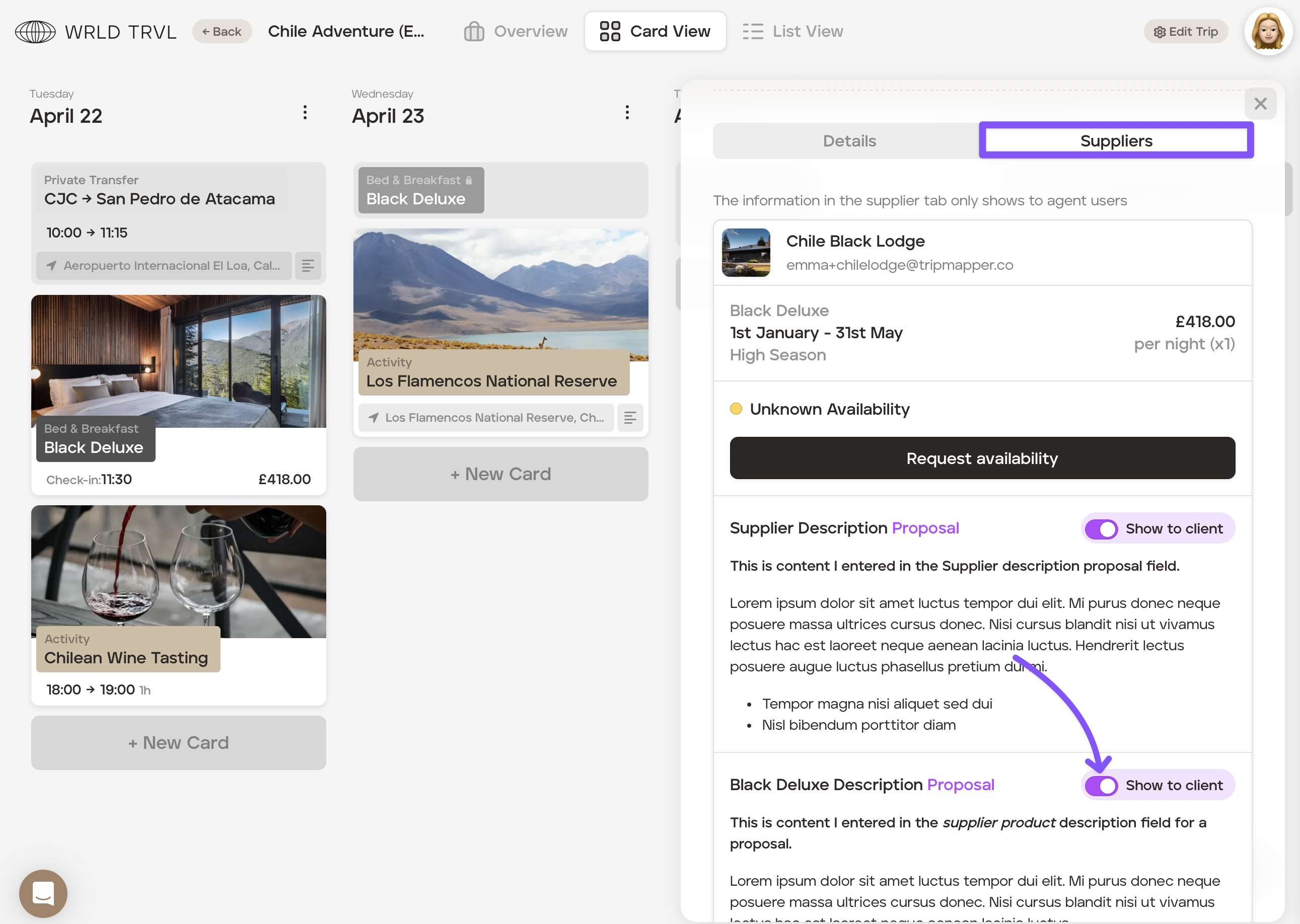
If you want your client to be able to view a description of a supplier, for example, where the supplier is a hotel, follow the steps in this article.
Click the ‘Save Product’ button after adding or editing any information in the Supplier 'Details' tab.
Add prices to a supplier product
Click the ‘Prices’ tab.
Click ‘+ Price’.
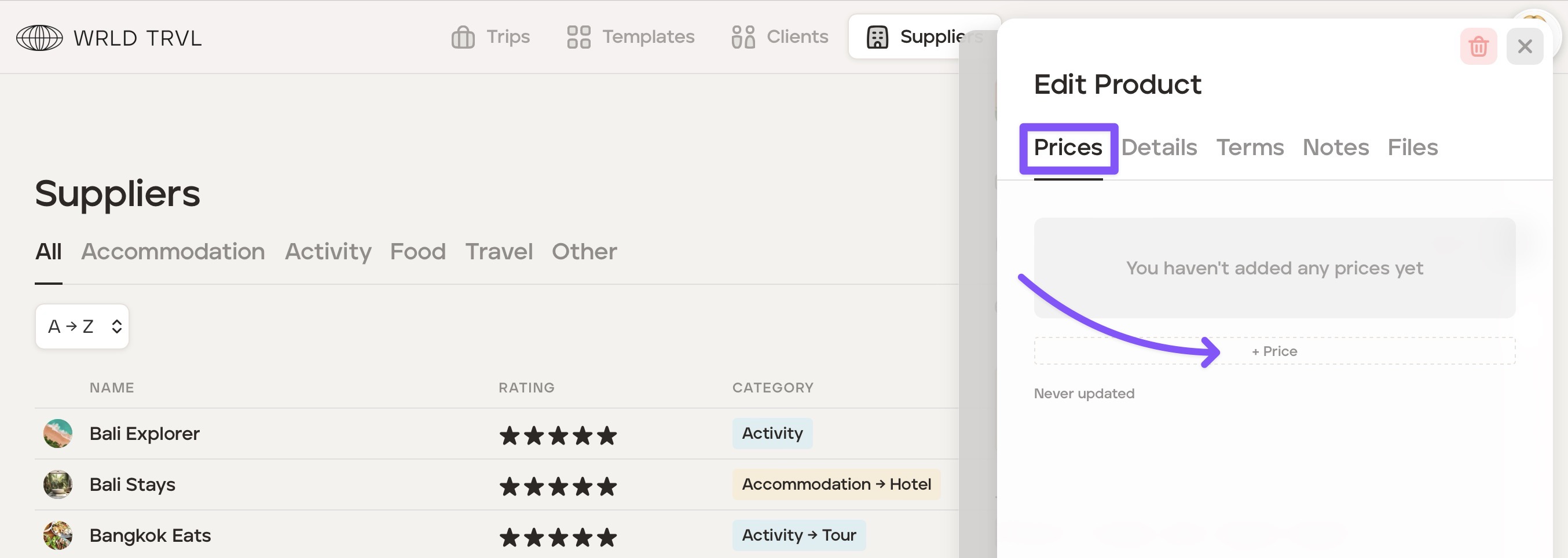
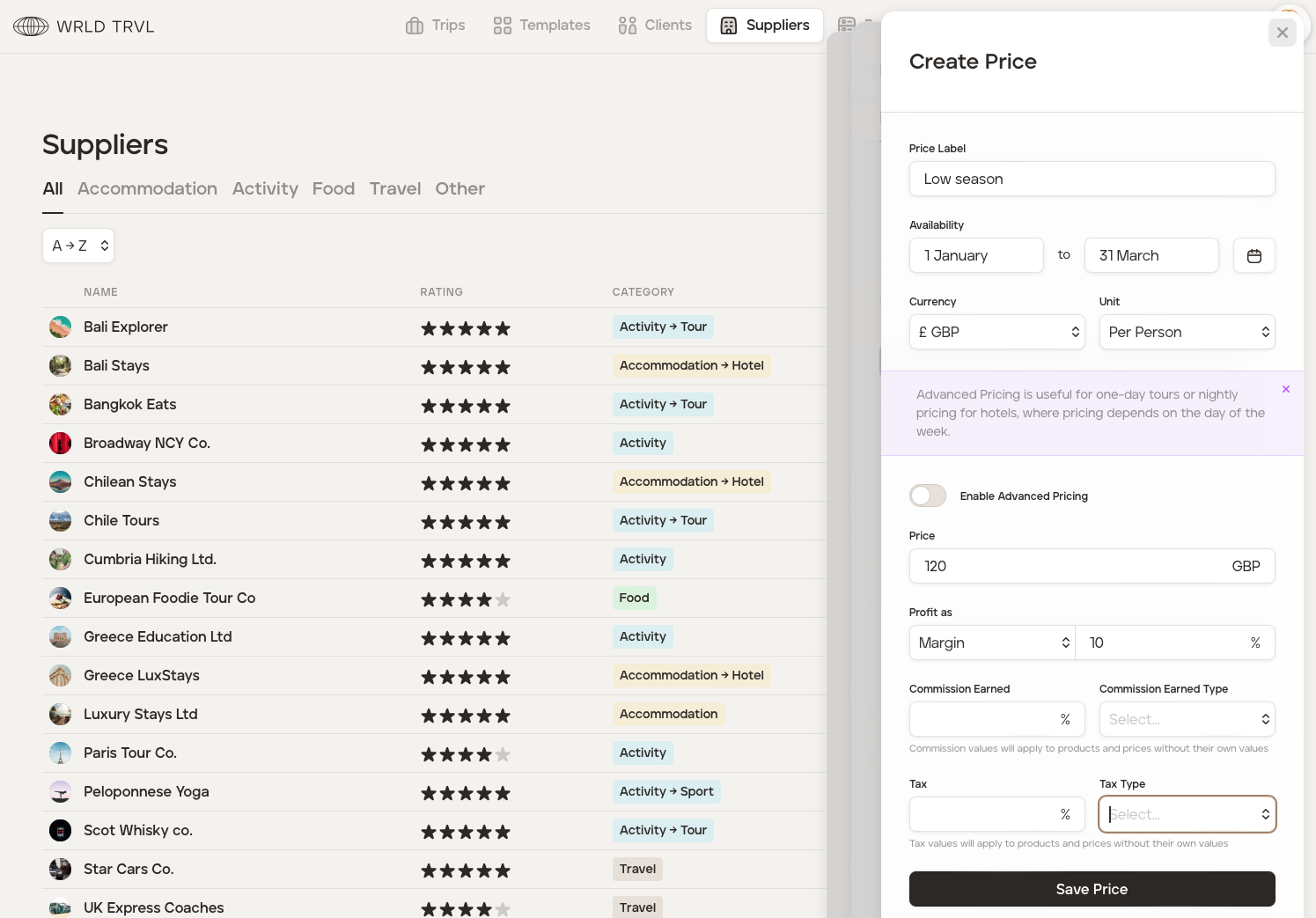
A 'Create Price' modal will appear on the right-hand side of the screen.
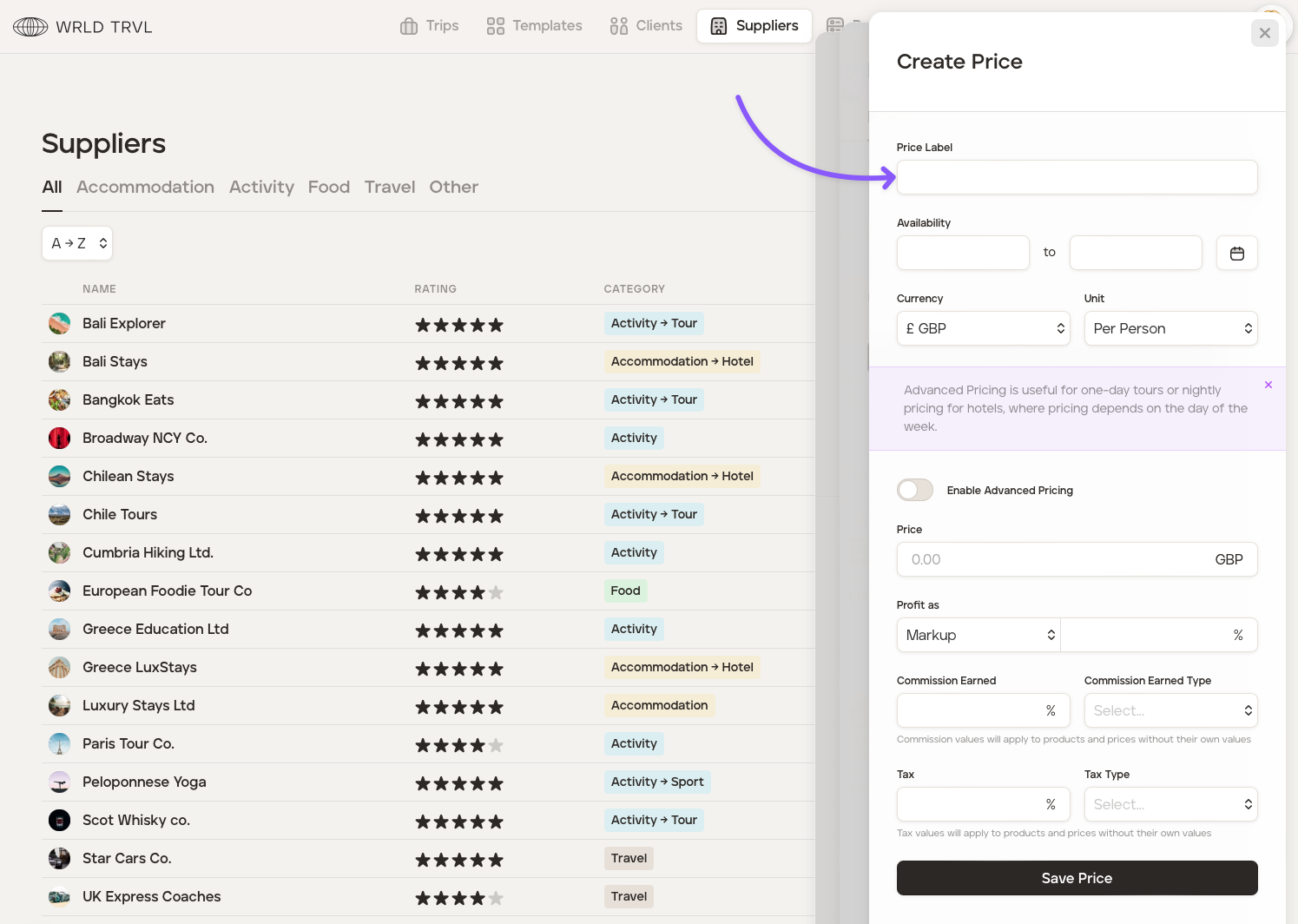
Label the price, for example, ‘Low Season’ (but customise the label as you wish!).
Add the applicable date period the price applies to by adding dates in the 'Availability' field.
Add the currency and unit.
If applicable, add markup/margin, commission and tax.
Add the price. 'Advanced pricing' is useful for one-day tours or nightly pricing for hotels, where pricing depends on the day of the week. To add advanced pricing, toggle the 'Enable Advanced Pricing' switch to turn on. Turning the switch on will reveal the days of the week where you can input prices for every day of the week.
Click the ‘Save Price’ button.
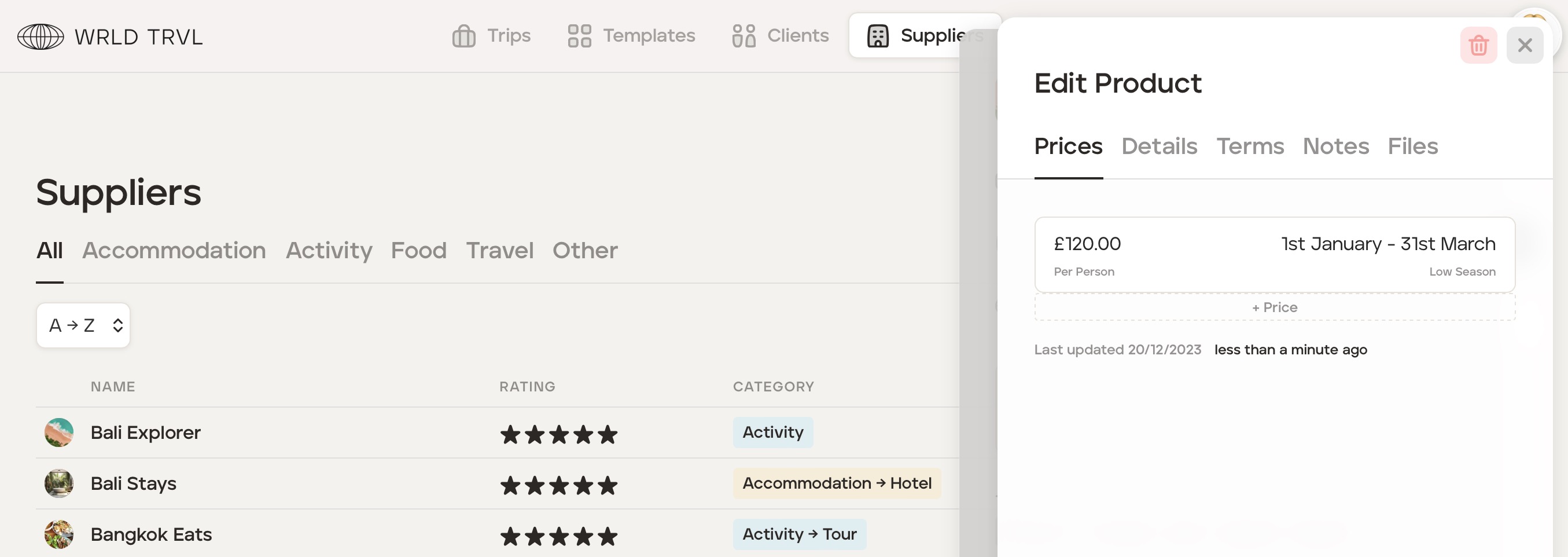
You will now return to the ‘Prices’ tab which now shows the price you created. Click ‘+ Price’ to add further prices.
Add supplier payment terms to a supplier product
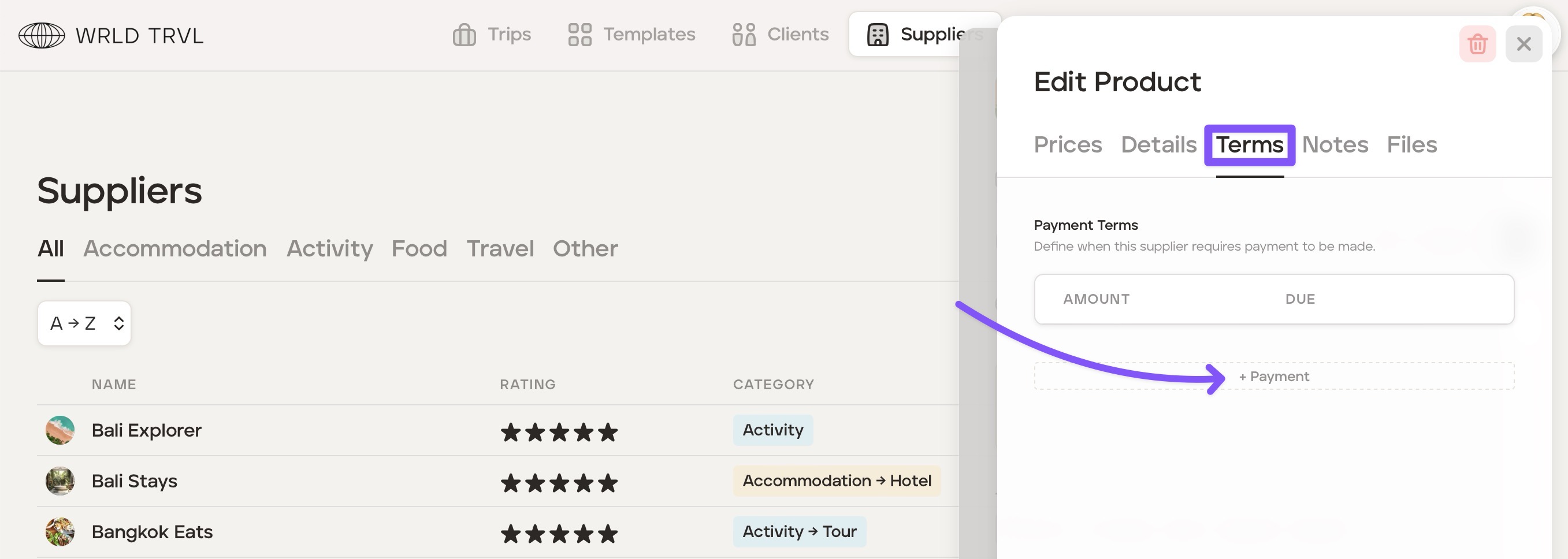
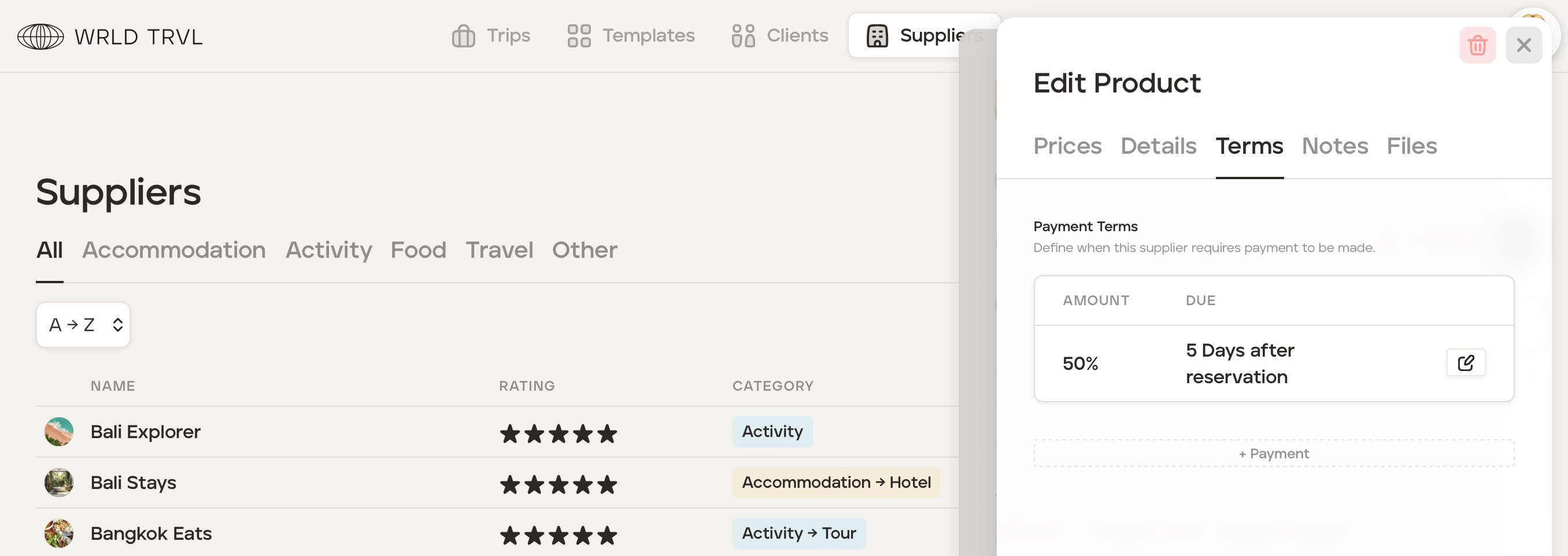
Click the ‘Terms’ tab to define when the supplier requires payment to be made.
Click ‘+ Payment’.
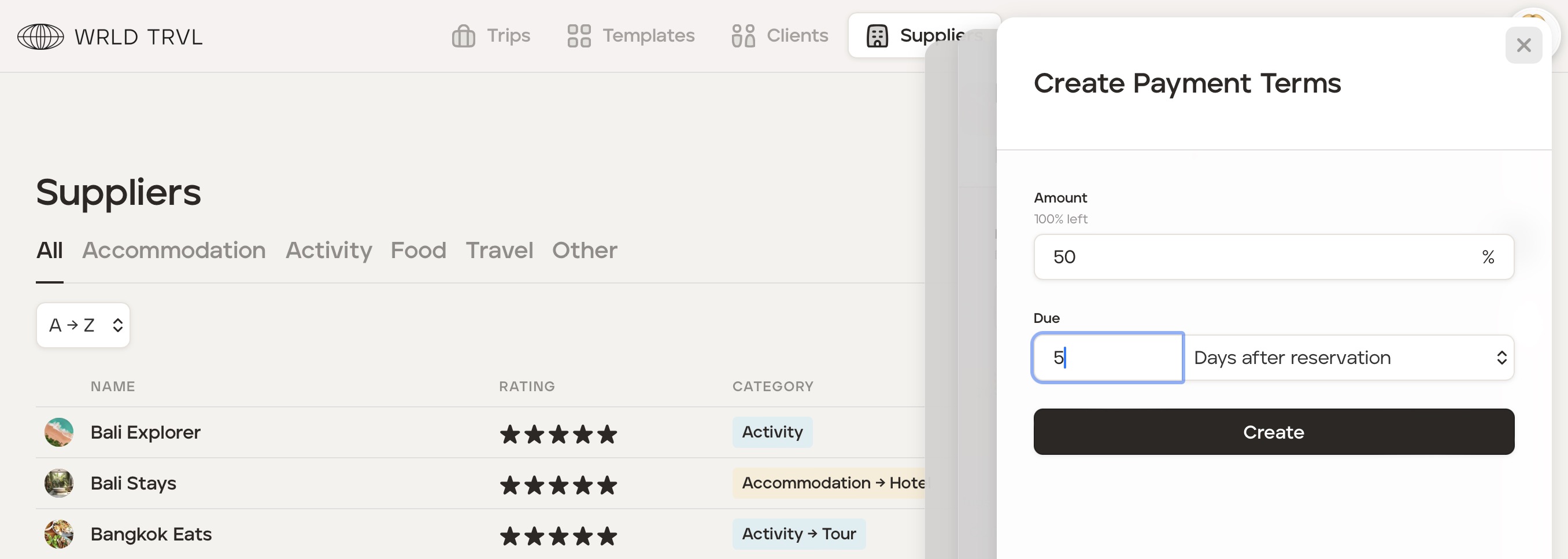
A 'Create Payment Terms' modal will appear on the right-hand side of the screen.
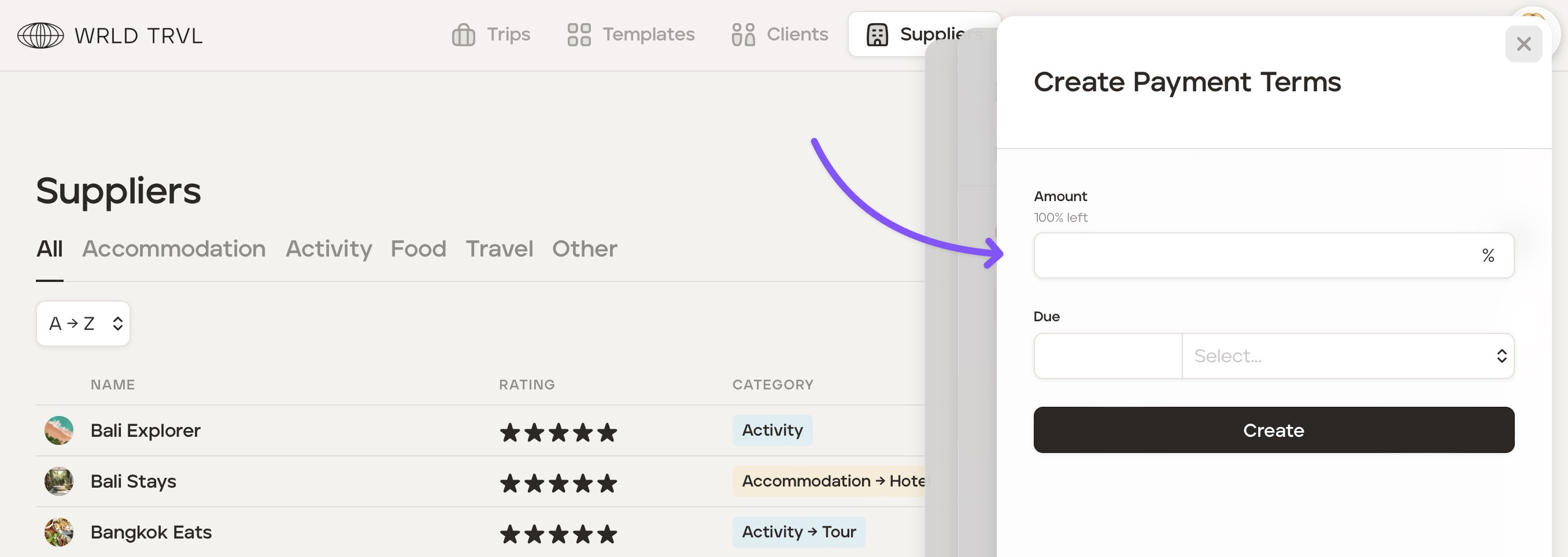
Enter the percentage amount required and the due date.
Click the ‘Create’ button.
You will now return to the ‘Terms’ tab which now shows the payment instalment you created. Click ‘+ Payment’ to add further payment instalment.
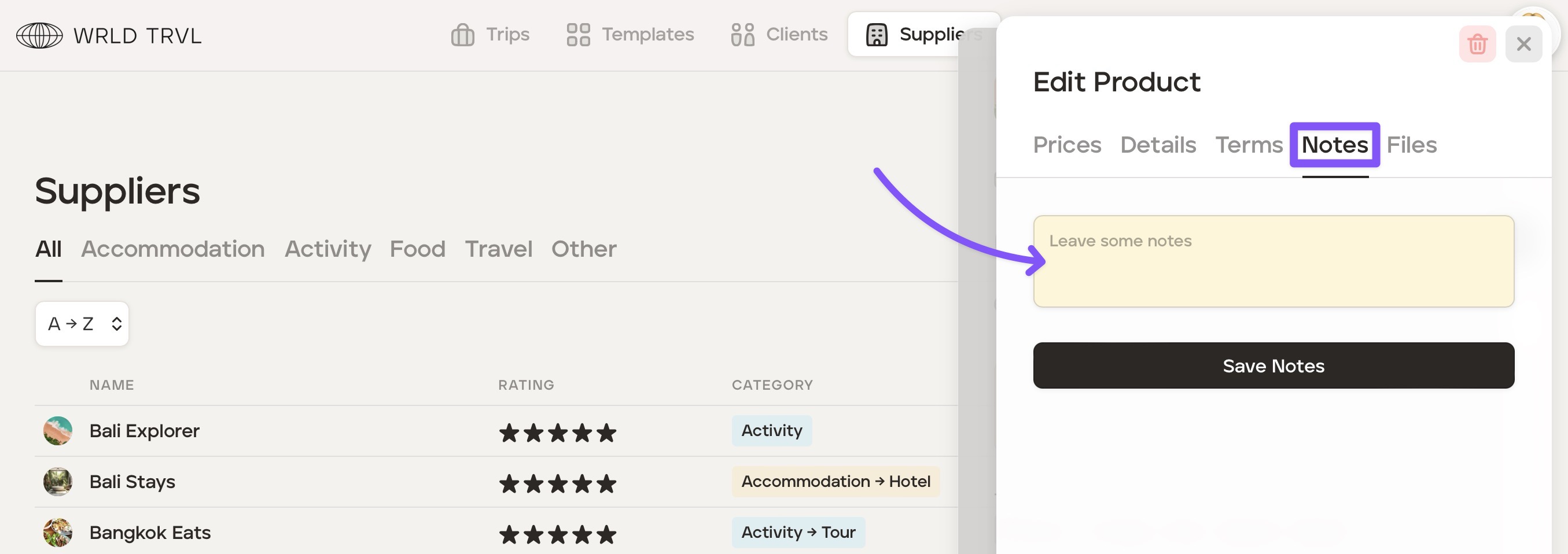
Add notes to a supplier product
Click the ‘Notes’ tab.
Add your notes.
Click 'Save Notes.'
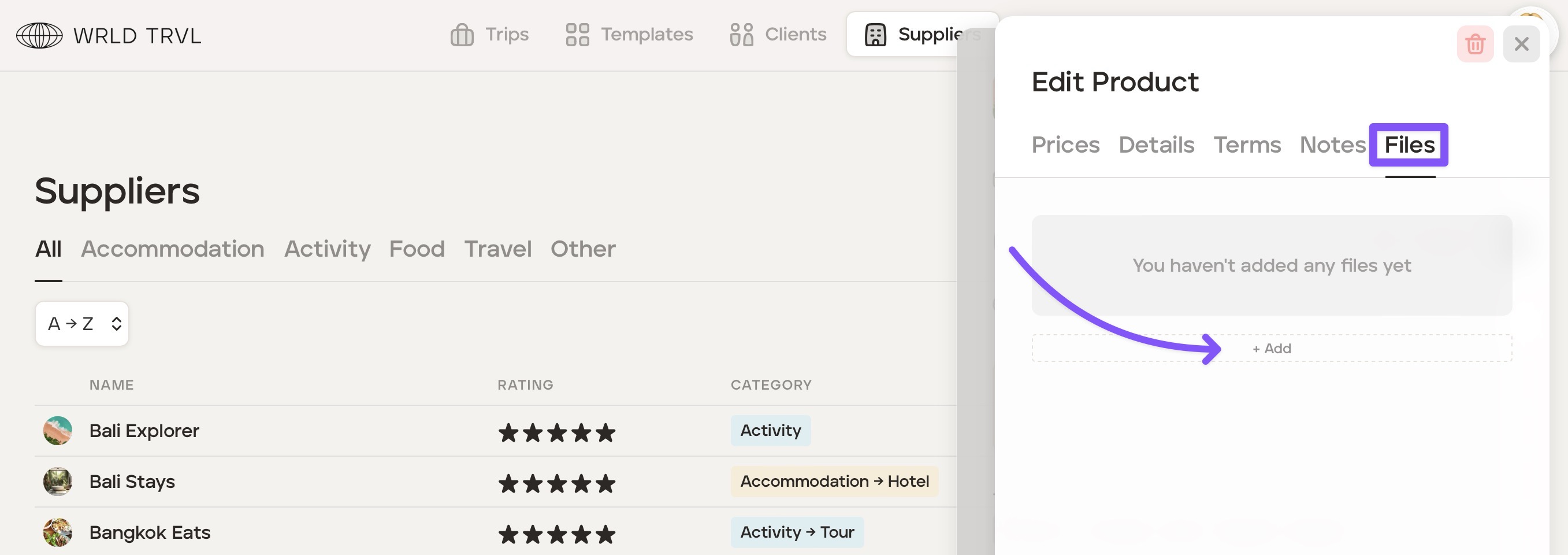
Add files to a supplier product
Click the 'Files’ tab.
Click ‘+ Add’ to upload a file.
Add custom data to a supplier product
Click the 'Data’ tab.
Click ‘+ Add’ to upload a file.