

Create a proposal from scratch
To create a proposal from scratch, follow the steps below:
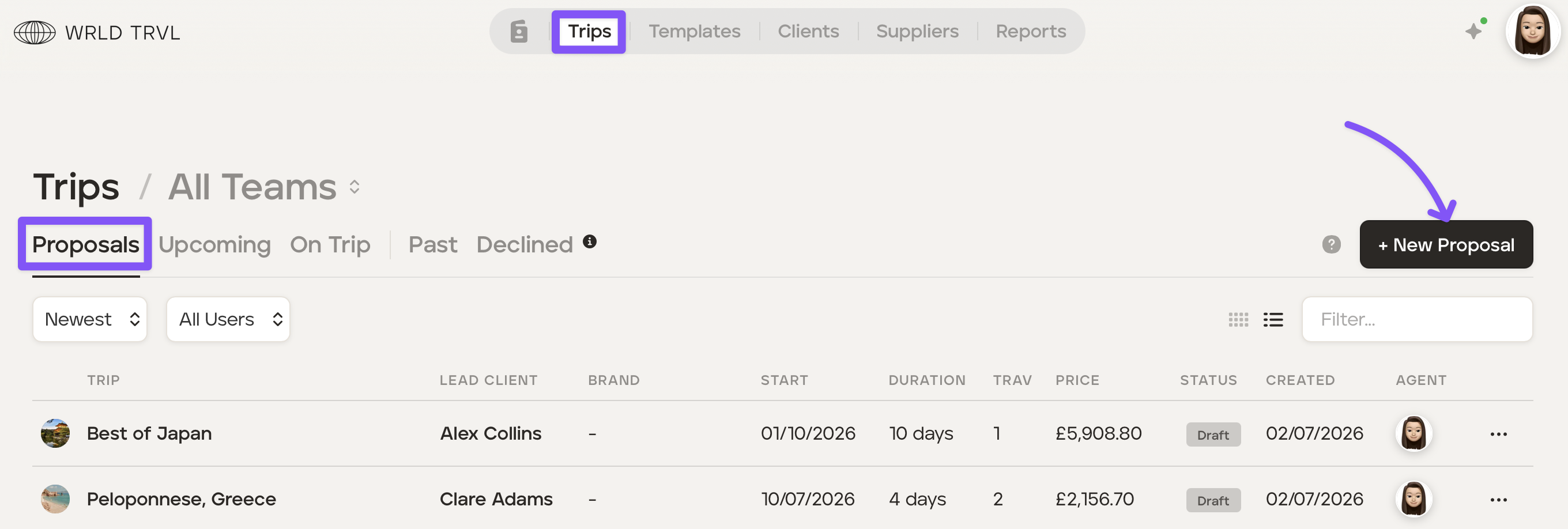
Go into the ‘Trips’ section.
Click the ‘+ New Proposal’ button.
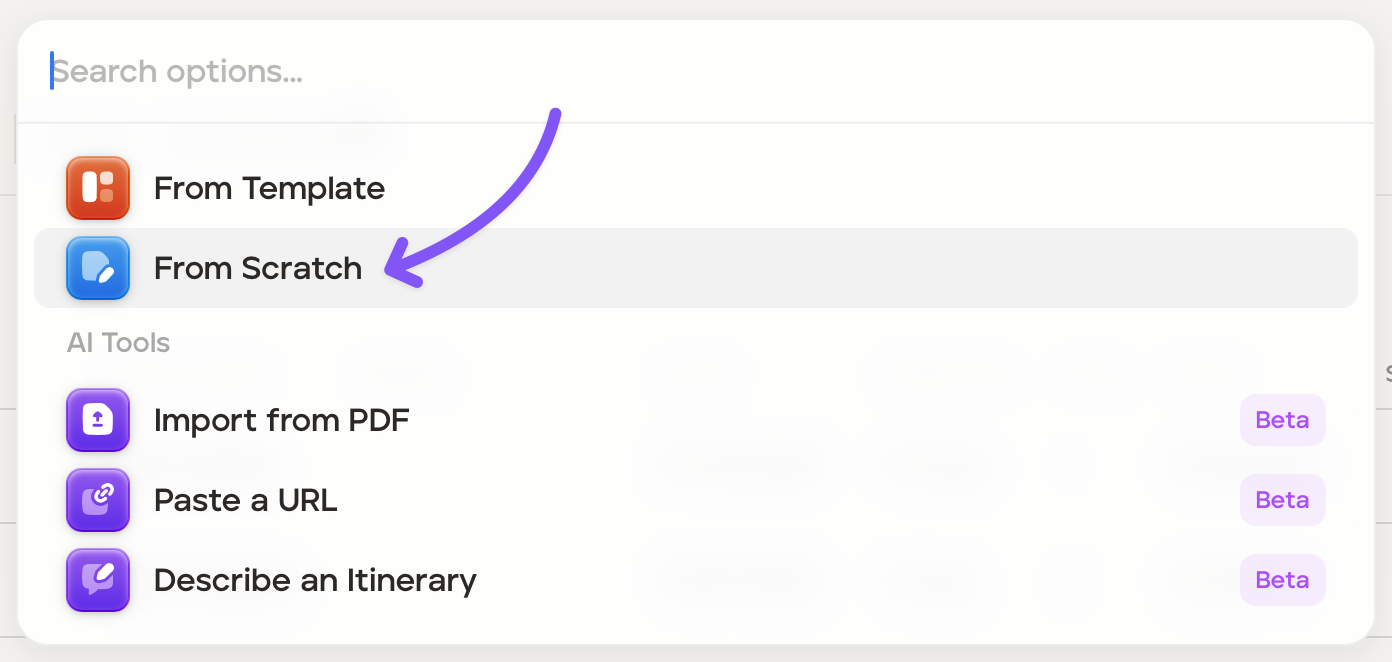
On the pop-up box click 'From Scratch'.
Complete the information in the drawer:
Proposal Name field - Add your proposal name.
Teams - In the dropdown menu, select your team. If you don't add a team, this trip will be visible to everyone in your organisation.
Fixed Departure - If the itinerary is going to a fixed departure master itinerary, toggle the 'Create as master itinerary' switch to 'on' (it will highlight purple when on) to create the itinerary as a master itinerary. If not, you do not need to turn the switch on.
Client - Select either an existing client from the drop-down menu or create a new client by clicking ‘+ New.’
Countries - Select the country or countries.
Regions - Select the regions if you wish.
Days - Select the number of days.
Brand - If you'd like the proposal to be branded with one of your partner brands (see 'Adding your business partner's branding in your settings' article), select your brand from the drop-down menu.
Start Date - Select the start date if you have one; otherwise, leave it blank.
Click the ‘Create from Scratch’ button.
Overview
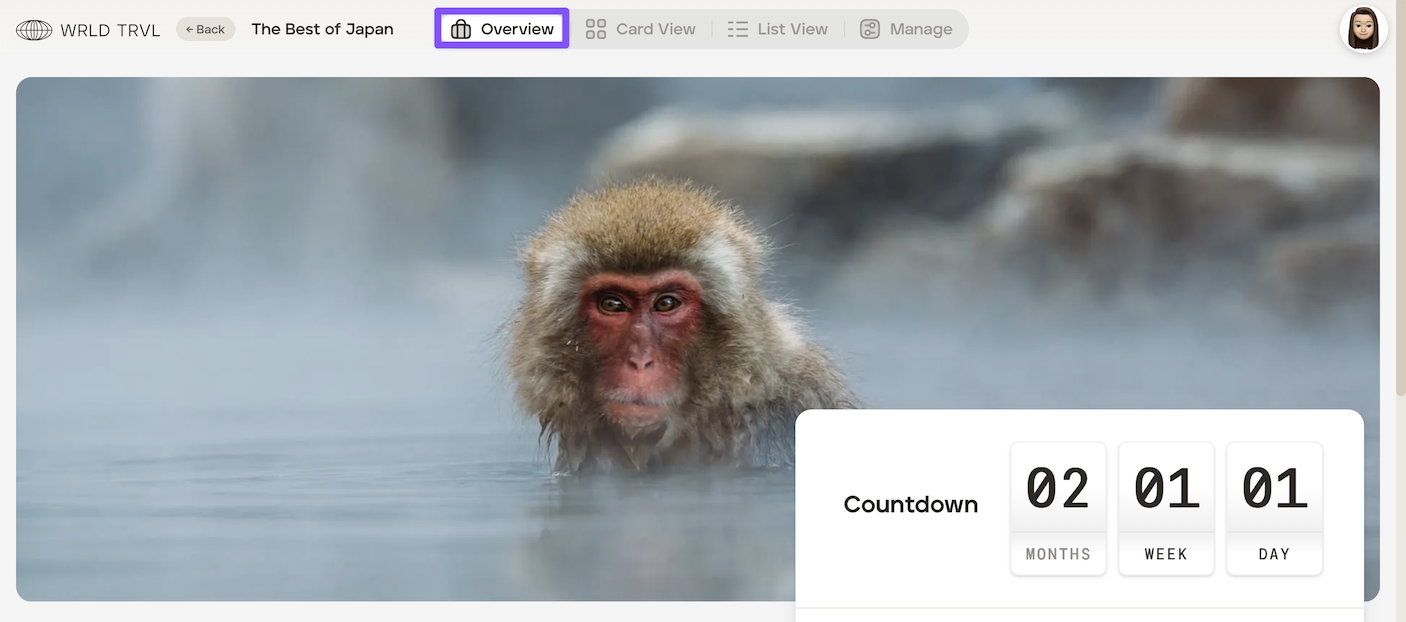
You will now see the proposal ‘Overview’ screen. For Guidance creating the 'Overview' please read Create a 'trip brochure' on the trip Overview using Overview Blocks.
Itinerary Layout
Now it is time to start creating your proposed itinerary. There are two layouts you can use to build and view your proposal:
Card View - a kanban style layout
List View - a traditional list layout
Add items to the proposal using Card View
To add items to the proposal in Card View, follow the steps below.
Click ‘Card View’ at the top of the screen.
Click the '+New Card' button, which will bring up the launcher.
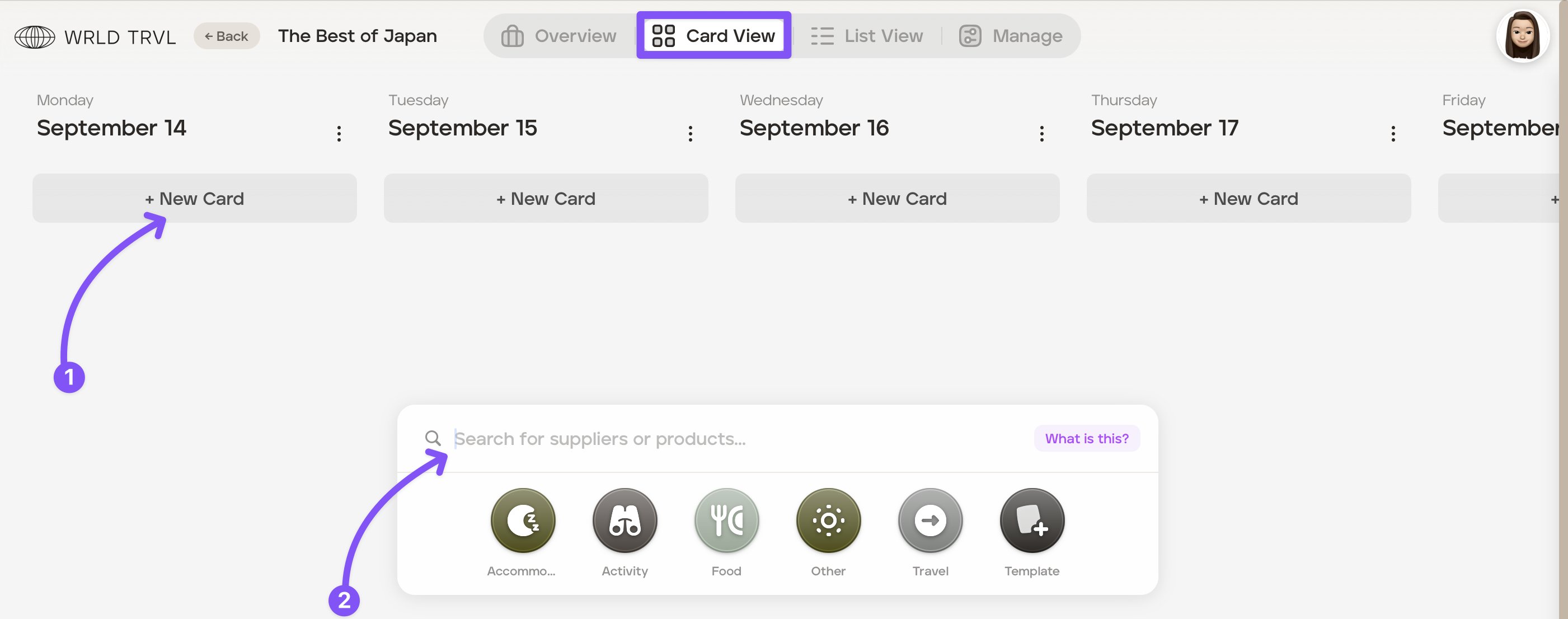
You have 3 options:
Click the relevant category icon ('Accommodation', 'Activity', 'Food', 'Other' or 'Travel') to add a new card and add the information from scratch.
Search for one of your supplier products which is in your supplier database; or
Click the template icon to add a card which is in your template card database.
More details are set out below on each of these options:
Option (1) - Click a category icon and add the information from scratch:
Click the relevant card category icon, for example, activity.
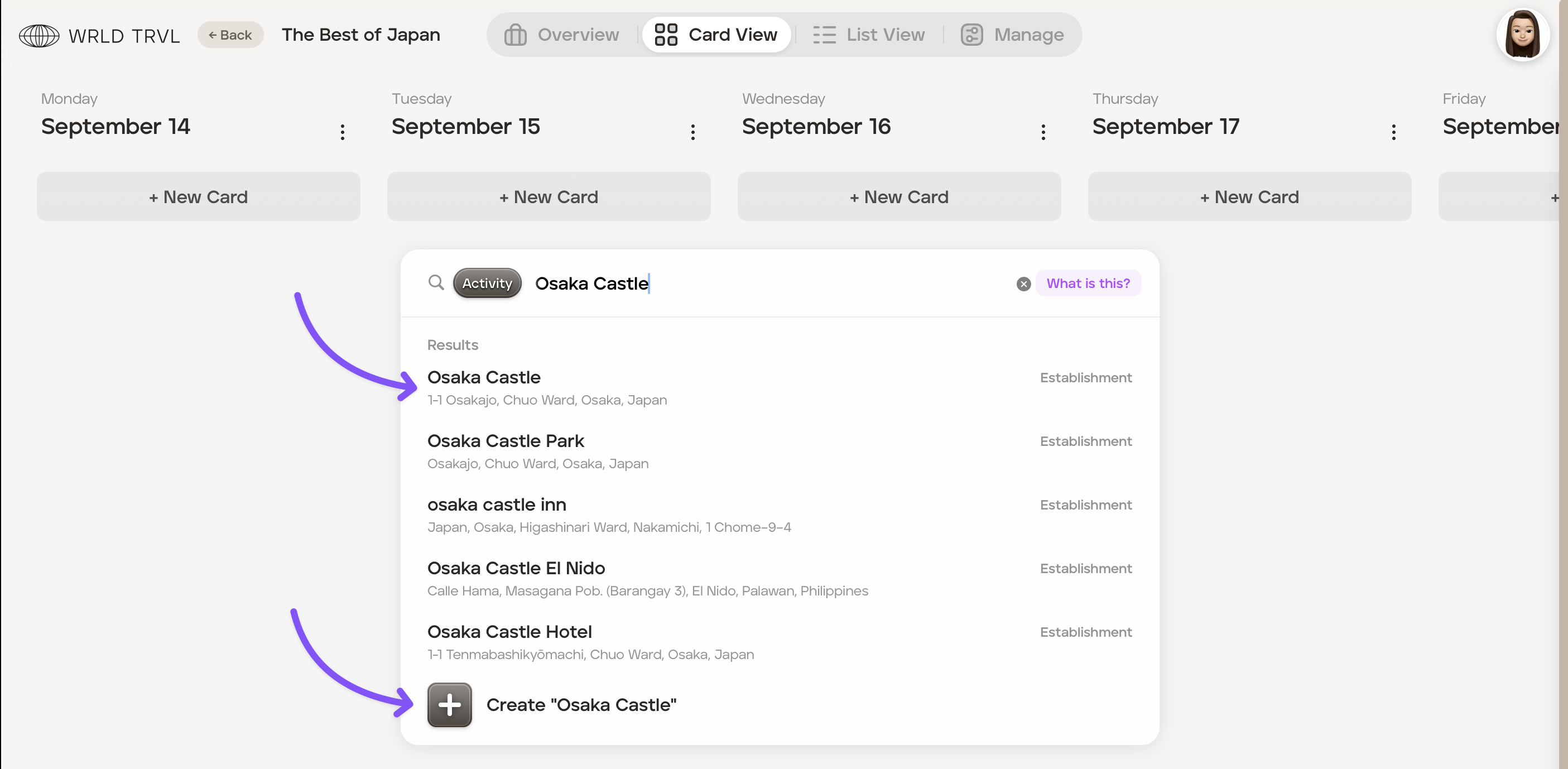
In the search bar type add a card title eg. Osaka Castle. This will display:
Google location results of Osaka Castle ; AND
the ability to simply create a card with the title typed in the search bar, for example, Osaka Castle.
Click either:
the relevant Google location result (which will add the name of the result as the card title and add accompanying location and business data to the card); OR
'+ Create ''Osaka Castle" which will add the activity card with the 'Osaka Castle' typed in the search bar.
The new card will then slide in from the right for you to add images and all content:
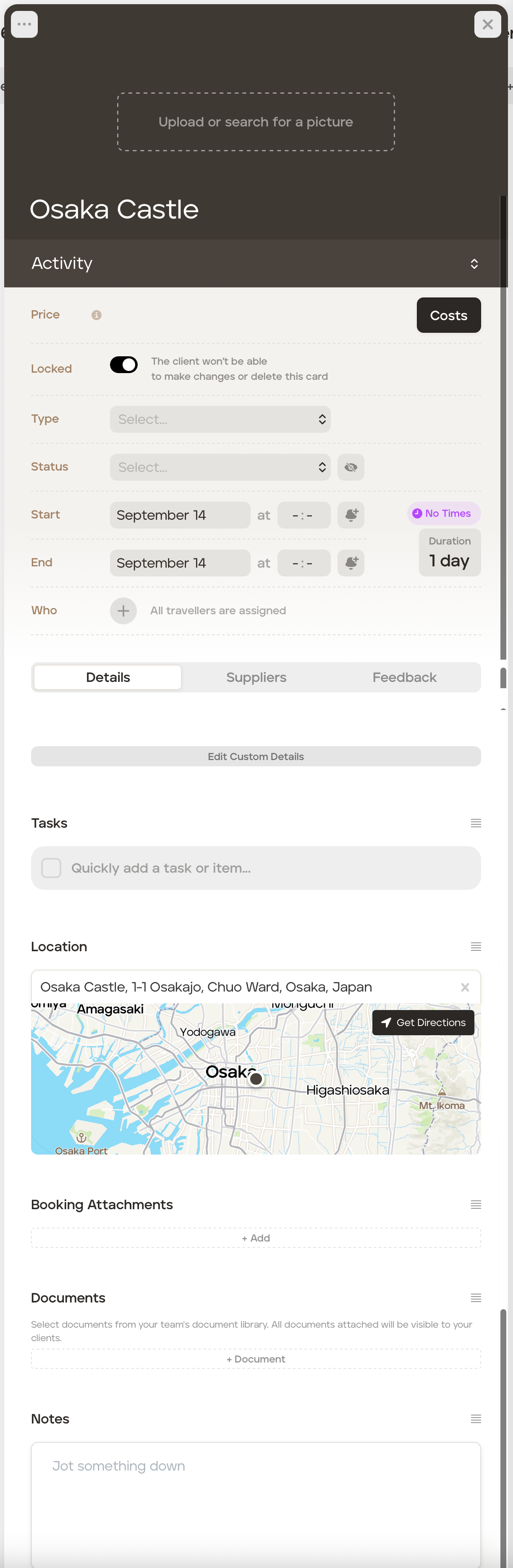
Once you have input your information into the card you can close the card by clicking 'X' icon in the top right hand corner of the card (or click anywhere on the screen outside the card).
Option (2) - Search for one of your supplier products which is in your supplier database:
To add a supplier product type the name of the supplier product in the search bar and then click the relevant result. Depending on how you have arranged the pricing of the supplier product, you can relevant result will be highlighted for you to click and add to the itinerary.
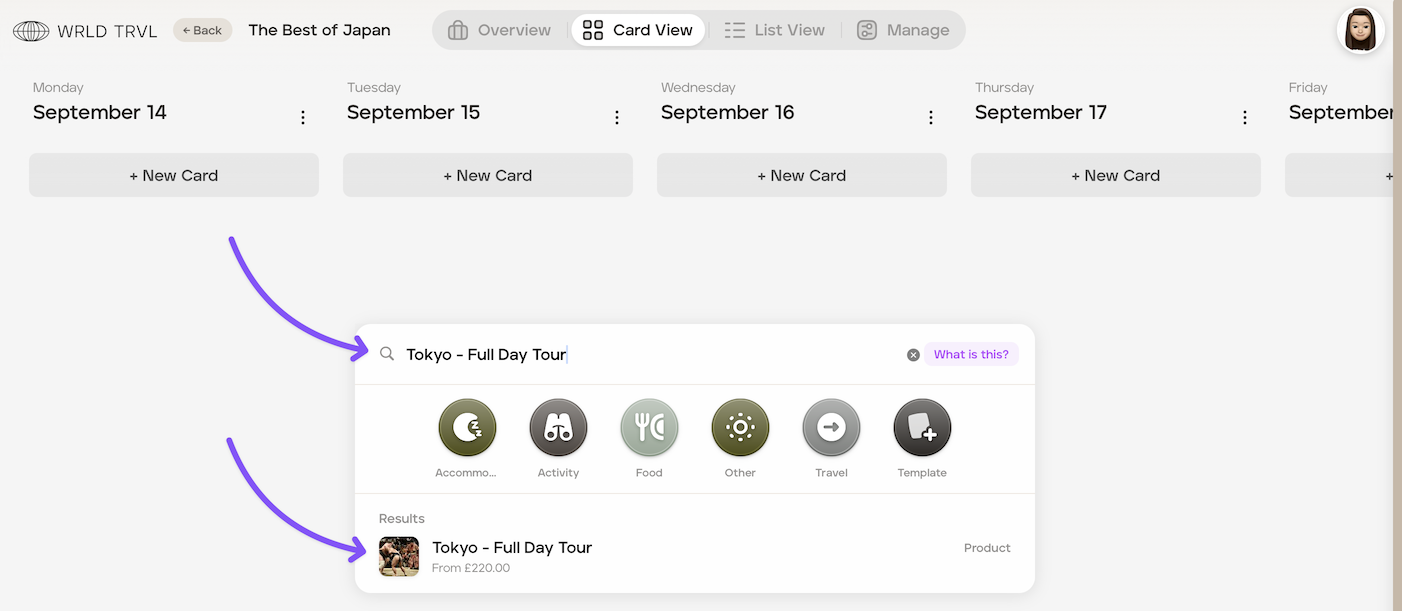
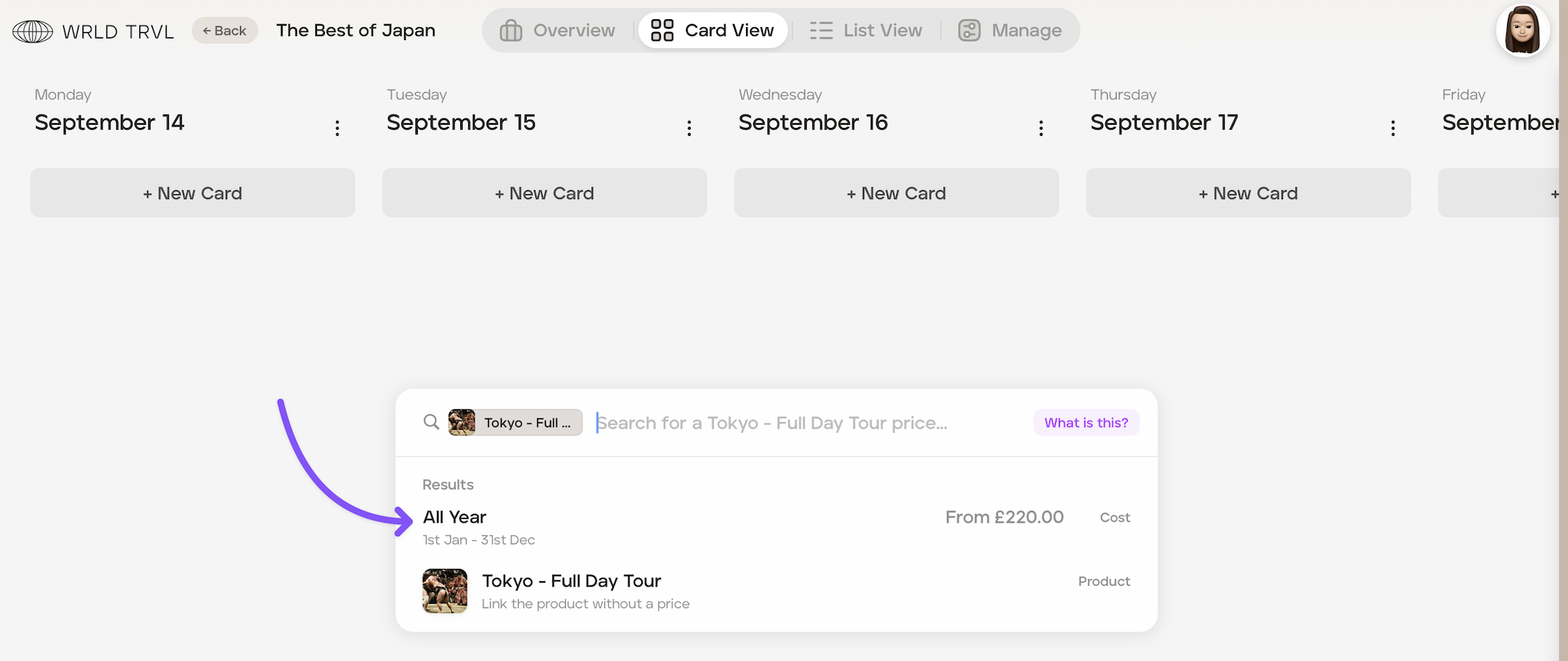
All information from the supplier product (which had previously been added to the supplier database) will pull through, including images, content and pricing. You can still amend the information if you wish - that will not have an effect on the supplier database.
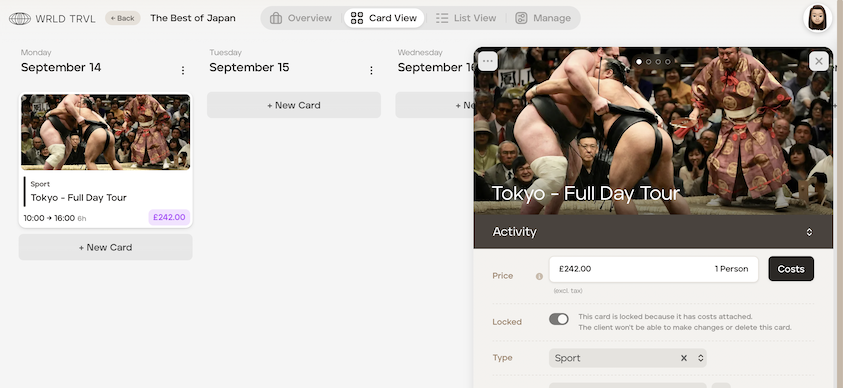
Once you have input your information, close the card by clicking 'X' icon in the top right hand corner of the card (or click anywhere on the screen outside the card).
Option (3) - Click the template icon to add a card which is in your template card database.
Click the the template icon.
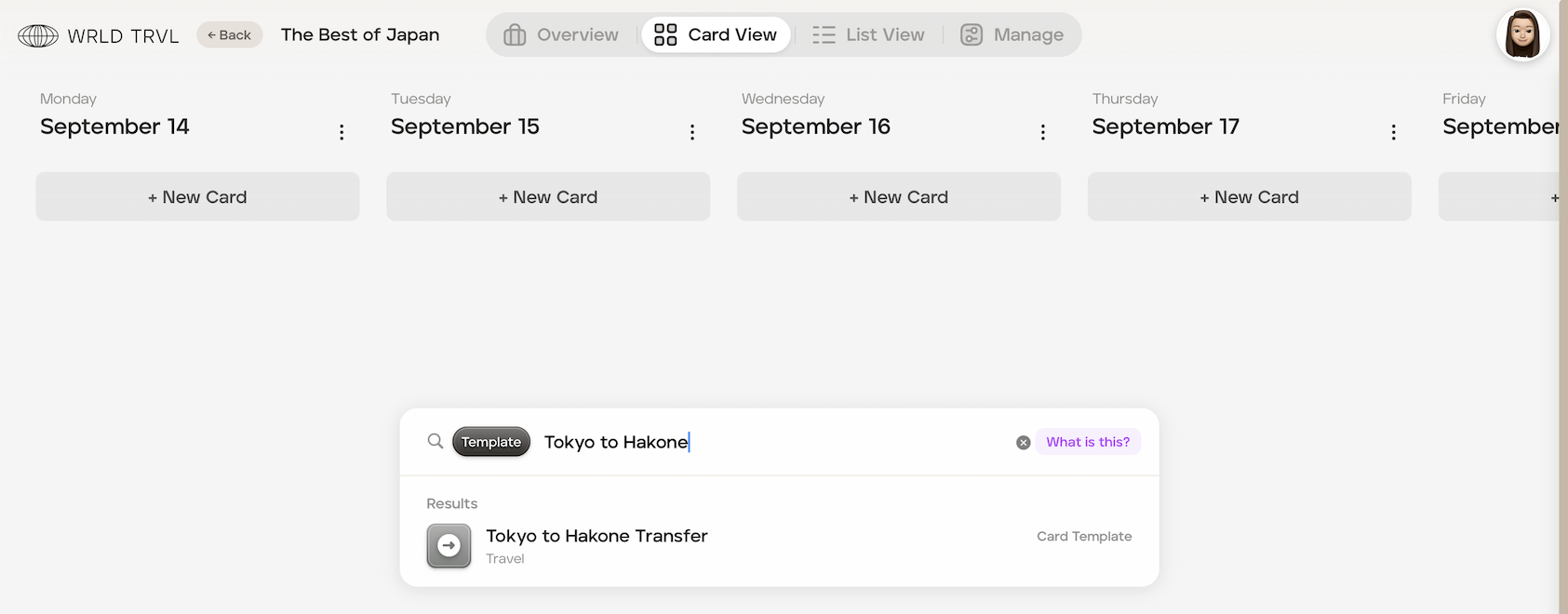
In the search bar type the template card you are searching for, for example, Tokyo to Hakone Transfer. This will bring up the search result.
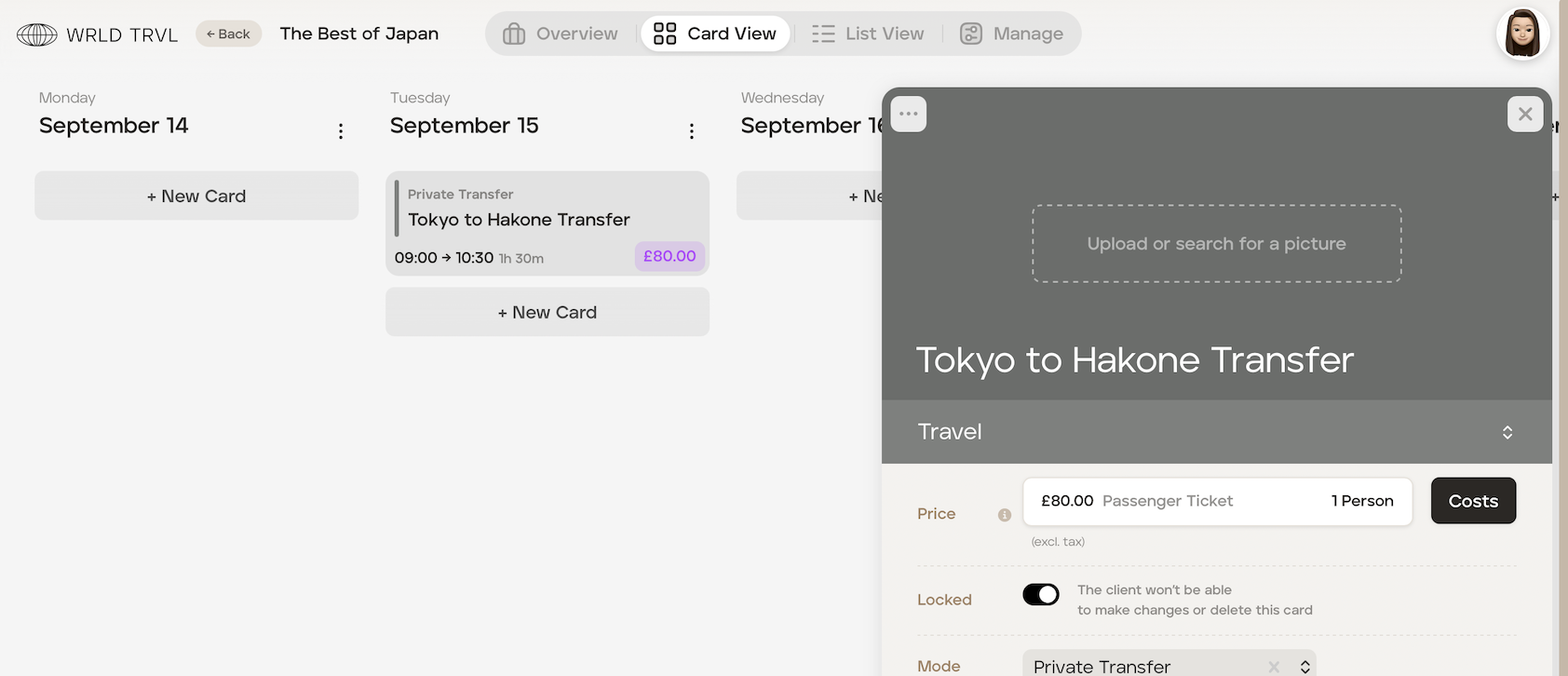
Click the result and the template card will be added to the itinerary. All information from the template card (which had previously been added to the template card database) will pull through, including images, content and pricing. You can still amend the information if you wish - that will not have an effect on the template card database.
Add items to the proposal using List View
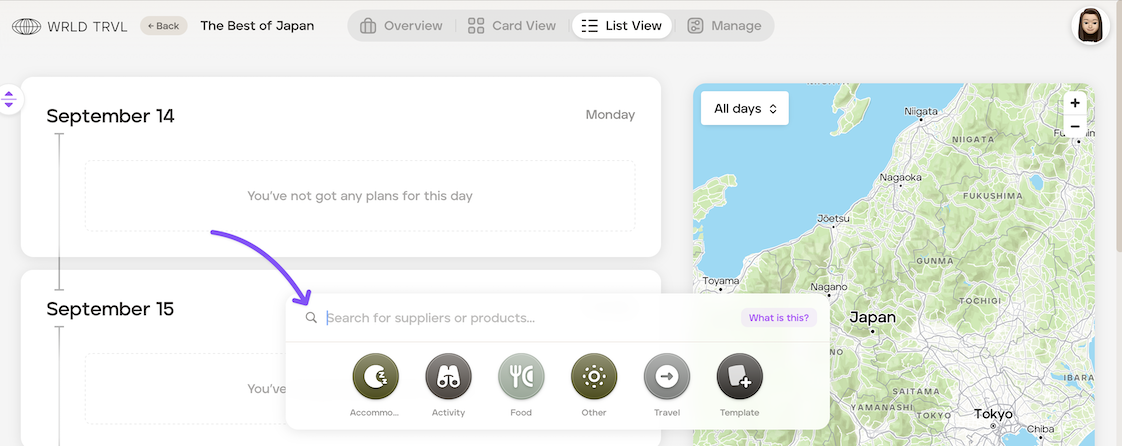
To create the itinerary using list view, click 'List View' at the top of your screen.
Hover over where you want to add your card and it will highlight in purple. Click when the position is correct.
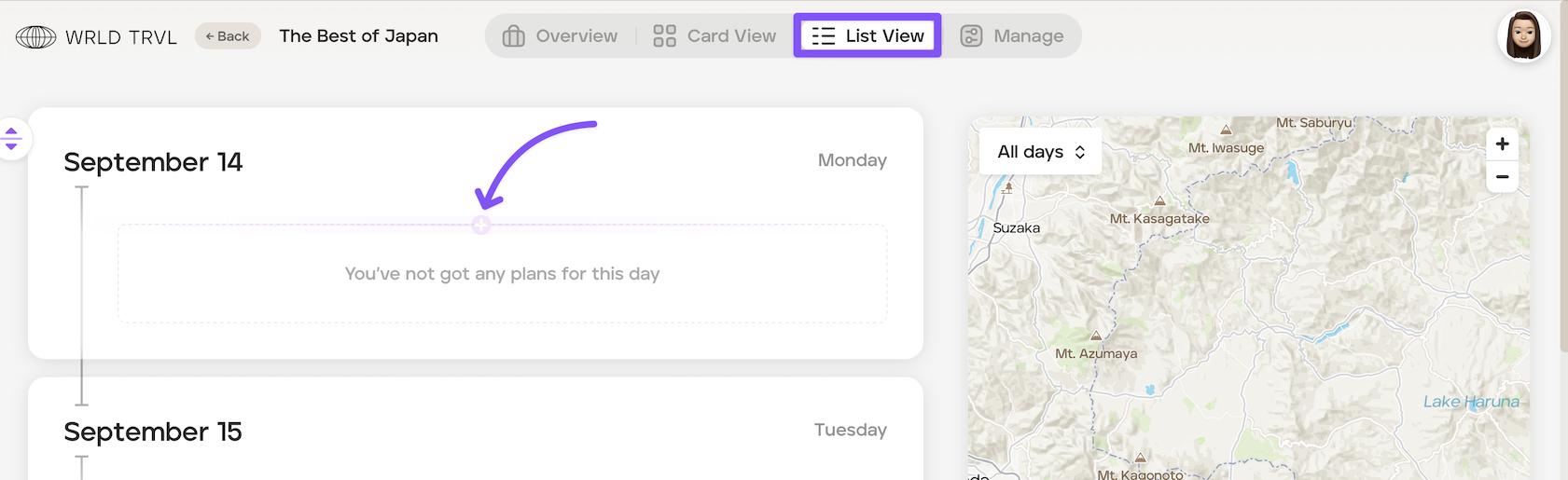
The laucher bar will appear, and the process from then is the same as for Card View which is set out above.
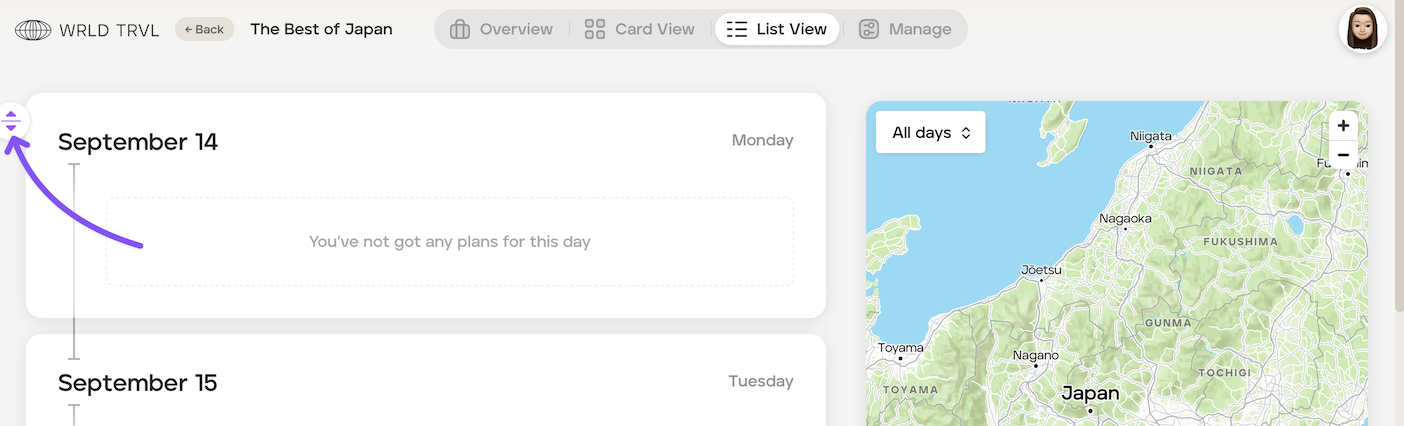
Expand and collapse functionality in list view
To show or hide any notes added to cards in 'List view', click the expand/ collapse icon.
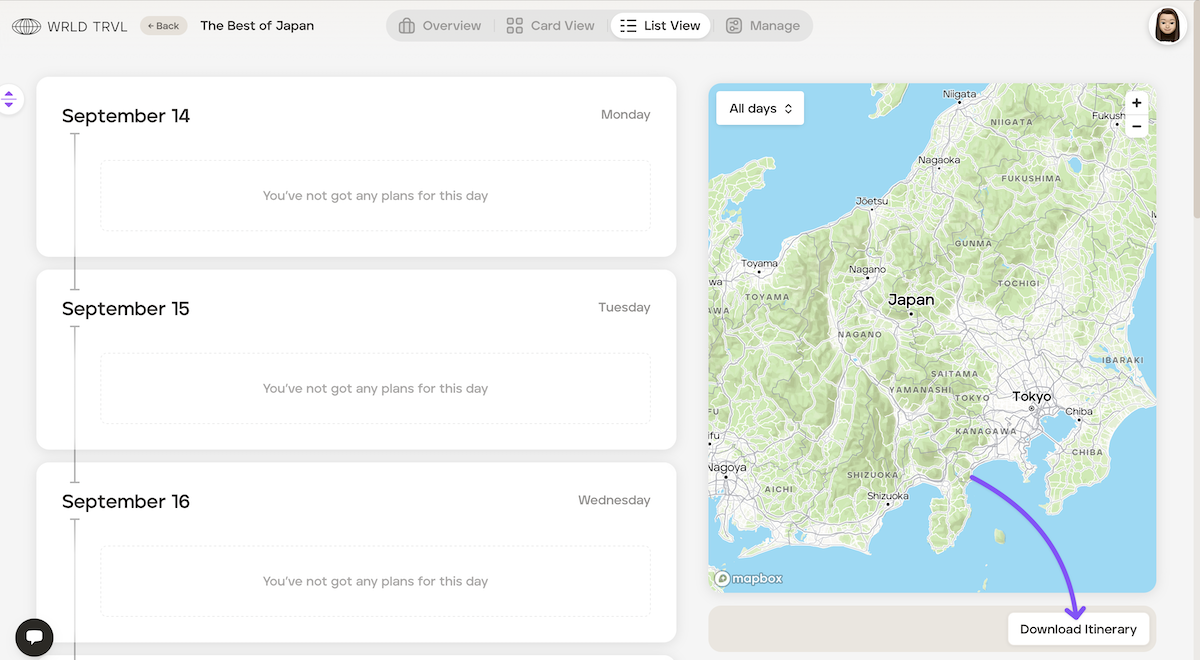
PDF template itinerary
Download the template itinerary in PDF by clicking ‘Download Itinerary’ in 'List View'.
Trip Ideas
Trip ideas column in card view If you have some itinerary ideas which you do not want to place within the proposal itself, you can follow the same process of adding cards in the ‘Trip Ideas’ column on the left-hand side of the screen.
You can choose whether or not to have the 'Trip Ideas' column in card view by clicking ‘Manage’ at the top of the screen, selecting 'General Settings' tab and disabling the feature using the 'Trip Ideas' toggle switch. Remember to click the 'Save' button.