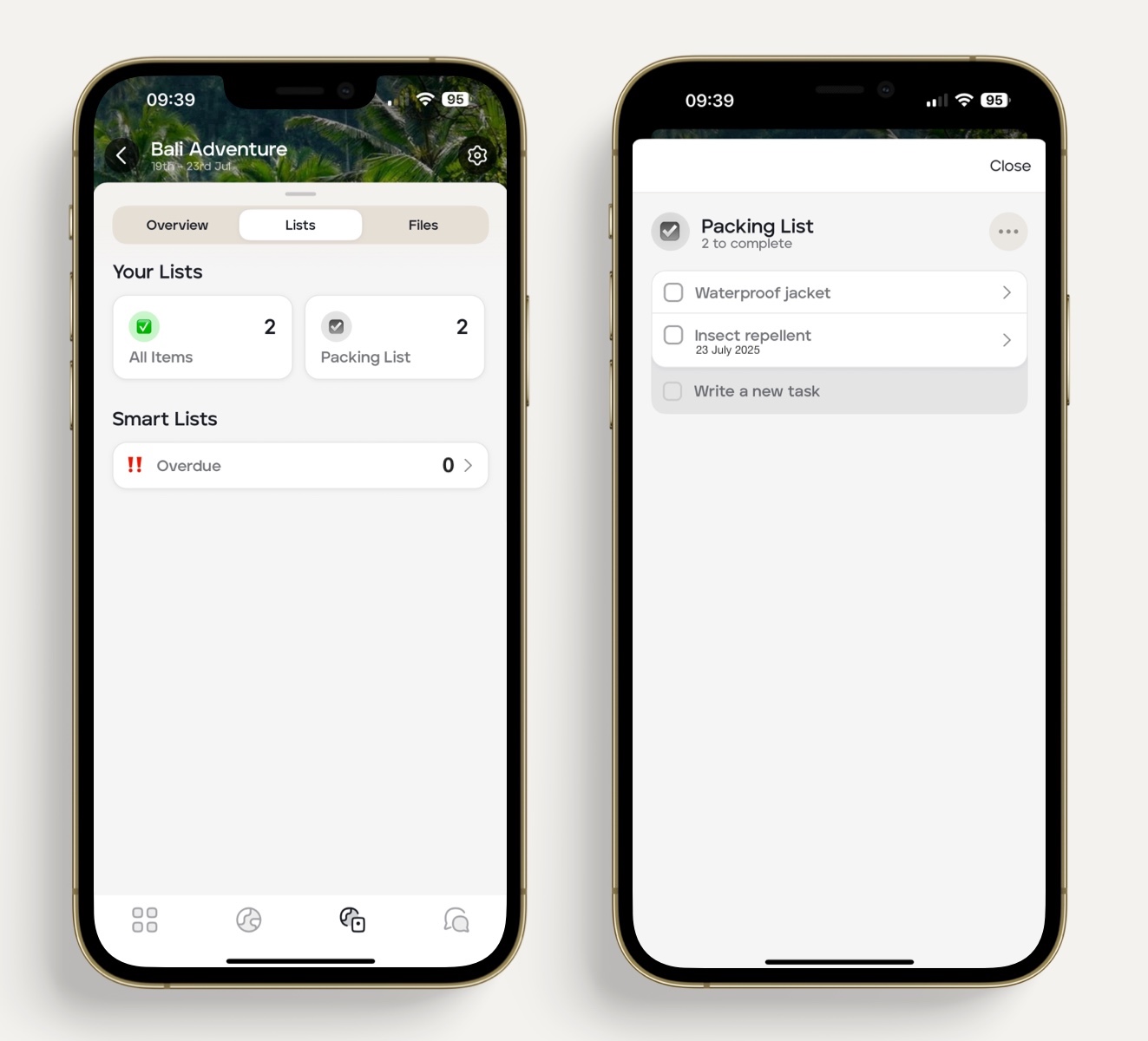
Provide a 'list' for a traveller on the mobile app
By using the 'Lists' feature, you can provide a list for your client, for example, a packing list.
To create a list for your client, follow the steps below:
Select the applicable 'Upcoming' trip itinerary. The 'Upcoming' itinerary needs to have specific dates in order to set a task for a specific date.
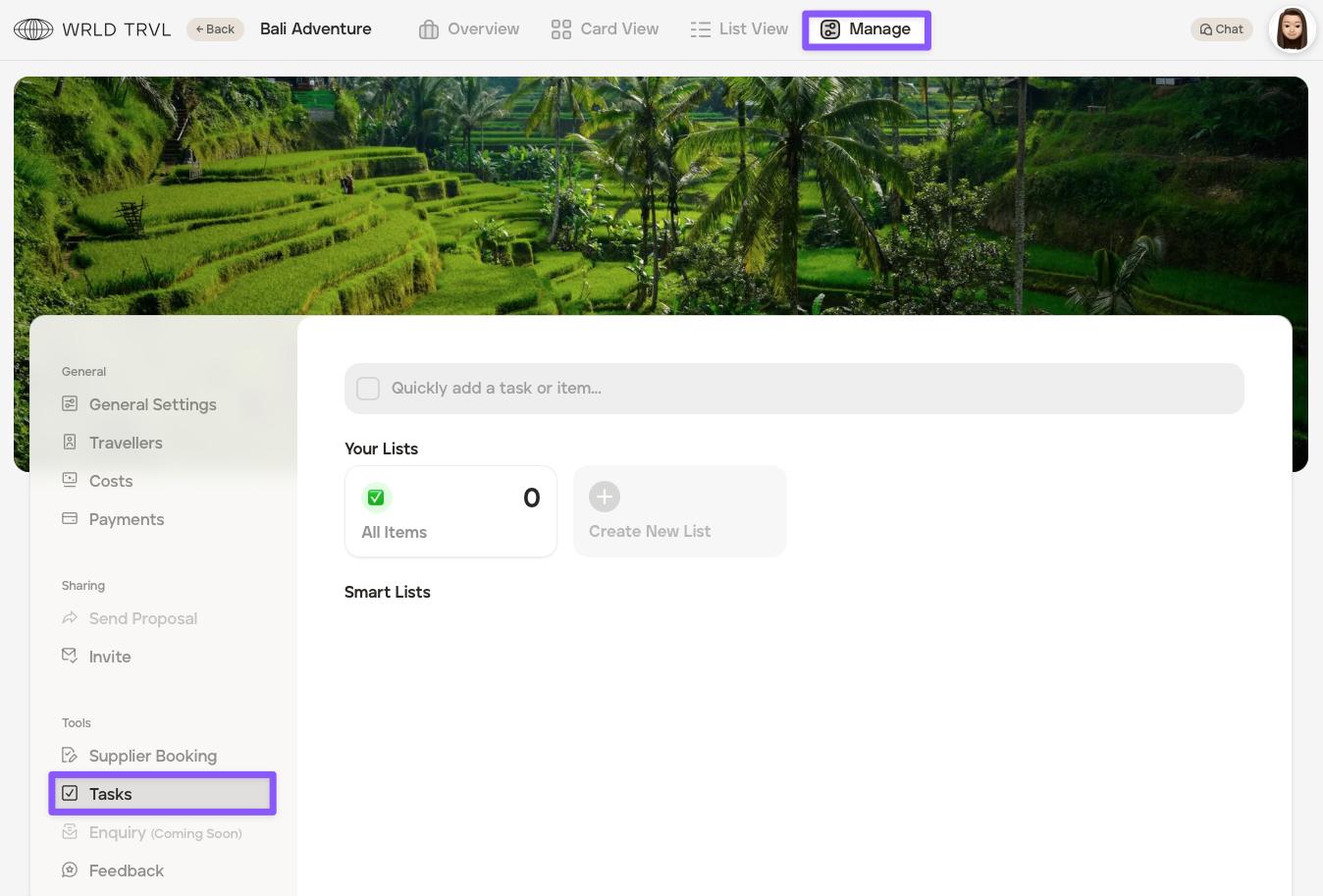
Click 'Manage' and then 'Tasks'.
To create a new list, click 'Create New List'.
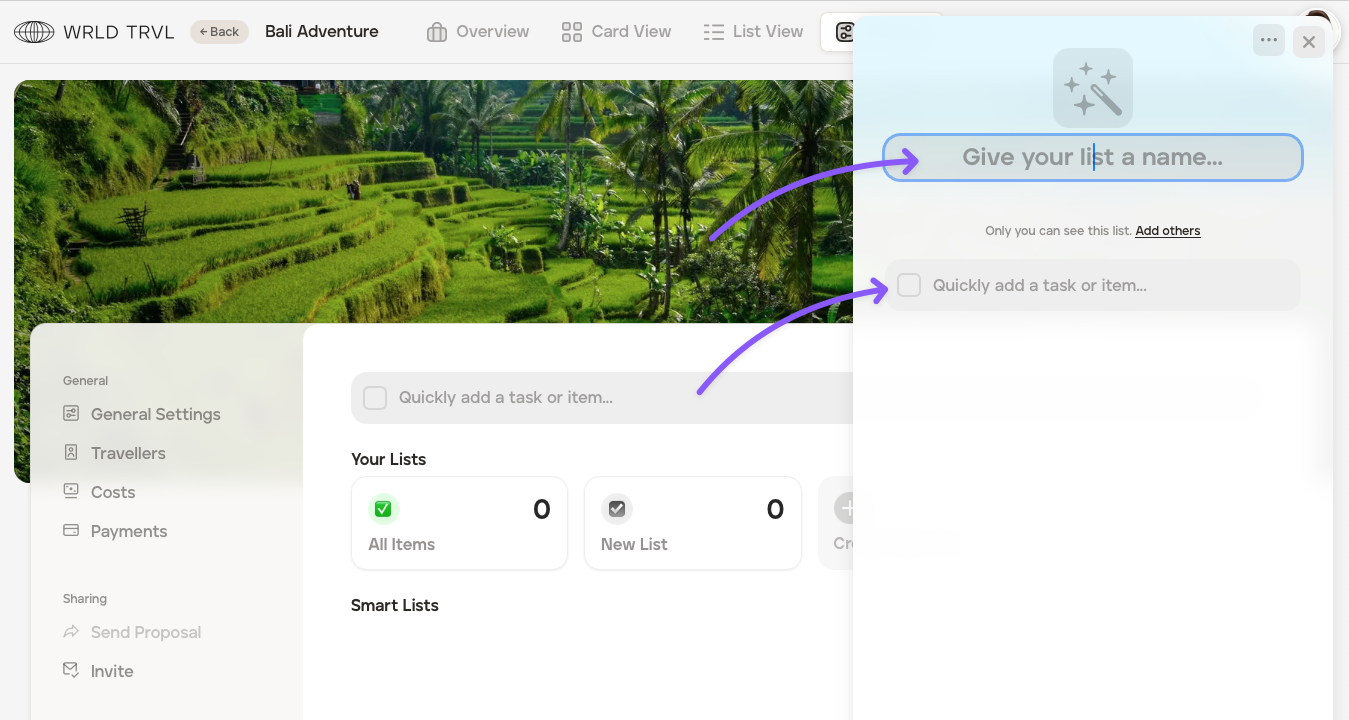
A draw will slide in from the right. Give your list a name, for example, 'Packing List'
Click the grey task or item field.
Type the task or item, for example Waterproof jacket' and 'Insect Repellent' and hit the ‘Enter' keyboard key.
Click that new item. If you wish, you can add a due date, for example, the day before your client departs for the trip.
You can also assign one traveller, but you do not need to if you wish for all travellers on the trip to view and access the list (see steps 8-10 below).
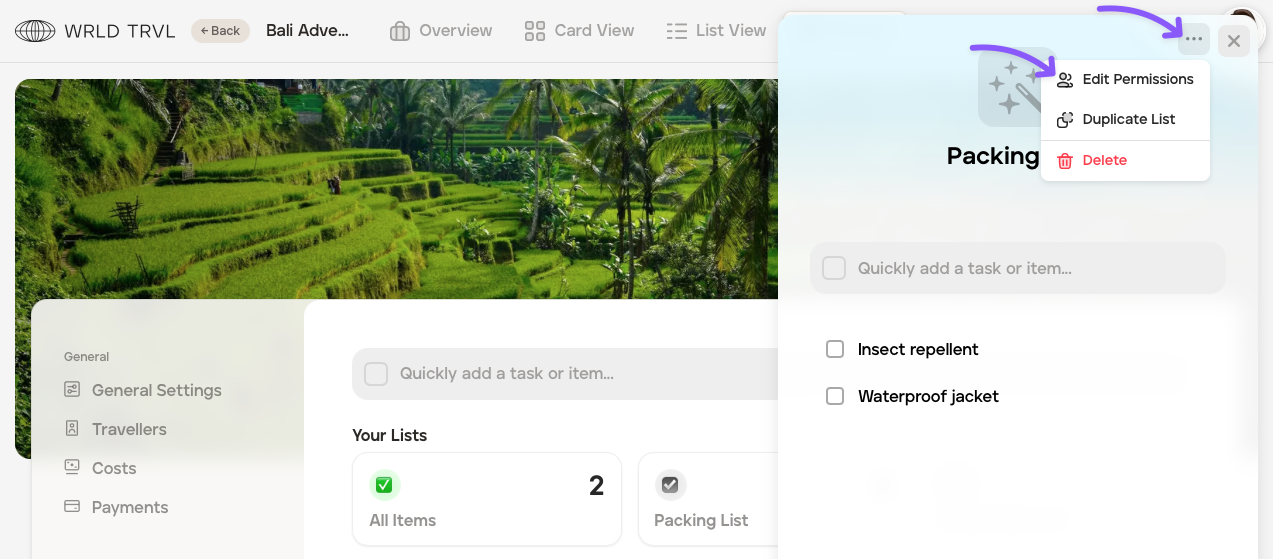
After you've added all list items, click the '...' button and click 'Edit Permissions' to give access to your clients.
Click the grey 'No access' button to give permission to your client(s) to view and access the list.
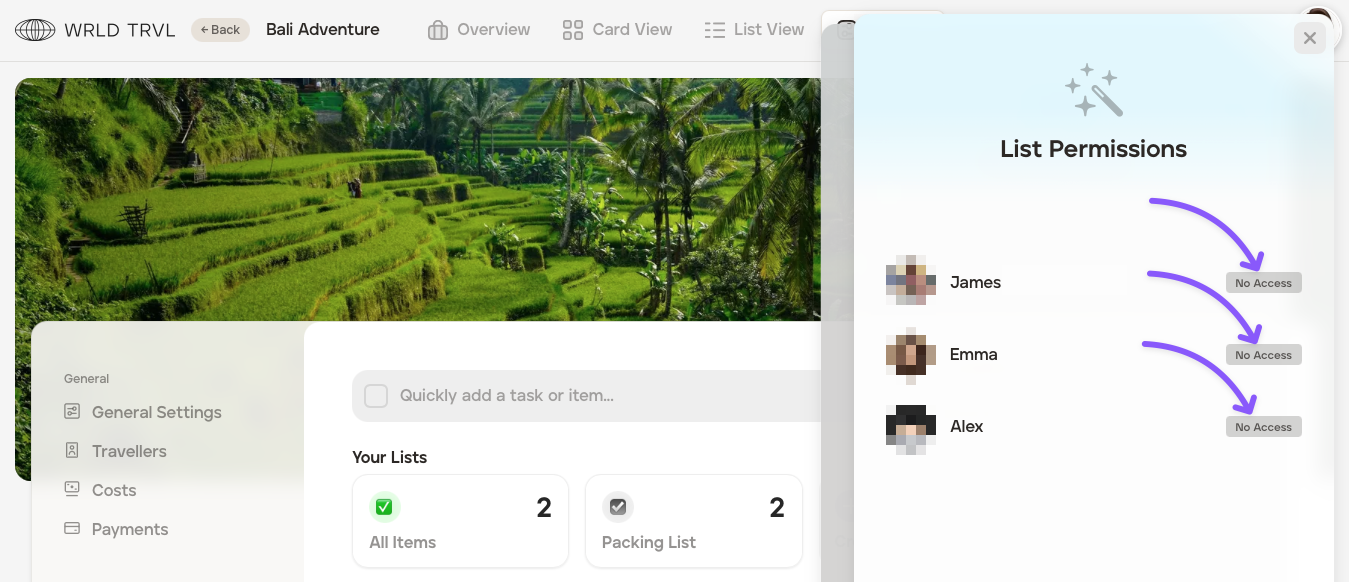
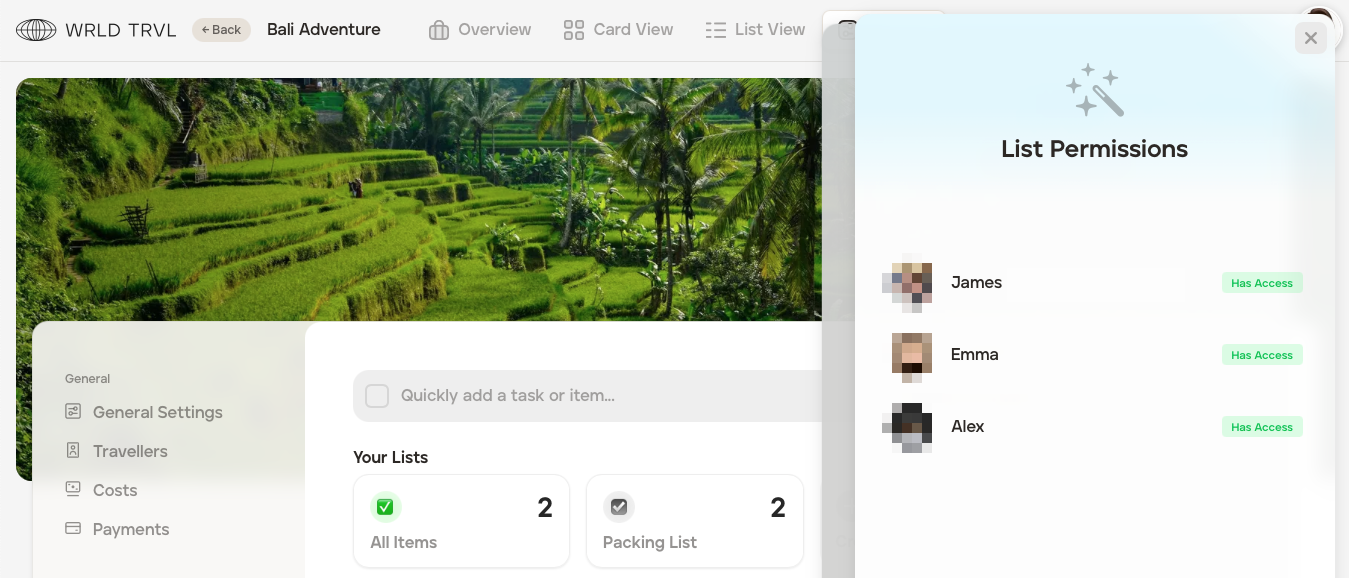
If access is given, the grey button changes to a green 'Has Access' button. You can click again to reverse this.
What your client will see:
If your client is up and running on the mobile app and you have given them access to the list you have created for them, they will be able to view it on the app, alongside any due dates: