

Sharing a proposal link with your client for their review and approval
Before sending a proposal link to your client
Before sending a proposal link to your client for review and approval, you have two options as to what your client can see after approving the link.
Option 1 (the default):
The default is the client will no longer see the itinerary by clicking that same link, but will see a holding page which states:
"Thank you for accepting the proposal [Proposal Name]. We will notify [Travel Company Name] of this confirmation. They will invite you to view your final travel itinerary in due course. You may now close this tab."

Whenever you are ready to share the itinerary, you can invite them to access their itinerary:
through the app; or
you can send a new, updated share link.
Option 2:
If you would like the proposal to continue to be visible after the client has approved it, follow the steps below:
In the 'Manage' section of the applicable 'Proposal', click 'Share Proposal.'
Click the '>' icon.
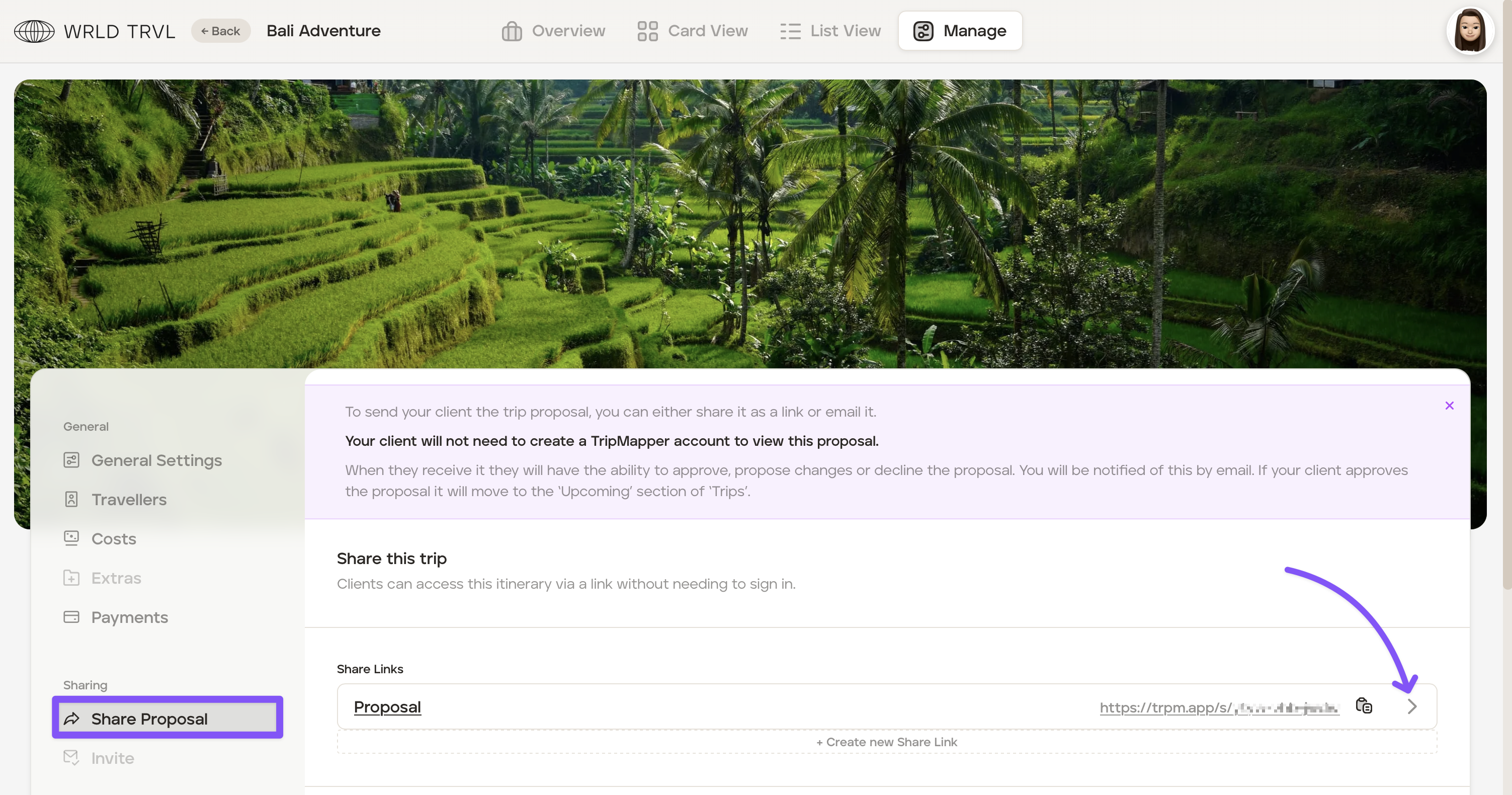
Once in 'Edit Share Link':
Optional: In the 'Name' field you may type a share link name (visible to the agent only, not the client).
Optional: Add a link expiry date.
Turn on the 'Visible After Response' switch. Once the switch is turned on, the link will continue to be accessible to your client, albeit, it will show only the proposal that was approved, nothing more.
Click the 'Update' button to save.
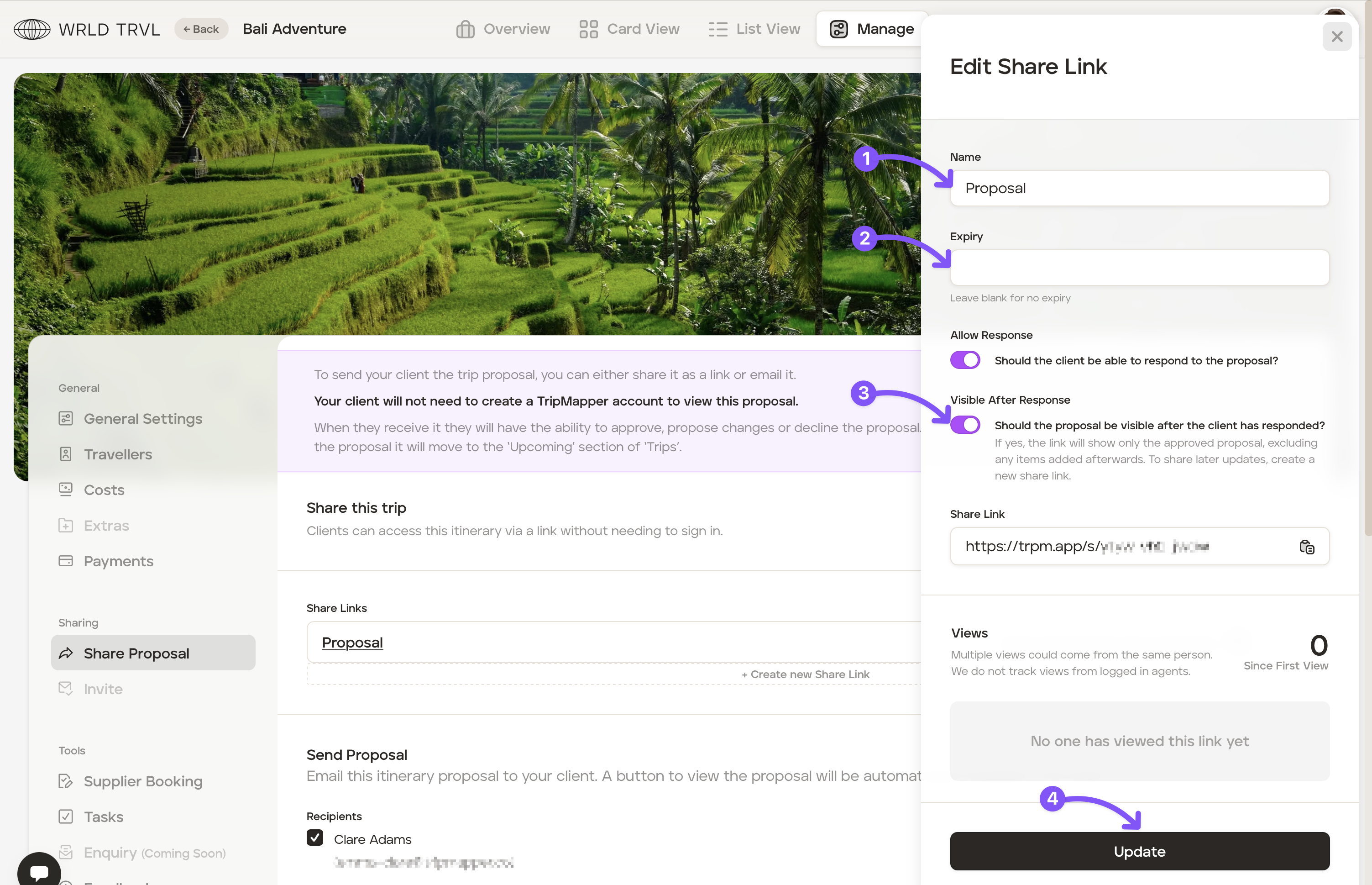
To reverse this, turn the 'Visible After Response' switch off and click the 'Update' button to save.
Automatically redirecting a proposal link to the upcoming trip
Once a proposal has been accepted, you can configure the proposal share link to automatically redirect to the upcoming share link when visited. This is useful if you want the client to continue using the same link — and always see the latest version of their itinerary — without you needing to send them a new one.
To enable redirecting on a specific trip:
Go to the 'Manage' section of the applicable trip.
Click 'Share Trip.'
Click the applicable accepted proposal snapshot share link.
Enable the 'Redirect this link' toggle.
When redirecting is enabled, the proposal share link panel will also display the upcoming share link it is redirecting to. If you have multiple upcoming share links, you can confirm which one the redirect points to in this view.
You can disable redirecting at any time by toggling it off on the same panel. You can also disable client visibility of the link from here.
Note: You can set redirecting to be enabled by default for all new proposals in your account settings. See Share link defaults.
Upcoming share link created automatically on acceptance
If the 'Automatically create upcoming share link on acceptance' default is enabled in your settings, TripMapper will create an 'Upcoming' share link automatically as soon as the client accepts the proposal. You do not need to create one manually.
If this default is not enabled, you will need to create the upcoming share link yourself before sharing it with the client, or before the redirect (above) will work.
See Share link defaults to enable this setting for all new proposals.