

Create a proposal from a PDF or URL
To create a proposal from a PDF or URL, follow the steps below:
Go into the ‘Trips’ section.
Click the ‘+ New Proposal’ button.
On the pop-up box click either 'Import from PDF' or 'Paste a URL'.
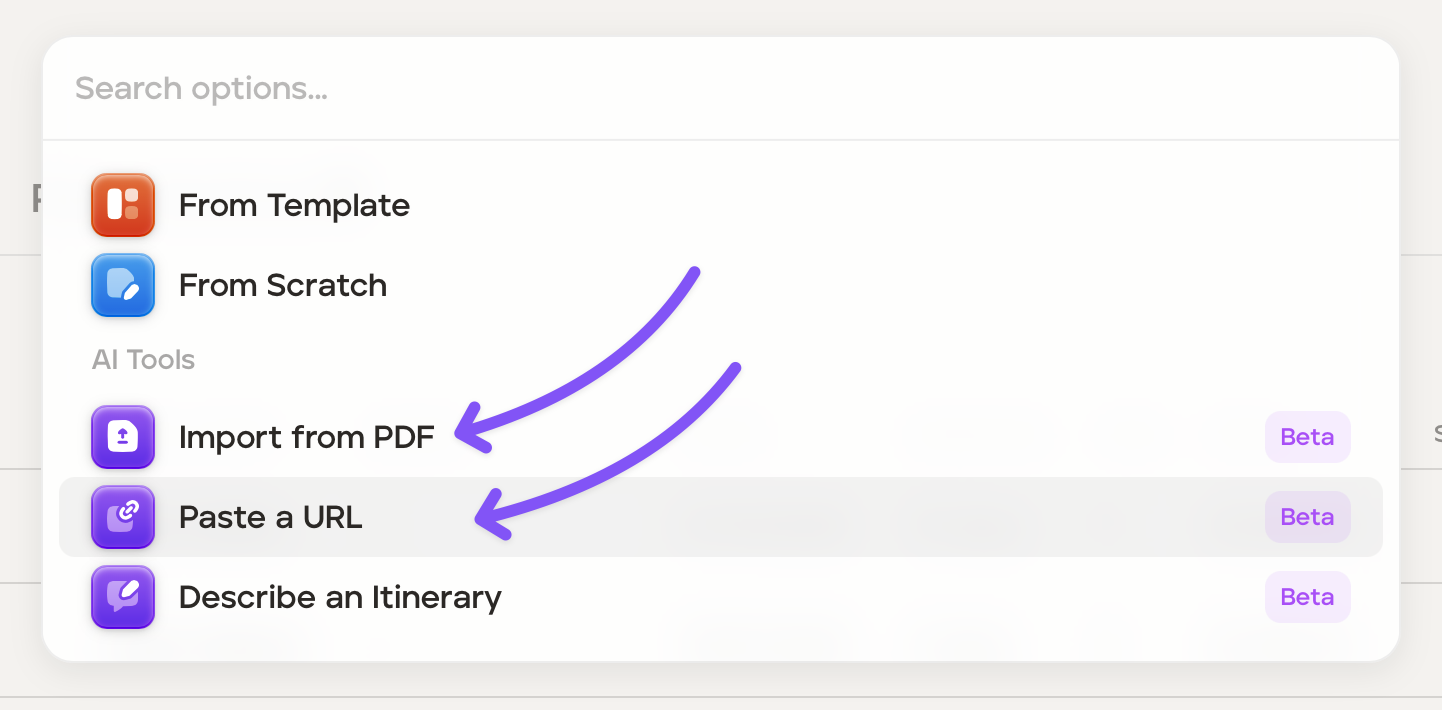
Import from PDF
Click 'Import from PDF'.
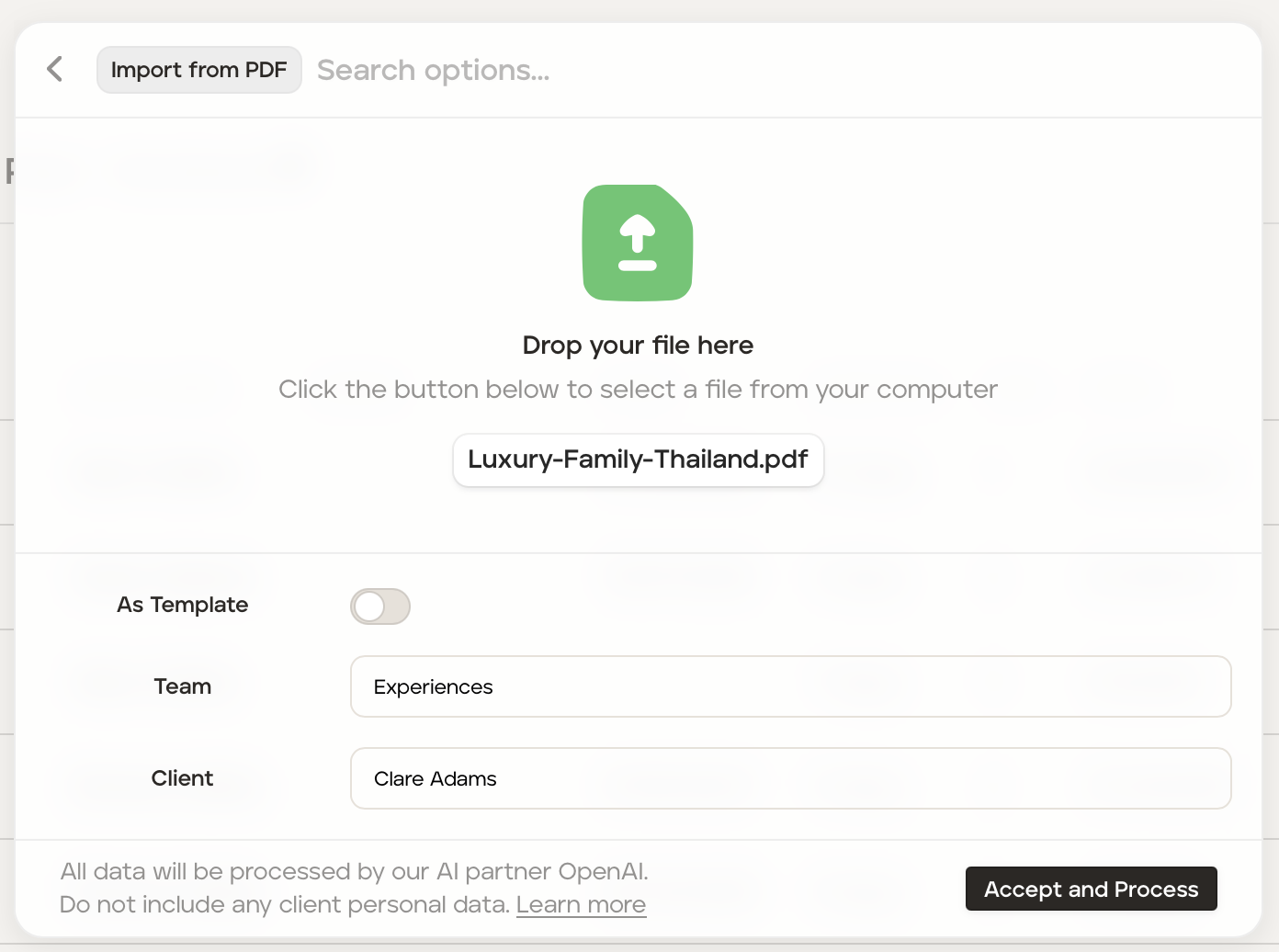
Add the PDF file, decide whether or not you want the itinerary to also be added to the template itinerary database using the toggle switch, add the relevant team (if applicable) and the client.
Once ready click 'Accept and Process'.
A pop up in the top right of the screen will tell you that the import has started and when the import has completed.
Once completed the proposal will be located in the 'Proposals' section of the account.
Click the proposal to see the itinerary in 'Card View' or 'List View'.
Paste a URL
Click 'Paste a URL'.
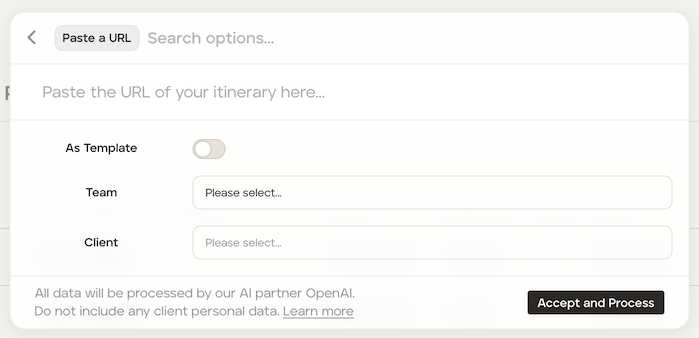
Paste the URL link, decide whether or not you want the itinerary to also be added to the template itinerary database using the toggle switch, add the relevant team (if applicable) and the client.
Once ready click 'Accept and Process'.
A pop up in the top right of the screen will tell you that the import has started and when the import has completed.
Once completed the proposal will be located in the 'Proposals' section of the account.
Click the proposal to see the itinerary in 'Card View' or 'List View'.