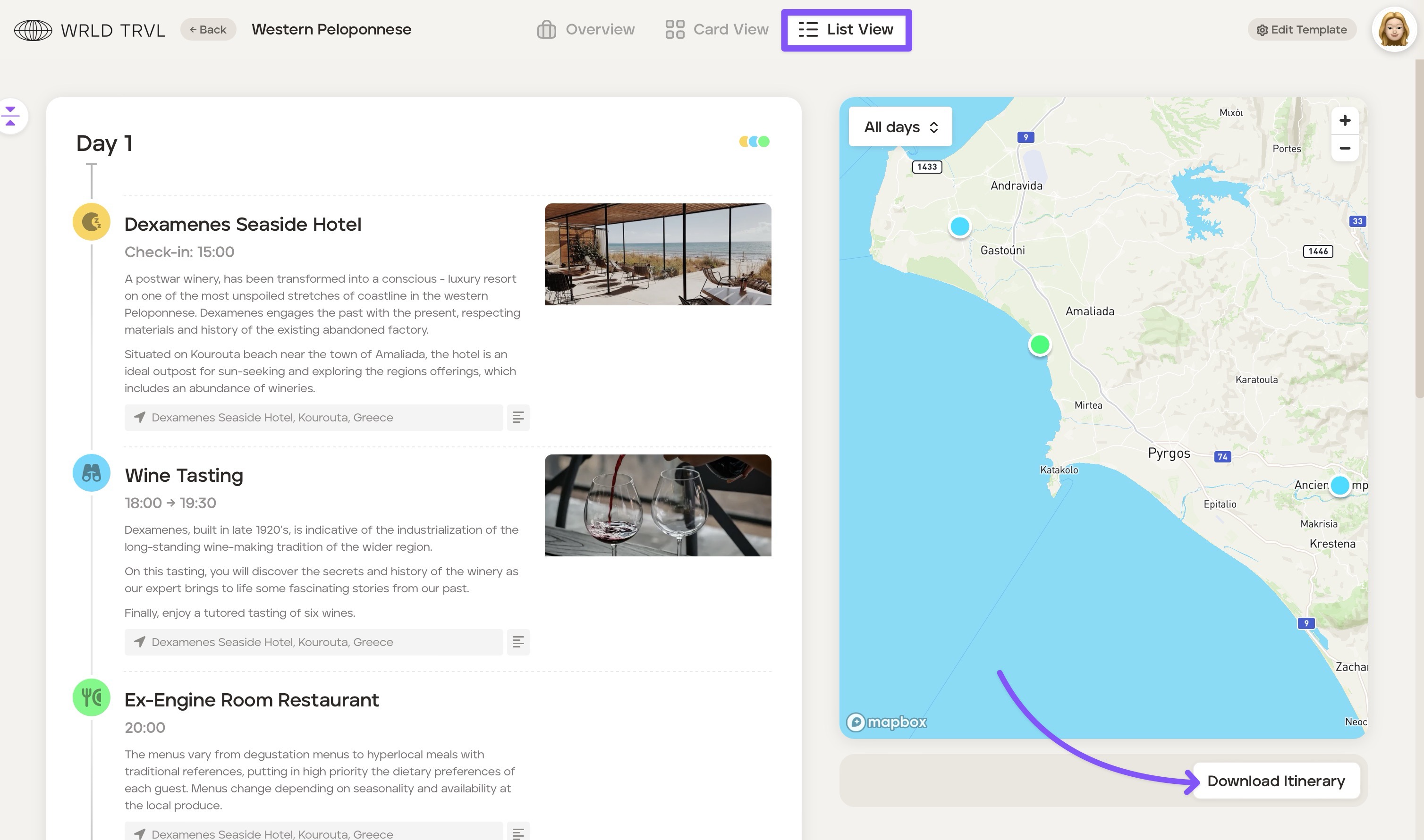
Add itinerary cards to template itineraries using list view
There are two layouts you can use to build and view your template itinerary:
Card View, a kanban style layout
List View, a traditional list layout
To add itinerary cards to a template itinerary using list view, follow the steps below.
Click ‘List View’ at the top of the screen.
Hover over the area where you want to add a card until you see the purple bar.
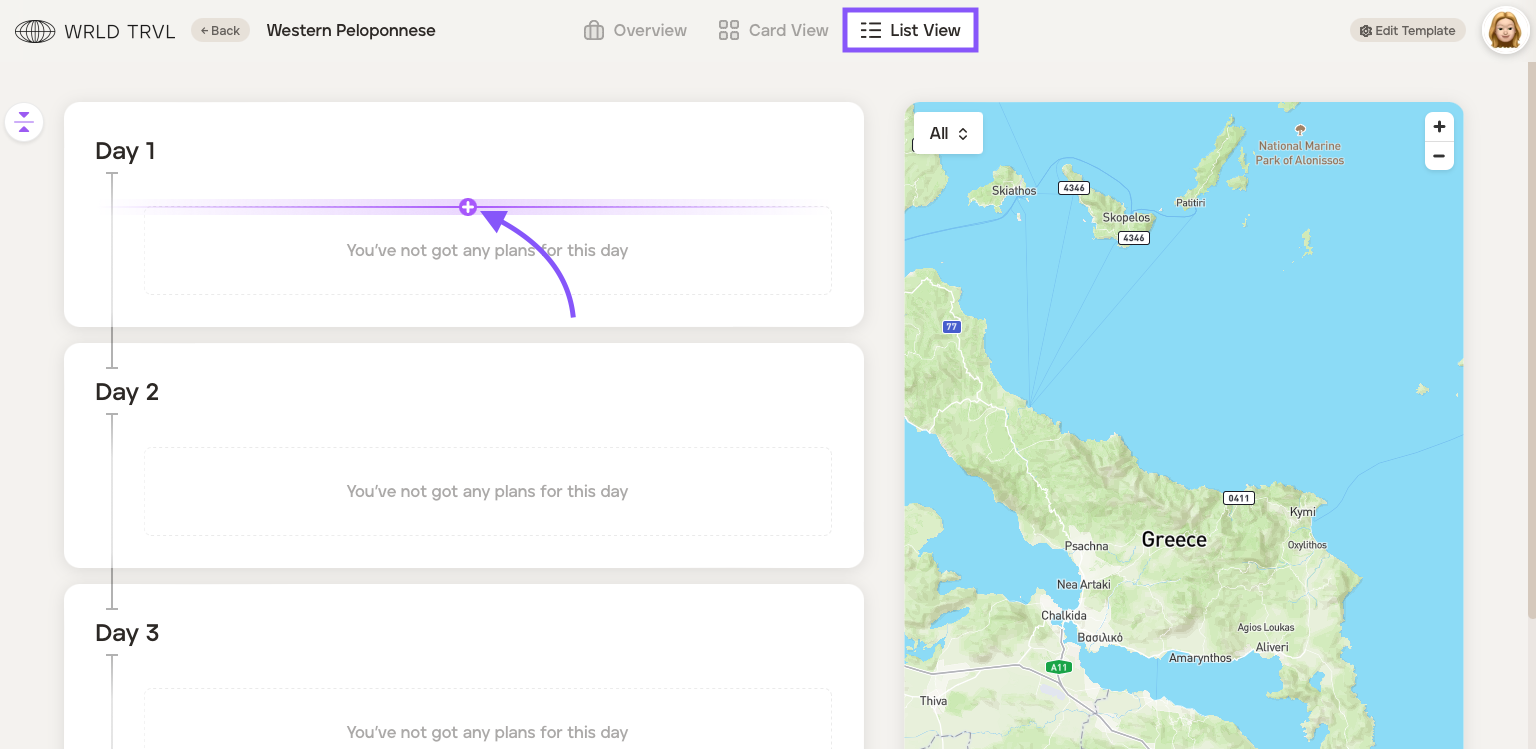
Click the purple bar which will bring up the launcher.
Click the relevant card category icon in the launcher ('Accommodation', 'Activity', 'Food', 'Travel' or 'Other').
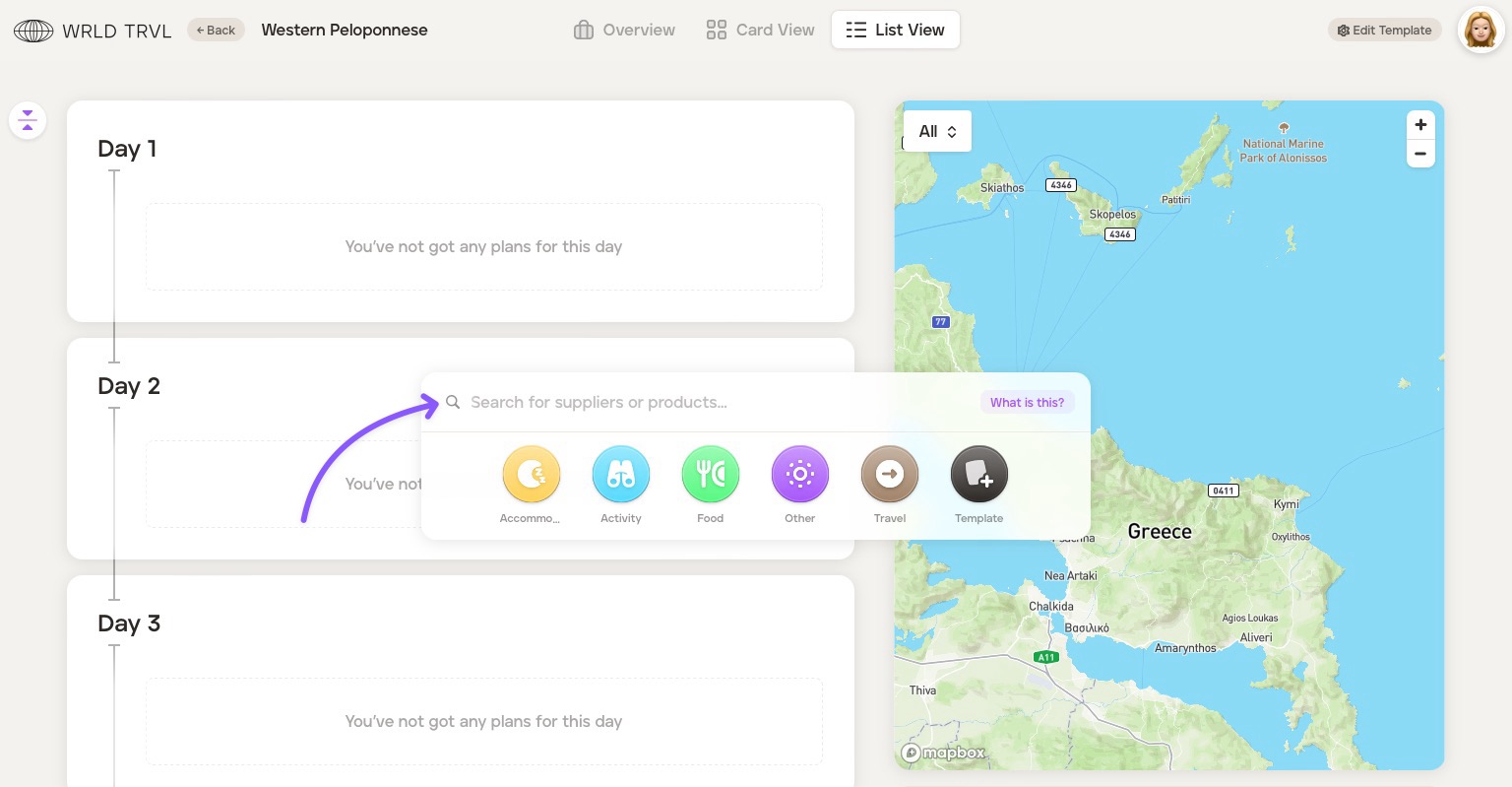
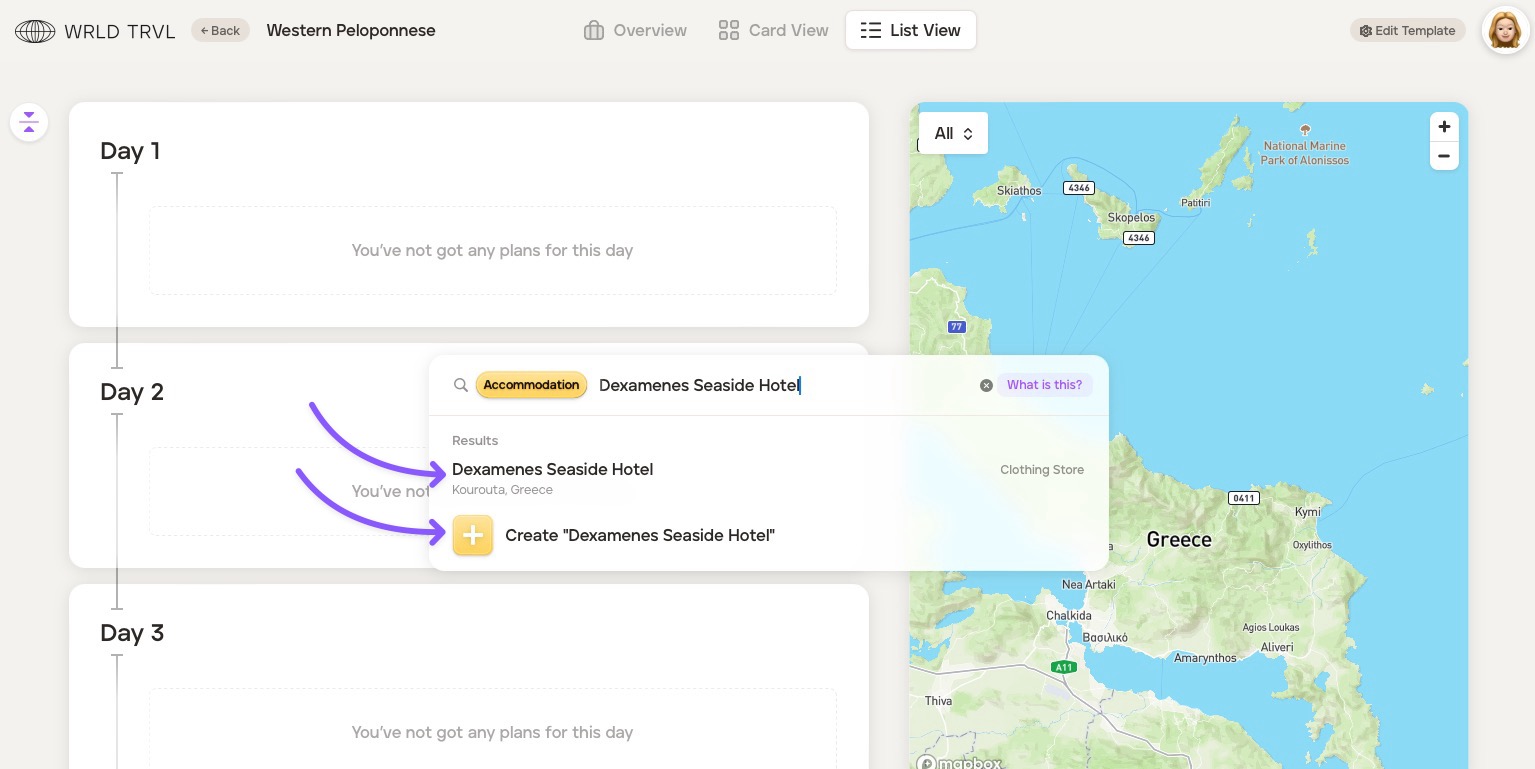
The search bar will show the card category chosen. Search for the location or add a card title. This will display:
Google location results; AND
the ability to simply create a card with the title typed in the search bar.
Click either:
the relevant Google location result (which will add the name of the result as the card title and add accompanying location and business data to the card); OR
'+ Create ''xxxx" which will add the card with the title typed in the search bar only.
The card will then slide in from the right.
Add any additional information you wish to the card. Fill in as much, or as little, information as you wish on the card (remember this is a template only which you will later duplicate and tailor for your clients). Scroll down the card to reveal all the inputs which are slightly different depending on the card type ('Accommodation', 'Activity', 'Food', 'Travel' or 'Other').
Once you have input your information, close the card by clicking ‘Close’ on the top right of the card (or click anywhere on the screen outside the card).
To add images to your cards, please read this article.
Continue to build your template itinerary by repeating this process of adding cards. Drag- and-drop functionality allows for easy building! All cards are colour-coded to easily differentiate between the cards and to make the itinerary visual for you and your clients. To change the default card colours to match your brand, please read this article.
Once you have created your template itinerary, click ‘Back’ on the top left of the screen to return to the ‘Templates’ database, where it will now be located. You can go back into your template itinerary at any time to make changes.
Expand and collapse functionality
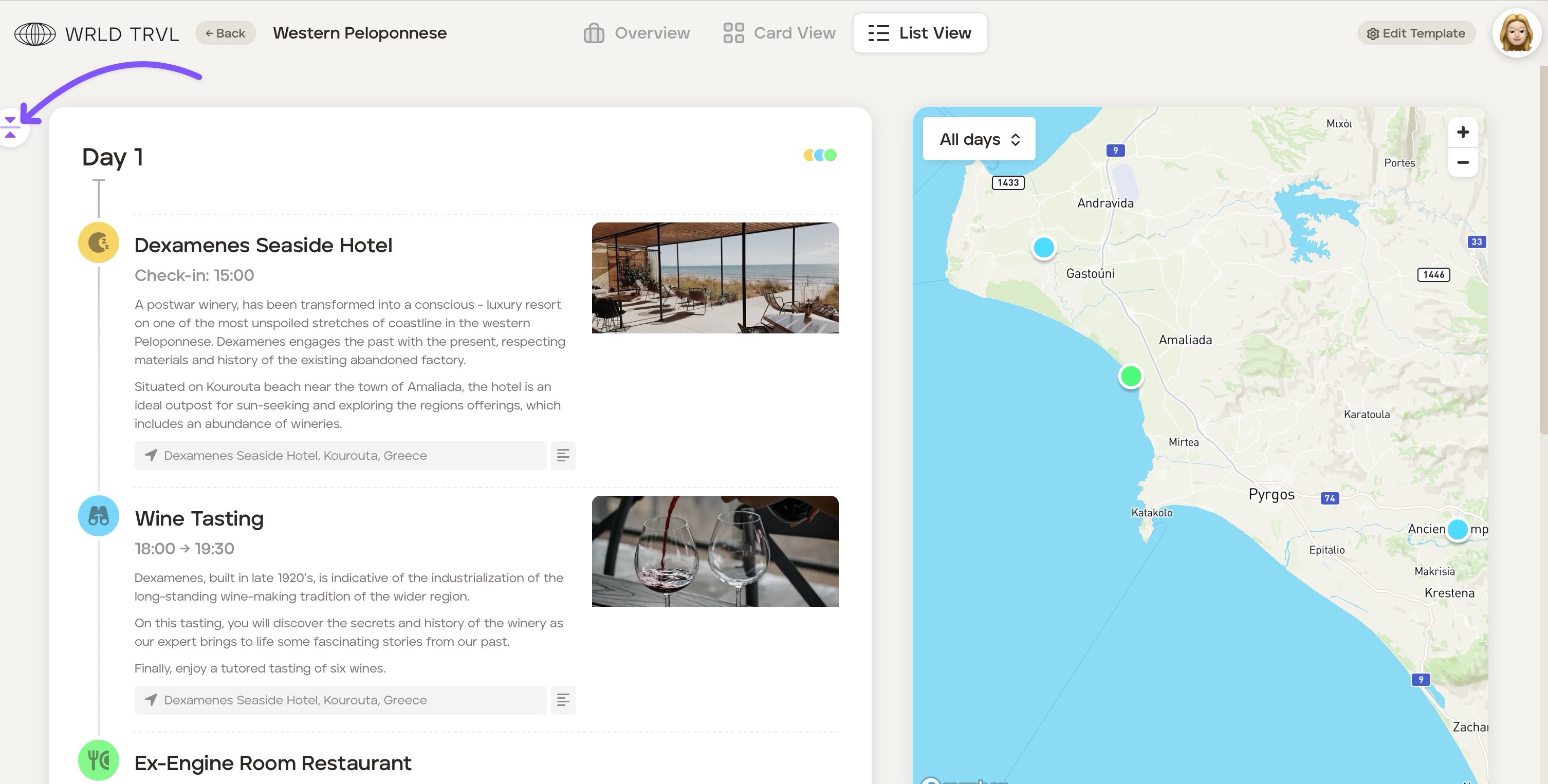
To show or hide any notes added to cards in List View, click the expand/ collapse icon.
PDF template itinerary
Download the template itinerary in PDF by clicking ‘Download Itinerary’ in List View.