

Change trip dates or trip duration
To change the dates of a trip or the trip duration, follow the steps below:
Click in to the applicable trip.
Click the 'Manage' tab.
In the 'General Settings' tab you will see the option to change the trip dates or the trip duration.
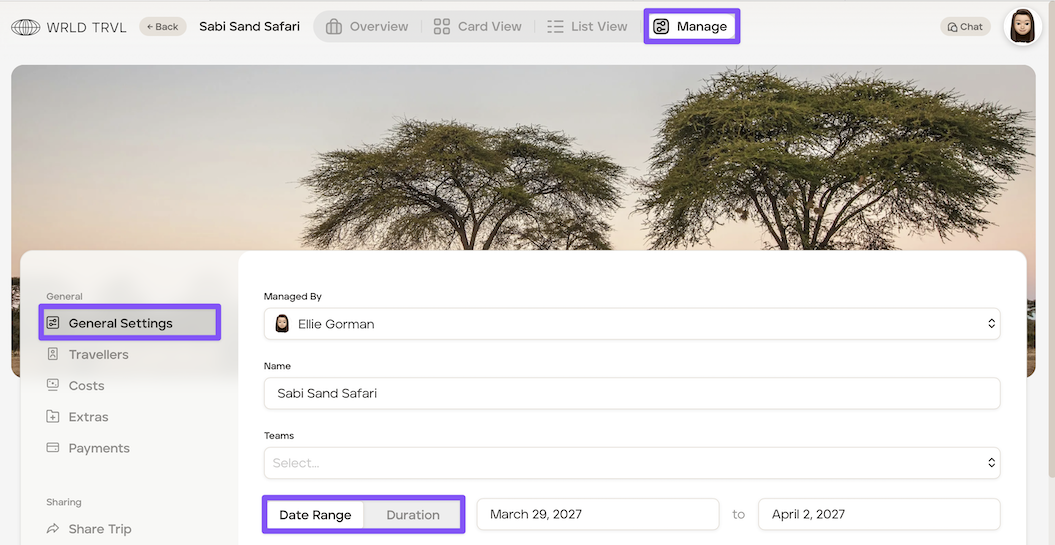
Changing trip dates
Select your new dates.
Scroll down and click the 'Save' button.
Uou'll be shown what will happen to your cards and given a choice about it:
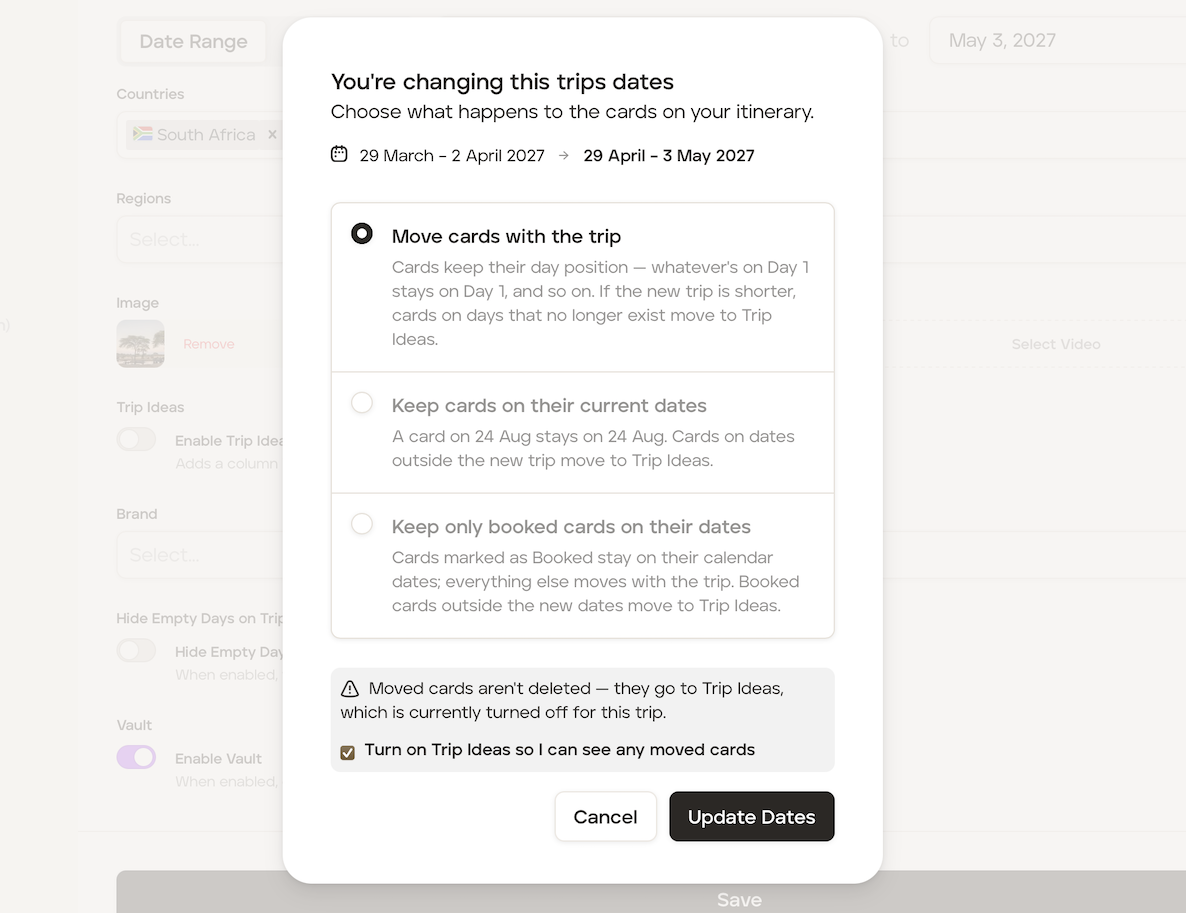
Option 1 - Move cards with the trip
If you select to 'Move cards with the trip', the itinerary cards will keep their day 'position', so whatever is on the first day of the trip will stay on the first day.
Before clicking the 'Update Dates' button, decide if you want to turn on or off the 'Trip Ideas' column in card view.
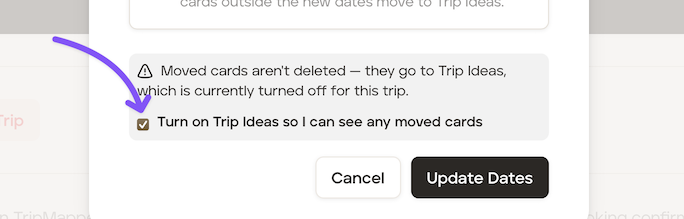
If you do not want this to show, untick the 'Turn on Trip Ideas so I can see any moved cards.' It is more likely you will want to untick this box if the duration of the trip is still the same. However, If the new trip is shorter, itinerary cards on days that no longer exist will move to the 'Trip Ideas' column. If the 'Trip Ideas' column is no showing on Card View, then go to the 'Manage' tab, click 'General Settings', turn the 'Enable Trip Ideas' switch on and then scroll down and click the 'Save' button. Those itinerary cards will be in the 'Trip Ideas' column for you to either drag and drop back onto the itinerary or delete. You can repeat these steps to remove the 'Trip Ideas' column.
Click the 'Update Dates' button to update the dates.
Option 2 - Keep cards on their current dates
If you select 'Keep cards on their current dates', an itinerary card on a set date will stay on that date. Any cards on dates outside the new dates move to the 'Trip Ideas' column.
For example: Your current trip dates are 29 March - 2 April 2027:
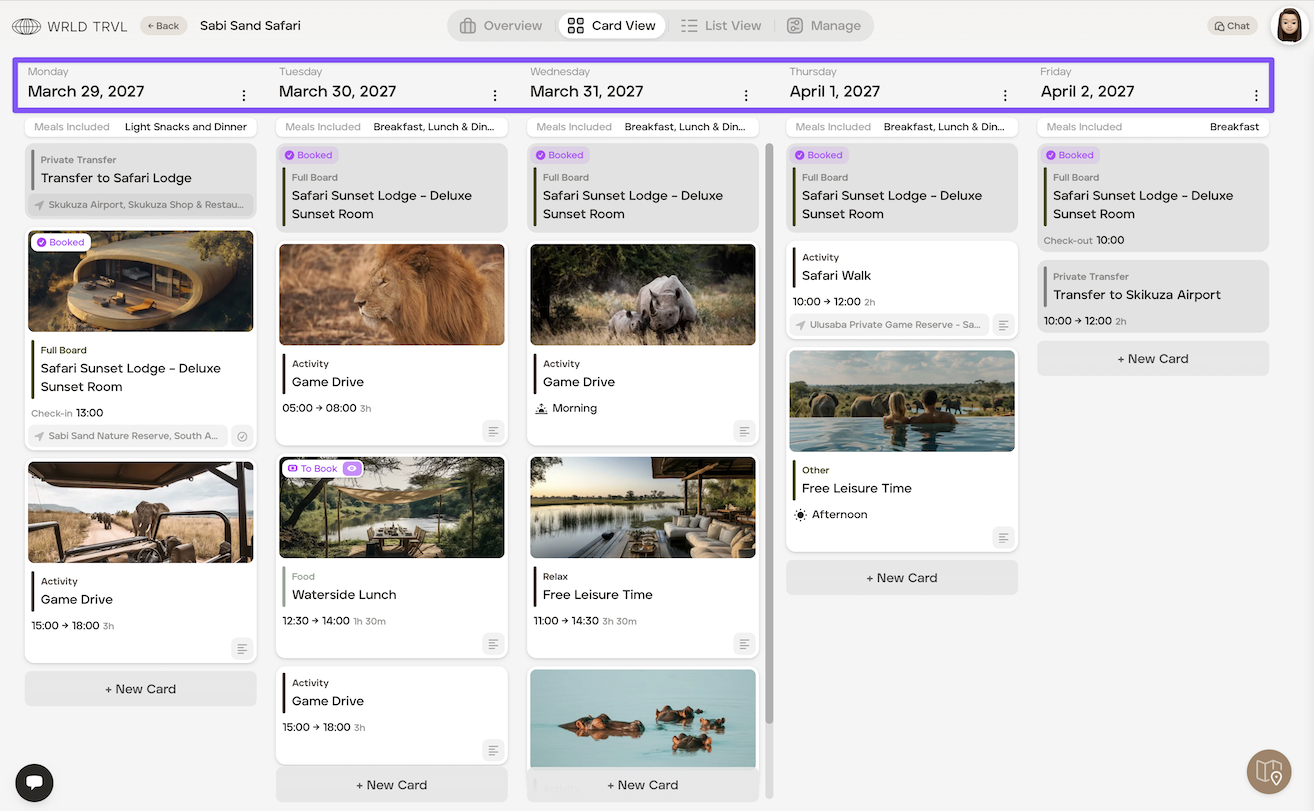
You want to change the trip dates to 31 March - 4 April 2027. All cards on 29 March and 30 March 2027 will be placed in the 'Trip Ideas' column by default:
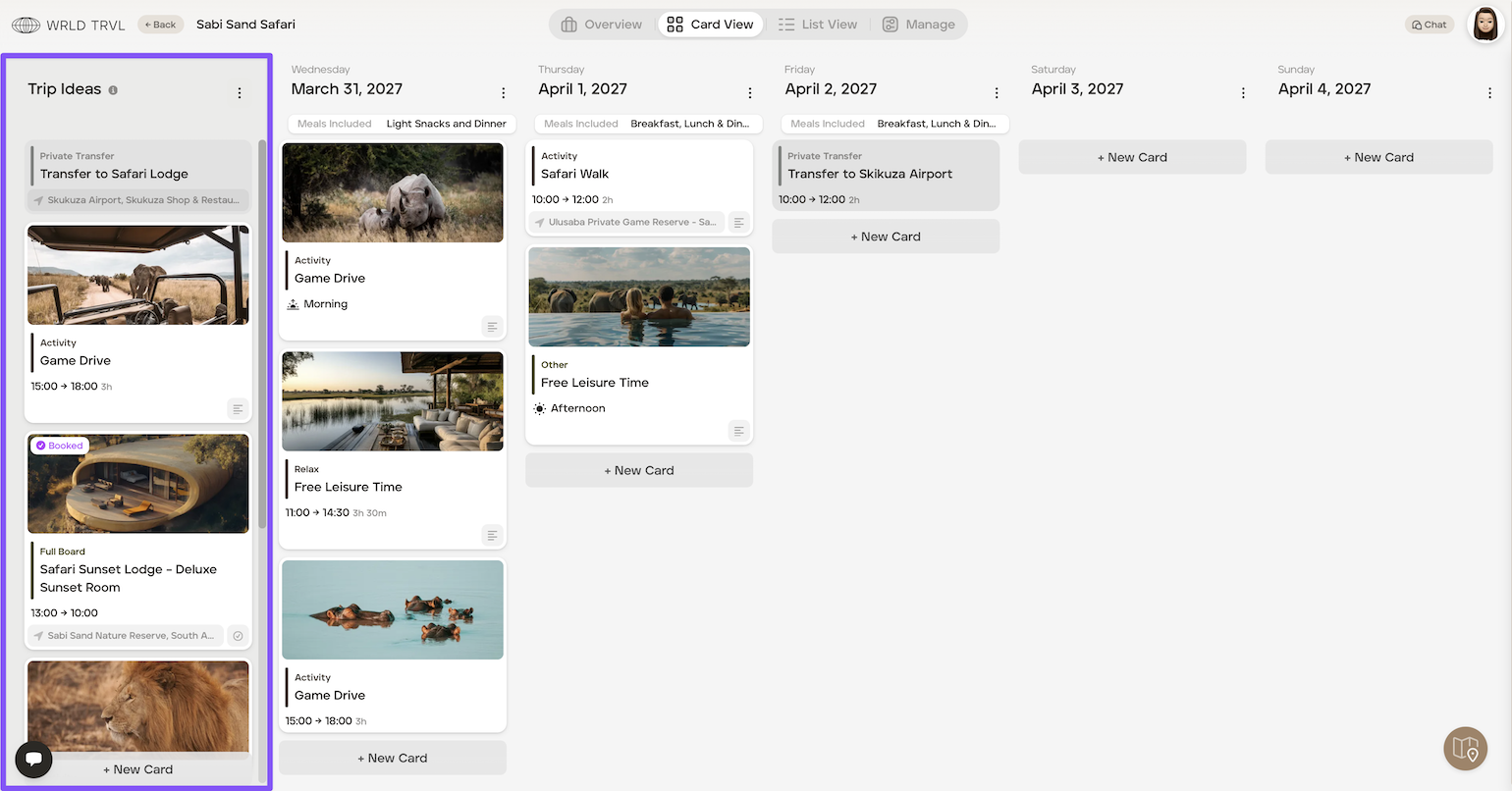
You can either drag and drop the itinerary cards back onto the itinerary or delete them. To remove the 'Trip Ideas' column, click the 'Manage' tab, and in the 'General Settings' section turn off the 'Enable Trip Ideas' switch, scroll down and click the 'Save' button.
Option 3 - Keep only booked cards on their dates
If you select 'Keep only booked cards on their dates', the itinerary cards will keep their day 'position', so whatever is on the first day of the trip will stay on the first day, but 'Booked' cards outside the new dates move to the 'Trip Ideas' column.
For example: Your current trip dates are 29 March - 2 April 2027:
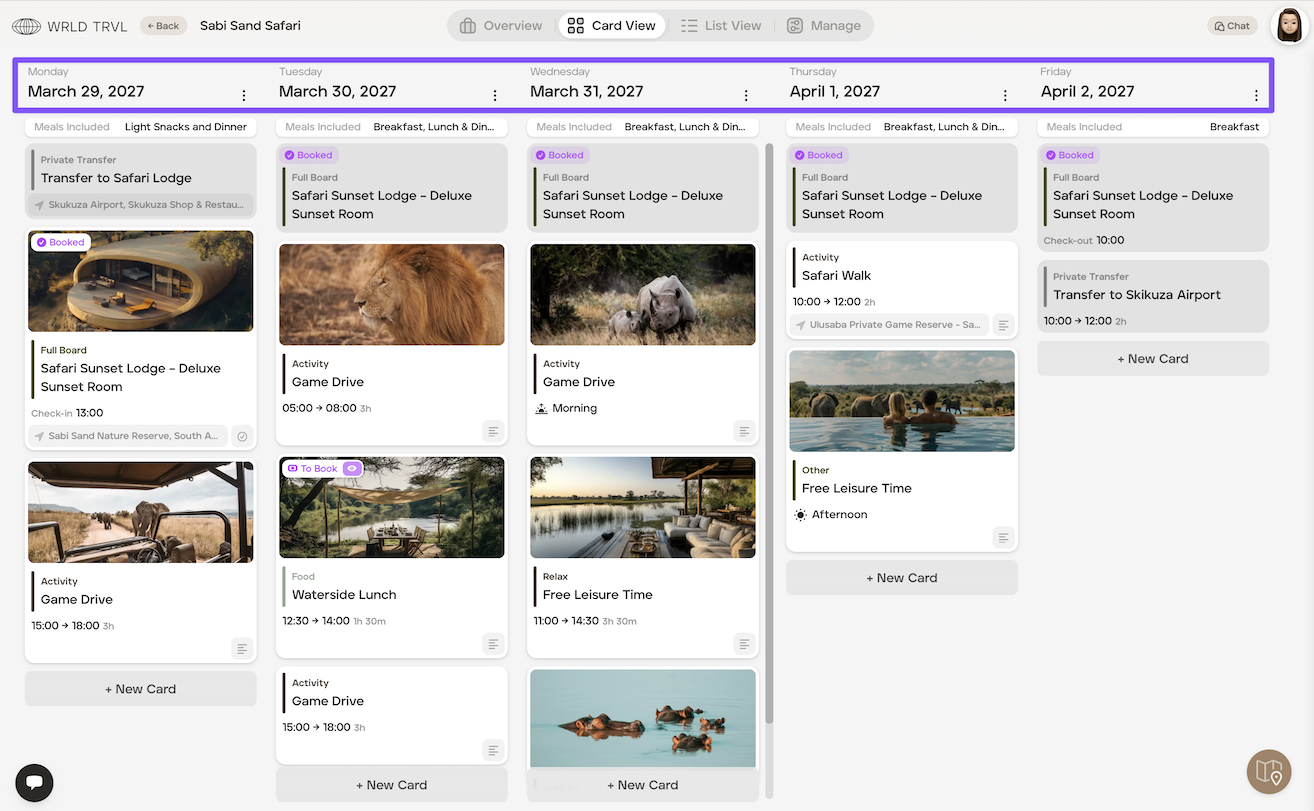
The only 'Booked' itinerary card is the Safari Sunset Lodge accommodation card.
You want to change the trip dates to 29 April - 3 May 2027. The Safari Sunset Lodge accommodation card will be placed in the 'Trip Ideas' column by default as it is a 'Booked' card:
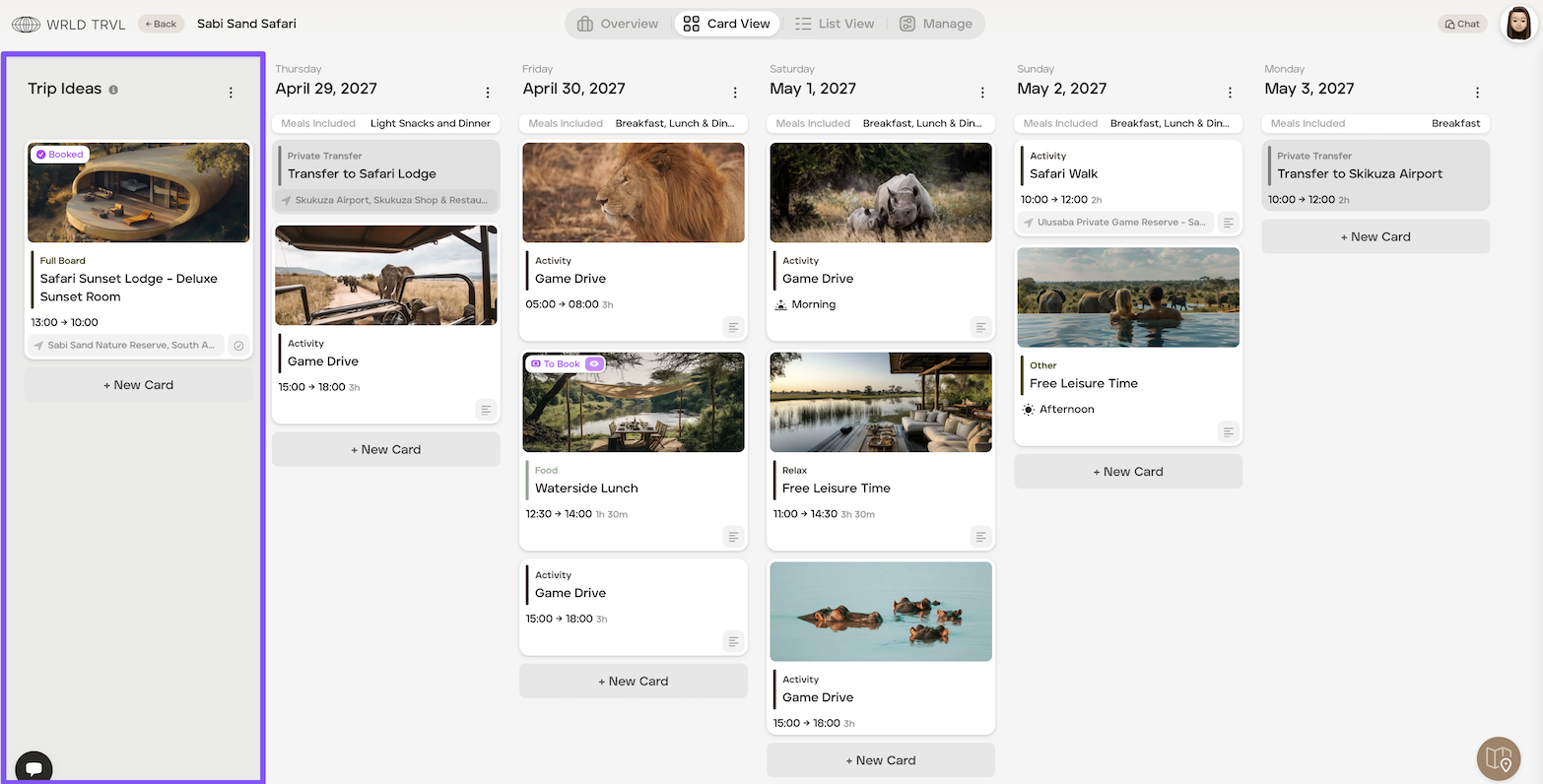
Changing trip duration
If you want to extend the trip duration, the additional days will be added to the end of the trip.
If you want to reduce the trip duration, itinerary cards which were on days which were removed will be placed in the 'Trip Ideas' column by default.
Will changing itinerary dates change the client prices of supplier products?
Changing itinerary dates may change the client prices of supplier products if the date change moves the supplier product into a different supplier product price bracket.
Example:
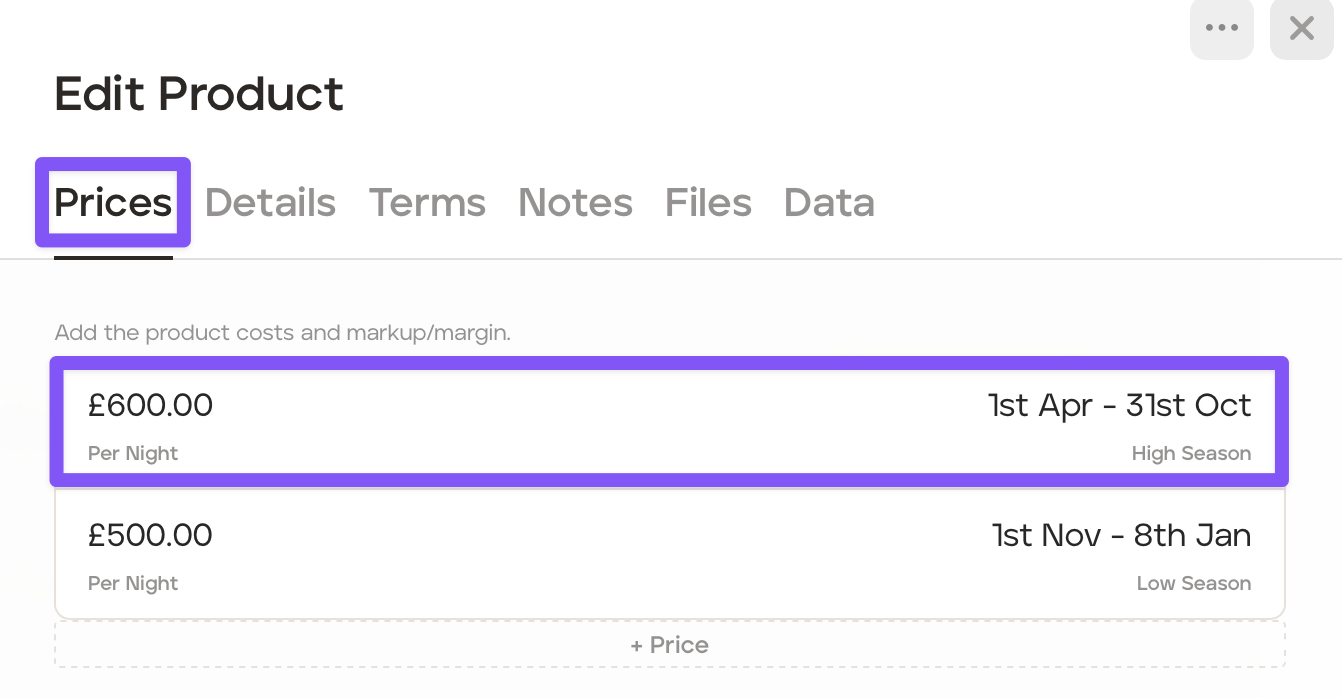
Itinerary commencing 23rd October using the supplier product pricing 1st Apr- 31st Oct price bracket, with the client price highlighted in purple:
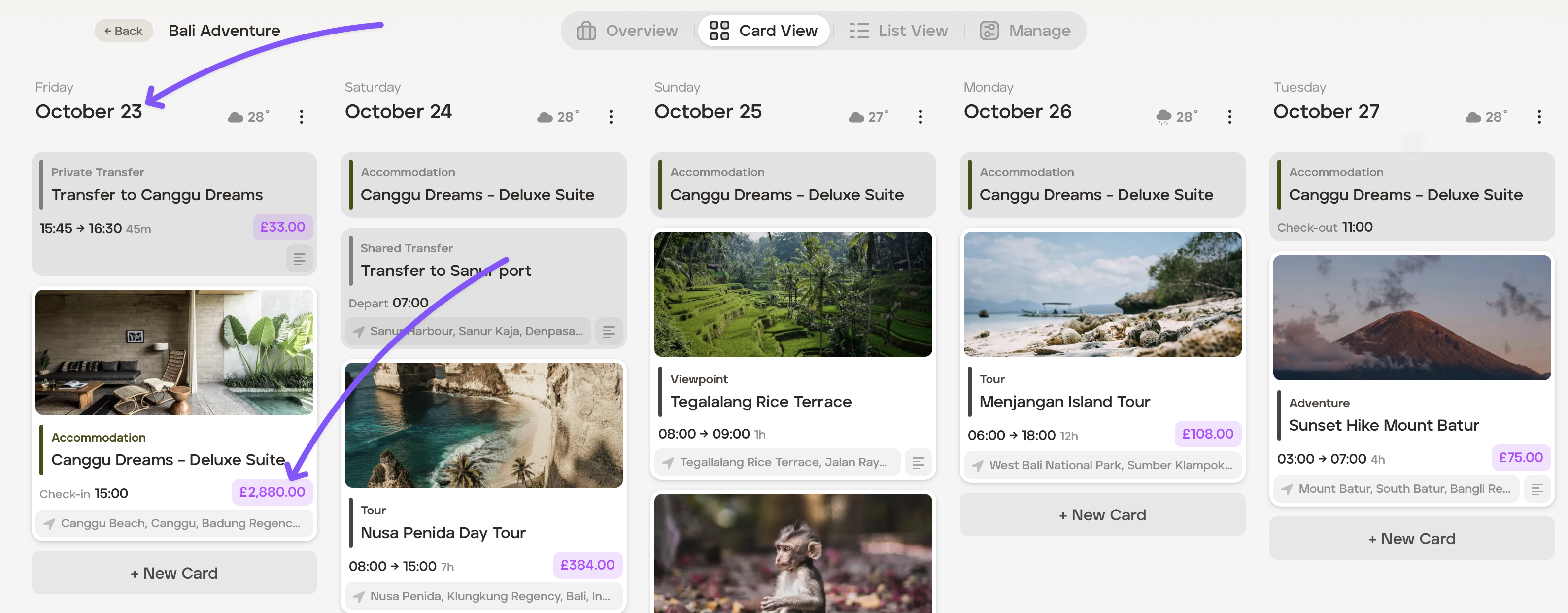
Supplier product price bracket:
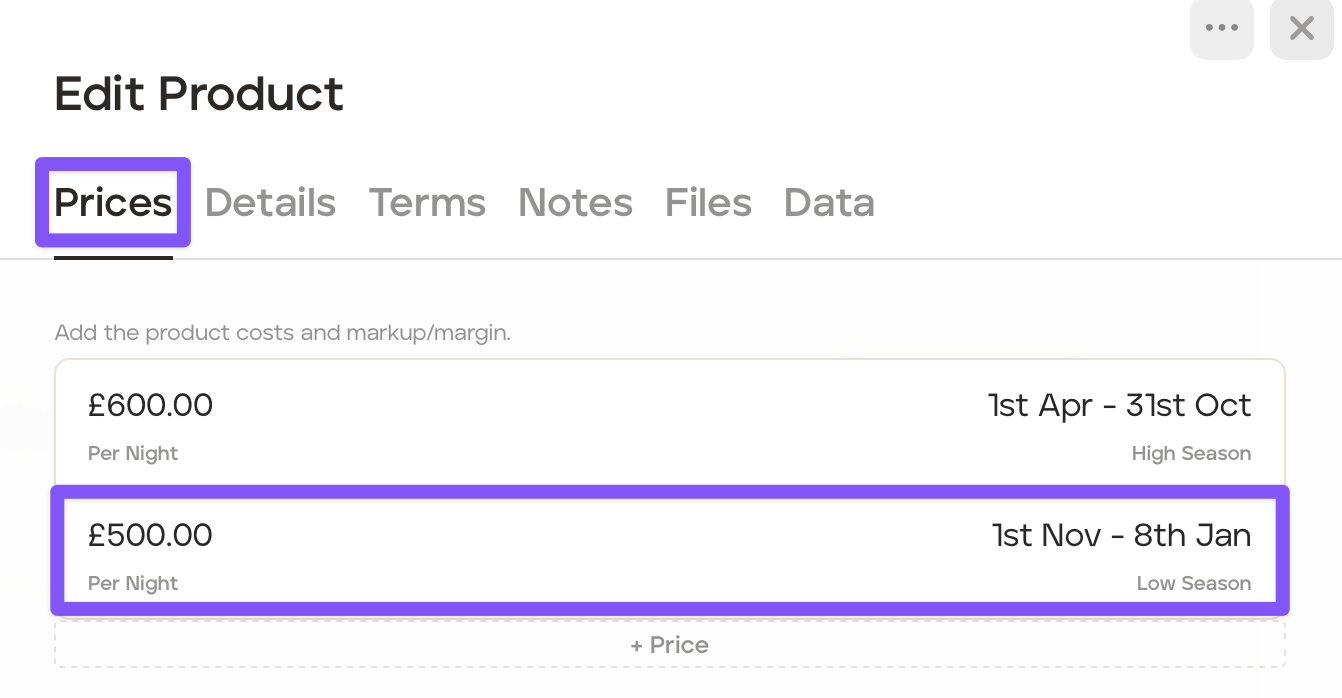
The itinerary date is changed to commence on 23rd November. The supplier product client price now falls into the 1st Nov - 8th Jan price bracket:
The itinerary retains the supplier product pricing, but it is now highlighted in red. When you hover over the red client price, it informs you that the supplier product price and the itinerary date conflicts.
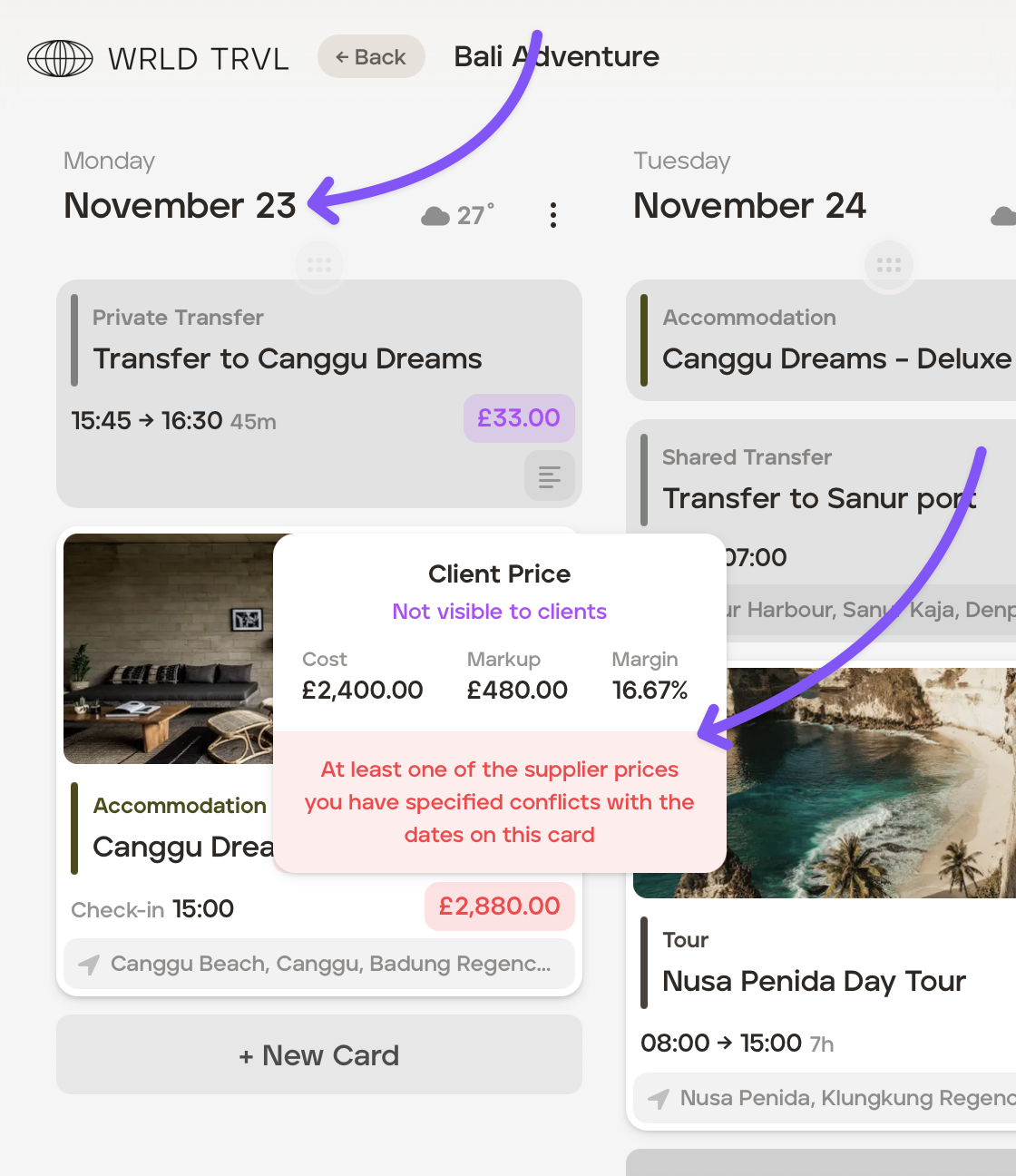
After being seeing the conflict warning, you can either ignore it, and the client price remains as it is, or you chose to update the supplier product price, as required.
If you want to update the supplier product price:
Click the black 'Costs' button the supplier product card.
In the light blue box which shows the supplier product, click the '...' in the top right had corner of the box and click 'Delete.'
Click 'Add Ticket' or 'Add Room' (as applicable), and then click 'Link a supplier price.'
Search for the supplier product you wish to add in the search bar, and click the applicable product.
The supplier product will be added to the itinerary. The client price will now no longer be highlighted in red, but be highlighted in purple.