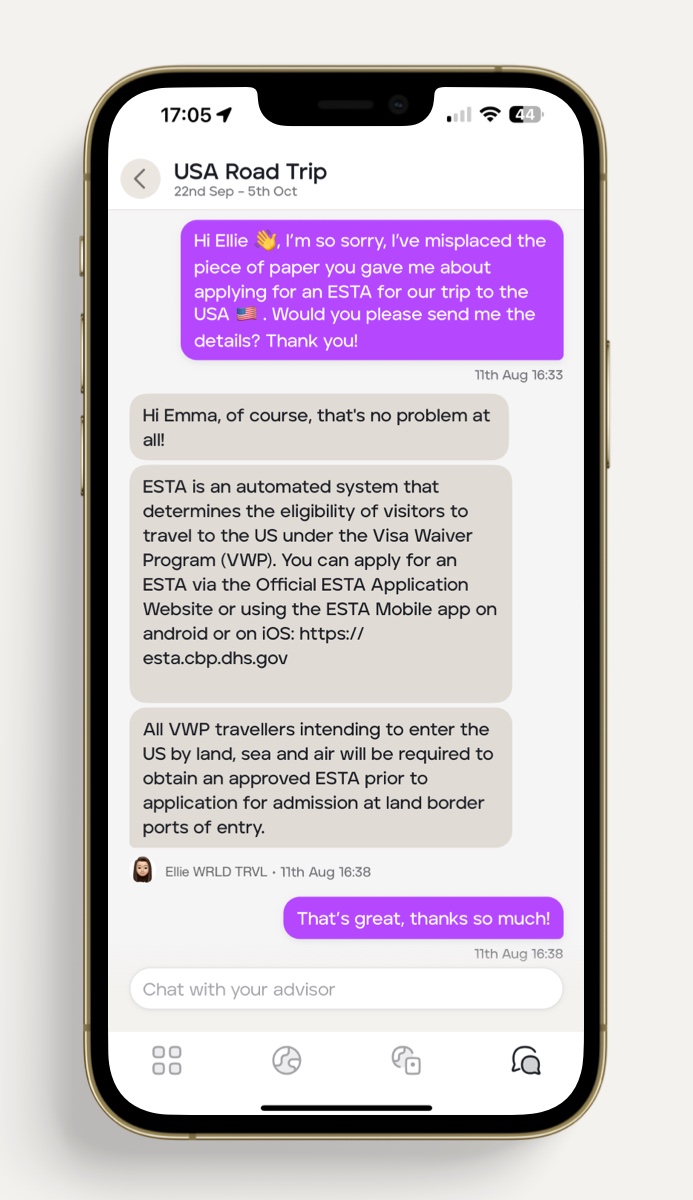
How to message travellers on an 'upcoming' trip
Our built-in messaging feature allows you and your clients to stay connected before, during and after their trip.
Enable messaging in your TripMapper for Business account
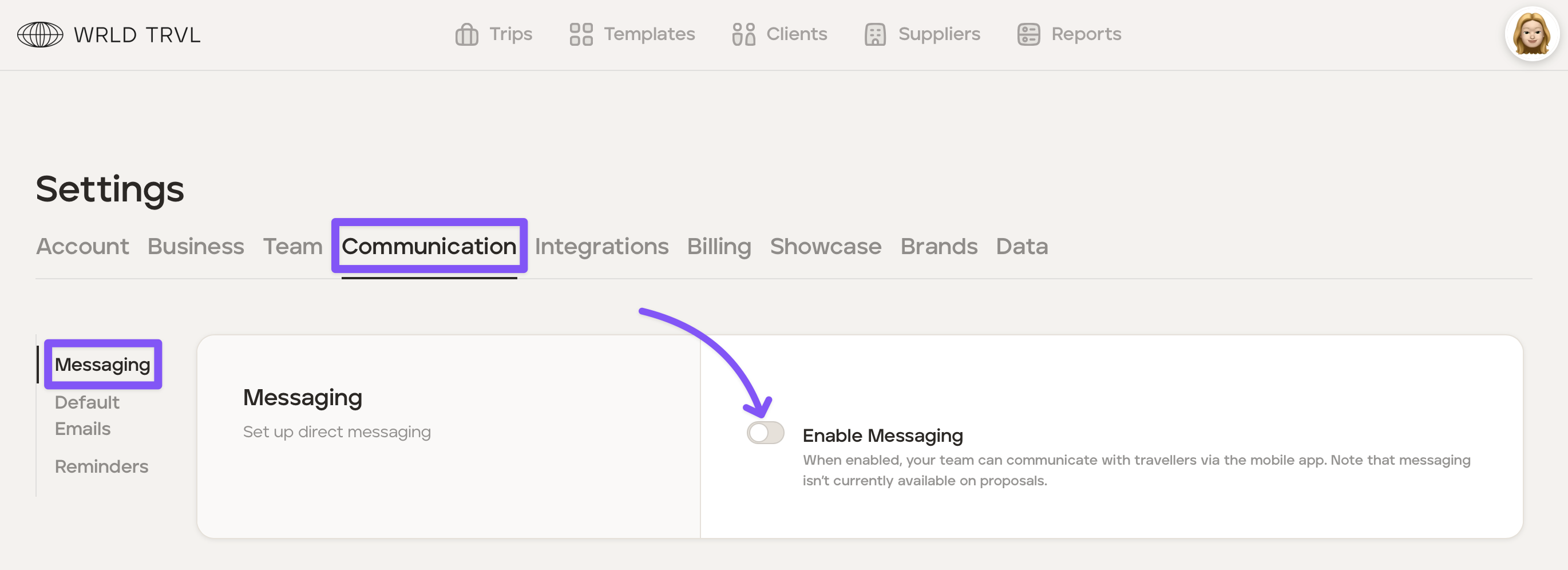
To enable messaging in your account, follow the steps below:
Click your avatar in the top right-hand corner of the screen.
Click 'Settings'.
Click the 'Communication' tab and then click in the 'Messaging' section.
Turn on the 'Enable Messaging' switch.
Click the 'Save' button.
Set an out-of-office message
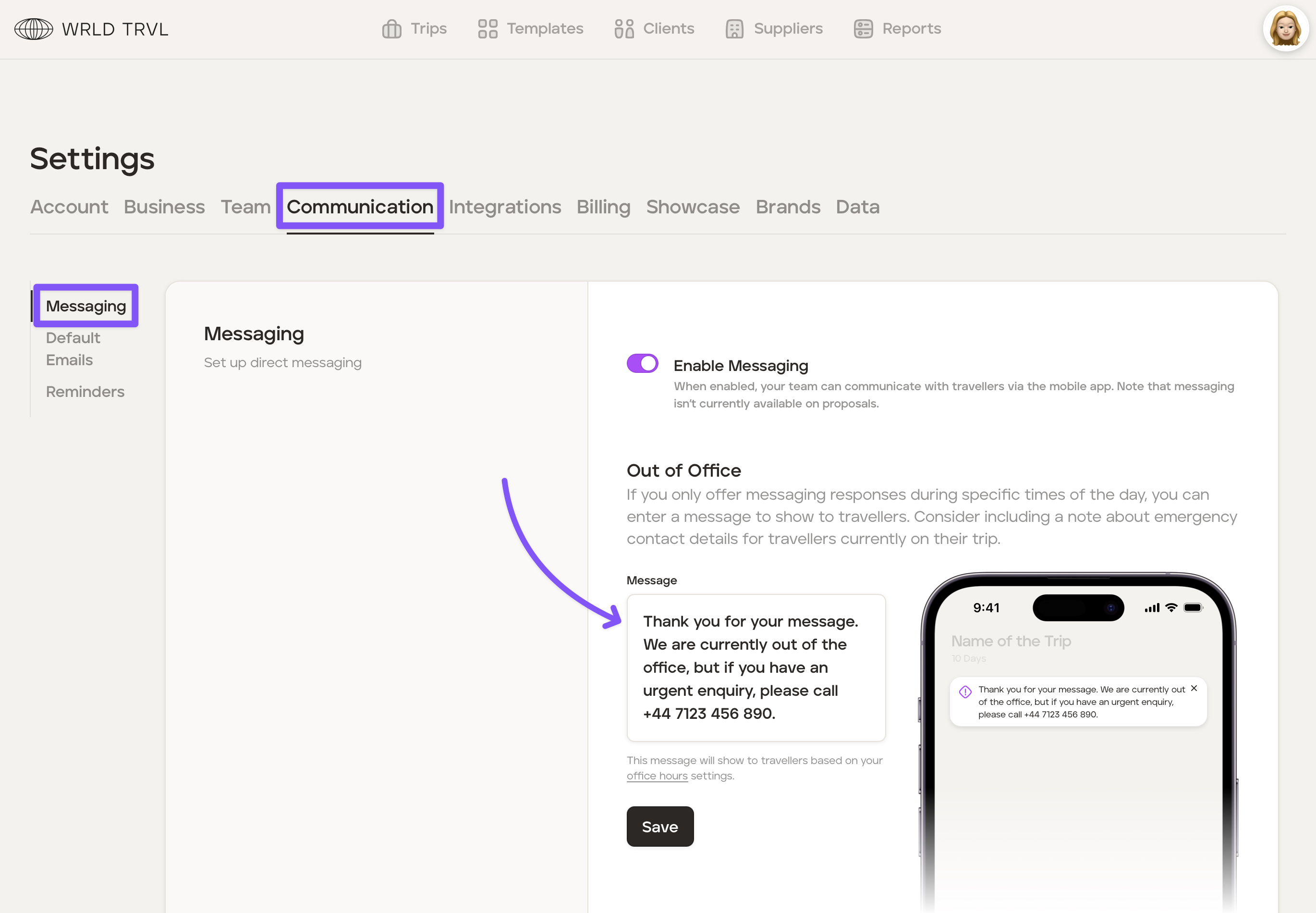
To set an out-of-office message, follow the steps below:
Follow steps 1-3 above.
Type an out of office message in the 'Message' field.
Click the 'Save' button.
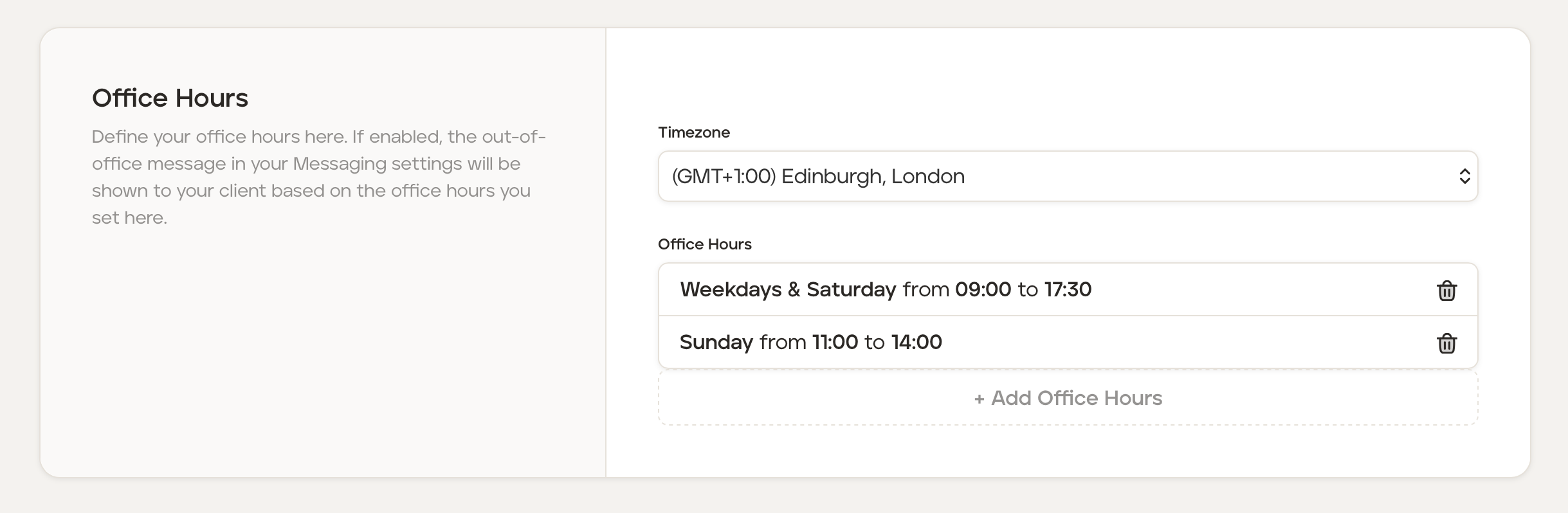
Remain in 'Settings' and click the 'Business' tab.
In 'Company Information', scroll down to 'Office hours'. If office hours are set, the out-of-office message will be shown to your client based on the office hours set.
How to message travellers on an 'upcoming' trip
Click into the 'Trips' section of the platform and then click the applicable 'upcoming' trip.
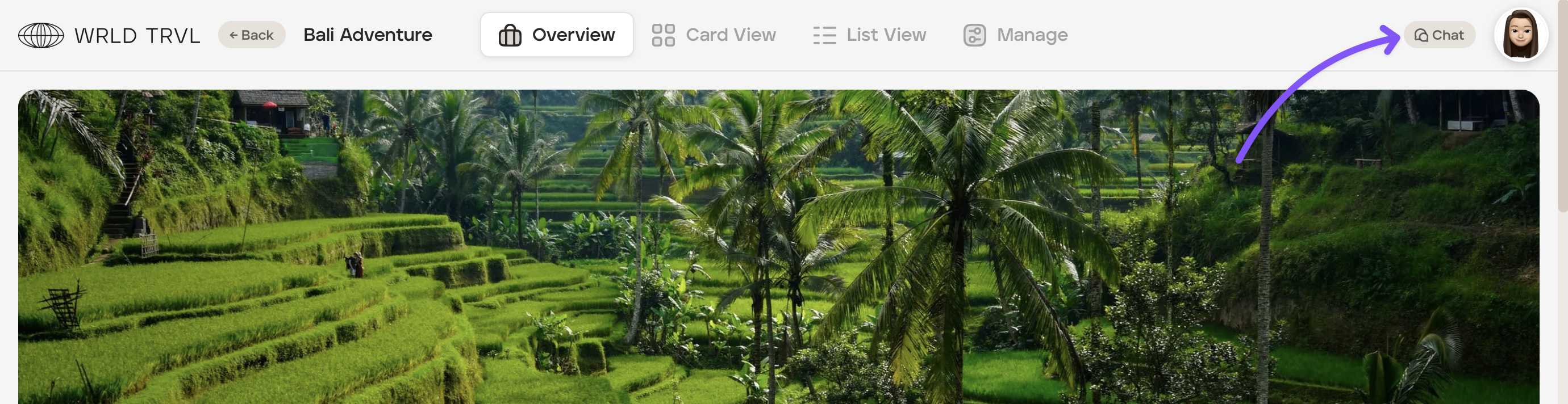
Click the 'Chat' button in the top right-hand corner of the screen.
Turn the switch on if you wish to receive emails notifying you if the traveller sends you messages within the app.
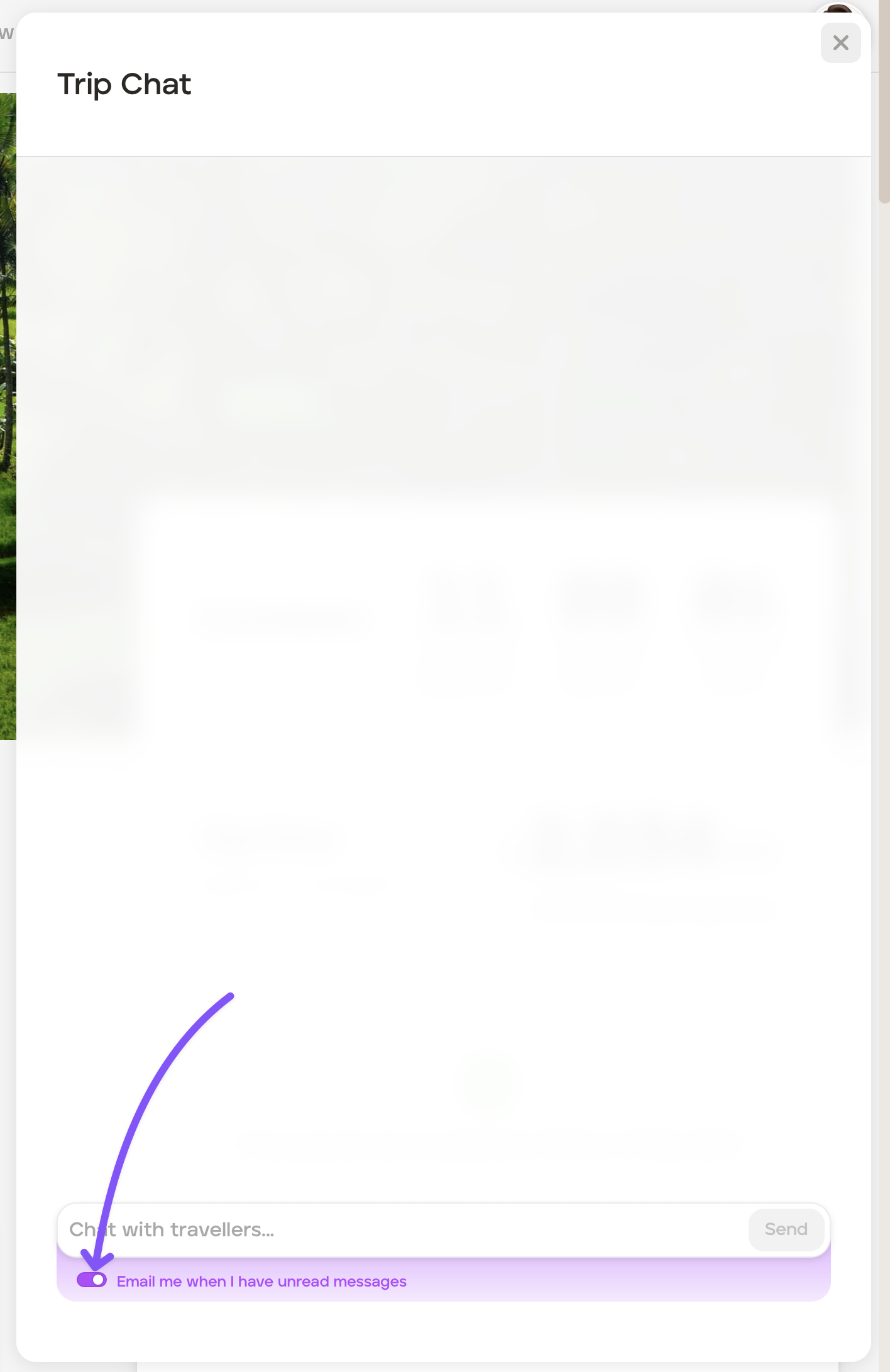
Type the message to your client and click 'Send.' Your client will receive a notification informing them that they have been sent a message. They can respond using the mobile app.
If you have turned the switch to 'on' (step 3 above), you will receive an email letting you know that the client has messaged you. To read the client's message and/or to respond to it, either click on the link in the email or click the applicable trip in the 'upcoming' trip section of the platform, click the 'Chat' and type and send your message.