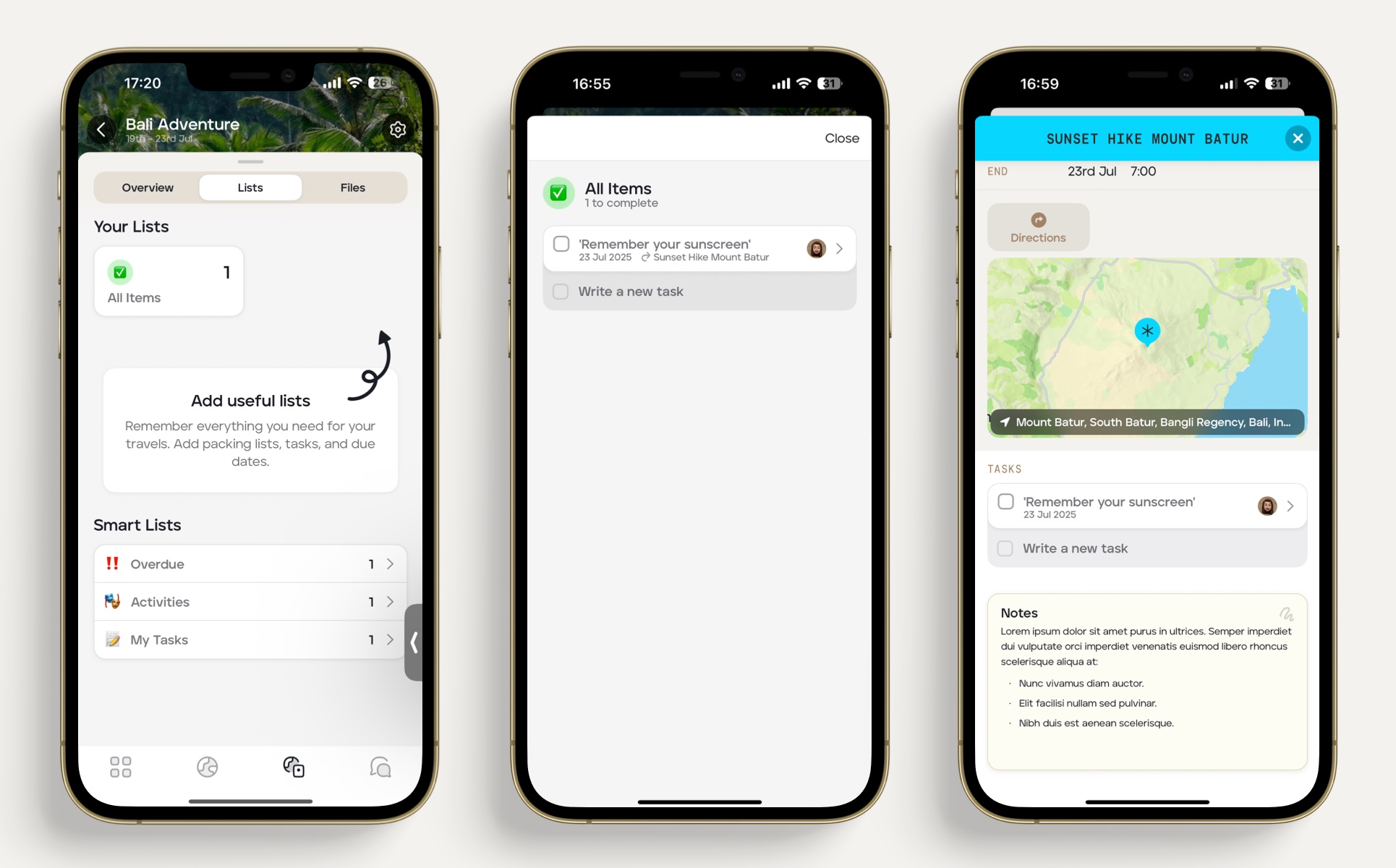
Set a 'task' for a traveller on the mobile app
By using the 'Tasks' feature, you can set a task for your client. If your client has the mobile app and allowed notifications they will receive a notification at 09:00 on the day the task is due. They will also see the task you've set within the mobile app.
To set a task for your client, follow the steps below:
Select the applicable 'Upcoming' trip itinerary. The 'Upcoming' itinerary needs to have specific dates in order to set a task for a specific date.
Click the applicable itinerary card and scroll down to the 'Tasks' section.
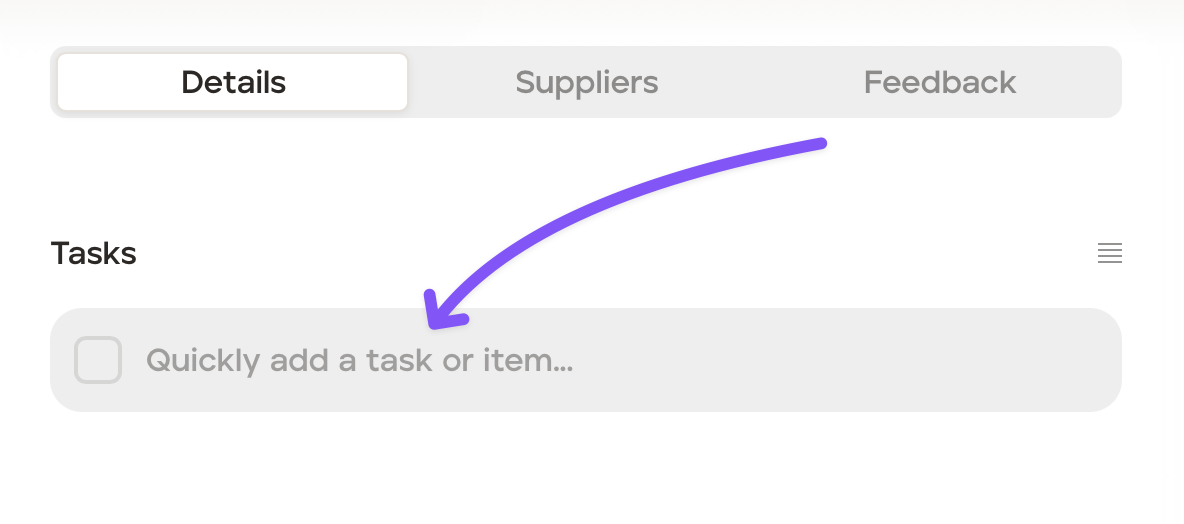
Click the grey task or item field.
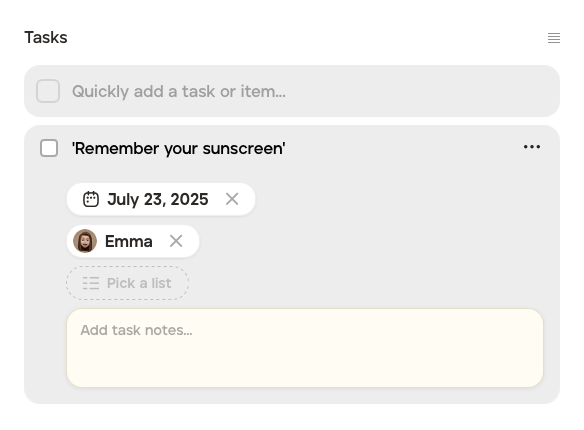
Type the task, for example "Remember your sunscreen” and hit the ‘Enter' keyboard key.
Click that new task and add a due date and assign a traveller from the dropdown list. The traveller will only show on the dropdown list if they are already up and running on the mobile app.
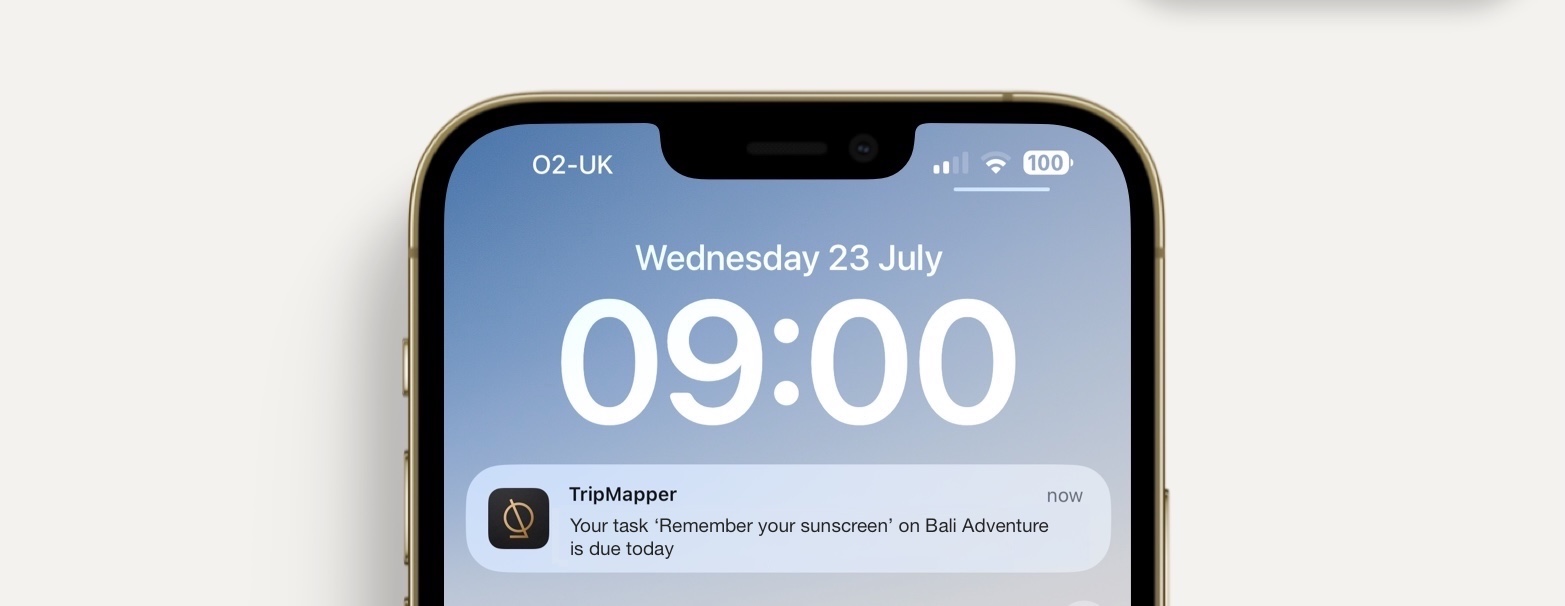
What your client will see:
If your client is up and running on the mobile app and have allowed notifications, they will receive a notification at 09:00 on the due date you set:
Also, in the mobile app, your client will find the task in the Overview 'Lists' section, and in the card itself. Your client can 'tick' a completed task.