

Add tags to template itineraries
Adding tags to template itineraries makes it easy to search and find what you are looking for!
Adding tags to template itineraries
Click the applicable template itinerary.
Click the 'General Settings' tab.
In the 'Tags' field type the tag you wish to use. After typing the tag click 'Create"[Tag]'''. Once created, that tag will be available in the tag drop-down menu to use for template itineraries going forward.

Add further tags iby repeating step 3 above.
Click the 'Save' button to save the tags you've added.
Searching for template itineraries containing tags
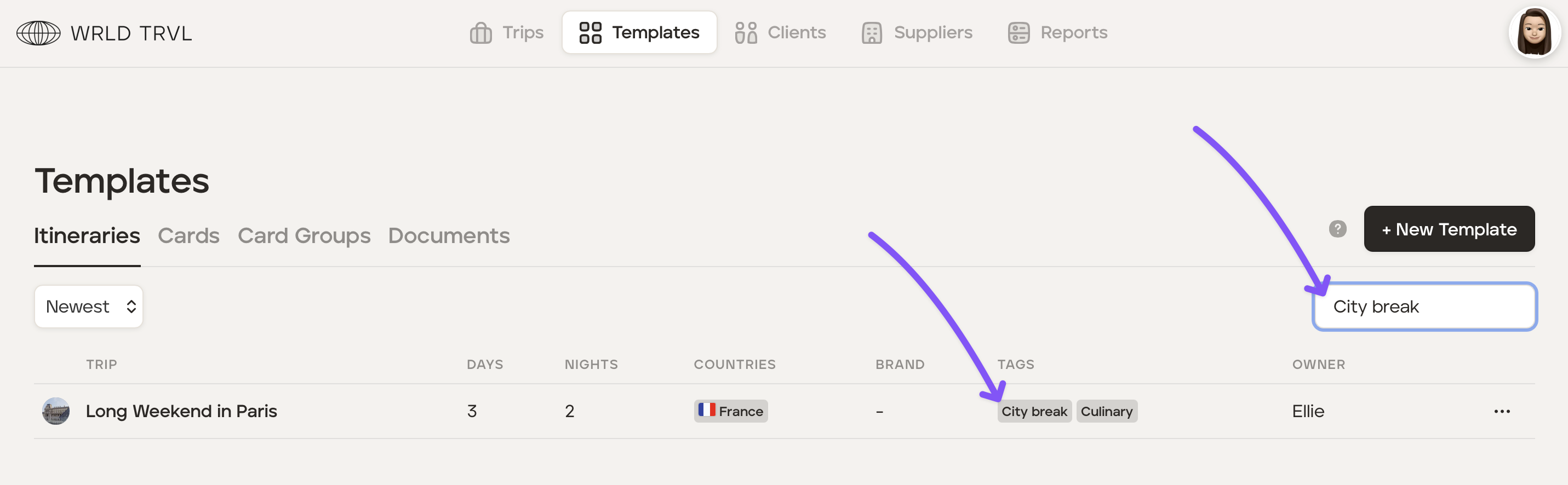
Type a tag in the search field and the matching results will show the template itineraries containing that tag.
Deleting a template itinerary tag
Click the applicable template itinerary.
Click the 'General Settings' tab.
In the 'Tags' field remove tags by clicking the 'x' next to the specific tag you wish to remove. Even if the tag is deleted from the template itinerary, the tag will still remain in the drop-down menu for future selection.

Click the 'Save' button.