Add custom data fields to a supplier products
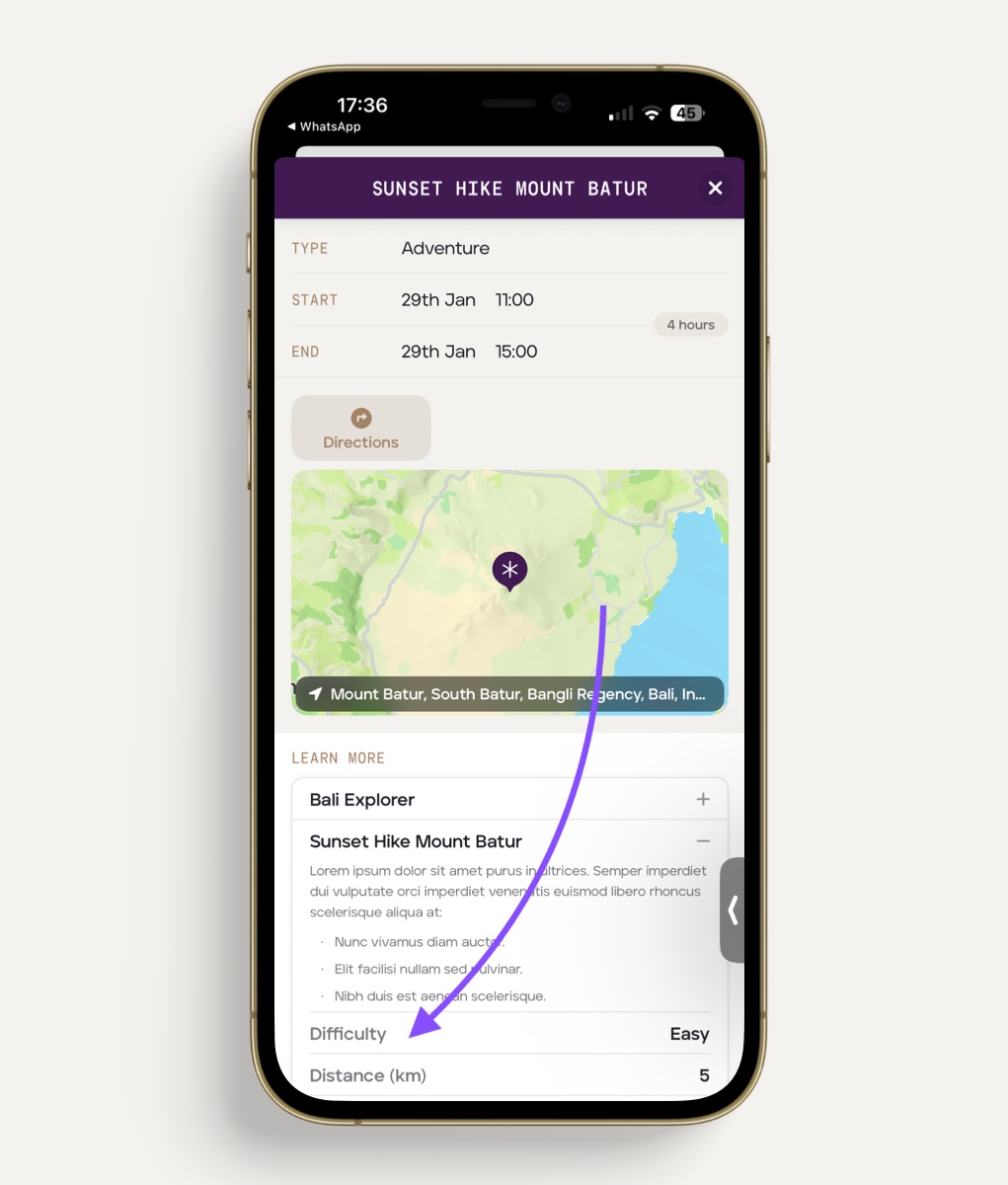
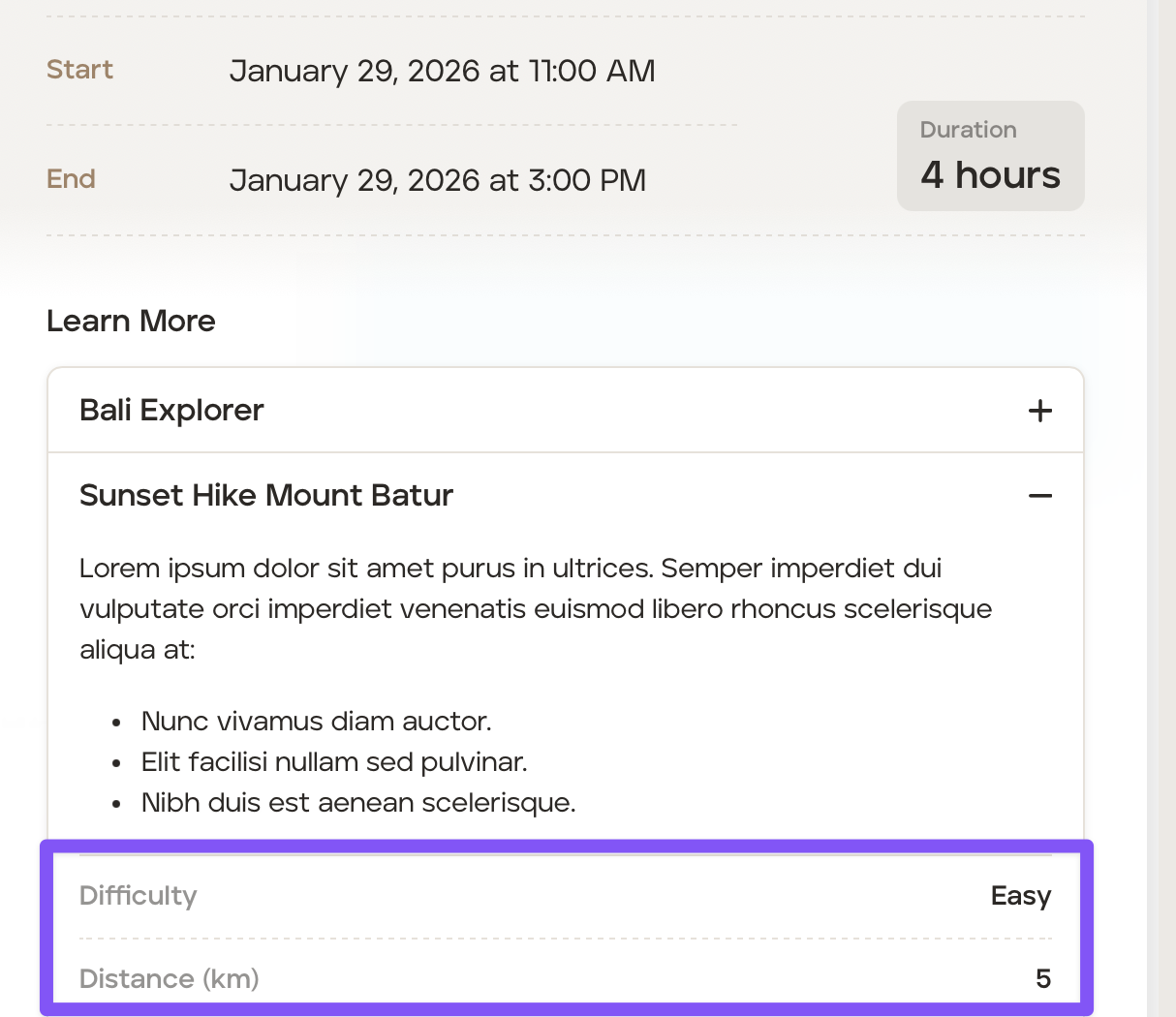
You can add custom data fields to supplier products to share with your team, or with your clients. For example for a hiking excursion, you may wish to add 'Distance' or 'Difficulty' fields.
To add custom data fields, follow the steps below:
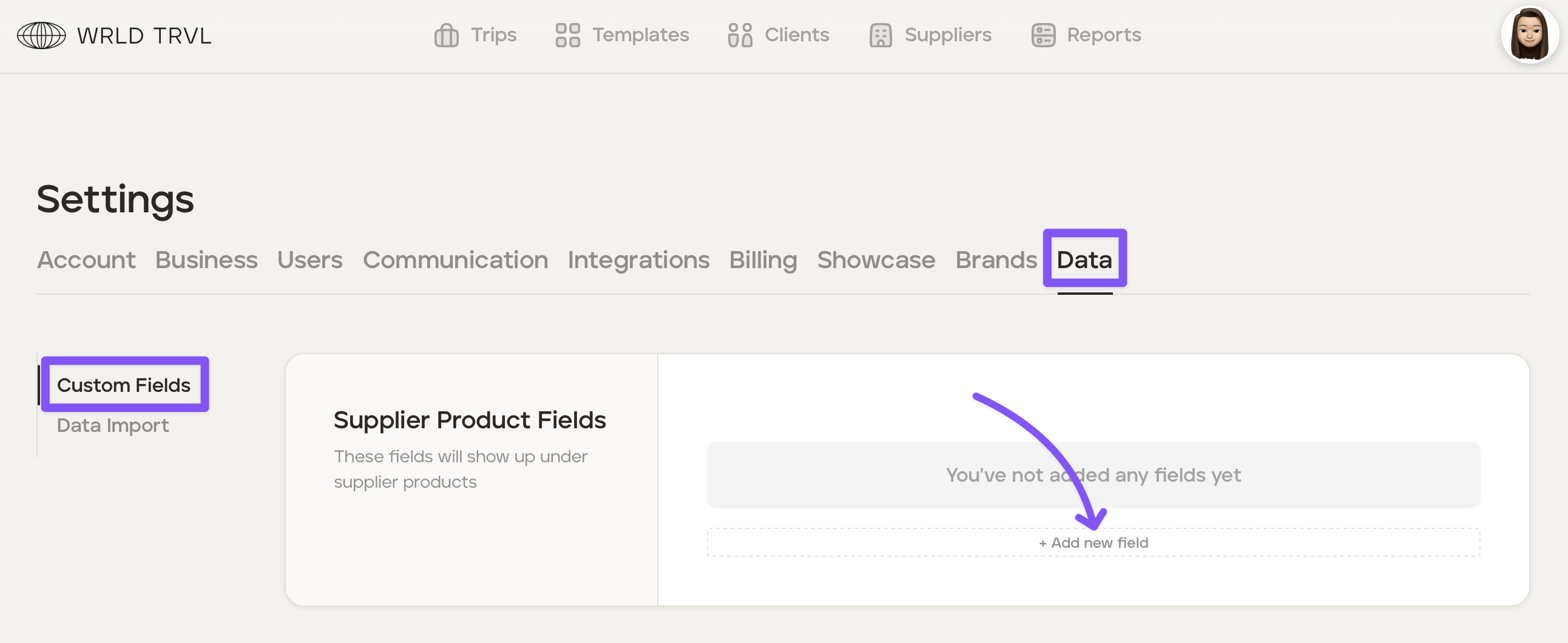
In the account 'Settings' click the 'Data' tab and then the 'Custom Data' section.
Click '+ Add new field' to add a new data field.
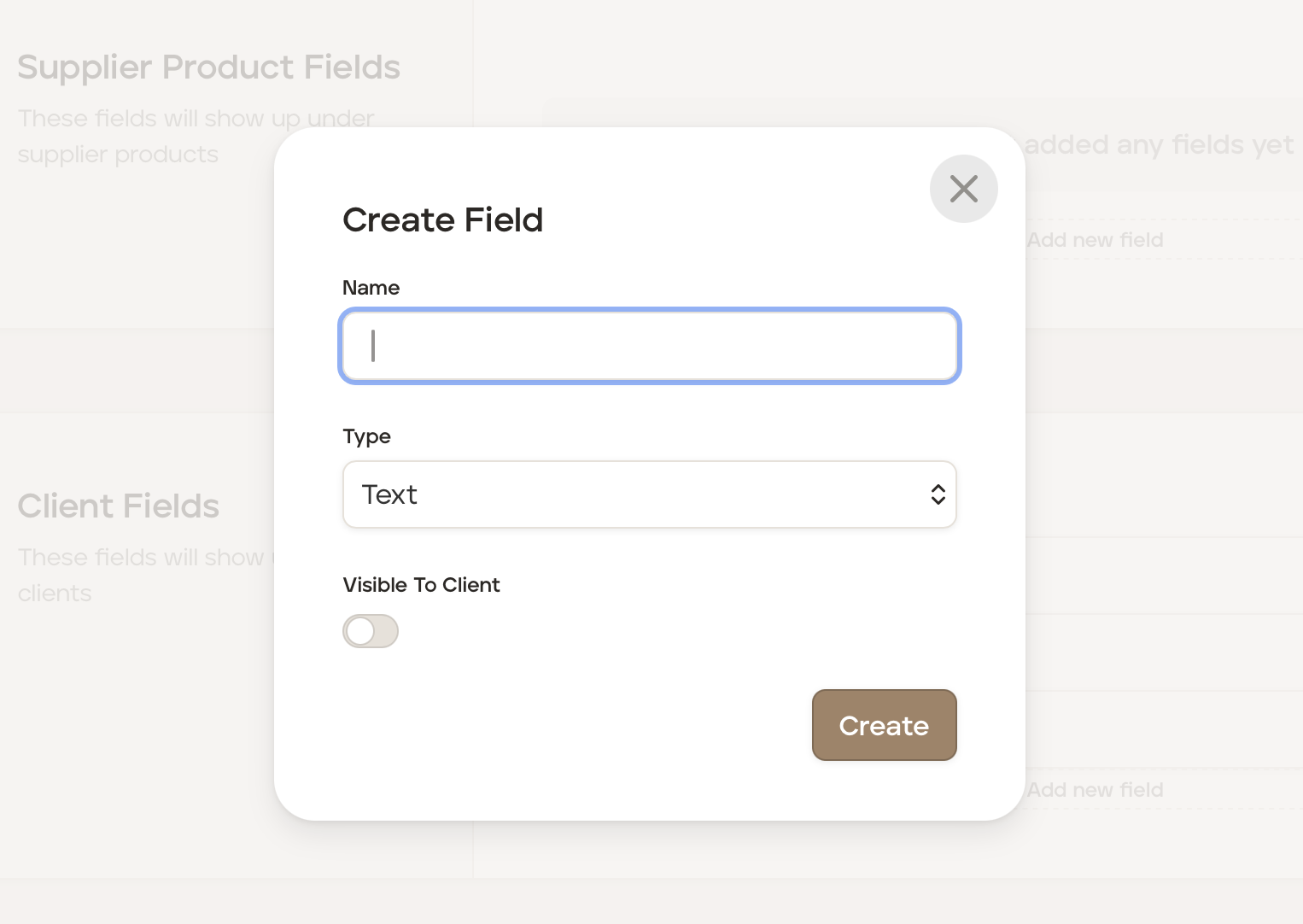
In the pop up box insert the field name, for example, 'Distance.' You can make this data visible to clients by default by switching on the 'Visible To Client' toggle.
Click the 'Create' button to create the field.
Any fields created will now be listed in the 'Custom Fields' section:
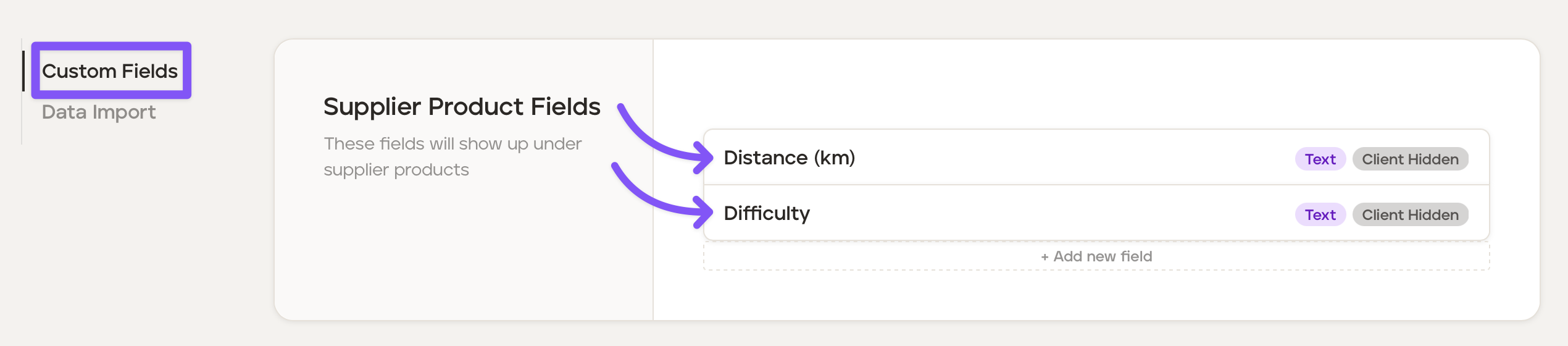
The custom fields created will be automatically added to the supplier products in the supplier products' 'Data' tab.
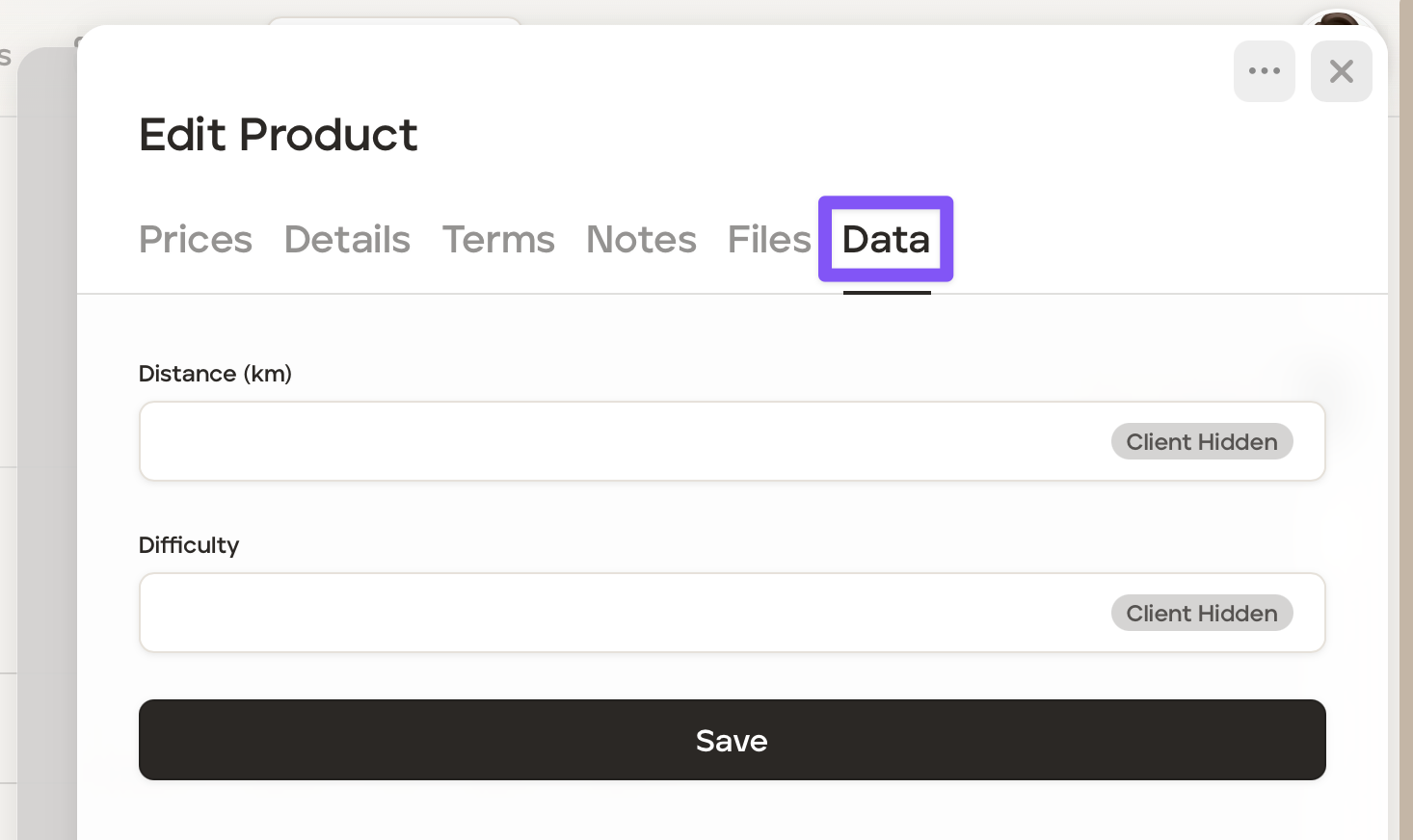
Fill in the fields. Click 'Client Hidden' or 'Client Visible' to change between the two options.
Click the 'Save' button to save.
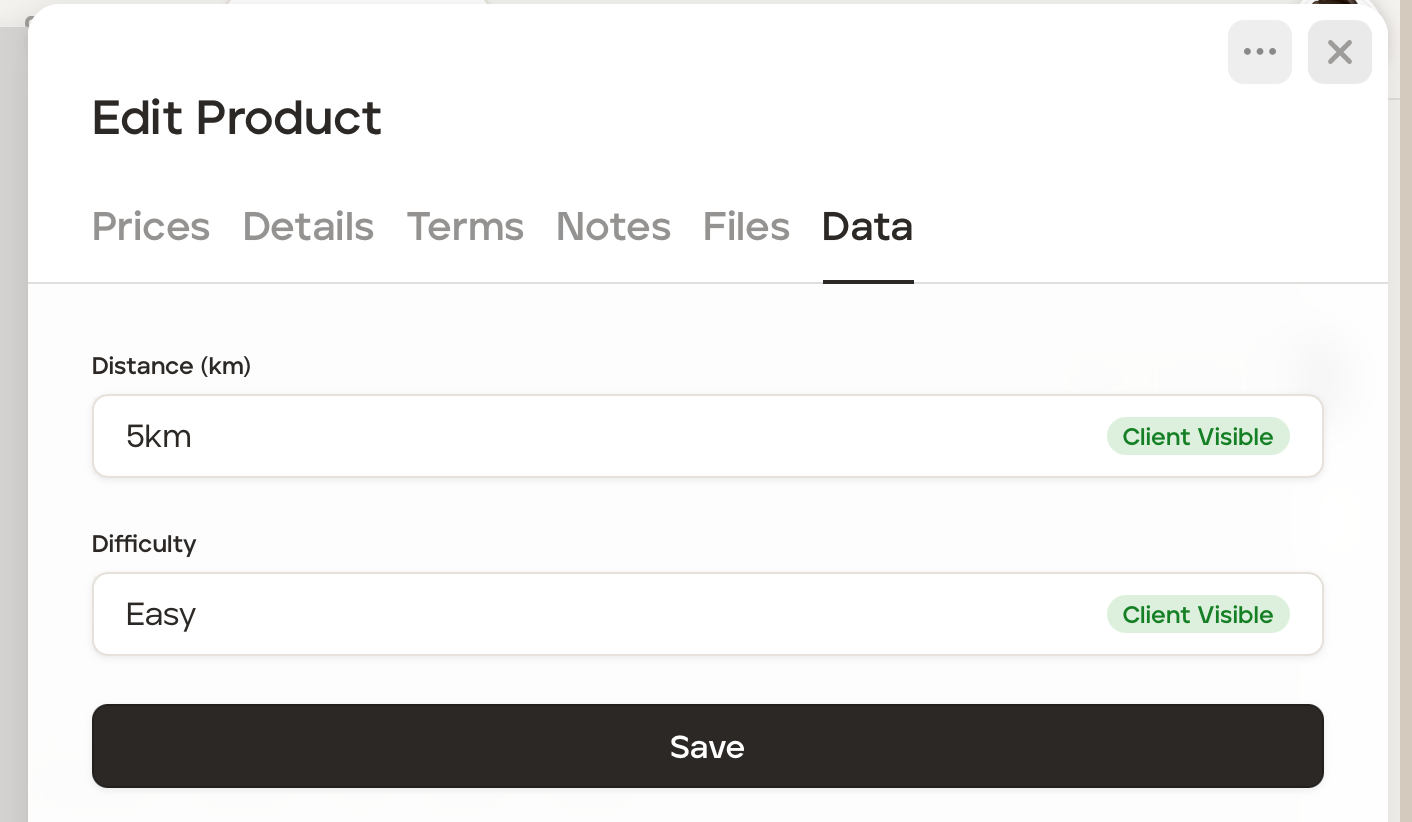
Examples of the data showing on an itinerary card as viewed by the client: