Requesting clients to pay online by Stripe
Once you have connected your Stripe account to TripMapper for Business your clients will be able to pay invoices and/or payment instalments you create on the platform by credit card or bank transfer (ACH). Bank transfer is currently only available for Stripe accounts located in the U.S.
Follow the steps below to send a link to your clients requesting payments by Stripe:
Select the applicable ‘Upcoming’ trip (a proposal that has been accepted) in the ‘Trips’ section of your account.
Click ‘Edit Trip’ in the top right of the screen.
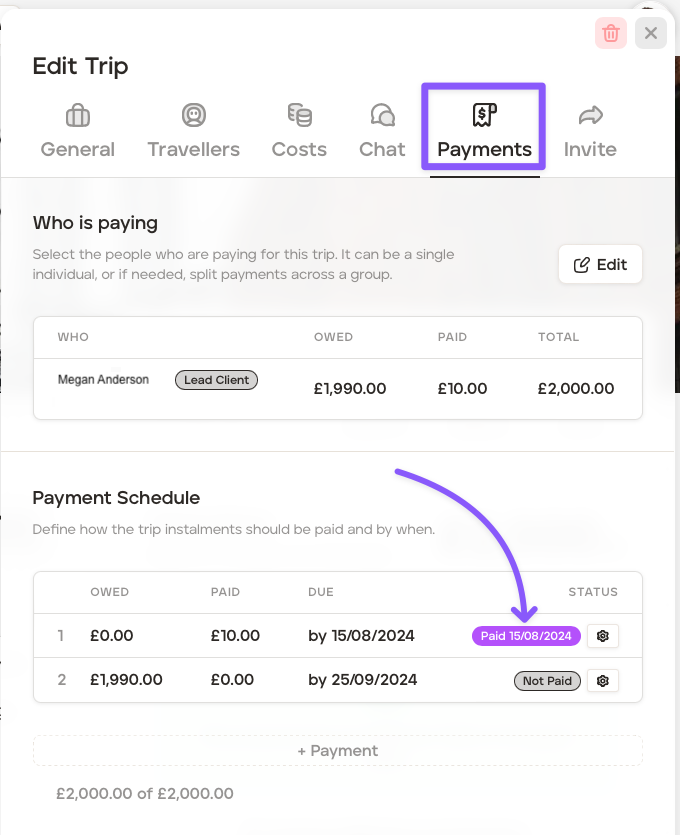
Click the ‘Payments’ tab.
Go through the steps of adding who is paying and setting up a payment schedule. To learn more about setting up a payment schedule, click here for a step-by-step guide.
To preview or download a PDF copy of the invoice, click the 'Preview' button. If you have more than one payer, you can select the applicable payer’s invoice using the dropdown menu at the top of the screen.
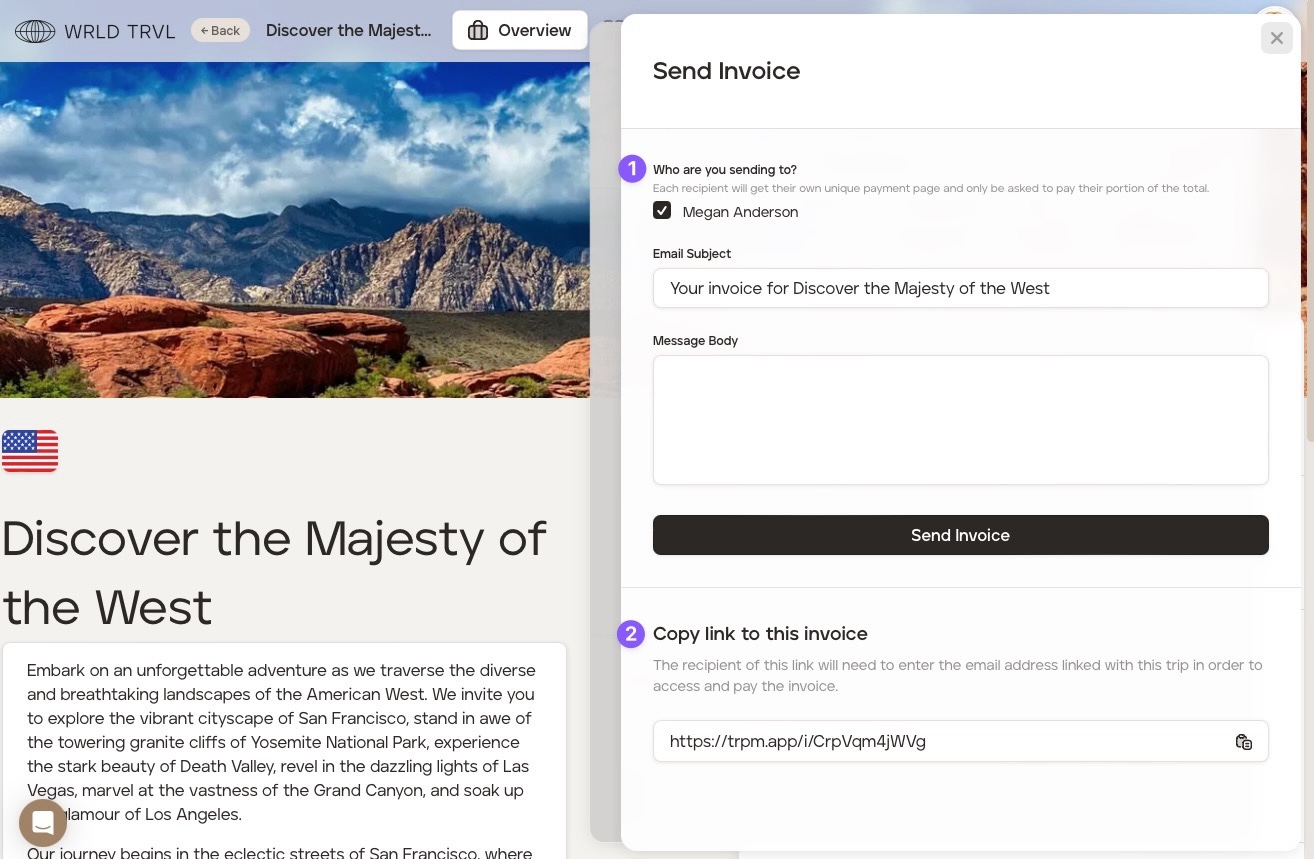
Click ‘Send Invoice’ at the bottom of the 'Payments' screen when you are ready to send the invoice and Stripe payment link to your client.
Select the applicable payers - payers will only receive invoices relevant to their own payment share as set out in your payment schedule.
You have two options to send the invoice and Stripe payment link to your client:
by email to the recipient(s) selected, or
by copying and sending a link.
The recipient of the link will need to enter their email address linked with this trip in order to access and pay the invoice.
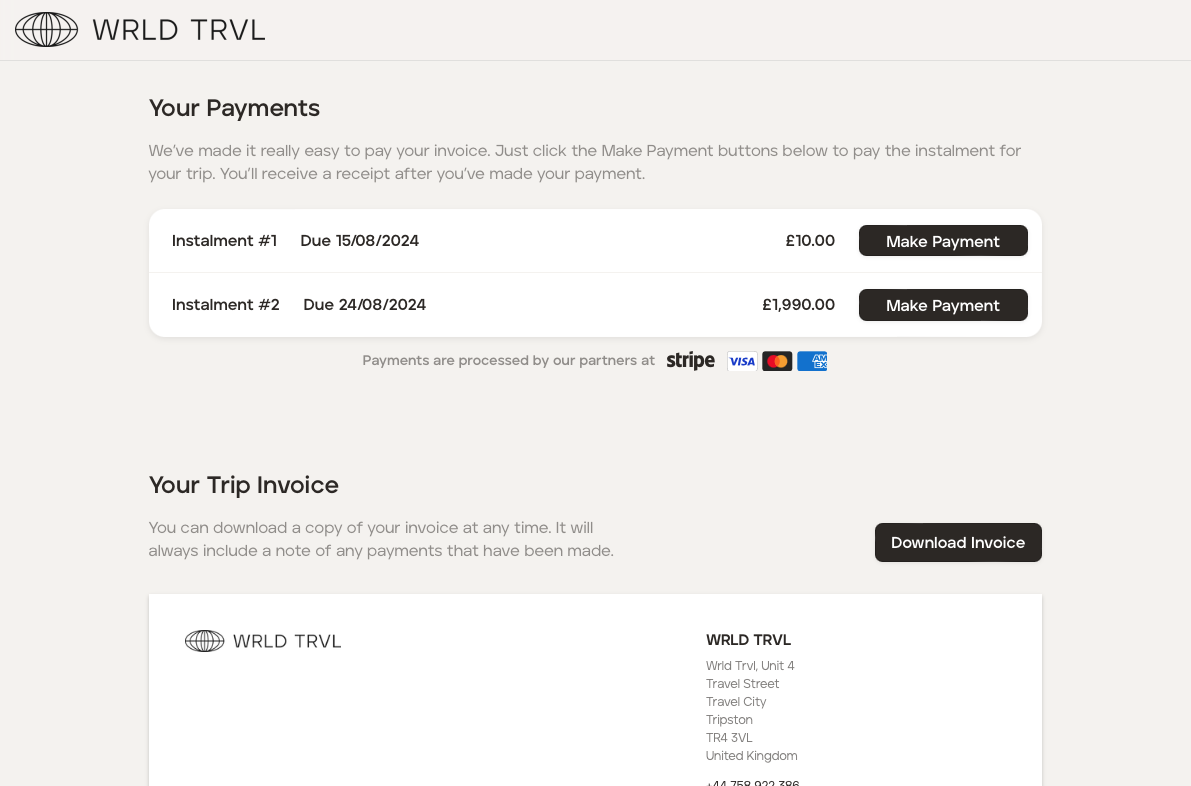
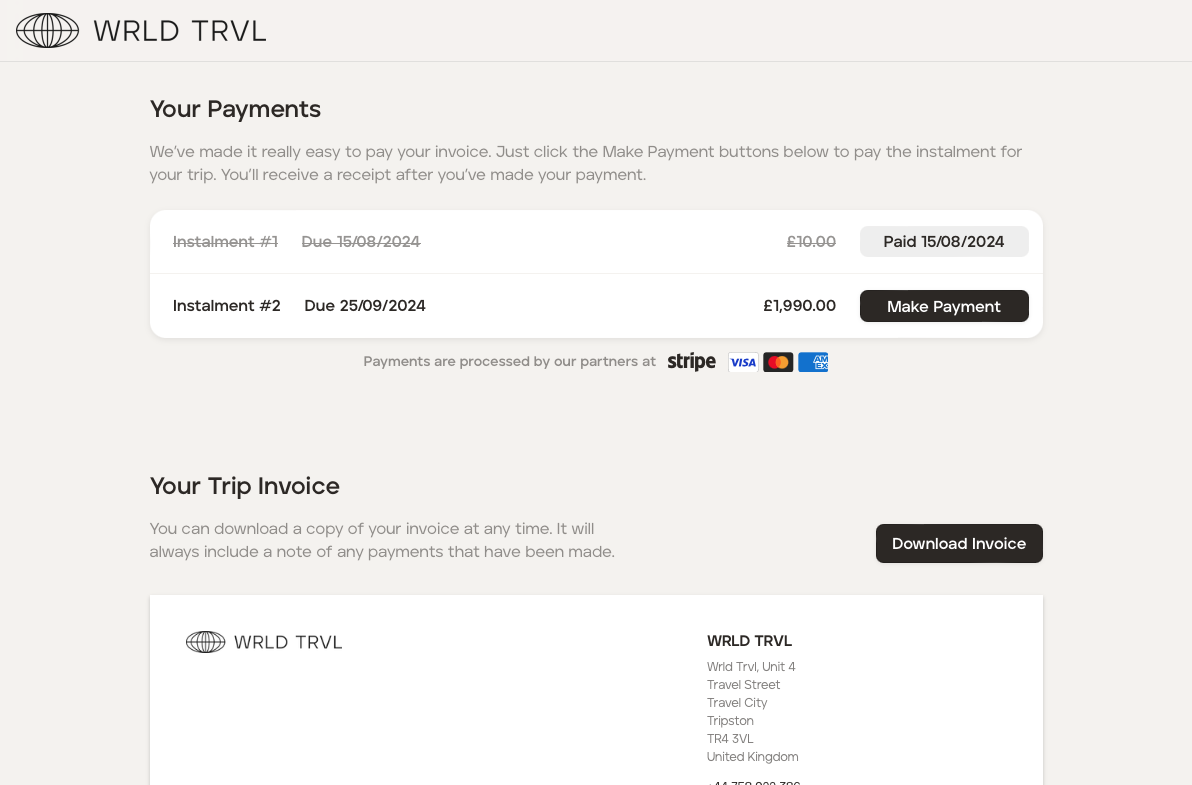
When your client clicks the payment link they will see the payment instalments and the accompanying due date, plus the invoice. The client can easily make a payment by Stripe by clicking ‘Make Payment’ next to the applicable instalment.
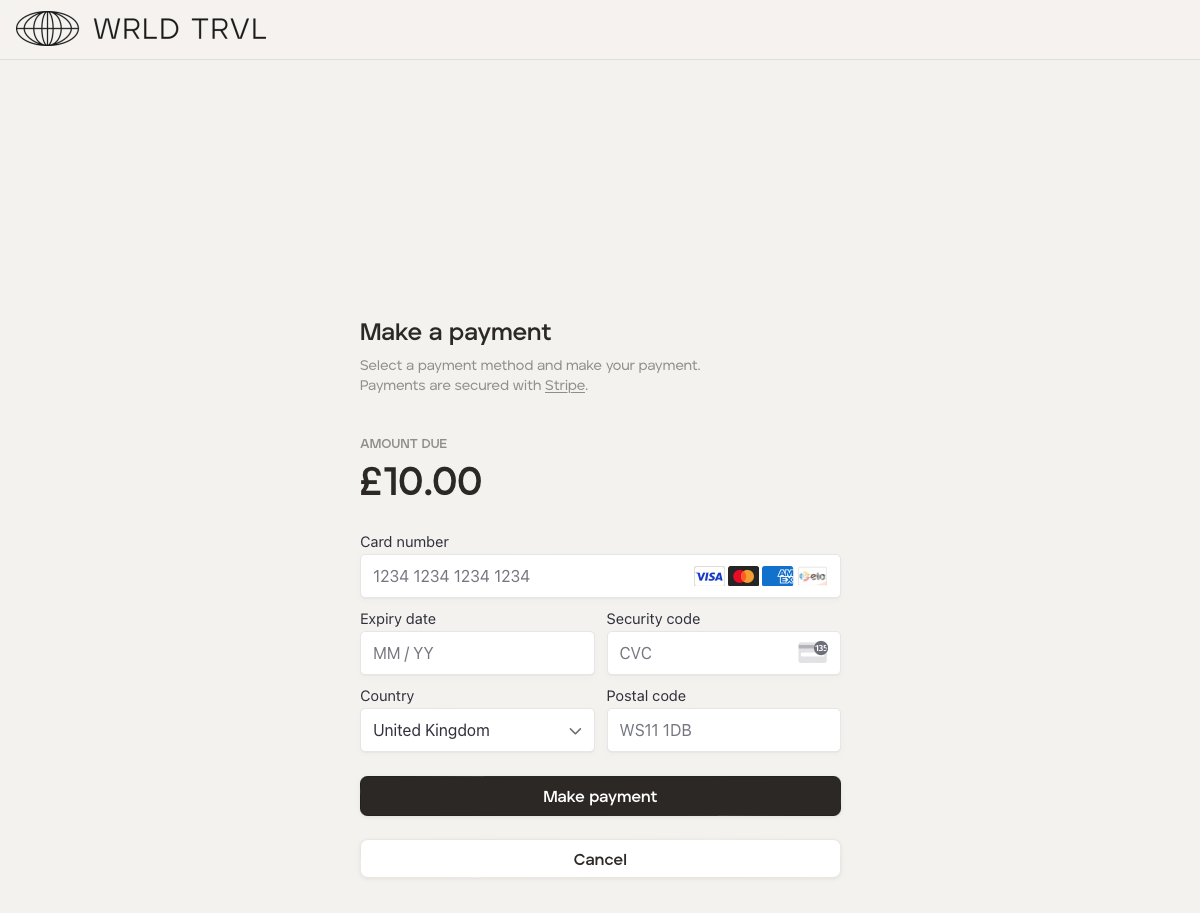
Once the client has made the payment, their screen and invoice will be updated, showing the payment made and the date of the payment. They will also receive an email receipt from Stripe.
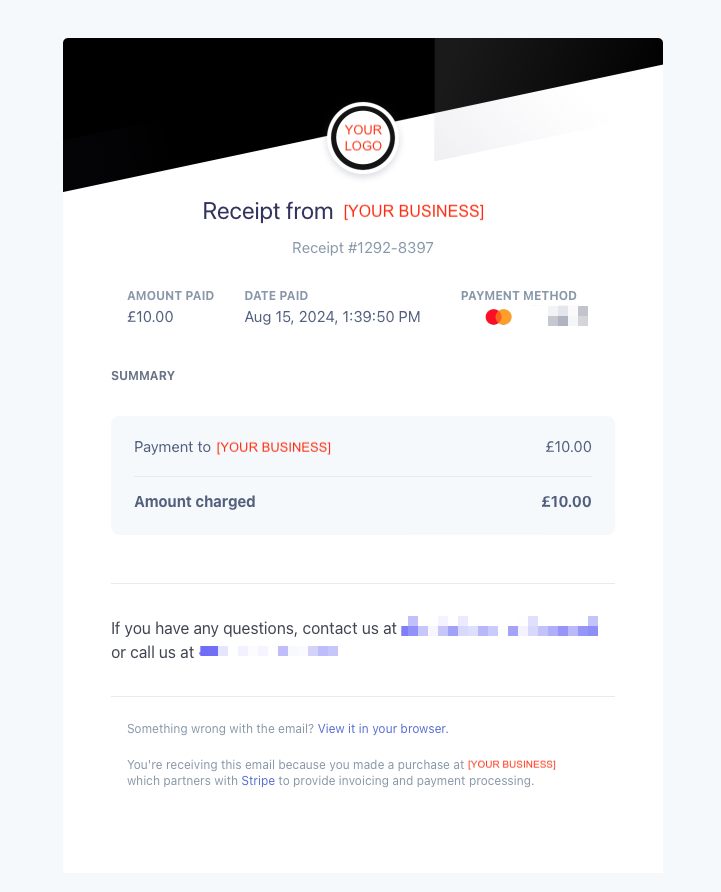
Stripe will notify you of the payment (remember Stripe fees and TripMapper application fees will be taken from the amount paid by the client.) You will also be able to see the payments made by the client in the ‘Payments’ tab of the applicable trip.