

Record supplier commission
Supplier commission is the commission you earn when booking a supplier’s services. Hotels, activity providers, transport companies and other suppliers often pay commission to the tour operator, DMC or travel agent that books their services. You can set default rates in your supplier database, adjust them on individual itineraries and review the resulting costs on each trip.
TripMapper lets you set commission rates across your suppliers, supplier products and prices, with the flexibility to adjust them for individual bookings. You can see how commission affects your trip costs and track what you’re owed from suppliers, helping you stay on top of your earnings and making it easier to reconcile with suppliers.
Choose how your commission is settled
TripMapper supports two commission settlement options:
Deducted at Payment: Your commission is deducted from the amount you pay the supplier.
Claimed from Supplier: You pay the supplier without deducting commission, then claim your commission back separately.
For example, on a £1,000 supplier price with 10% commission and no tax, you would pay £900 using ‘Deducted at Payment’. Using ‘Claimed from Supplier’, you would pay £1,000 and claim £100 back from the supplier.
Set commission rates in your supplier database
You can add commission at three levels: supplier, supplier product and supplier product pricing. This lets you set a standard rate for a supplier, with different rates for particular products or pricing brackets where needed.
To set a supplier’s default commission:
Open the relevant supplier in your supplier database.
Enter the percentage in ‘Supplier Commission Rate’ field.
Select the applicable ‘Commission Settlement’ option.
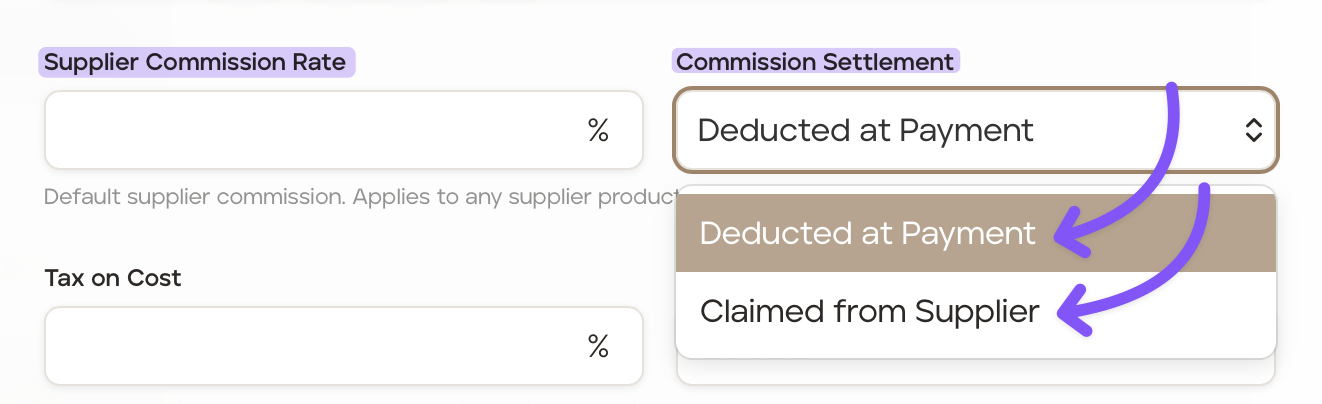
Scroll down and click ‘Update Supplier’.
This rate applies to supplier products that do not have their own commission rate.
To set a different rate for a supplier product:
Open the supplier and select the relevant product from the ‘Products’ tab.
In the product’s ‘Details’ tab, enter the ‘Supplier Commission Rate’ and select the ‘Commission Settlement’.
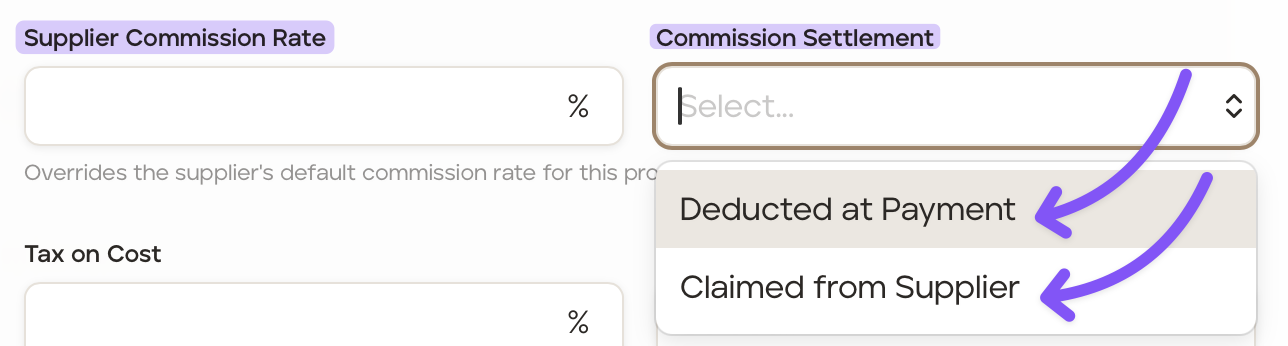
Scroll down and click ‘Save Product’.
Leave the product’s commission rate blank to use the supplier’s default rate.
To set a different rate for a particular price:
Open the supplier product and click the ‘Prices’ tab.
Open the relevant price, or click ‘+ Price’ to create one.
Enter the ‘Supplier Commission Rate’ and select the ‘Commission Settlement’.
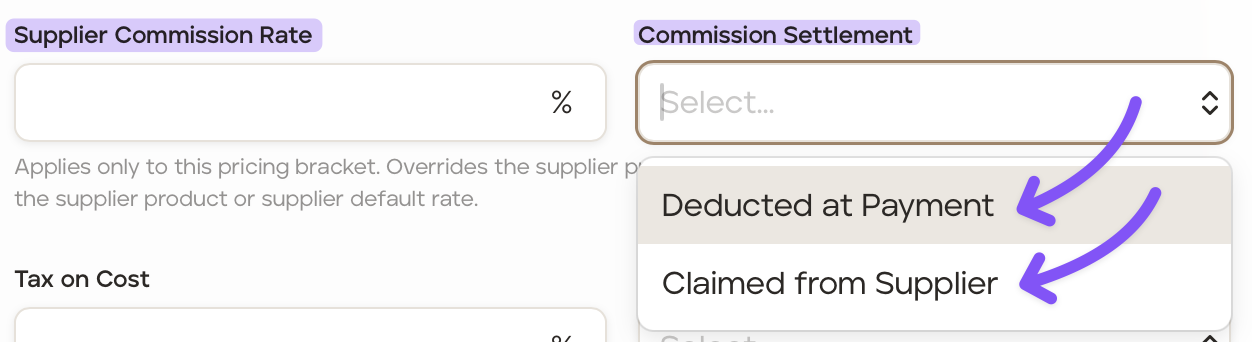
Scroll down and click ‘Save Price’.
A rate entered on a price overrides the product and supplier rates. Leave it blank to use the product’s rate, or the supplier’s default if the product has no rate.
For example, a hotel could have a default rate of 10%, a particular room type could use 12%, and its low-season price could use 15%. When that low-season price is used, the commission rate is 15%—the rates are not added together.
Enter 0% where no commission applies. Leaving a rate blank allows the default rate to apply.
Adjust commission on a specific itinerary
To change the commission for an individual itinerary:
Open the relevant proposal or upcoming trip.
Open the itinerary card and go to its ‘Costs’ section.
Open the menu beside the relevant cost item by clicking '...' and select ‘Edit’.
Update the ‘Supplier Commission Rate’ and settlement option.
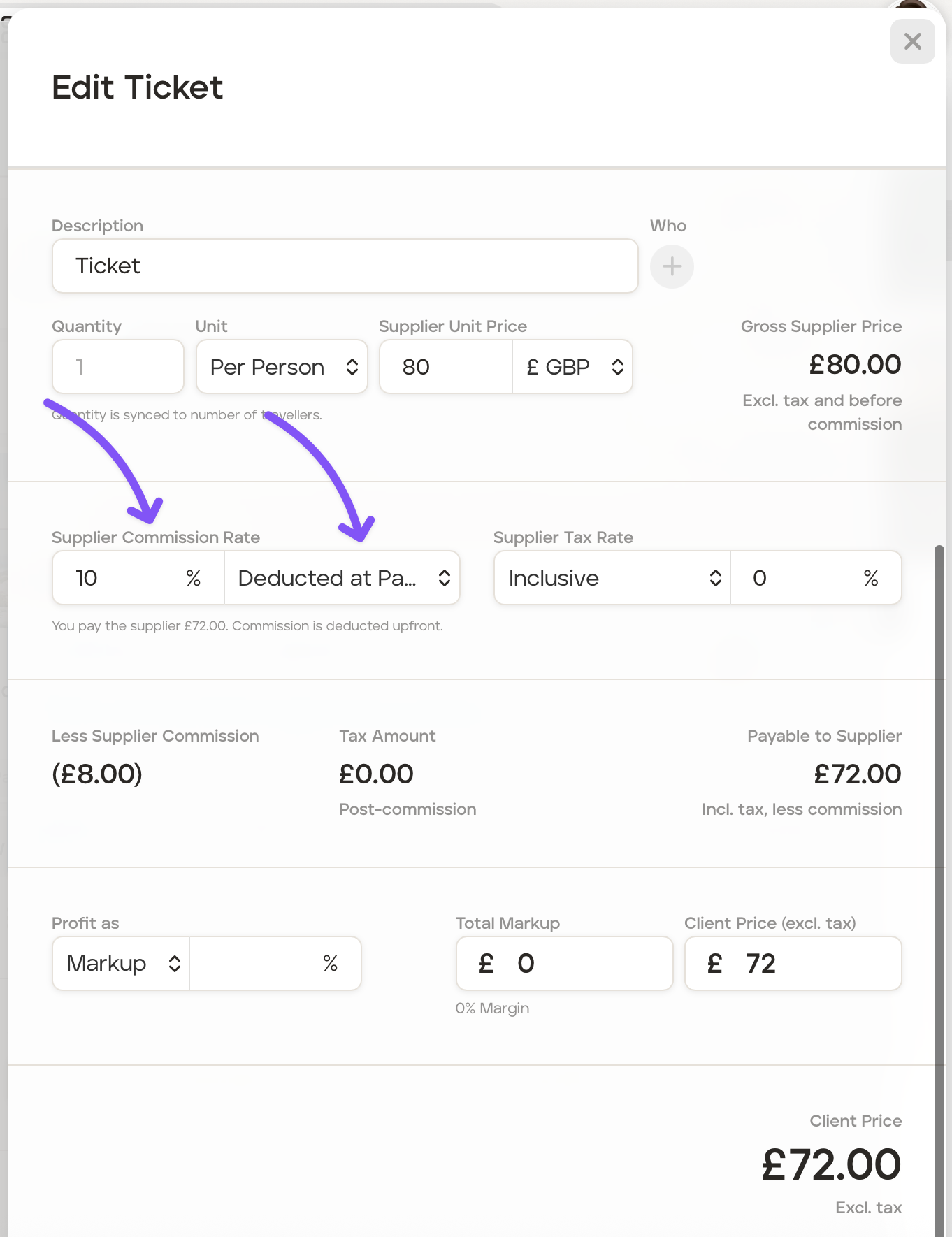
The adjustment applies to that specific itinerary’s supplier product. It does not update the default commission stored in your supplier database.
If one itinerary card contains several supplier products, check each separately. Each can have its own commission rate and settlement option.
How commission is calculated on a card
Commission is calculated for each itinerary item using its ‘Gross Supplier Price’, before supplier tax and commission:
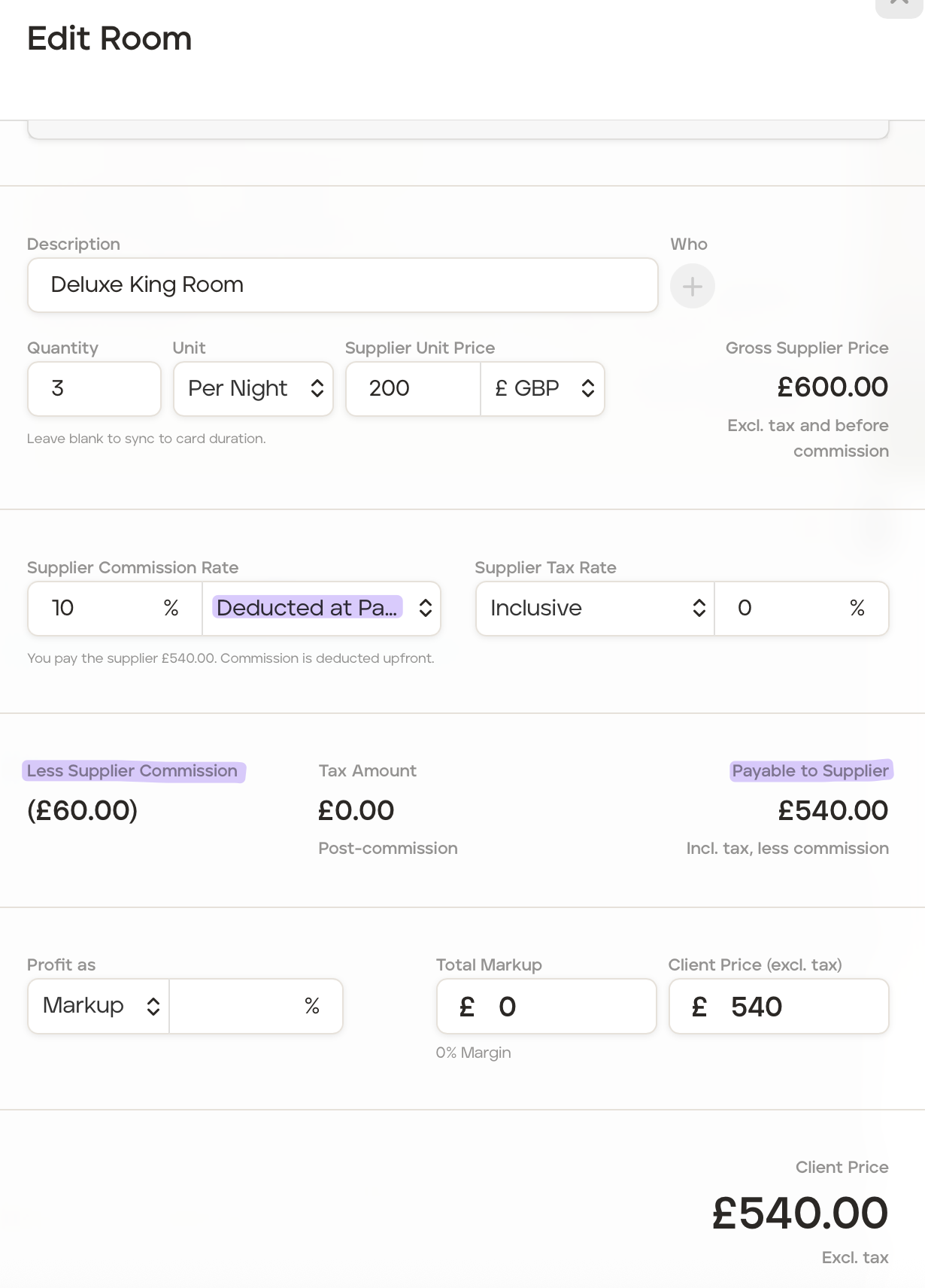
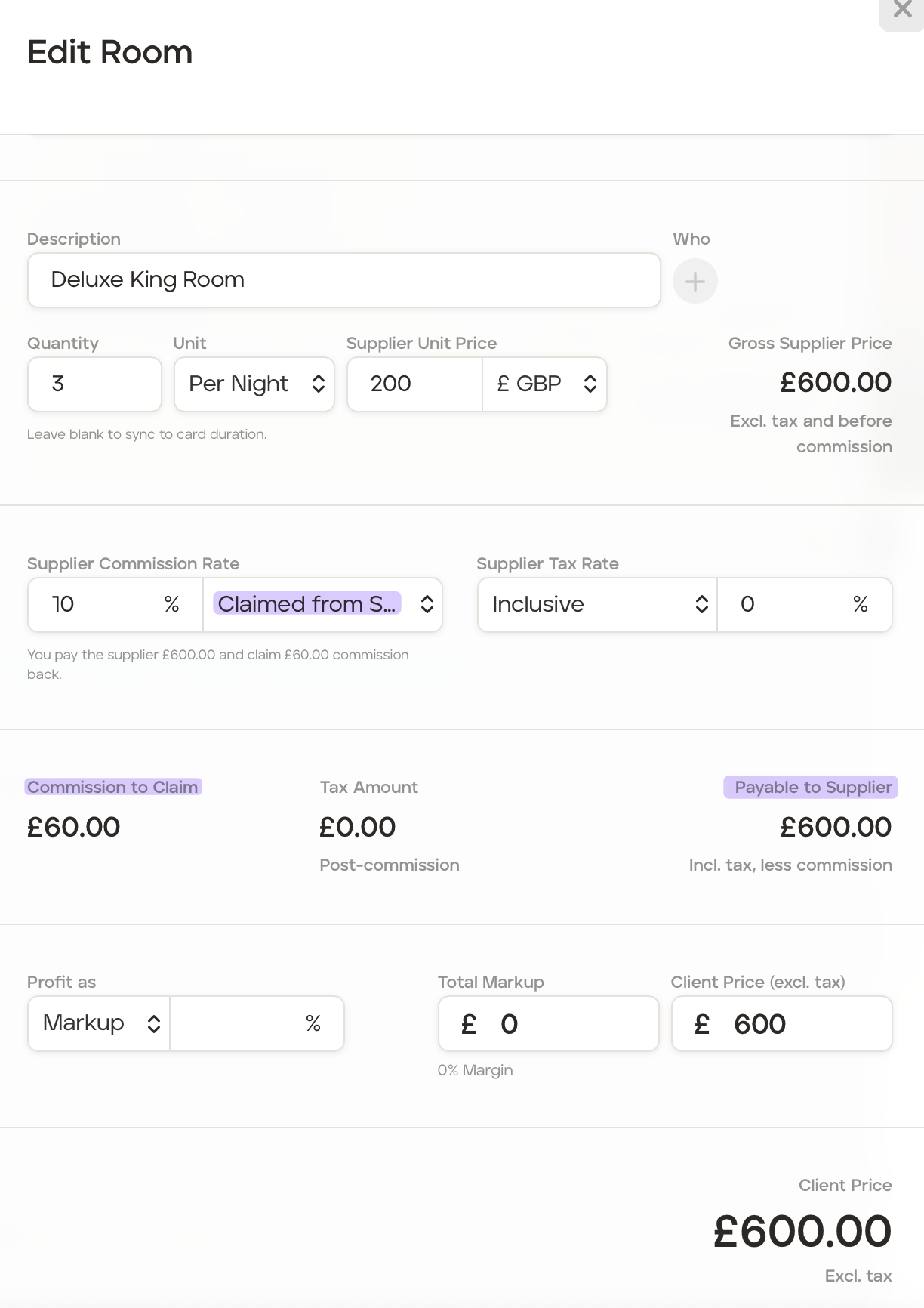
The gross supplier price reflects the item’s quantity and, where applicable, its duration. For example, a room costing £200 per night for three nights has a gross supplier price of £600. At 10%, the commission is £60.
The settlement option determines how this affects the amount payable:
Deducted at Payment: The itinerary item shows ‘Less Supplier Commission’. Commission reduces the supplier cost, and any supplier tax is calculated after that deduction.
Claimed from Supplier: The item shows ‘Commission to Claim’. Commission is recorded separately and does not reduce the amount ‘Payable to Supplier’.
The card’s ‘Supplier Commission’ total adds together all the commission calculated for all its itinerary items.
Review commission within the trip’s costs
Open the trip’s ‘Manage’ tab and select ‘Costs’. The ‘Category Summary’ brings together the costs and pricing from the itinerary cards, showing ‘Cost’, ‘Markup’, ‘Margin %’ and client ‘Price’ for each category.
Commission 'deducted at payment' is already reflected in the 'Costs' carried into this summary. You do not need to subtract it again.
Commission 'claimed from supplier' remains separate from the amount payable. It does not reduce the costs or increase the margin shown here simply because it has been recorded as commission to claim.
The ‘Agent Commission’ field further down this screen relates to commission you pay to an agent who booked the trip. Supplier commission is managed on the individual itinerary items.
Track supplier commission status
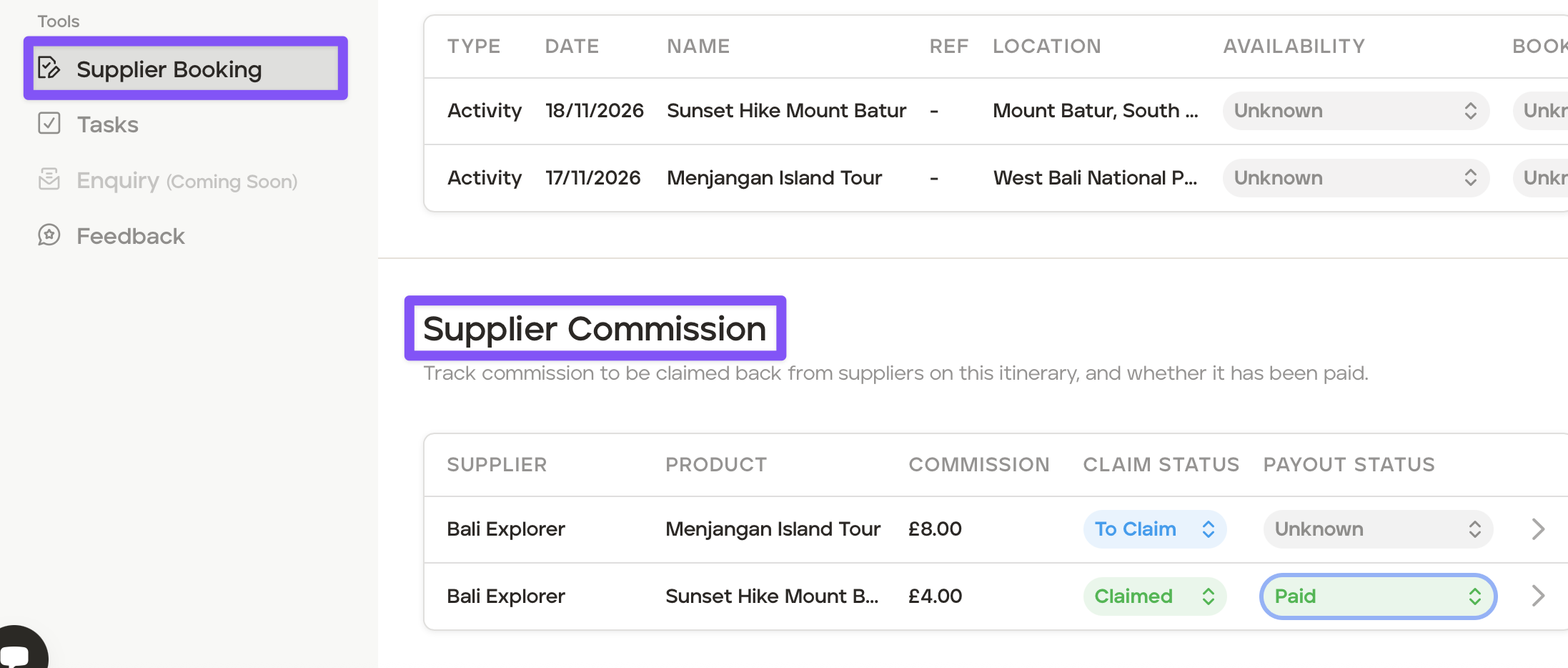
If you pay suppliers in full and claim your commission back separately, you can record the status of each claim. This makes it easy to see what you’re still owed and to keep your reconciliation up to date.
Claim Status:
To claim
Claimed
Payout Status:
Unknown
Awaiting Payment
Paid
Download a supplier commission report
Supplier commission reports can be downloaded on a CSV.
To download a report:
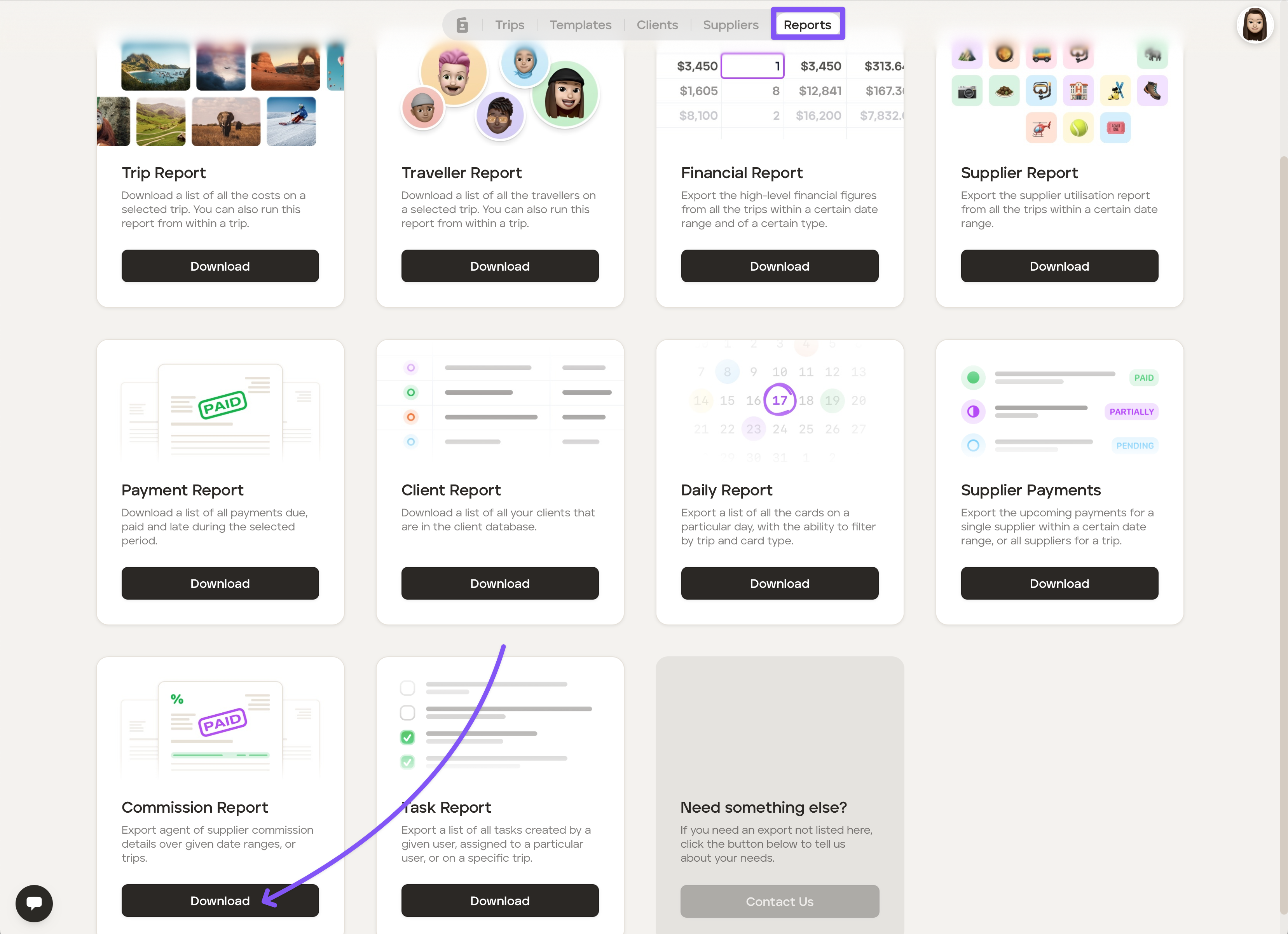
Go to your 'Reports' section of your account.
Click the 'Exports' tab.
Click 'Download' on the 'Commission Report'.
Select 'Supplier', add the requested details and then click 'Export.'