
Creating tasks
You can set yourself, your colleagues and your clients (the travellers) tasks alongside due dates.
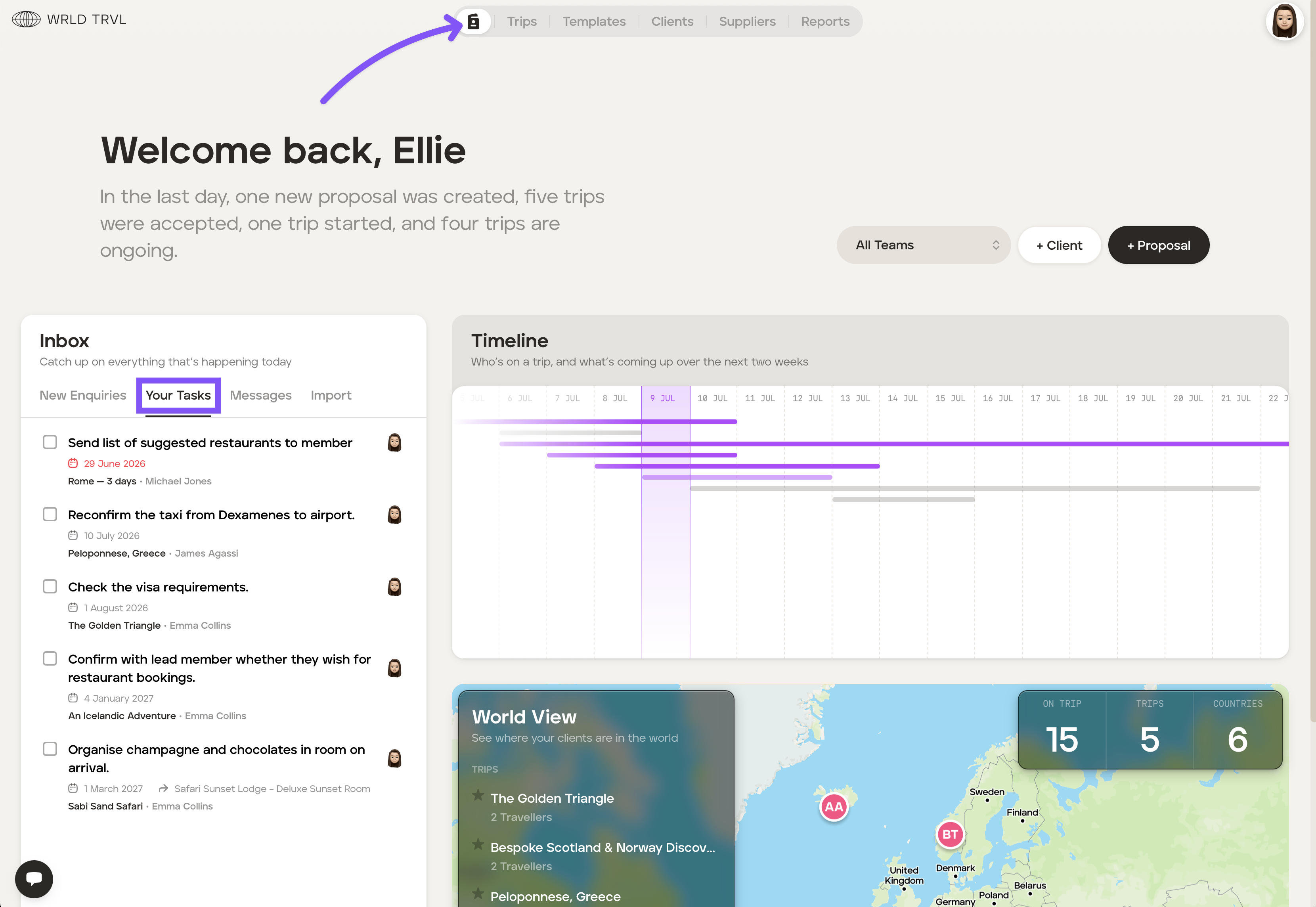
When tasks are assigned to you, they are collated in the 'Your Tasks' tab in your account Dashboard:
For your client to see tasks you have created for them and to receive notifications of tasks:
You need to invite your client to access the 'upcoming' trip itinerary on the mobile app;
your client needs to download and sign up to the TripMapper mobile app; and
your client needs to allow TripMapper to send them notifications.
To set tasks follow the steps below:
Click into the applicable trip.
You can either:
set a task relating to a particular itinerary card; or
set a task relating to the trip more generally.
To set a task relating to a particular itinerary card, click on the card and scroll down to 'Tasks'.
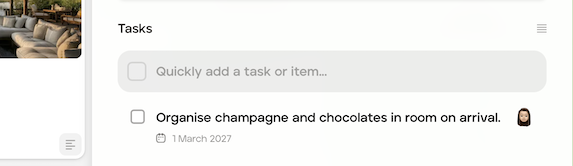
To add a new task, click the light grey box, type your task and then hit the 'Enter' key on your keyboard.
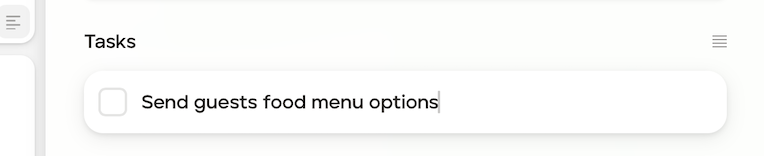
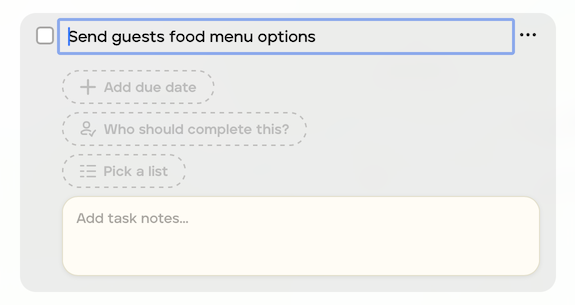
Click that task to:
add a task due date;
assign the task to an individual (this can be to you, a colleague or the traveller (if they have accepted your invitation to access their trip on the app); and
pick a list if you have already created a task list (review this article for more information on task lists);
add notes.
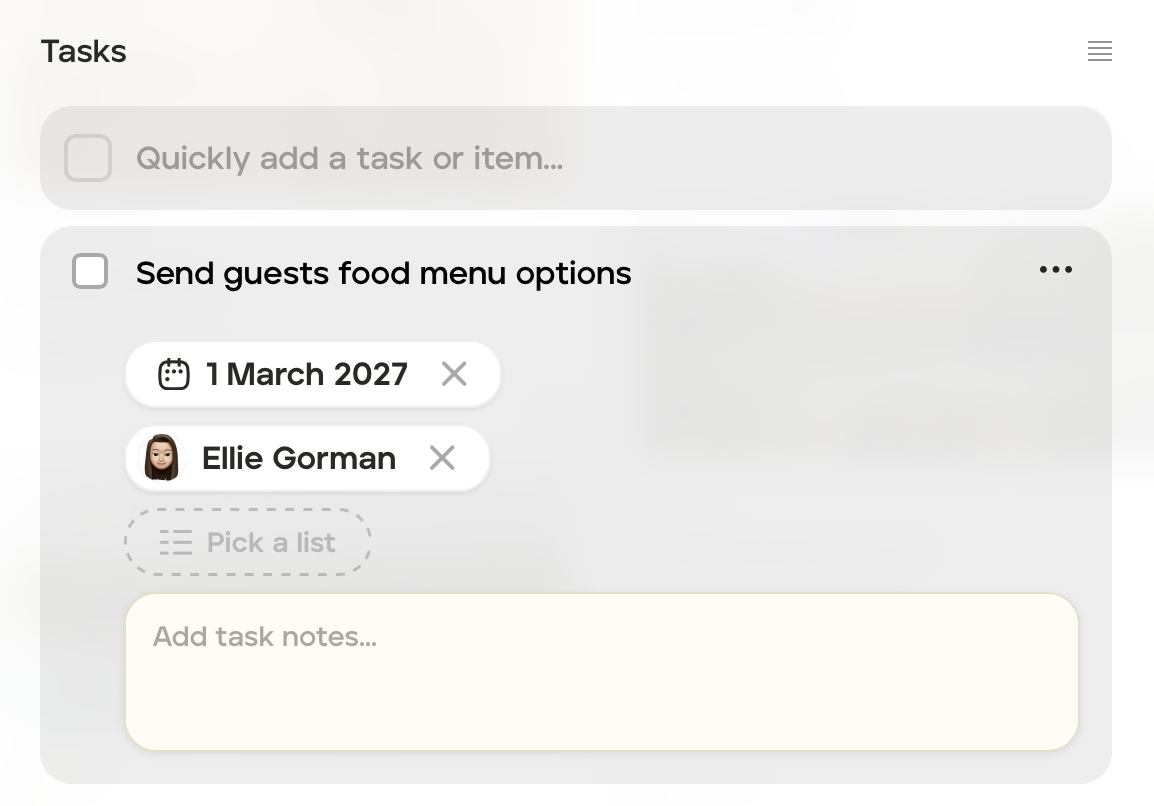
The task has now been added to the card.
To see all tasks created for this trip, or add a more 'general' task for the trip, click that trip's 'Manage' tab and then the 'Tasks' tab.
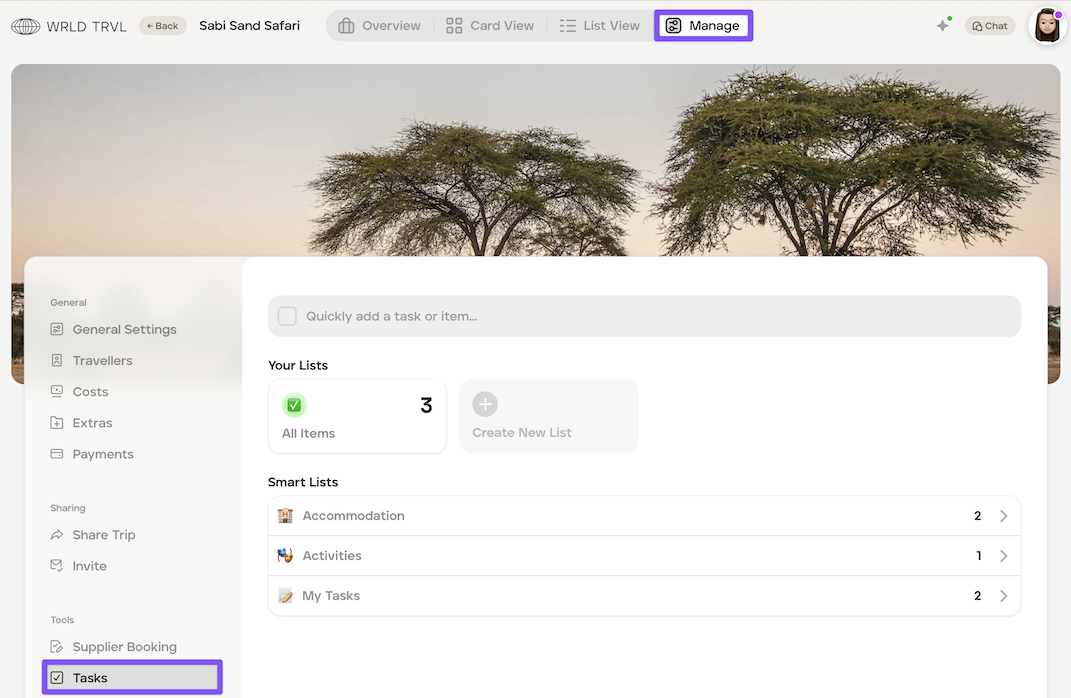
In the 'Tasks' section, you can:
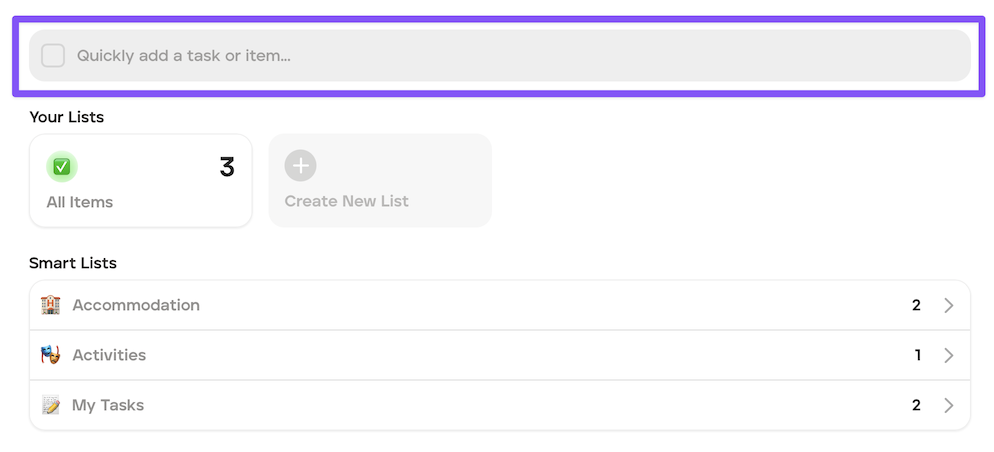
Add a general 'task' for the trip by clicking the light grey box and following steps 4-5 above:
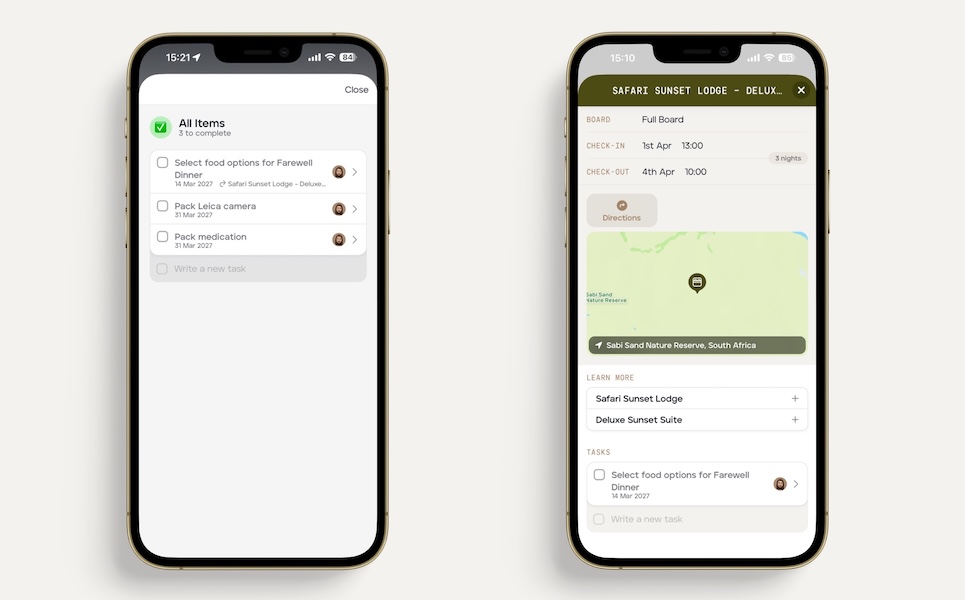
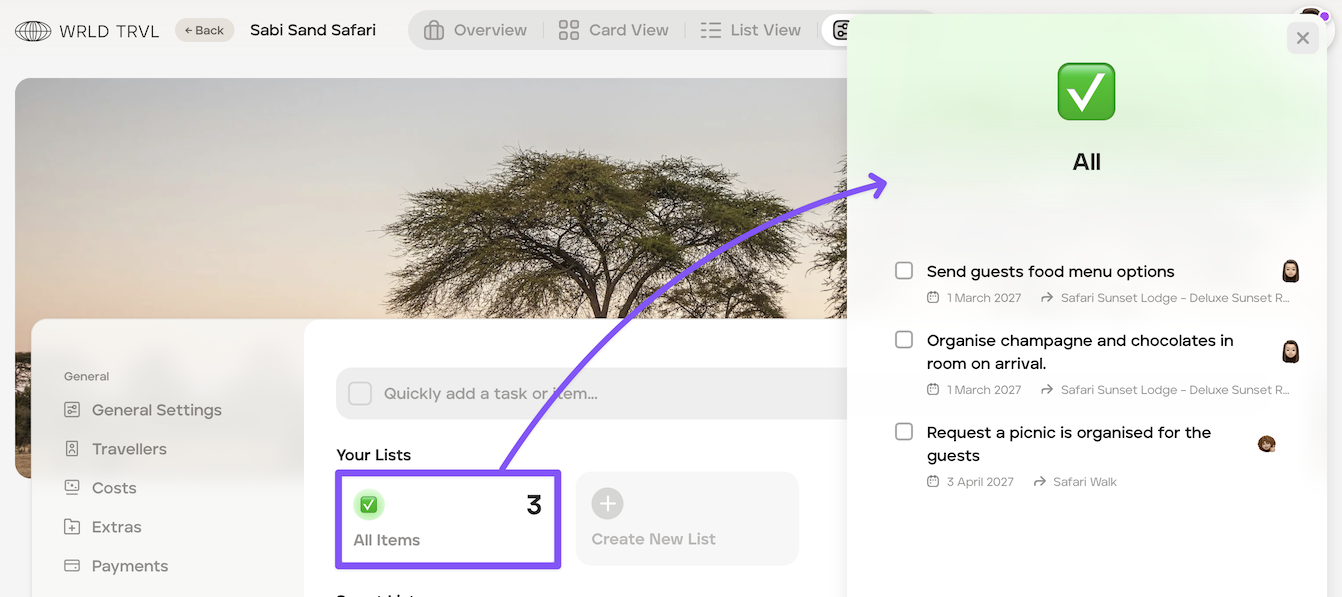
View all the tasks on that trip (your tasks, your colleagues' tasks and traveller tasks) by clicking 'All Items':
In the 'Smart Lists' section you can see tasks by category, or view your own tasks:
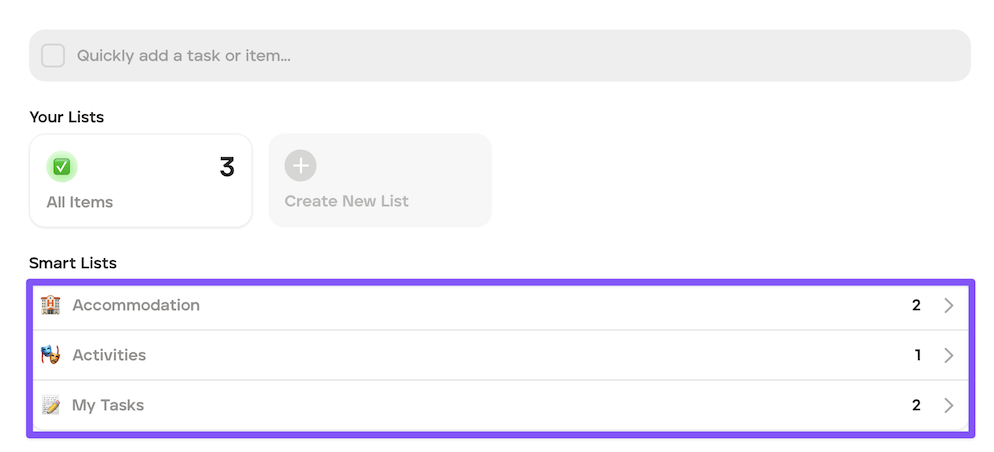
Click any of the lists to open them:
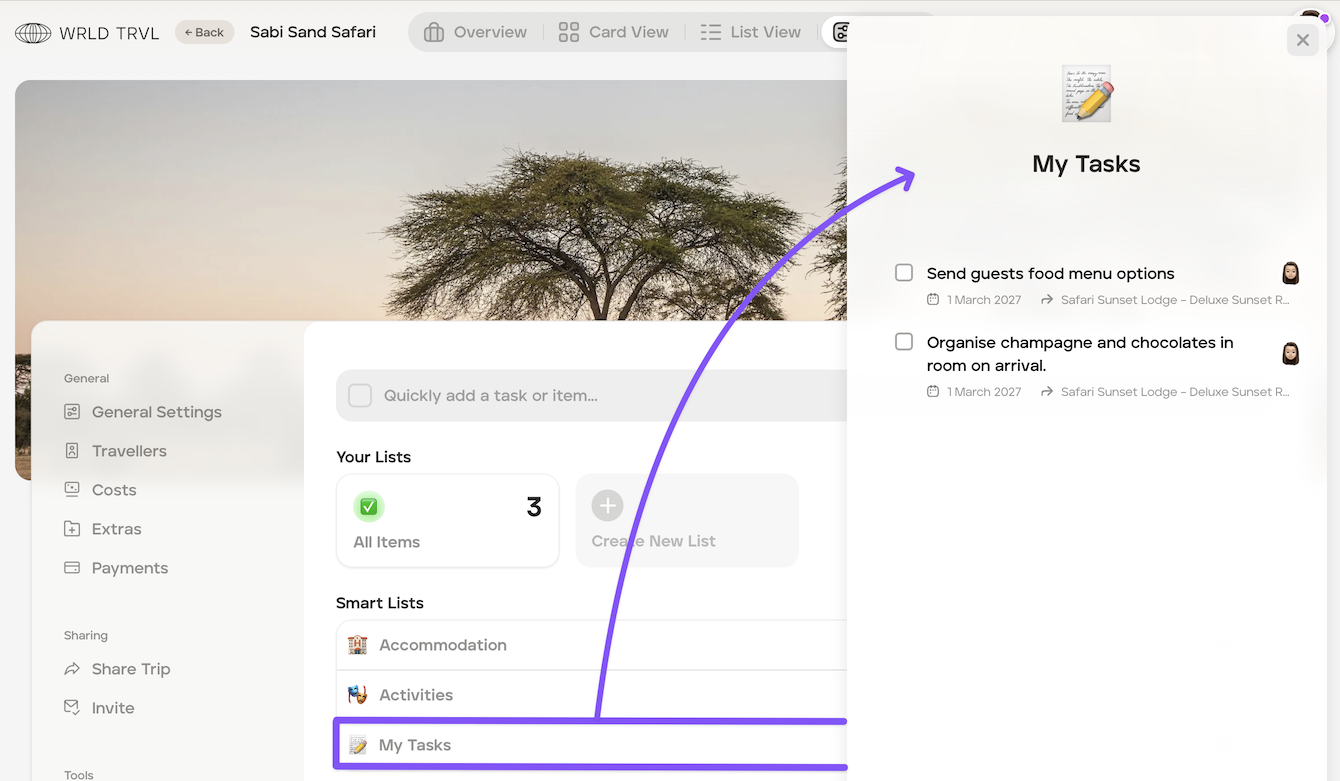
View all your tasks across all your trips
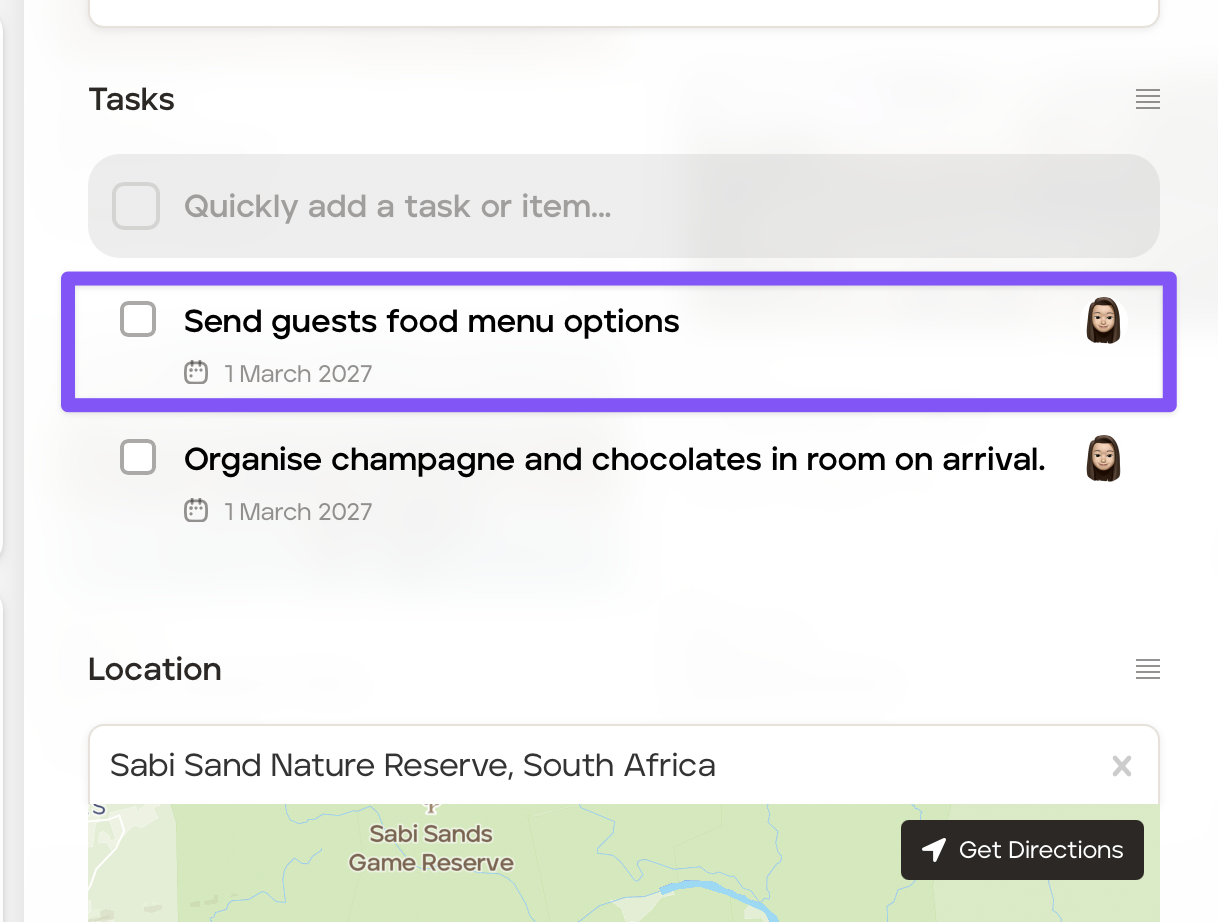
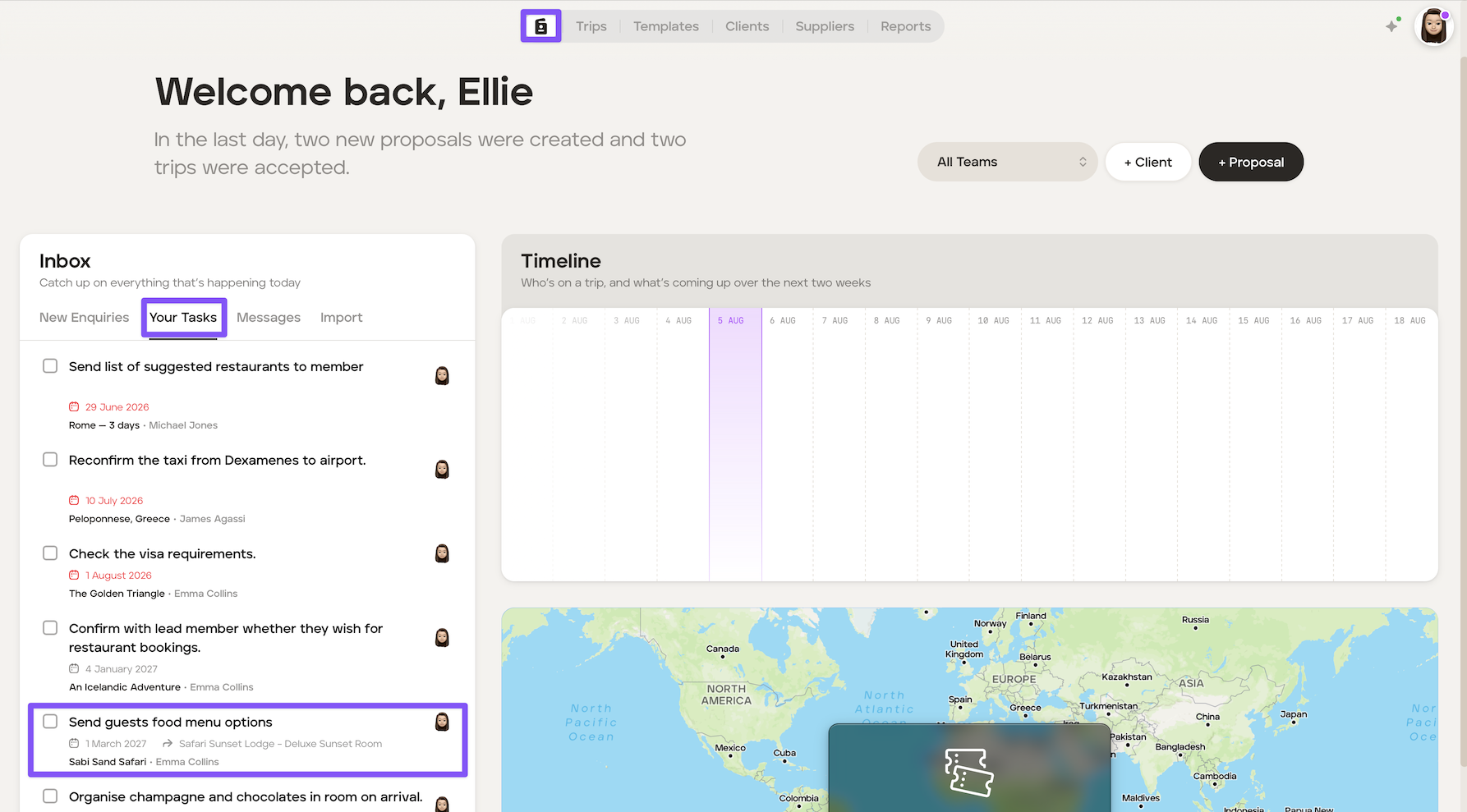
To view your tasks across all your trips, head to your 'Dasboard' and click the 'Tasks' tab. The newly created task is highlighted in purple below.
You can see:
Task - 'Send guests food menu options'
Due Date - 1 March 2027
A link to the itinerary card the task was added to (only if the task was added to an itinerary card)
A link to the trip and the traveller's name.
Once a task has been completed tick the checkbox either on:
your Dashboard;
the itinerary card (if it was originally added to an itinerary card); or
in the 'Manage' > 'Tasks' section.
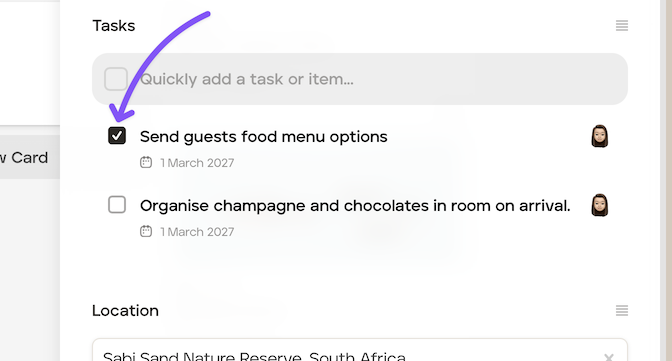
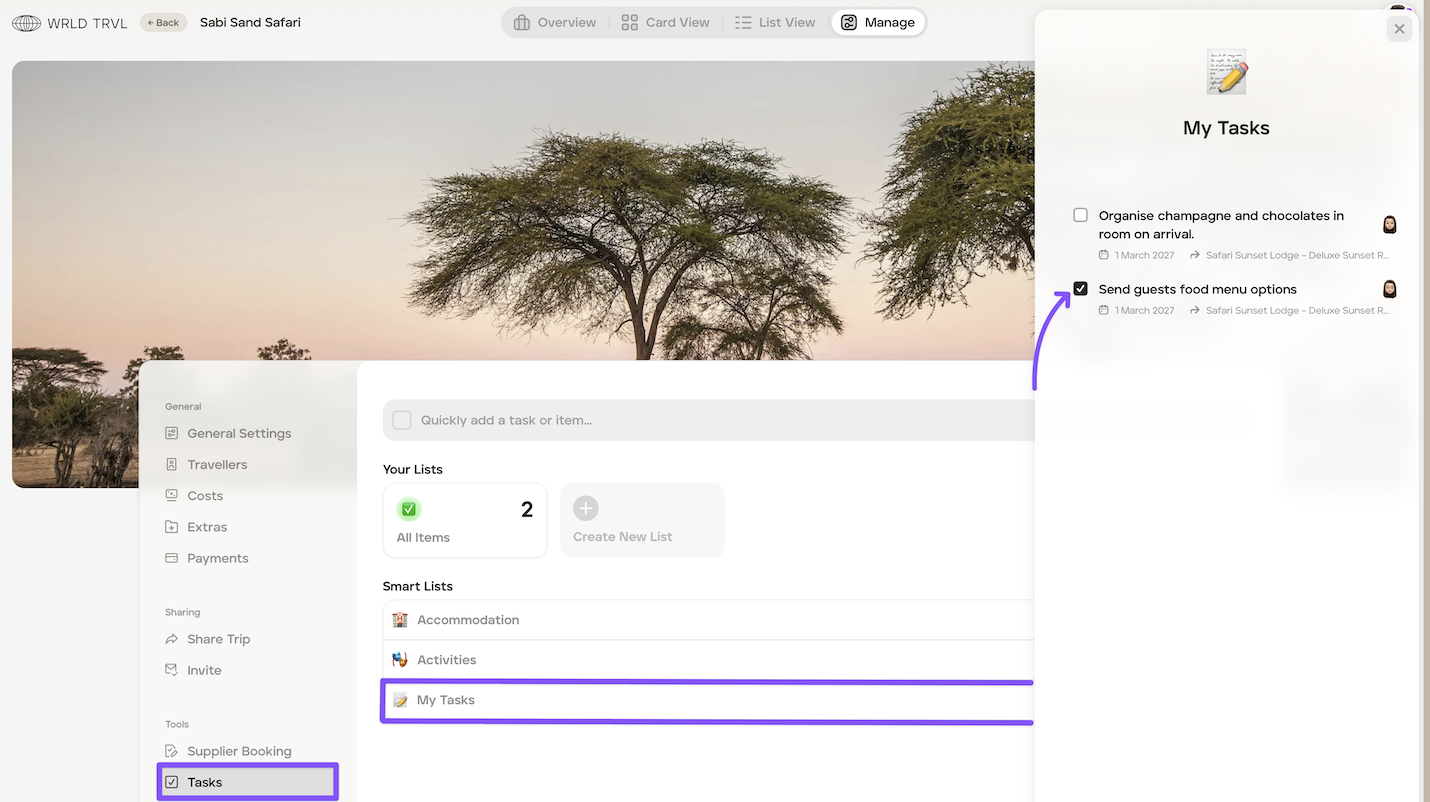
Once the checkbox has been completed by ticking it, it will be removed from your Dashboard task list, but will remain on:
the itinerary card (if it was originally added to an itinerary card) and will have a 'tick' in the checkbox:
in the 'Manage' > 'Tasks' section and will have a 'tick' in the checkbox:
Change the person assigned to a task
If you wish to allocate a task to your colleague, or the traveller (who must already have access to the trip on the app):
Click in the relevant itinerary card (if it was originally added to an itinerary card) or go to the task in the 'Manage' > 'Tasks' section.
Click on the task and click the 'X' next to the current individual allocated to that task.
Click 'Who should complete this' and select the relevant individual from the dropdown menu.
If the new individual allocated to the card is a colleague, the task will disappear from your Your Tasks tab on your Dashboard and be on theirs instead.
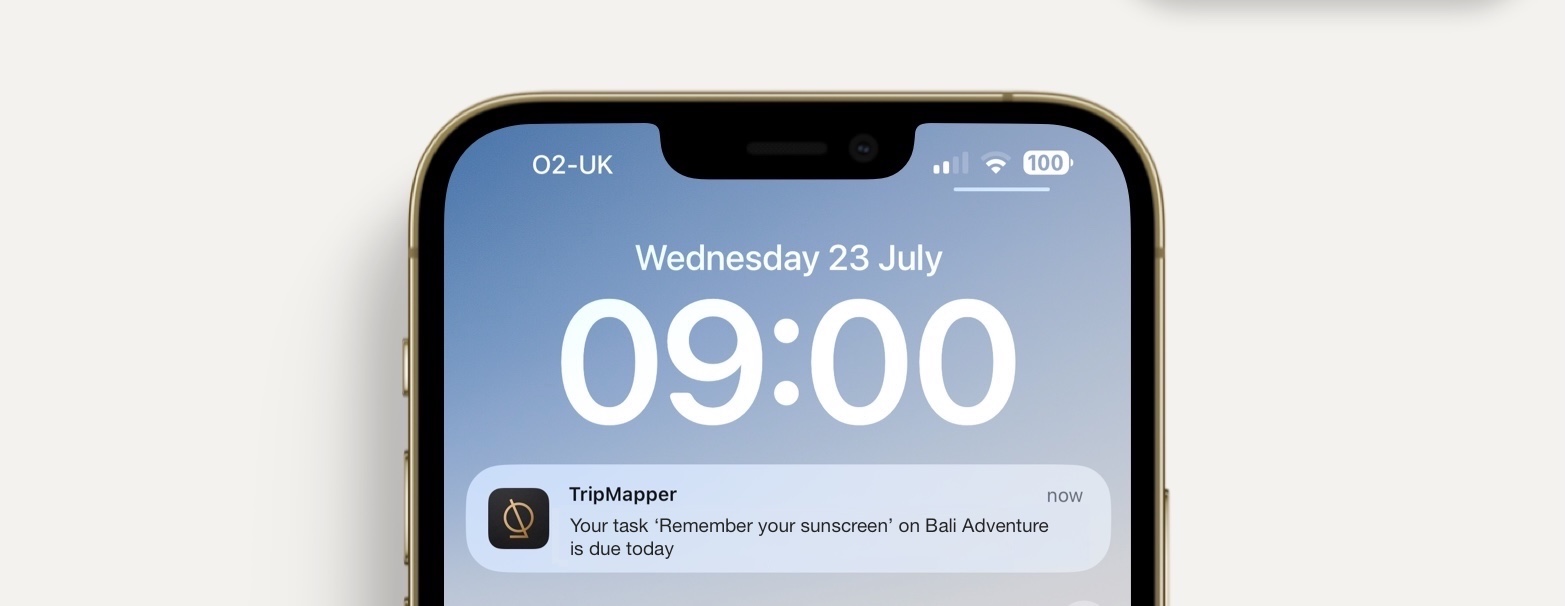
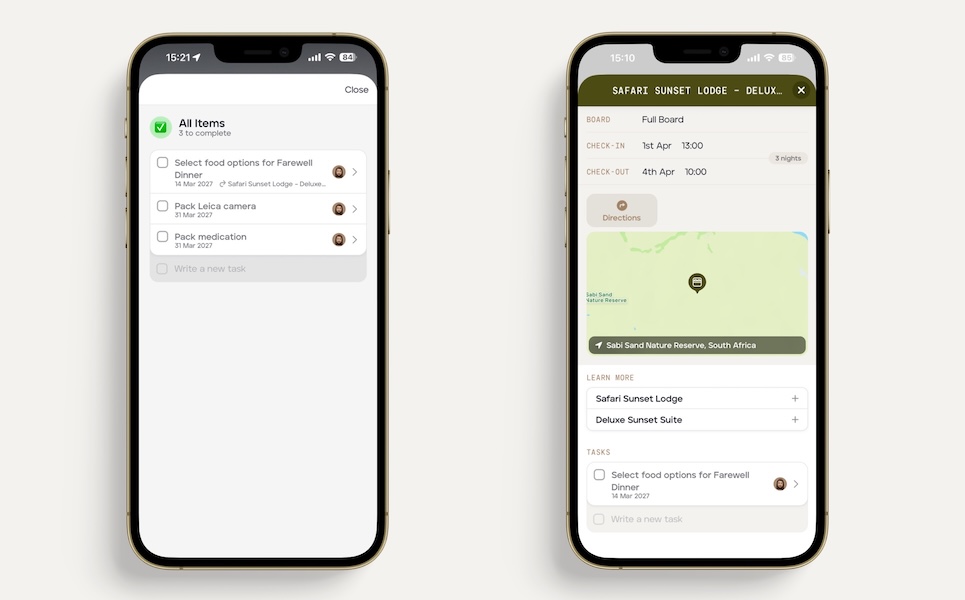
If the new individual allocated to the card is a traveller (who must already have access to the trip on the app) they will see the task you allocated to them (and tasks they have created themselves) in the app. If your client has the mobile app and has allowed notifications they will receive a notification at 09:00 on the day the task is due:
They will also see the task you've set within the mobile app:
Change the task due date
If you wish to change the due date on a task:
Click in the relevant itinerary card (if it was originally added to an itinerary card) or go to the task in the 'Manage' > 'Tasks' section.
Click on the relevant task and click the 'X' next to the current due date.
Click 'Add due date' and select the new due date.
Delete a task
If you wish to delete a task:
Click in the relevant itinerary card (if it was originally added to an itinerary card) or go to the task in the 'Manage' > 'Tasks' section.
Click on the relevant task.
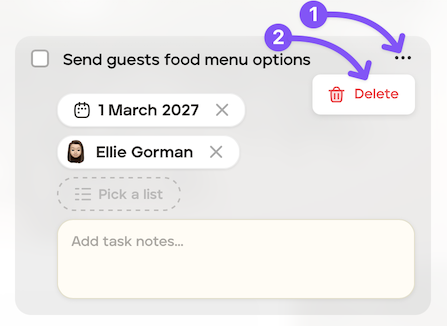
Click the '...'
Click 'Delete'.