

Add or edit your company logo and colours
Customise and brand your digital and PDF travel itineraries with your logo and brand colours/colour scheme. To do this:
Click the avatar in the top right-hand corner of the screen.
Click 'Settings'.
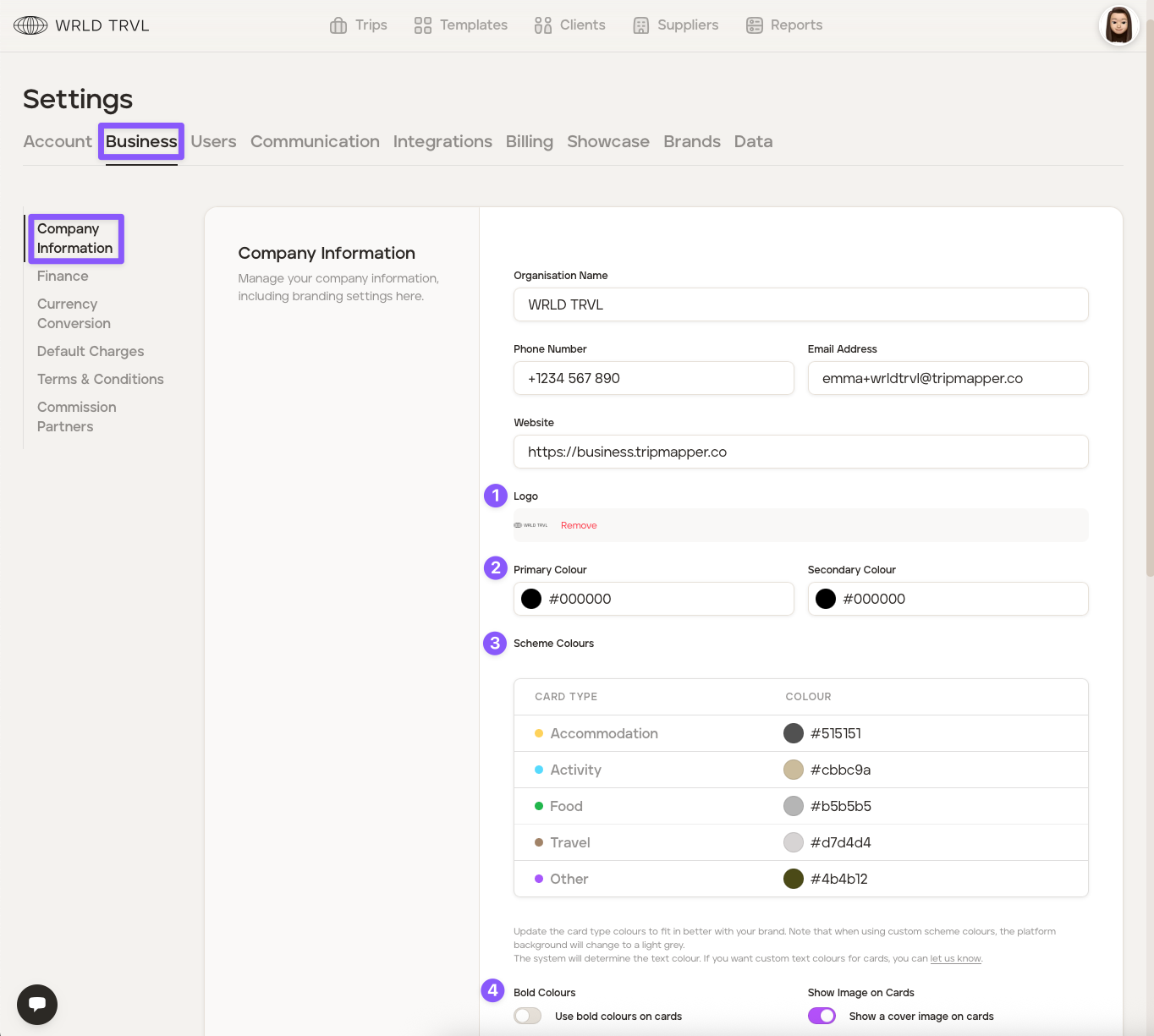
Click the 'Business' tab and then the 'Company Information' section.
In the 'Company Information' section you can:
Upload your company logo.
Add your company's primary and secondary colours.
Keep TripMapper's default itinerary item card colours, or add your own colours to align with your company branding.
Have the card category colours show subtly or in bold when in the 'Card View' layout (example of the difference is illustrated here). The default setting is bold colours.
Scroll down and click the 'Save Changes' button.
Was this helpful?