Examples of additional charges
Example One:
Add an additional charge of £25.00 to the total client price to cover credit card fees your travel business incurs.
In the 'Costs' section of the trip, click 'Add Charge Group.'
Add a group name in the 'Charge Group Name' field, for example, 'Card Payment Fees'.
Click the icon to the right of the 'Charge Group Name' field to change the icon to one which aligns with the charge group, for example, the credit card icon.
Select 'Zero ($0)' in the 'Calculate From' field.
Toggle 'on' the 'Exclude from Margin' switch.
Click 'Add Additional Charge'.
Type 'Credit Card Fees' in the 'Name' field.
Enter '1' in the 'Quantity' field and 'Per Unit' in the 'Unit' field.
Select 'Fixed' in the 'Type' dropdown menu.
Enter '25' in the 'Amount' field and select the currency from the dropdown menu.
The 'Net Client Price' will show as £25.00.
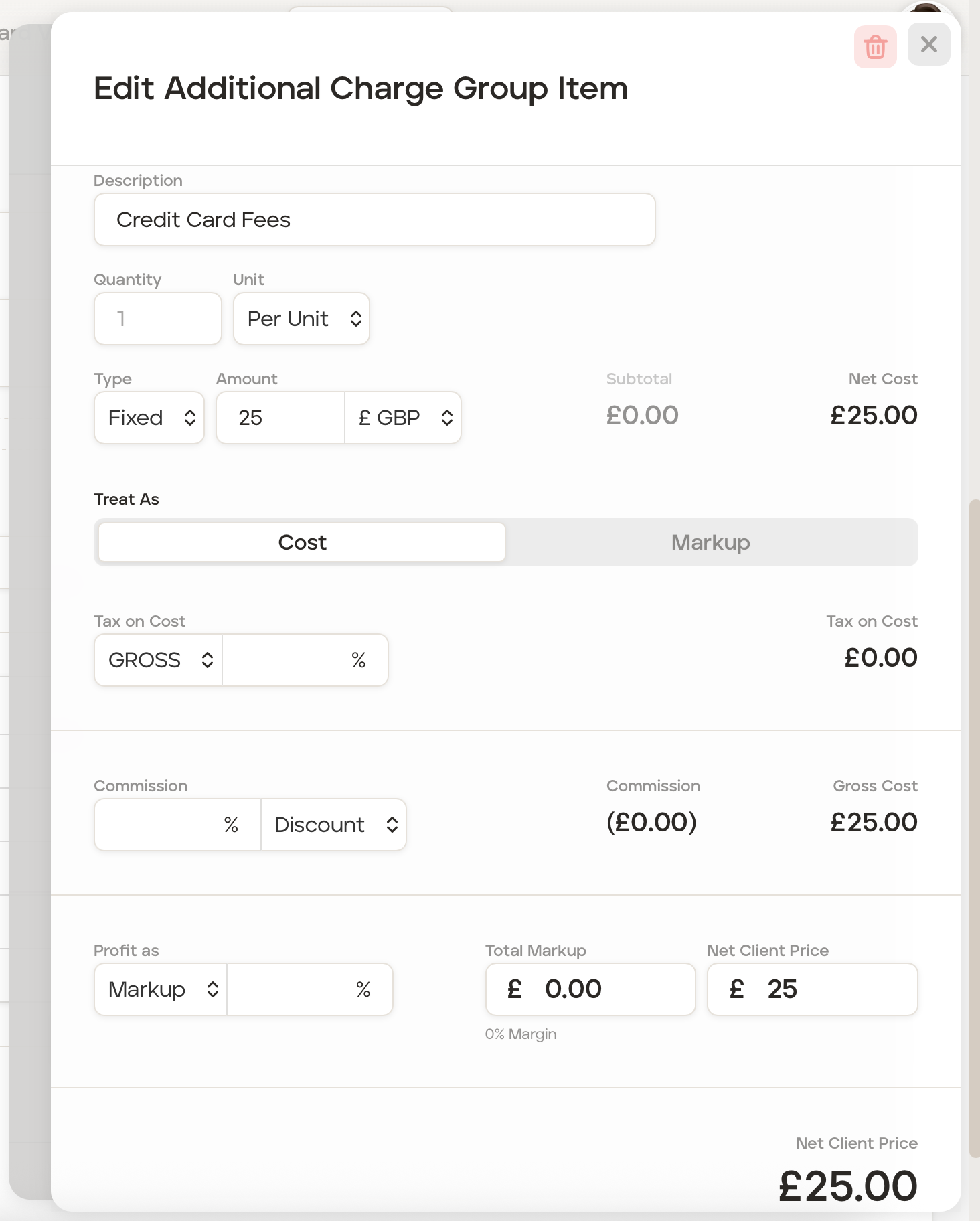
Click the 'X' in the top right corner to close.
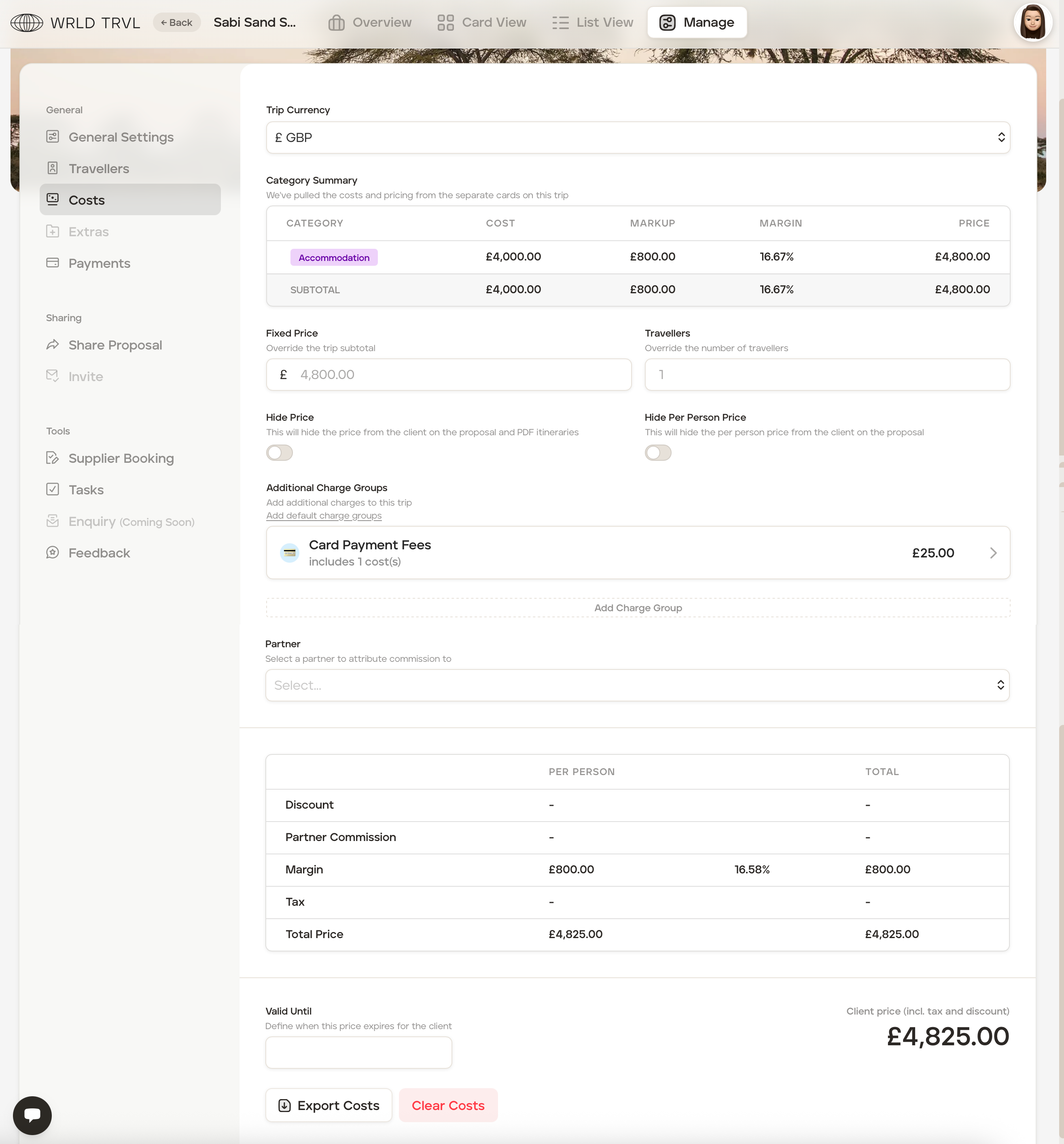
The 'Costs' screen will now add the £25.00 charge to the total client price, taking the client price from £4,800.00 to £4,825.00.
If the toggle for 'Hidden from Client' was 'on' the client invoice would show this:
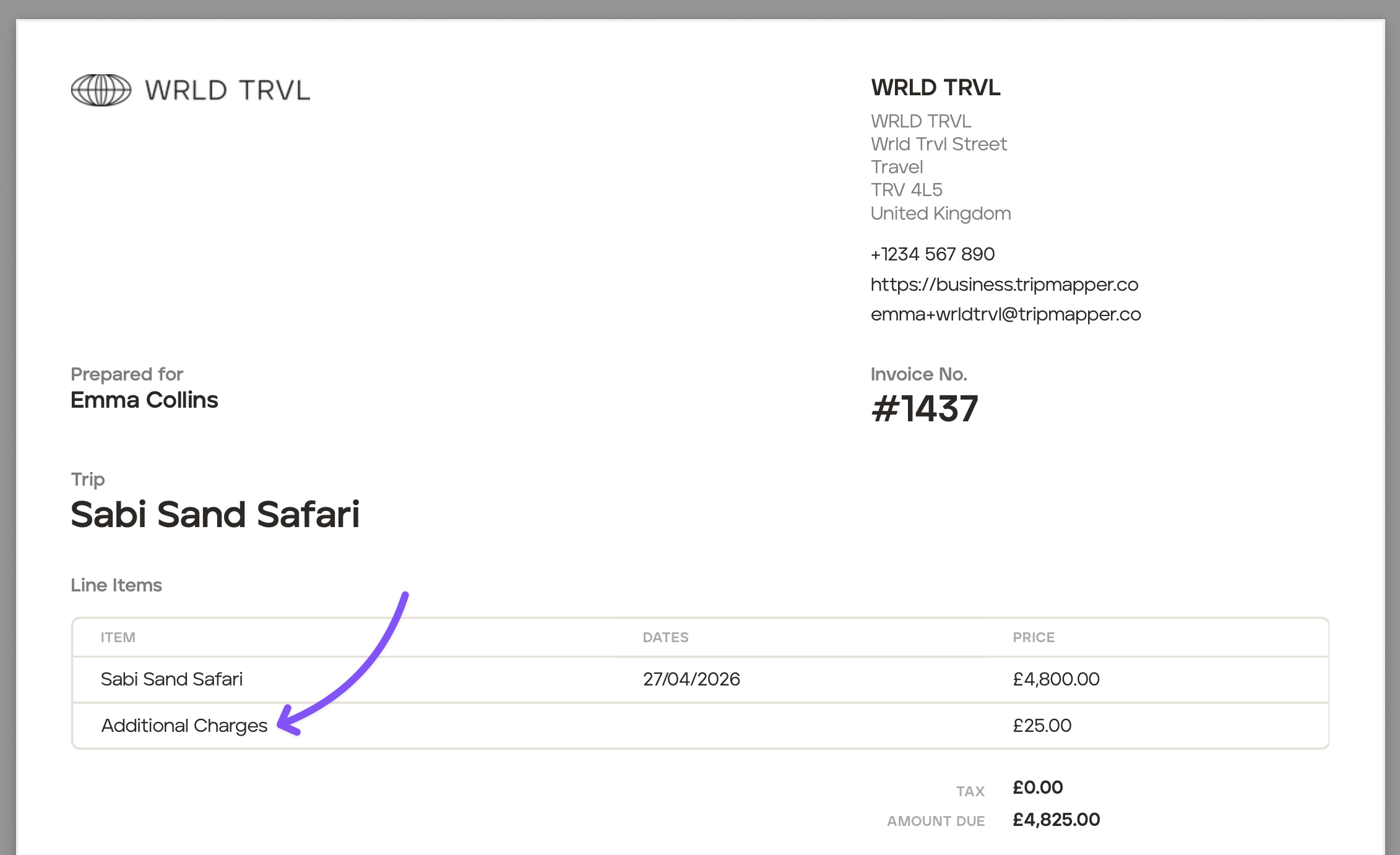
If the toggle for 'Hidden from Client' was 'off' the client invoice would show this:
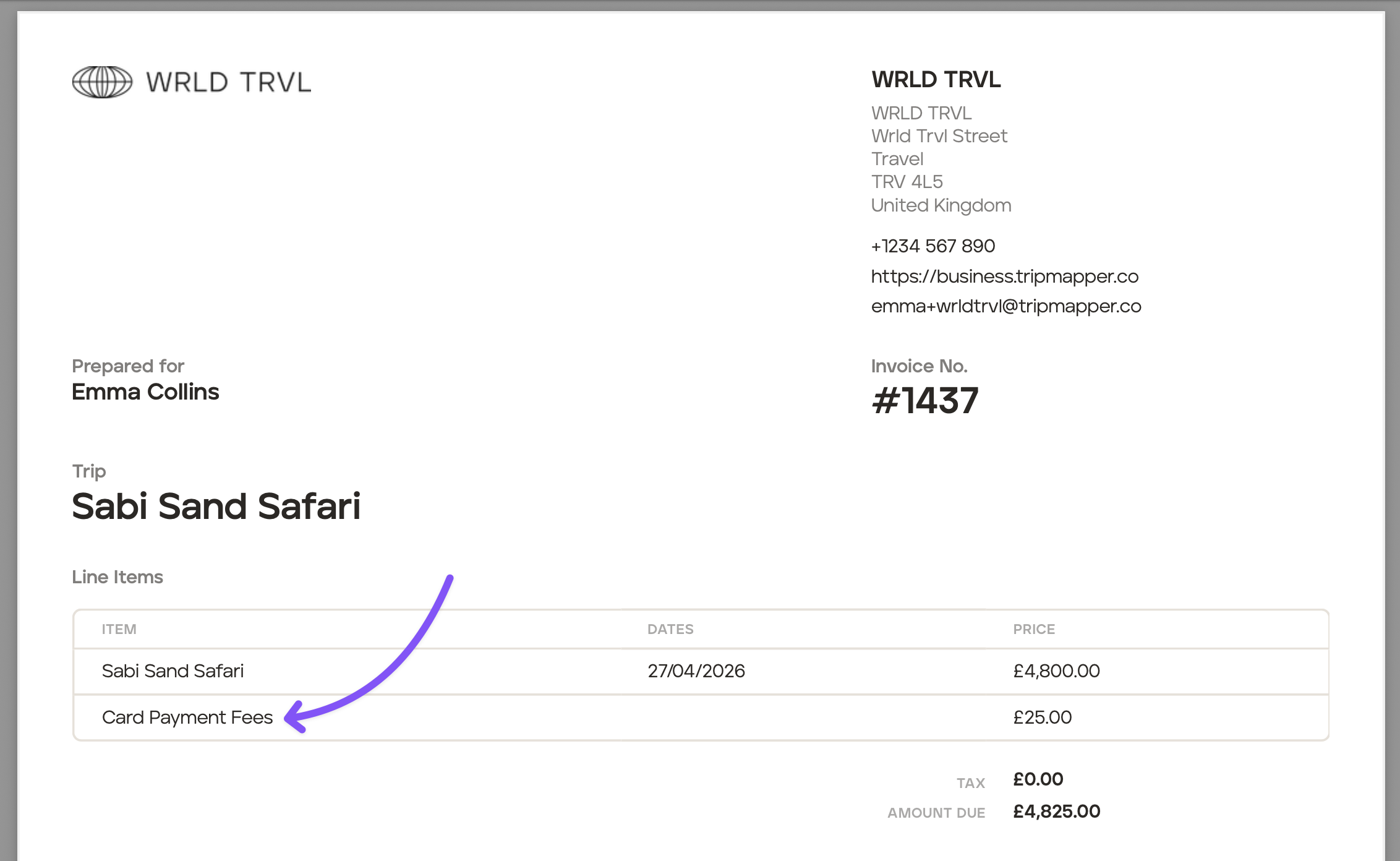
You can edit the invoice layout before sending (see the Invoice help articles).
Example Two:
Add an additional charge of £100.00 to the client price just to cover the business cost of a bottle of champagne that your travel business incurs, and add an additional charge of 2% of the total client price to cover credit card fees your travel business incurs.
A. To add the champagne:
In the 'Costs' section of the trip, click 'Add Charge Group.'
Add a group name in the 'Charge Group Name' field, for example, 'Champagne'.
Click the icon to the right of the 'Charge Group Name' field to change the icon to one which aligns with the charge group, for example, the gift icon.
Select 'Trip Subtotal Price' in the 'Calculate From' field.
Toggle 'on' the 'Exclude from Margin' switch.
Click 'Add Additional Charge'.
Type 'Champagne' in the 'Description' field.
Enter '1' in the 'Quantity' field and 'Per Unit' in the 'Unit' field.
Select 'Fixed' in the 'Type' dropdown menu.
Enter '100' in the 'Amount' field and select the currency from the dropdown menu.
The 'Net Client Price' will show as £100.00.
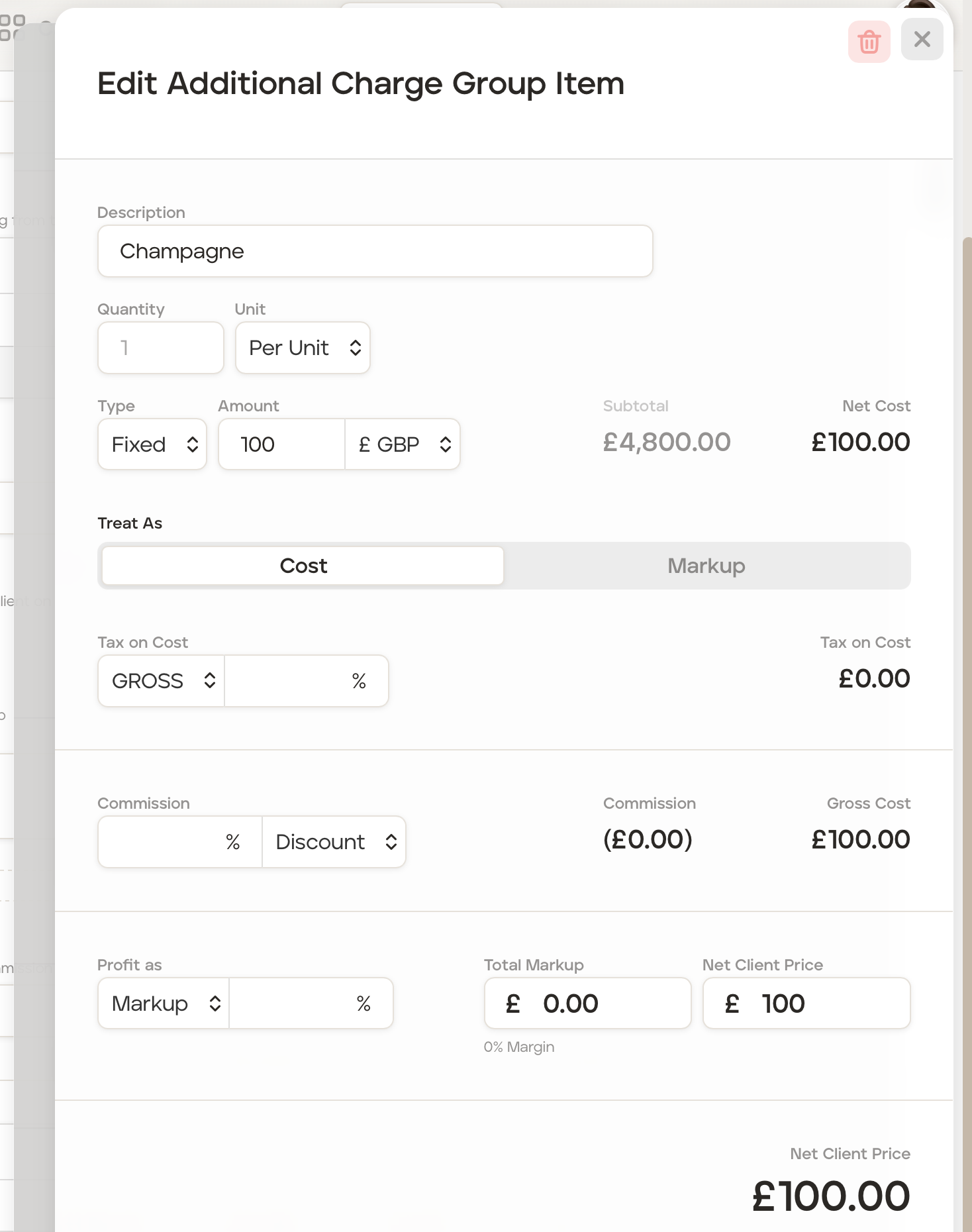
Click the 'X' in the top right corner to close.
B. To add the credit card fee:
Now, in the 'Costs' section of the trip, click 'Add Charge Group.'
Add a group name in the 'Charge Group Name' field, for example, 'Card Payment Fees'.
Click the icon to the right of the 'Charge Group Name' field to change the icon to one which aligns with the charge group, for example, the credit card icon.
Select 'Trip Subtotal Price' in the 'Calculate From' field.
Toggle 'on' the 'Exclude from Margin' switch.
Click 'Add Additional Charge'.
Type 'Credit Card Fees' in the 'Description' field.
Enter '1' in the 'Quantity' field and 'Per Unit' in the 'Unit' field.
Select '% Percent' in the 'Type' dropdown menu.
Enter '2' in the 'Amount' field and select 'Markup' from the 'Calculated as' dropdown menu.
The 'Net Client Price' will show as £98.00.
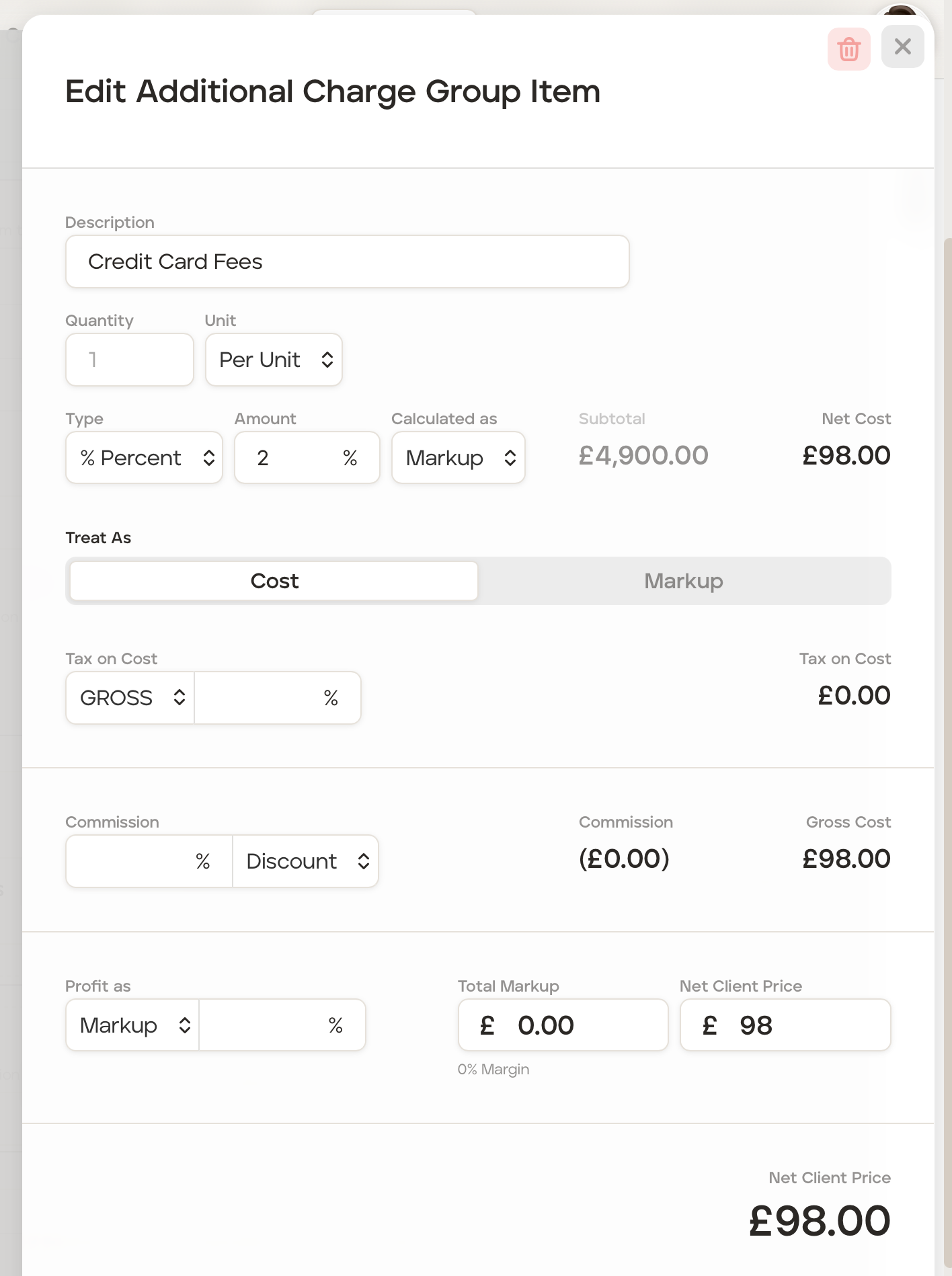
Click the 'X' in the top right corner to close.
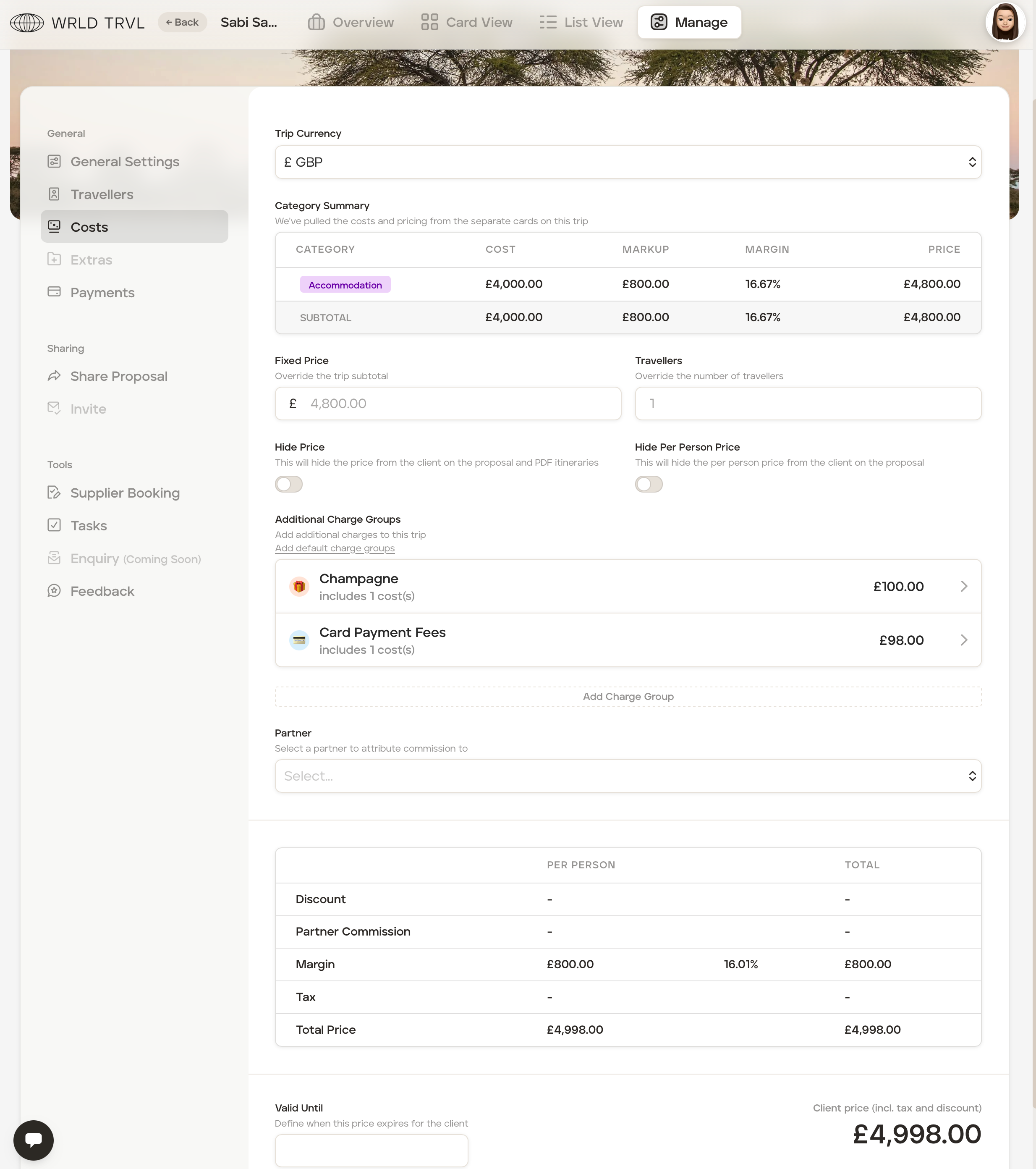
The 'Costs' screen will now show:
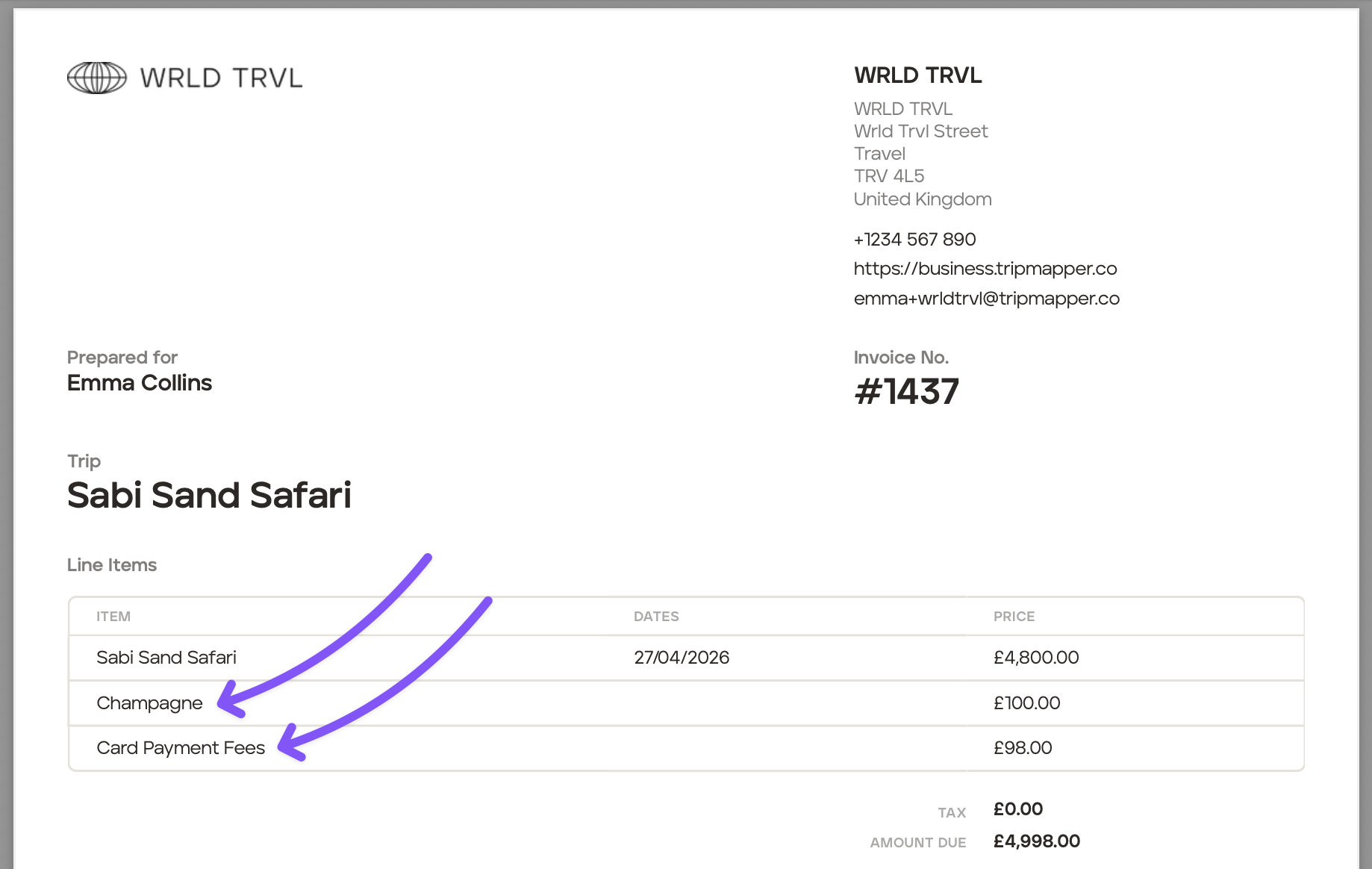
£100.00 additional charge for the champagne
£98.00 for the 2% credit card fees
The updated client price is therefore £4,998.00.
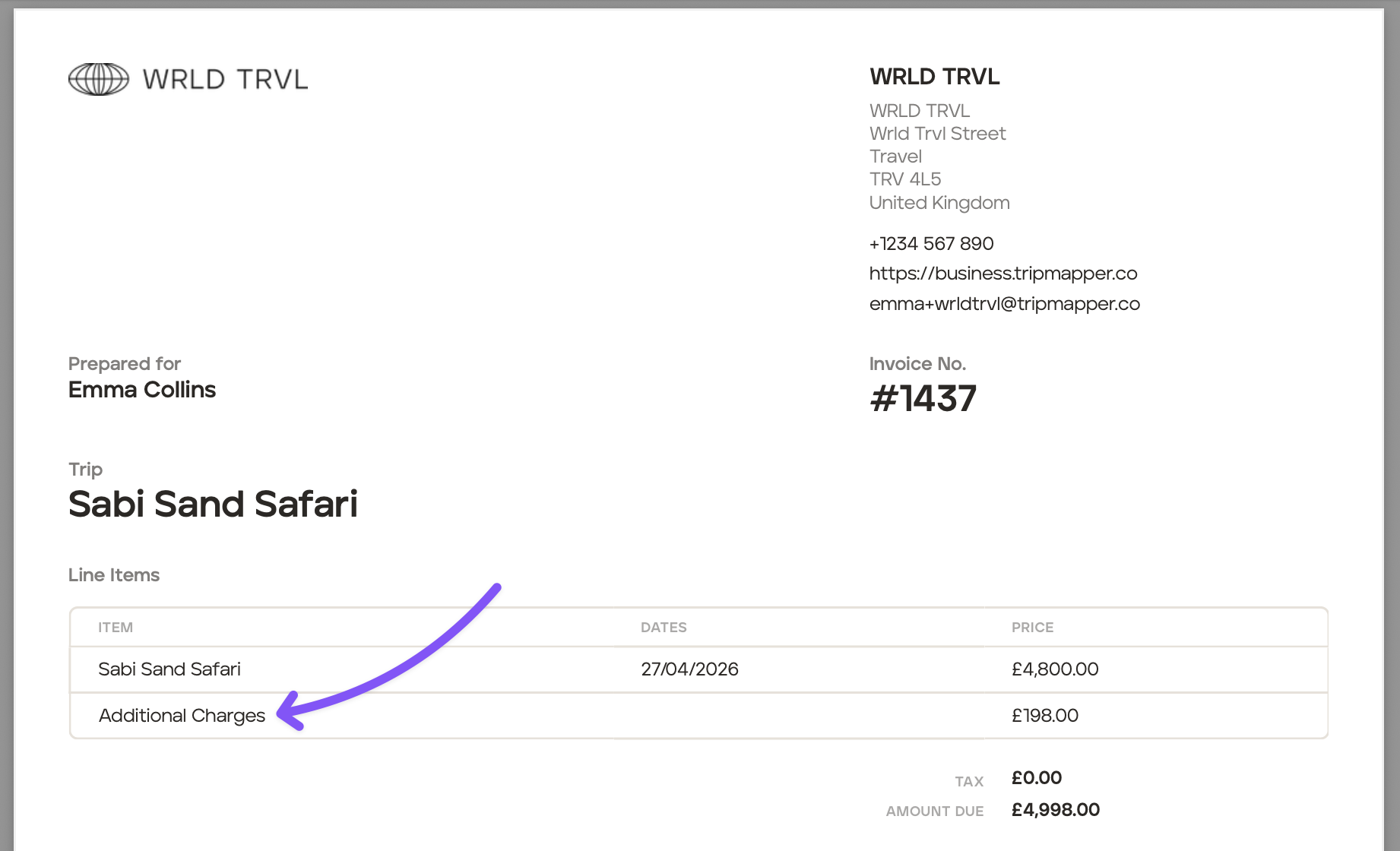
If the toggle for 'Hidden from Client' was 'on' the client invoice would show this:
If the toggle for 'Hidden from Client' was 'off' the client invoice would show this:
You can edit the invoice layout before sending (see the Invoice help articles).
Example Three:
Add an additional charge of £50.00 to the client price to cover the business cost of a welcome gift that your travel business incurs, and add a 10% markup to that welcome gift.
In the 'Costs' section of the trip, click 'Add Charge Group.'
Add a group name in the 'Charge Group Name' field, for example, 'Welcome Gift'.
Click the icon to the right of the 'Charge Group Name' field to change the icon to one which aligns with the charge group, for example, the gift icon.
Select 'Trip Subtotal Price' in the 'Calculate From' field.
Click 'Add Additional Charge'.
Type 'Welcome Gift' in the 'Description' field.
Enter '1' in the 'Quantity' field and 'Per Unit' in the 'Unit' field.
Select 'Fixed' in the 'Type' dropdown menu.
Enter '50' in the 'Amount' field and select the currency from the dropdown menu.
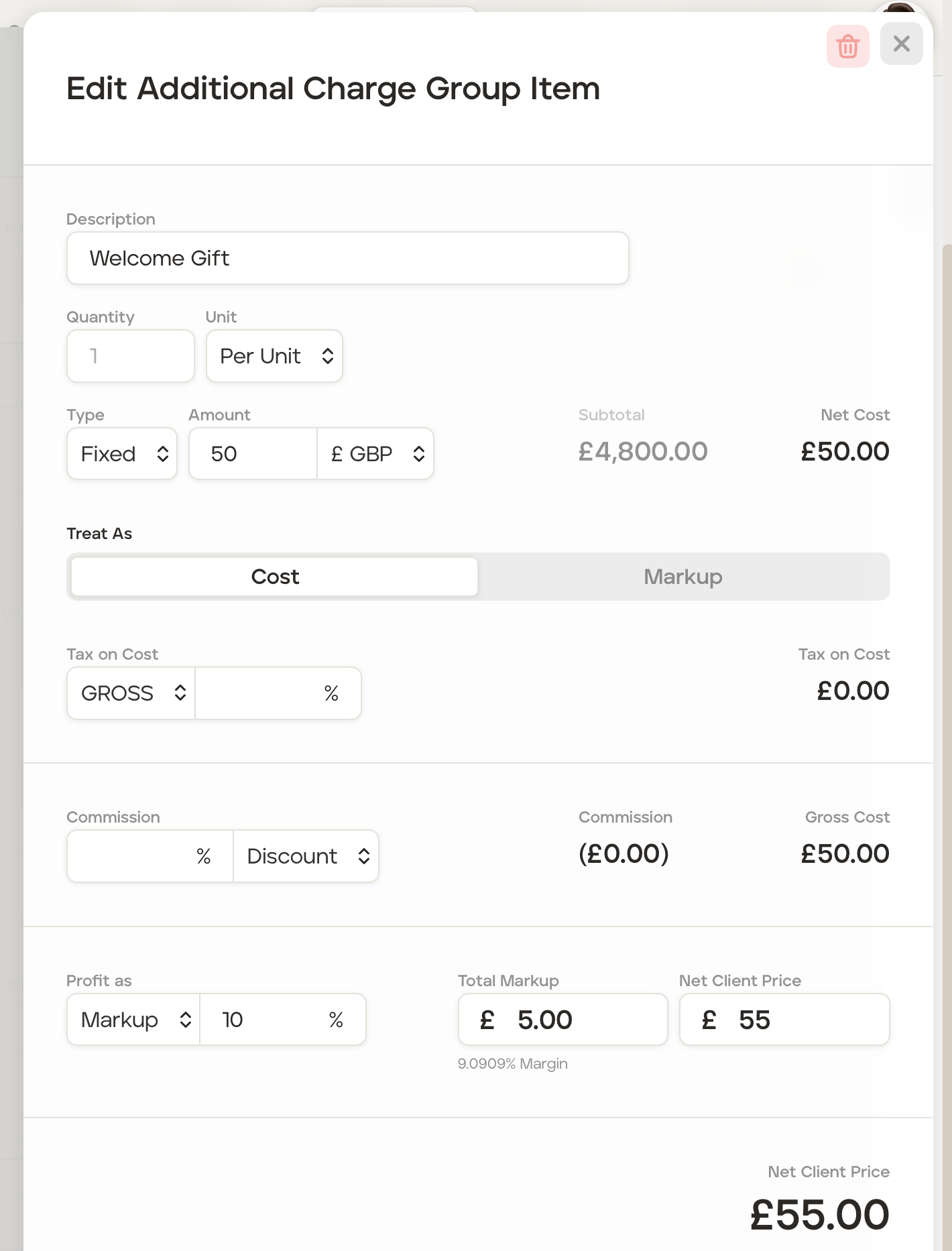
The 'Net Cost' will show as £50.00.
Select 'Markup' in the 'Profit as' dropdown menu and enter 10%.
The 'Net Client Price' will show as £55.00.
Click the 'X' in the top right corner to close.
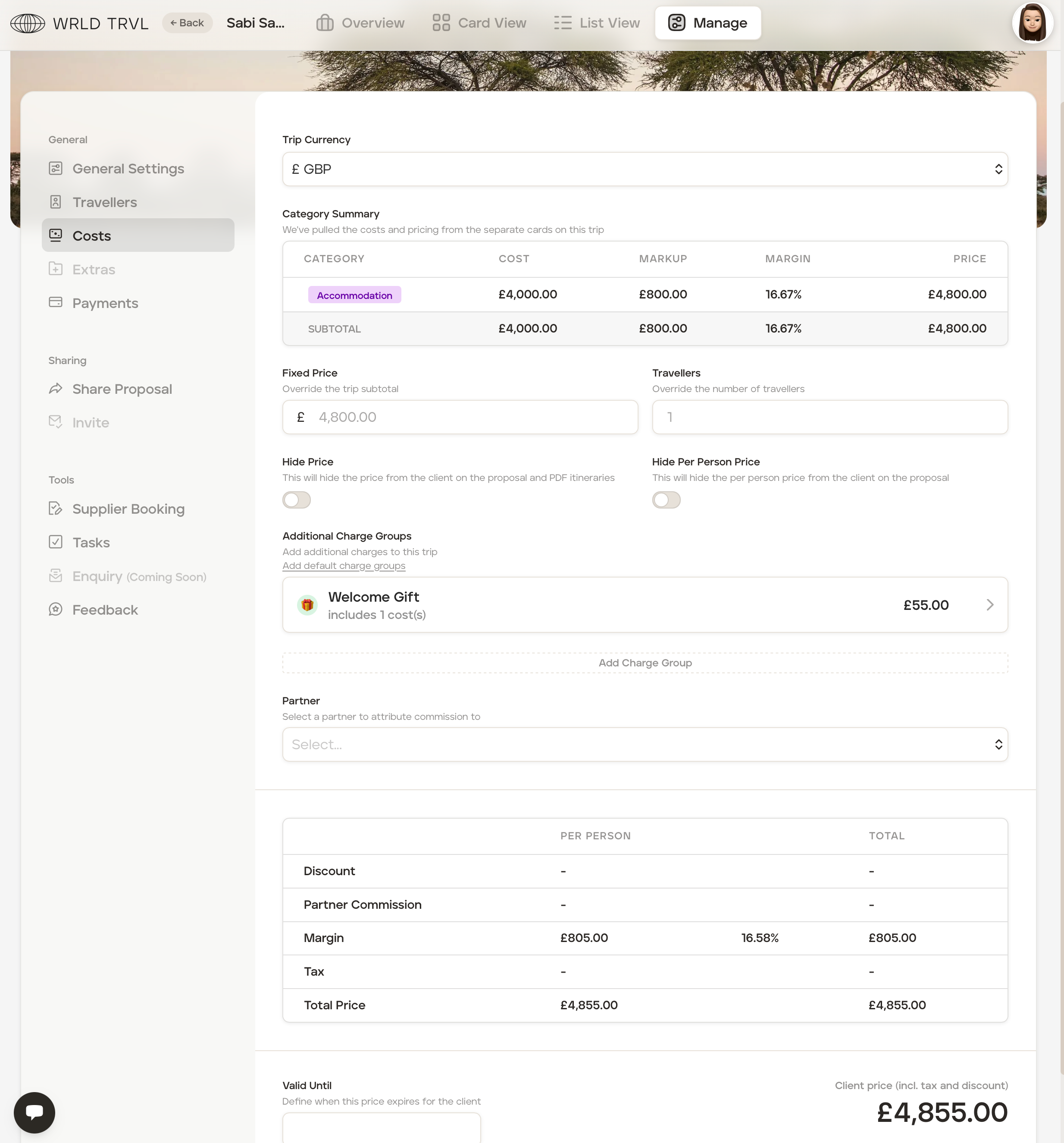
The 'Costs' screen will now show a £55.00 additional charge for the welcome gift.
The updated client price is therefore £4,855.00.