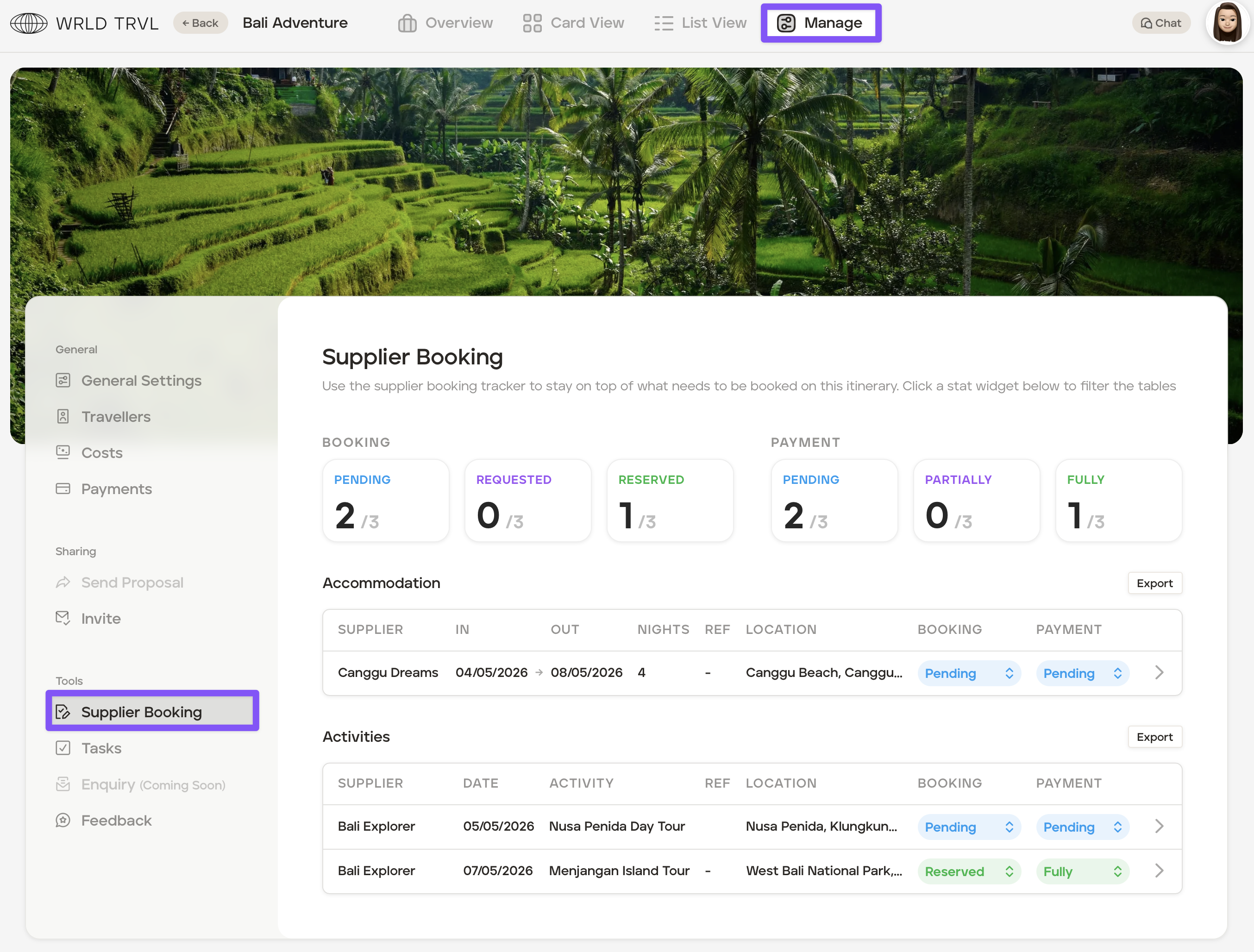
What is the supplier booking tracker and how does it work?
If you use the supplier database to add supplier products to your itineraries, the supplier tracker allows you to track the status of your bookings.
Linking a supplier product to an itinerary card
To add a supplier product to an itinerary card on an itinerary follow the steps below:
Click '+ New Card'.
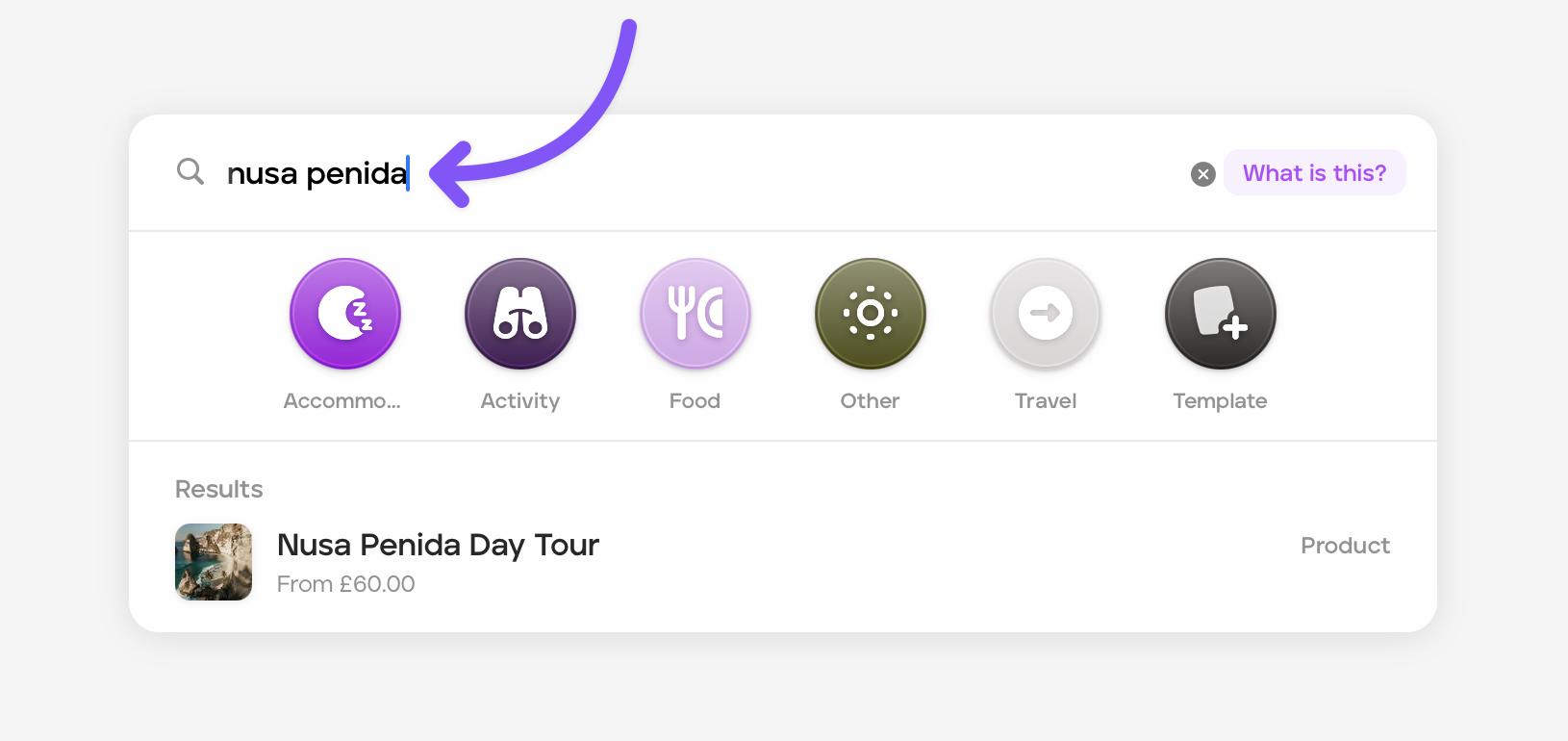
In the launcher, search for the supplier product directly in the search bar, and then select the relevant supplier product.
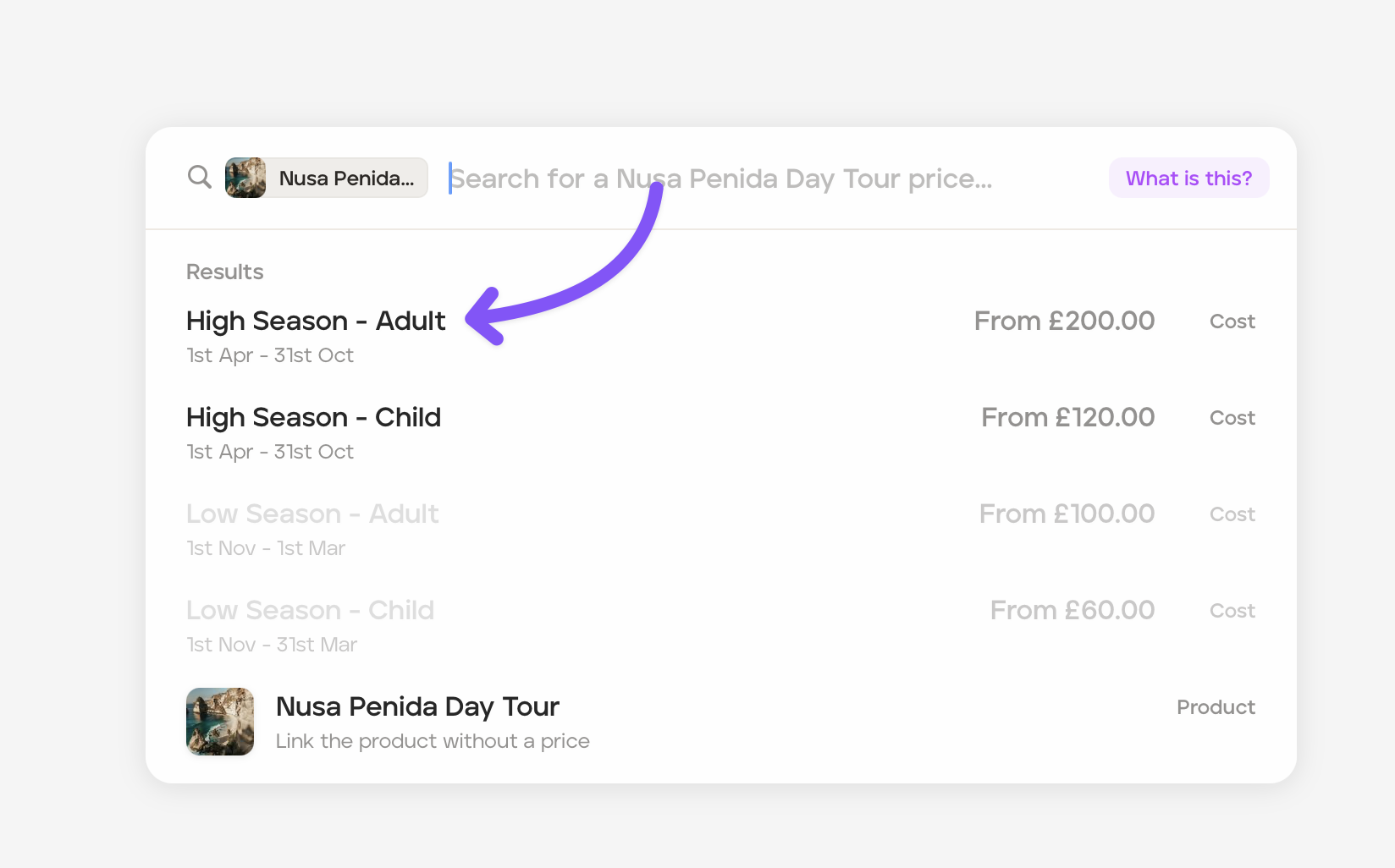
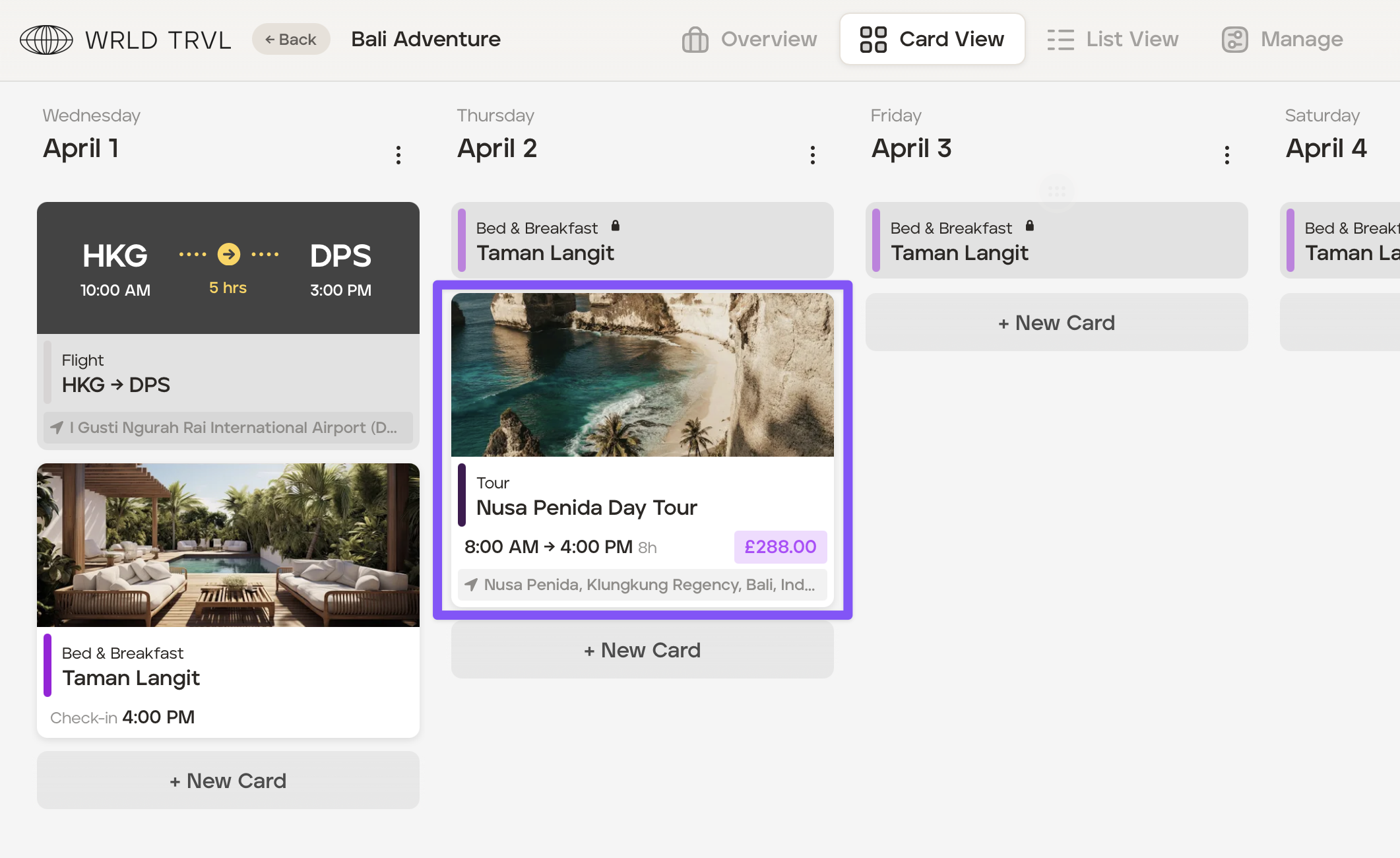
The supplier product card will be added to the itinerary.
If you have already created a card and you want to add a supplier product after creating that card, follow the steps below:
Click the 'Costs' button on the card.
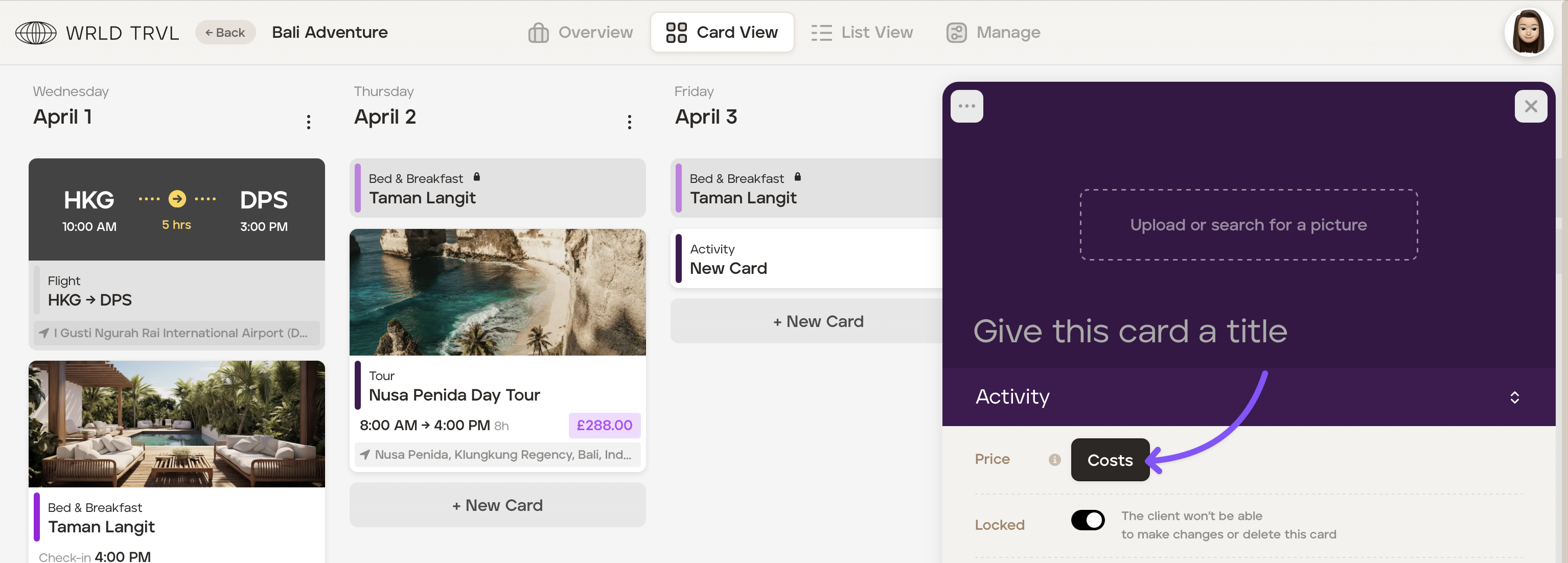
Click 'Add Ticket.'
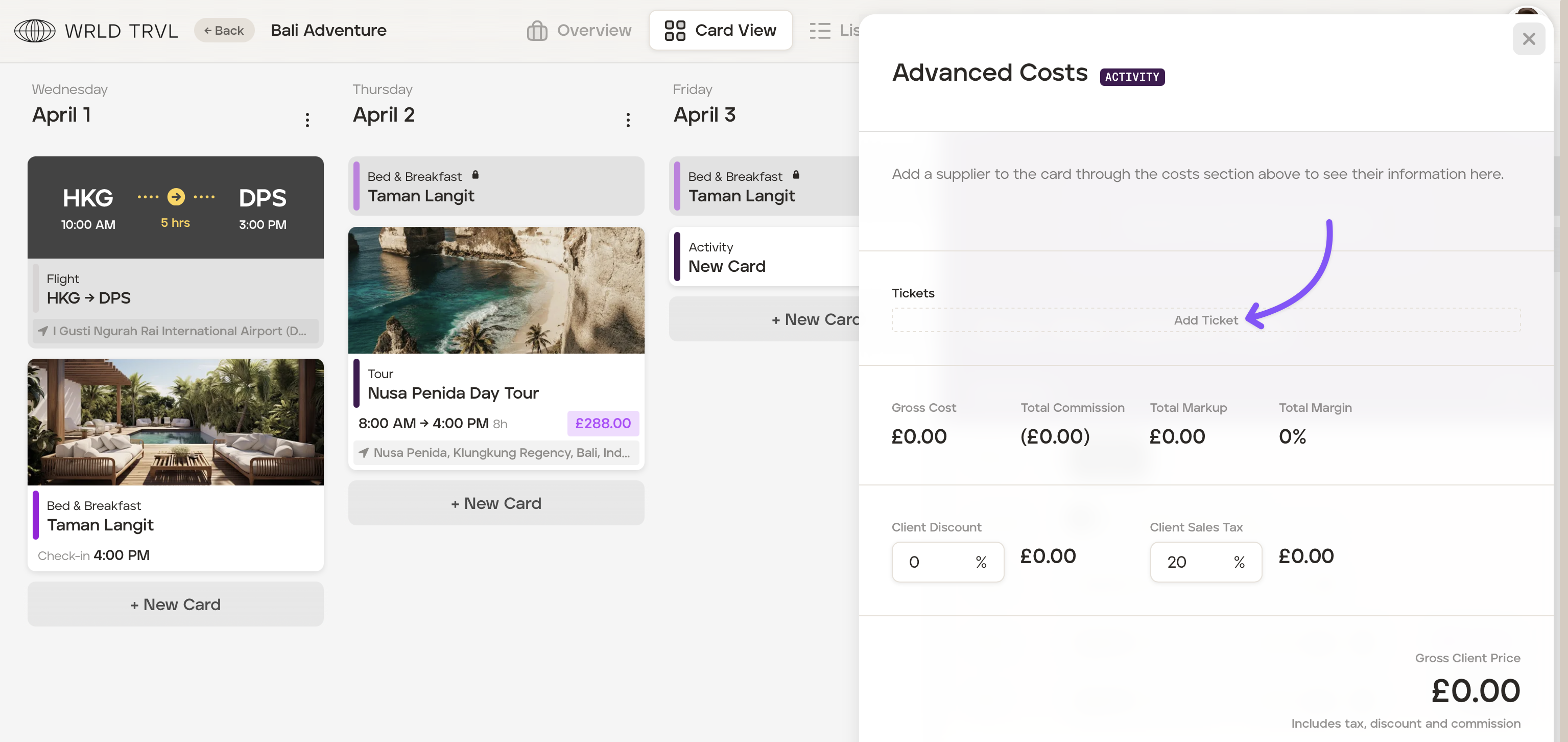
Click 'Link a supplier price.'
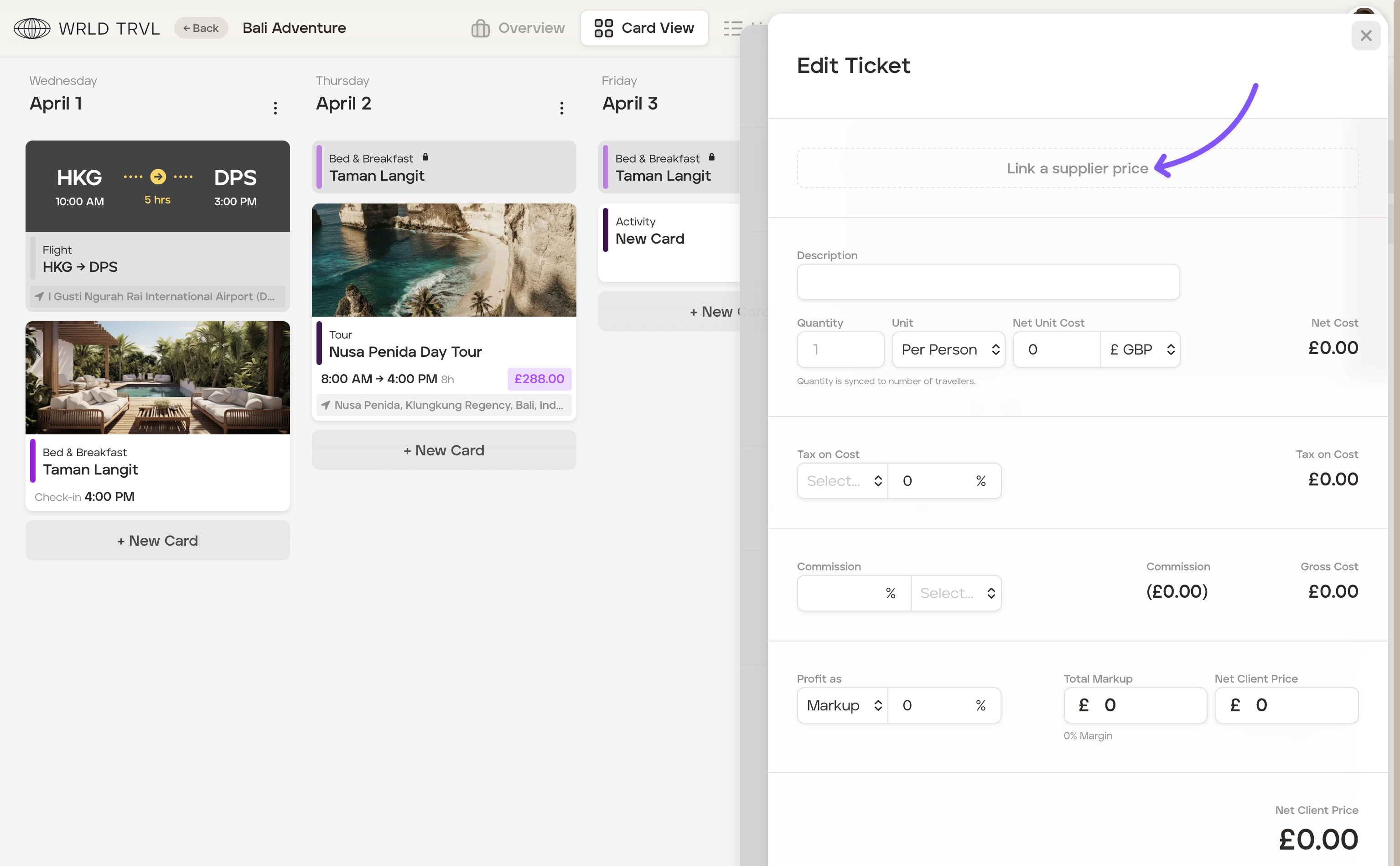
Search for the supplier product in the launcher search bar.
In the launcher, search for the supplier product in the search bar, and then select the relevant supplier product. The supplier product has now been linked to the card and will show in the supplier booking tracker.
Add the card name.
Adding a status directly to a supplier product card
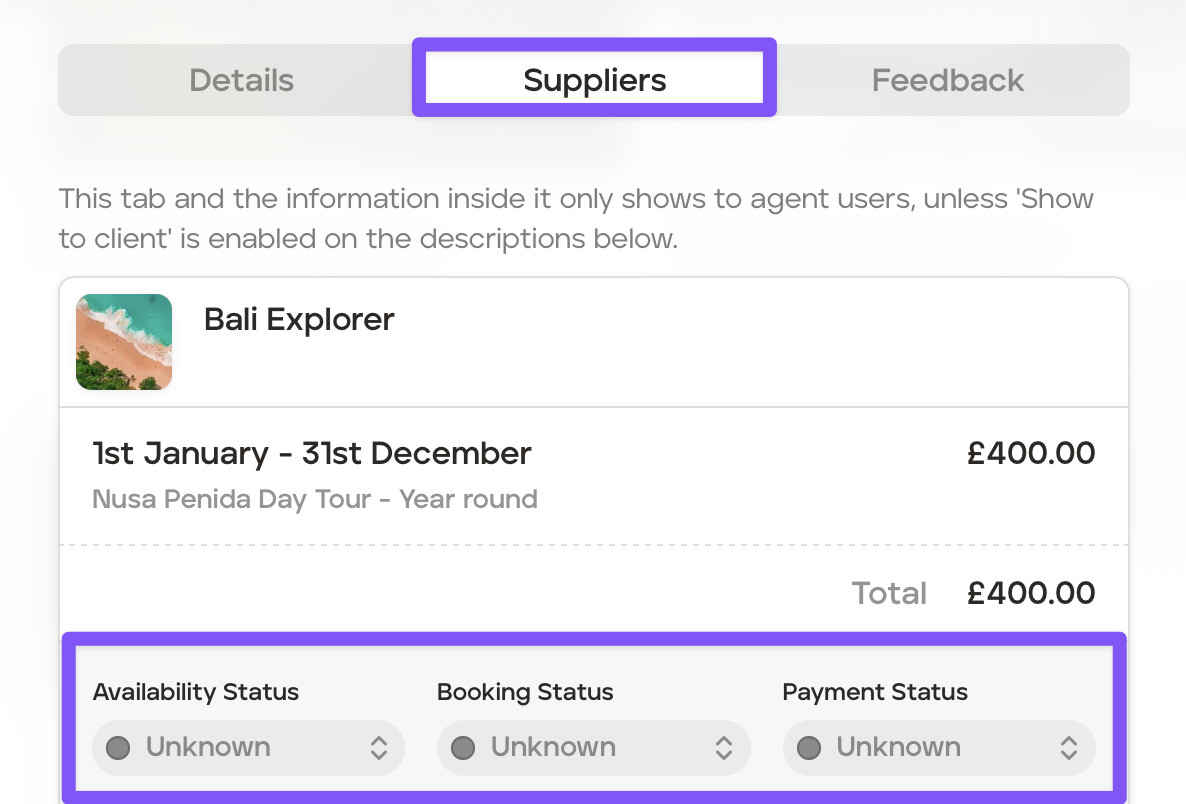
On the applicable card containing the supplier product (which is linked to a supplier price), click the 'Suppliers' tab.
Below 'Availability Status', choose the applicable status in the dropdown menu:
'Requested'
'Available'
'Unavailable'
If you want to request availability from the supplier, under 'Availability Status,' click 'Request Availability'. The email message to be sent to the supplier will show on the screen (please note this email message is the default email, which you can update in your TripMapper for Business account 'Settings'). The items that require confirmation will be automatically incorporated into this message, along with a button that allows the supplier to confirm availability and the price.
You may amend the message of the email if you wish). When you're ready to send the message to the supplier, click the 'Send' button.
The supplier will receive your email and will be able to submit availability by clicking th button into the email (example below):
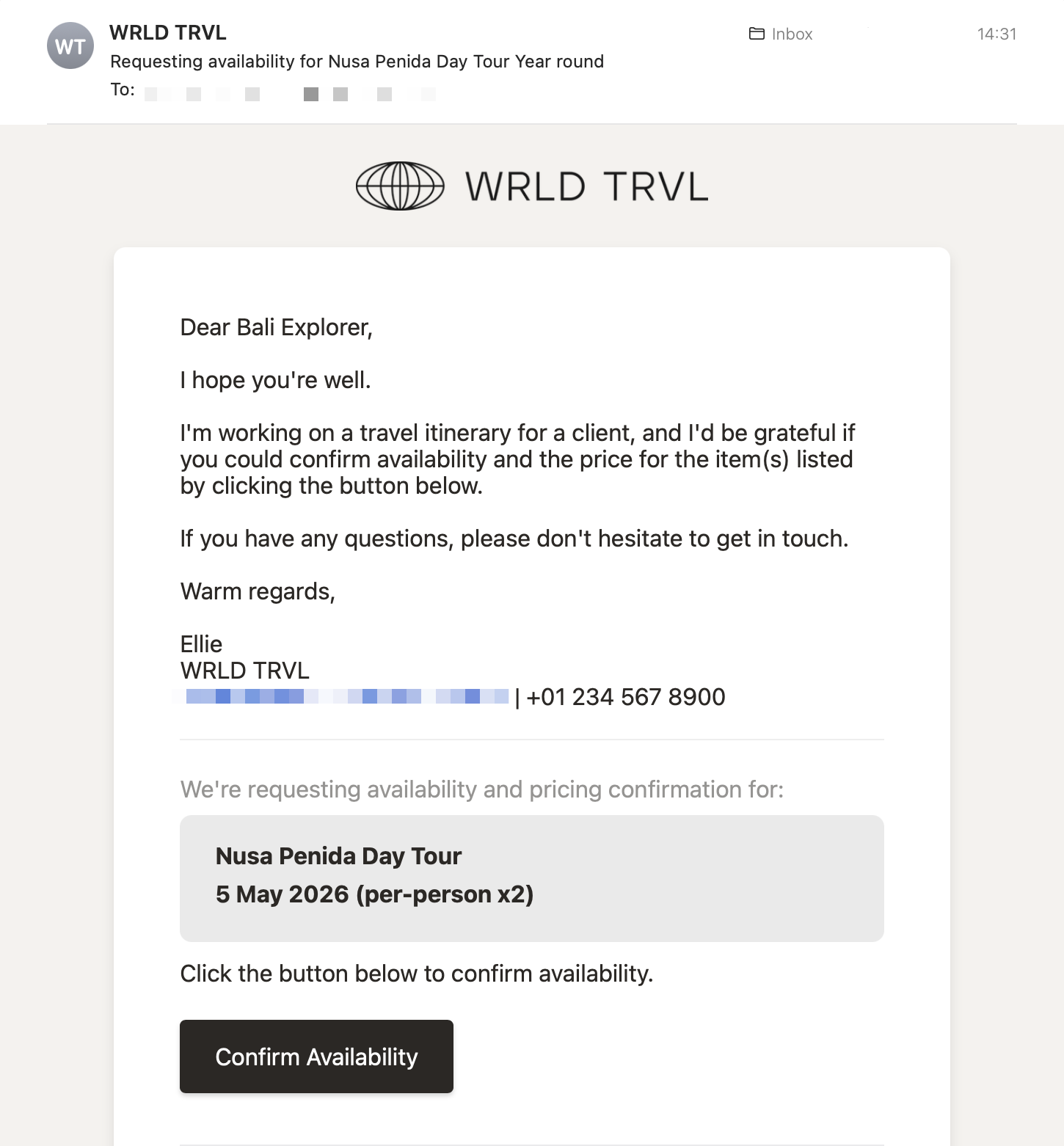
If you request availability in this way, the 'Availability Status' will automatically be updated to 'Requested' in the card.

If the supplier clicks the link and confirms availability, the 'Availability Status' will automatically be updated to 'Available' in the card and the status will be locked.

If the supplier clicks the link and confirms the item is not available, the 'Availability Status' will automatically be updated to 'Unavailable' in the card and the status will be locked.

Below 'Booking Status', choose the applicable status in the dropdown menu:
'Pending'
'Requested'
'Reserved'
Below 'Payment Status', choose the applicable status in the dropdown menu:
'Pending'
'Partially'
'Fully'
You may also add notes by expanding 'Status Notes' and add a reference number by expanding 'Reference'.
View and manage the status of all supplier products in one place
If you click 'Manage' and 'Supplier Booking' you can see and manage the 'Booking Status' and 'Payment Status' on all supplier product cards in that itinerary.