

Share Link Defaults
Within 'Settings', under the 'Communication' tab, you'll find a 'Share Links' section with three default settings that control how share links behave across all new proposals. These settings can save you time and reduce the need to manually manage links after a proposal has been accepted.
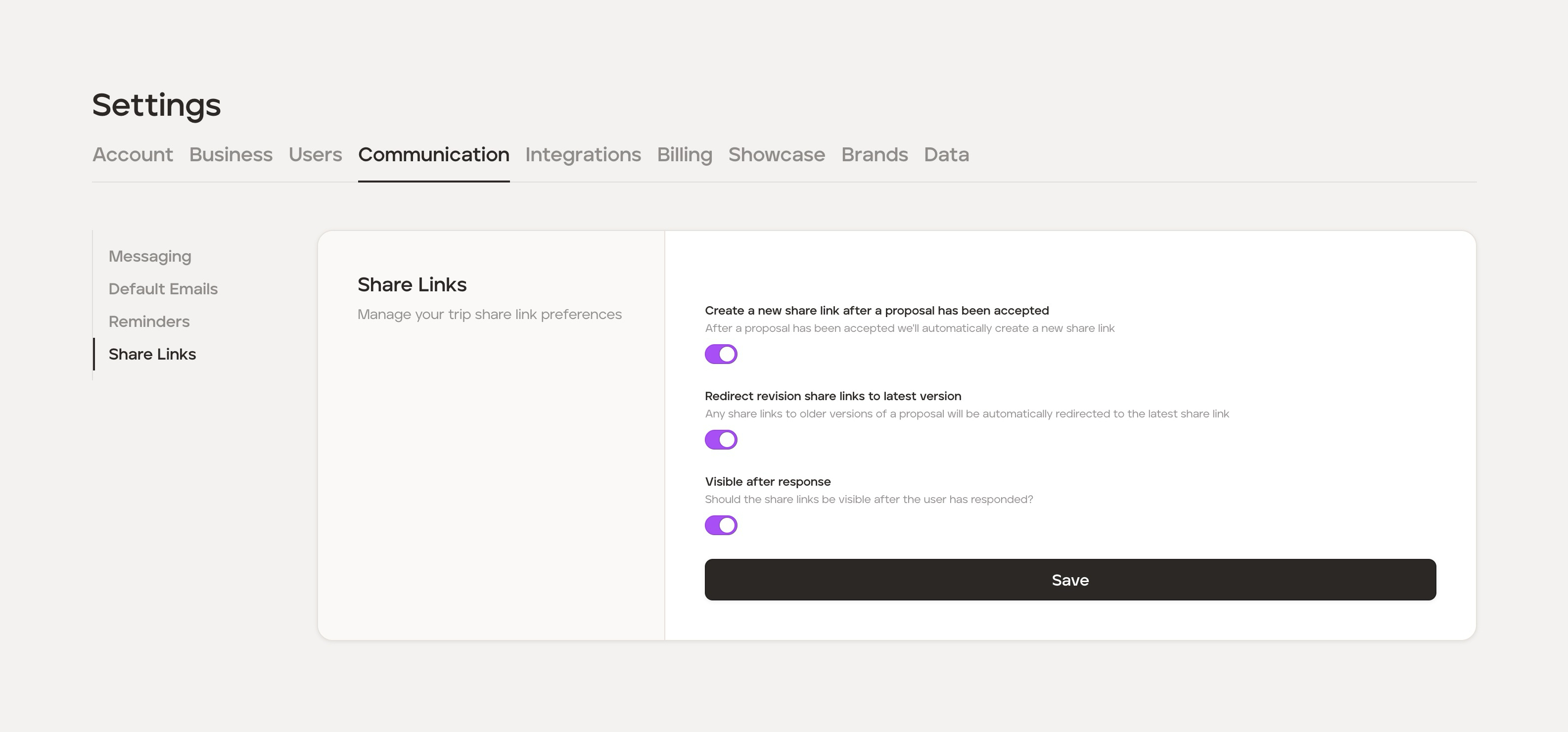
Automatically create an Upcoming share link on acceptance
When this setting is enabled, TripMapper will automatically create an upcoming share link as soon as a client accepts a proposal.
By default, when you create a new itinerary, a proposal share link is created automatically. With this toggle enabled, the equivalent upcoming share link is also created automatically at the point of acceptance — without you needing to do anything.
This is useful if you want the upcoming share link to be ready to send as soon as a proposal is approved, without having to return to the trip to create it manually.
Redirect proposal share links to the latest version
When this setting is enabled, any accepted proposal share link will automatically redirect to the upcoming share link when it's visited.
This means that after a client accepts a proposal, if they click the original proposal link again, they will be taken directly to the upcoming itinerary instead — without you needing to share a new link.
This is particularly useful if you continue updating the itinerary after acceptance and want your client to always see the latest version. The client continues using the same link you originally shared with them, and it will always take them to the most up-to-date view of their trip.
Note: For this redirect to work, an upcoming share link must exist. Enabling 'Create a new share link after a proposal has been accepted' alongside this setting ensures the redirect is always in place.
Visible after response
When this setting is enabled, proposal share links will default to being visible after the client has responded (i.e. accepted or declined).
This means that after a client accepts the proposal, they can still access and view the proposal they approved via the original link (unless you have the redirect enabled, then they will be redirected to the itinerary mapped to your latest changes).
When this setting is disabled, clients who revisit the proposal link after accepting will instead see a thank-you page and will not have access to the proposal content.
These settings apply as defaults to all new proposals created after the settings are saved. They can be adjusted at the individual trip level. See Managing share links on a trip.