

Add a optional charge (eg. an optional flight) to an itinerary
To create a charge that is optional for your client, follow the steps below:
Click the applicable proposal or upcoming trip.
Click the 'Manage' tab.
Click the 'Costs' tab.
In the 'Additional Charge Groups' section click 'Add Charge Group.'
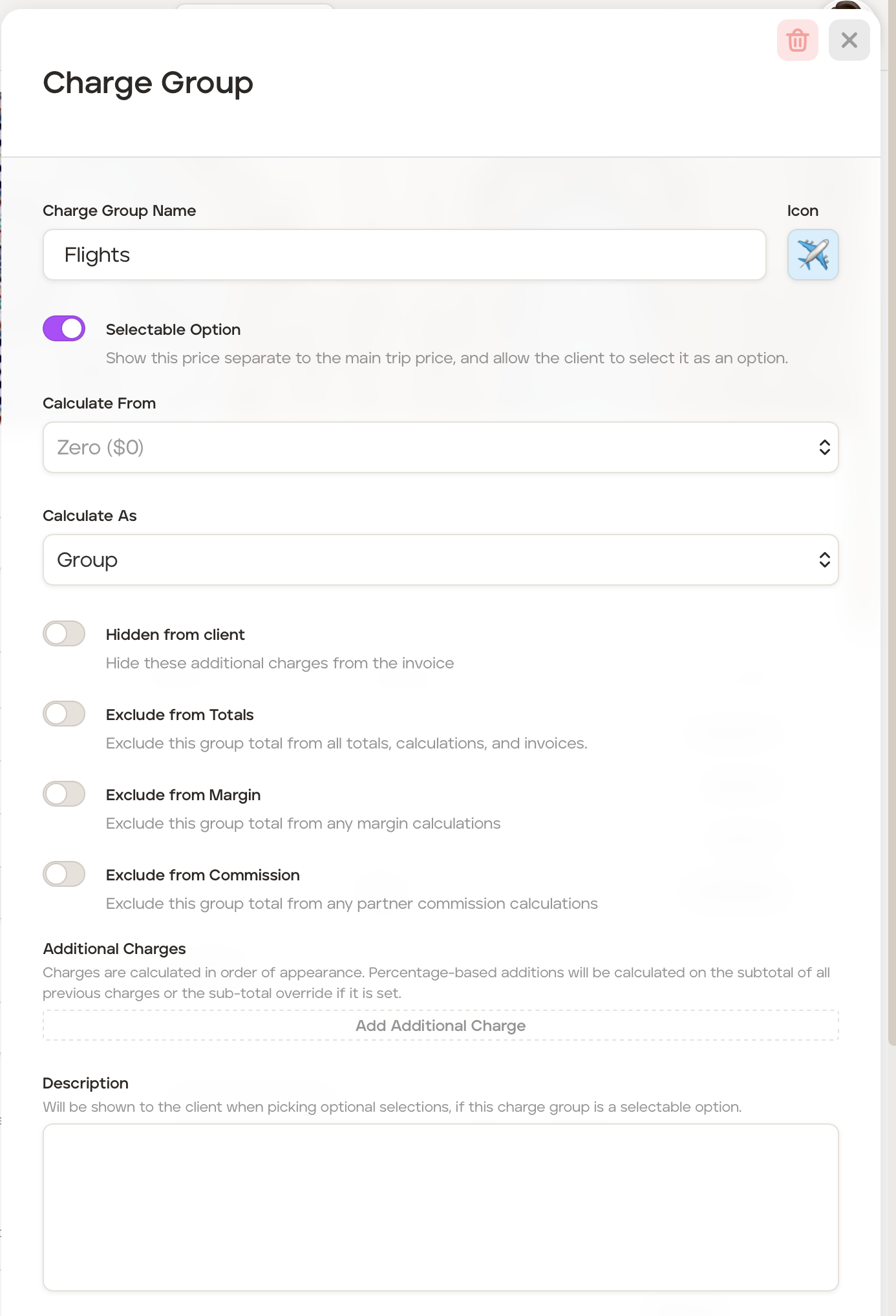
Add a group name in the 'Charge Group Name' field, for example, 'Flights'.
Click the icon to the right of the 'Charge Group Name' field to change the icon to one which aligns with the charge group, for example, a plane.
Toggle the 'Selectable Option' switch to 'On.'
In the 'Calculate From' field, it will automatically be set to 'Zero ($0)'. This will calculate the additional charge from zero and not use any values from itinerary cards costs or client prices.
In the 'Calculate As' field, pick whether you want to calculate as a 'Group' or 'Per-Person' from the dropdown menu. You now have a number of further options to decide on:
'Hidden from client' - Turn the toggle 'on' if you would like the additional charge to just state 'Additional Charges' along with the client price on itemised invoices. If you do not send an itemised invoice, any additional charges will simply be incorporated into the client price with no mention of any additional charges.
'Exclude from Totals' - Turn the toggle 'on' if you would like to exclude from all totals, calculations, and invoices.
'Exclude from Margin' - Turn the toggle 'on' if you would like to exclude total from any margin calculations.
'Exclude from Commission' - Turn the toggle 'on' if you would like to exclude from any partner commission calculations.
Click 'Add Additional Charge' to add the optional charge item, for example, an optional flight.
You will be taken to the 'Charge Group Item' screen. In the 'Name' field add a short description of the additional charge item in the 'Description' field, for example, 'Flights'.
In the 'Type' field select 'Fixed' (eg. £1,000).
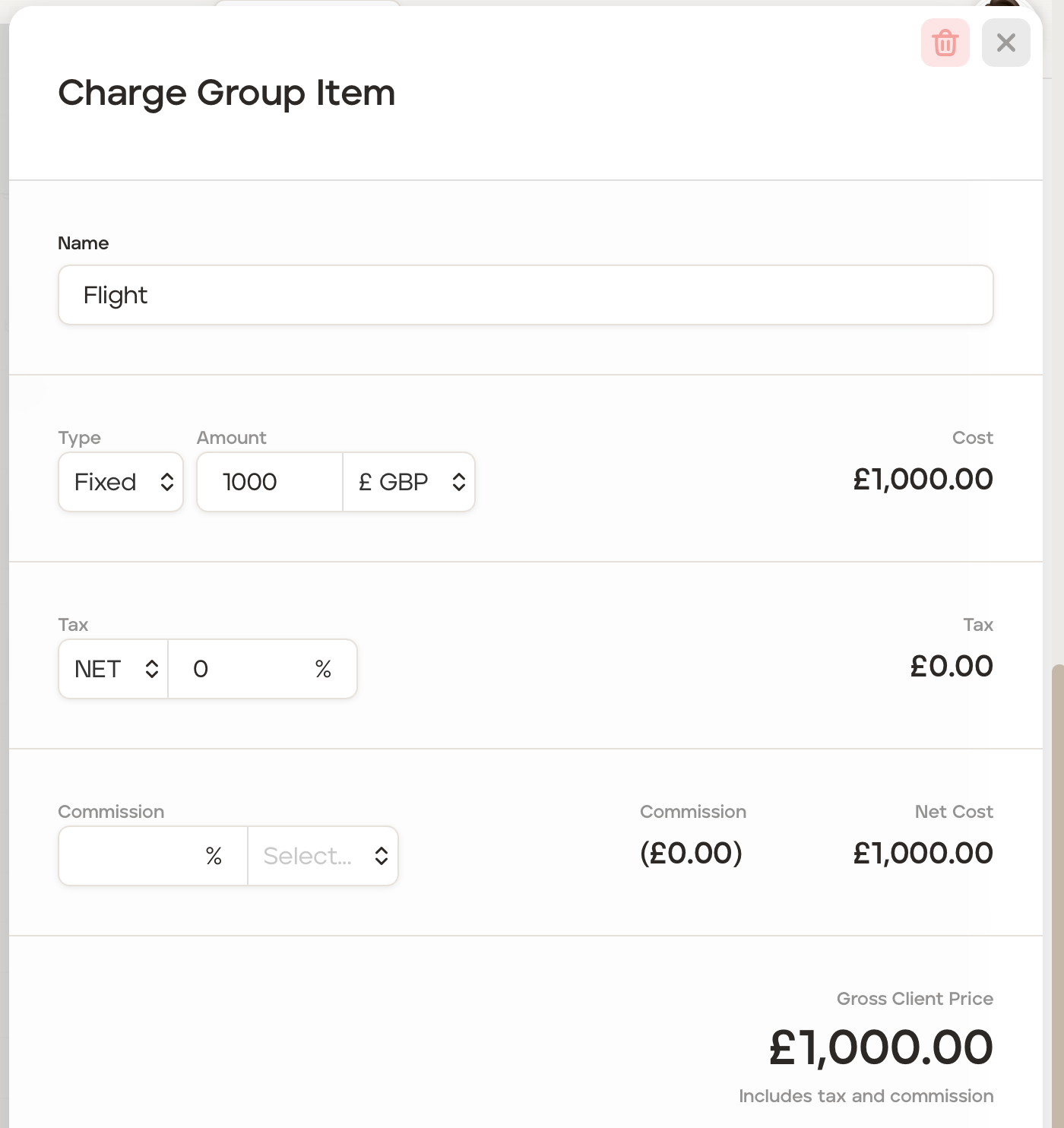
Once all details have been added, click the 'X' in the top right corner.
You'll be taken back to the 'Charge Group' screen, where the new optional charge item will now show.
In the 'Description' field, add the description of the option, for example, if the option is flights, add the flight details. This description will be seen by your client.
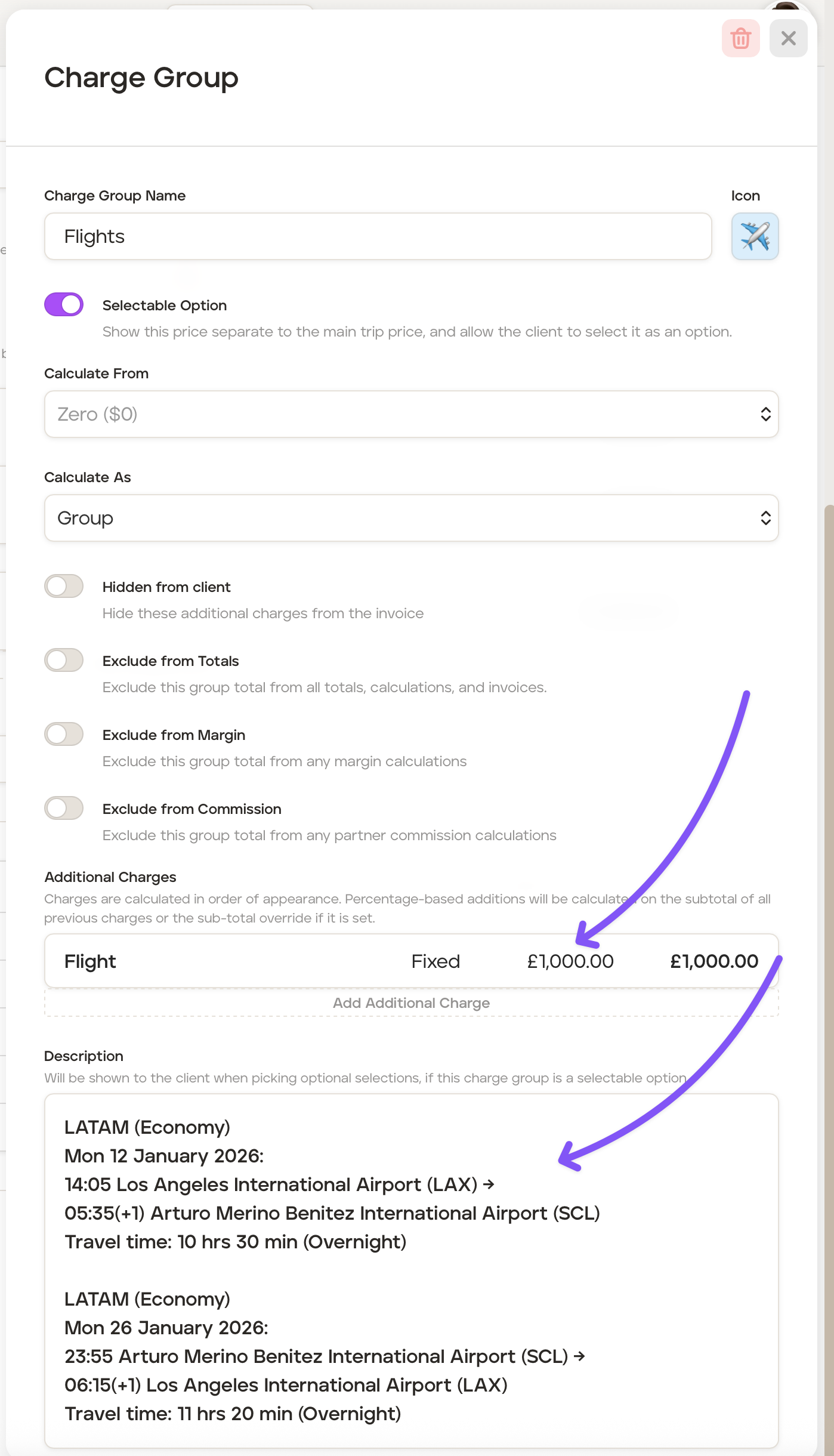
Once all details have been added, click the 'X' in the top right corner to be taken back to the 'Costs' screen, which will now also show the optional charge:
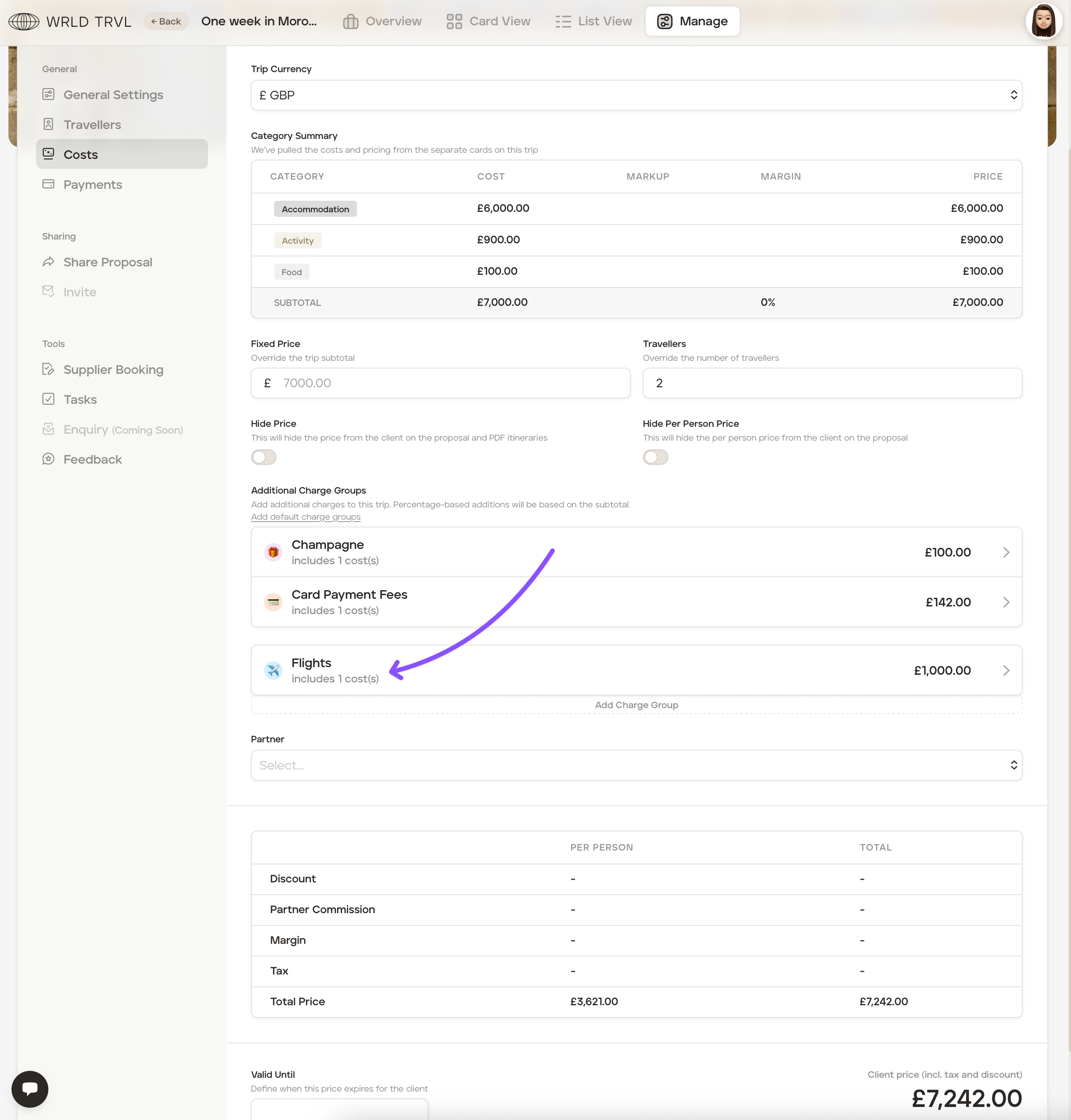
Click to the 'Overview' screen. The 'Overview' screen will show the new optional charge:
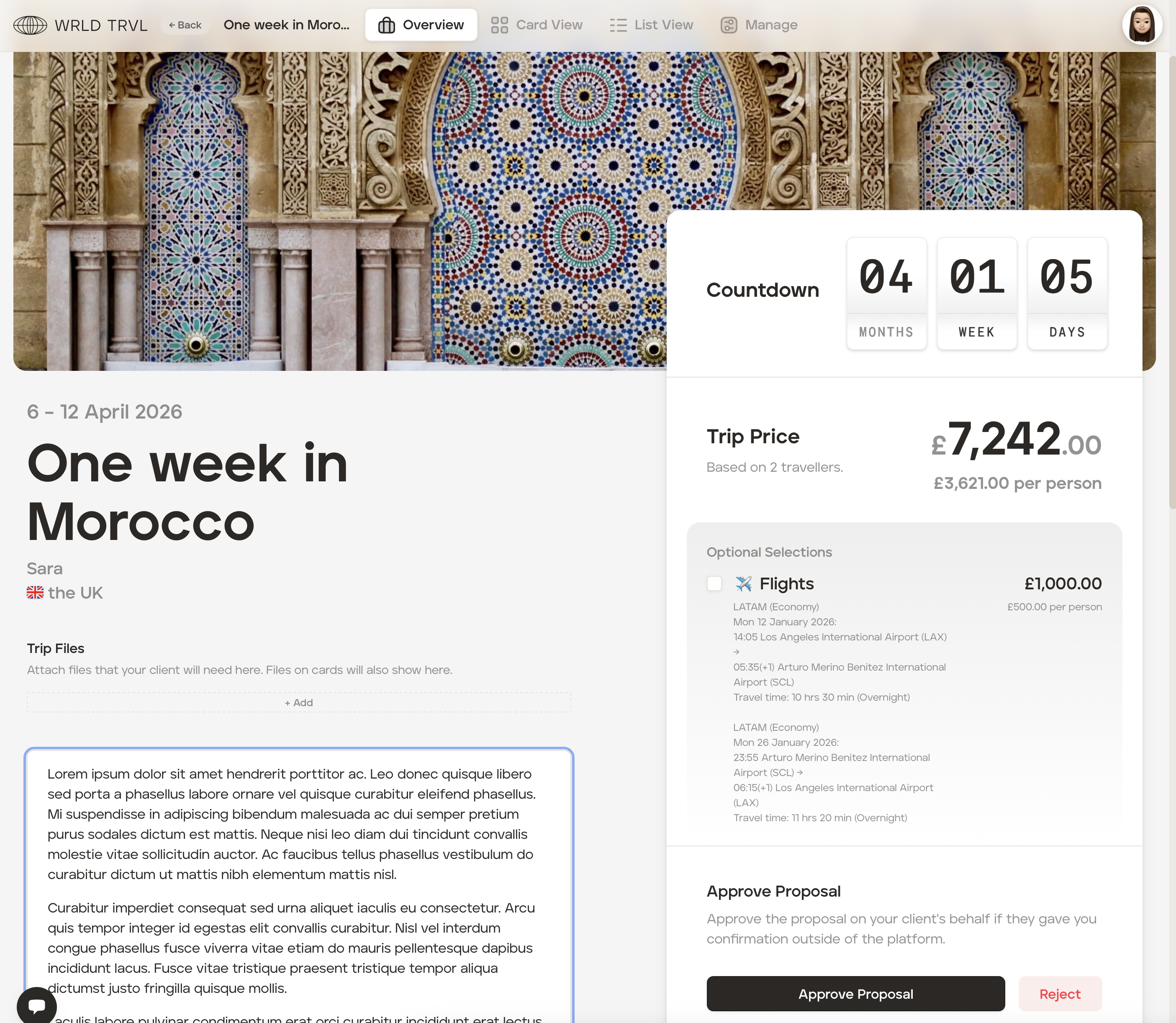
If you are approving the option on your client's behalf, you can 'tick' the check box before approving the proposal. If approved, the total trip price will include the optional charge:
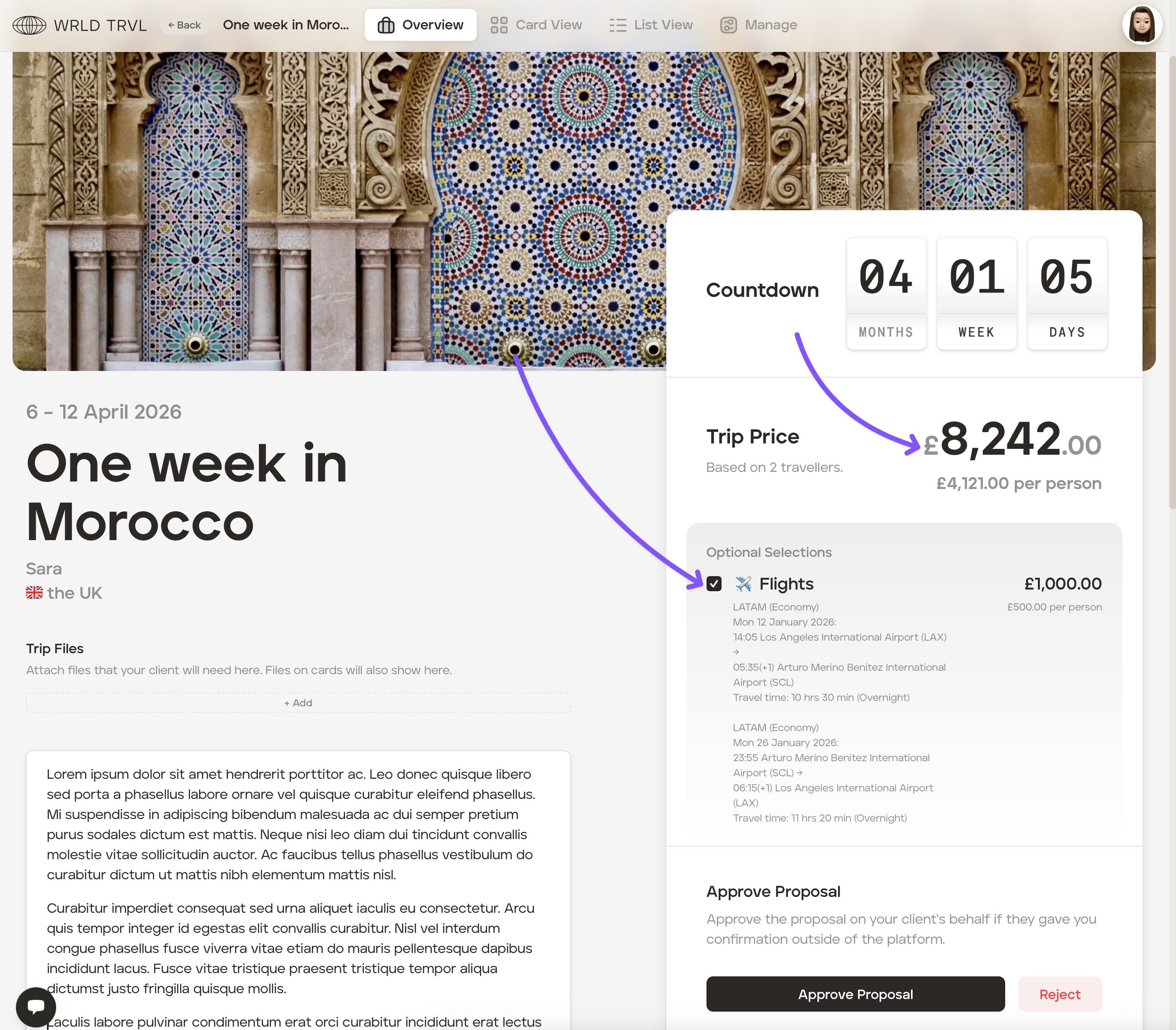
If your client is going to be sent the proposal for review and approval, they will see the optional charge and can approve by ticking the optional item check box. If approved by the client, the total trip price will include the optional charge.
Optional costs can also be added as default options by creating the optional charge in the account 'Settings.' To do this:
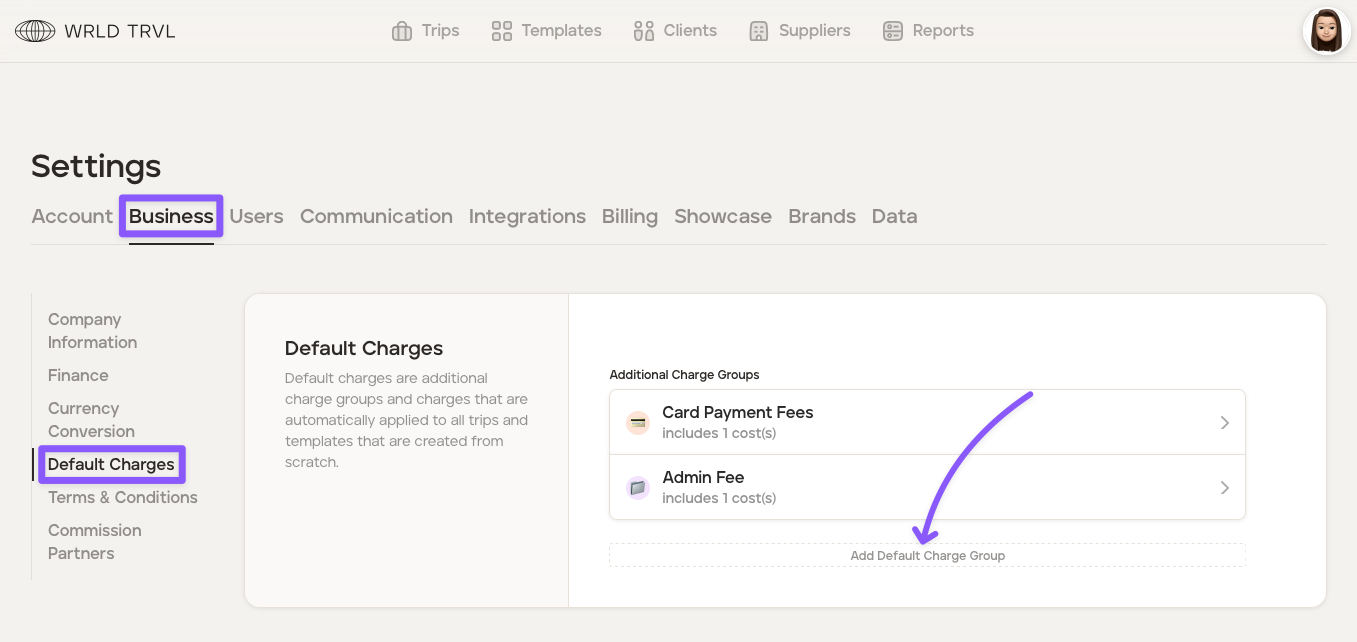
Click your avatar in the top right of the screen and select 'Settings.'
In the 'Business' tab click 'Default Charges'.
Click 'Add Default Charge Group.'
Add a group name in the 'Charge Group Name' field, for example, 'Flights'.
Click the icon to the right of the 'Charge Group Name' field to change the icon to one which aligns with the charge group, for example, a plane.
Follow steps 7-15 above.
Each new proposal created will include the default optional item (this can be removed within the trip itself).