Add or edit your company details
To add or edit your company details:
Click the avatar in the top right corner of your screen and then click 'Settings'.
Click the 'Business' tab.
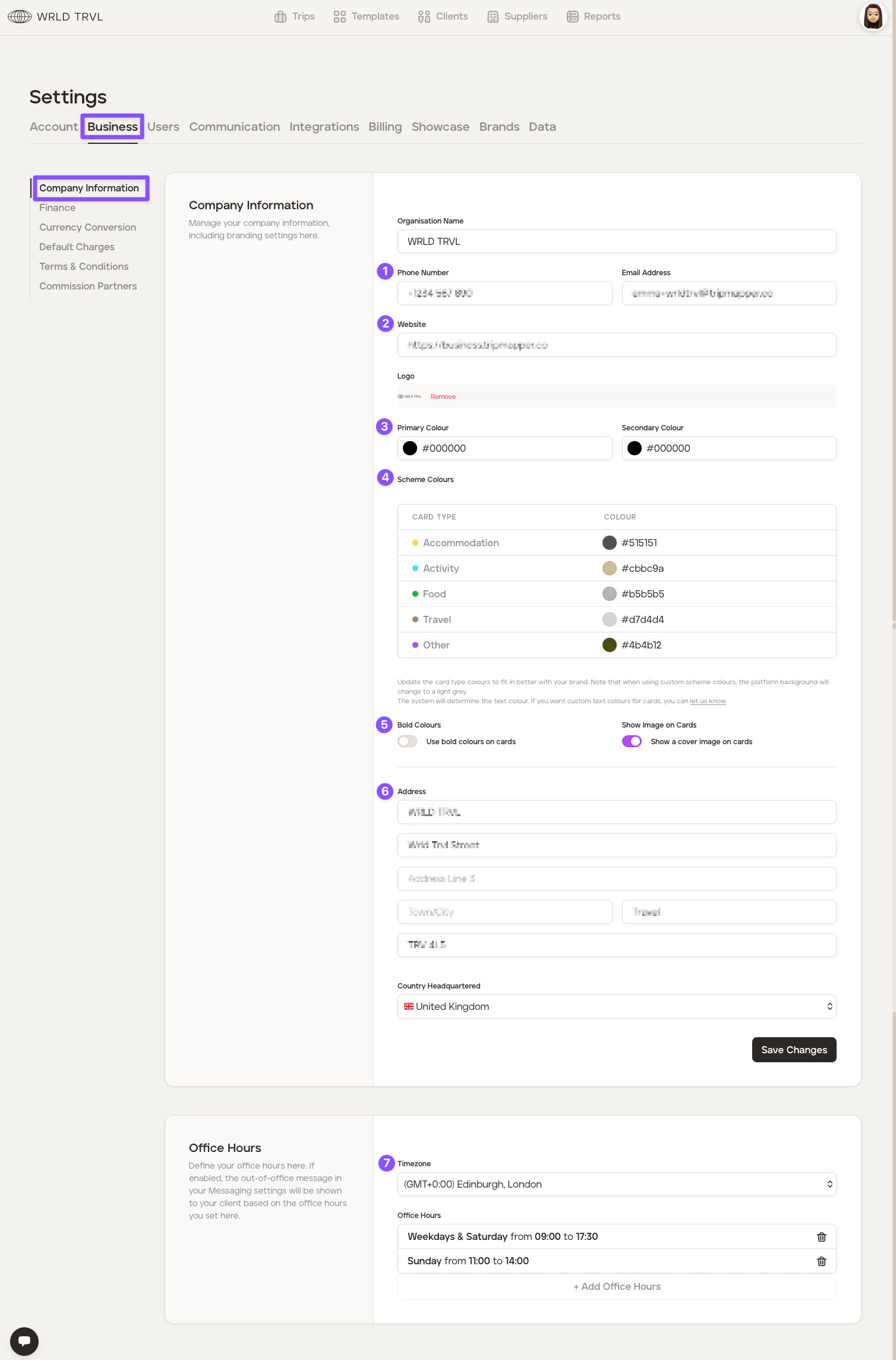
Click the 'Company Information' section and complete the company information (see annotated screenshot below):
Add your company phone number and email address.
Add your company website.
Add your company's primary and secondary colours using hex colour codes. You should be able to get these colour codes from your brand guidelines or use this helpful colour picker website. Hex colour codes start with a hashtag (#) and are followed by six letters and/or numbers.
TripMapper uses different card types to organise items on itineraries ('Accommodation', 'Activity', 'food', 'Travel' and 'Other'). Each card type has a different default colour, which you can see in the 'Scheme Colours' section. You may keep the default colours or change the colours using hex colour codes to be more in line with your company's brand guidelines.
Choose whether or not to show card category colours in bold when in the 'Card View' layout. Bold colours are the default setting, but to change to subtle card category colours, use the switch. Find out more read the Choose bold or subtle card colours on Card View layout article.
Add your company address.
Add your timezone and office hours (useful if you want to use the in-app messaging functionality).
Click the 'Save Changes' button.