

Add custom fields to your client database
To add custom fields to your client database, follow the steps below:
Click your avatar in the top right of your screen and then click ‘Settings.’
Click the ‘Data’ tab.
In the 'Client Fields' section click '+ Add new field'.
Name the field, for example, 'Favourite Wine' or 'Frequent Flyer Number' or 'Seat Preference' and click 'Create.'
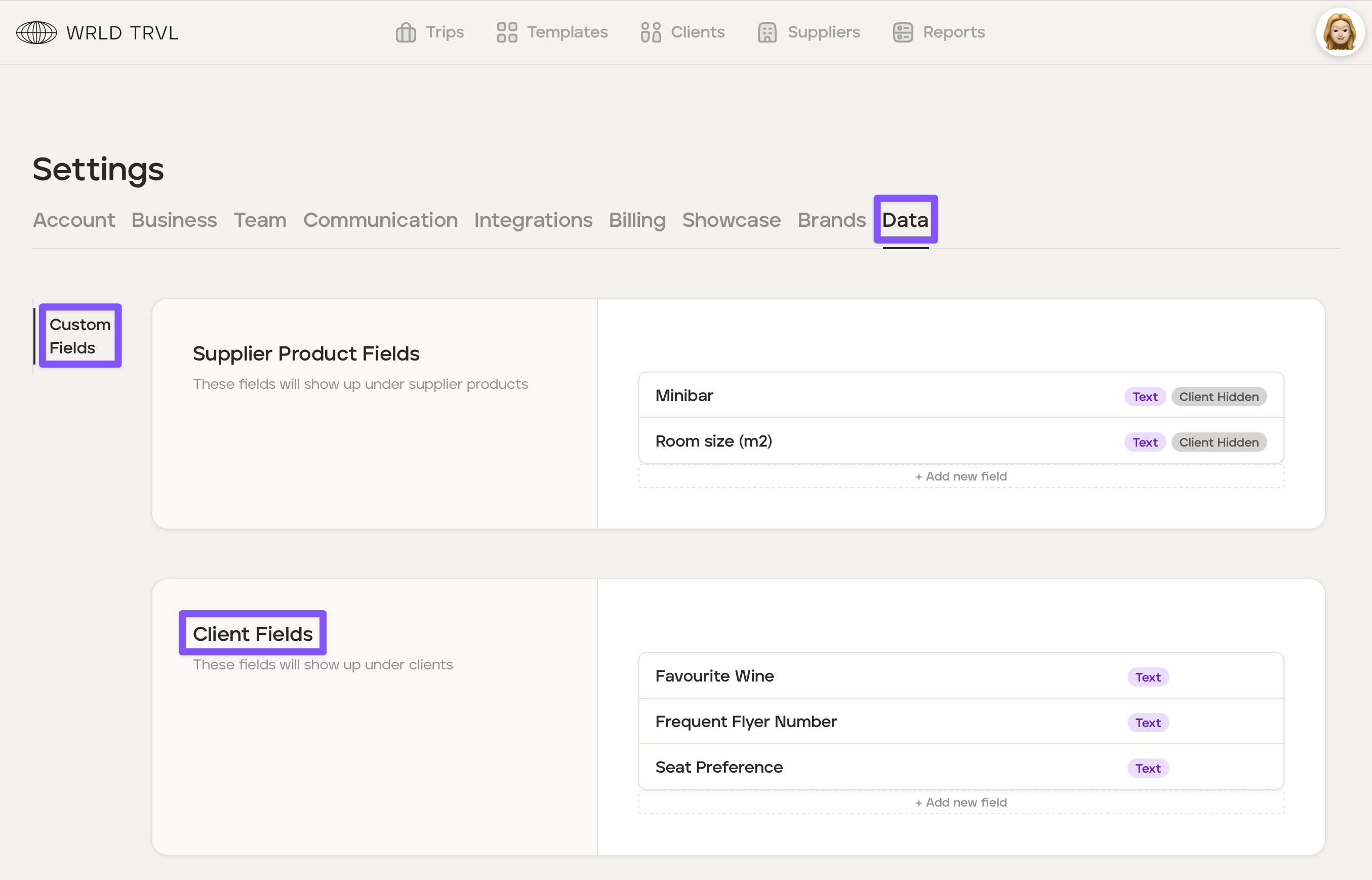
Repeat steps 3-4 to add further custom fields.
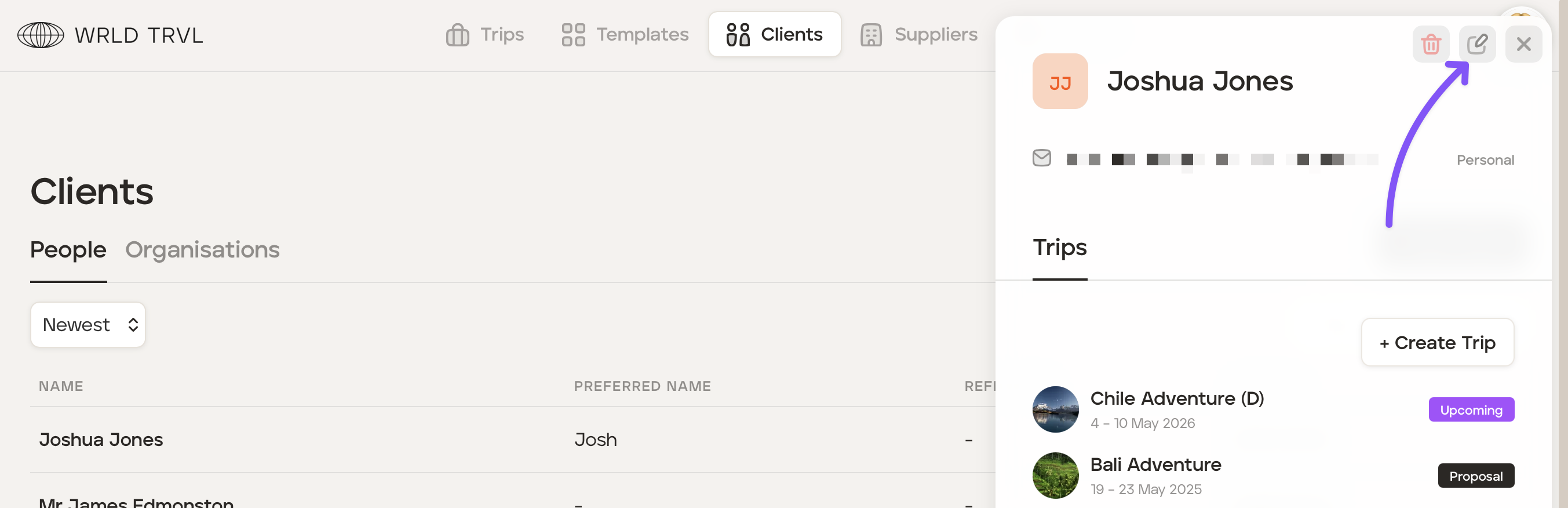
Go to the 'Client Database'.
Click the applicable client and then click the 'Edit' icon.
Click the 'Custom Data' tab and input the information in the custom fields you created in the 'Settings'.
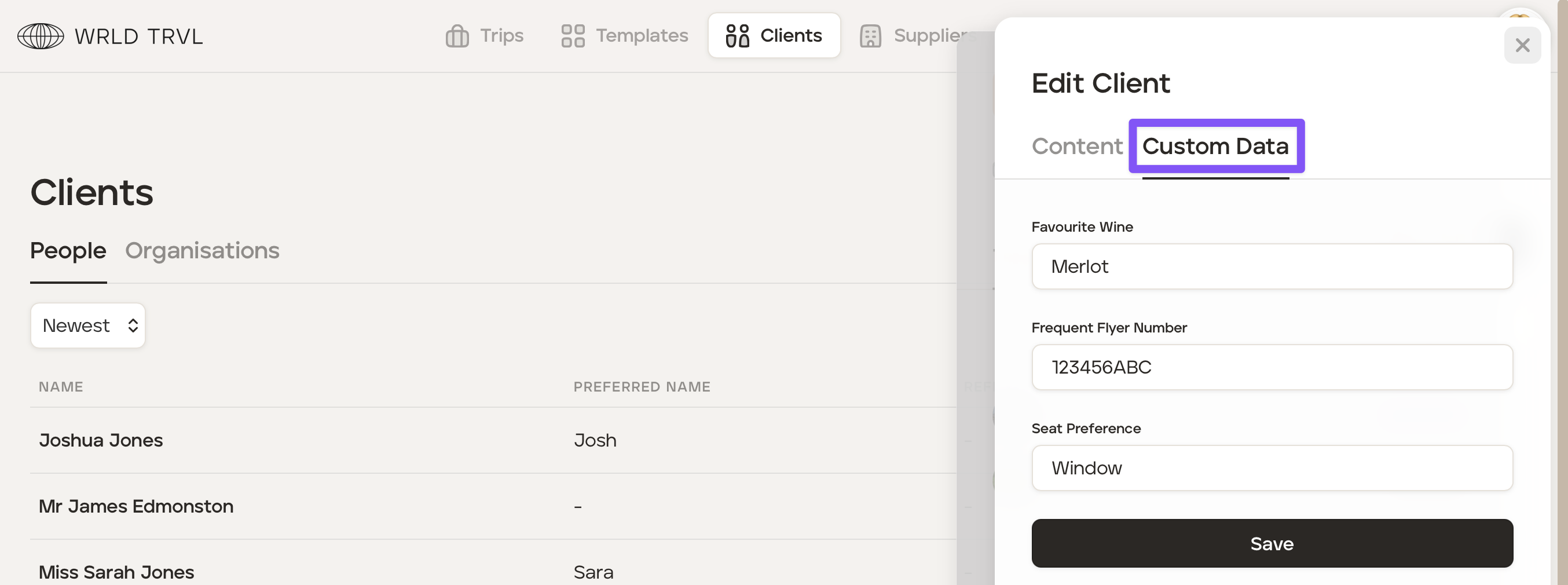
Click the 'Save' button.
Was this helpful?