

Record agent commission
When a travel agent ("agent") sells tour operator's and/or DMC's tours or services, tour operators and/or DMCs usually pay the agent a commission, a percentage of the booking value.
TripMapper for Business lets tour operators and/or DMCs record the agent commission owed on each booking, so they can see what has been agreed with each agent and keep margins and payments accurate.
To record agent commission, first create an agent:
Click your avatar in the top right of the screen and select 'Settings.'
In the 'Business' tab click 'Agent Commission.'
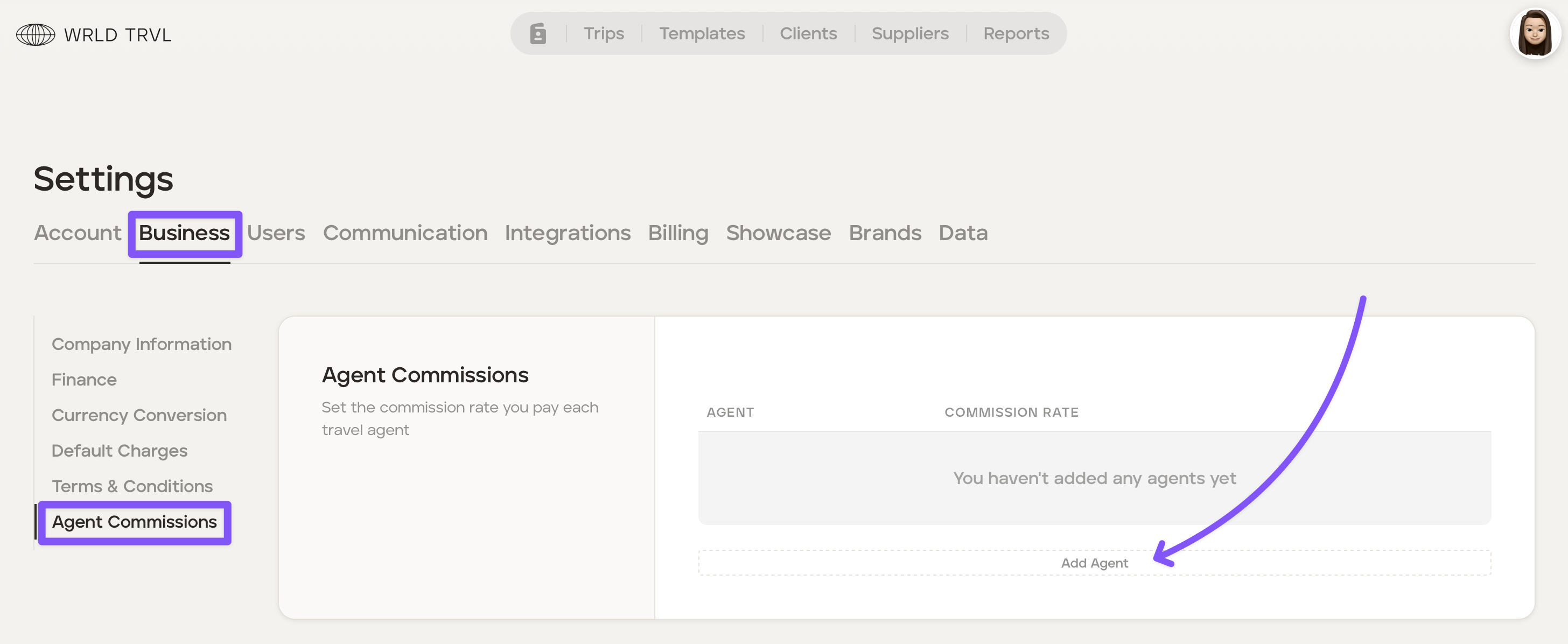
Click "Add Agent."
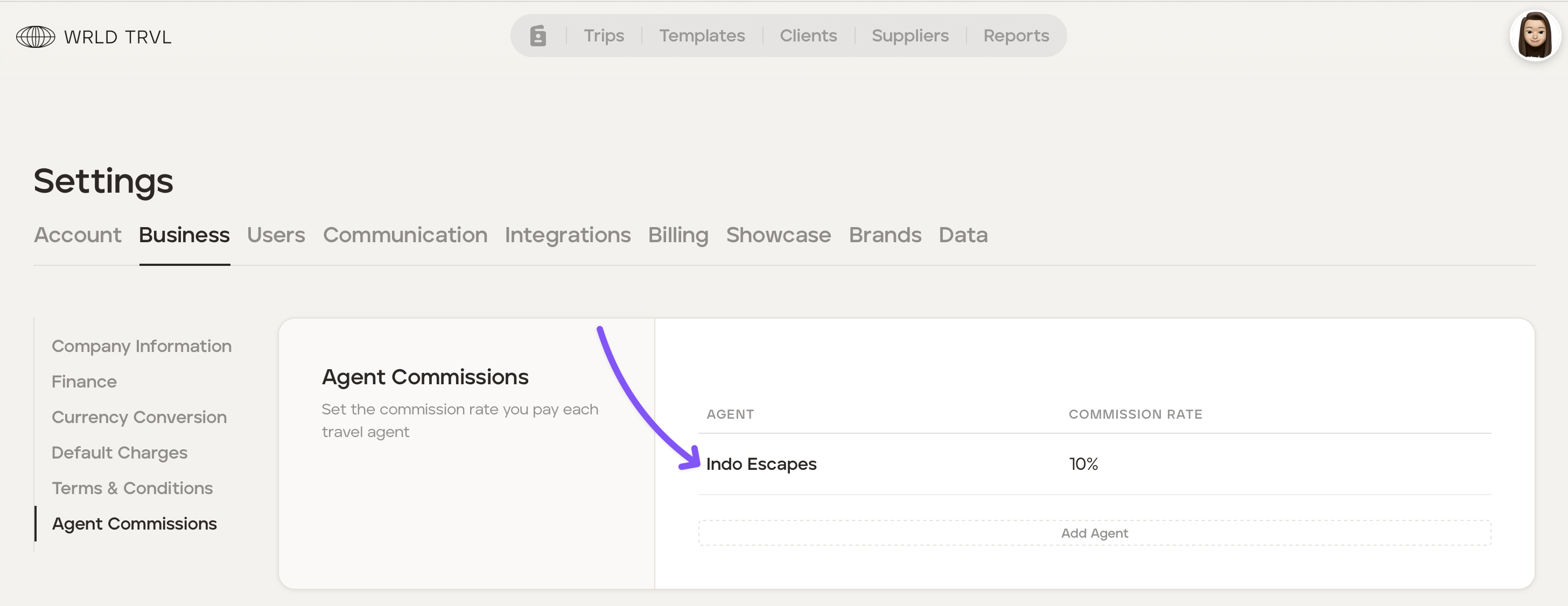
Add the agent name, commission percentage and then click the "Create" button.
The agent has now been added.
How do you add agent commission to a trip?
Once you have added a agent, you can record agent commission against a trip. To do this, follow the steps below:
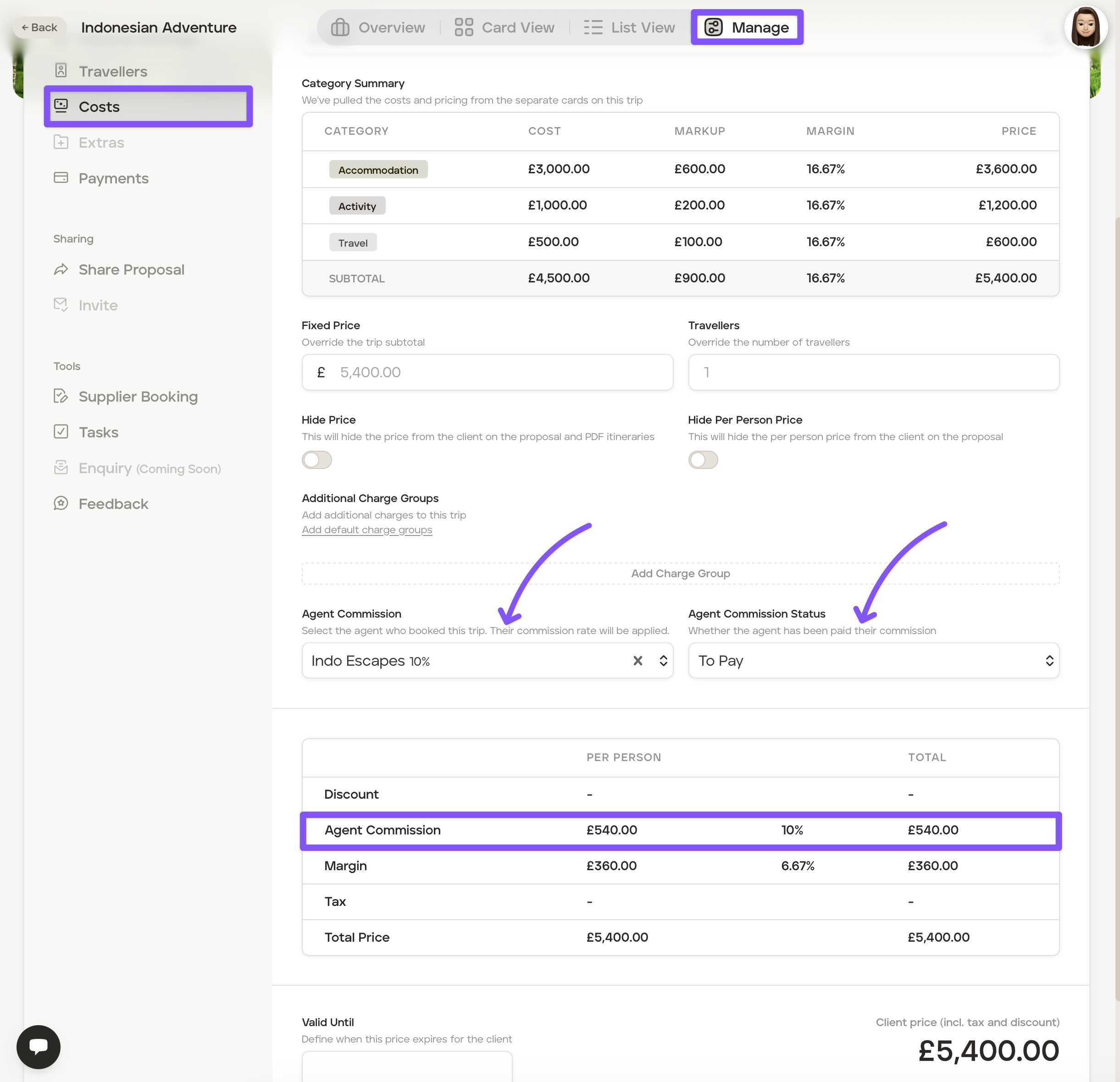
Select the applicable proposal or upcoming trip.
Click the 'Manage' tab.
Click the 'Costs' tab.
In the 'Agent Commission' dropdown menu select the applicable agent.
From the 'Agent Commission Status' dropdown, select 'To Pay' or 'Paid' to show whether the agent’s commission has been paid.
The bottom table will calculate the total partner commission due.
Download an agent commission report
Agent commission reports can be downloaded on a CSV.
To download a report:
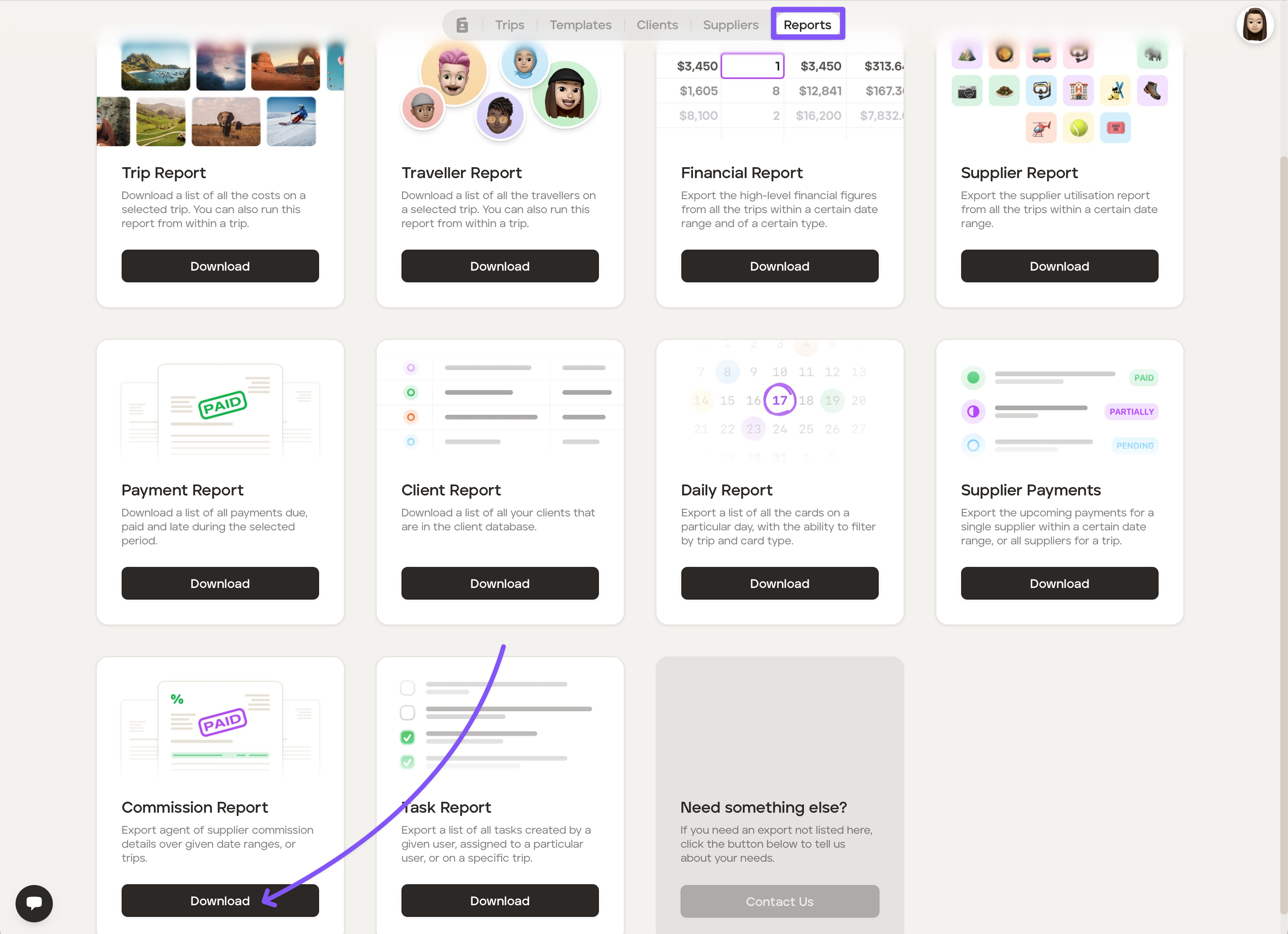
Go to your 'Reports' section of your account.
Click the 'Exports' tab.
Click 'Download' on the 'Commission Report'.
Select 'Agent', add the time period and agent and then click 'Export.'