

Apply default additional charges (eg. administration fees) across itineraries
In addition to the costs associated with itinerary cards, you may wish to add additional charges, which can apply automatically to all itineraries (you can still remove or add them at the itinerary level if you wish).
Additional charges could include an administration fee 📁, card payment fee 💳 or welcome gift 🎁, that you incur and want to incorporate into your client price.
1. Create default additional charges that apply to all itineraries
To create a default additional charge that will apply to all itineraries, follow the steps below:
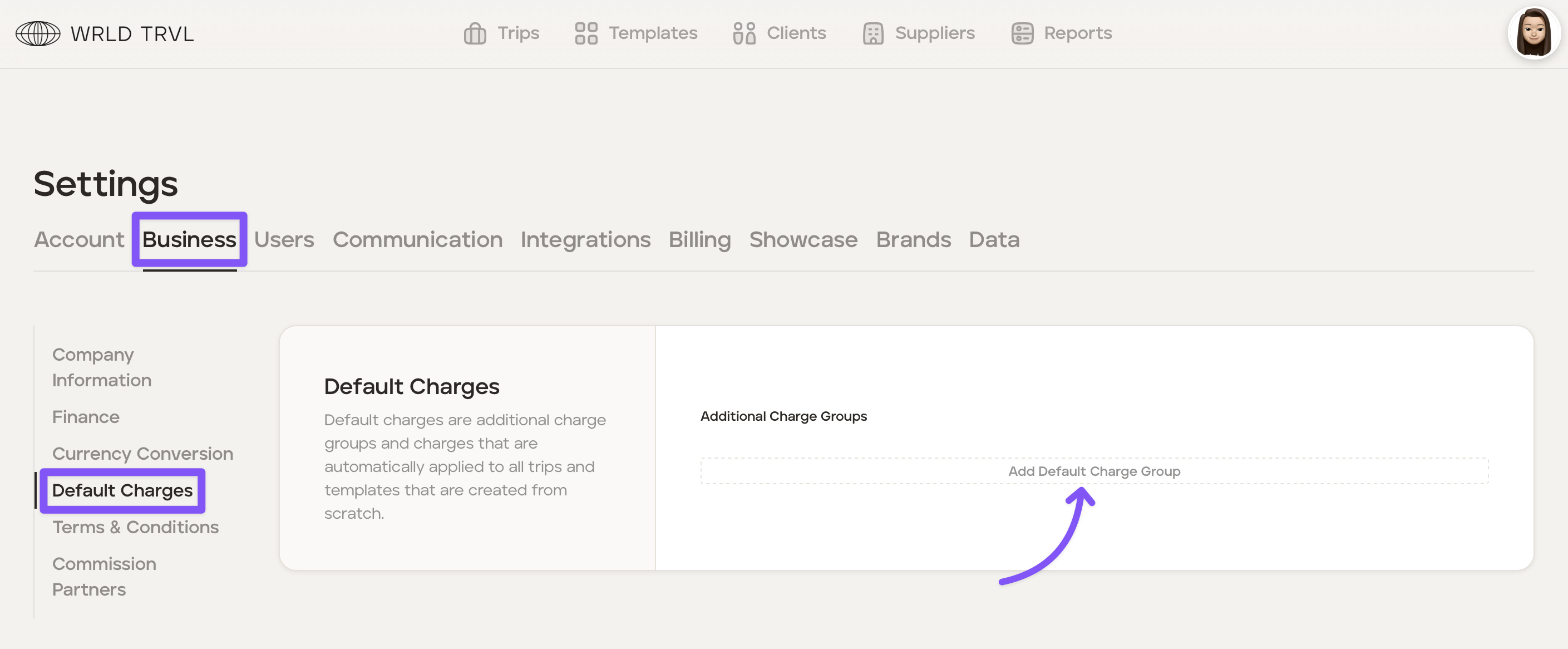
Click your avatar in the top right of the screen and select 'Settings.'
In the 'Business' tab click 'Default Charges'.
Click 'Add Default Charge Group.'
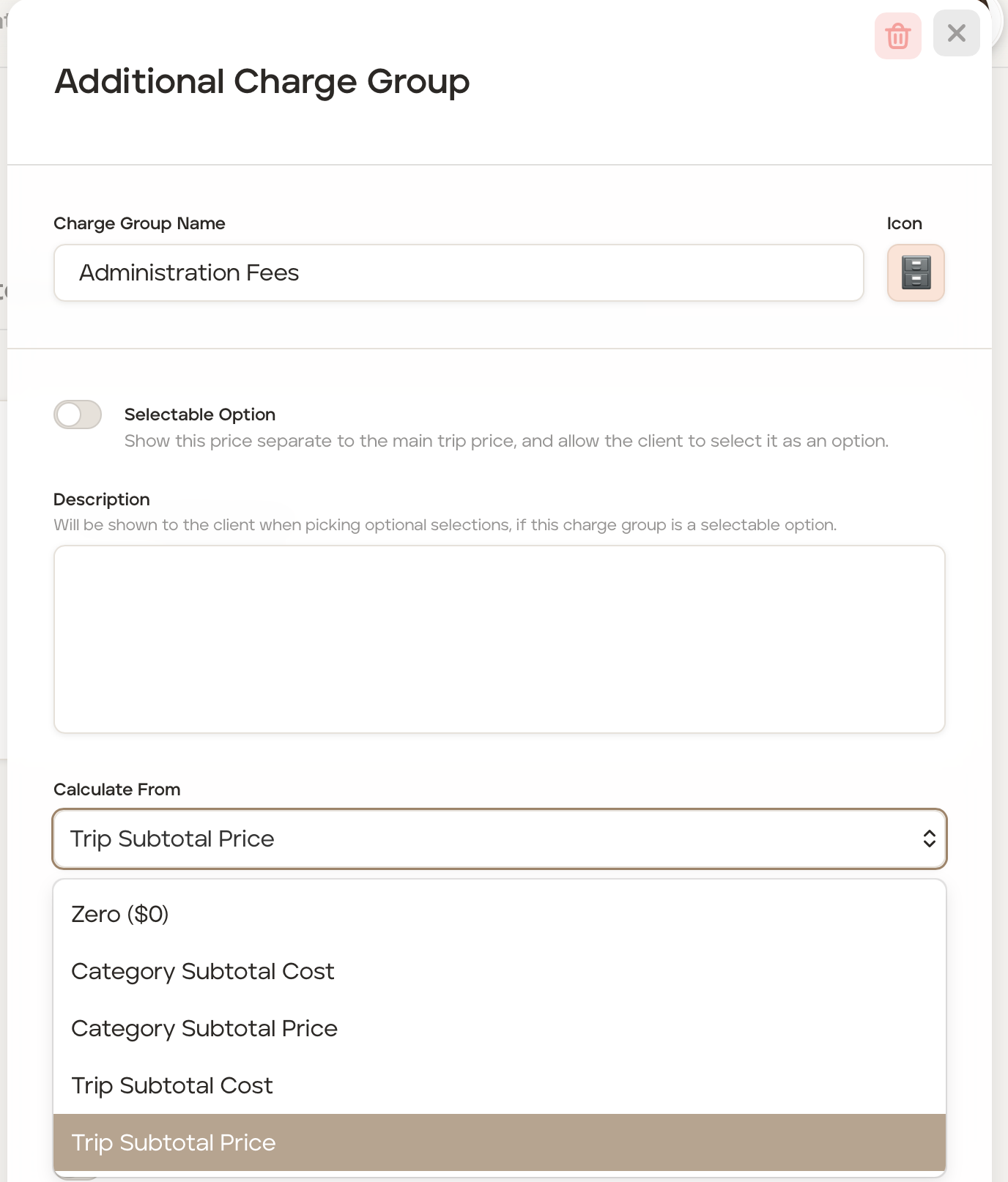
Add a group name in the 'Charge Group Name' field, for example, 'Administration Fees'.
Click the icon to the right of the 'Charge Group Name' field to change the icon to one which aligns with the charge group, for example, the filing cabinet icon representing administration fees.
In the 'Calculate From' field, pick the applicable option from the dropdown menu:
Zero ($0) - This will calculate the additional charge from zero and not use any values from itinerary cards costs or client prices.
Category Subtotal Cost - This will calculate the additional charge from the subtotal of all itinerary card costs incurred.
Category Subtotal Price - This will calculate the additional charge from the subtotal of all itinerary card client prices.
Trip Subtotal Cost - This will calculate the additional charge from the entire trip subtotal cost (ie. all itinerary card costs incurred plus any other additional charges).
Trip Subtotal Price - This will calculate the additional charge from the entire trip subtotal client price (ie. all itinerary card client prices plus any other additional charges).
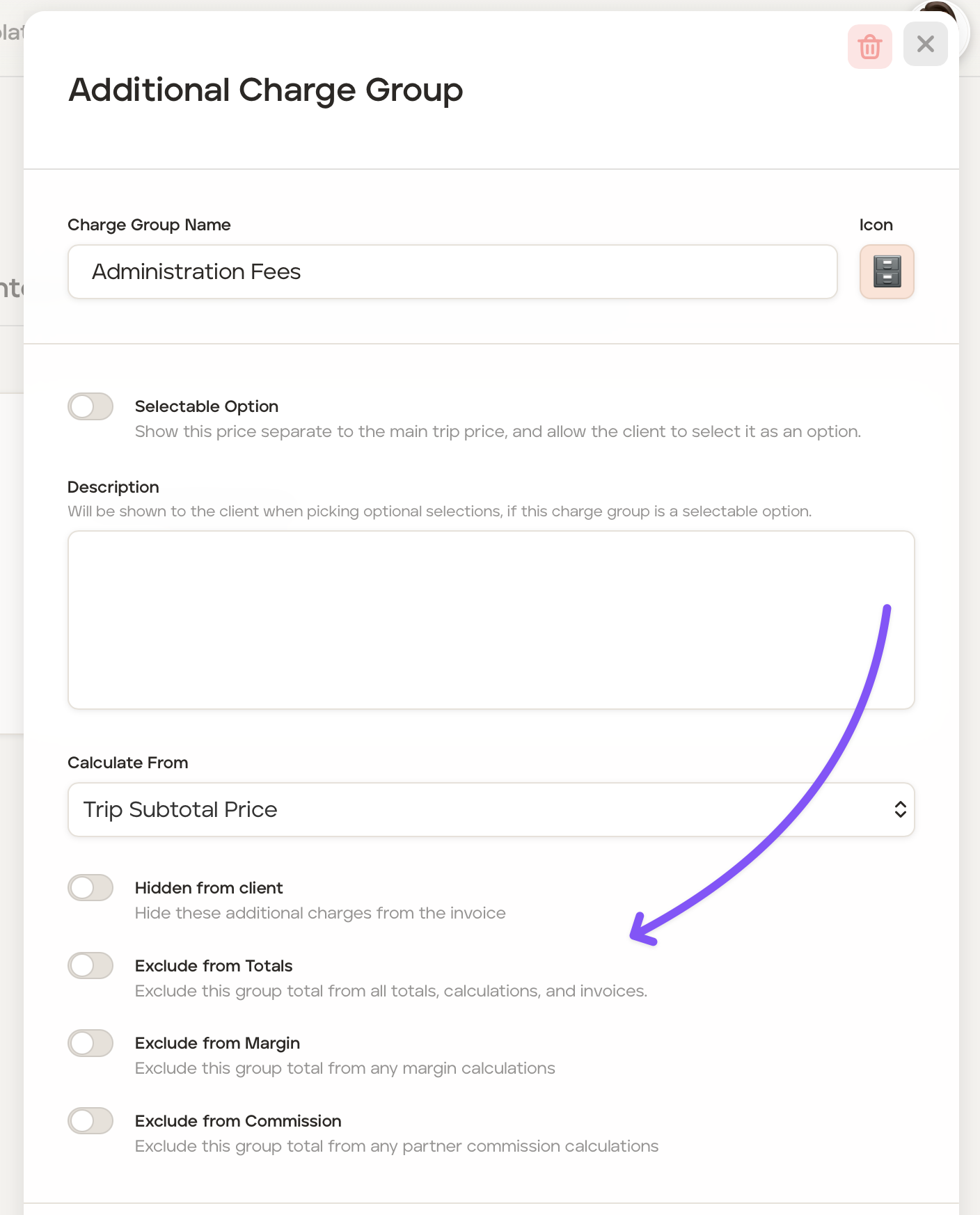
You now have a number of further options to decide on:
Hidden from client - Turn the toggle 'on' if you would like the additional charge to just state 'Additional Charges' along with the client price on invoices.
Exclude from Totals - Turn the toggle 'on' if you would like to exclude this total from all totals, calculations, and invoices.
Exclude from Margin - Turn the toggle 'on' if you would like to exclude this total from any margin calculations.
Exclude from Commission - Turn the toggle 'on' if you would like to exclude this total from any partner commission calculations.
Click 'Add Additional Charge' to add an additional charge item into the Additional Cost Group, for example adding a 10% planning fee.
You can now add the Charge Group Item information:
In the 'Description' field add a short description of the additional charge item, for example, 'Planning Fee'.
In the 'Quantity' field add the quantity and the 'Unit' field add the specific unit, for example, 'Per Unit.'
In the 'Type' field select either 'Fixed' for a fixed monetary sum or a '% Percent'.
Add the fixed amount or percentage figure in the 'Amount' field.
Add tax, commission, markup and/or margin if applicable.
Click the 'X' in the top right corner to close the 'Edit Additional Charge Group Item.'
To add another item to this addiitonal charge group, click 'Add Additional Charge' and repeat the steps above.
Example:
For all itineraries, you want to add an additional charge of £50.00 to the client price to cover the business cost of a welcome gift that your travel business incurs.
Click your avatar in the top right of the screen and select 'Settings.'
In the 'Business' tab click 'Default Charges'.
Click 'Add Default Charge Group.'
Add a group name in the 'Charge Group Name' field, for example, 'Welcome Gift'.
Click the icon to the right of the 'Charge Group Name' field to change the icon to one which aligns with the charge group, for example, the gift icon.
Select 'Trip Subtotal Price' in the 'Calculate From' field.
Turn 'on' the 'Exclude from Margin' toggle.
Click 'Add Additional Charge'.
Type 'Welcome Gift' in the 'Description' field.
Enter '1' in the 'Quantity' field and 'Per Unit' in the 'Unit' field.
Select 'Fixed' in the 'Type' dropdown menu.
Enter '50' in the 'Amount' field and select the currency from the dropdown menu.
The 'Net Cost' will show as £50.00.
The 'Net Client Price' will show as £50.00.
Going forwards all new trips created will add the £50 additional charge to the total client price.
Amend or remove a default additional charge group across your itineraries
To remove or amend the default additional charges across your itineraries going forward:
Click your avatar in the top right of the screen and select 'Settings.'
In the 'Business' tab click 'Default Charges'.
Click the relevant additional charge group you wish to amend or remove.
Make any amendments to the charge group and then close.
If you want to remove the entire charge group, click the red bin icon and then click 'Yes' to confirm removal.
Amend or remove a charge item (within a default additional charge group) across your itineraries
To remove or amend a charge item within a default additional charge group:
Click your avatar in the top right of the screen and select 'Settings.'
In the 'Business' tab click 'Default Charges'.
Click the relevant charge group containing the charge item.
Click the edit icon on the charge item you wish to amend or remove.
Make any amendments to the charge item and close.
If you want to remove the charge item, click the red bin icon and then click 'Yes' to confirm removal.