

Showing an itinerary card's status to your client
By default, the Status you set on a card is for your eyes only — travellers viewing the itinerary do not see it. You can, however, opt in per itinerary card when you want to share progress with your client, for example, to show that a hotel is Booked or that a flight is still To Book.
This is set on each card individually, so you can stay in control of what gets seen by your client.
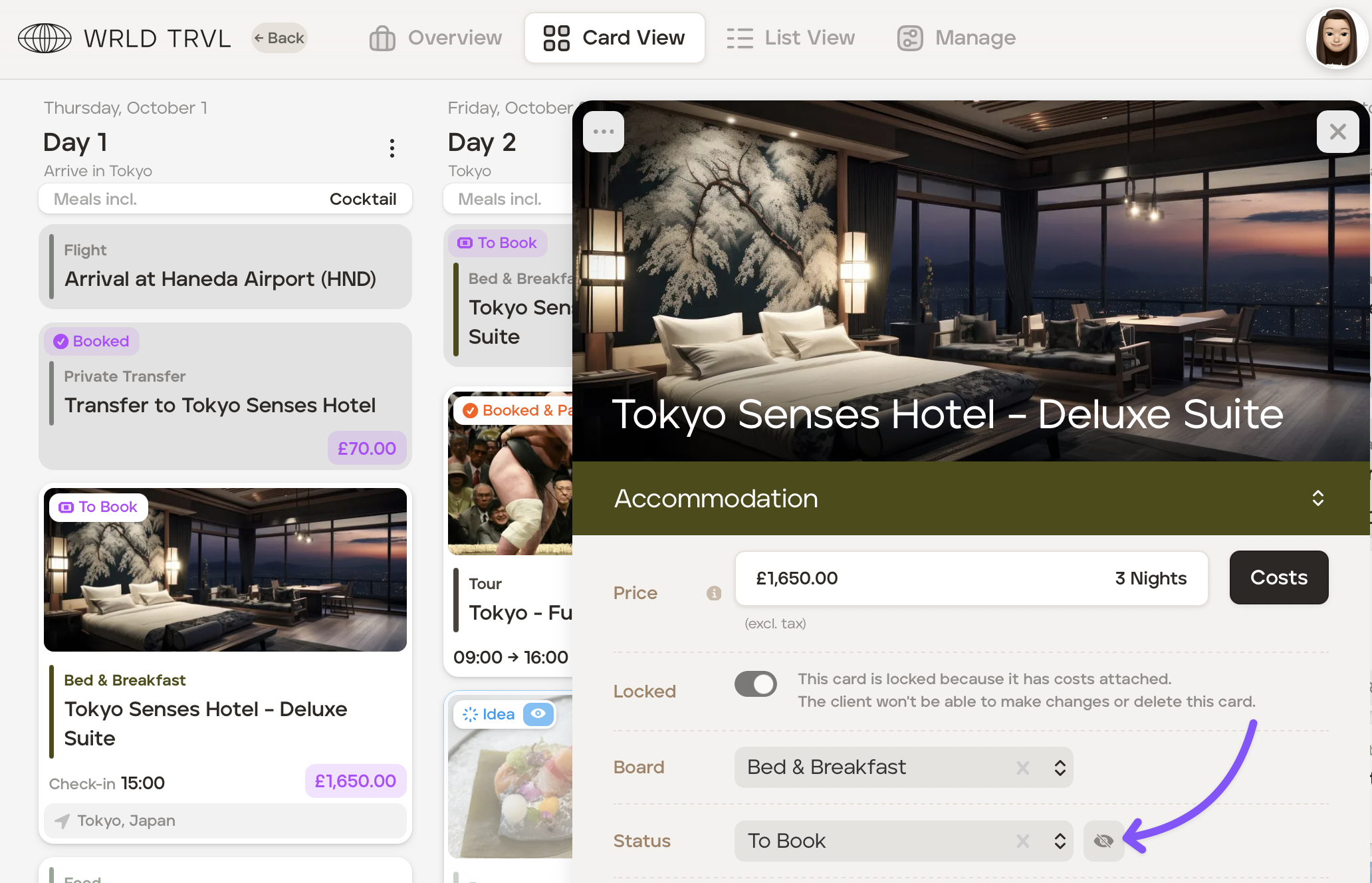
Show the card status to your client
Open the applicable trip and then click the relevant card.
In the card slideover, find the Status field.
Click the eye icon next to the status.
The icon switches to the open-eye state and is now coloured purple. The current status is now visible to the traveller.
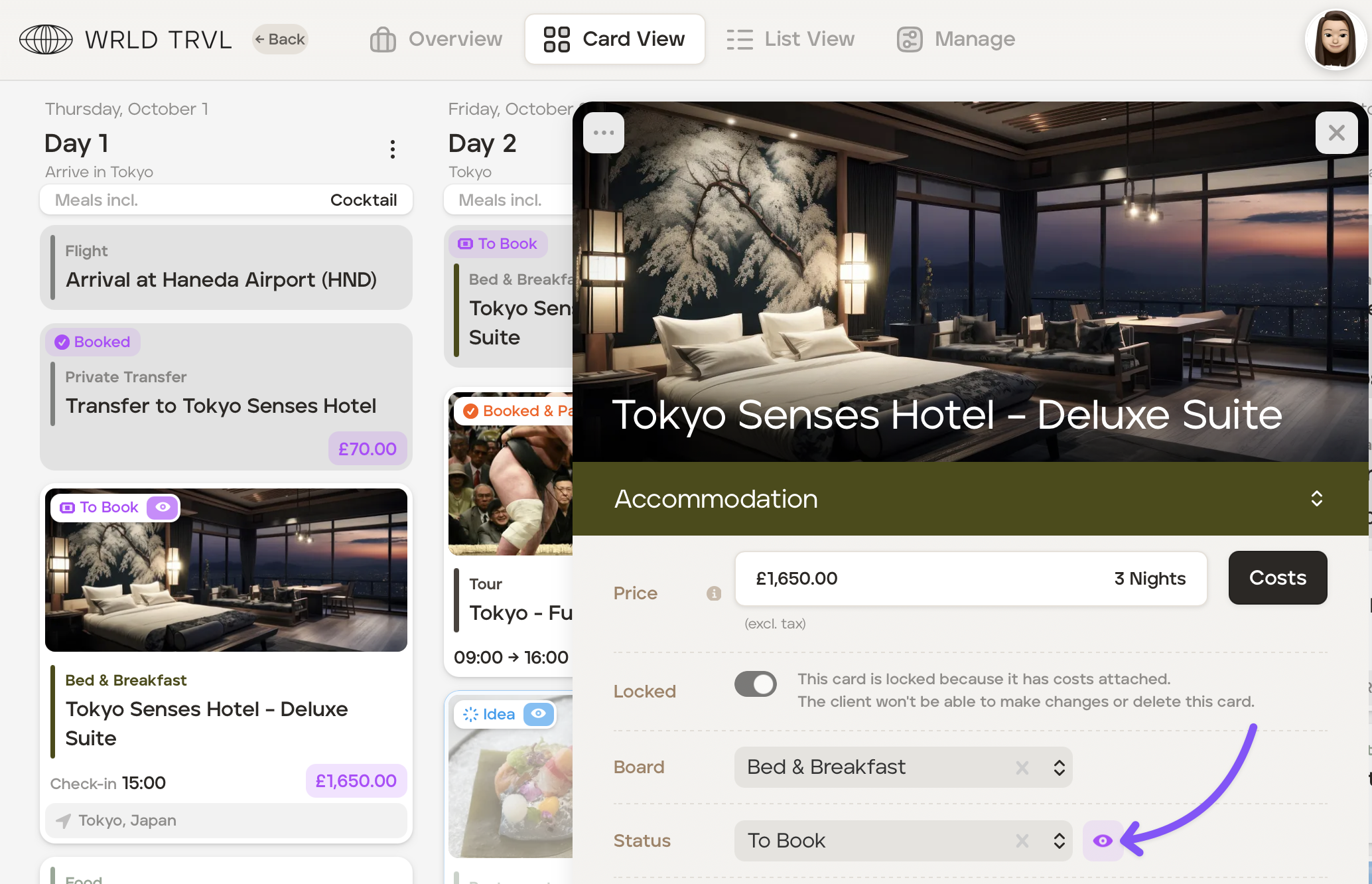
You'll also see the eye icon depicted on the card status token.
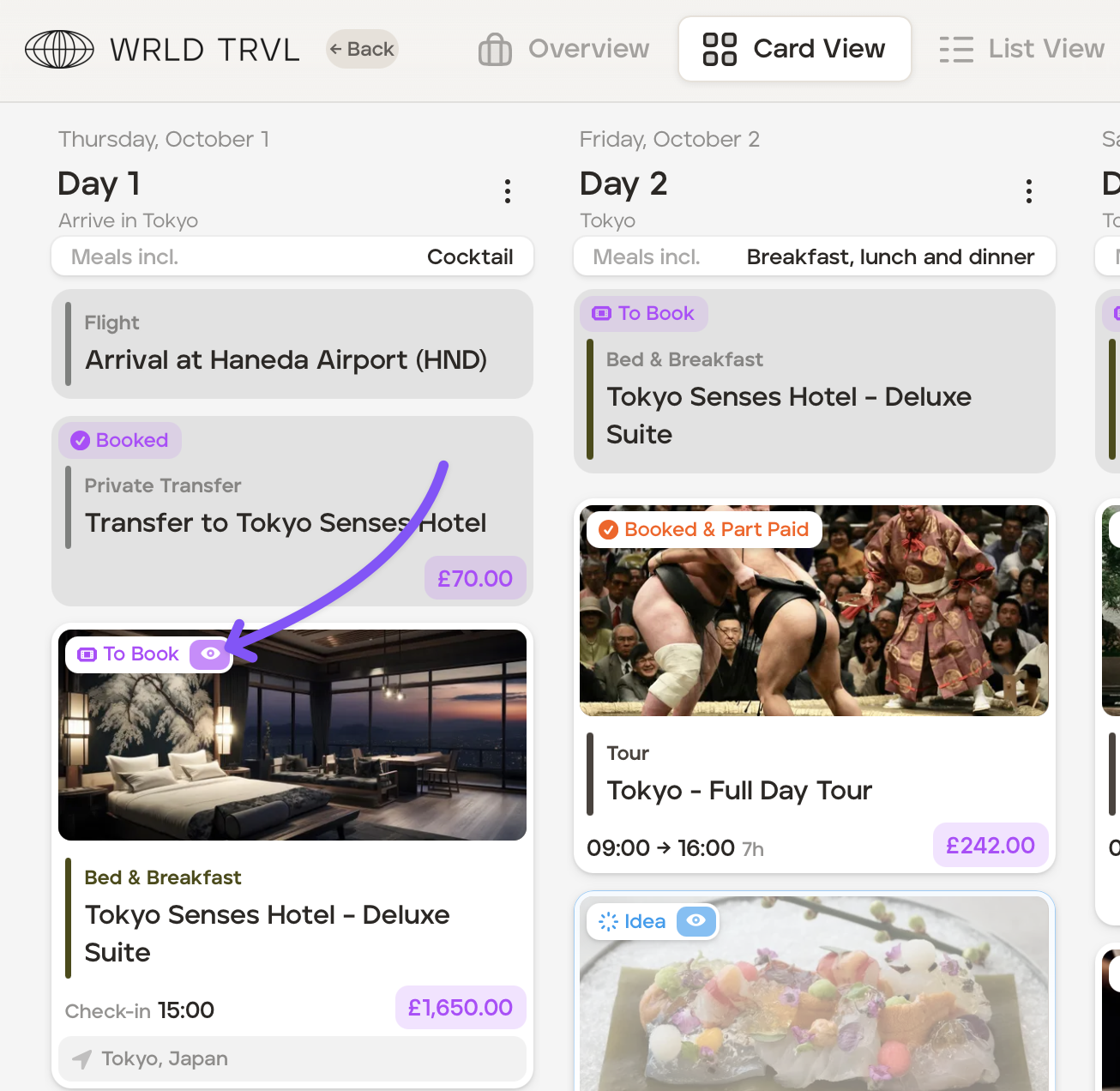
The change is saved straight away; there's nothing else to confirm.
What your client sees
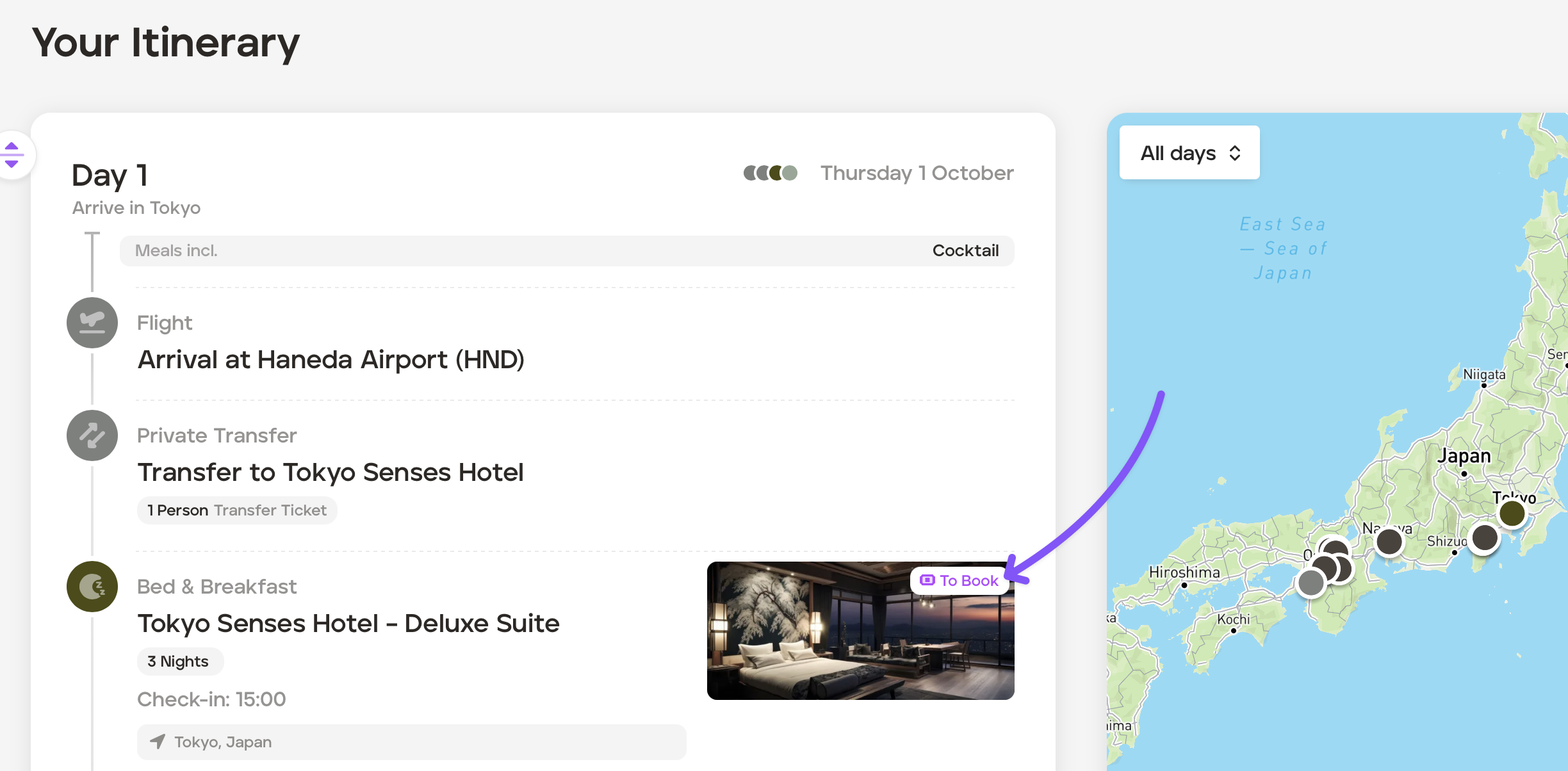
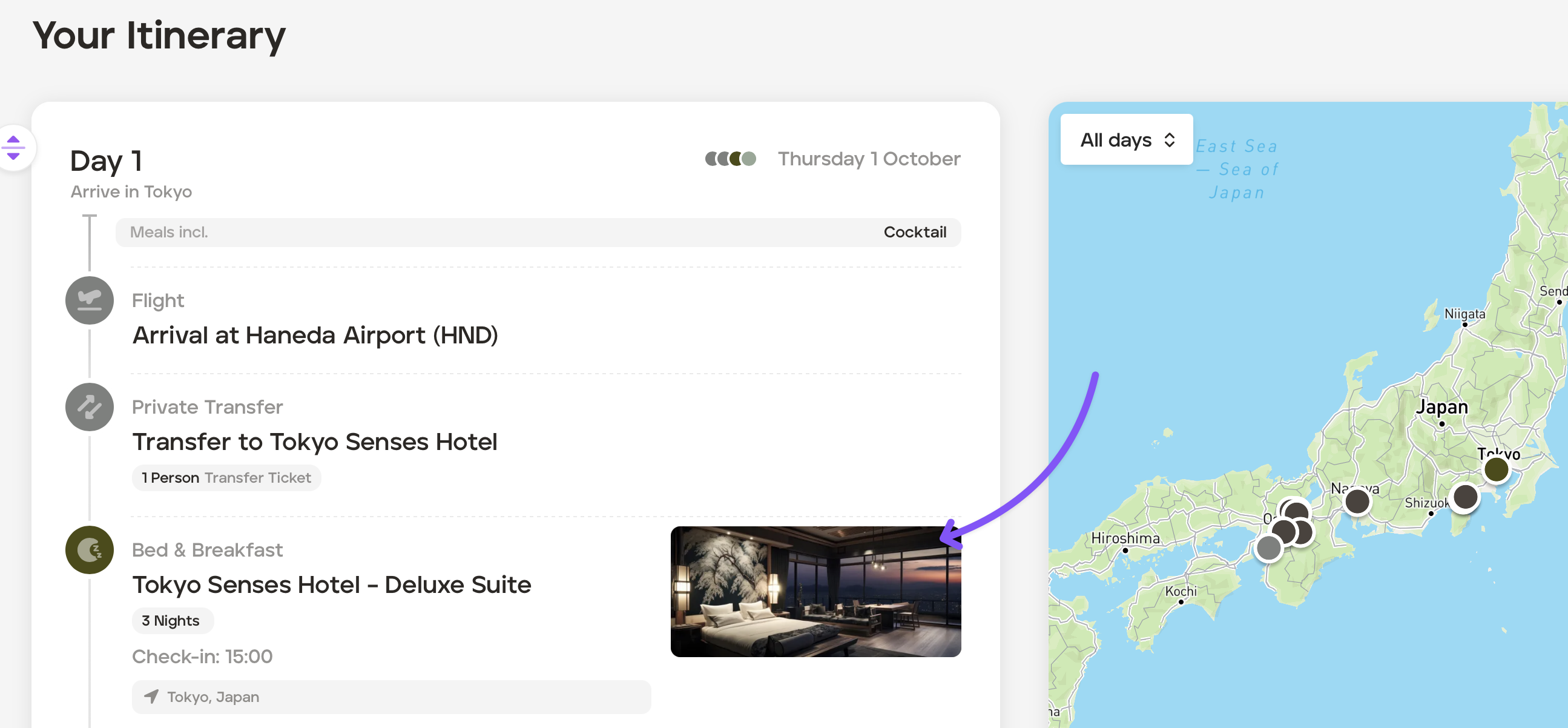
When status is visible on a card, your client (the traveller) sees the same label you do on any links you share with them.
The statuses, such as Idea, To Book, and Booked, appear on the traveller view as a small badge on the card, shown in the same way you see it.
Example client link:
Hiding the card status from your client
To stop sharing the card status:
Open the card slideover.
Click the eye icon next to Status.
The icon switches to the closed-eye state and is now grey — your client will no longer see the status.
You can toggle this as often as you like without affecting the status itself.