

Add a supplier's payment terms
You can add payment terms to suppliers so you know exactly when to pay them. Supplier payment terms can be set at both supplier and supplier product level.
If payment terms are only set at supplier level, those will be the default payment terms. If payment terms are also set or just set at the supplier product level, those will be the payment terms applicable to that particular supplier product.
Add payment terms to a supplier
To add a supplier's payment terms, follow the steps below:
Click into the supplier database, select the applicable supplier, click the '...' icon and click 'Edit Supplier.'
Click the 'Terms' tab.
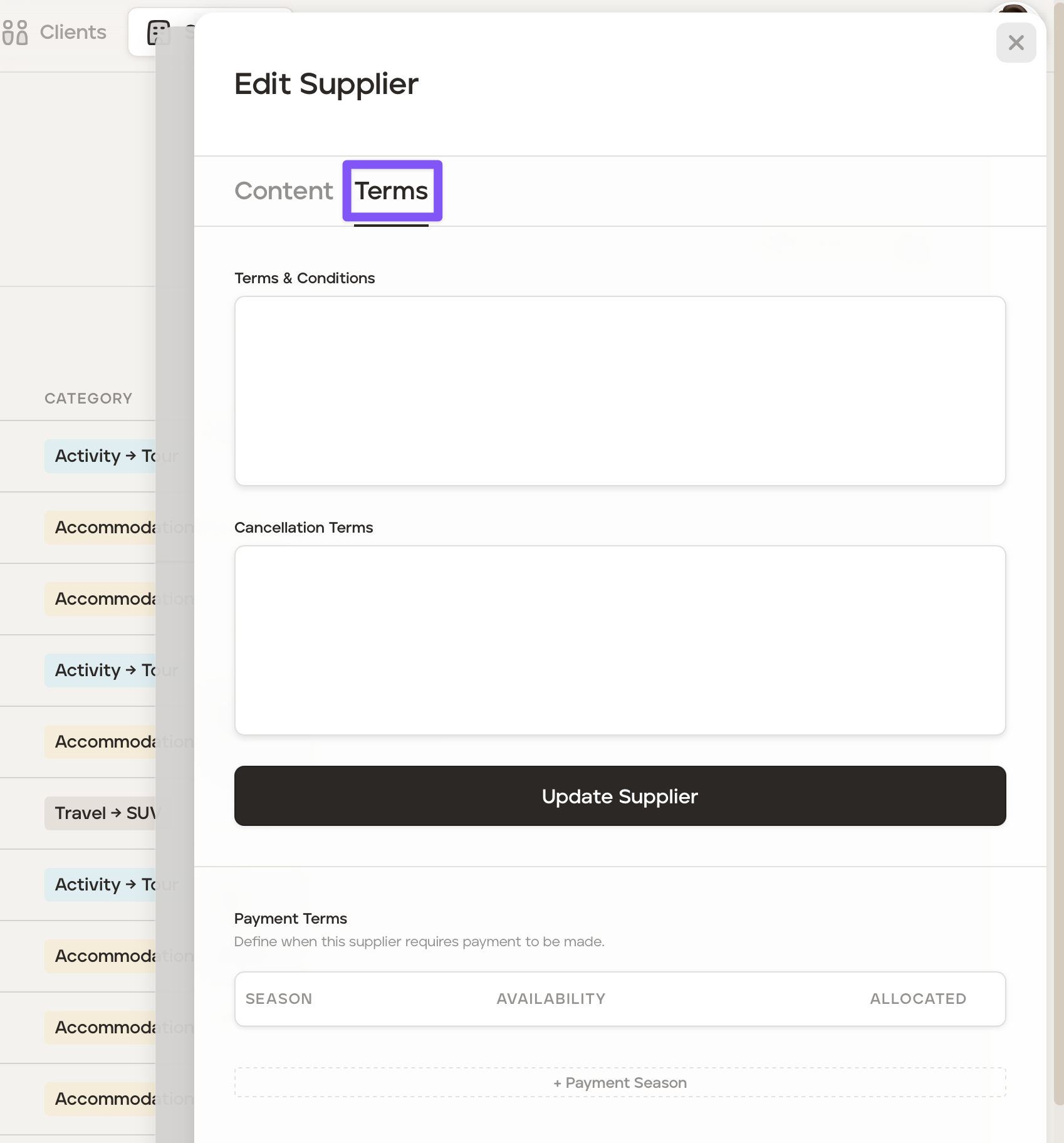
In the 'Payment Terms' section click '+Payment Season' to open the 'Create Season' section:
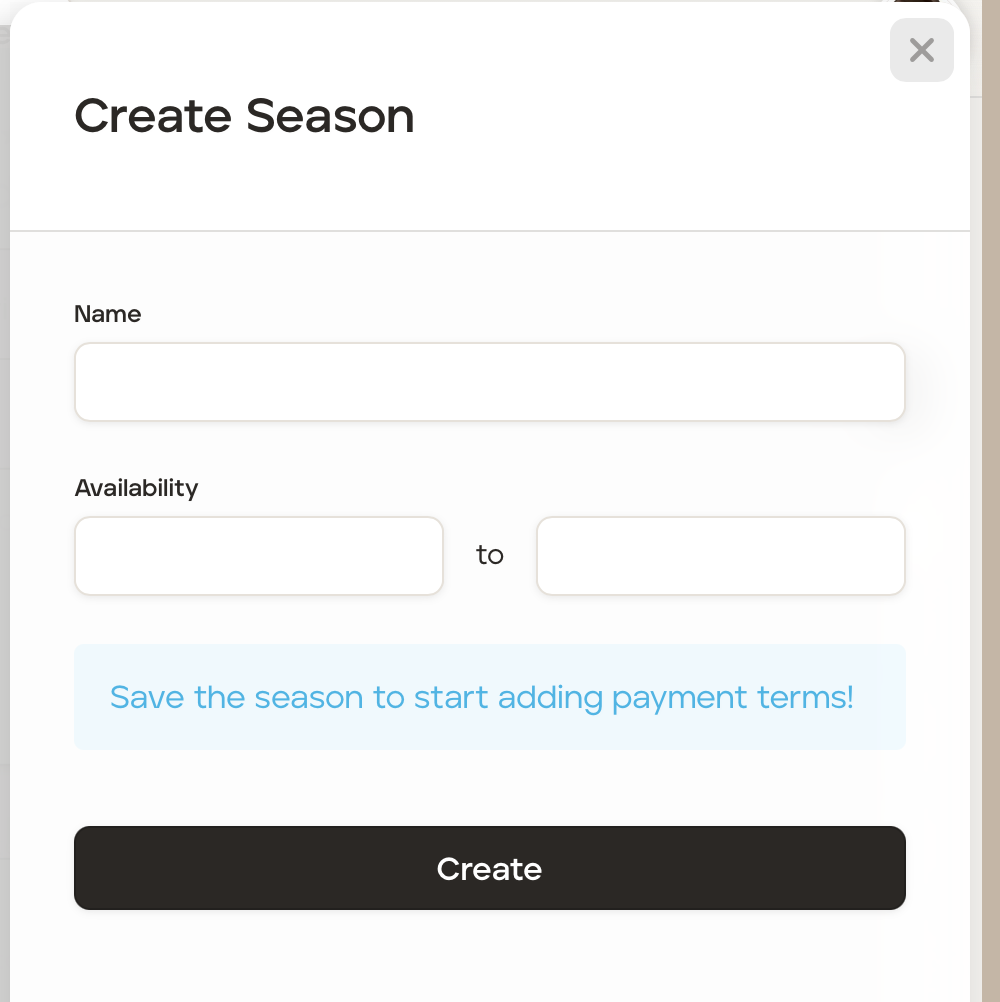
Add the name in the 'Name' field, for example: 'Year round' or 'High Season' and add the dates in the 'Availability' section to set when those payment terms will apply.
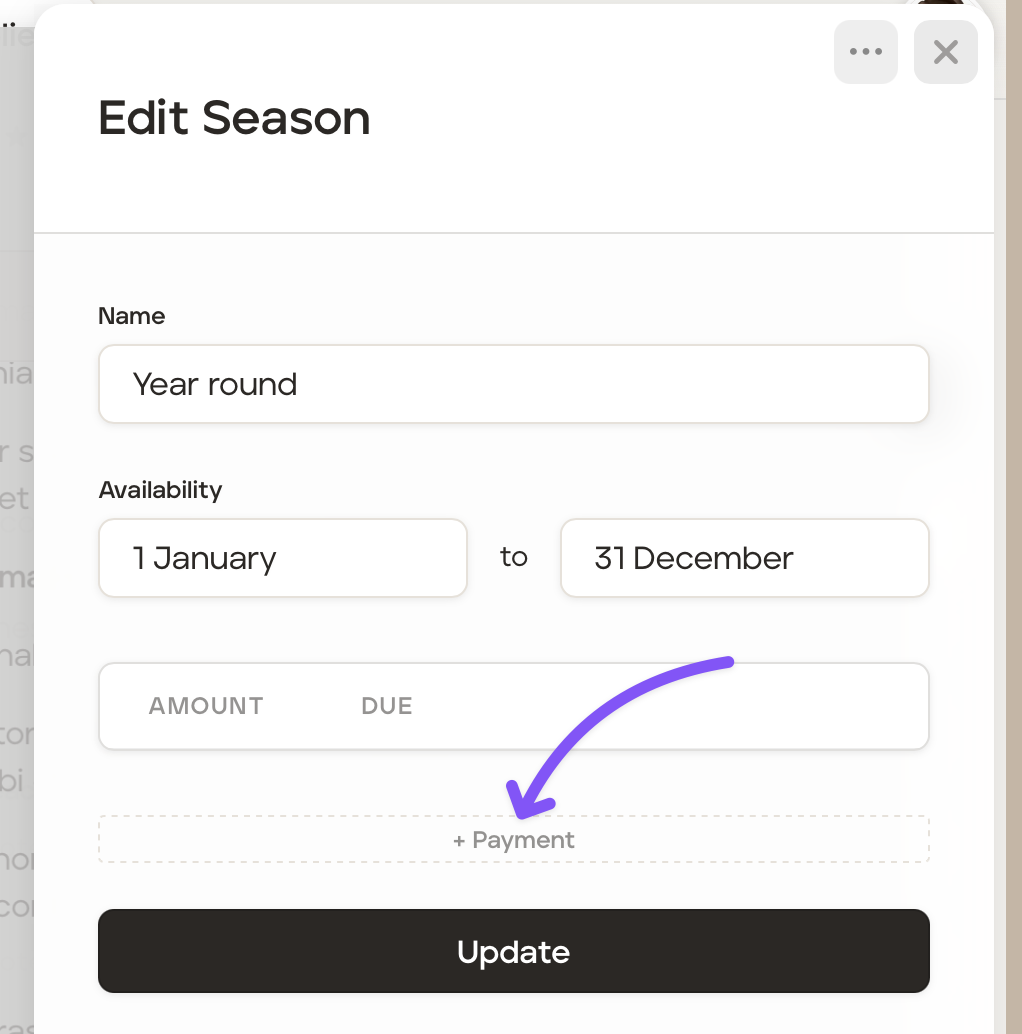
Once added, click '+Payment' to add the applicable payment terms.
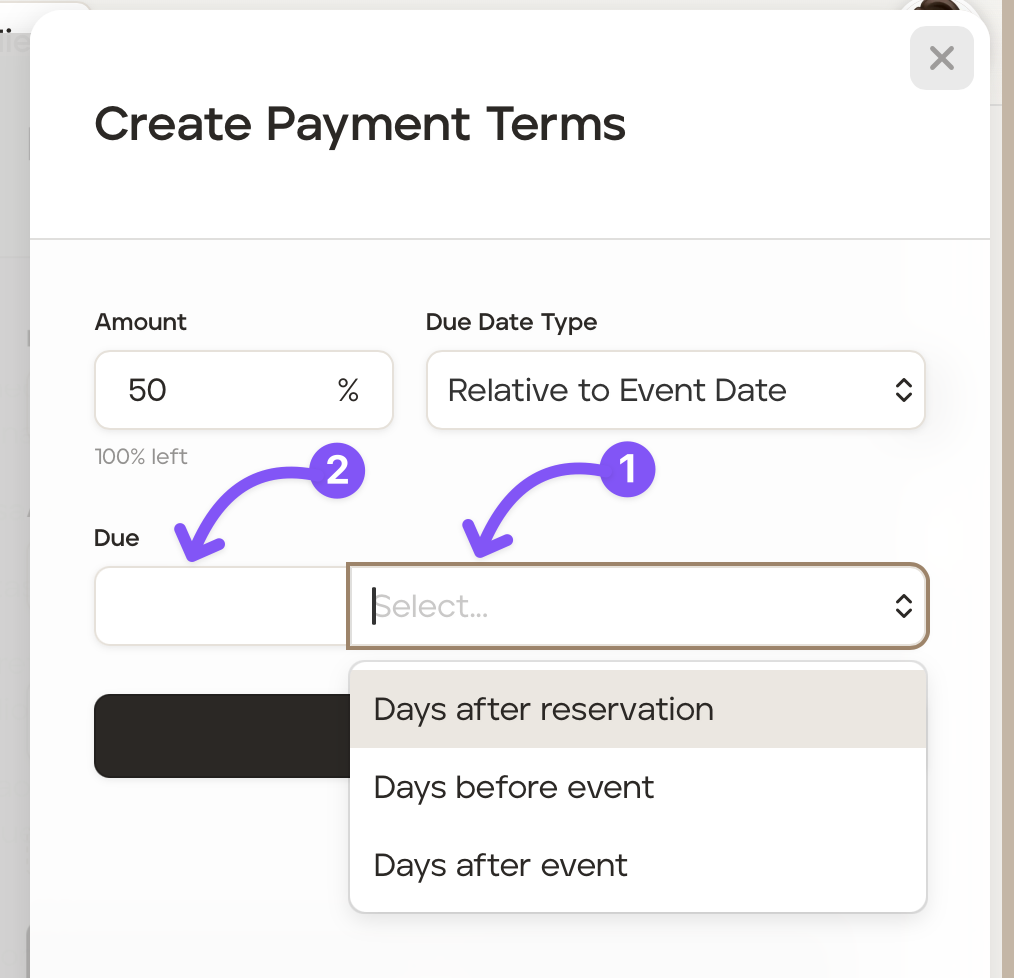
Add the percentage of the total cost in the 'Amount' field followed by the due date is relative to the event date, or the end of the service month.
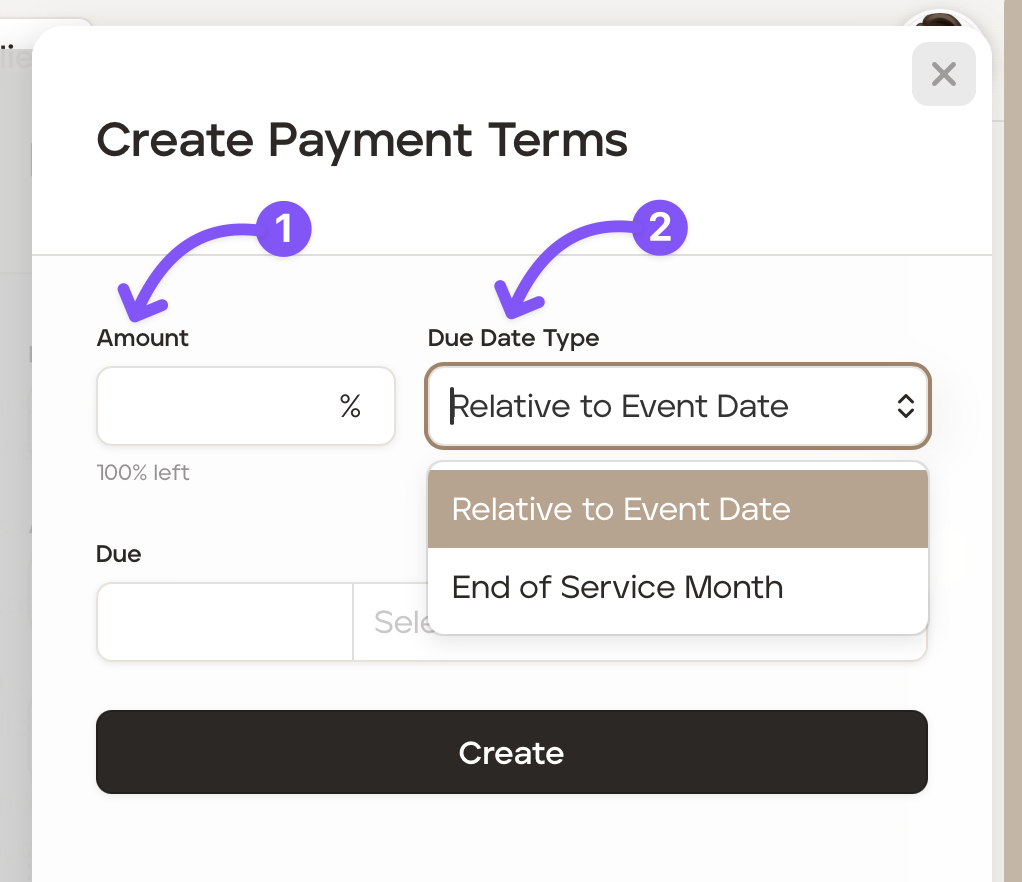
If you have chosen 'Relative to Event Date' the options to select will be 'Days after reservation', 'Days before event' or 'Days after event'
Select the applicable option.
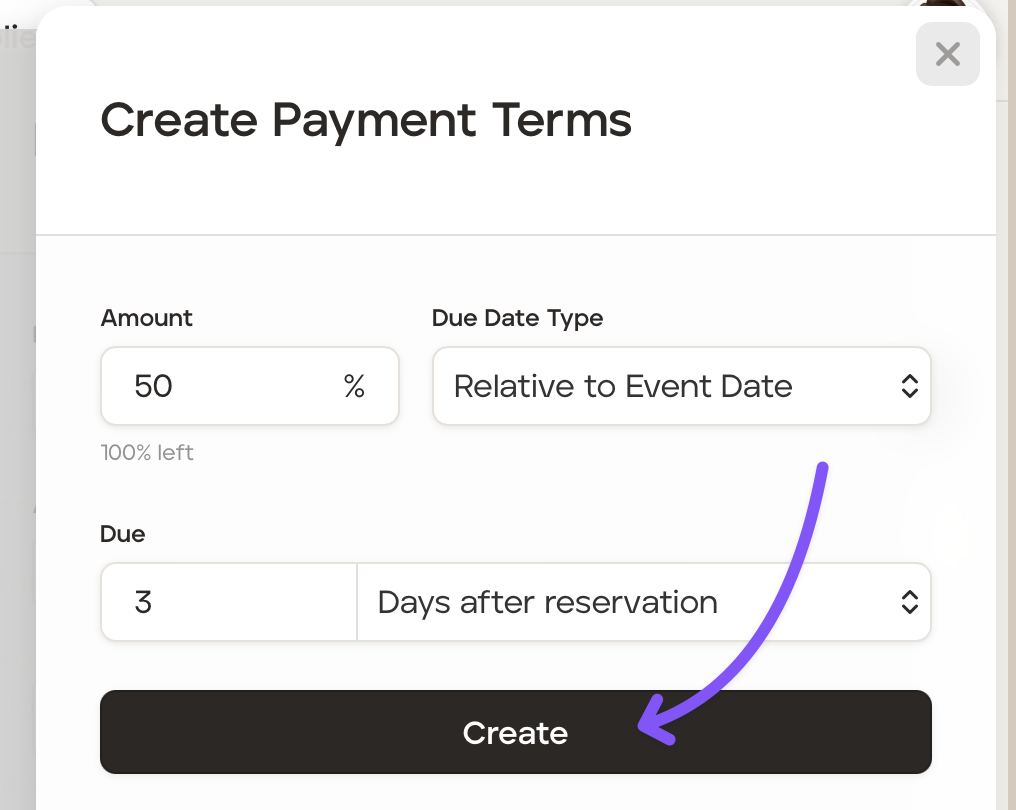
Add the number of days.
Click 'Create.'
Repeat steps 5 to 8 above to create another payment term to ensure 100% of the cost is accounted for.
The payment terms created will now be shown in the 'Payment Terms' section.
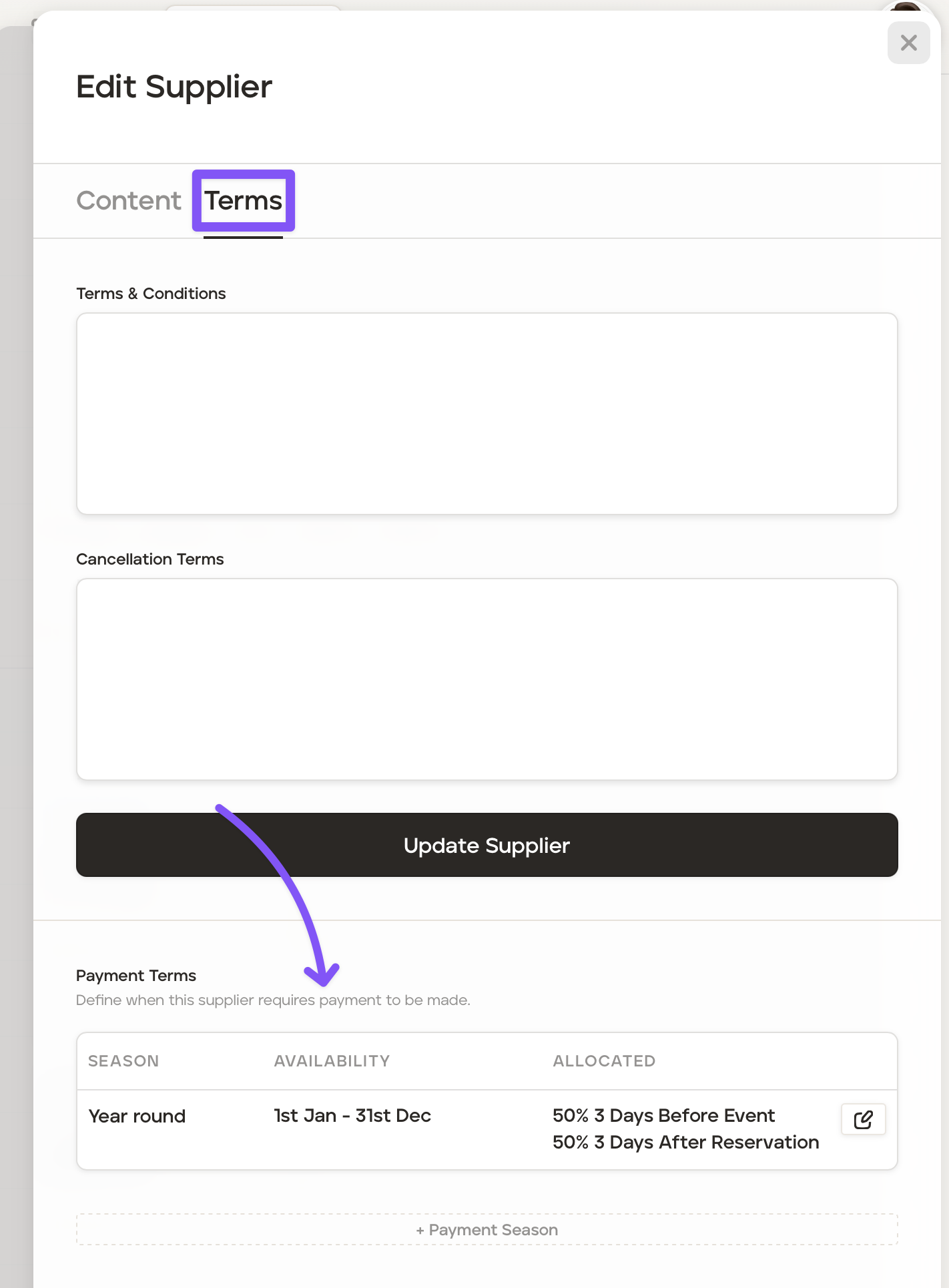
To add further seasons repeat steps 3 to 9.
Add payment terms to a supplier product
To add a supplier product's payment terms, follow the steps below:
Click into the supplier database, select the applicable supplier and applicable supplier product.
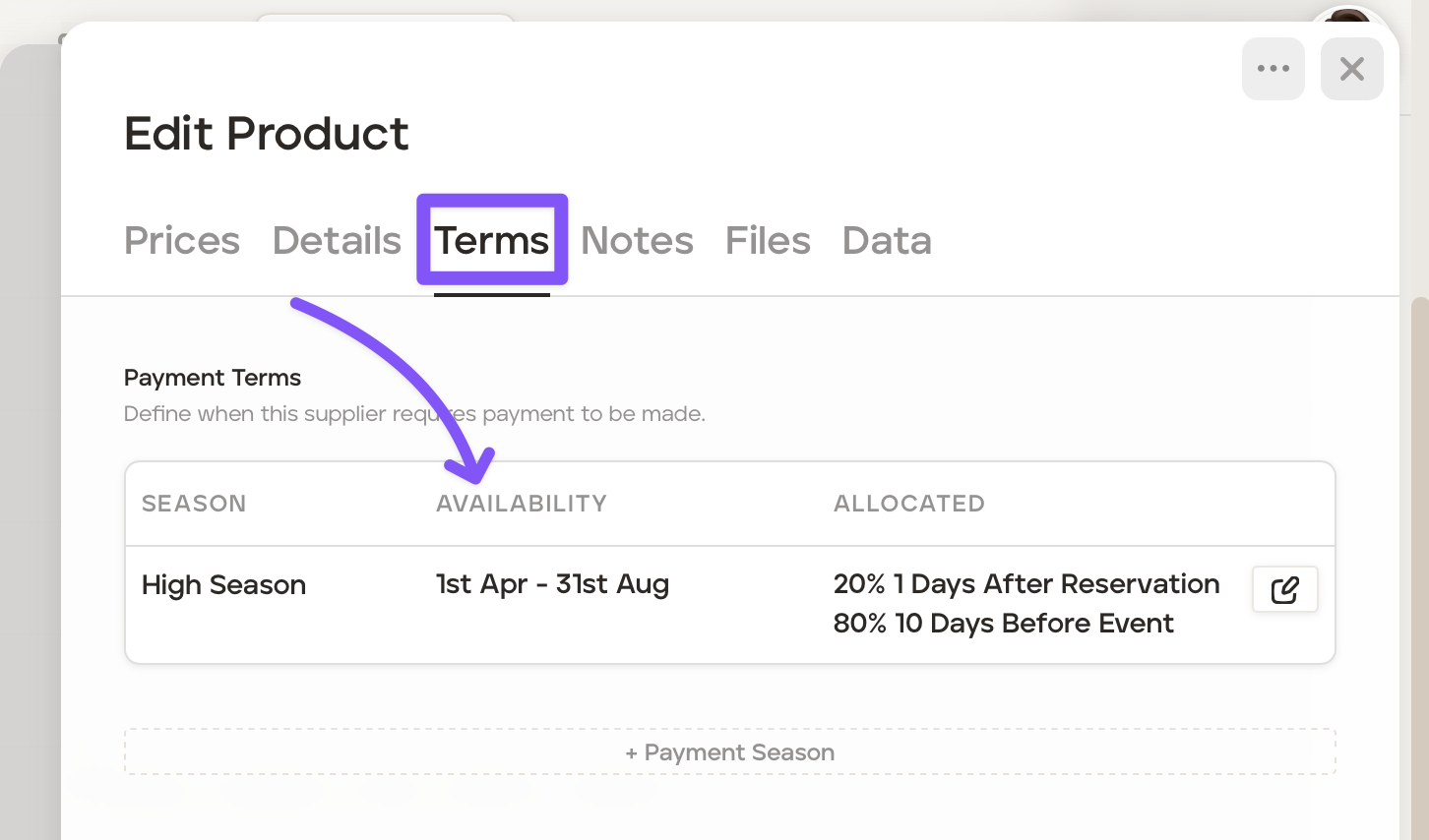
Click the 'Terms' tab.
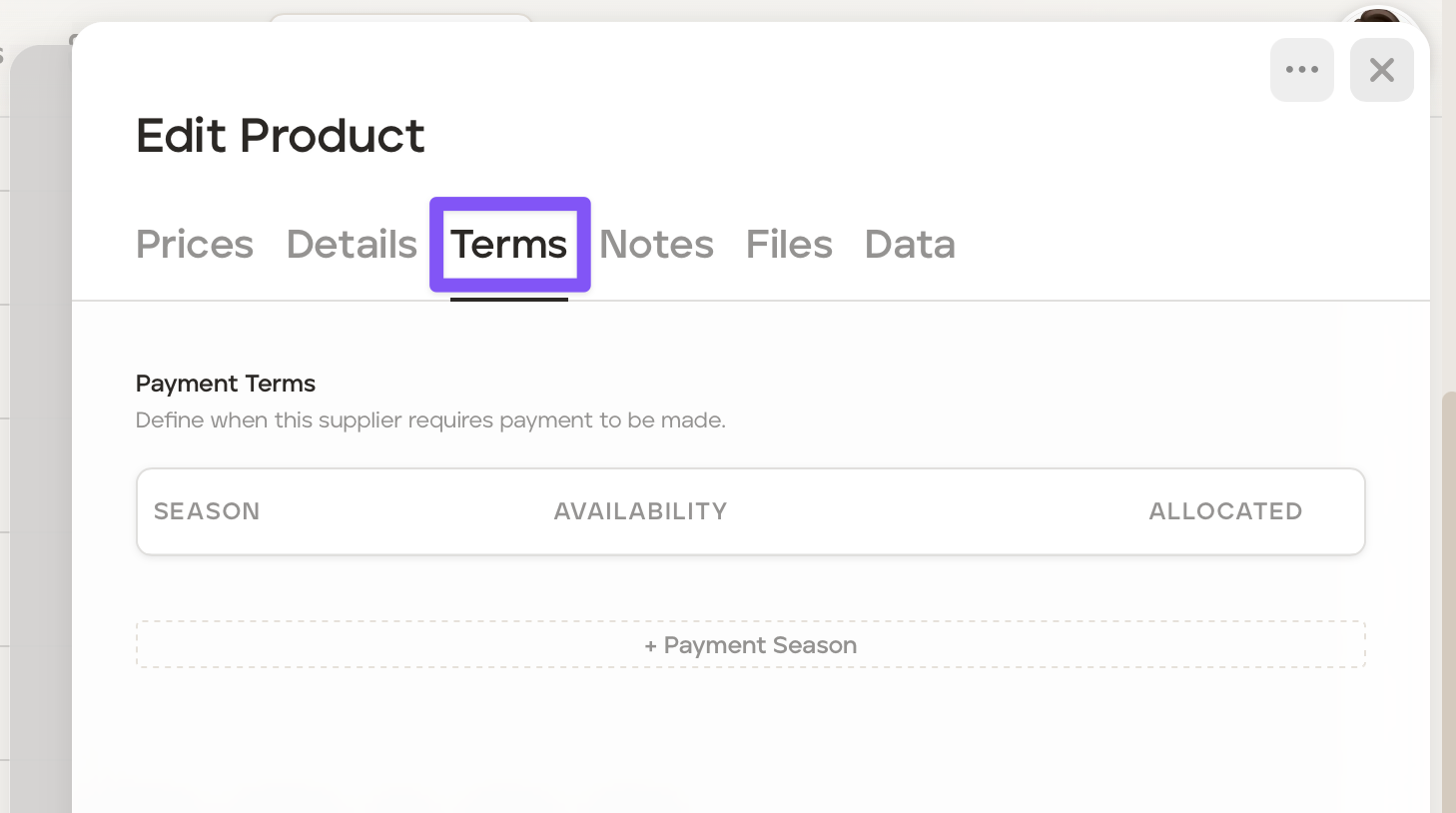
In the 'Payment Terms' section click '+Payment Season' to open the 'Create Season' section:
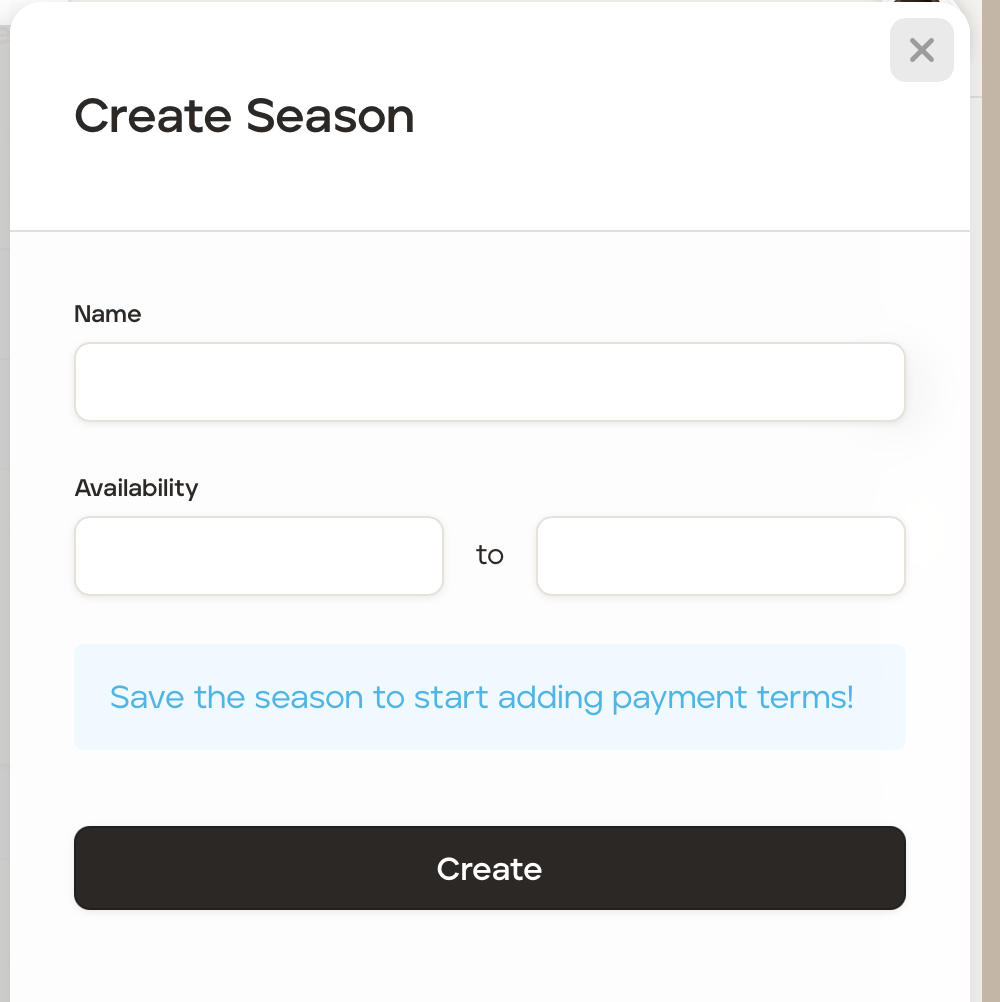
Add the name in the 'Name' field, for example: 'Year round' or 'High Season' and add the dates in the 'Availability' section to set when those payment terms will apply.
Once added, click '+Payment' to add the applicable payment terms.
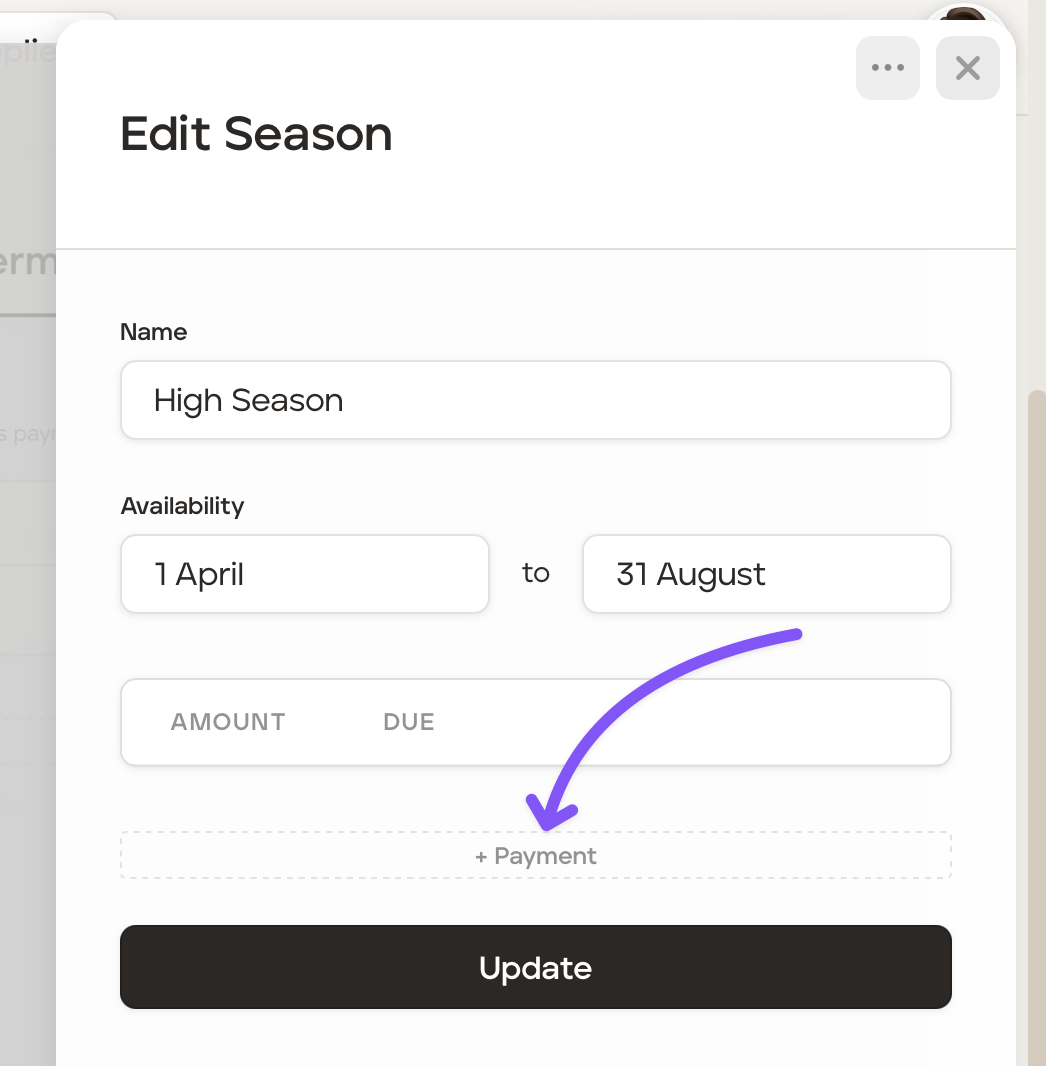
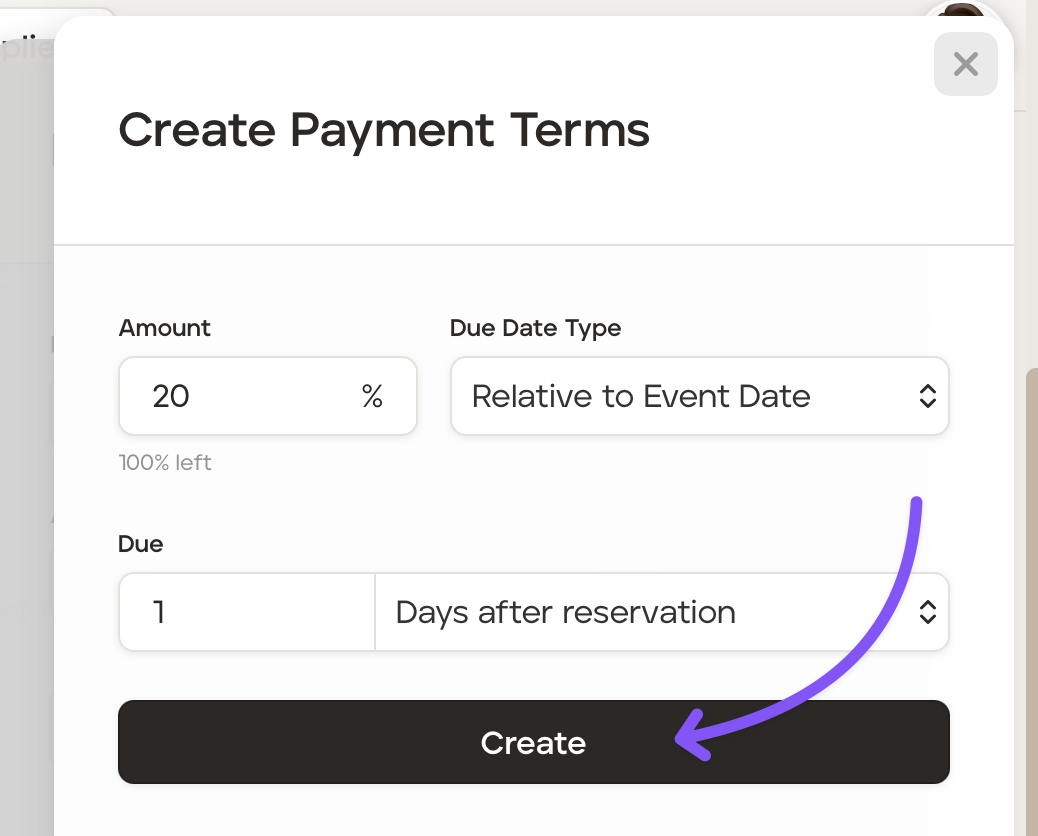
Add the percentage of the total cost in the 'Amount' field followed by the due date is relative to the event date, or the end of the service month.
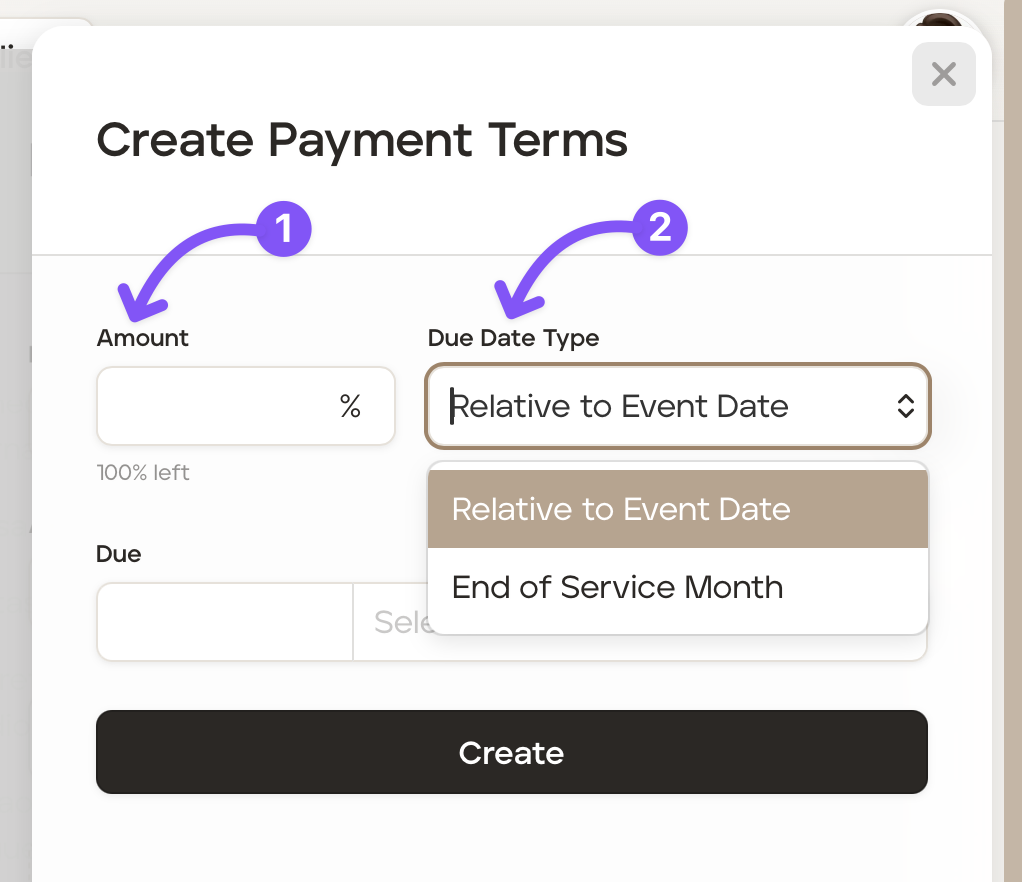
If you have chosen 'Relative to Event Date' the options to select will be 'Days after reservation', 'Days before event' or 'Days after event'
Select the applicable option.
Add the number of days.
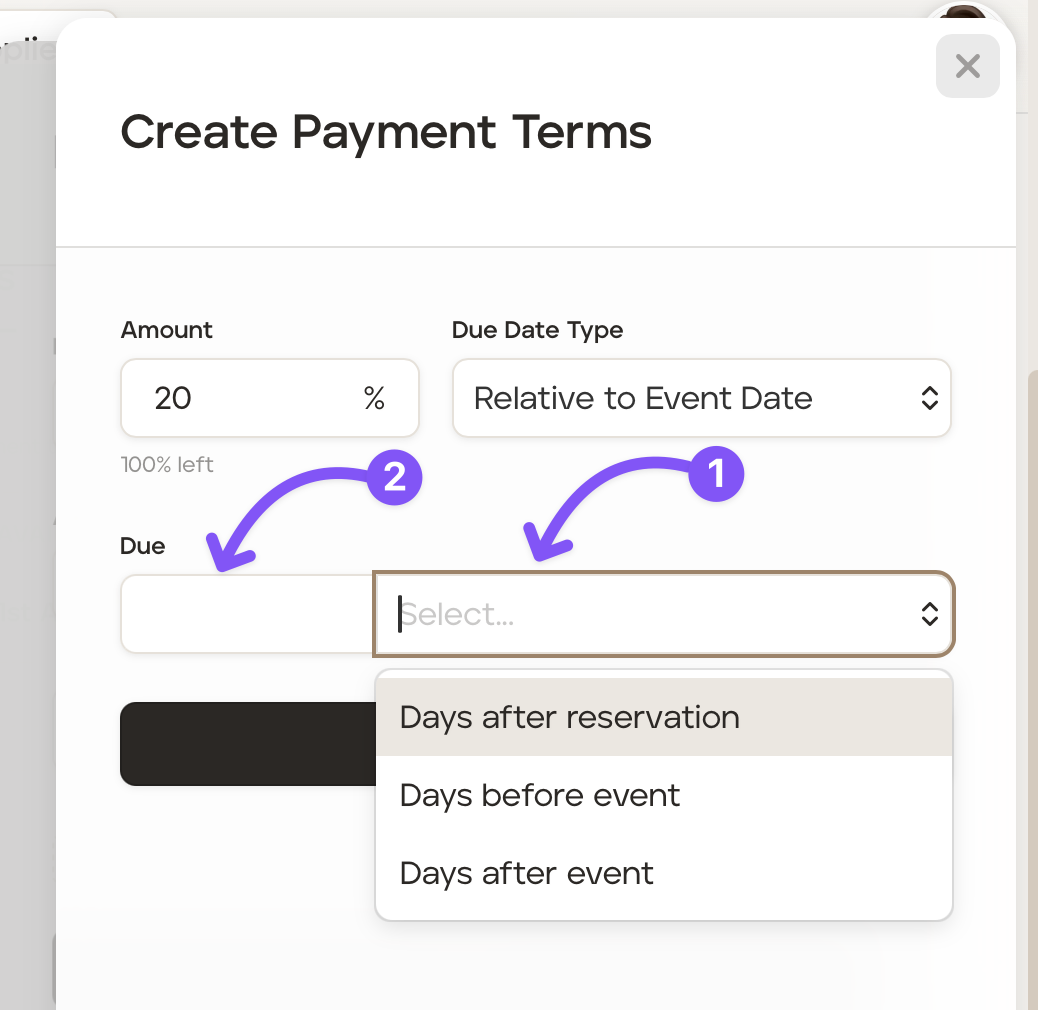
Click 'Create.'
Repeat steps 5 to 8 above to create another payment term to ensure 100% of the cost is accounted for.
The payment terms created will now be shown in the 'Payment Terms' section.
To add further seasons repeat steps 3 to 9.