

Create a 'trip brochure' on the trip Overview (including using overview blocks)
TripMapper 'Trip Brochures' are the perfect tool to give your clients the 'wow factor'. With many different layouts to choose from, you can customise the trip brochure to best suit your needs and the stage of the process, whether proposal or approved upcoming trip.
You can also decide which information and images to show at the proposal stage and the upcoming trip stage.
Trip brochure example:
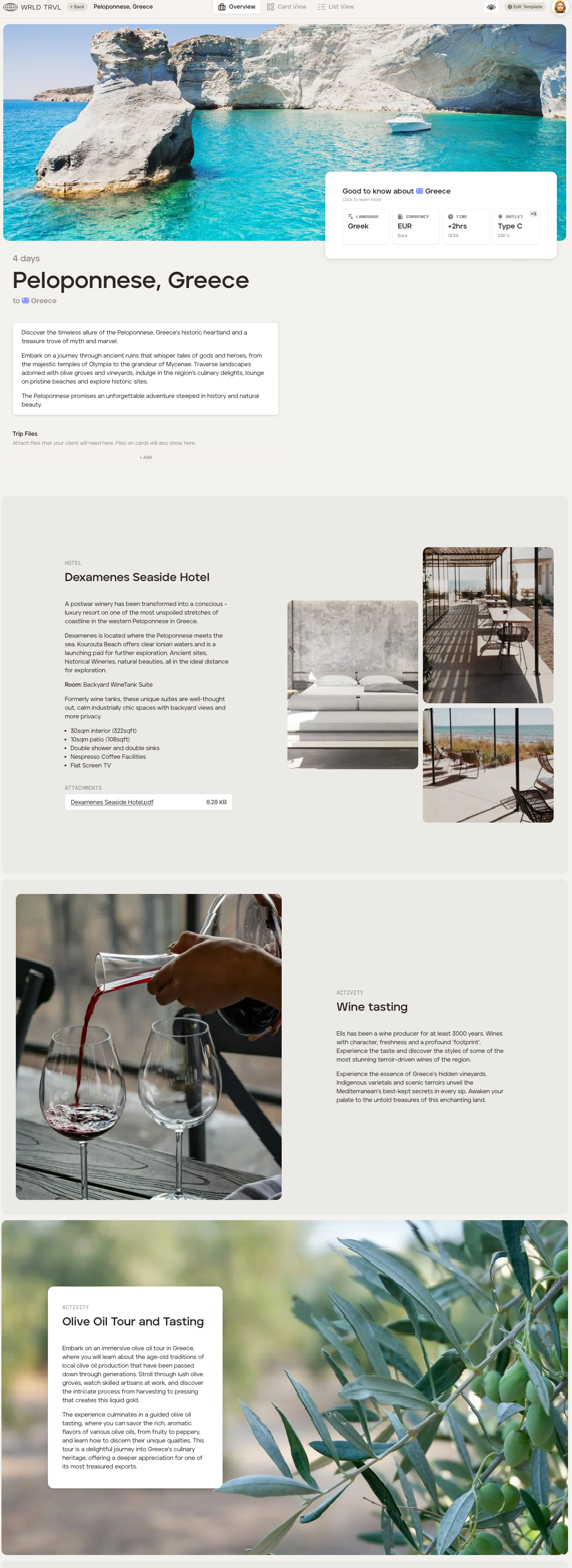
Follow the step-by-step guide below to learn how to create a visually enticing and informative 'trip brochure' on the Overview:
The Overview screen is where you will create your trip brochure.
Add a brief description to describe the trip. Markdown is available. The note you add in this section will also appear on the digital itinerary you share with clients and will be the introductory text on the first page of the PDF itinerary download. Also, there is the ability to attach files.
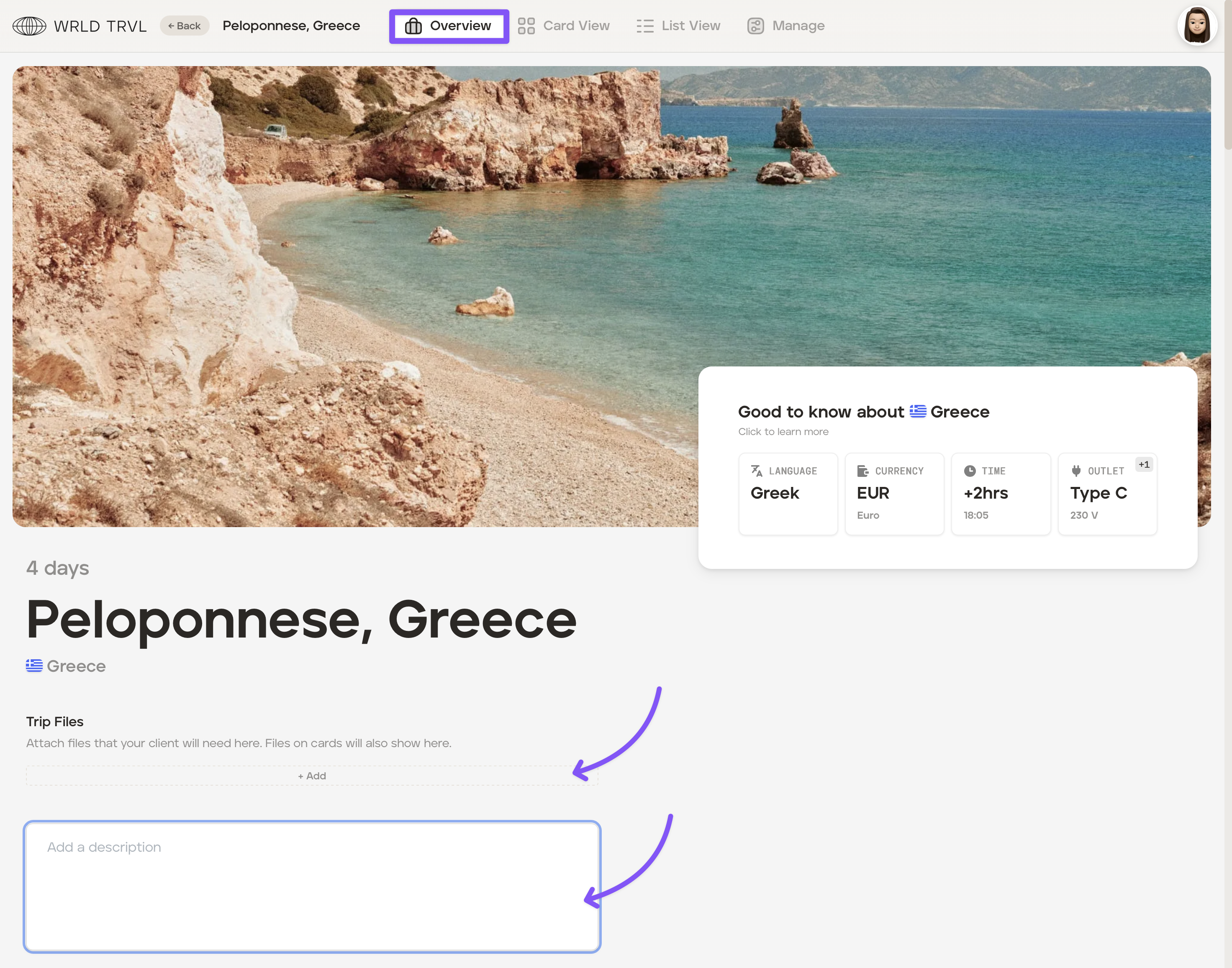
Remain on the Overview page and scroll down slightly. You will see a panel which contains different formatting options for creating your travel brochure.
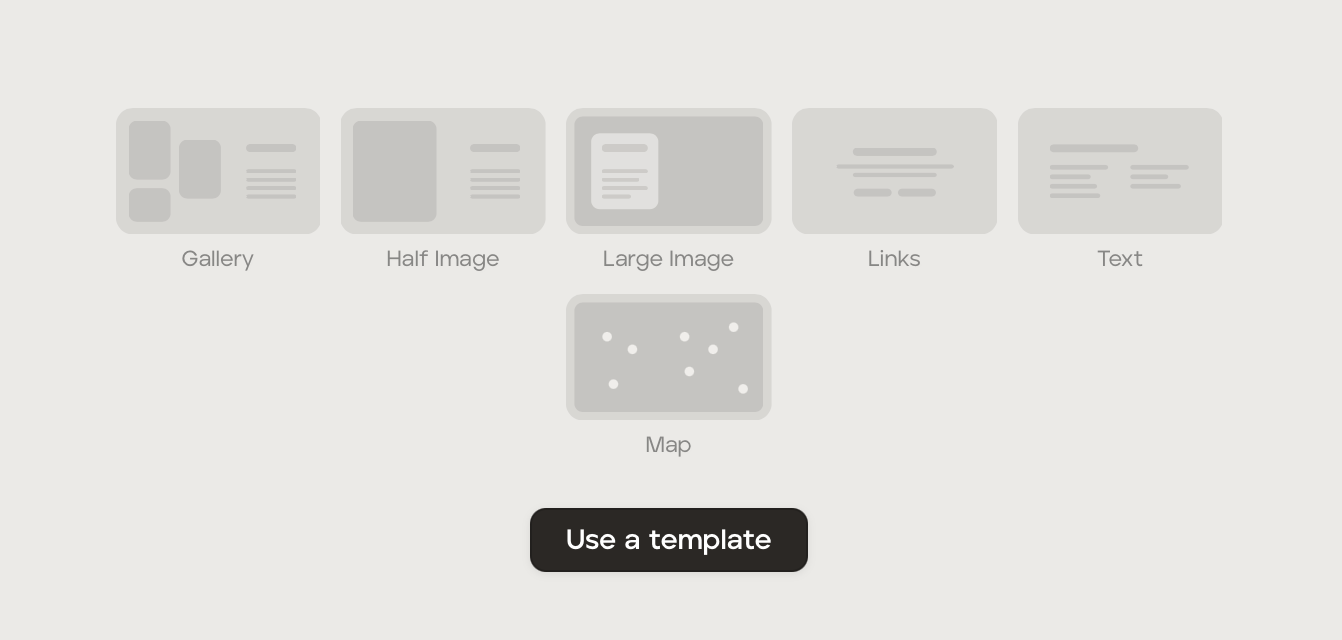
You have a range of formatting 'blocks' to pick from:
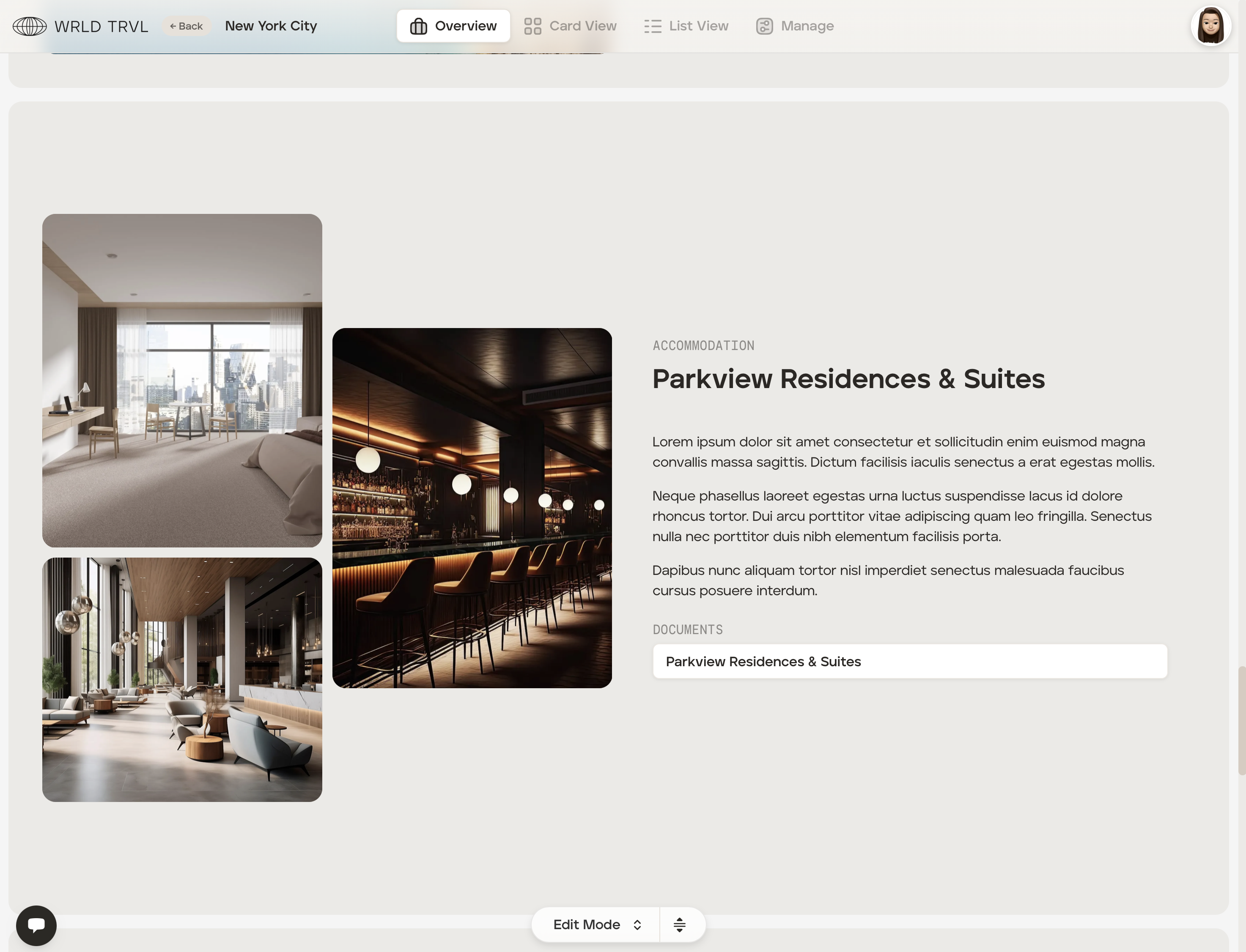
Gallery - Three images plus text, aligned to the left or the right. We recommend using high-resolution images.
Half image: An image on one half of the block and text on the other half.
Large image - A large image with or without a text box over the image.
Links - Text and customised buttons e.g. 'View itinerary', "Approve Proposal" or 'Call us".
Text - A text-only block.
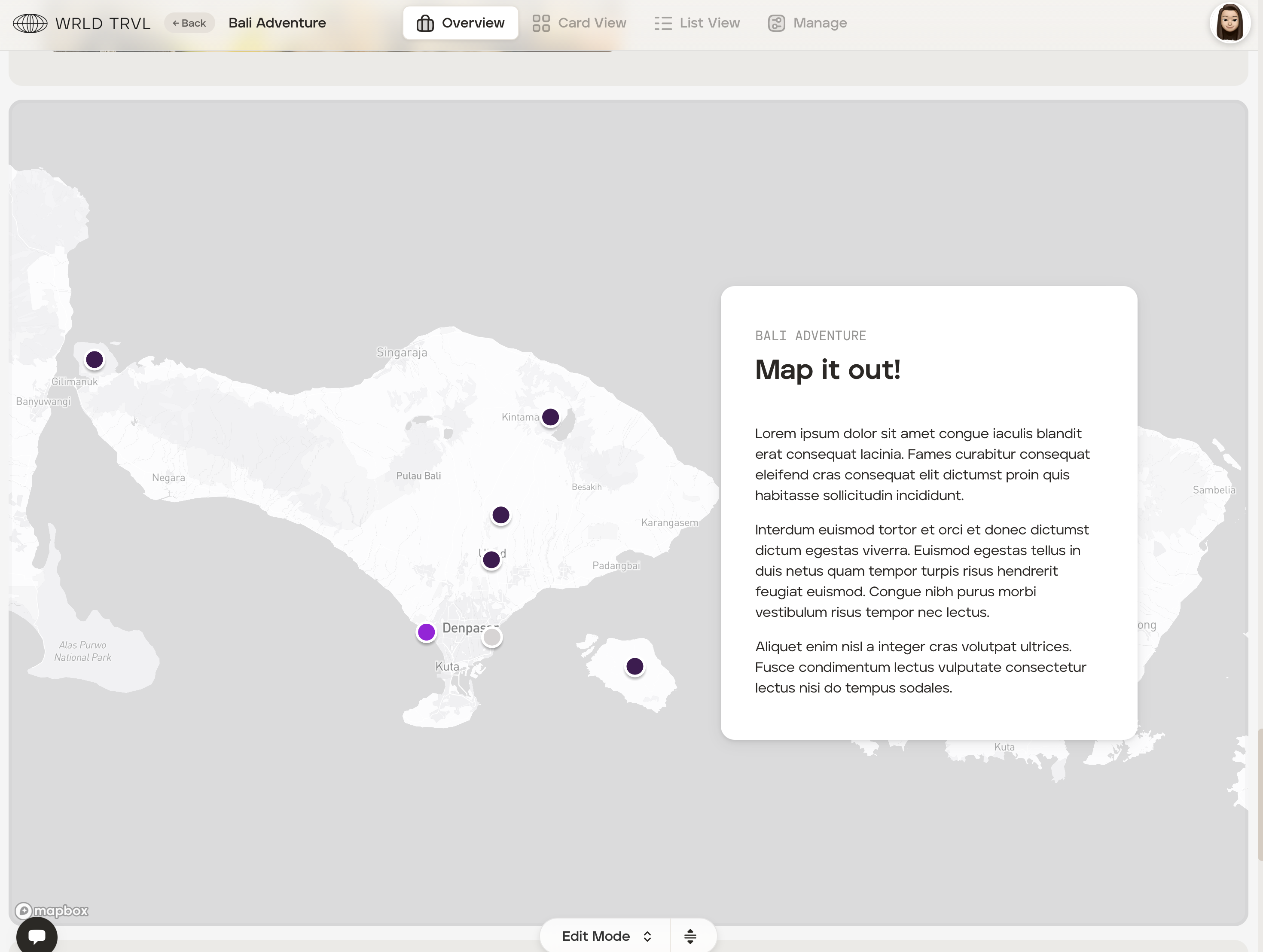
Map - Itinerary cards with locations can be added to the map.
Plus, you can create template blocks to be used on different itineraries!
Gallery block
The gallery allows you to add three images plus text, aligned to the left or the right. We recommend using high-resolution images.
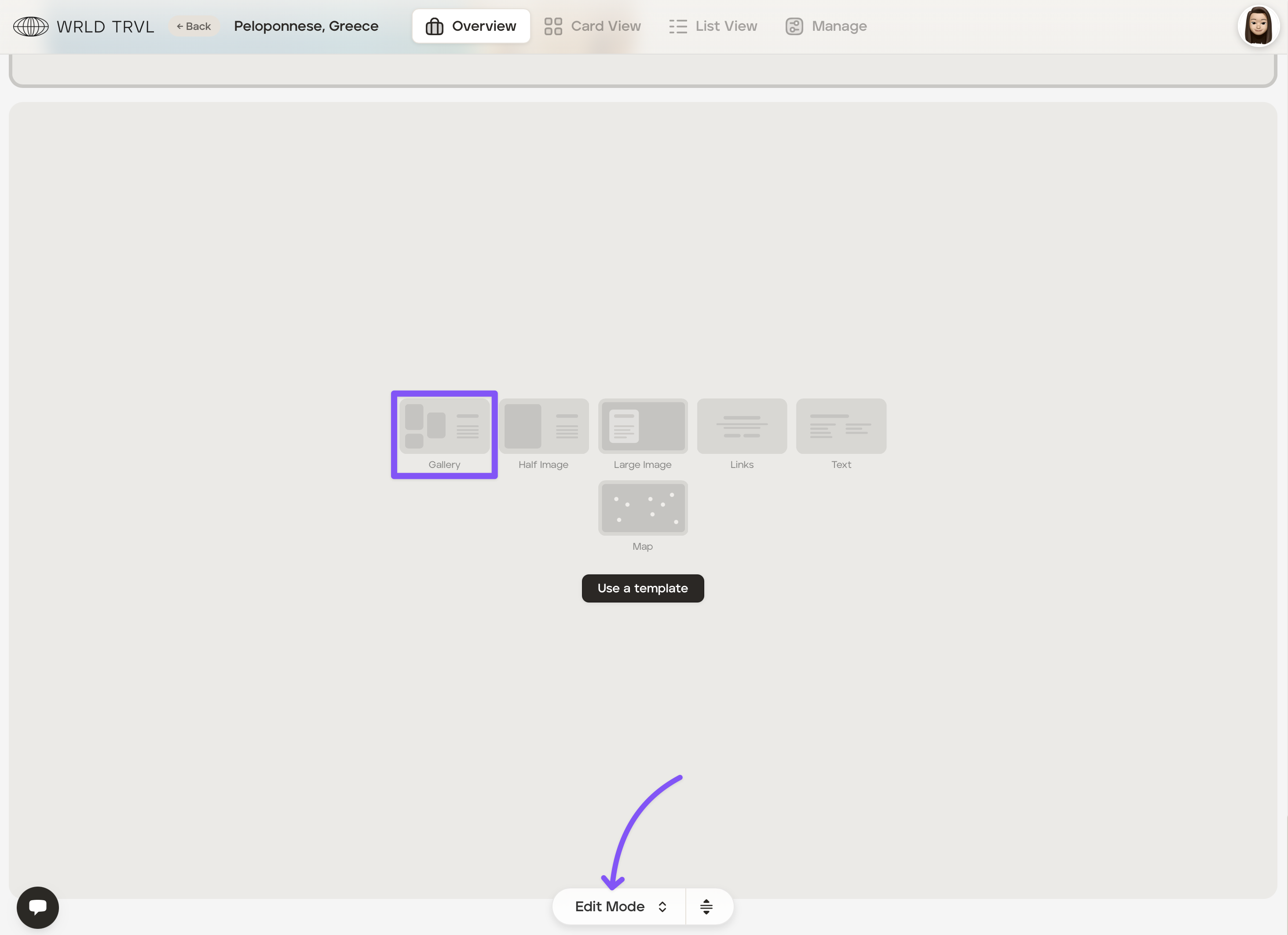
Ensure you are in 'Edit Mode'.
Click the 'Gallery' icon.
Click the 'Settings' tab.
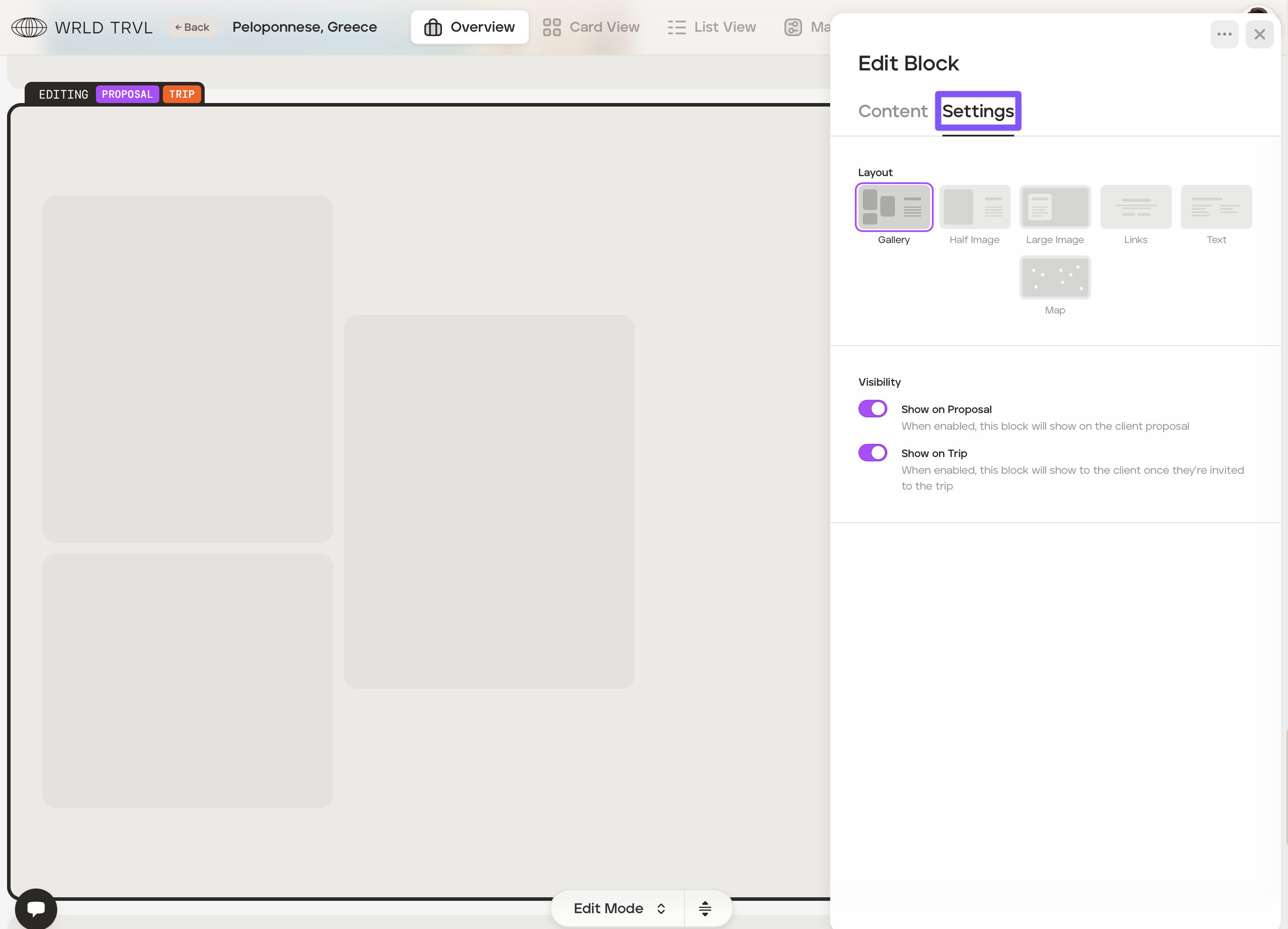
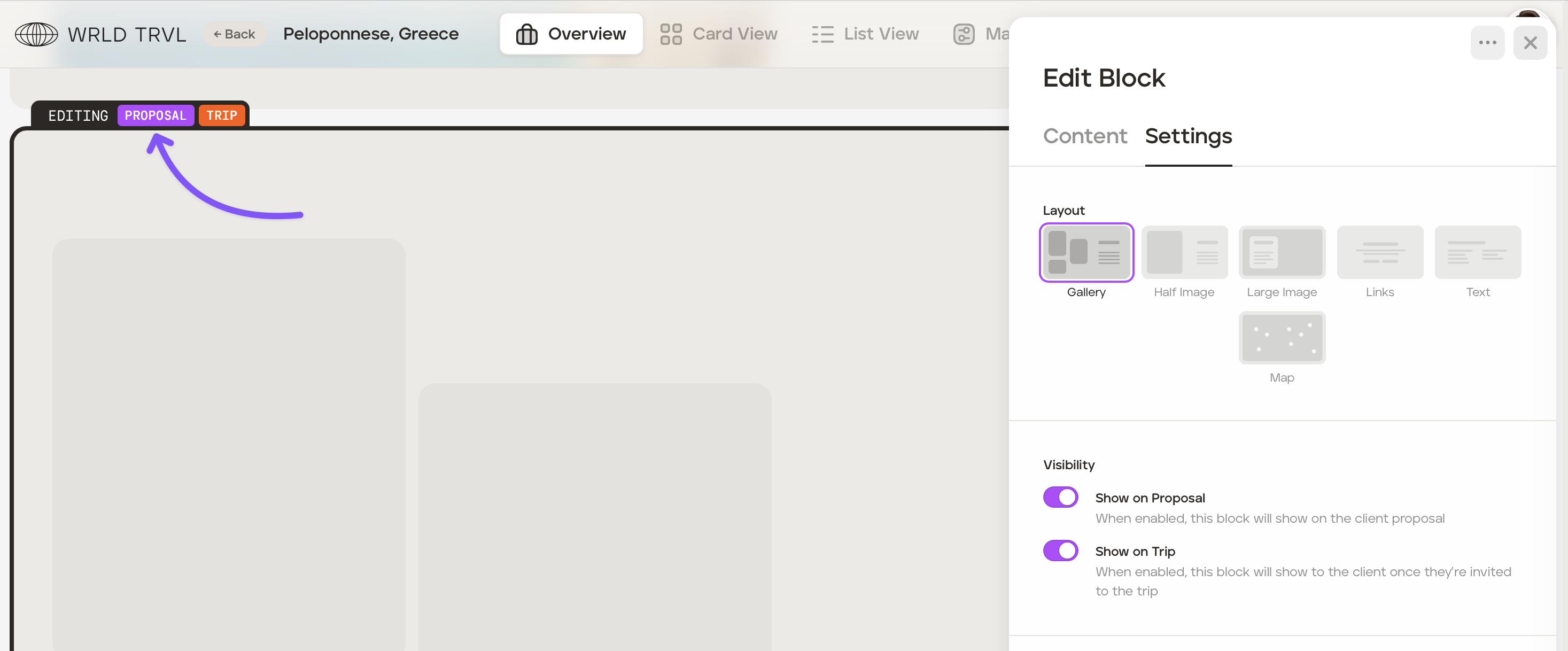
By turning the purple toggle switch on or off, you can choose whether to show this block on the proposal, the upcoming trip, or both, or hide it until finalised. Whatever is enabled will show at the top of the block.
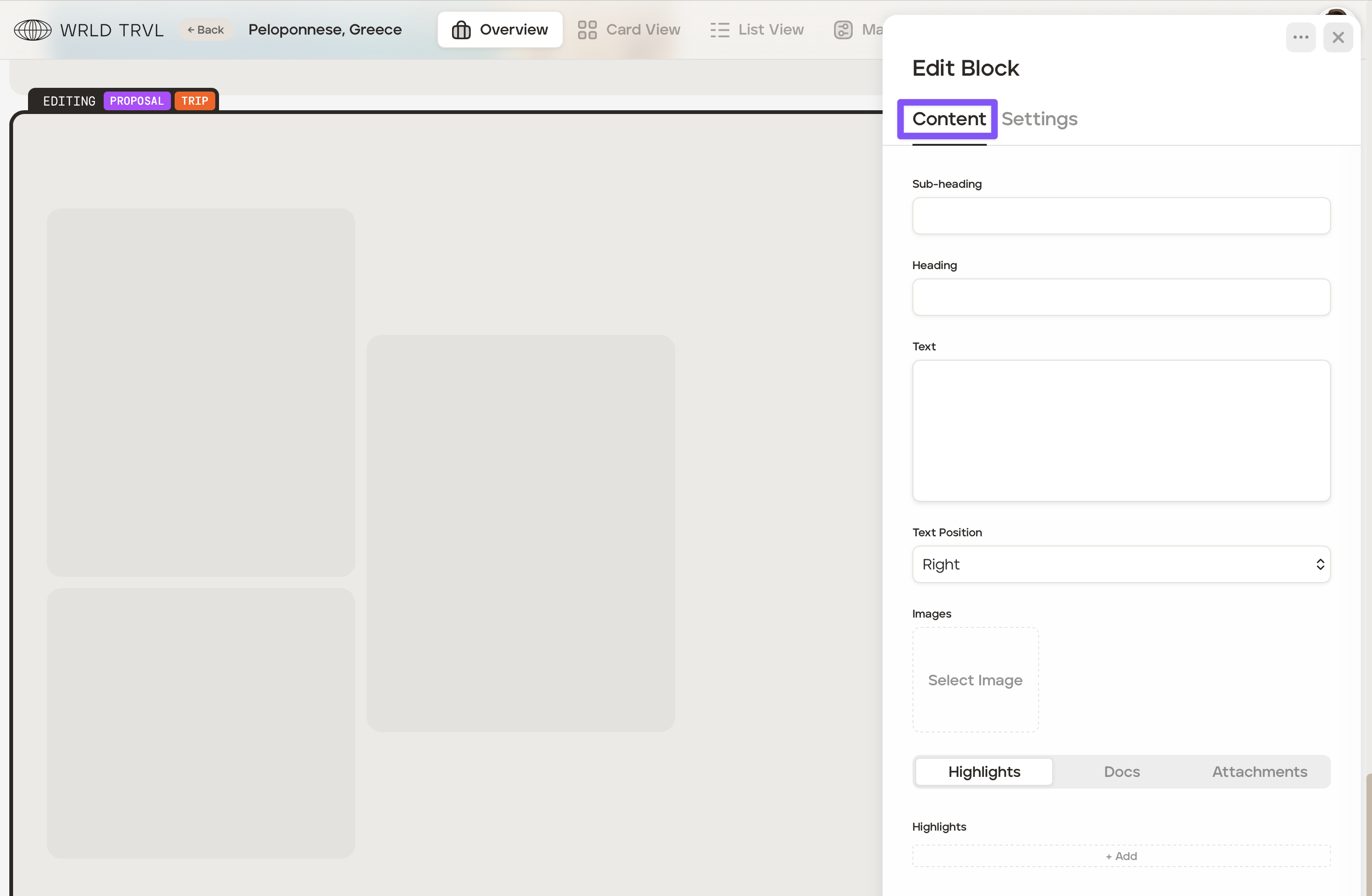
Click the 'Content' tab. Fill in the fields you wish to include (you do not need to complete all fields):
Sub-heading e.g. Hotel
Heading e.g. Dexamemes Seaside Hotel
Text
Text position - choose left or right.
Images - Add up to three high-resolution images.
Add highlights (items from the itinerary), template documents or attachments if you wish.
Design recommendation: For each new block, align the text or images opposite to the block above.
Example of a gallery block:
Half image block
The half-image block allows you to add an image to one half of the block and text to the other half.
Ensure you are in 'Edit Mode'.
Click the 'Half image' icon.
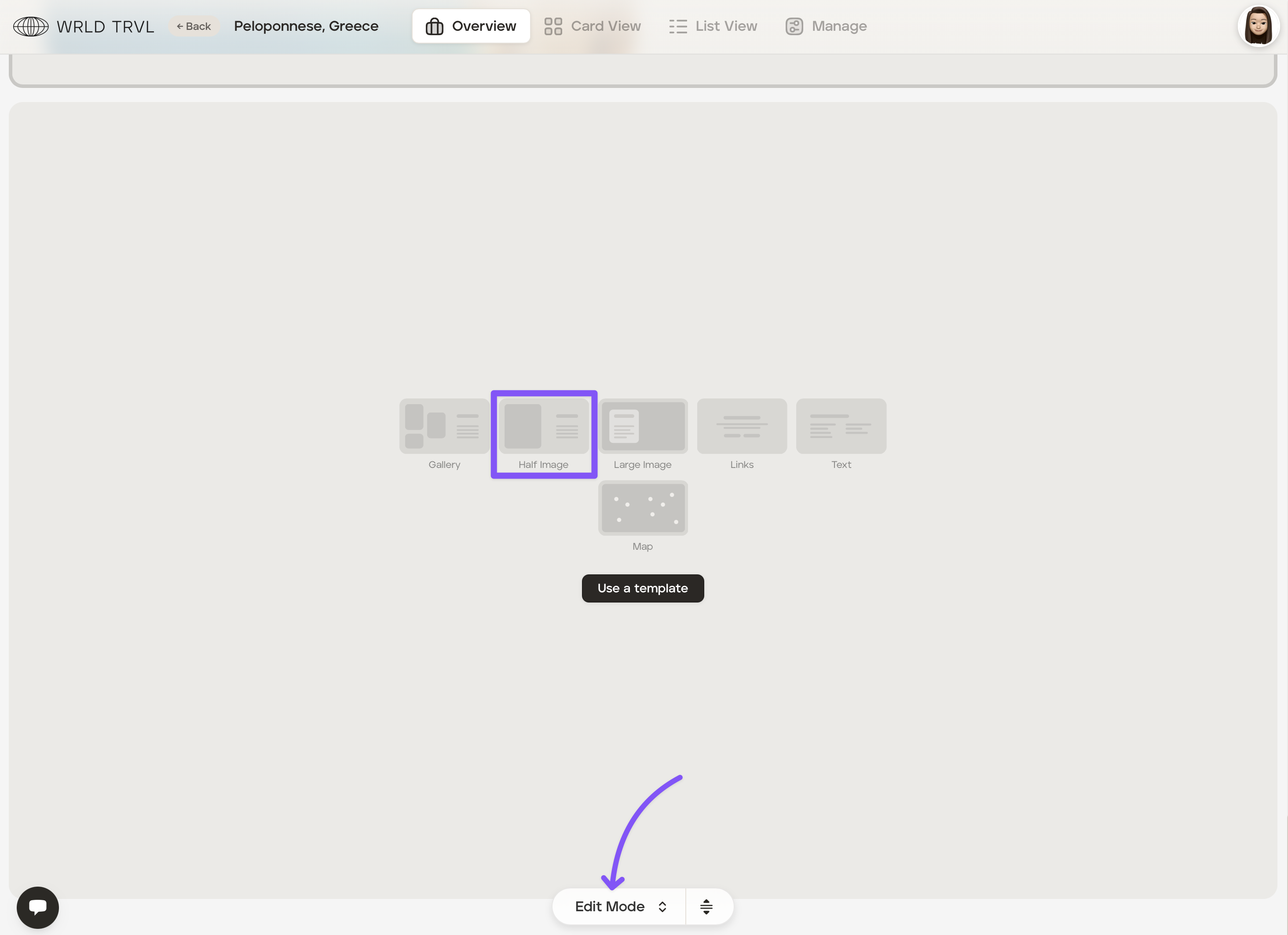
Click the 'Settings' tab.
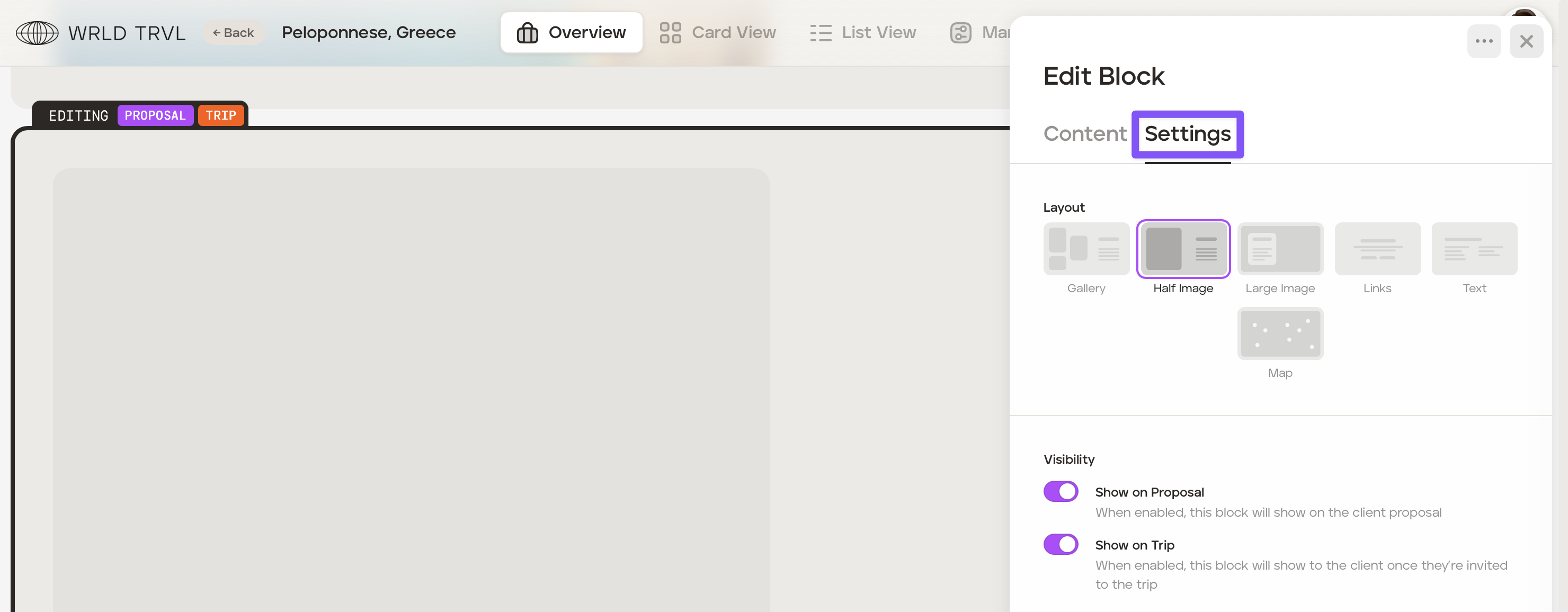
By turning the purple switch on or off, you can choose whether to show this block on the proposal, the upcoming trip, or both, or hide it until finalised. Whatever you switch on or off will show at the top of the block.
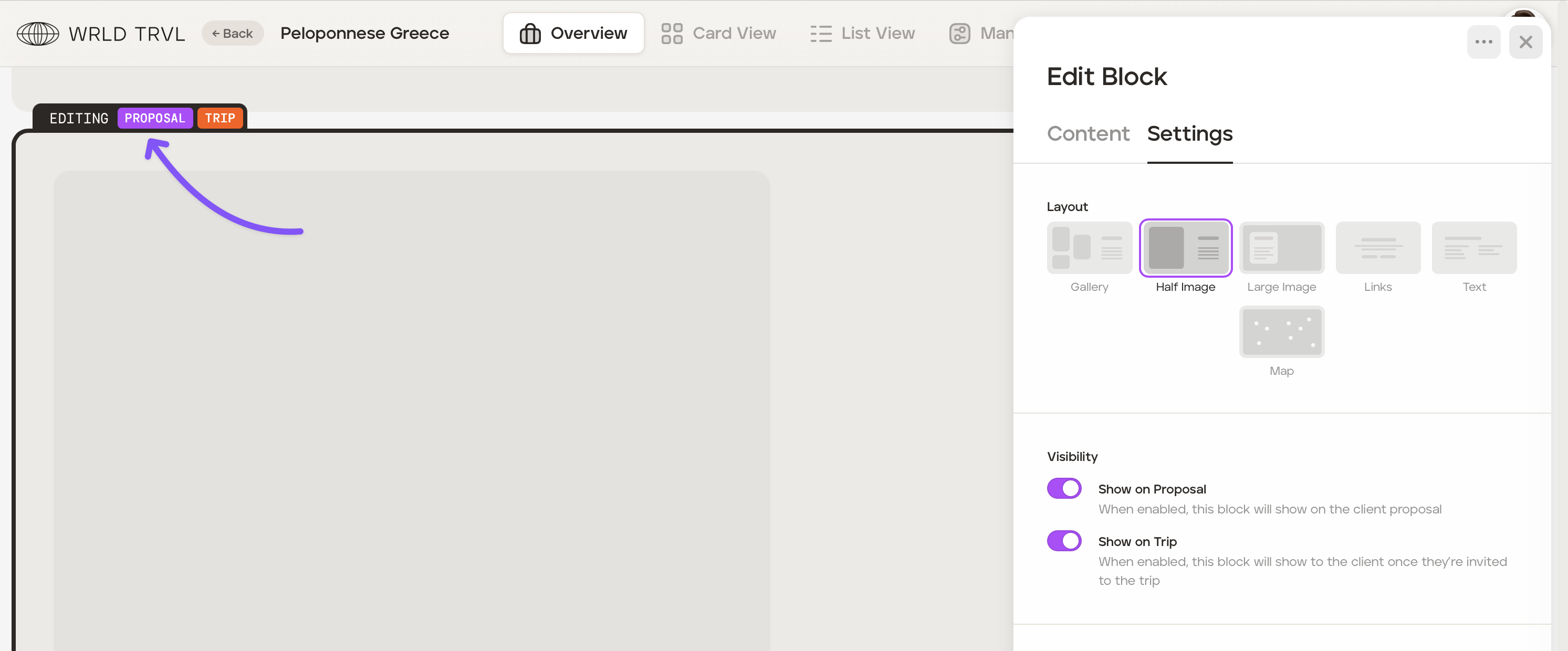
Click the 'Content' tab. Fill in the fields you wish to include (you do not need to complete all fields):
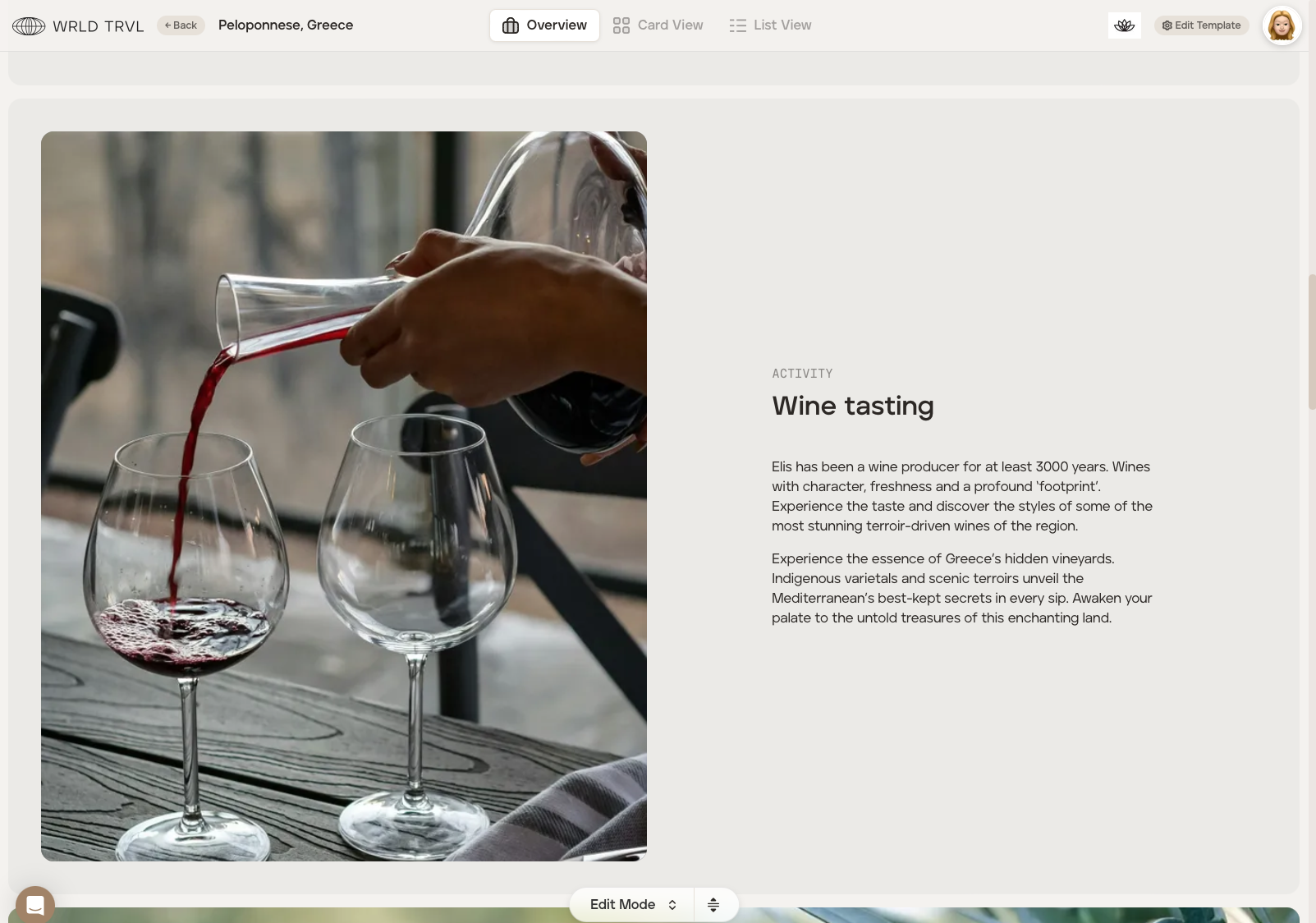
Sub-heading e.g. Activity
Heading e.g. Wine tasting
Text
Text position - Choose left or right.
Image - Add one high-resolution image.
Add highlights (items from the itinerary), template documents or attachments if you wish.
Design recommendation: For each new block, align the text or images opposite to the block above.
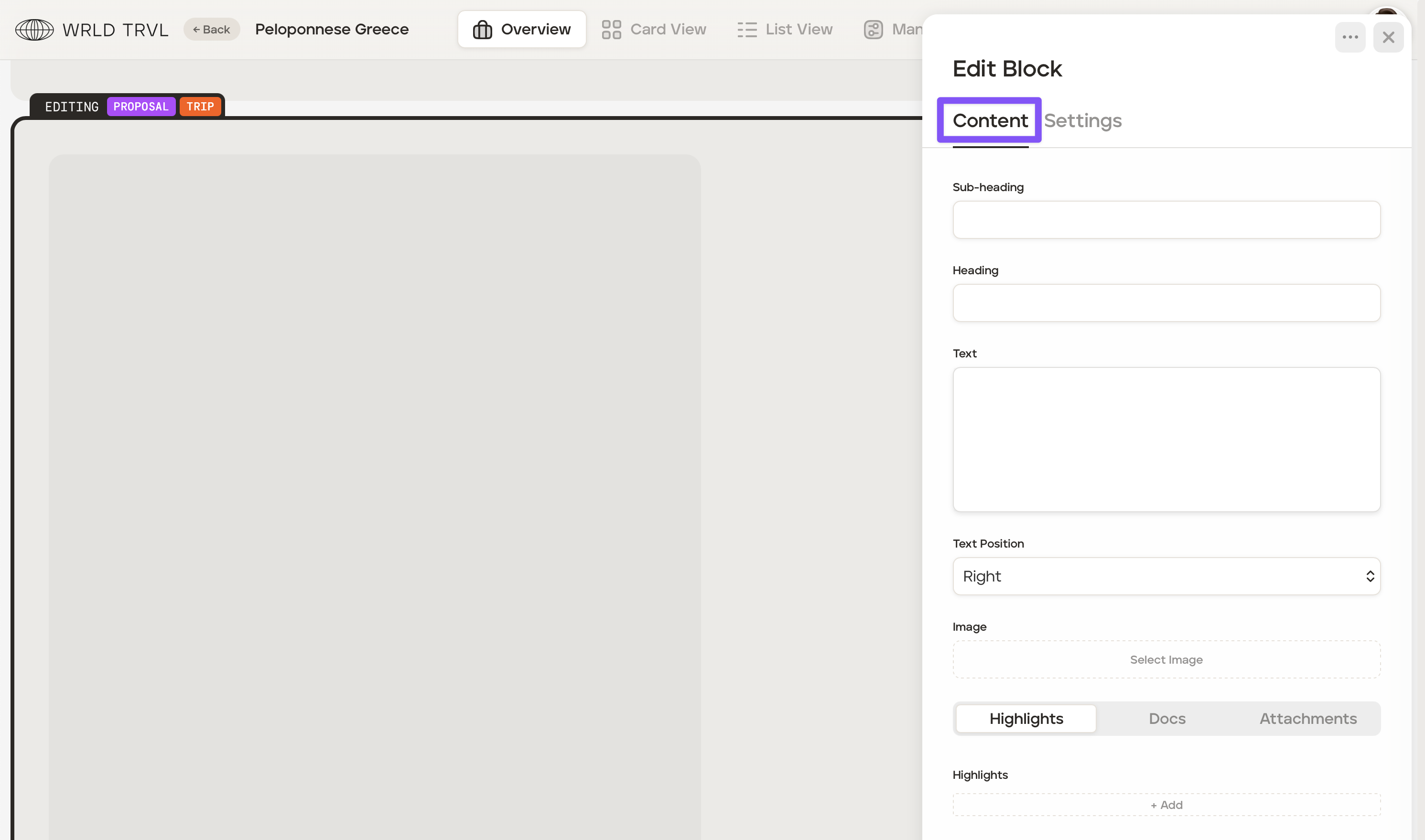
Example of a half image block:
Large image block
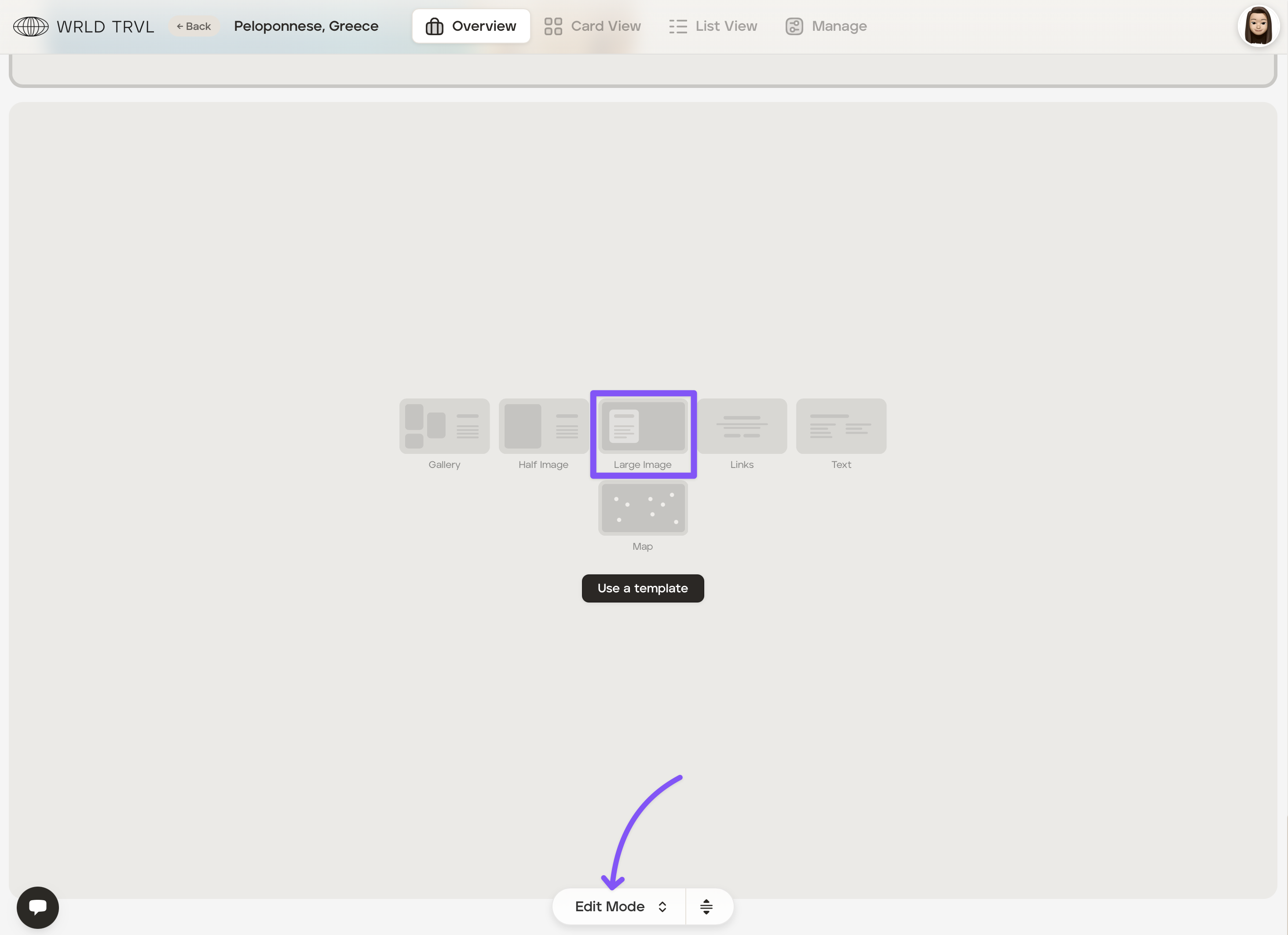
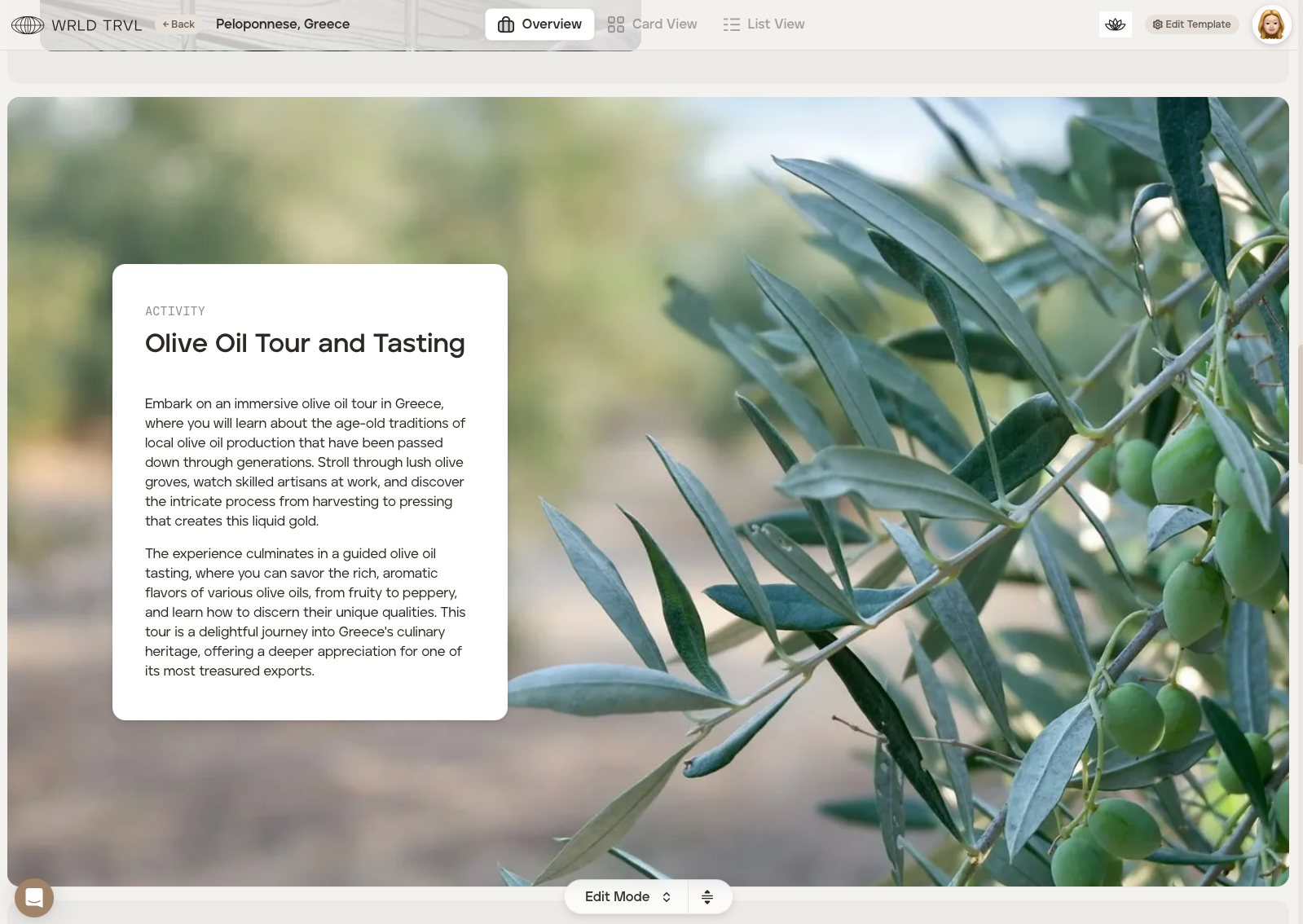
The large image block allows you to add a large image with or without a text box over the image.
Ensure you are in 'Edit Mode'.
Click the 'Large image' icon.
Click the 'Settings' tab.
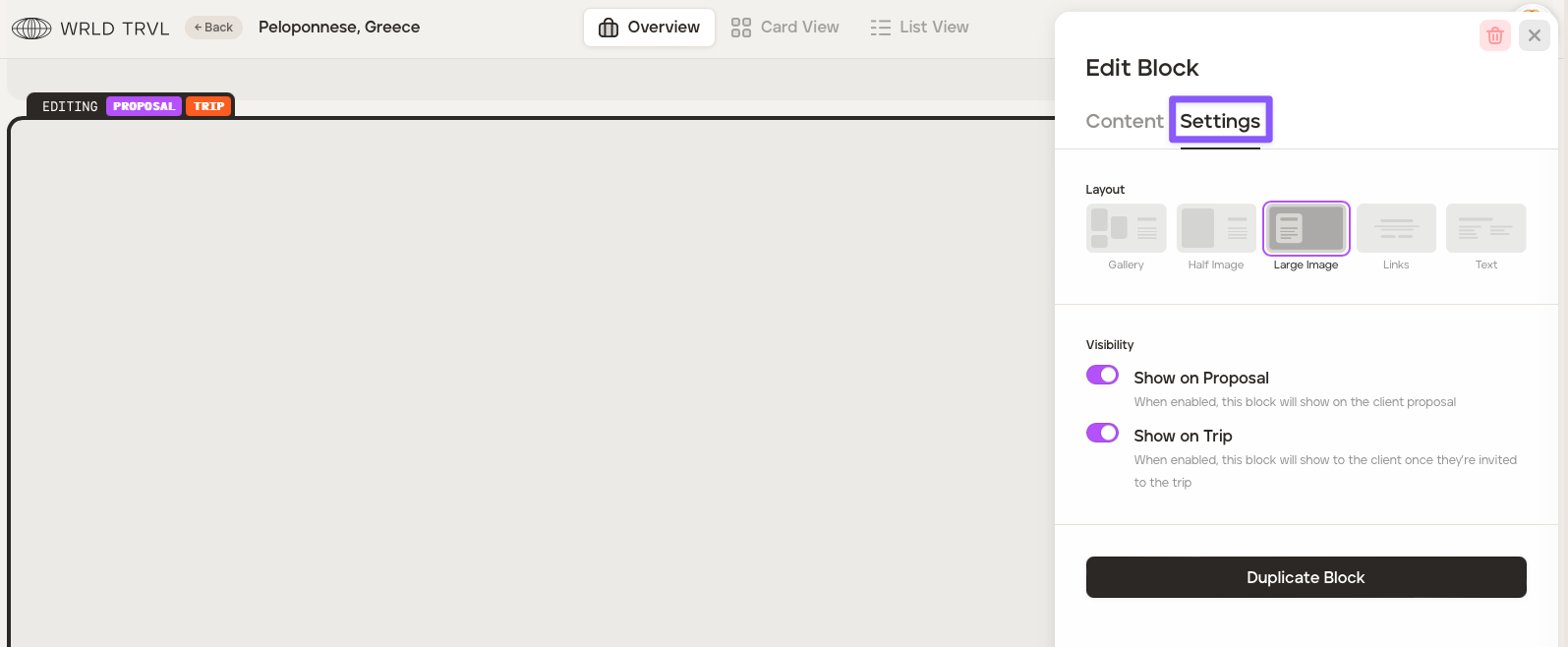
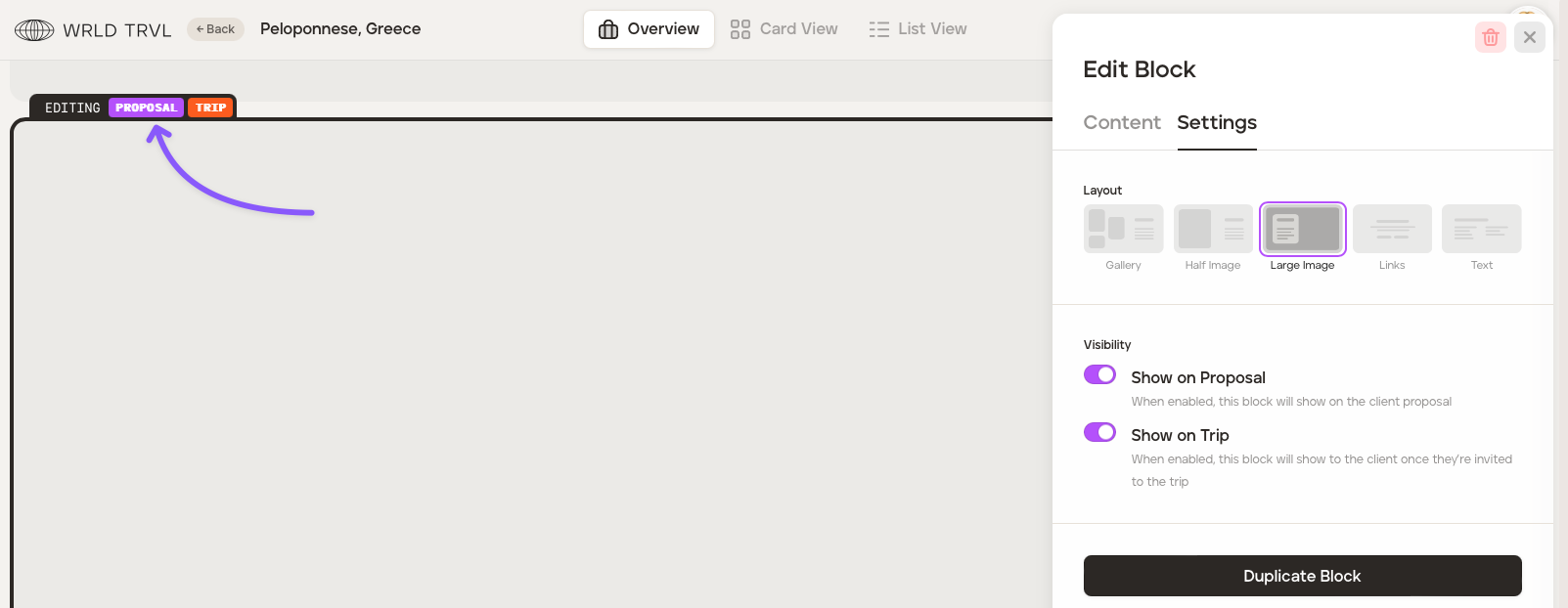
By turning the purple switch on or off, you can choose whether to show this block on the proposal, the upcoming trip, or both, or hide it until finalised. Whatever you switch on or off will show at the top of the block.
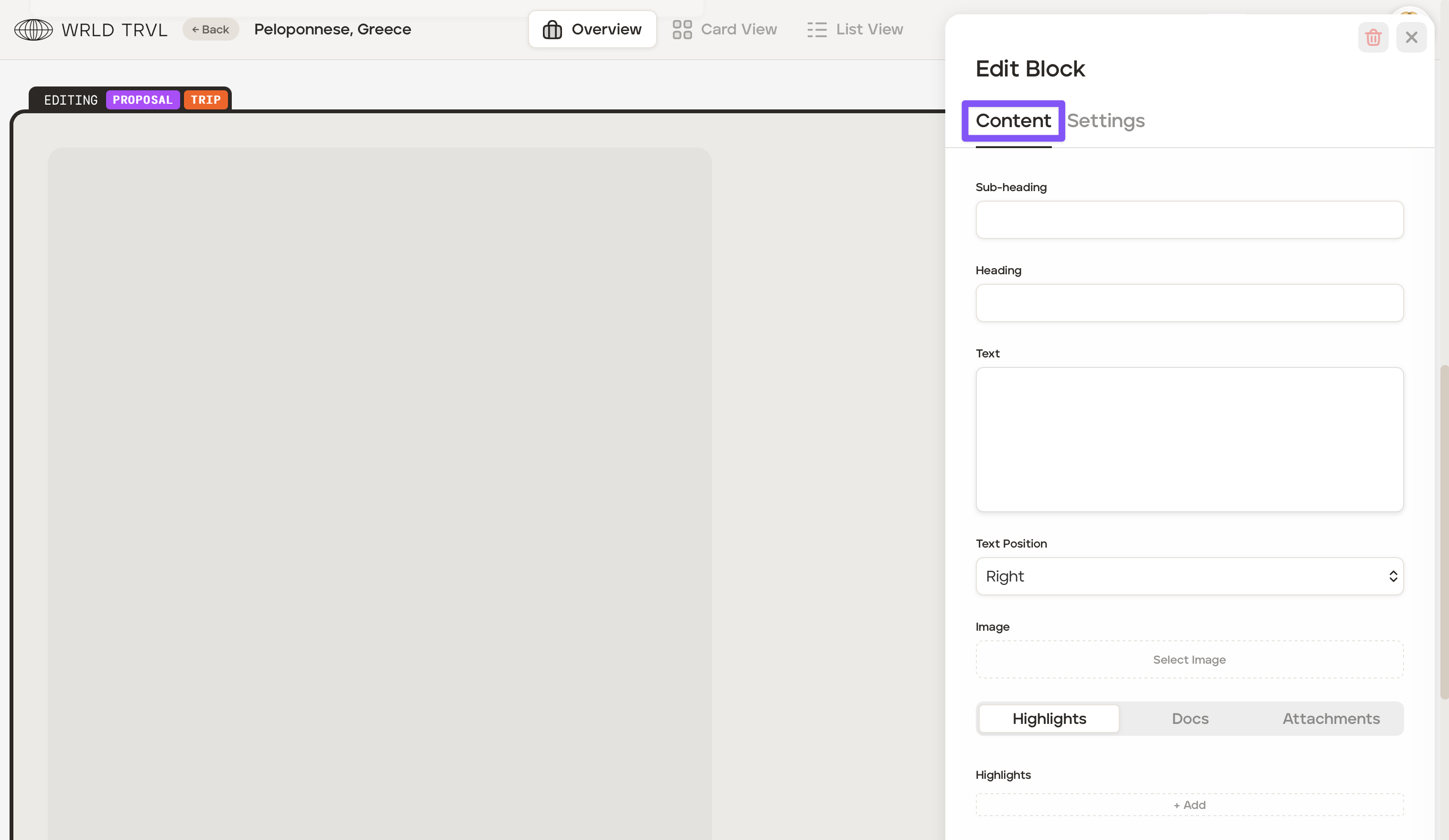
Click the 'Content' tab. Fill in the fields you wish to include (you do not need to complete all fields):
Sub-heading e.g. Activity
Heading e.g. Olive Oil Tour and Tasting
Text
Text position - choose left or right.
Image - Add one high-resolution image.
Add highlights (items from the itinerary), template documents or attachments if you wish.
Design recommendation: For each new block, align the text or images opposite to the block above.
Example of a large image (with text) block:
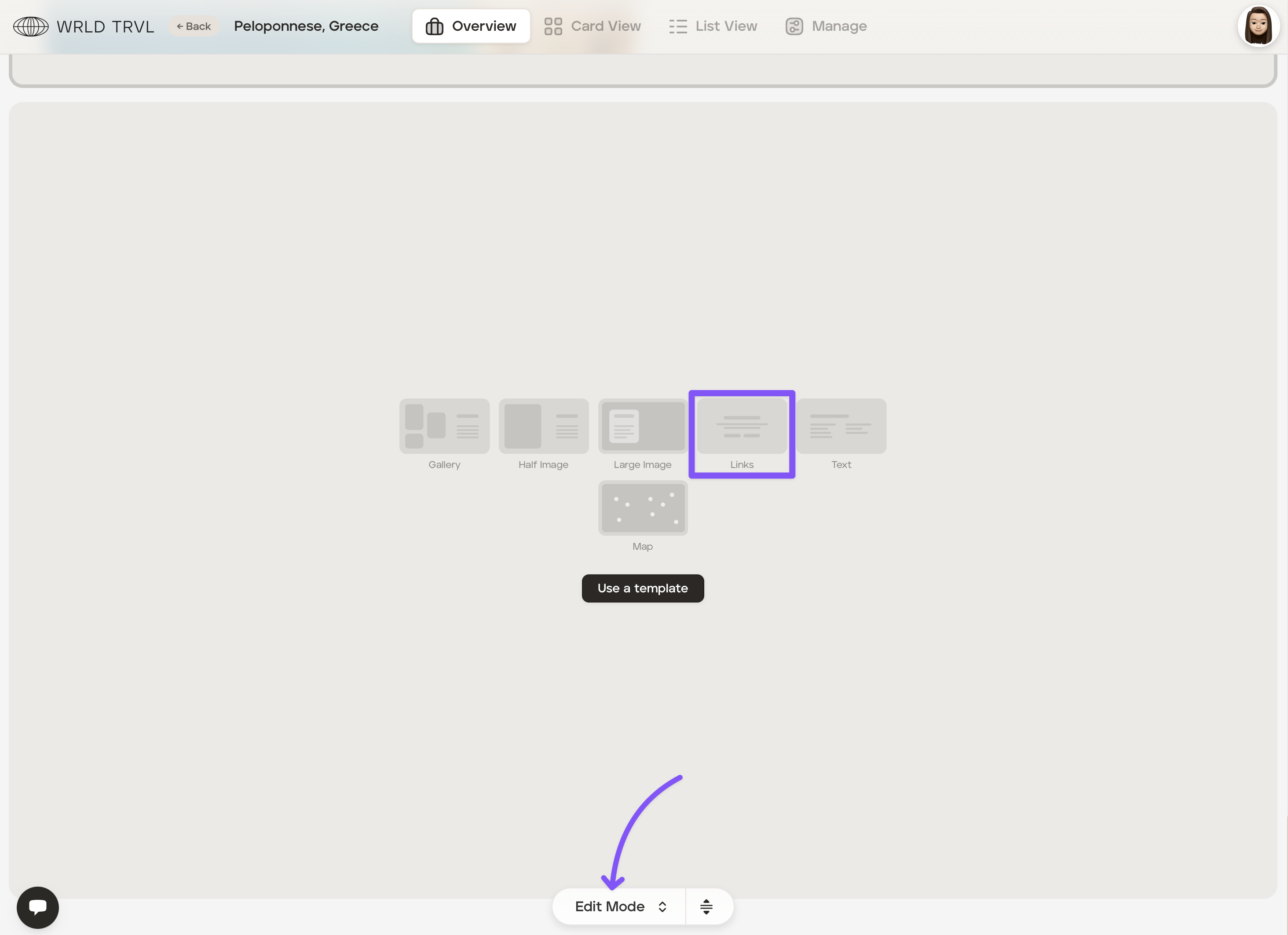
Links block
The links block allows you add text and customised buttons e.g. 'View itinerary', "Approval Proposal" or "Call us".
Ensure you are in 'Edit Mode'.
Click the 'Links' icon.
Click the 'Settings' tab.
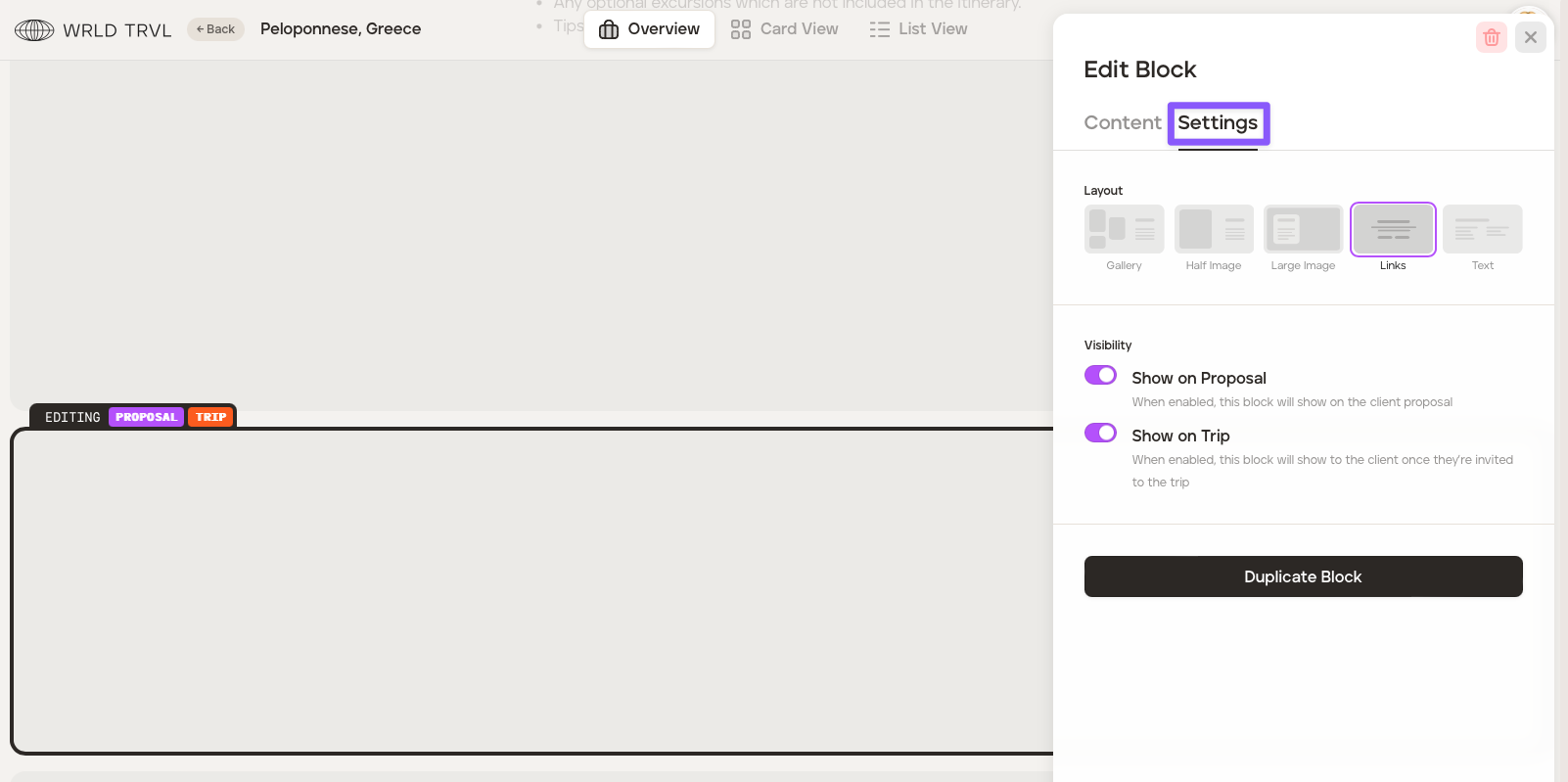
By turning the purple switch on or off, you can choose whether to show this block on the proposal, the upcoming trip, or both, or hide it until finalised. Whatever you switch on or off will show at the top of the block.
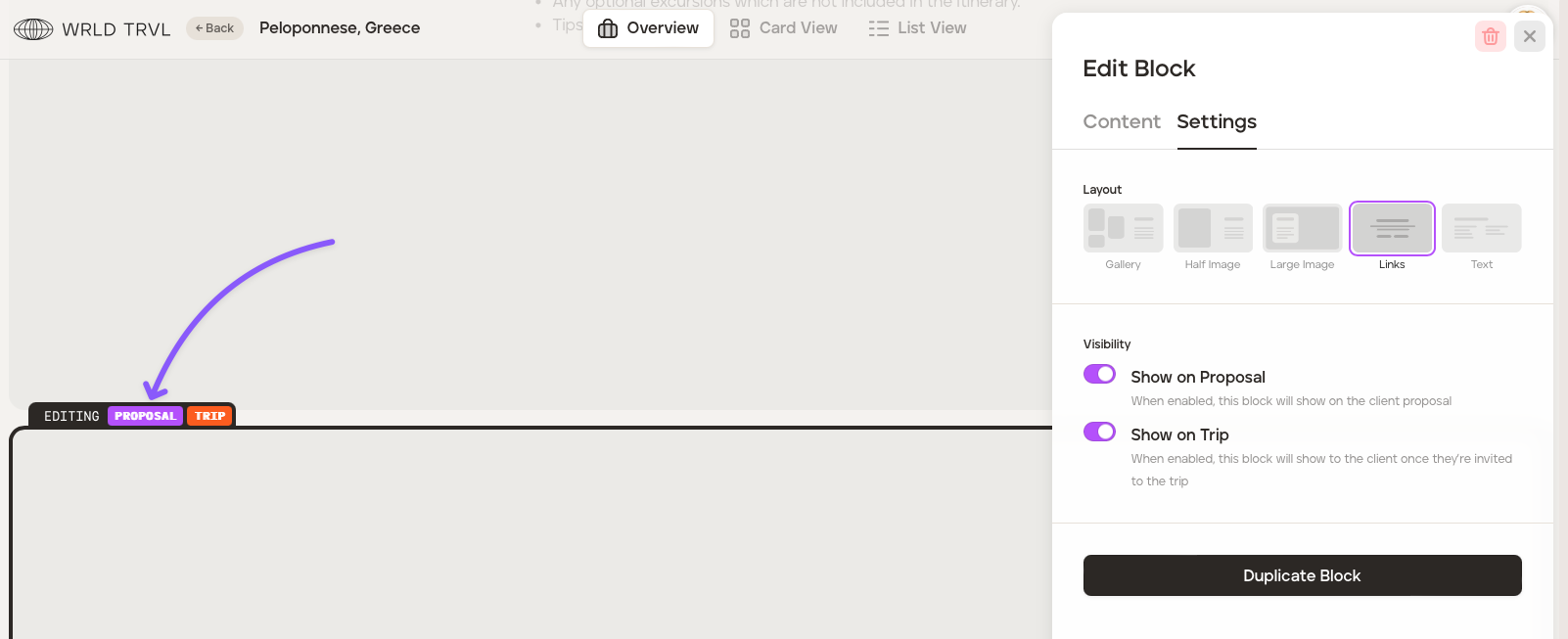
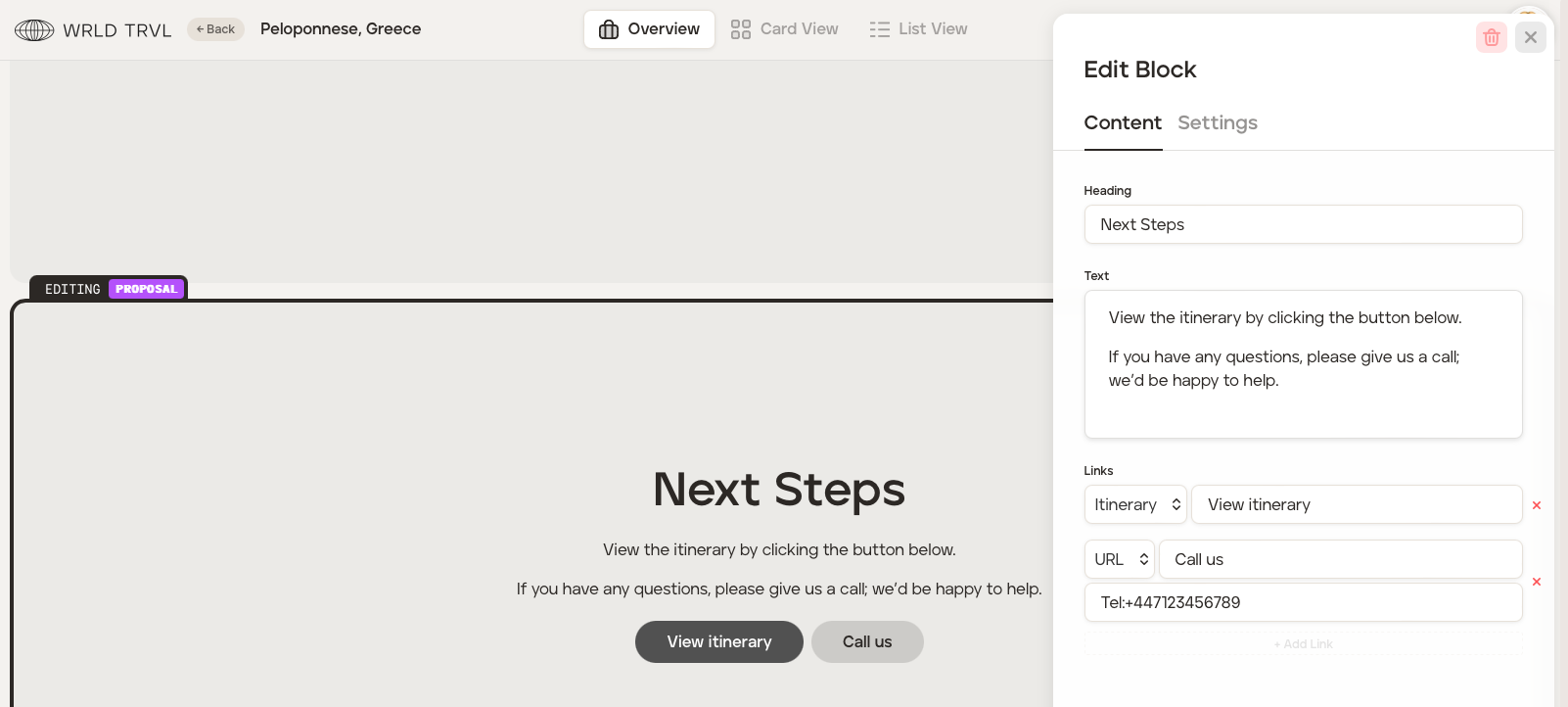
Click the 'Content' tab. Fill in the fields you wish to include (you do not need to complete all fields):
Heading e.g. Next steps
Text
Links - Choose the link (e.g. Itinerary ) and add a button label (e.g. 'View Itinerary'), as shown below:
Text block
The text block allows you to add a text-only block.
Ensure you are in 'Edit Mode'.
Click the 'Text' icon.
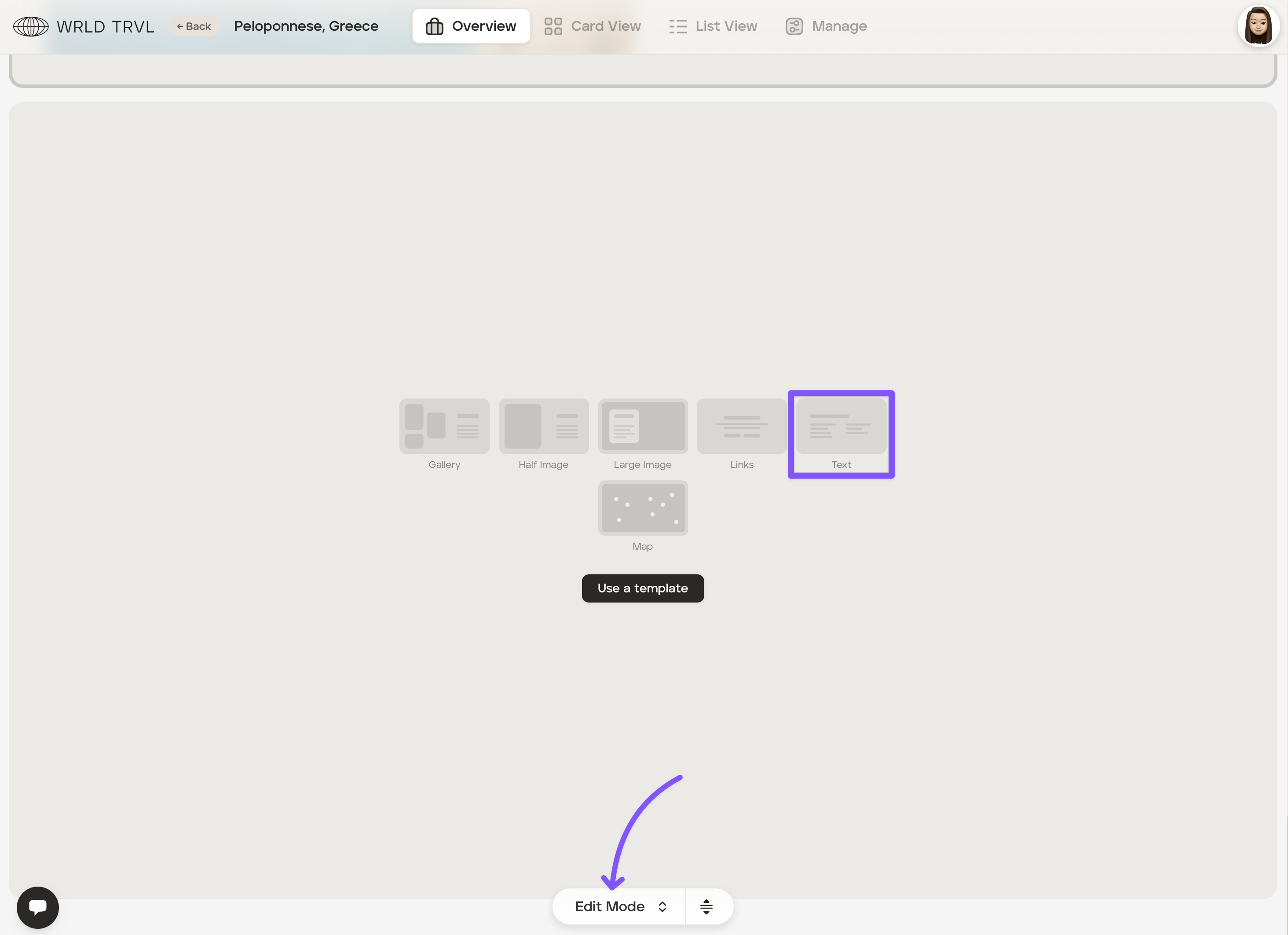
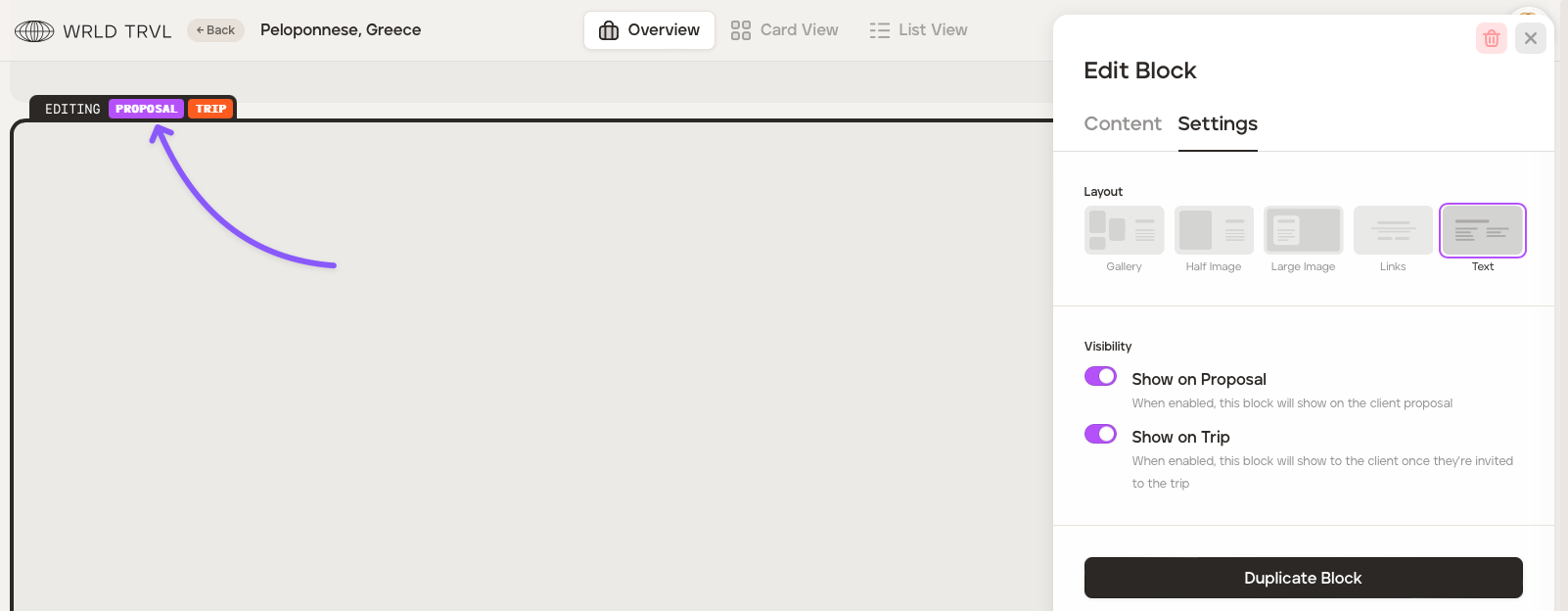
Click the 'Settings' tab.
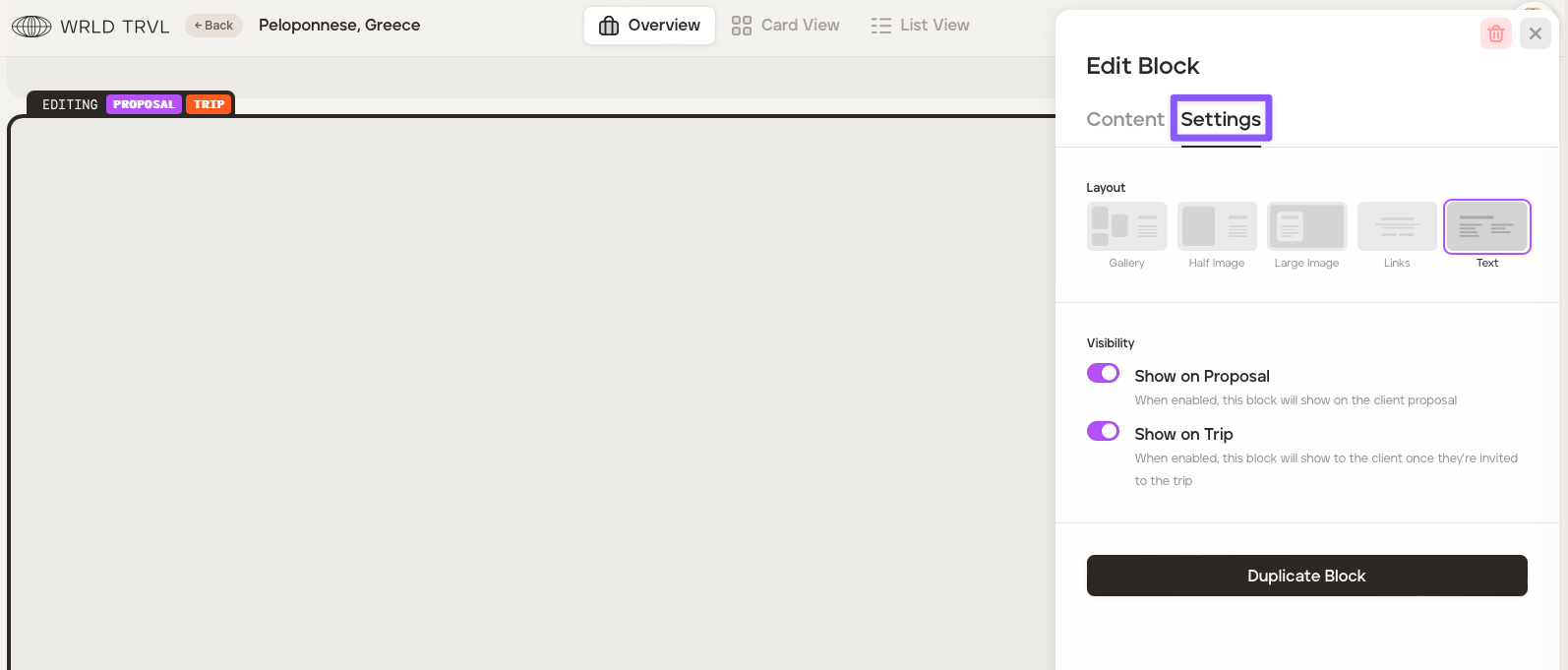
By turning the purple switch on or off, you can choose whether to show this block on the proposal, the upcoming trip, or both, or hide it until finalised. Whatever you switch on or off will show at the top of the block.
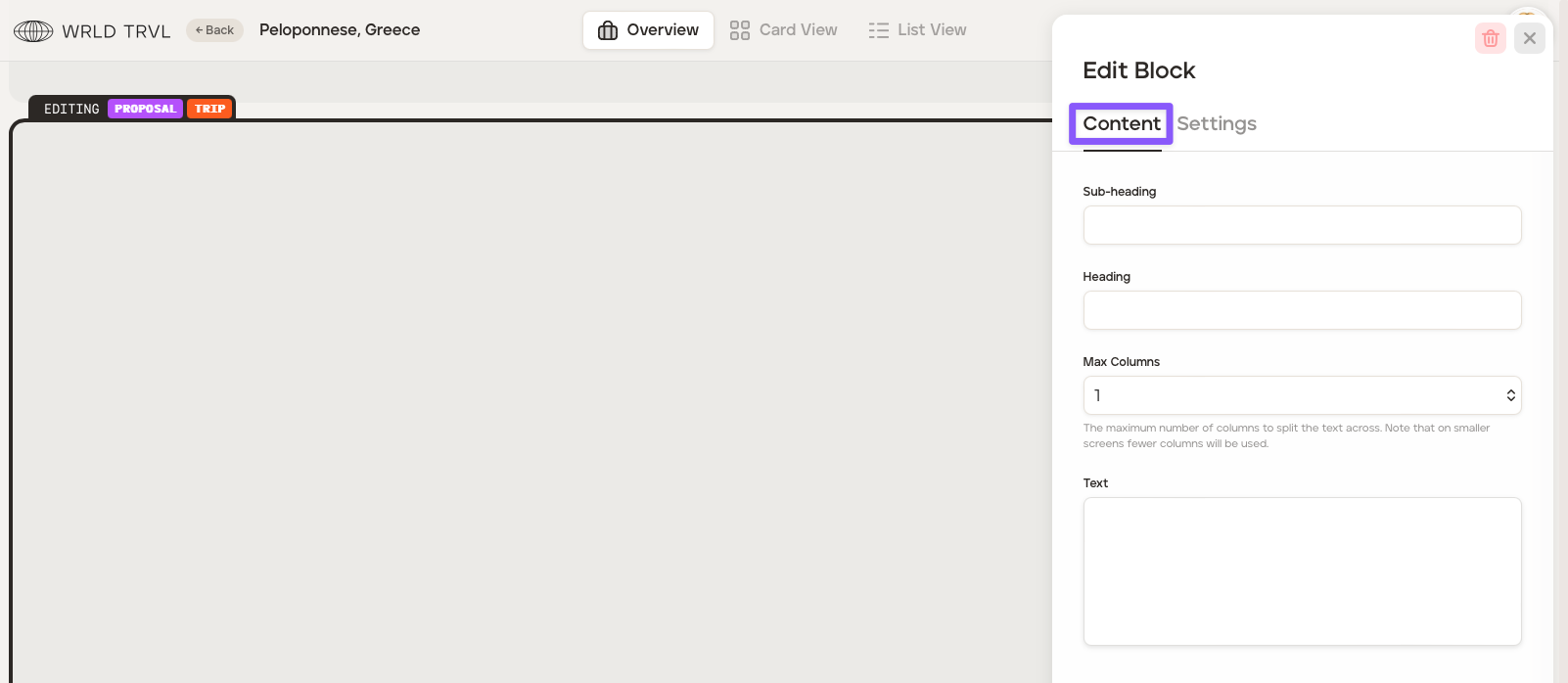
Click the 'Content' tab. Fill in the fields you wish to include (you do not need to complete all fields):
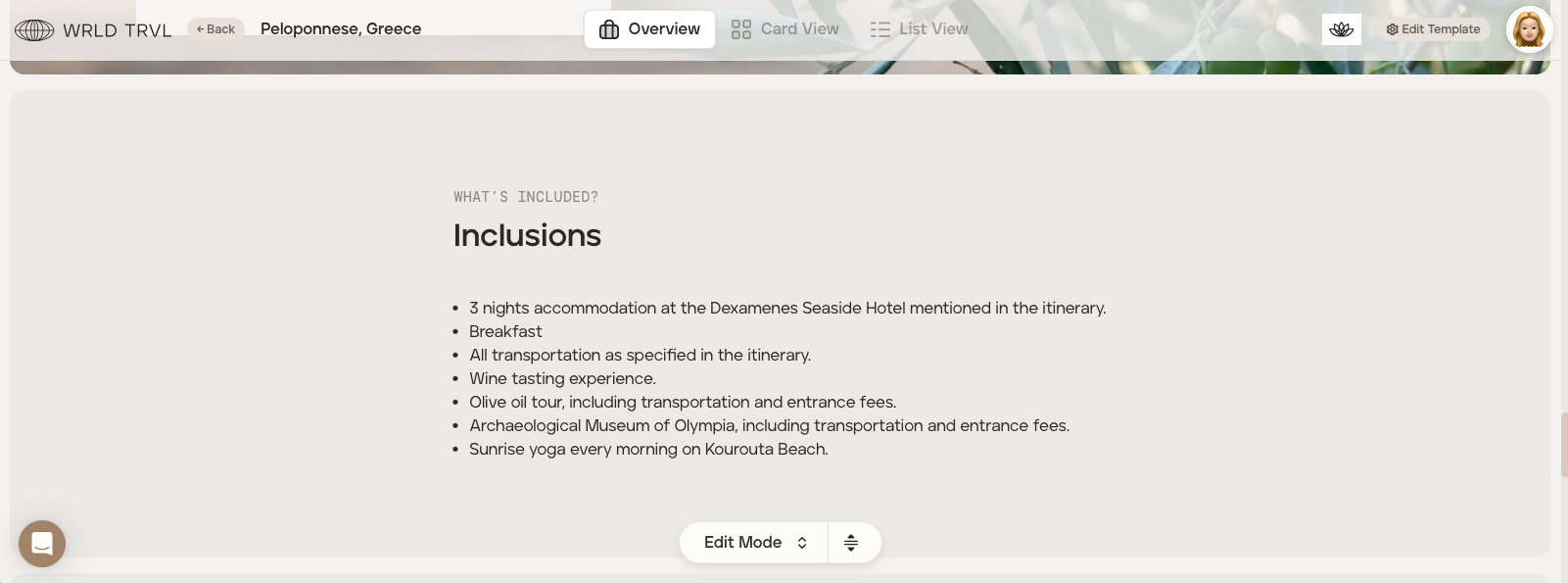
Sub-heading e.g. What's included?
Heading e.g. Inclusions
Max columns - choose to set out your text in 1,2 or 3 columns.
Text
Example of a text block:
Map block
The map block allows you to show locations of the itinerary cards (if locations have been added to the cards).
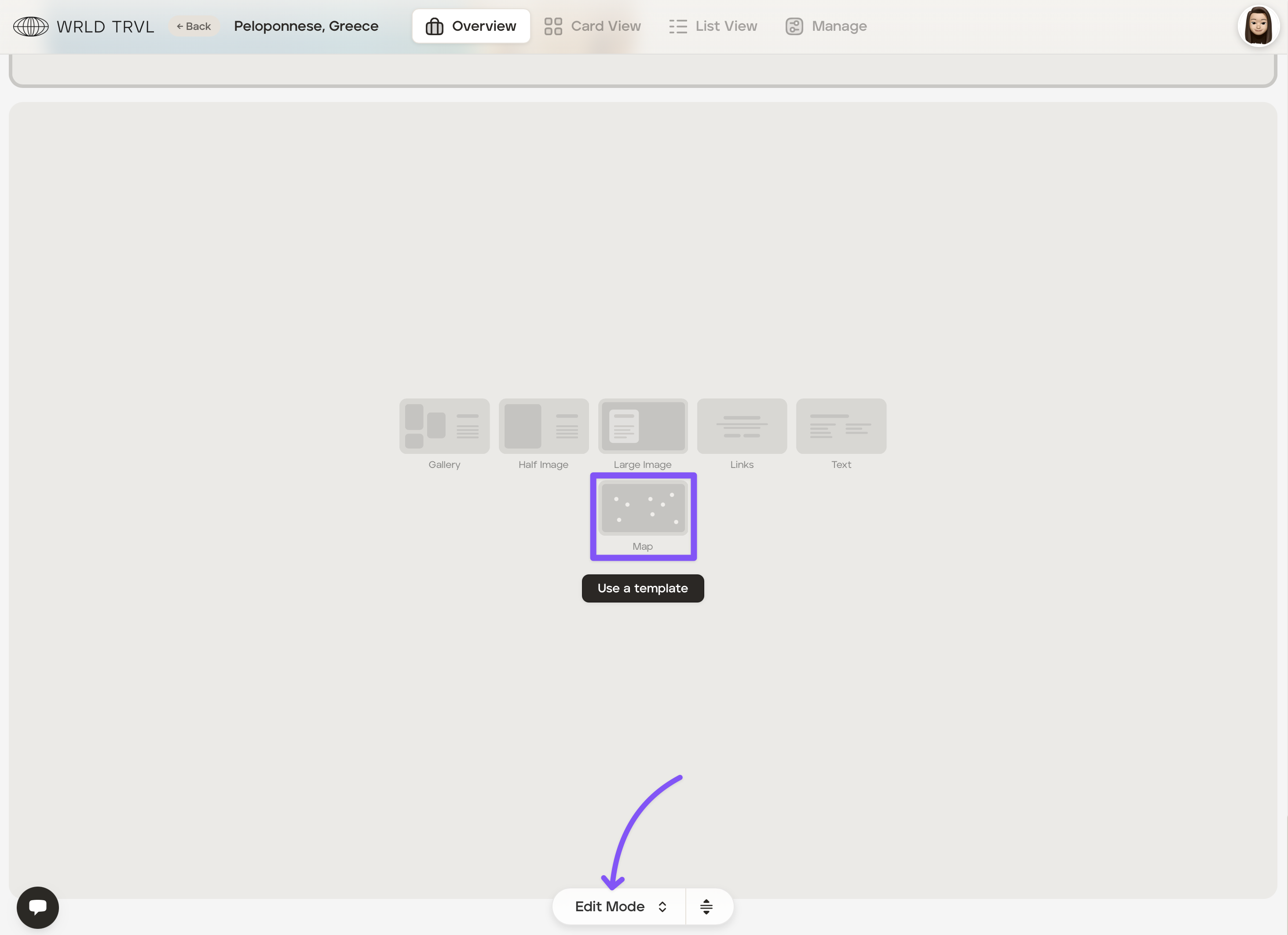
Example:
Use a template from your template block library
To pull in a template itinerary from your template block library:
Ensure you are in 'Edit Mode'.
Click the 'Use a template' button.
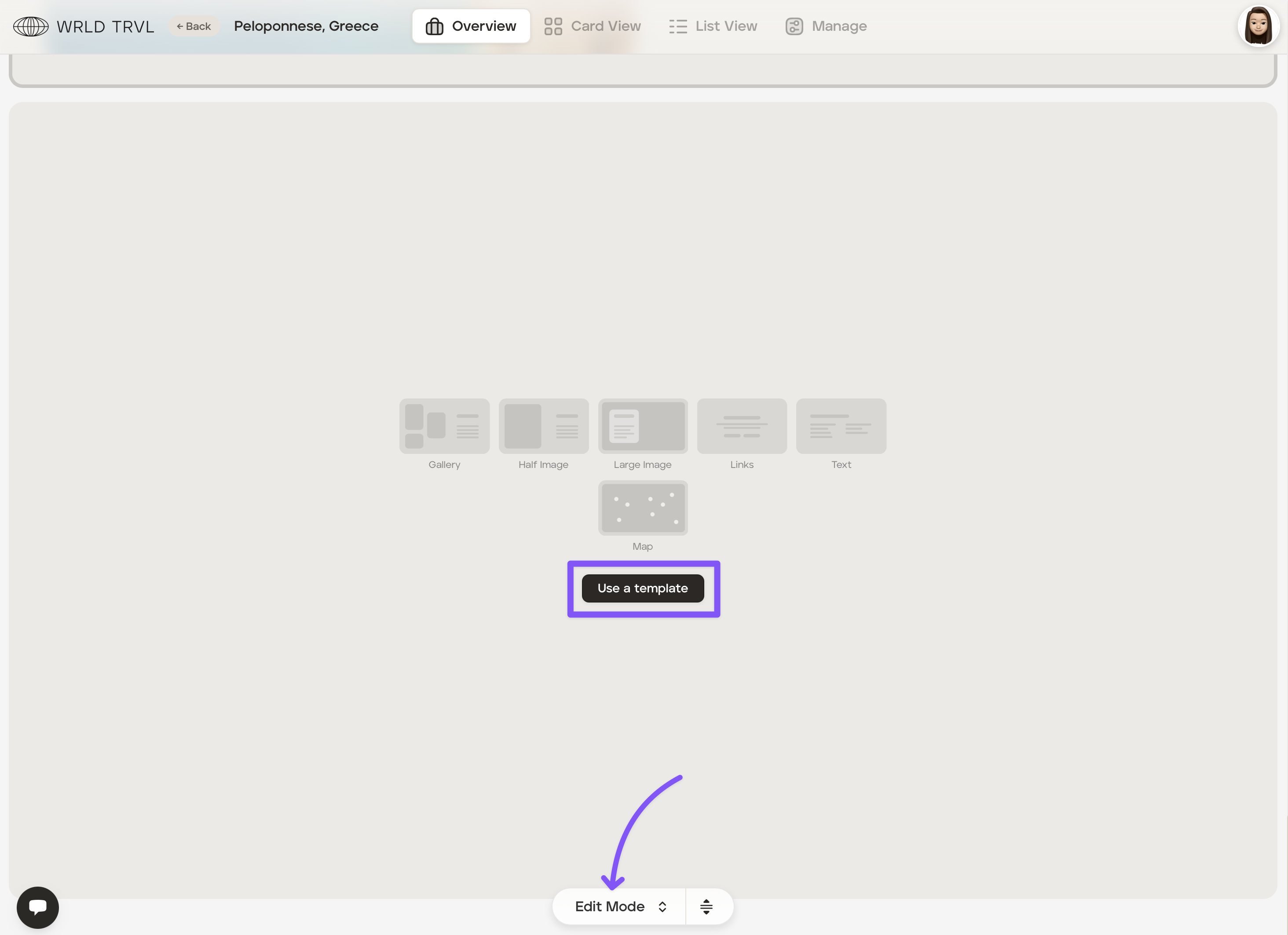
Select the block you wish to add to the Overview.
What do your clients see when they view a proposal with an overview 'travel brochure'?
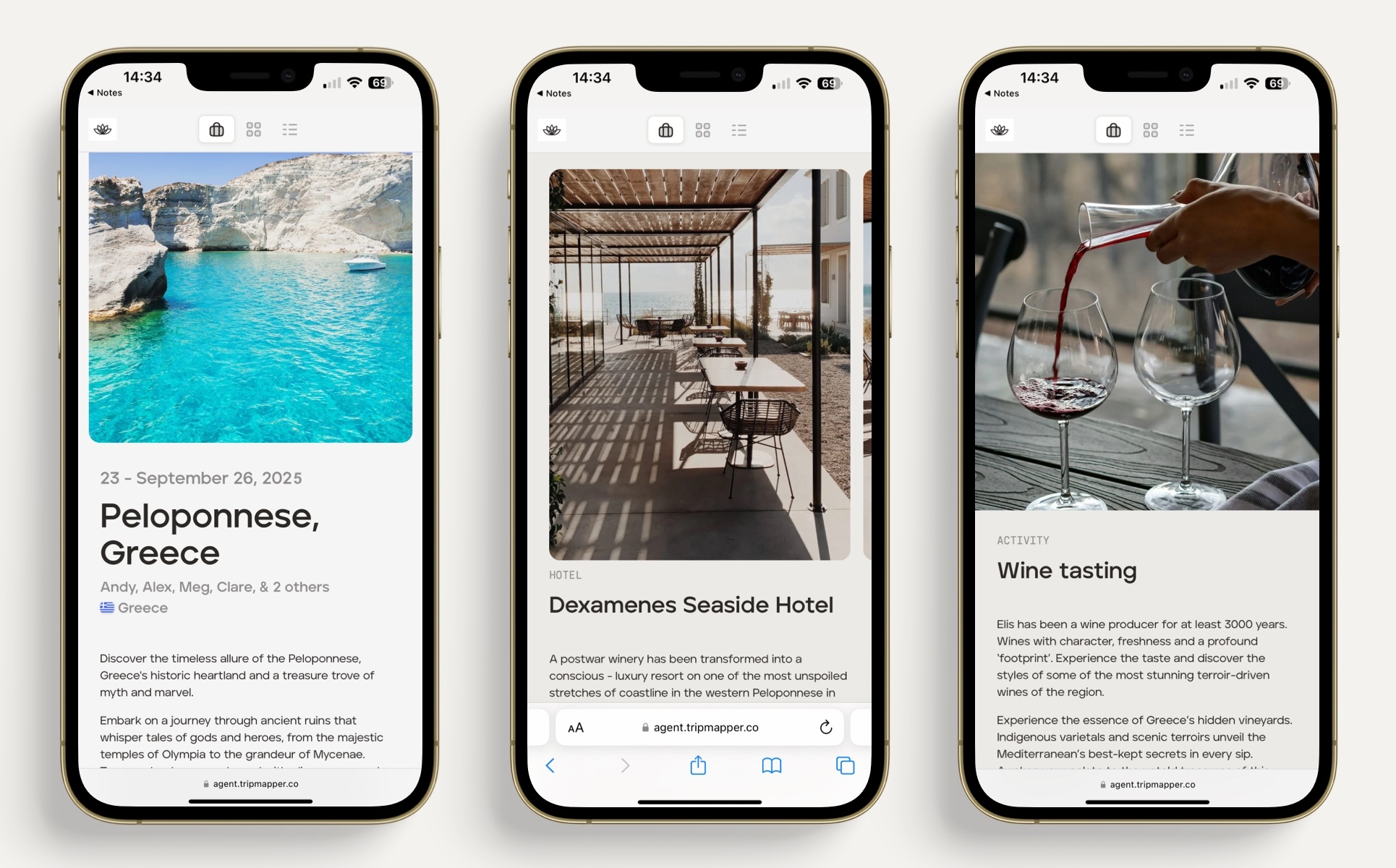
When you send your client a proposal, they will see the Overview page, which includes your blocks and the proposed itinerary.
The Overview is mobile-friendly.
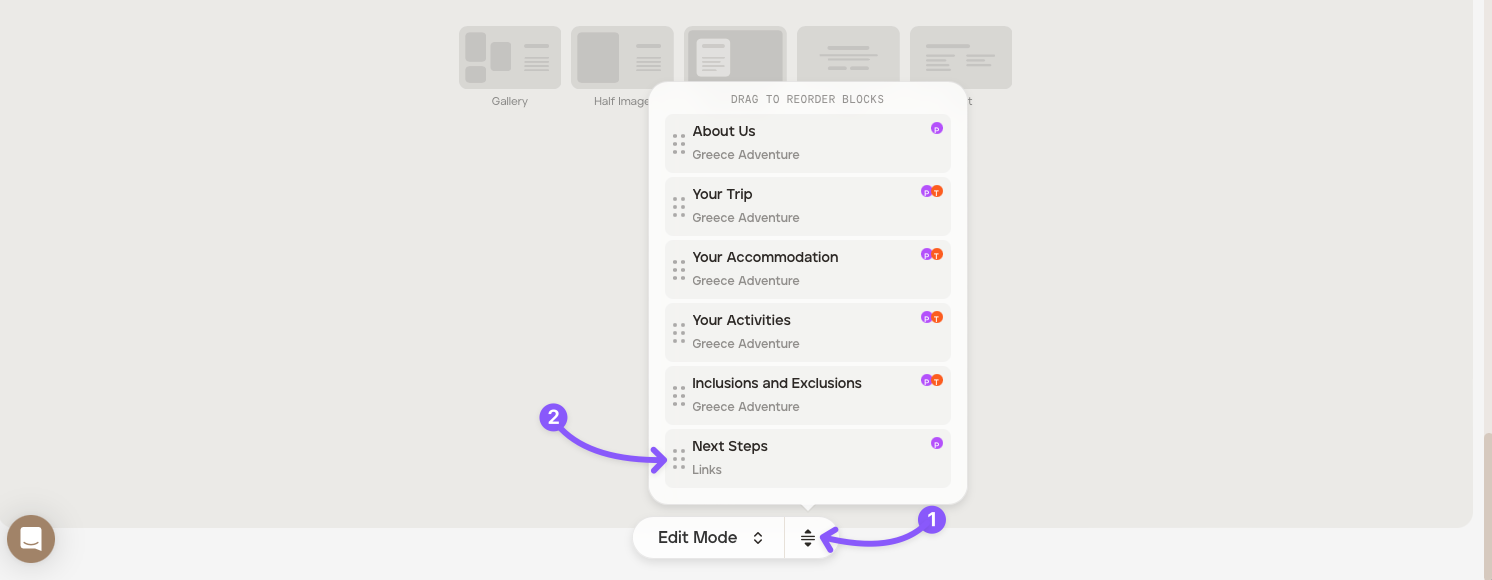
Drag and drop blocks
To drag and drop blocks you have added, click the select icon (shown at '1' in the screenshhot below) to bring up your block list, and then click the relevant reorder icon to drag a block (shown at '2' in the screenshot below) to your preferred location.
Duplicate blocks
To duplicate blocks you have added:
Click the applicable block.
In the top right of the block click the three dot icon.
Click 'Duplicate Block.'
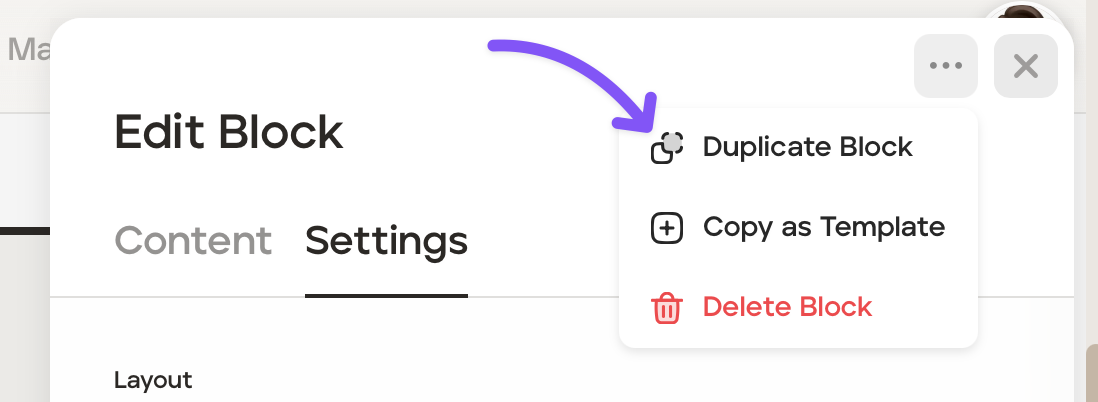
Drag and drop the duplicated block where required.
Create a template from a block you have created
To create a template from a block you have created:
Click the applicable block.
In the top right of the block click the three dot icon.
Click 'Copy as Template.'
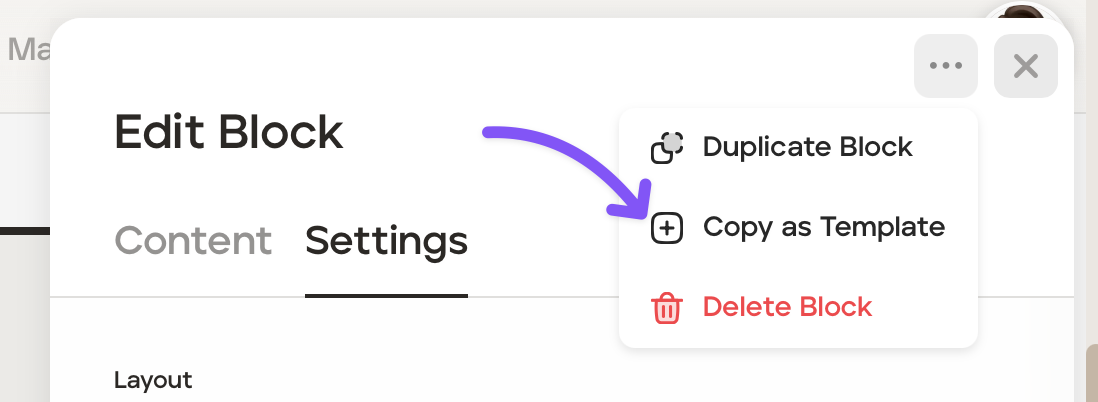
Delete a block
To delete a block you have created:
Click the applicable block.
In the top right of the block click the three dot icon.
Click 'Delete block.'
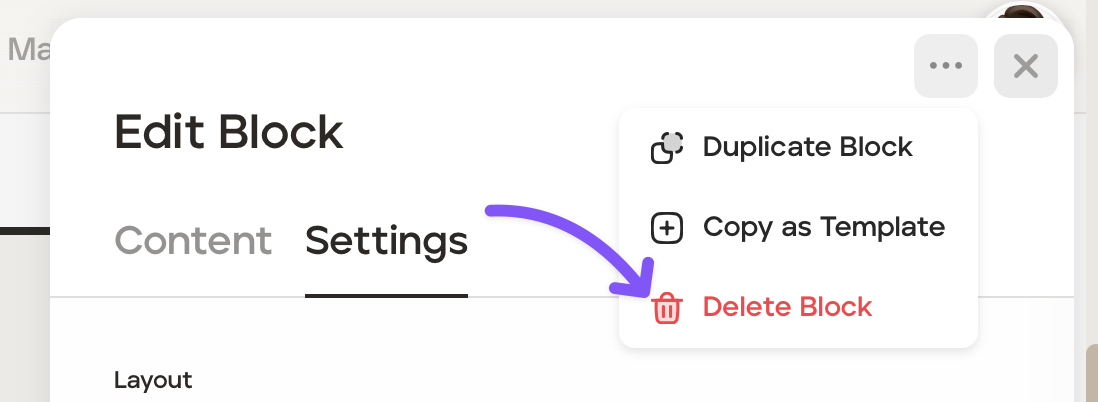
Viewing the Overview 'travel brochure'
Whilst creating your overview 'travel brochure', you may have chosen different blocks to be shown to your client when a proposal and when an approved upcoming trip. You can view what your client will see by clicking the modal at the bottom of the Overview screen, which gives you the following options:
Edit mode - Which allows you to create and edit your travel brochure.
Proposal View - Which allows you to view what your clients will see when they receive their proposal.
Trip View - Which allows you to view what your clients will see when they are invited to access their upcoming trip on the TripMapper web and mobile app.