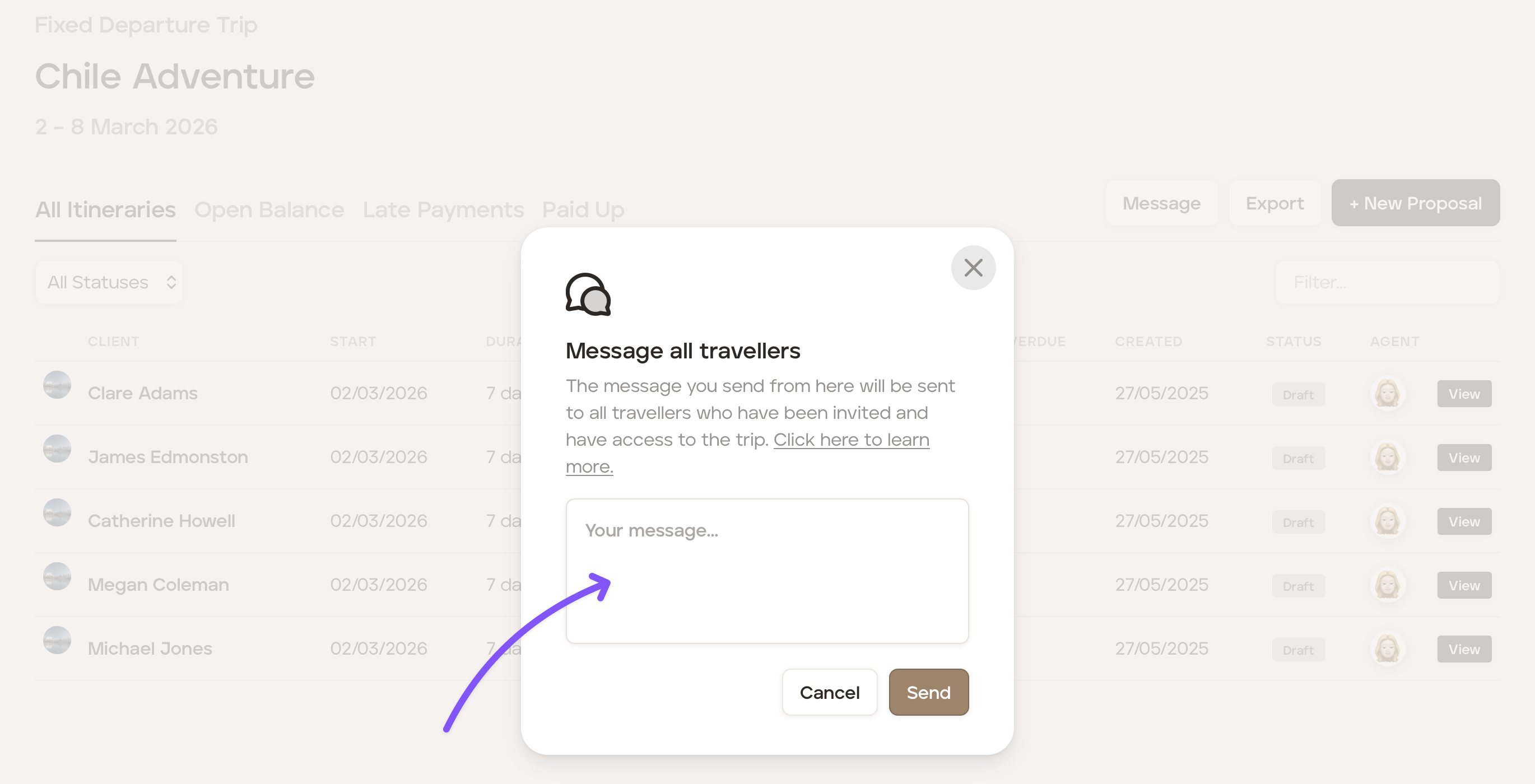
How to bulk message travellers on a 'fixed departure' upcoming trip
To enhance communication for fixed departure group trips, we have a bulk messaging feature that allows you to seamlessly connect with your guests collectively (in addition to individually), ensuring everyone stays informed and engaged.
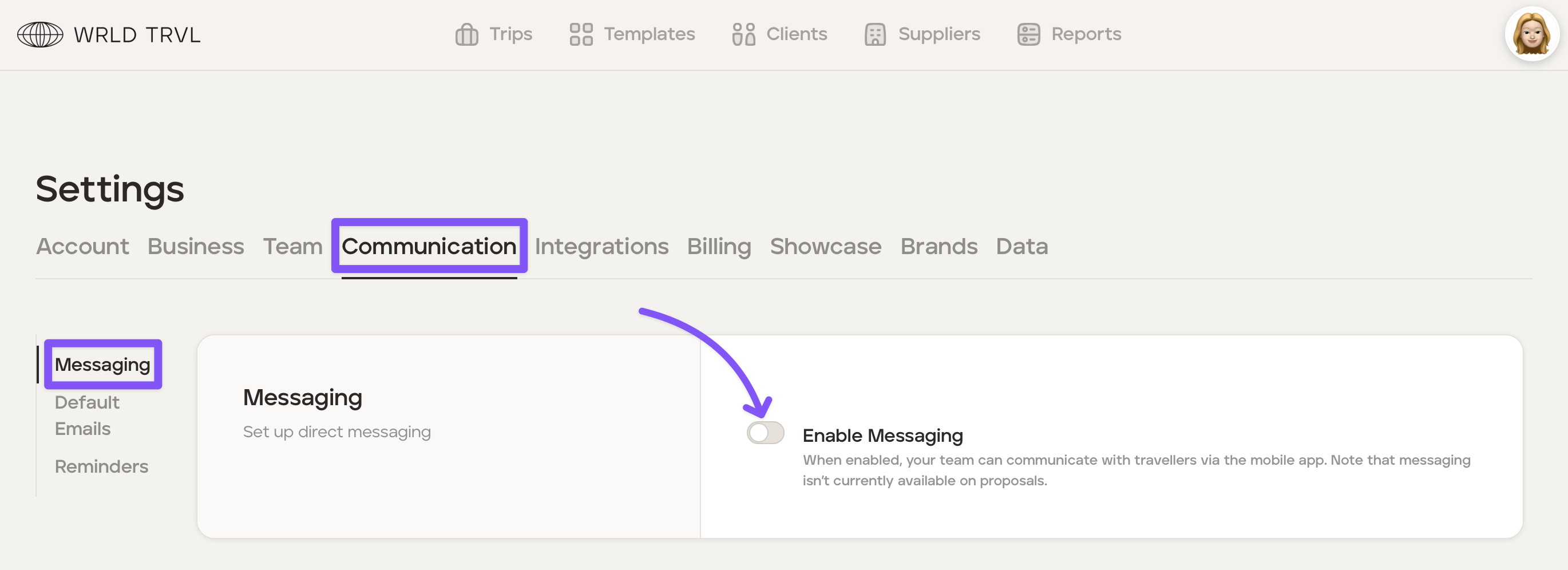
Enable messaging in your TripMapper for Business account
To enable messaging in your account, follow the steps below:
Click your avatar in the top right-hand corner of the screen.
Click 'Settings'.
Click the 'Communication' tab and then click in the 'Messaging' section.
Turn on the 'Enable Messaging' switch.
Click the 'Save' button.
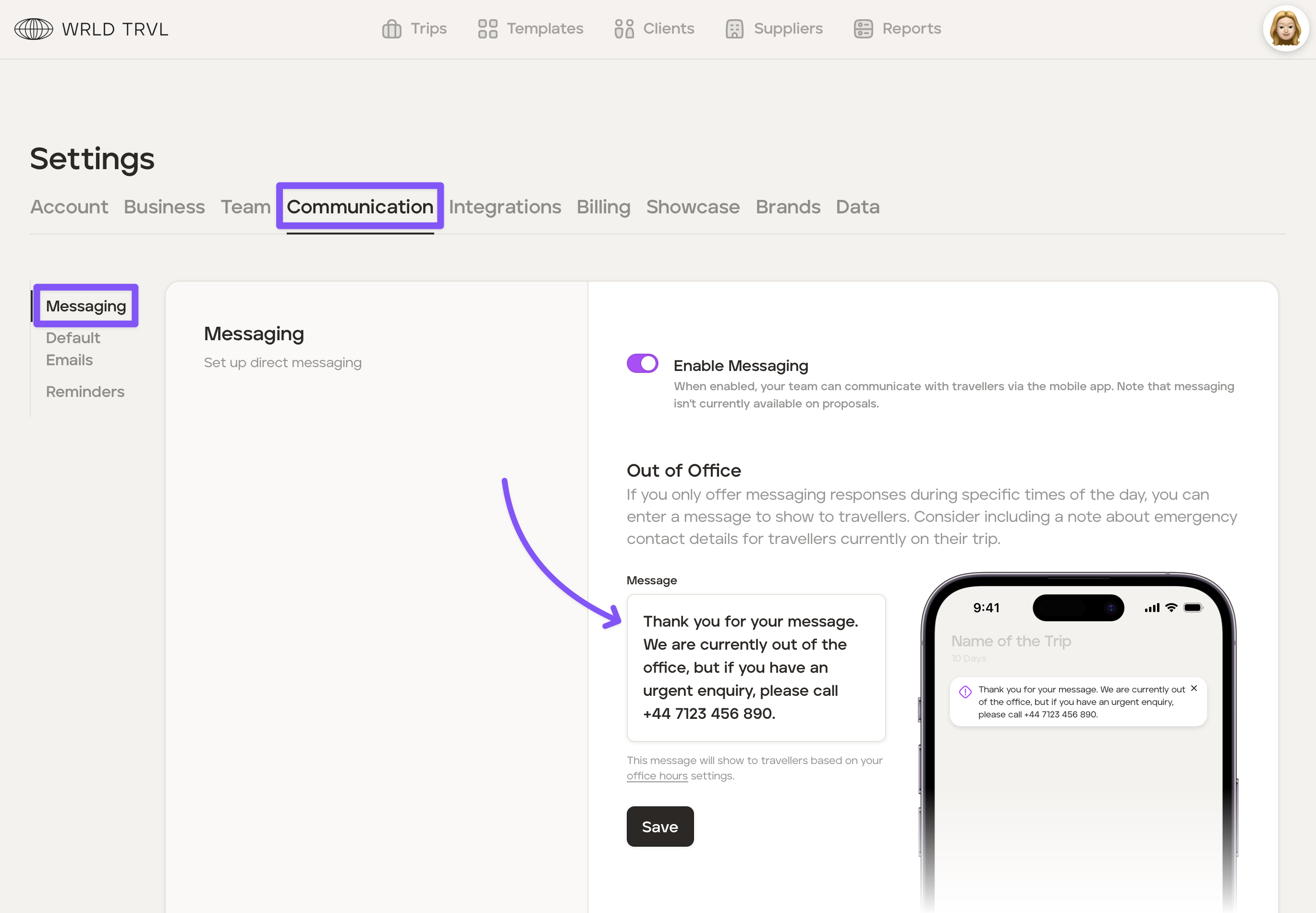
Set an out-of-office message
To set an out-of-office message, follow the steps below:
Follow steps 1-3 above.
Type an out of office message in the 'Message' field.
Click the 'Save' button.
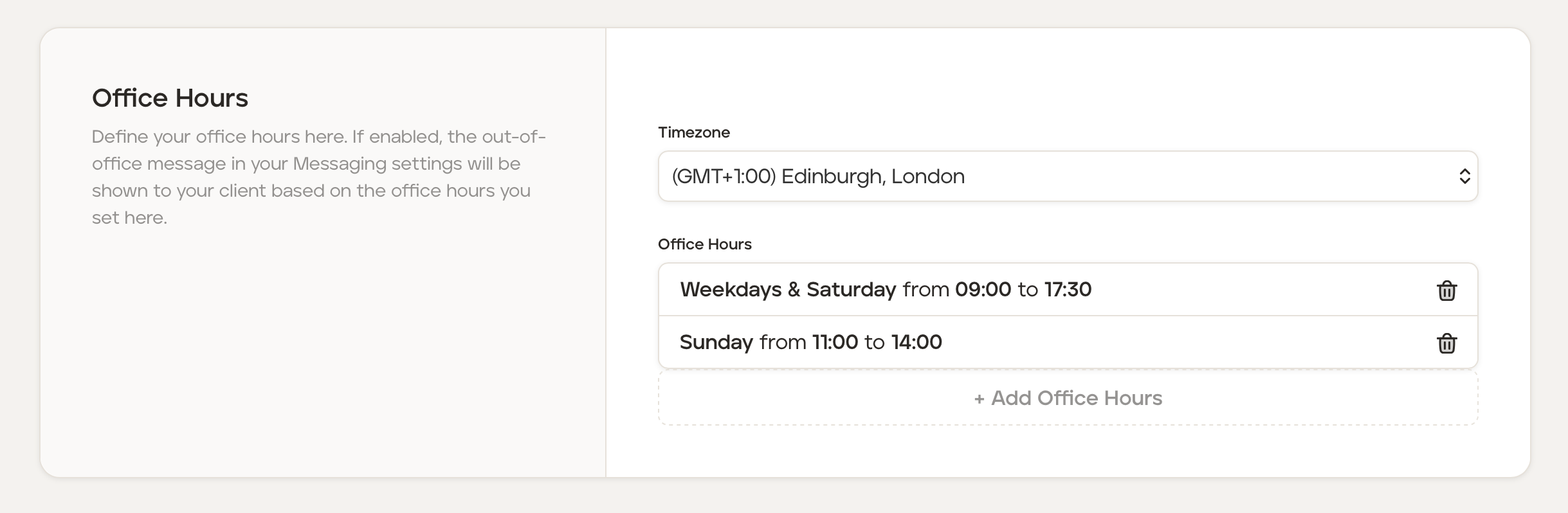
Remain in 'Settings' and click the 'Business' tab.
In 'Company Information', scroll down to 'Office hours'. If office hours are set, the out-of-office message will be shown to your client based on the office hours set.
How to bulk message travellers on a fixed departure 'upcoming' trip
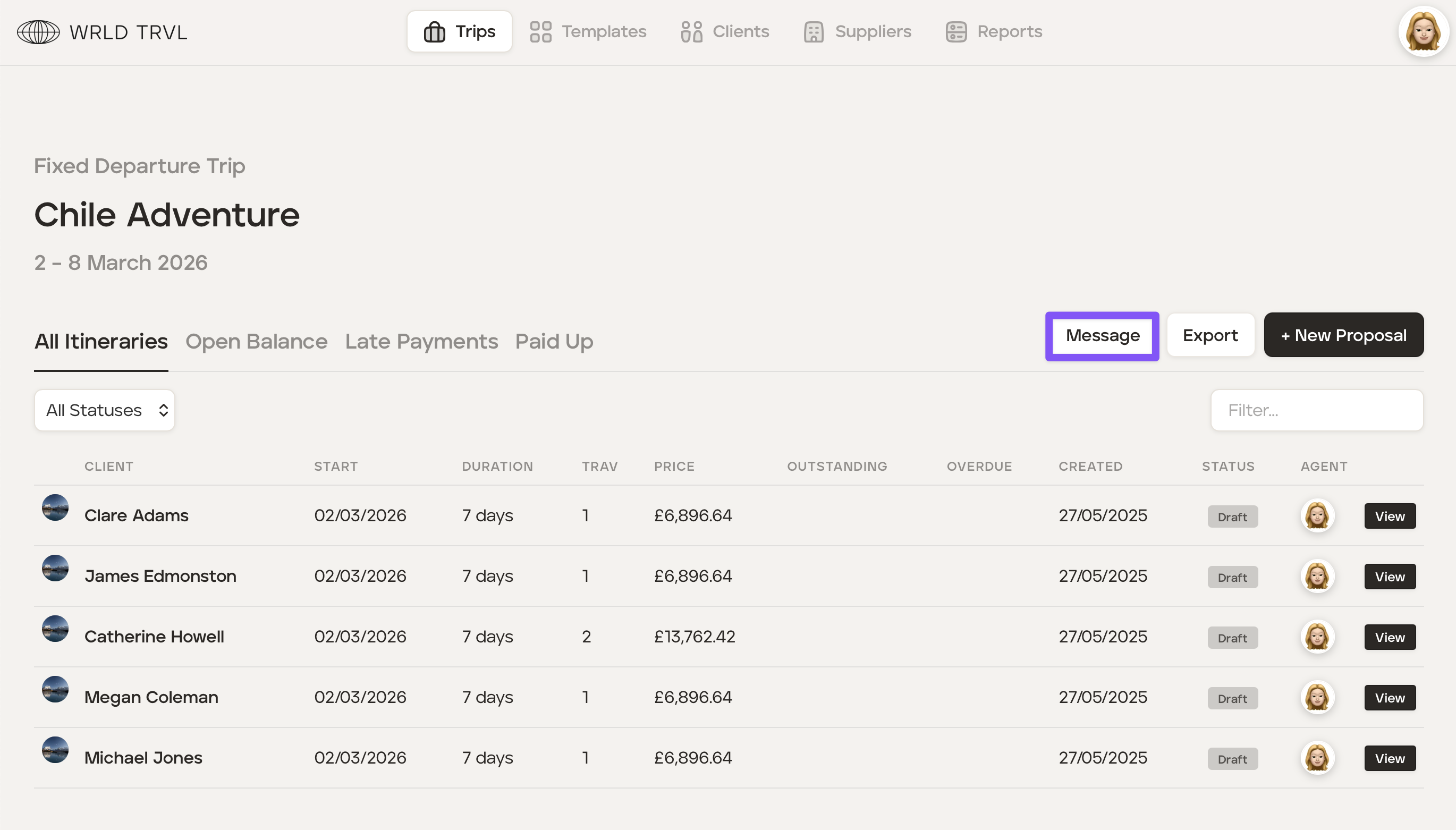
Click into the 'Trips' section of the platform and then click the applicable fixed departure 'upcoming' trip.
Click the 'Message' button.
Type the message you want to be sent to all travellers in the field.
Click the 'Send' button to send the message to all travellers on that fixed departure trip.