

Creating a form
TripMapper for Business now lets you share your forms directly with clients and prospective clients. Once you've built your custom form — whether it's an enquiry form, a feedback form, or anything else — you can make it available by sending a share link that opens the form in any browser, or by embedding the form directly into your own website.
This article walks you through creating a form.
To create a form follow the steps below:
Click in the 'Templates' section of your account.
Click the 'Forms' tab.
Click the 'Create Form' button.
You will find the 'Form Settings' on the right hand side of your screen.
In the 'Form Name' field type your form name.
Optional - In the Team(s) dropdown select the team you wish to have the form assigned to.
By default, the button that submits the form is labelled 'Submit.' To rename it, type a new label in the 'Submit Button Label' field.
If you want different sections in the form, you can name a section by typing in the 'Section Name' field.
Now you can add your fields by dragging and dropping the applicable fields from the left side of your screen onto your form.
There are four field types:
Display fields:
Heading - Adds a heading to tailor the structure of your form.
Paragraph - Adds a block of text you write into the form.
Text:
Date/Time - Lets your client select a date and/or time from a date picker.
Email - Lets your client enter their email address.
Long - A larger box for longer responses.
Short - A single-line box for brief responses.
Numeric - A box that accepts numbers only.
Choices:
Checkboxes - Lets your client select one or more options.
Country - Lets your client select one or more countries from a dropdown menu.
Dropdown - Lets your client select one option from a dropdown menu.
Radio - Lets your client select one option from a set of choices.
Miscellaneous:
File upload - Lets your client attach up to five files.
Passport - Lets your client enter their passport details.
Rating - Lets your client give a rating using numbers or stars.
Signature - Adds a signature box for forms that require one.
Learn more about the fields here, or preview an example form the way your client will see it.
Once you have created your form, click the 'Save Form' button in the botton-right corner. If you wish to edit the form, make the edits and click the 'Save Form' button to save the edits.
Sharing the form
You can share TripMapper forms via a share link, or you can put any TripMapper form directly onto your own website. Form submissions are collated in the TripMapper platform.
There are two ways to share a form:
Share link: Emailing or messaging the form to a client, or linking to it from social media. Opens the form on a TripMapper-hosted page.
Embed code: Putting the form inside one of your own pages — a contact page, an enquiry page, a landing page.
Share link
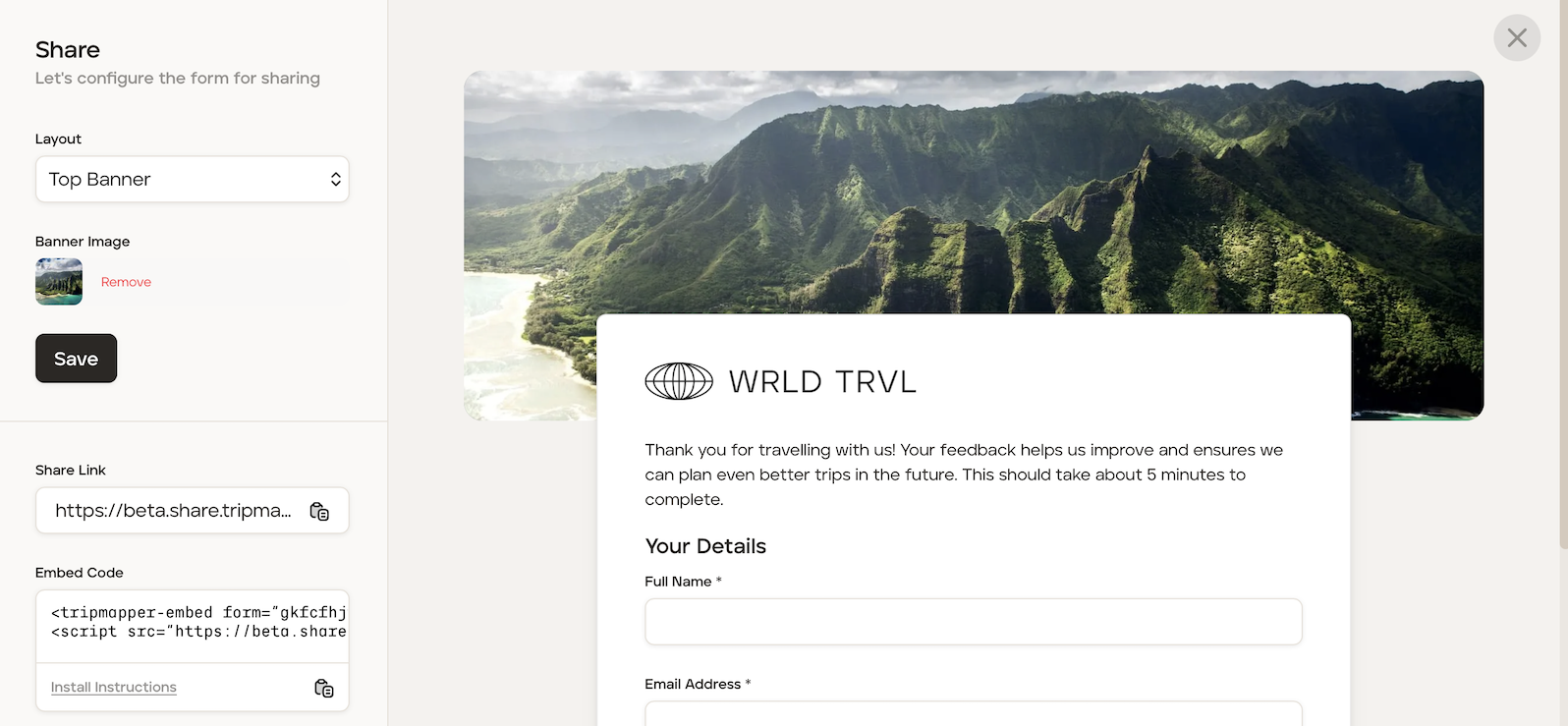
After having saved your form using the 'Save Form' button (so the embed reflects your latest fields), click the 'Share' button to open the Share panel. The Share panel opens, with your settings on the left and a live preview of the form on the right.
At the top of the panel, you can set:
Layout - how the banner image is arranged.
Banner Image - click 'Select Image' to upload a header image.
The preview on the right updates so you can see the result.
When you're happy, click the 'Save' button which is located on the left beneath the banner image.
To share the link, click the copy icon next to the 'Share Link' field. You can then share this link with your client via Whatsapp, or incorporate in to an email.
Embed code
Click here for a guide which covers the embed code.
Where are the form submissions located?
You can find all form submissions by going to the 'Templates' section of your account, clicking 'Forms' and clicking the applicable form. The submissions will all be listed in the 'Submissions' section for you to click and review.