Set a unified 'From' name and 'Reply to' email for all emails
If you want all emails to use the same 'From' name and 'Reply to' email address, you can set this up in the 'Communication' tab under 'Settings'. This will stop your clients from replying directly to the agent who sent the email, and instead, replies will be directed to the email address you define.
You can also just set a unifed 'Reply to' email address if you wish.
To set a unified 'From' name and 'Reply to' email address, or just set a unified 'Reply to' email address, follow the steps below:
Go to the account 'Settings'.
Click the 'Communication' tab. Please note, that only account Owners or Admins have access to the 'Communication' tab.
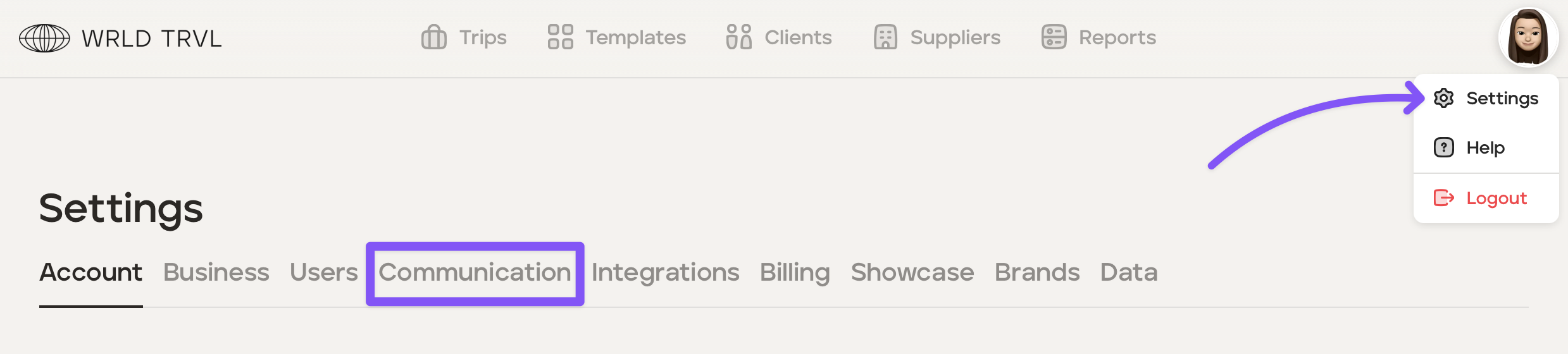
Click the 'Emails' section.
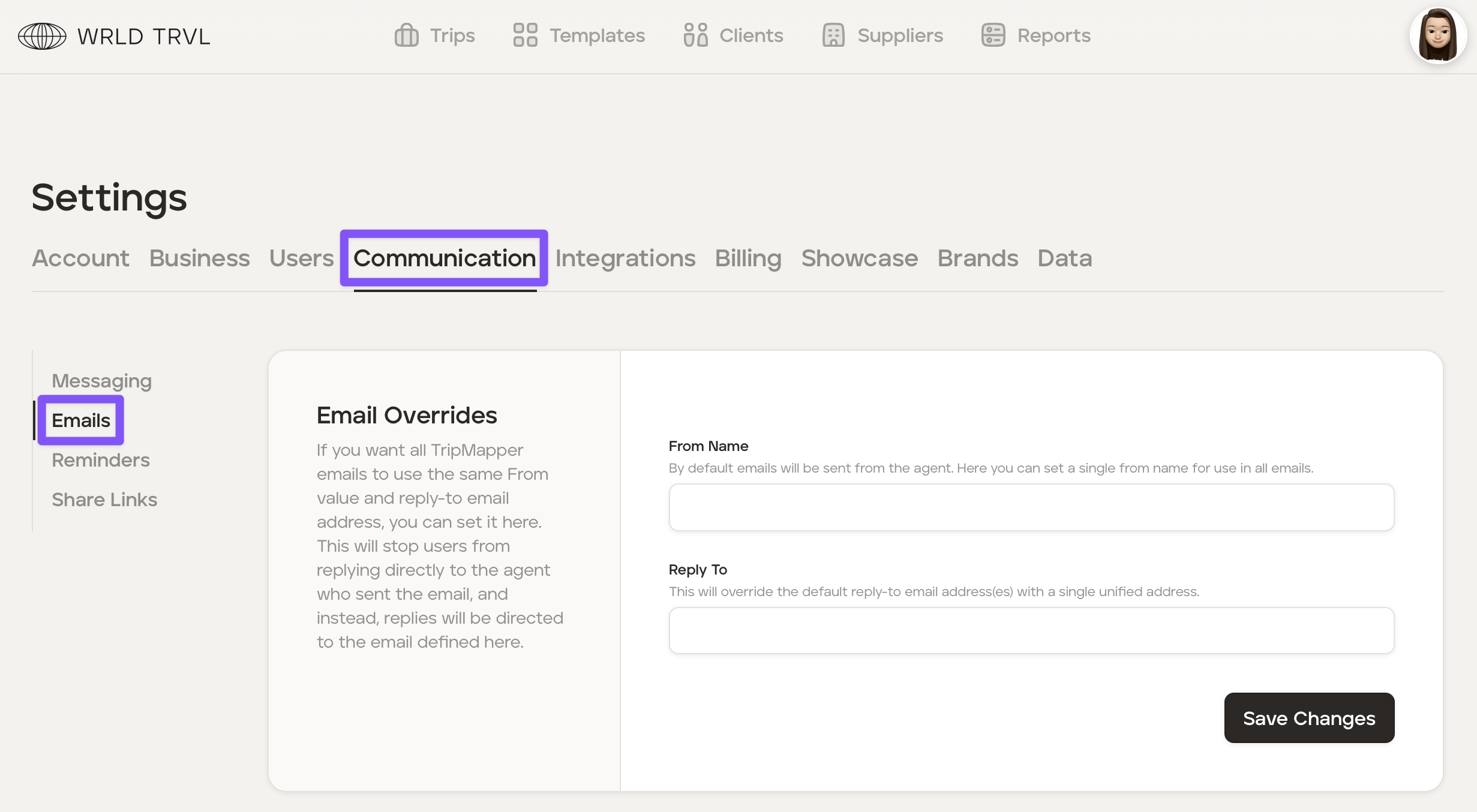
In the 'Email Overrides' panel there are two fields:
In the 'From Name' field type in the 'From' name which will be used in emails going forwards (the default 'From' name is the agent's name).
In the 'Reply To' field type in the email address which will be used as the 'Reply To' in emails going forwards (the default 'Reply To' is the agent's email address).
Once you have filled in the 'From Name' and 'Reply To' fields (or just the 'Reply To' field), click the 'Save Changes' button.
Example 1: Set both the 'From Name' and 'Reply To' fields:
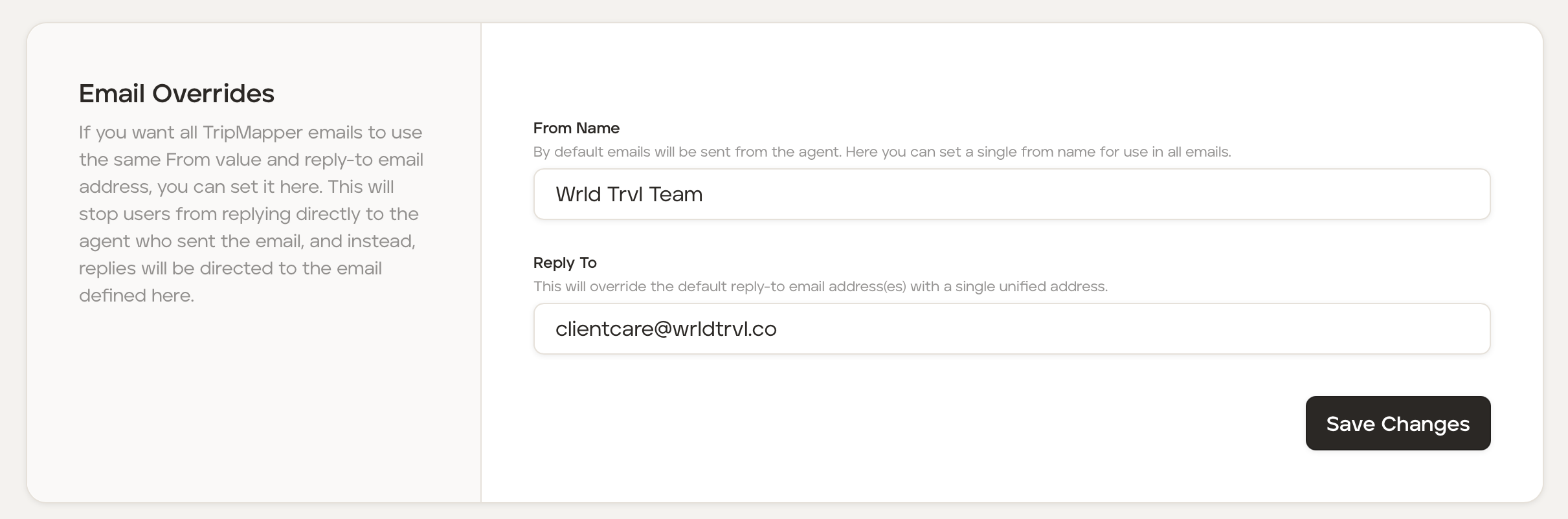
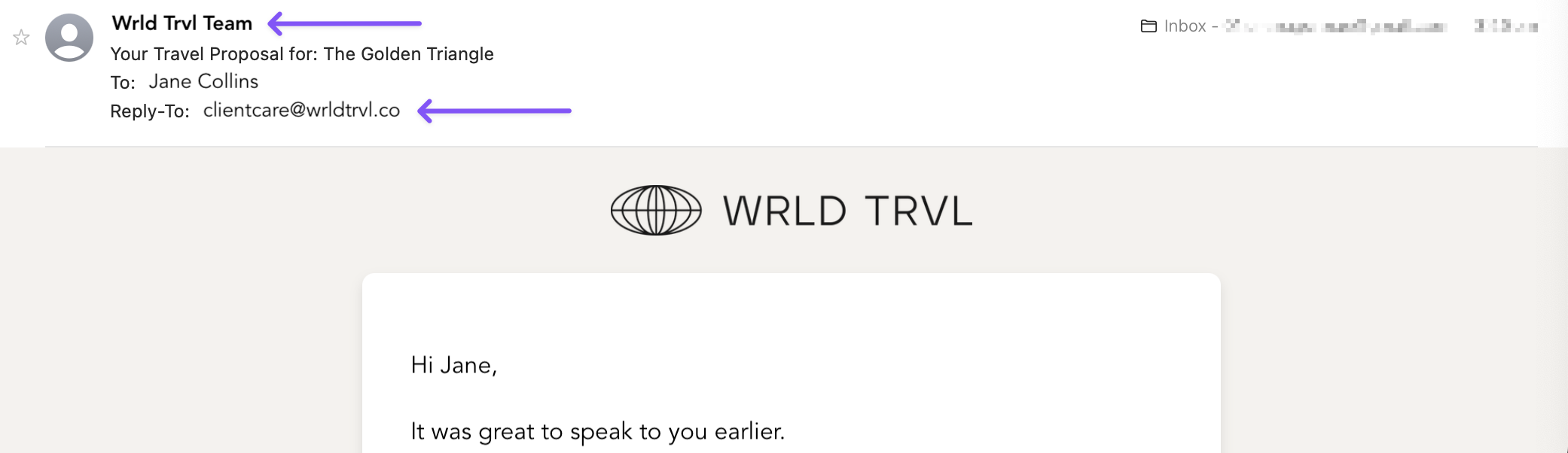
In the screenshot above, for all proposals, trips and invoices sent via email going forwards, the email will come 'from' Wrld Trvl Team and the 'Reply to' field on the client's email will show as clientcare@wrldtrvl.co.
Example 2: Set the 'Reply To' field only:
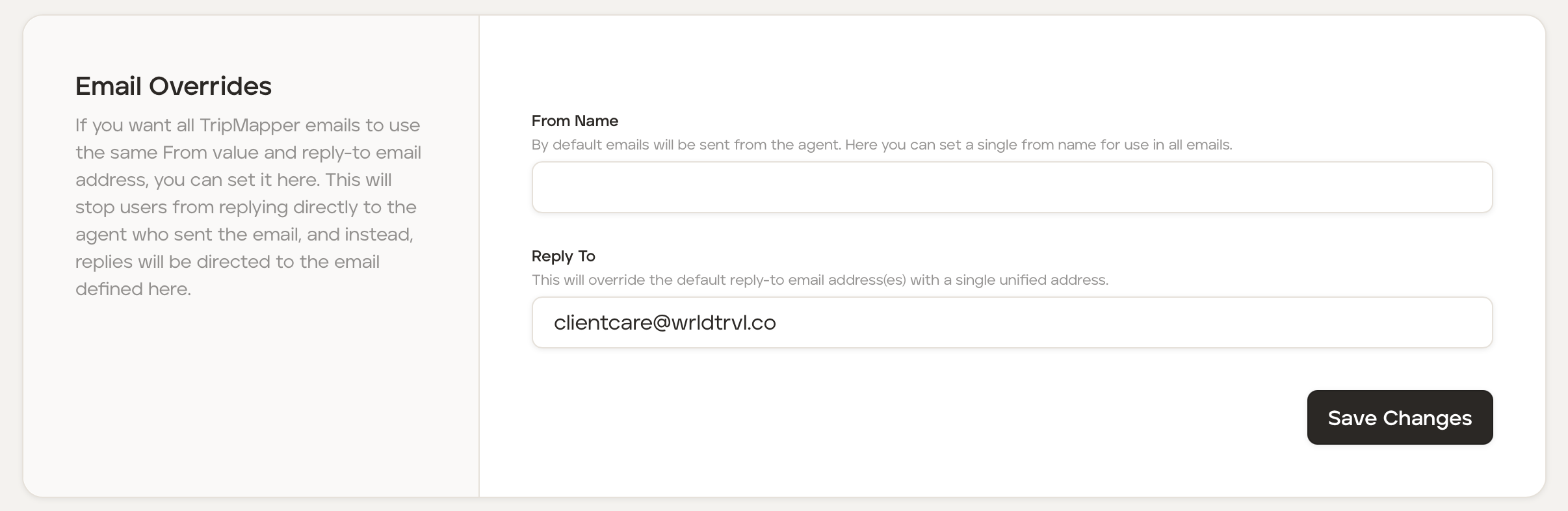
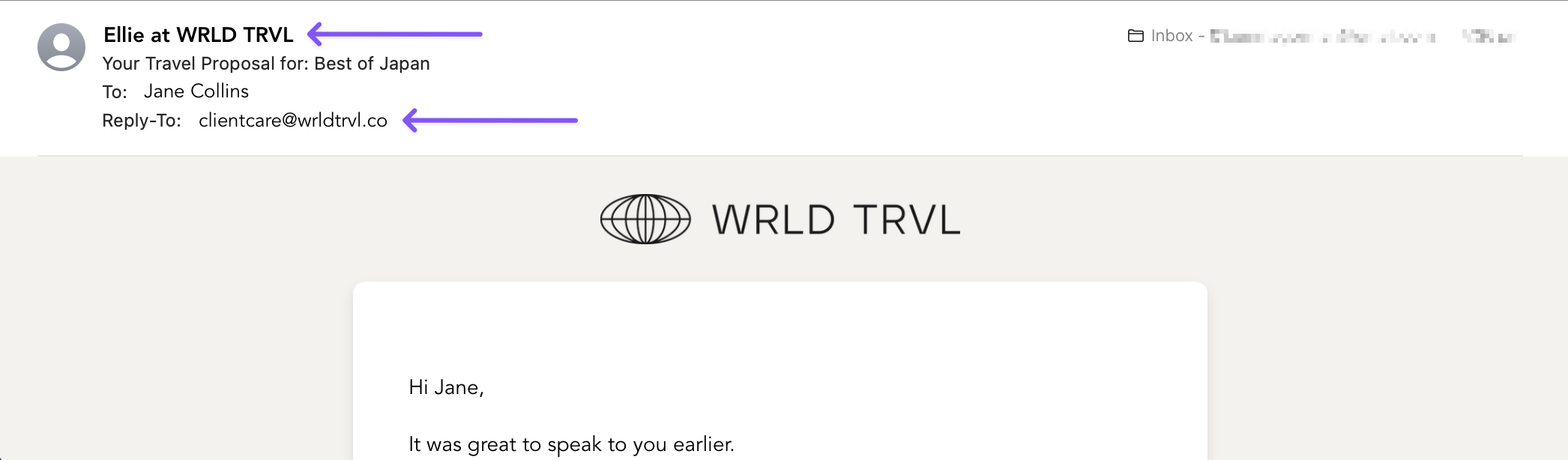
In the screenshot above, for all proposals, trips and invoices sent via email going forwards, the email will still come 'from' the agent's name, Ellie at WRLD TRVL, but the 'Reply to' field on the client's email will show as clientcare@wrldtrvl.co.
What will your client see on their email?
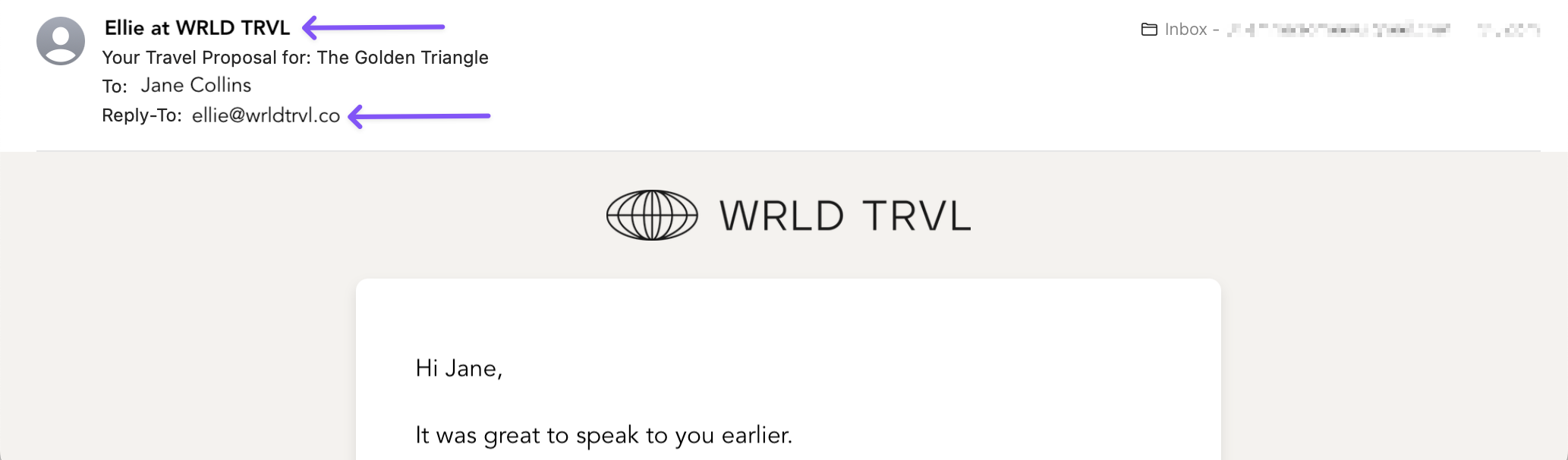
Original default name and 'reply to' email address (if the 'Email Overrides' panel has been left blank) show as the agent's details:
When a 'from' name and 'reply to' email address is added to the 'Email Overrides' panel, it will show those new details:
When only a 'reply to' email address is added to the 'Email Overrides' panel, it will show the new 'reply to' address, but retain the agent's name: