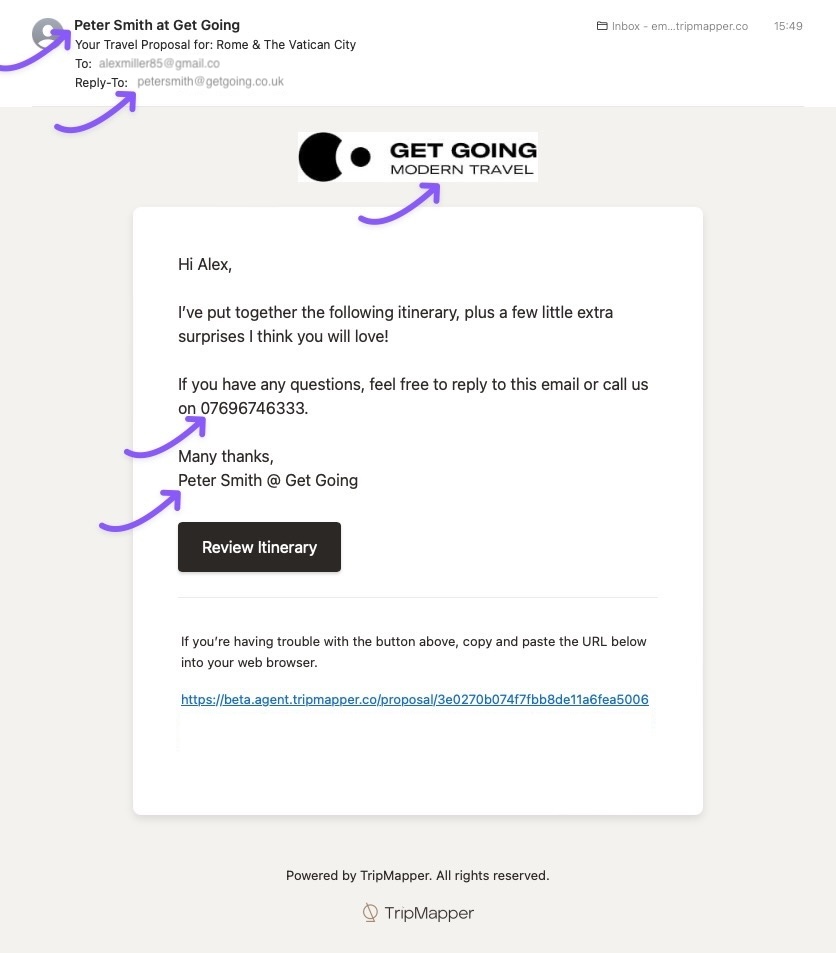
Create default email proposals from your business partner brands
Once you have added your business partners' branding in your settings, you may want to set up a default proposal email text which can state your business partner's name, contact name and phone number - not yours!
To set this up, please follow the steps below:
Click the avatar in the top right-hand corner of the screen.
Click 'Settings'.
Click the 'Proposals' tab. In this section, you can manage the text that is added to your email when sending a travel proposal to your client (you’re still able to edit the text before sending it - this is just your default email).
We have created the following brand tokens, which you can add to your email text:
[brandName]
[brandContactName]
[brandContactPhone]
These brand tokens can be found above the text box:
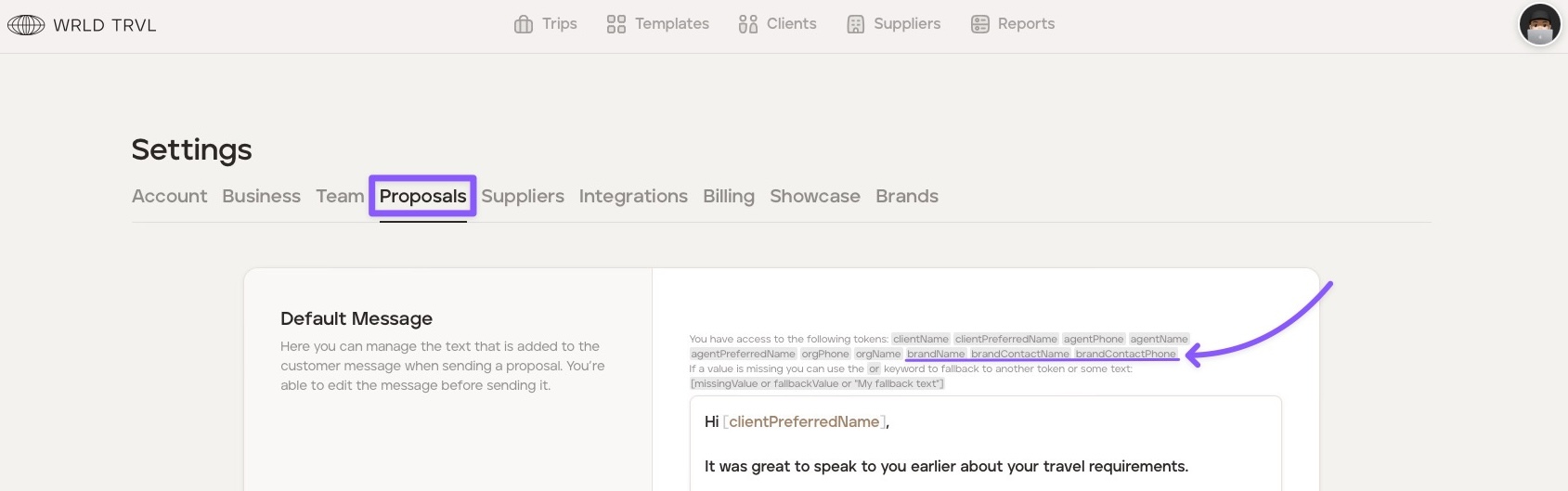
To add brand tokens to your default email, you need to incorporate the brand tokens within your email message. When adding the brand token, ensure you replicate the brand token exactly as stated above the text box (i.e. including the square brackets and lower case and upper case letters).
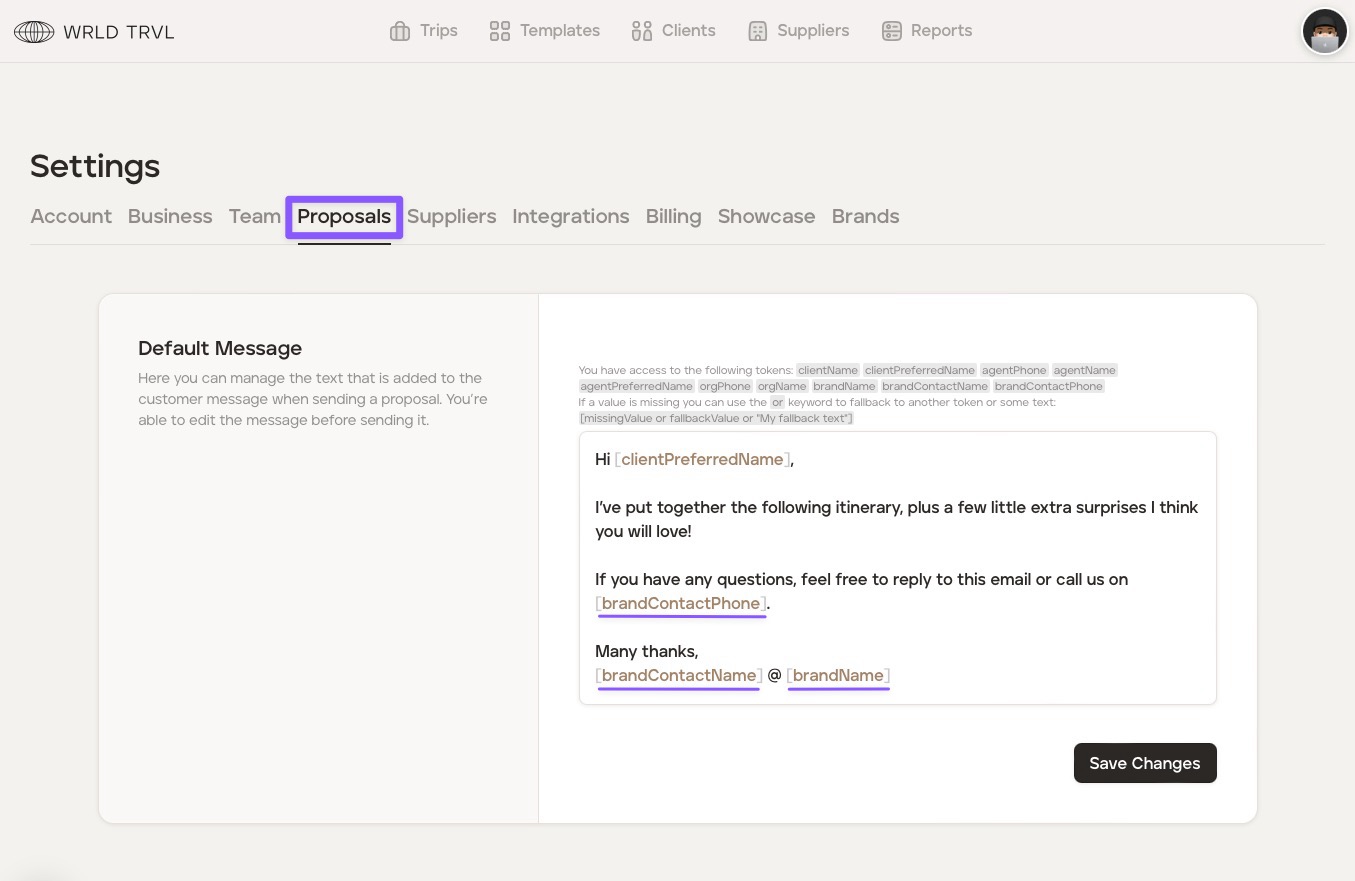
Click 'Save Changes.'
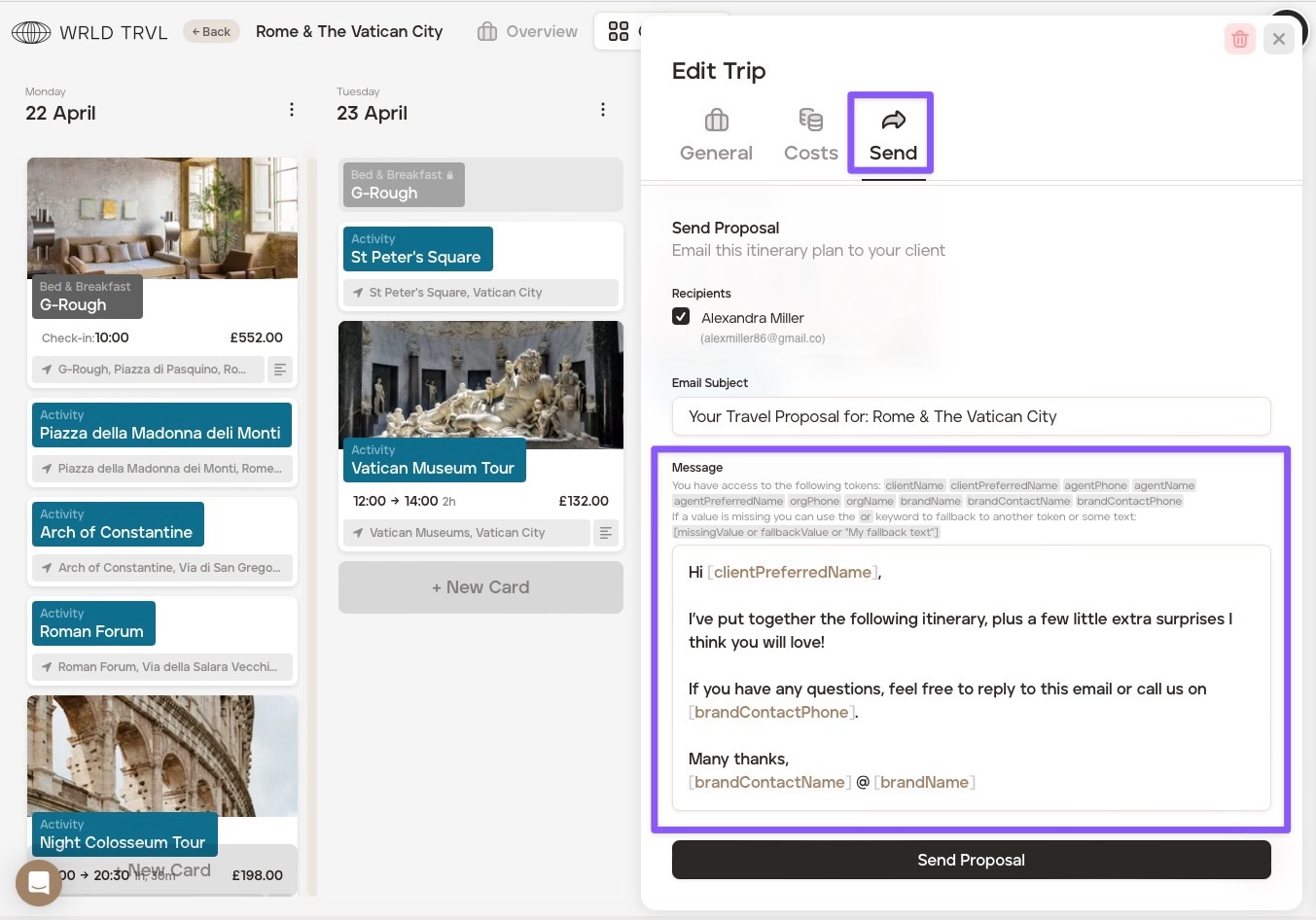
Using the example email above, going forward, when you email a client with a 'business partner branded' proposal the email will contain the applicable business partner brand name, contact and phone number.
If you send proposals from your company and from your business partners, then you can add both agent tokens and brand tokens to the default email, which must be separated by an 'or.' See below:
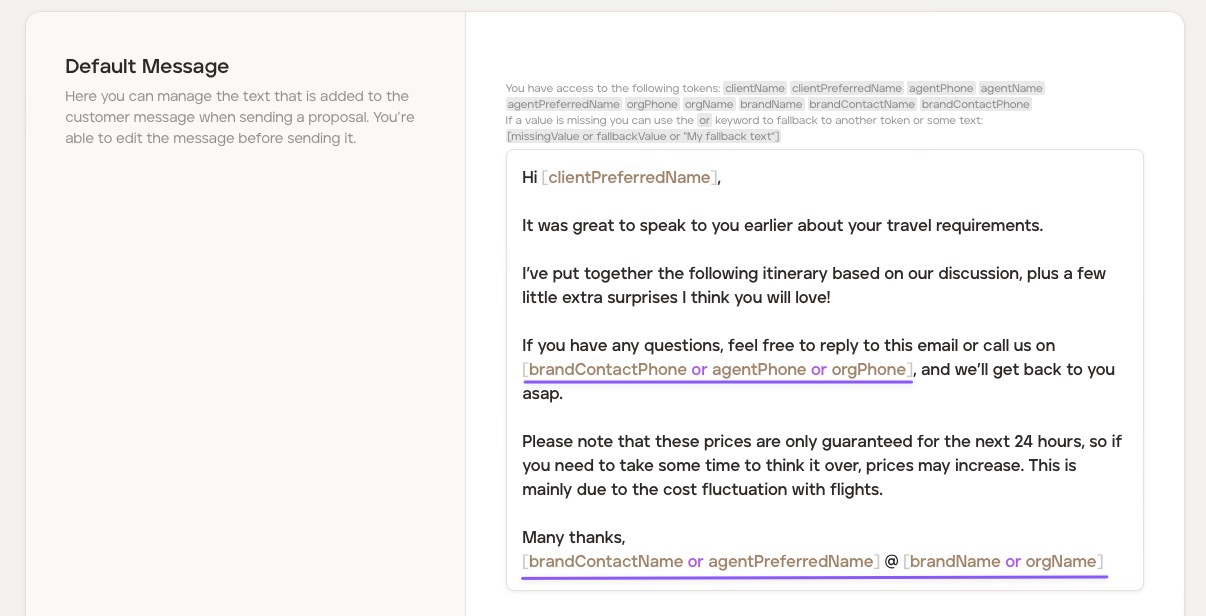
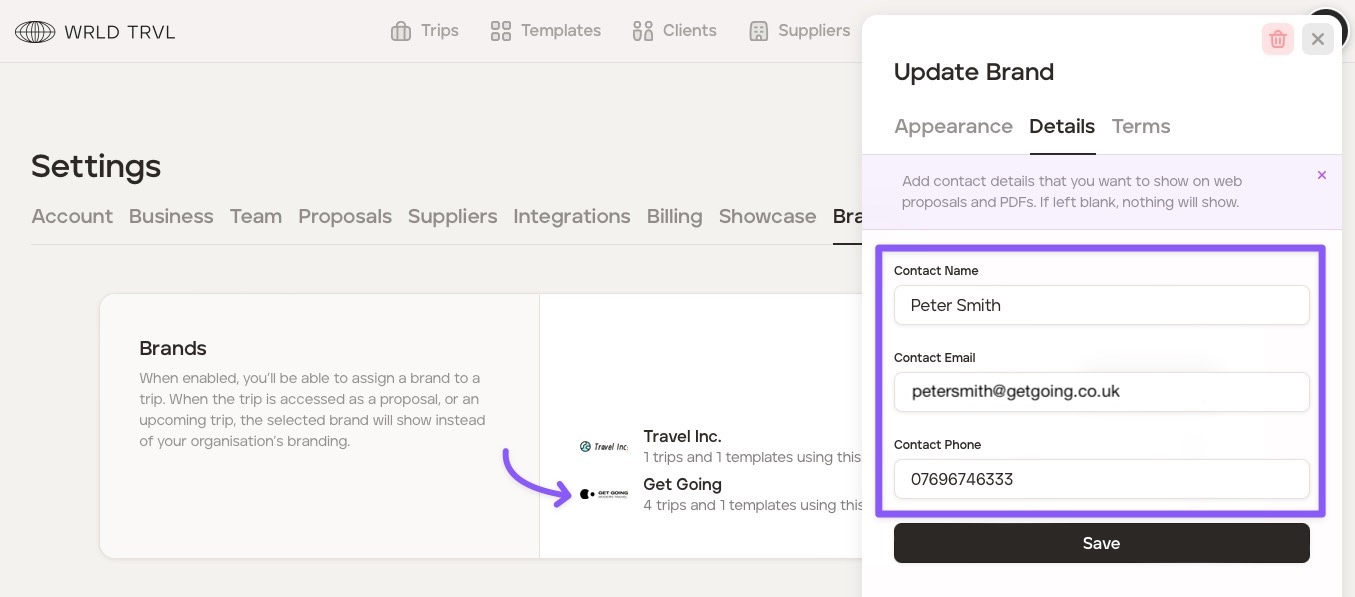
Example: Partner brand called 'Get Going'
Settings:
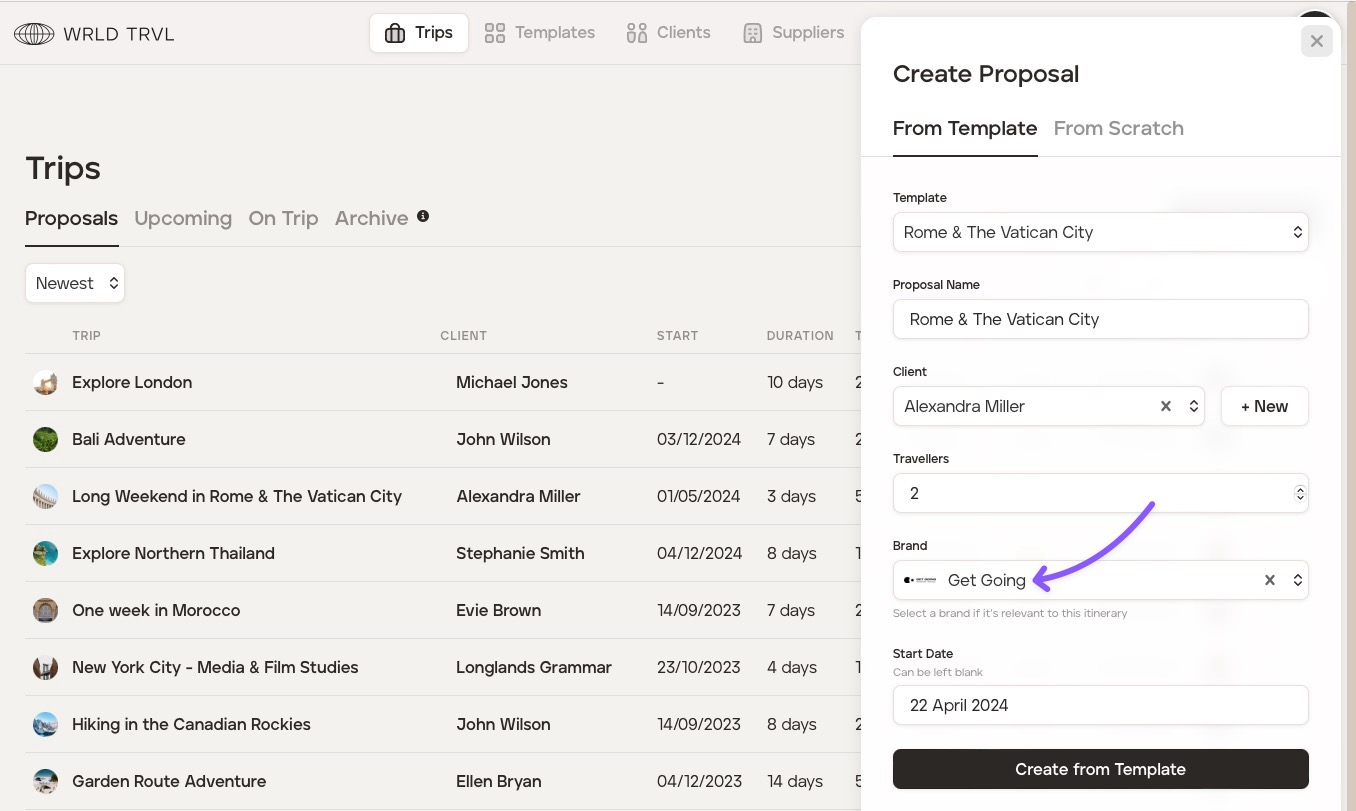
Create a proposal:
Send proposal using default proposal email:
Email received by the client: