

Add a supplier to the supplier database
The Supplier Database is a powerful tool designed to help you stay organised and in control of your business costs. By adding your suppliers (eg. hotel or tour operator) and entering the cost of their products (eg. hotel room or day tour)—along with the margin or markup you'd like to apply when selling to clients—you can:
Organise your suppliers (e.g. hotels, tour operators, or transfer companies).
Easily manage the costs of products or services that suppliers charge your business (e.g. hotel rooms, street food tours, or airport transfers) and monitor your profit margins
Have the ability to show different descriptions of suppliers and supplier products at proposal stage and upcoming trip stage.
Quickly add supplier products or services to itineraries, without the need to duplicate information.
Quickly request updated pricing from suppliers.
Send booking requests to suppliers in just a few clicks.
To add a supplier to the supplier database, follow the steps below:
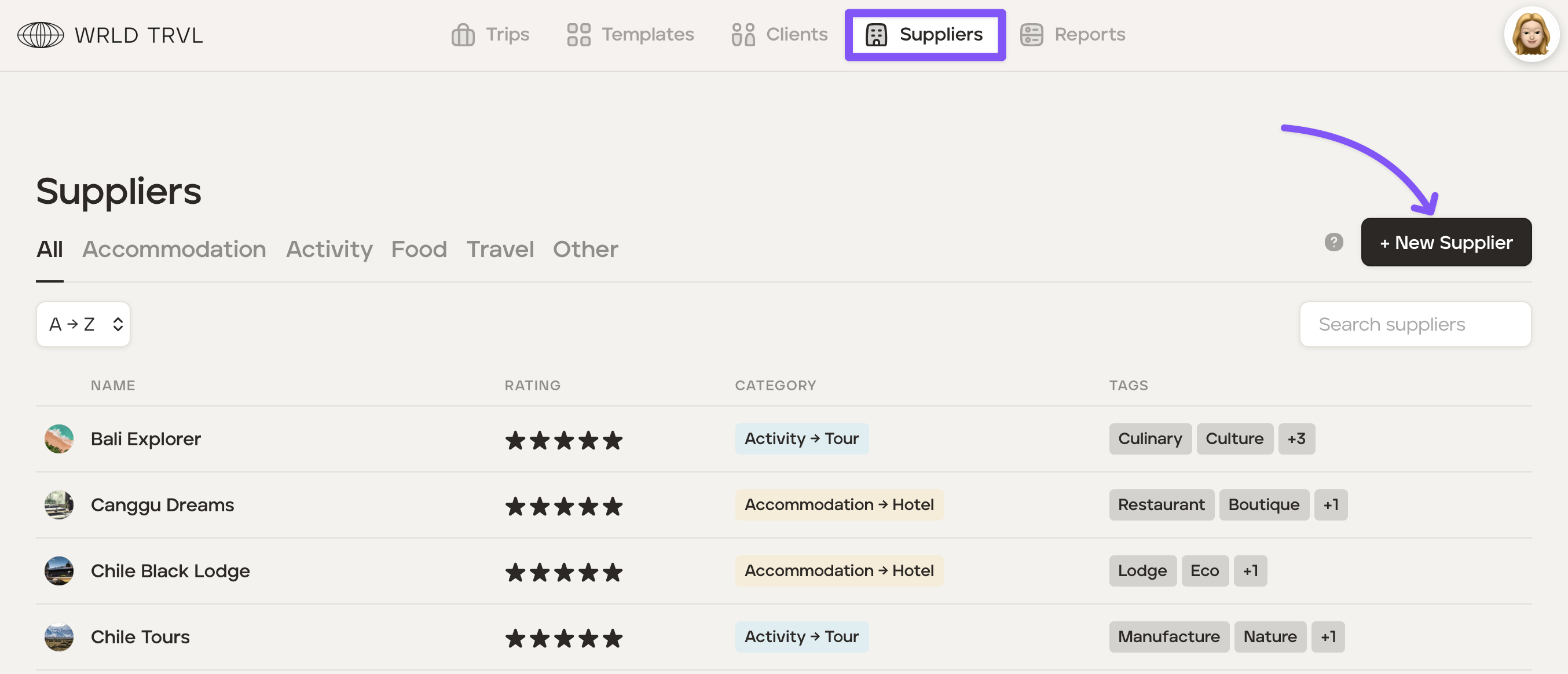
Click the ‘Suppliers’ section at the top of the screen.
Click the ‘+ New Supplier’ button.
Enter the supplier's information:
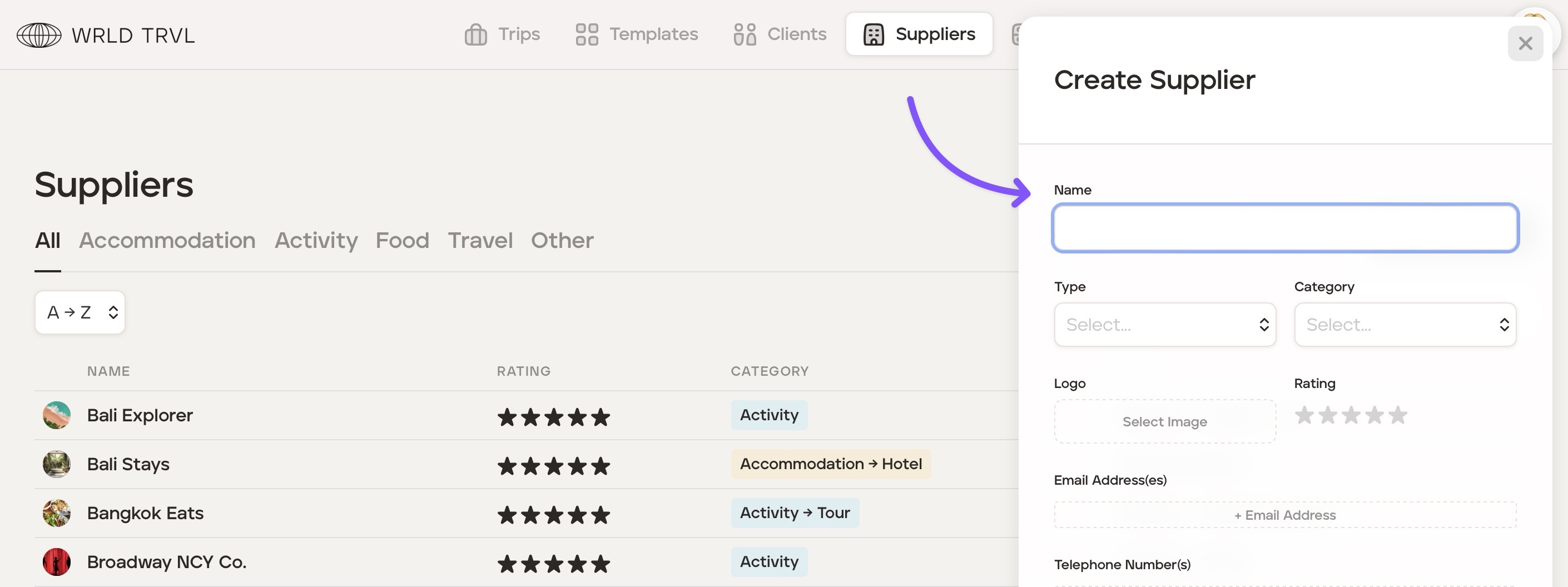
Click the ‘Create Supplier’ button after inputting the information. The supplier will now be added to the supplier database.
Adding supplier descriptions which your clients can view within their itinerary
There may be occasions where you want your client to be able to view a description of a supplier, for example, where the supplier is a hotel, a general description of the hotel. In order to add a supplier description, follow the steps below:
Click the ‘Suppliers’ section at the top of the screen.
Click on the relevant supplier and click the 'Edit' icon (or add a new supplier by following the steps above).
Scroll down to the 'Descriptions' field. There are two tabs, 'Proposals' and 'Upcoming Trip'.
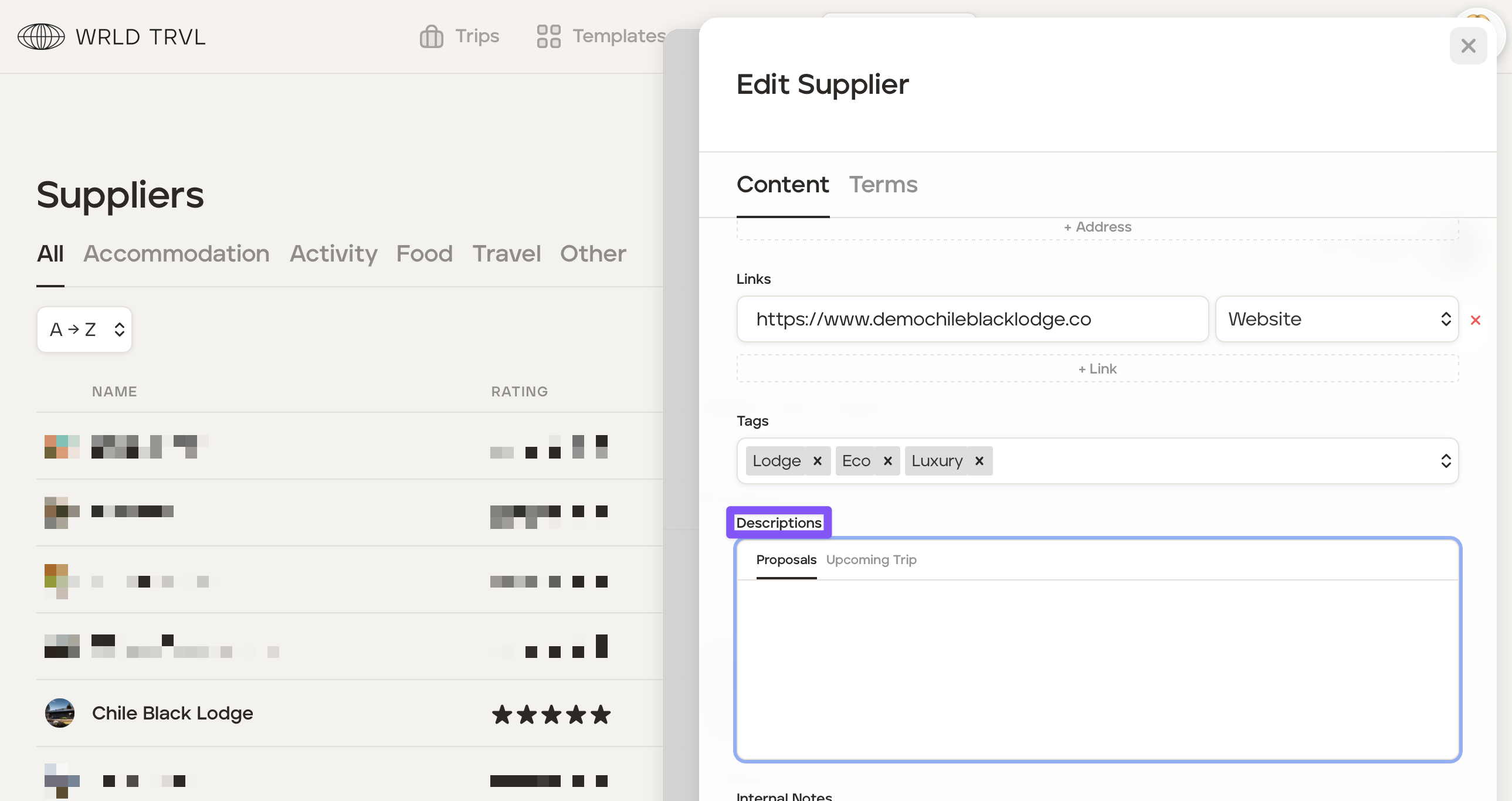
Click the 'Proposals' tab to add a description to be viewed on a proposal itinerary and/or the click the 'Upcoming' tab to add a description to be viewed on an upcoming trip itinerary.
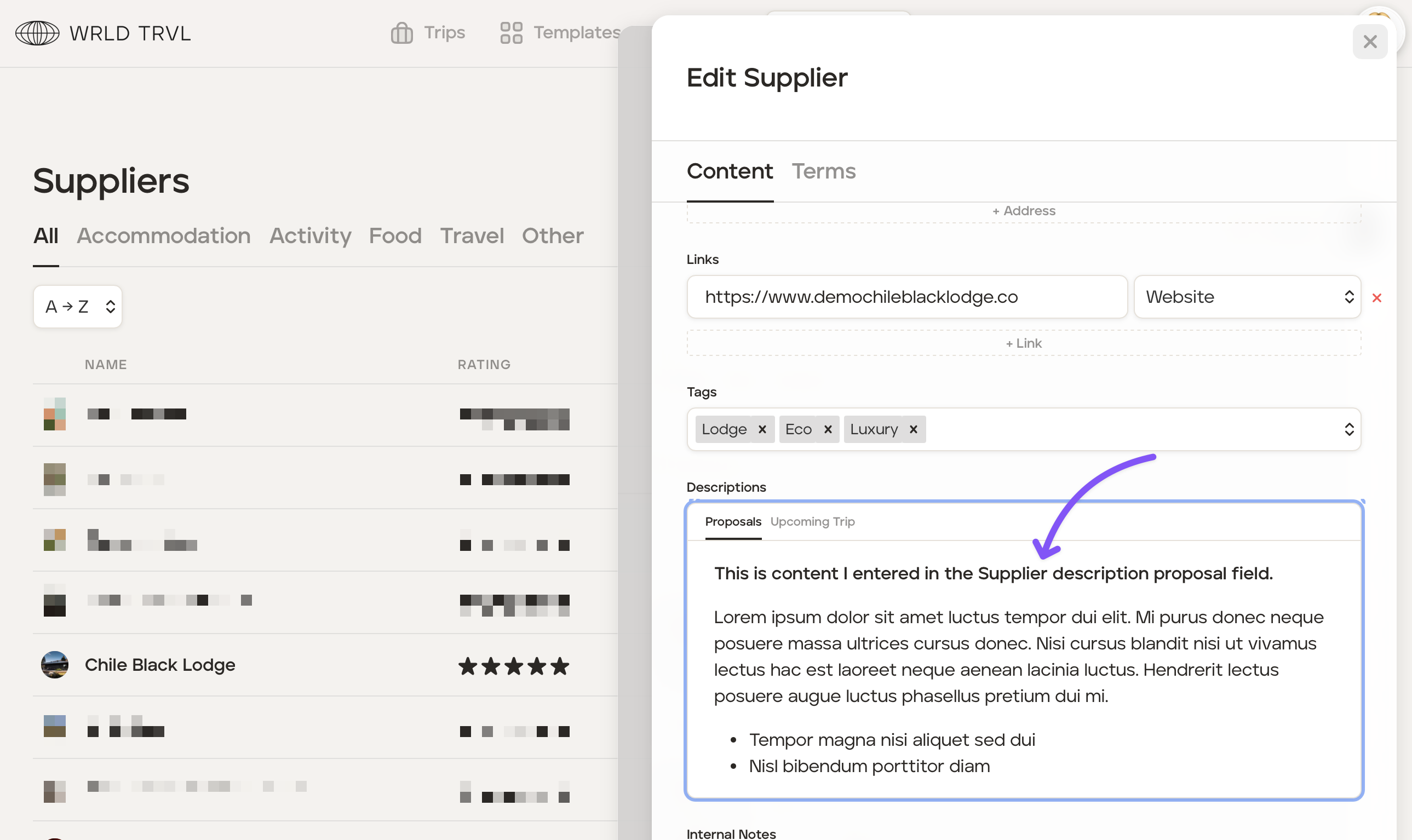
Once the content has been entered, scroll down and click the 'Update Supplier' button to save the updates.
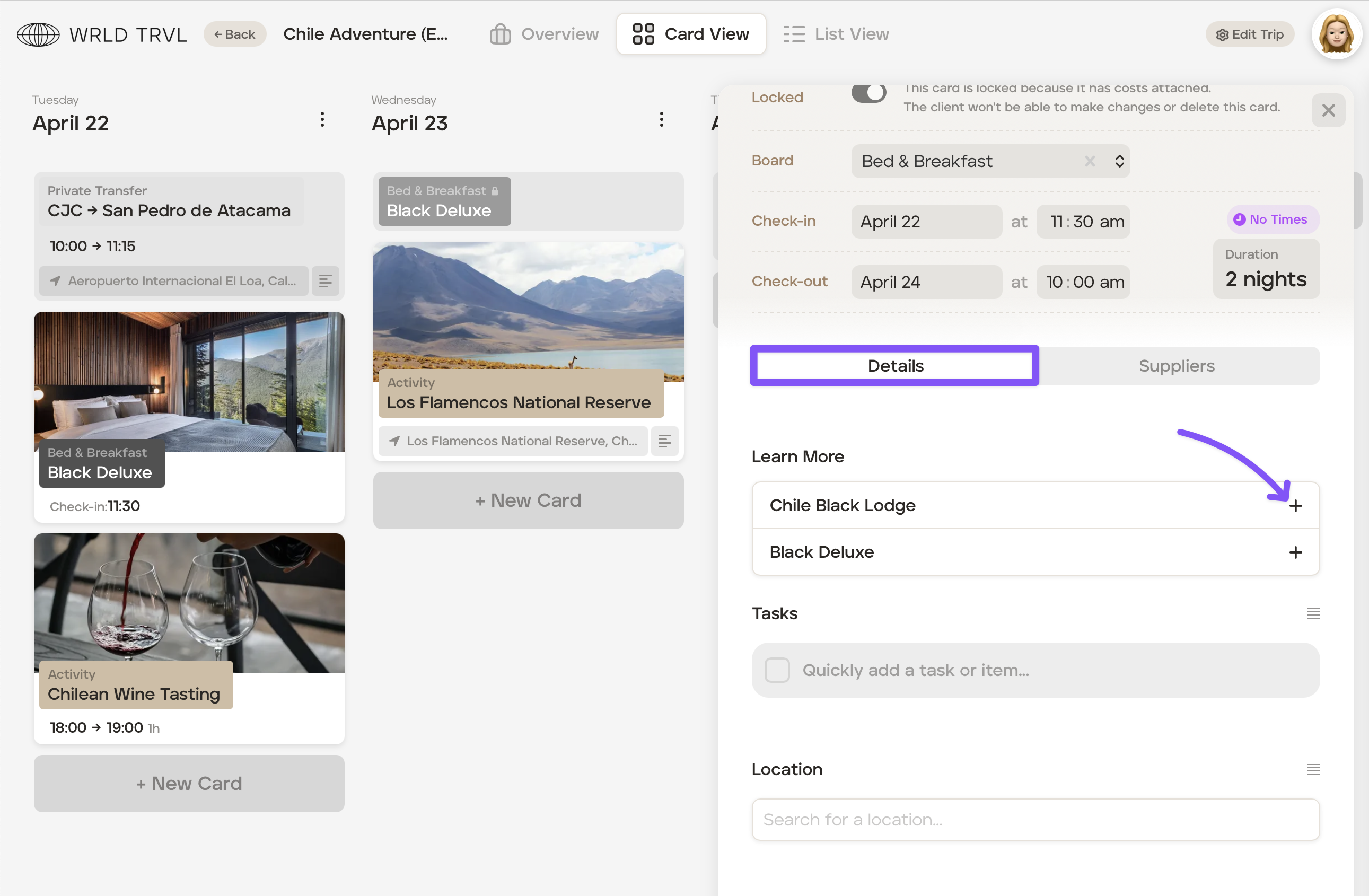
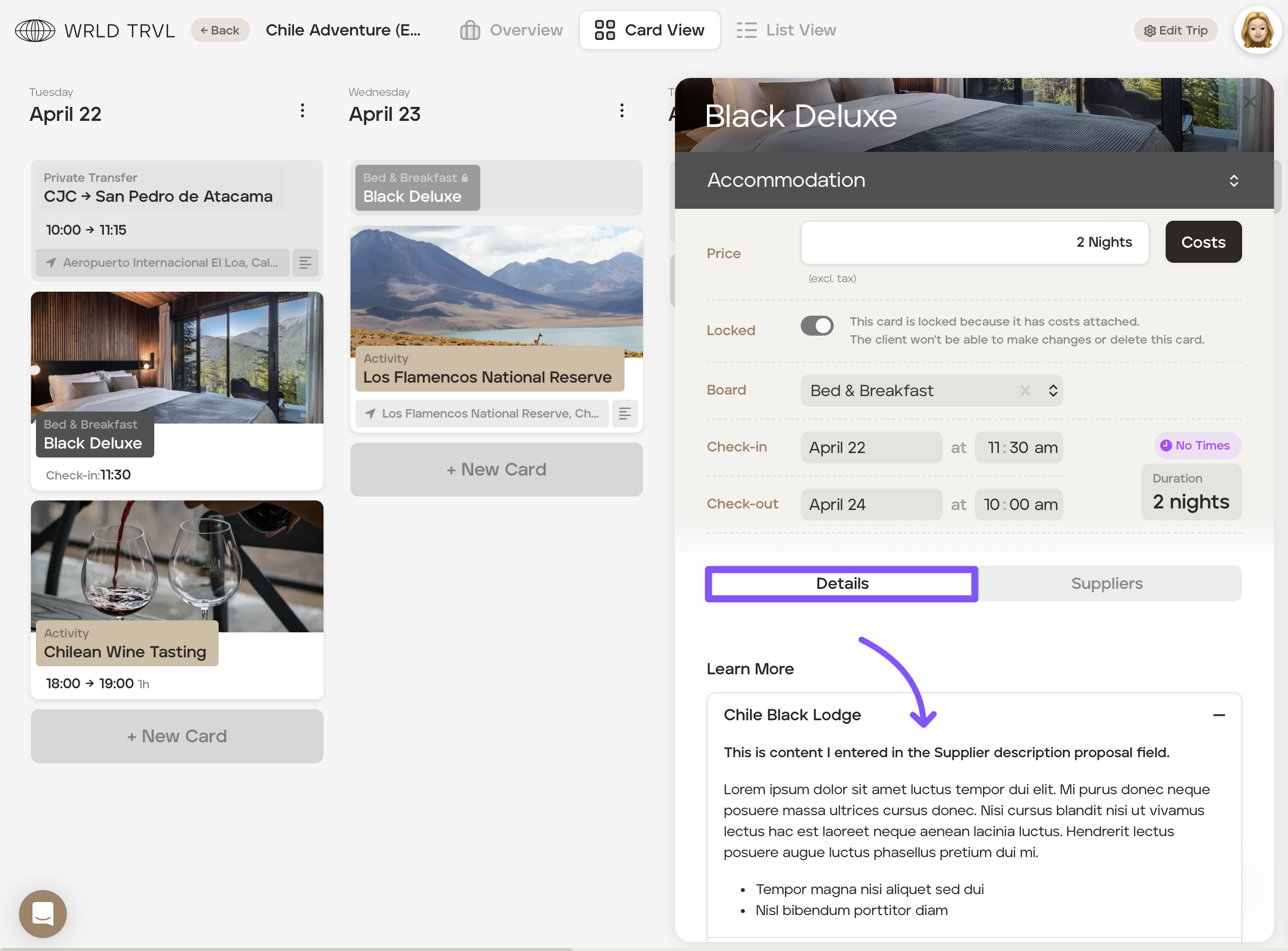
Example showing the above supplier description on a specific proposal:
Click the applicable card and scroll down to the 'Details' tab and click the '+' to view the supplier description:
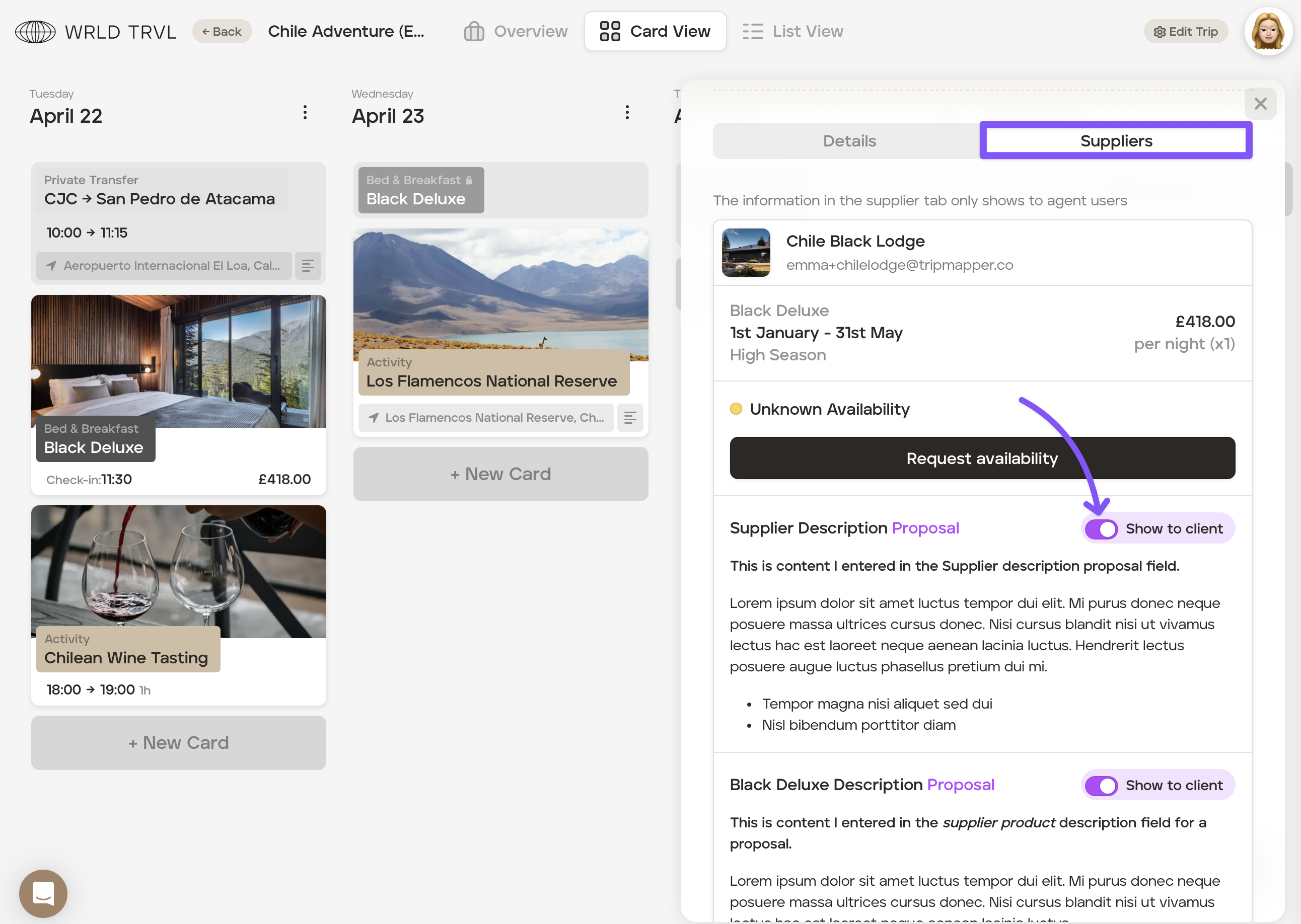
You still have the ability to choose whether or not you want the supplier description you've added to be shown to your client. By default the description entered will be shown to your client, unless you switch it off on the specific proposal itinerary and/or upcoming trip itinerary:
There may be occasions where you want your client to be able to view a description of a supplier product, for example, where the supplier is a hotel, and the supplier product is the hotel room. In order to add a supplier product description, follow the steps in this article.