

Create a Showcase page for your template itineraries
TripMapper Showcase allows you to show off your beautiful itineraries on their own pages or you can embed them into your existing site.
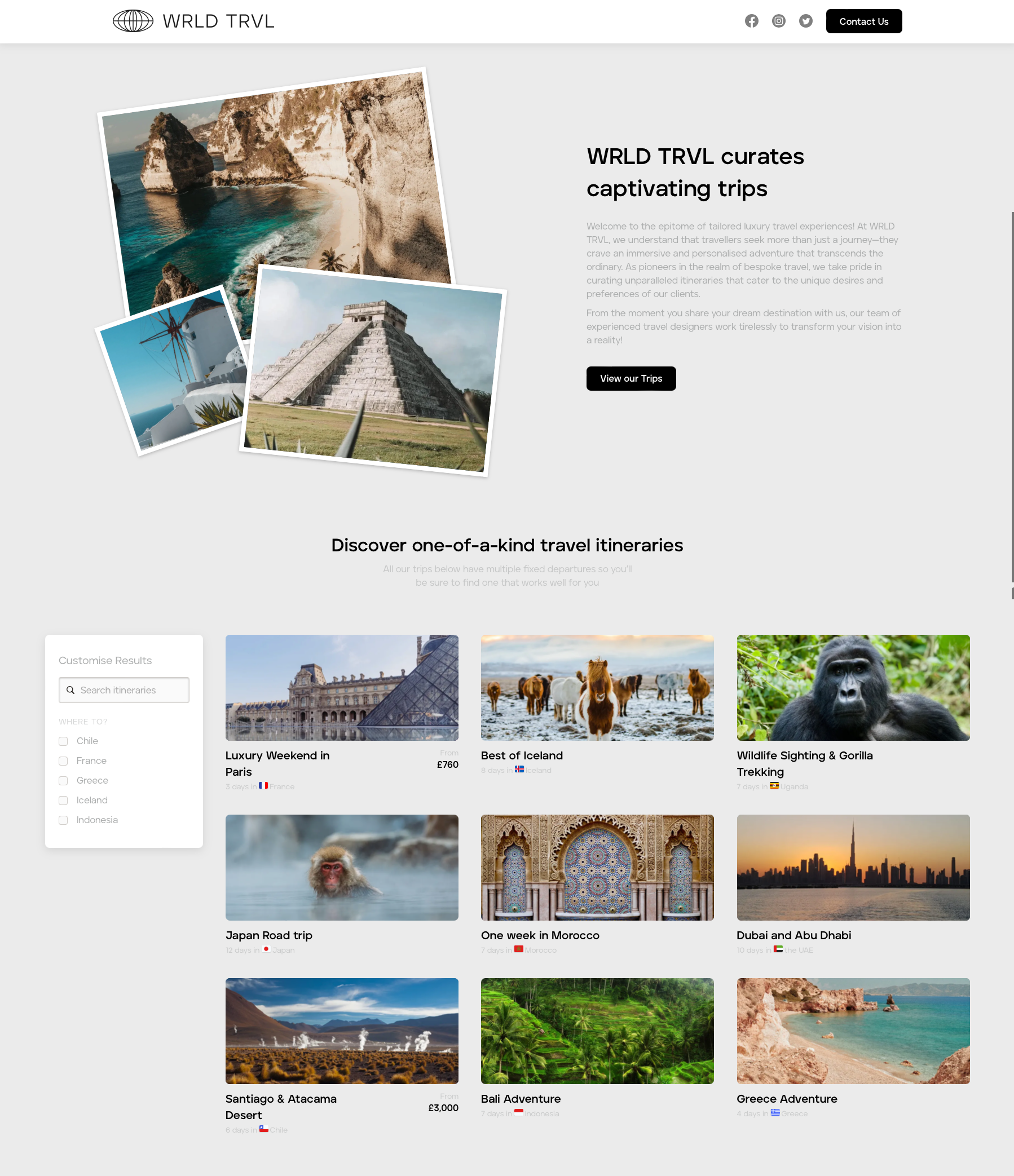
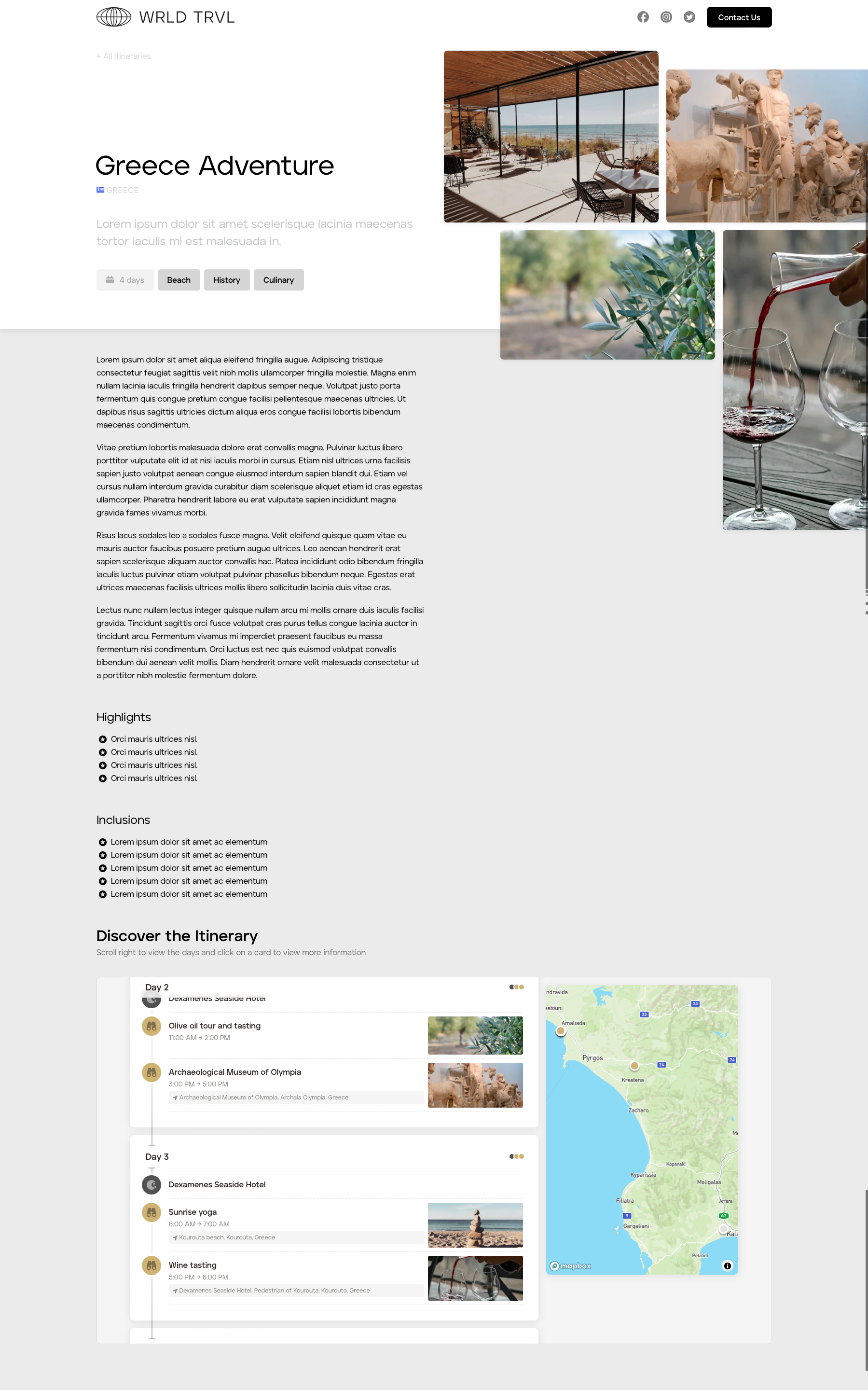
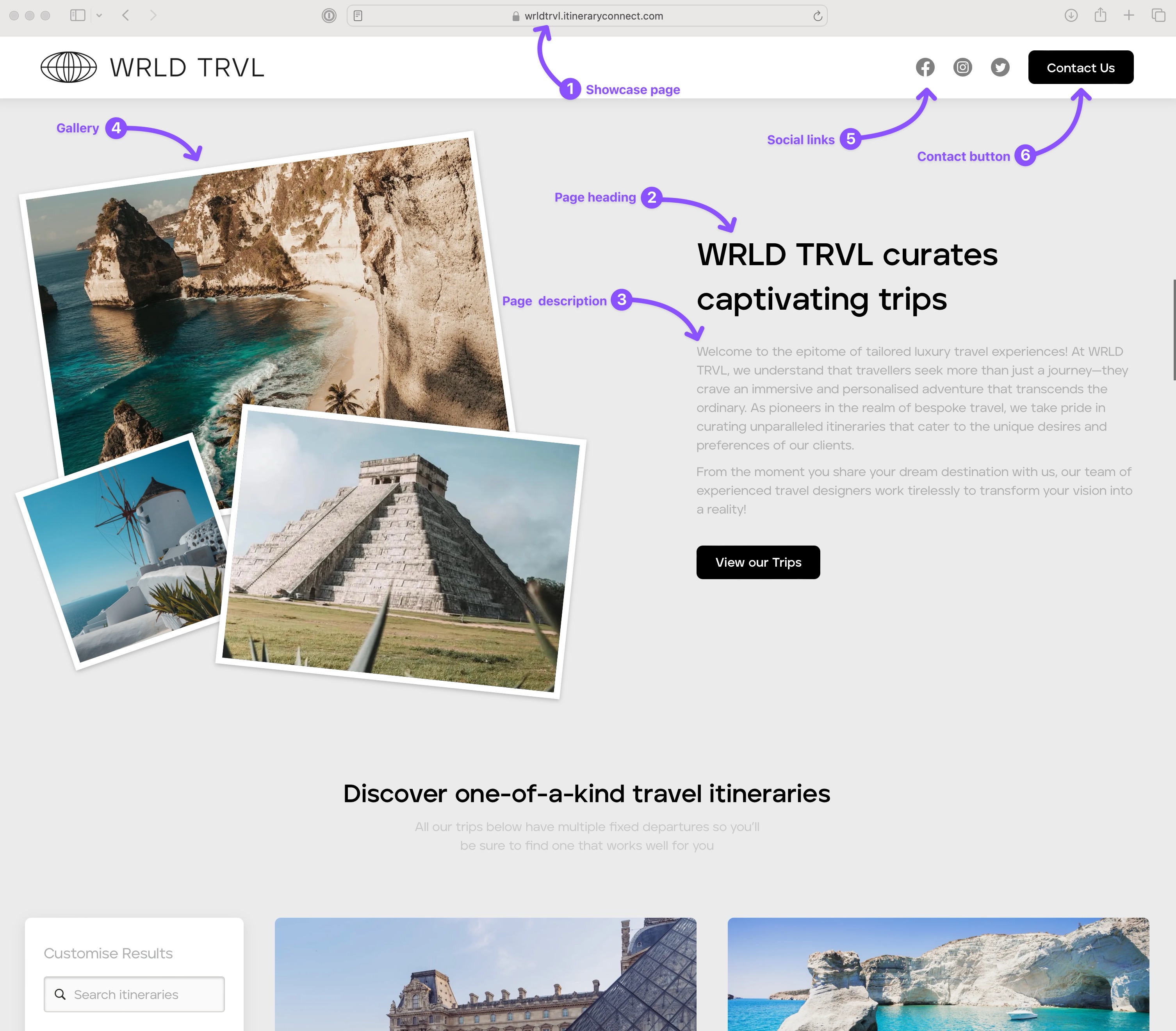
The main Showcase page will be branded with your logo, contain your content, and will include your chosen template itineraries. When a template itinerary is clicked by a potential client browsing your pages, they will be shown the itinerary Showcase page, which is also branded with your logo and contains your content and imagery.
Example main Showcase page:
Example itinerary Showcase page:
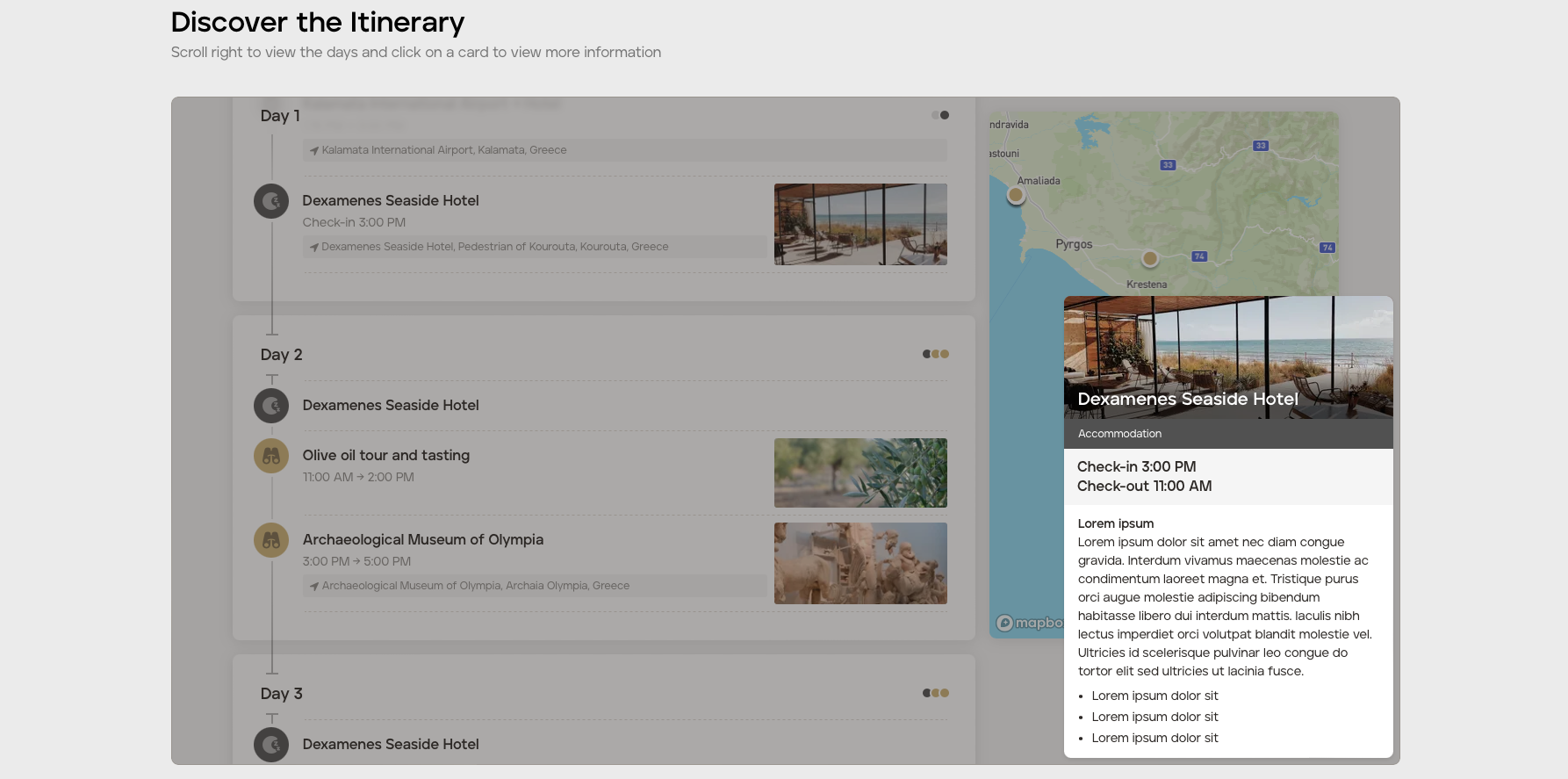
The cards within the embedded itinerary are clickable and show information you added to the template itinerary cards:
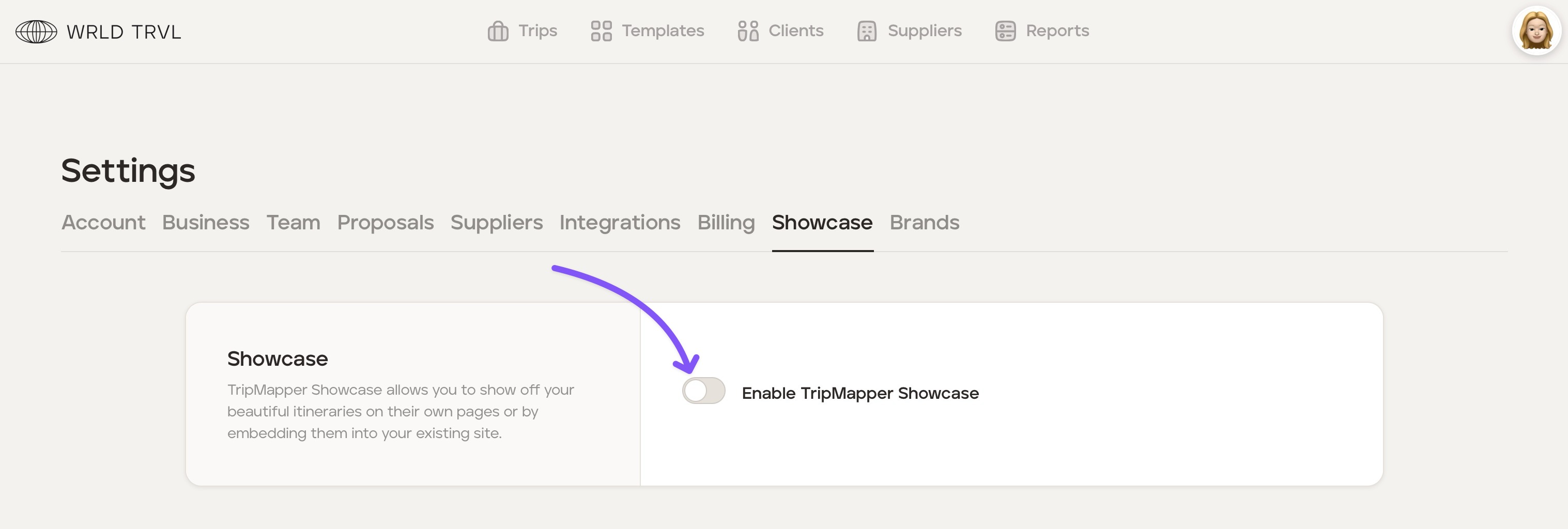
Enable Showcase itineraries on your account:
To set up Showcase on your account, follow the steps below:
Click your avatar in the top right of your screen and then click ‘Settings.’
Click the ‘Showcase’ tab.
Click the 'Showcase' section.
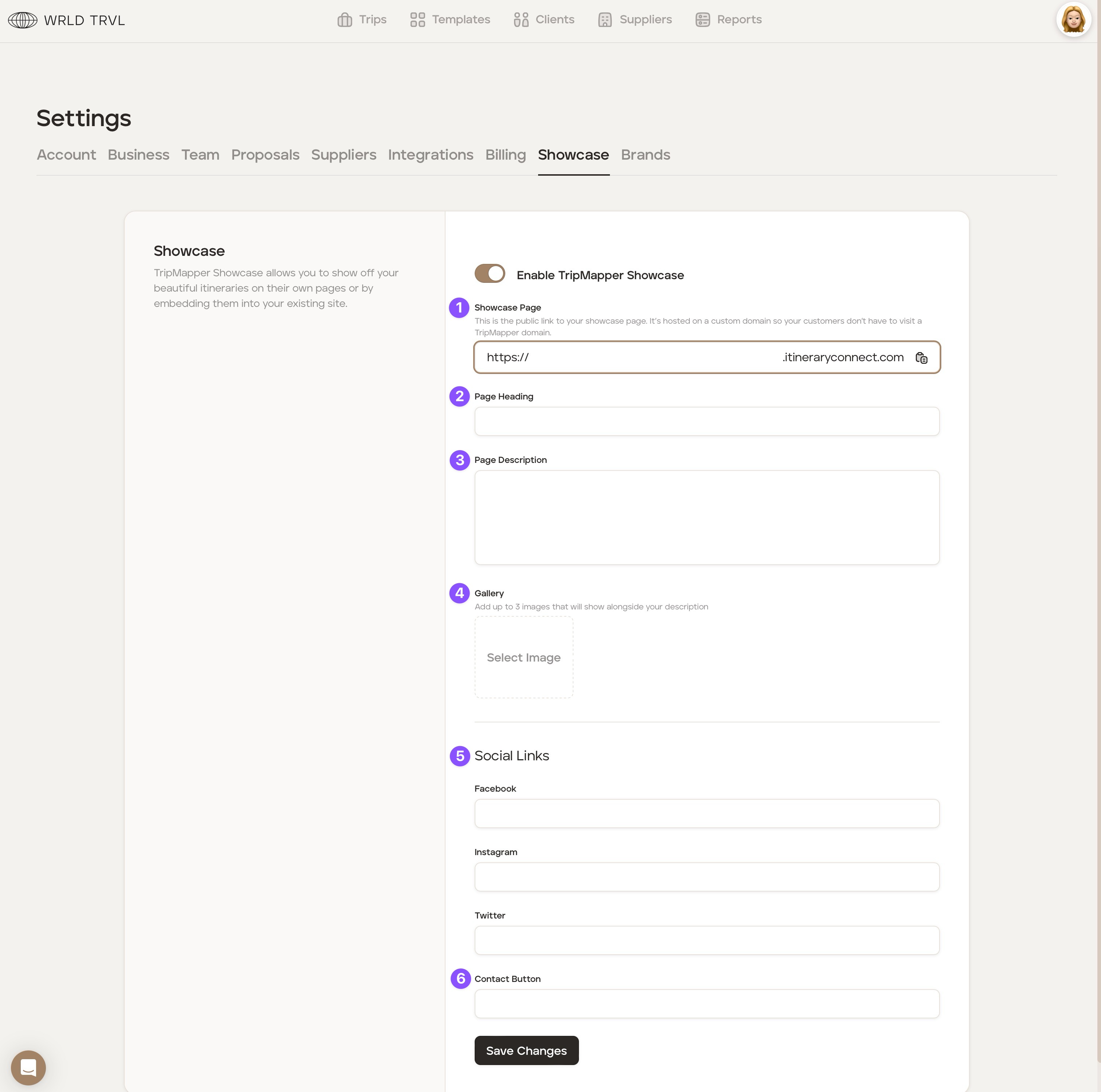
Enable TripMapper Showcase using the switch.
Fill in the following fields:
In the 'Showcase Page', add your company name after the "https://" to create a public link that will contain your company name.
In the 'Page Heading', add your Showcase page header.
In the 'Page Description', add a few paragraphs to sell your services!
In the 'Gallery' section, add 3 beautiful images, which will be shown at the top of your Showcase page.
In the 'Social Links' section, add your social media links.
In the 'Contact Button' field, add your relevant contact link.
Where the fields are located on the public-facing Showcase page:
Check out the 'Add template itineraries to your Showcase' article to add template articles to your public-facing Showcase pages.