

Invite your client into the ‘Upcoming' itinerary so they can view it on the TripMapper web and mobile app
After the client has approved the proposal and you’ve perfected their final itinerary, you can invite them to have ‘viewer’ or ‘editor’ access to the final itinerary on TripMapper’s top-rated mobile app (iOS & Android)📱 and web app 🖥️.
To invite your clients to view the final itinerary on TripMapper’s apps follow the steps below:
Go into ‘Trips’ → ‘Upcoming’.
Select the itinerary.
Click ‘Edit Trip’ in the top right corner of the screen.
Click the ‘Invite’ tab.
You can decide to invite your clients to have ‘viewer’ or ‘editor’ access:
‘Viewer’ access - Viewer users can only view what you’ve added and can’t add any cards of their own.
‘Editor’ access - Editors are able to add their own cards plus edit any cards you have added that you have ‘unlocked’. Please note, for client privacy purposes, if your clients make any amendments to your ‘unlocked’ cards, those cards will only be visible by the client. You will also not be able to see any cards your client has added to the itinerary.
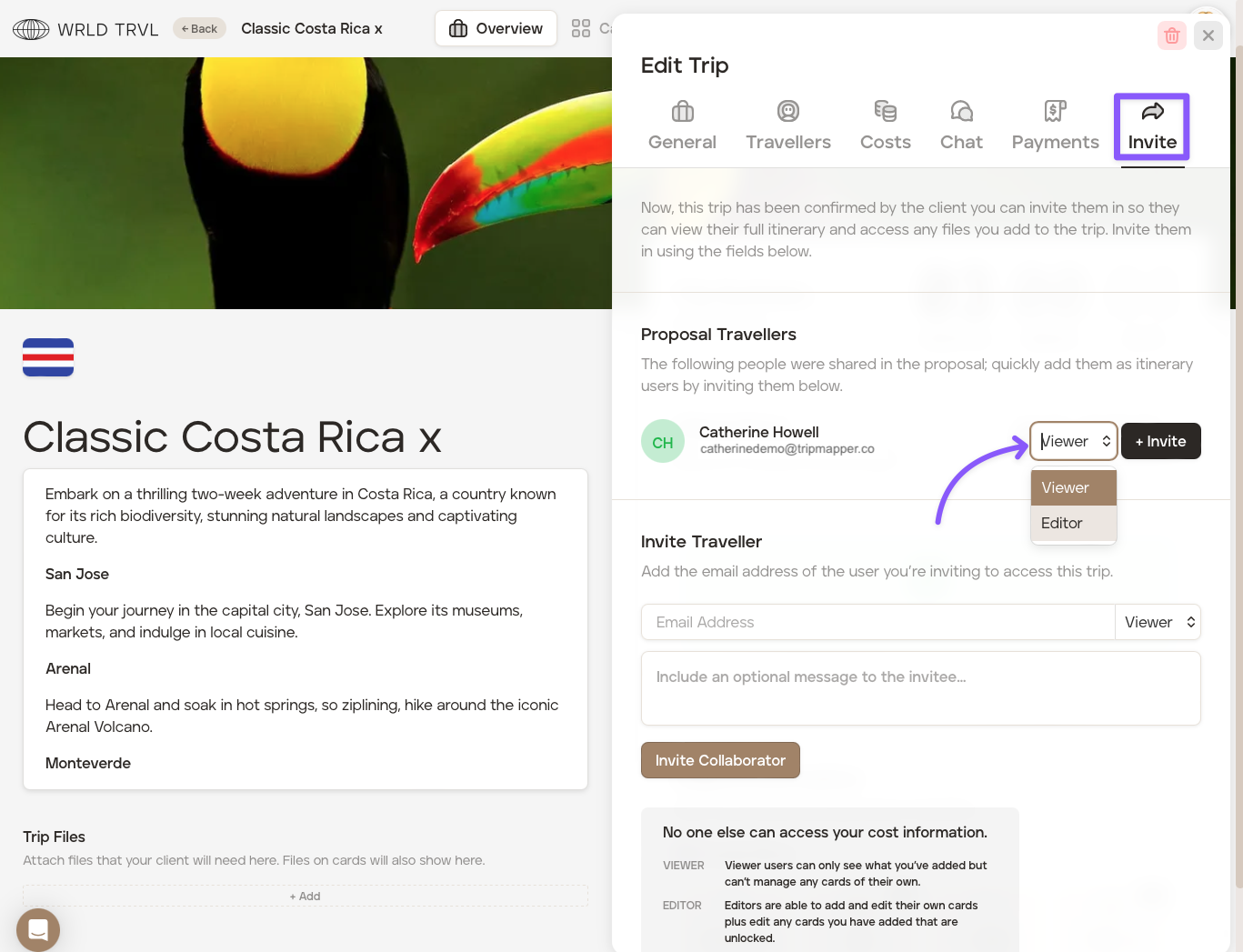
Click the '+Invite' button.
If you wish, you can include a tailored message in the text box which pops up, if you do not wish to add a tailored message, just click the 'Send Invite' button. If you do decide to incorporate your own text we recommend keeping this short.
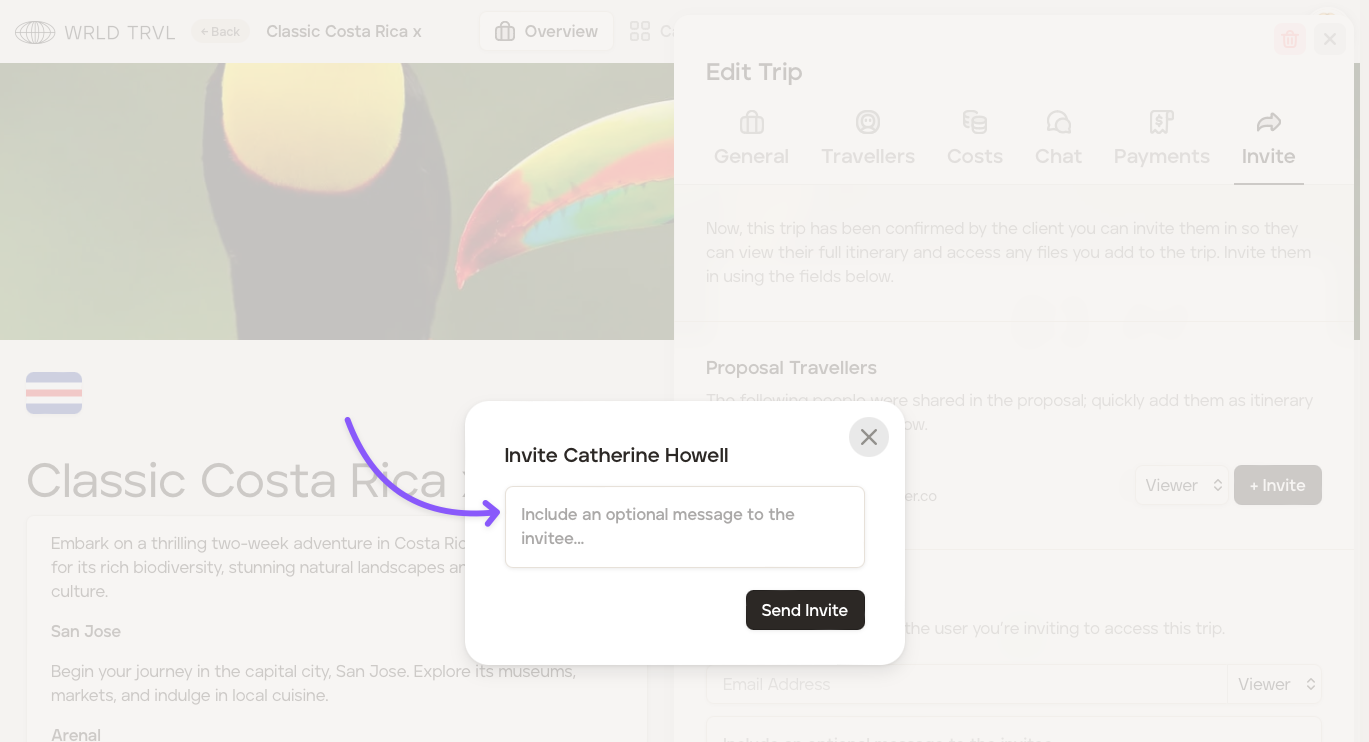
Your client will receive an email which invites them to view their itinerary on the TripMapper mobile and web apps 🖥️📱. The email will also provide the client with directions on downloading the app. If you added a tailored message, this too will be incorporated in the email.